

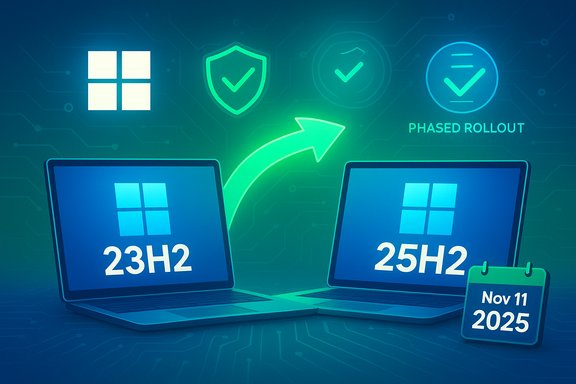
Microsoft has begun automatically moving many consumer PCs running Windows 11 version 23H2 (Home and Pro) to the latest Windows 11 25H2 feature update after 23H2 reached end of consumer servicing on November 11, 2025 — a change that restores security updates for affected machines but reduces the long-term ability for uninformed users to remain on older builds indefinitely.
Microsoft’s servicing model for Windows 11 ties security and quality updates to specific feature-release versions and editions. Consumer SKUs (Home and Pro) typically get a fixed servicing window (commonly 24 months) while Enterprise and Education editions often receive extended support. On November 11, 2025 Microsoft marked the consumer end-of-servicing date for Windows 11 23H2 (Home and Pro), and its release-health pages now state that unmanaged Home/Pro devices running 23H2 will be offered — and in many cases automatically receive — the 25H2 update to restore eligibility for monthly security updates. The technical delivery model matters: for devices already on Windows 11 24H2 Microsoft distributes 25H2 primarily as a small enablement package (eKB) that flips features already present in cumulative updates and typically requires a single restart. For devices still on 23H2 the transition is a conventional feature upgrade and can be larger and more involved. Microsoft is using telemetry, compatibility checks, and staged rollout “safeguard holds” to reduce the chance of problematic installs, but when a consumer build reaches end-of-servicing the system moves from being a recommended offer toward an automatic remediation for unmanaged consumer devices.
However, this approach worsens the tension between centralized security stewardship and individual control. Automatic delivery can surprise users who deliberately delay upgrades until third-party apps or drivers catch up; it also compresses the remediation window for users with older hardware or niche dependencies. The decision to enforce hardware requirements more strictly (instruction-set checks) transfers cost to households and small businesses that are still operating older PCs. Those costs are real and often amplified in geographically or economically constrained settings.
Operationally, the biggest risk for Microsoft and for admins is regression fallout: an unexpected bug in a widely distributed update (or in a cumulative update prerequisite) can create churn across support channels and require emergency hotfixes. The October/November 2025 patch cycles provided examples where out-of-band fixes were necessary to resolve high-impact regressions, illustrating that automatic distribution must be balanced by rapid response capability and clear communication.
Concluding: the automatic migration secures many machines quickly, but it raises important questions about user control, hardware longevity, and the support burden for niche environments. Prepare, back up, and test — and treat November 11, 2025 as a hard deadline for consumer 23H2 devices to rejoin the supported Windows ecosystem.
Source: heise online Microsoft automatically updates Windows 11 23H2 to 25H2
 Background / Overview
Microsoft’s servicing model for Windows 11 ties security and quality updates to specific feature-release versions and editions. Consumer SKUs (Home and Pro) typically get a fixed servicing window (commonly 24 months) while Enterprise and Education editions often receive extended support. On November 11, 2025 Microsoft marked the consumer end-of-servicing date for Windows 11 23H2 (Home and Pro), and its release-health pages now state that unmanaged Home/Pro devices running 23H2 will be offered — and in many cases automatically receive — the 25H2 update to restore eligibility for monthly security updates. The technical delivery model matters: for devices already on Windows 11 24H2 Microsoft distributes 25H2 primarily as a small enablement package (eKB) that flips features already present in cumulative updates and typically requires a single restart. For devices still on 23H2 the transition is a conventional feature upgrade and can be larger and more involved. Microsoft is using telemetry, compatibility checks, and staged rollout “safeguard holds” to reduce the chance of problematic installs, but when a consumer build reaches end-of-servicing the system moves from being a recommended offer toward an automatic remediation for unmanaged consumer devices. What Microsoft actually announced — the facts you need to know
- End of servicing (consumer): Windows 11 23H2 Home and Pro reached end of servicing on November 11, 2025. After that date those consumer SKUs no longer receive monthly security or preview updates.
- Automatic distribution: Microsoft’s Release Health guidance states that devices running Home and Pro editions of Windows 11 23H2 that are not managed by IT will receive the Windows 11 25H2 update automatically; users will be able to choose restart timing or briefly postpone the installation.
- 24H2 → 25H2 path: Devices on 24H2 are prioritized for the enablement package and will see a fast install (small download + reboot) when prerequisites are present and no safeguard hold applies. The “Get the latest updates as soon as they’re available” toggle will prioritize devices for the phased rollout.
- Enterprise/Education exception: Enterprise and Education editions of 23H2 remain supported longer (through November 10, 2026 in this servicing wave) and are not part of the consumer automatic-migration enforcement. Managed devices under Group Policy, Intune, WSUS or other MDM/enterprise controls follow administrator policies rather than consumer automatic rollouts.
Why Microsoft is doing this — lifecycle and security rationale
Microsoft’s stated reasoning is pragmatic and security-forward:- Restore protection: Once a consumer feature release stops receiving monthly security updates, devices on that release are exposed to newly discovered vulnerabilities. Moving those devices to a supported release restores eligibility for monthly security updates and quality fixes.
- Reduce fragmentation: Fewer actively supported branches simplifies testing and engineering and reduces the fraction of devices Microsoft must protect for each new vulnerability.
- Lower ecosystem risk: By moving a large base of consumer devices to a supported branch, the overall exposure to unpatched systems decreases, making large-scale exploitation less attractive.
What’s different about 25H2 (and why the change matters)
25H2 (the Windows 11 2025 Update) is primarily a servicing/lifecycle milestone rather than an explosive feature release. For most users the benefits are:- Servicing reset: Home/Pro devices that move to 25H2 start a new servicing window (typically 24 months), ensuring continued monthly security updates.
- Small install for 24H2 devices: If your PC is already on 24H2 and fully patched, 25H2 installs as an enablement package that is fast and low-friction.
- Incremental features and polish: UI refinements, platform tweaks, and security hardenings — most consumer-facing changes are evolutionary rather than revolutionary.
What users will see (practical behaviour of Windows Update)
- If your device is on Windows 11 23H2 Home or Pro and is not managed by an enterprise policy, Windows Update may now automatically download and install the feature update to 25H2, scheduling a restart (you can pick the restart time or pause updates briefly).
- If your device is on 24H2 and you have Get the latest updates as soon as they’re available turned on, you’ll be prioritized for the small enablement-package path to 25H2. If you’re on 24H2 but don’t have that toggle enabled, the rollout may still expand later as Microsoft widens distribution windows.
- Windows 10 devices are not being forcibly upgraded to Windows 11 by this mechanism — the Windows 11 upgrade remains an opt-in process for Windows 10 users.
Risks, trade-offs and notable caveats
Strengths / positives
- Security-first: Restores monthly protective updates for consumer devices that would otherwise be unsupported.
- Low friction for many: The eKB model keeps downtime and bandwidth requirements small for modern, patched devices.
- Predictable lifecycle: Clear end-of-servicing dates let consumers and admins plan upgrades and replacements.
Risks / negatives
- Loss of indefinite opt-out: Unmanaged users who intentionally delay feature updates now face limited long-term deferral; the update becomes effectively mandatory once a consumer build is off-service.
- Compatibility and regressions: Automatic rollouts have historically produced a subset of installs with compatibility issues (driver or firmware problems, or rare regressions), and emergency out-of-band fixes are sometimes required. This is why Microsoft uses safeguard holds and phased telemetry-driven rollouts.
- Hardware cliff for legacy machines: Older CPUs lacking required instruction sets (POPCNT, SSE4.2) will be blocked — outcomes are replacement, running unsupported OS, or isolating the device. These are costly options for some users.
- Limited rollback window: The built-in “Go back” option in Settings typically works only within a short window (commonly 10 days) after a feature update; after that you may need a full image restore or clean install to revert. This short rollback period raises the stakes for backups before feature upgrades.
Unverifiable or evolving claims (flagged)
- Public visibility into Microsoft’s telemetry thresholds and precise safeguard triggers is limited. Claims about how many devices are blocked by specific telemetry rules or the internal ML mechanisms used by Microsoft are inherently hard to verify from the outside; treat detailed figures as provisional unless Microsoft publishes them.
How to prepare — a checklist for both home users and IT admins
Short checklist (do these now if your PC is on 23H2 Home/Pro):- Back up critical data — at minimum, an external image or robust file backup (OneDrive, backup software, or a system image).
- Verify current version: run winver or go to Settings > System > About to confirm edition and feature-update version.
- Update drivers and firmware: install vendor chipset, storage, and GPU drivers and ensure that UEFI/firmware are up to date.
- Check Windows Update settings: understand whether the device is managed (Group Policy / Intune) or not.
- If you need more control, configure deferrals or use enterprise update tools (see next section).
- Create a full system image (disk image) before permitting a feature update — this provides the safest revert path short of a built-in rollback within 10 days.
- If you depend on niche hardware or legacy applications (for example, Windows Mixed Reality, specialized VPN clients, printer drivers, or EDR agents), test upgrades on an identical machine or in a VM before allowing the update on critical systems. Community reports show that some scenarios have required driver updates or vendor patches.
How to delay or block the automatic upgrade (consumer & Pro options)
For unmanaged Home/Pro PCs there is limited but meaningful control you can use to delay installation:- Settings → Windows Update → Pause updates: Pauses quality updates for a short period. Windows allows pausing feature updates for up to 35 days via policy actions; the Settings UI offers brief pauses for consumers. For long-term control on Pro/Enterprise, use Group Policy or MDM.
- Turn off “Get the latest updates as soon as they’re available”: This toggle prioritizes early access; disabling it reduces chances of being pushed early in phased rollouts. However, once Microsoft widens the rollout or the device’s installed release is off-service, the update may still be offered automatically.
- Metered connection: Setting your Wi‑Fi as metered can delay automatic feature downloads on some devices, though it’s not a guaranteed block for feature updates.
- Group Policy (Pro): Computer Configuration → Administrative Templates → Windows Components → Windows Update → Windows Update for Business — use “Select when feature updates are received” and defer Feature Updates up to 365 days for devices on the General Availability Channel. Use PauseFeatureUpdatesStartTime to set a pause start date if needed.
- Windows Update for Business / Intune / WSUS: Managed enterprises should use these tools to define rings and block or stage updates; devices controlled by enterprise policies will not be forcibly upgraded by the consumer automatic mechanism.
How to roll back if 25H2 causes problems
- The “Go back” option: Settings → System → Recovery → Go back allows reverting to the previous version if you act within the limited window (commonly 10 days) and the Windows.old folder still exists. Save passwords and take screenshots because user accounts or settings added after the upgrade can affect the rollback process.
- If the Go back option is gone: You will need a system image restore or perform a clean install using ISO/Media Creation Tool. That’s why creating a full disk image before a feature update is the safest insurance.
- For enterprises: maintain system images and update deployment plans with recovery media and automated rollback strategies in your imaging toolset.
Recommended action plan for different user types
For typical home users
- If your PC is on 24H2 and up to date: let the enablement package run when offered; it’s usually fast and uneventful.
- If your PC is on 23H2 Home/Pro: back up immediately, update firmware/drivers, then allow the automatic upgrade or proactively upgrade via Settings > Windows Update to avoid being forced into a last-minute update with no time for checks.
- If you rely on legacy hardware or niche apps: test on a spare machine or postpone while ensuring backups and having a restore plan.
For power users and enthusiasts
- Keep system images before any feature update.
- If you want to delay, use Group Policy on Pro or a local registry/MDM policy, but monitor the lifecycle date: once consumer servicing for your installed build ends, Microsoft’s pipeline may still enforce the upgrade pathway for unmanaged devices.
For IT administrators
- Treat 25H2 as a servicing milestone — pilot early, validate imaging and endpoint protection, and use phased rings in Intune/WSUS/ConfigMgr.
- Use safeguard holds and telemetry to triage hardware and driver gaps.
- Document rollback and recovery plans and communicate maintenance windows with helpdesk and end users.
Critical analysis — strengths, operational risks, and the policy trade-off
Microsoft’s automatic migration of consumer Home/Pro devices from unsupported builds to a supported release carries a strong security logic: fewer unsupported endpoints means fewer unpatched victims in the malware landscape. The enablement-package model is technically savvy — it minimizes disruption for the majority of devices and reduces bandwidth and downtime pressure across Microsoft’s distribution systems.However, this approach worsens the tension between centralized security stewardship and individual control. Automatic delivery can surprise users who deliberately delay upgrades until third-party apps or drivers catch up; it also compresses the remediation window for users with older hardware or niche dependencies. The decision to enforce hardware requirements more strictly (instruction-set checks) transfers cost to households and small businesses that are still operating older PCs. Those costs are real and often amplified in geographically or economically constrained settings.
Operationally, the biggest risk for Microsoft and for admins is regression fallout: an unexpected bug in a widely distributed update (or in a cumulative update prerequisite) can create churn across support channels and require emergency hotfixes. The October/November 2025 patch cycles provided examples where out-of-band fixes were necessary to resolve high-impact regressions, illustrating that automatic distribution must be balanced by rapid response capability and clear communication.
Final recommendations — actionable and practical
- Back up before any feature update. A full disk image is the best insurance.
- Keep firmware and drivers current; vendors are frequently releasing compatibility patches during major Windows rollouts.
- If you are on 24H2 and fully patched, expect a fast, low-risk migration to 25H2.
- If you are on 23H2 Home/Pro, plan for an upgrade window soon — the automatic migration is now an operational reality.
- For admins: pilot early, use phased rings, and treat the migration as a servicing cycle rather than a surprise emergency.
Concluding: the automatic migration secures many machines quickly, but it raises important questions about user control, hardware longevity, and the support burden for niche environments. Prepare, back up, and test — and treat November 11, 2025 as a hard deadline for consumer 23H2 devices to rejoin the supported Windows ecosystem.
Source: heise online Microsoft automatically updates Windows 11 23H2 to 25H2
