

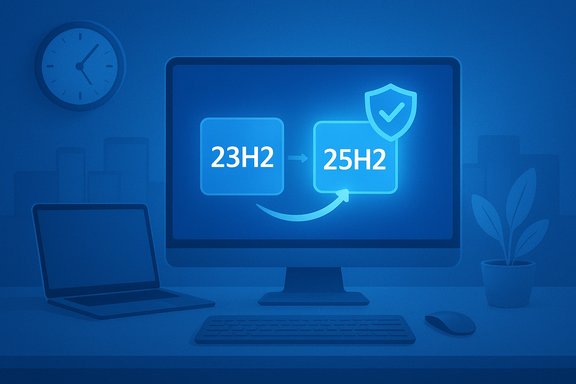
Microsoft has begun automatically moving many unmanaged Windows 11 Home and Pro PCs onto version 25H2 as older consumer releases — most notably Windows 11 version 23H2 — reach their scheduled end of servicing, a change driven by lifecycle policy and a desire to keep the broad installed base receiving security updates.
Microsoft’s modern servicing model ties monthly security and quality patches to specific feature-update versions of Windows 11. When a consumer build reaches its end of servicing, Microsoft stops shipping cumulative updates and security fixes for that release; devices left on that branch become effectively unsupported and more exposed to newly discovered vulnerabilities. To reduce that exposure at scale, Microsoft’s Windows Update pipeline will now push eligible, unmanaged Home and Pro PCs on out-of-support builds to the current consumer release — in this case, Windows 11 version 25H2 — restoring those devices’ eligibility for monthly security updates. This piece lays out the facts, explains how Microsoft is delivering 25H2, analyzes what’s at stake for consumers and IT teams, and provides practical, step-by-step guidance to prepare for and manage the update while weighing the trade-offs between security and control.
To maintain credibility, Microsoft must:
Key quick actions
Source: Windows Central Why Microsoft is force-upgrading certain Windows 11 PCs to version 25H2
 Background / Overview
Microsoft’s modern servicing model ties monthly security and quality patches to specific feature-update versions of Windows 11. When a consumer build reaches its end of servicing, Microsoft stops shipping cumulative updates and security fixes for that release; devices left on that branch become effectively unsupported and more exposed to newly discovered vulnerabilities. To reduce that exposure at scale, Microsoft’s Windows Update pipeline will now push eligible, unmanaged Home and Pro PCs on out-of-support builds to the current consumer release — in this case, Windows 11 version 25H2 — restoring those devices’ eligibility for monthly security updates. This piece lays out the facts, explains how Microsoft is delivering 25H2, analyzes what’s at stake for consumers and IT teams, and provides practical, step-by-step guidance to prepare for and manage the update while weighing the trade-offs between security and control.What Microsoft announced and what it means
The end-of-servicing trigger: 23H2 reached consumer end of support
Microsoft explicitly designated November 11, 2025 as the end of servicing for Windows 11, version 23H2 (Home and Pro). After that date, Home and Pro editions on 23H2 stop receiving monthly security and preview updates; Enterprise and Education editions retain a longer servicing window (commonly another year) to give IT teams more time to validate and deploy changes. Because of that timeline, Microsoft’s update pipeline now treats 23H2 Home/Pro installs as candidates for an automatic upgrade to the nearest supported consumer release so users don’t get left without security fixes. The company’s support pages and release-health messaging make this behavior explicit.How 25H2 is being delivered: enablement package vs full feature upgrade
For devices already on Windows 11 version 24H2, Microsoft ships 25H2 primarily as an enablement package — a tiny “master switch” that activates features already present but dormant in recent cumulative updates. That enablement package typically installs quickly and requires only a single restart on a well-patched 24H2 device, producing minimal downtime. KB5054156 documents the enablement-package model and its prerequisite baseline updates. By contrast, devices on older builds such as 23H2 usually undergo a conventional feature upgrade (a larger in-place update) to reach 24H2 and then receive the enablement flip for 25H2. On those systems the update is more involved and can take longer. Microsoft’s automation prioritizes restoring security coverage over frictionless convenience for devices on out-of-support consumer builds.Who will be auto-upgraded (and who won’t)
- Affected: Unmanaged Windows 11 Home and Pro devices running 23H2 that meet hardware and compatibility checks will be targeted by the automatic delivery. Users can usually delay the restart or pause updates briefly, but there is no indefinite opt‑out for unmanaged consumer SKUs once the servicing window closes.
- Not automatically affected: Enterprise and Education editions have extended servicing windows and remain under administrator control. Domain-joined or MDM-managed devices (Intune, Group Policy, Windows Update for Business) will follow admin-defined policies. Windows 10 devices are not being forcibly converted to Windows 11 en masse; the Windows 11 upgrade remains a user-initiated option for Windows 10 PCs.
Why Microsoft is taking this step: lifecycle and security realities
At scale, the easiest way to keep the majority of consumer systems patched is to reduce fragmentation of supported code. Microsoft’s argument is simple and security-forward:- Security clock reset: Installing 25H2 starts a fresh servicing window (typically 24 months for Home/Pro), ensuring the device continues to receive security patches and quality fixes going forward. Staying on an unsupported consumer build yields no monthly protective updates.
- Fewer unsupported attack surfaces: A smaller population of unsupported installations reduces the number of machines exposed to unpatched vulnerabilities, lowering overall ecosystem risk.
- Operational simplicity: Delivering 25H2 as an enablement package for 24H2 devices reduces downtime and keeps upgrade friction low for well-kept systems.
What’s actually new in 25H2 (and why the version flip matters)
25H2 is mostly a servicing milestone rather than a blockbuster feature release. Microsoft intentionally aligned the 24H2 and 25H2 code bases so most consumer-facing features are the same; 25H2 primarily resets the support clock and standardizes the platform baseline. Visible changes include shell refinements, Start menu updates, and incremental Copilot/File Explorer enhancements, but those features were already staged to reach 24H2 via monthly updates. Practical takeaway: For everyday users the security and servicing implications of 25H2 are the primary reasons to upgrade — not headline-grabbing new features.Real-world problems and the cost of rapid rollouts
Microsoft’s automatic-upgrade posture is not risk-free. Update regressions occasionally surface; when they do, the consequences can be severe for affected devices. A prominent example in late 2025 illustrates the danger and Microsoft’s operational response:- The October 14, 2025 security update KB5066835 created a regression that disabled USB keyboard and mouse input inside the Windows Recovery Environment (WinRE) on affected 24H2 and 25H2 systems, rendering the recovery interface unusable for many users. Microsoft acknowledged the issue and issued an out‑of‑band emergency fix (KB5070773) to restore USB input in WinRE.
- Even small platform changes or cumulative patches can produce high-impact regressions in low-level or pre-boot components.
- Microsoft can and does respond quickly with emergency out-of-band updates, but there is a non-zero window in which users who updated may encounter significant problems.
Strengths of Microsoft’s approach
- Security-first rationale: Automatically restoring support for consumer devices that would otherwise be unpatched reduces the attack surface for everyone.
- Low-friction update for modern hardware: The enablement package model makes the upgrade almost invisible for properly patched 24H2 devices — a single small download and a reboot in many cases.
- Administrative clarity: Enterprise and Education SKUs remain under IT control and receive extended servicing windows, preserving established organizational change-control practices.
- Operational efficiency: Standardizing the baseline across the installed base simplifies support, troubleshooting, and feature distribution for Microsoft and ISVs.
Risks and trade-offs
- Perceived loss of user choice: Some enthusiasts and power users dislike automatic version flips; for many the value of a static, well-tested environment outweighs being on the latest consumer branch.
- Update regressions: As the WinRE episode showed, updates can occasionally produce serious regressions, particularly affecting pre-boot, recovery, or specialized drivers.
- Compatibility friction for older hardware: Some older processors and devices remain ineligible for newer Windows 11 versions; forced upgrade attempts will skip incompatible hardware, but eligible-but-fragile setups can still break. Reports describe older CPU families lacking instruction sets or firmware updates being unable to accept certain updates.
- Limited indefinite deferral for consumers: Unmanaged Home/Pro devices can only pause for a limited time; there is no indefinite consumer opt-out if the system meets upgrade criteria.
Practical guidance: prepare, mitigate, and respond
Whether you’re a home user, a small-business owner, or an IT admin, these steps will reduce upgrade risk and help you stay protected.For home users and enthusiasts
- Check your current version: Settings > System > About — confirm whether you’re on 23H2, 24H2, or 25H2.
- Back up before the upgrade: Create a full disk image or at minimum back up Documents, Pictures, and key application data to cloud storage or an external drive.
- Update drivers and firmware first: Visit your PC manufacturer’s support site and install any BIOS/UEFI and chipset driver updates. This removes common compatibility holds.
- Use Windows Update to control timing: You can pause updates for a short window (Settings > Windows Update > Pause updates). If you prefer manual control, use the Installation Assistant or official ISO to perform the upgrade on your schedule.
- Create recovery media: Build a USB recovery drive and ensure you can boot the machine into the recovery environment or from media in case of rollback.
- Wait a week if you’re risk-averse: Let early telemetry settle and allow Microsoft to lift minor compatibility holds or issue quick follow-ups if problems surface. This reduces exposure to first-wave regressions.
For small business and IT administrators
- Inventory and pilot: Run a pilot on a representative hardware mix (1–5% of fleet) and validate line-of-business apps, VPN clients, security agents, virtualization tools, and printing.
- Use Windows Update for Business / Intune: Enforce deployment rings, deferrals, and installation windows to stage the rollout and retain control.
- Monitor Release Health and known issues: Microsoft’s release-health and message center pages publish known issues, workarounds, and emergency out-of-band updates — use them.
- Keep a rollback plan: Ensure system images and a tested rollback procedure exist; know how to reimage affected devices with minimal disruption.
What you can and cannot do to block the update
- You cannot permanently opt out of the automatic transition if your device is a standard unmanaged Home or Pro PC and the device meets the upgrade criteria once the installed release reaches end of servicing. You can postpone and pause updates temporarily, or manually choose to upgrade on your schedule, but indefinite blocking of a forced lifecycle-driven push is not supported for consumer SKUs.
- Domain-joined and managed devices remain under admin control; enterprises should use GPO/Intune/WSUS to maintain a desired baseline.
- If your PC is ineligible due to hardware constraints (older CPU or missing required platform features), Microsoft’s update pipeline will not install an incompatible feature update; these devices will remain constrained and require hardware replacement, ESU where applicable for older Windows 10, or alternate OS choices.
Alternatives and longer-term options
- If you can’t or won’t upgrade: Consider isolating the unsupported machine from risky networks, using layered endpoint protection, or migrating critical workloads to supported hardware or cloud-hosted Windows instances (Windows 365, Azure Virtual Desktop).
- For Windows 10 holdouts: Windows 10 extended security updates (ESU) were available as a time-boxed bridge in many scenarios; those programs are separate from Windows 11 servicing and usually paid or conditional. Check Microsoft’s lifecycle notices for precise ESU availability.
Policy and user-trust considerations
Microsoft’s move raises an enduring product-management tension: centralized stewardship and security versus individual user choice. On the one hand, automatically steering consumer PCs off unsupported branches is a practical, defensible way to protect the ecosystem. On the other, the perception of forced upgrades can erode trust if Microsoft’s communications and telemetry-driven holds are not transparent and reliable.To maintain credibility, Microsoft must:
- Continue conservative, telemetry-driven staged rollouts and compatibility holds;
- Improve pre-release validation for recovery and pre-boot subsystems (WinRE regressions are particularly damaging);
- Provide clearer, simpler communications and options for consumers who want more control without sacrificing security.
Conclusion
Microsoft’s decision to automatically upgrade certain Windows 11 Home and Pro systems to version 25H2 is a lifecycle-driven, security-minded move that resets the servicing clock for devices that would otherwise be left without monthly patches. The enablement-package delivery model keeps updates low-friction for modern, well-patched systems, while the automatic delivery to unmanaged devices on out-of-support builds ensures that the broad consumer base stays protected. That said, the balance between security and user control is delicate. The WinRE regression and subsequent emergency fix demonstrate the real operational risks of rapid, wide-ranging updates — and also Microsoft’s ability to respond quickly. Consumers and IT teams should treat this rollout as a reminder to keep backups, test updates, and maintain recovery media. For most users, accepting the 25H2 update is the safer, recommended path; for cautious or specialized environments, staging, piloting, and administrative controls remain essential tools to manage the transition responsibly.Key quick actions
- Back up and create recovery media now.
- Update firmware and drivers before upgrade.
- If unmanaged and risk-averse, pause updates briefly and watch release-health announcements for new issues or fixes.
- Enterprises: pilot, validate, then scale using Windows Update for Business / Intune rings.
Source: Windows Central Why Microsoft is force-upgrading certain Windows 11 PCs to version 25H2
