KB5071844 Safe OS Dynamic Update Refreshes WinRE in Windows 11

  • Thread Author
Microsoft has quietly issued a targeted recovery update for Windows 11—KB5071844, a Safe OS (WinRE) dynamic update that refreshes the Windows Recovery Environment used by Reset, Automatic Repair and cloud‑reinstall flows on devices running Windows 11 version 24H2 and 25H2 (and Windows Server 2025). The package is delivered automatically via Windows Update, is available as a standalone download in the Microsoft Update Catalog, and sets the on‑device WinRE image to version 10.0.26100.7297; once applied to an image the update cannot be removed.

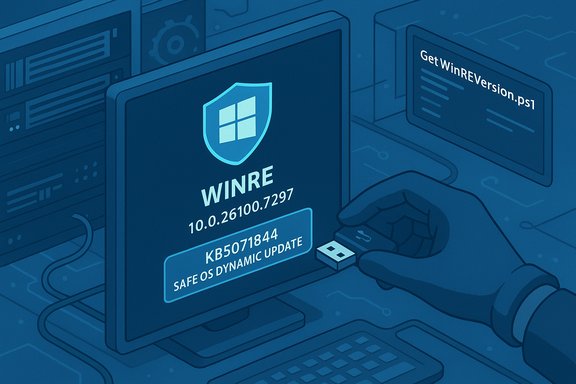
A hand plugs a USB drive into a PC, displaying WinRE version and update details.Background / Overview​

Dynamic updates for the Safe OS (commonly referred to as WinRE) are small, surgical packages Microsoft uses to refresh the pre‑boot runtime and setup binaries without forcing full image rebuilds. These updates modify the trimmed set of binaries and drivers WinRE uses at boot: storage and USB controllers, minimal kernel helpers, TPM/BitLocker handlers and small orchestration libraries. Because WinRE is the platform’s last line of defense when systems fail to boot or require in‑place recovery, these updates are operationally important even when they are non‑security in scope. Put simply: KB5071844 is about recoverability and image hygiene, not new consumer features. It is designed to reduce the chance of recovery failures during Reset this PC, Automatic Repair, offline troubleshooting or cloud reinstall flows by aligning WinRE’s pre‑boot payload with more recent runtime expectations.

What KB5071844 actually does​

Key technical points (short list)​

  • Applies to: Windows 11, version 24H2 (all editions), Windows 11, version 25H2 (all editions) and Windows Server 2025.
  • Summary: “This update makes improvements to the Windows recovery environment (WinRE).”
  • Delivery channels: Windows Update (automatic), Microsoft Update Catalog (standalone CAB/MSU), and WSUS (synchronizable).
  • Post‑install WinRE target version: 10.0.26100.7297. Verification methods include the Microsoft‑supplied PowerShell script GetWinReVersion.ps1, WinREAgent event log entries, and DISM inspection.
  • Removal: This update cannot be removed once applied to a Windows image—reverting requires restoring a prior golden image or backup.
These are the hard facts Microsoft publishes in the KB entry. The public prose intentionally limits granular root‑cause detail; admins must rely on manifests, verification artifacts, and lab testing to understand the precise changes inside the package.

Why this matters to admins and power users​

WinRE is the last line of defense when a device can’t boot normally. If WinRE lacks the right host‑controller or input drivers, or if its small orchestration pieces are out of sync with the running OS, several high‑impact scenarios can occur:
  • Recovery dead‑ends: Devices using only modern USB‑C input or new USB host controllers can become inaccessible inside WinRE if the environment lacks matching HID/host‑controller drivers. That turns a routine recovery into a service ticket or overnight repair.
  • BitLocker/TPM friction: Mismatched pre‑boot binaries can trigger BitLocker recovery prompts during Reset and cloud reinstall flows, increasing help‑desk burden and recovery timelines.
  • Frozen media vulnerability: Organizations that freeze install.wim or winre.wim images for long periods are vulnerable when the running OS receives LCUs that introduce runtime changes WinRE doesn’t understand; dynamic updates like KB5071844 restore parity without full recapture.
Operationally, the 2025 servicing cycle delivered several concrete examples of why keeping WinRE current matters: an LCU introduced USB input regressions inside WinRE for a subset of devices, and a Safe OS dynamic update was required to correct the pre‑boot stack. That pattern is why Microsoft continues to publish targeted Safe OS packages.

Delivery and verification — what to expect​

KB5071844 is distributed via the same channels organizations already use for updates:
  • Windows Update: the package will be downloaded and installed automatically on applicable devices.
  • Microsoft Update Catalog: a standalone package (CAB/MSU) is available for offline ingestion and image injection.
  • WSUS: the update will sync automatically when the appropriate Products and Classifications are configured; administrators can also import packages manually if needed.
Microsoft provides explicit verification guidance. After installing KB5071844, the WinRE version on device should read 10.0.26100.7297; Microsoft published GetWinReVersion.ps1 to automate verification and also documents using reagentc /info, DISM, and WinREAgent Service events (Event ID 4501, “Servicing succeeded”). These verification artifacts are essential because the KB text avoids detailed change logs.

Recommended rollout strategy (practical plan)​

Safe OS dynamic updates are not like normal monthly LCUs. Because the change to a winre.wim is effectively permanent for that image, the operational risk is different. The following staged approach balances speed with safety.
  • Inventory and prioritize.
  • Identify mission‑critical systems, devices with USB‑C‑only input, and any hardware with known WinRE quirks. Include BitLocker/TPM configurations and OEM recovery tooling in the inventory.
  • Preserve golden images.
  • Create immutable backups of every install.wim and winre.wim you maintain. Label and store them offline to enable rapid rollback of image injects.
  • Lab pilot.
  • Inject the KB5071844 package into copies of representative winre.wim images, test on a matrix of hardware (SATA vs NVMe, built‑in vs external input devices, BitLocker on/off) for 48–72 hours.
  • Staged rollout.
  • Deploy to a pilot ring (10–25%), monitor WinREAgent events and ticket volumes, and check GetWinReVersion.ps1 results. If no regressions surface, broaden deployment in waves.
  • Maintain a rollback plan.
  • If you encounter a regression, you cannot uninstall the package from the image; you must restore the prior winre.wim from your golden image archive. That’s why backups are critical.
This plan is deliberately conservative because the non‑removability of Safe OS updates turns image servicing into an irreversible action without backups.

How to verify KB5071844 after deployment​

Microsoft’s KB details multiple verification options; use them in combination:
  • Run GetWinReVersion.ps1 as Administrator. The script mounts the on‑device winre.wim and reads the built‑in WinRE binary file version; it should return 10.0.26100.7297 post‑servicing.
  • Check WinREAgent events (Event Viewer → Windows Logs → System; find WinREAgent servicing events and look for Event ID 4501 stating “Servicing succeeded” and the WinRE version).
  • Use reagentc /info to confirm WinRE is enabled and pointing at the expected path, and mount the winre.wim with DISM for manual inspection of file versions when deeper validation is required.
Sample DISM mounting flow (operate on copies and with admin privileges):
  • Mount image:
  • dism /Mount-Image /ImageFile:"C:\path\to\winre.wim" /Index:1 /MountDir:"C:\mount"
  • Inspect file versions inside C:\mount\Windows\System32.
  • Unmount (Commit or Discard as appropriate):
  • dism /Unmount-Image /MountDir:"C:\mount" /Commit
Note: Microsoft recommends DISM when servicing offline images to avoid conflicts with Features on Demand and language packs.

Injection and automation best practices​

For organizations that inject Safe OS updates into their deployment images as part of media hygiene:
  • Always work on copies of winre.wim and label them with a unique build identifier and checksum.
  • Automate the injection and verification pipeline in CI: download the catalog package, validate the SHA‑256 or manifest, inject with DISM, run GetWinReVersion.ps1, and archive both pre‑ and post‑servicing images.
  • Keep a catalog of pre‑servicing file manifests so you can quickly spot unexpected file‑level changes after injection.
  • Record OEM firmware versions and ensure firmware updates that change Secure Boot behavior are coordinated with Safe OS injection across the fleet.
Many enterprise patch teams have integrated Safe OS DU injection into their image build pipelines precisely to avoid later surprises when cumulative LCUs change runtime expectations.

Risks, caveats and the things Microsoft doesn’t spell out​

KB5071844 is pragmatic and surgical, but it comes with operational trade‑offs:
  • Non‑removability: once applied to an image, the package is effectively permanent for that image; rollback is a golden image restore. This increases the cost and severity of missteps.
  • Sparse public detail: Microsoft’s KB entries for Safe OS updates are intentionally terse; they provide verification methods and file manifests but rarely a granular engineering postmortem describing exact driver replacements or bug fixes. That forces admins to rely on lab validation and manifest comparison for forensic clarity.
  • Firmware and Secure Boot interdependencies: the KB explicitly warns about Secure Boot certificate expiration windows that begin in June 2026; certificate/firmware mismatches can create boot disruptions that WinRE refresh alone will not resolve. Coordinate OEM updates where necessary.
  • WSUS/catalog timing: dynamic updates sometimes appear later in WSUS than in Windows Update or the Update Catalog; large environments may need to import the standalone package manually to achieve target timing.
These are not show‑stoppers, but they are operational realities that change how teams plan rollouts.

Troubleshooting common questions and scenarios​

Q: Windows Update shows the WinRE update as failed with error 0x80070643 — did it actually fail?​

A: Microsoft has previously acknowledged scenarios where WinRE updates appear to fail when another update is pending reboot; the WinRE package may still be applied after the next restart and Windows Update will clear the failure after a subsequent daily scan. If you see the error, restart and verify WinRE version with GetWinReVersion.ps1 and check WinREAgent events. If the device truly hasn’t applied the package, consider catalog import and manual injection for affected fleets.

Q: Can I uninstall KB5071844 once applied?​

A: No. Microsoft’s KB explicitly states the update cannot be removed once applied to a Windows image. Image rollback requires restoring a prior winre.wim from backup. This elevates the importance of pre‑deployment testing and retained golden images.

Q: Will KB5071844 fix all WinRE issues I have seen in the field?​

A: Not necessarily. The Safe OS DU refreshes the WinRE payload and may resolve driver‑level or pre‑boot binary mismatches, but if a problem is rooted in firmware, OEM recovery tooling, Secure Boot certificate state, or a running OS LCU that must be matched in other ways, additional fixes or coordination may be required. Treat KB5071844 as a targeted mitigation for pre‑boot payload drift rather than a universal cure.

Real‑world operational checklist (quick reference)​

  • Back up all golden install.wim and winre.wim images before any servicing.
  • Download KB5071844 from the Microsoft Update Catalog and validate the manifest.
  • Test injection using DISM in a lab that mirrors your OEM/hardware matrix (NVMe/SATA, input peripherals, BitLocker).
  • Run GetWinReVersion.ps1 and inspect Event ID 4501 for servicing success.
  • Stage rollout in rings and monitor help‑desk telemetry for unexpected recovery prompts or boot failures.

Independent reporting and availability notes​

Multiple independent outlets and community channels noted the release of KB5071844 and its role as a Safe OS dynamic update for WinRE. Microsoft’s KB text confirms the release specifics and provides the authoritative verification guidance. In some cases, mainstream aggregators and news sites referenced the KB but did not add technical depth beyond the KB itself; community posts and management tooling (for example, BigFix content announcements) concurrently added KB5071844 into enterprise patch catalogs. Administrators should always consult Microsoft’s KB entry and the Update Catalog artifacts for definitive manifests and file lists. Caveat: a paywalled article link was provided in one news item; the page could not be retrieved due to access restrictions during verification. Where primary reporting is behind paywalls, rely on Microsoft’s KB and update catalog data for authoritative facts and use community testing to supply operational context. (When an original reporting page is inaccessible, the KB and catalog entries remain the source of truth.

Final analysis — strengths, weaknesses, and operational verdict​

KB5071844 represents the kind of small, narrowly scoped update that rarely makes headlines but materially improves recoverability. The strengths are clear:
  • Targeted hardening of WinRE — avoids full image recapture by surgically refreshing the pre‑boot payload.
  • Multiple deployment options — automatic Windows Update delivery and standalone catalog packages suit both consumer and enterprise workflows.
  • Clear verification guidance — Microsoft supplies the PowerShell helper and event audit paths admins need to confirm success.
The weaknesses are operational rather than technical:
  • Non‑removability raises stakes — testing and golden‑image backups are mandatory.
  • Sparse public change detail — Microsoft’s terse KB text forces reliance on manifests and lab validation to understand file‑level changes.
  • Certificate and firmware interdependencies — Secure Boot certificate expirations and OEM firmware can create boot issues that WinRE refresh alone won’t solve. Coordinate with hardware vendors.
Operational verdict: For imaging teams, enterprise patch managers, and anyone who maintains frozen deployment media, KB5071844 should be treated as image hygiene. It doesn’t add features, but it reduces the risk of unrecoverable devices during upgrades and recovery flows. The appropriate approach is careful lab validation, staged rollout, and keeping a robust rollback inventory of pre‑serviced images.

KB5071844 is available now through Windows Update and the Microsoft Update Catalog; administrators should plan an image‑first testing cadence, preserve golden images, and verify that WinRE reports version 10.0.26100.7297 after servicing.

Source: Neowin Microsoft released Windows 11 KB5071844 recovery update
 

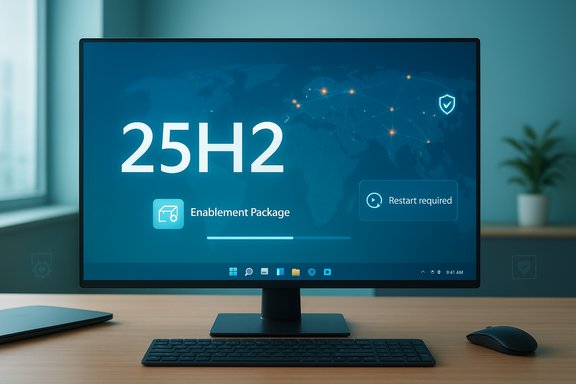
Microsoft has opened the gates: Windows 11, version 25H2 is now being offered to every eligible PC, with Microsoft shifting from an optional “seeker” experience to a broader, telemetry‑driven rollout that will quietly download the enablement package to many consumer systems and prompt users only for the final restart to complete installation.

Windows 11 25H2 enablement package shown on a monitor; restart required.Background / Overview​

Windows 11 version 25H2 (the “2025 Update”) is not a radical redesign — it is primarily an enablement package that flips dormant features already shipped in cumulative updates for the 24H2 servicing branch. That delivery model makes 25H2 a fast install for machines already patched to the appropriate baseline: a very small download that usually needs a single restart to complete. The enablement mechanism and prerequisites are documented in Microsoft’s update KB for the package. The urgent-looking push to make 25H2 broadly available is driven by lifecycle pressure. Microsoft ended mainstream servicing for Windows 10 and has been tightening consumer servicing windows for older Windows 11 branches; when a consumer build reaches end of servicing, Microsoft stops issuing monthly security and quality updates for it. Moving unmanaged Home and Pro devices onto a supported consumer baseline reduces the population of devices that won’t receive protective updates. Microsoft’s consumer messaging and release‑health notices reflect this lifecycle-first rationale.

What’s new in the delivery model: enablement package + intelligent rollout​

The enablement package (how 25H2 installs)​

For most devices already on Windows 11 24H2, the 25H2 update is delivered as KB5054156 — an enablement package that activates already-present bits. The technical advantages are clear:
  • Very small download for up‑to‑date 24H2 systems.
  • Minimal downtime — typically one quick restart.
  • Same servicing branch for 24H2 and 25H2, simplifying monthly updates and patching.
Microsoft documents the prerequisites that must be present before applying the eKB; if those conditions aren’t met the package won’t apply.

The “intelligent” (machine‑learning) rollout​

Microsoft has also formalized what it calls an “intelligent rollout” — a phased distribution that uses telemetry and machine‑learning models to identify which unmanaged Home and Pro devices are the best candidates to receive 25H2 automatically. In practice this means:
  • Microsoft may download the enablement package in the background for selected devices judged “ready.”
  • The user retains control over the final installation by choosing when to restart; installs are not forced while the user is actively working.
  • Safeguard holds (compatibility blocks) continue to prevent upgrades on systems with known driver/firmware/app issues.
The company’s release messaging confirms the staged expansion and the prioritization for devices with the Windows Update toggle “Get the latest updates as soon as they’re available” enabled.

Why Microsoft is pushing now (the strategic case)​

Microsoft faces a migration problem at scale. Public commentary from OEMs and industry reporting suggests a very large installed base still on older baselines — including Windows 10 machines that either cannot run Windows 11 or whose owners have simply chosen not to upgrade. Dell publicly told investors it believes roughly 500 million PCs capable of running Windows 11 have not yet upgraded, while another 500 million machines are too old to meet Windows 11 hardware requirements; these numbers, though provided by an OEM and therefore estimates, help explain Microsoft’s urgency. Treat large headline numbers as vendor estimates, not precise device censuses. From Microsoft’s operational perspective the calculus is straightforward: fewer supported branches equals fewer unpatched systems and less platform fragmentation — and therefore a smaller security surface to defend. The enablement approach minimizes the friction of that migration for most consumer PCs, making lifecycle restoration a low‑disruption operation.

The reality on the ground: bugs, install failures and known issues​

The rollout comes at a moment when several wide‑visibility issues have been reported in recent cumulative and optional updates. These include:
  • A File Explorer dark‑mode regression that causes a brief bright white “flash” when opening or navigating File Explorer with dark mode enabled. Microsoft has acknowledged the problem and listed it as a known issue for the recent optional preview update series; multiple outlets have reproduced and verified the behavior. At present the pragmatic workaround is to disable dark mode until a fix ships.
  • Update install failures returning error codes such as 0x80070306 in some environments. Community reports and Microsoft Q&A threads show this error has appeared during certain cumulative update deployments and preview installs. In many cases Microsoft’s recommended remediation has included repair or in‑place reinstall flows; for persistent or production environments, administrators are advised to follow established troubleshooting and recovery procedures before mass deployment.
  • Driver interactions reported with certain GPU drivers — notably early issues flagged around Intel Arc drivers — that have also prompted compatibility holds for select enterprise configurations. Microsoft continues to use safeguard holds to block upgrades on impacted devices while driver and vendor fixes are worked through.
These issues are real, measurable, and public. Microsoft says it is working on fixes, but it has not provided timelines for all regressions; home users will typically receive fixes via future cumulative updates, while managed devices will rely on IT teams to vet and approve changes.

What the rollout means for different audiences​

Home users and enthusiasts​

For individuals who keep their device patched and up to date, 25H2 is likely to be a quick, low‑risk update — especially for systems on 24H2 with the recommended cumulative updates already installed. The fastest supported path is:
  • Open Settings → Windows Update.
  • Ensure Get the latest updates as soon as they’re available is enabled.
  • Select Check for updates; if eligible, choose Download and install — Windows 11, version 25H2.
If you prefer to wait, you can still postpone installation by delaying the restart or using Pause updates. If you value absolute stability, delay until the initial wave of post‑release cumulative fixes rolls out.

Power users and tinkerers​

Power users who run custom drivers, utilities (for example, system tuners or visual mods), or early beta software should be cautious. The enablement package model reduces downtime but does not remove the risk of subtle interactions with third‑party code. Best practice:
  • Create a full system image before applying the update.
  • Verify availability of vendor‑signed drivers (GPU, audio, peripherals).
  • If the device is critical, pilot the update on a representative machine first.

IT administrators and managed fleets​

Enterprise and education editions remain under admin control; Microsoft’s consumer‑oriented intelligent rollout explicitly excludes domain‑joined and MDM‑managed devices from unilateral background downloads. Administrators should:
  • Continue using WSUS, Configuration Manager, or Windows Update for Business rings.
  • Maintain pilot rings and validation cycles for applications and drivers.
  • Monitor Microsoft’s Release Health and Safeguard hold updates closely before authorizing broader deployment.

Practical, step‑by‑step upgrade checklist (recommended)​

  • Back up critical data and create a full image backup or system restore point.
  • Ensure the device meets Windows 11 hardware requirements; run PC Health Check if unsure.
  • Update OEM firmware (UEFI), chipset and GPU drivers to the latest vendor releases.
  • Install the latest cumulative updates so the enablement package prerequisites are satisfied (the KB article lists exact prerequisites).
  • For casual users: enable Get the latest updates as soon as they’re available and check for updates.
  • For conservative users: wait at least two Patch Tuesday cycles after the initial 25H2 availability or pilot on a non‑critical device.
  • If you encounter persistent install failures (errors like 0x80070306), follow Microsoft’s repair steps (Windows Recovery / in‑place repair) and consult vendor guidance for driver conflicts.

Strengths of Microsoft’s approach​

  • Security-first justification. Resetting the servicing clock for large numbers of consumer devices reduces the population of installations that no longer receive security patches.
  • Low friction on well-patched systems. For 24H2 devices that already have the necessary cumulative updates, the enablement package makes adoption fast and minimally disruptive.
  • Telemetry-informed risk reduction. The ML-guided targeting and safeguard holds are designed to reduce broad regressions by identifying compatible cohorts rather than deploying an arbitrary time-based push.

Risks, transparency problems, and user concerns​

  • Opaque machine‑learning decisions. Microsoft has not published the internal model details, training signals, or device‑level reasons for inclusion/exclusion in the intelligent rollout. That opacity means users cannot audit or appeal specific decisions other than toggling the Windows Update setting or pausing updates.
  • Background downloads without explicit opt‑in. While the final installation still requires a restart, the background download of an enablement package onto an unmanaged device can catch users off guard — consuming bandwidth and disk space without an obvious consent prompt.
  • Real‑world regressions. As recent optional update behavior shows (File Explorer dark‑mode flashes, install errors, driver interactions), even curated, small updates can surface hard‑to‑predict bugs across millions of hardware/software combinations. Rolling these changes more assertively raises the likelihood that some consumers will hit unexpected problems.
  • Perception and adoption friction. Heavy‑handed upgrade posture — even with a security rationale — risks backlash among users who dislike changes being initiated by the vendor, particularly where transparency and remediation timelines are unclear. The large vendor estimates of unupgraded but eligible machines underline both the scale of the problem and the sensitivity of the user base.

The balance: when to upgrade and when to wait​

  • Upgrade now if: your device is up to date, you have a recent full backup, you prefer to stay on Microsoft’s supported baseline and accept the small risk of post‑update glitches.
  • Wait if: your machine runs production workloads, specialized drivers, or older third‑party system utilities; you prefer to watch for early cumulative fixes and reports from the community and OEMs.
  • For enterprises: continue validated pilot rings and do not rely on the consumer “seeker” path; managed channels remain the right route for controlled rollouts.

Final analysis — Microsoft’s tradeoffs and what to expect next​

Microsoft’s move is defensible from an engineering and security standpoint: migrate as many consumer systems as possible to a supported baseline with minimal friction. The enablement package model is a pragmatic evolution of the annual feature update: it reduces downtime, simplifies servicing, and narrows supported branches.
However, the simultaneous expansion of background downloads, telemetry‑driven selection, and the opaque mechanics of the ML models create legitimate concerns around transparency, user agency, and the management of risk when real‑world regressions appear. Recent optional update bugs — particularly File Explorer dark‑mode flashes and persistent update failures — show that low‑weight updates can still introduce highly visible UX regressions and that camera‑, GPU‑, and driver‑level interactions remain fragile in some environments. Until Microsoft patches these regressions and clarifies exactly how the ML targeting works in practice, cautious adoption remains the prudent path for users with critical workloads. Expect Microsoft to continue widening the rollout gradually, lift safeguard holds as vendor fixes appear, and ship incremental cumulative patches to remediate the most visible issues. Administrators and savvy home users should monitor the Windows release health and the update history, apply vendor driver updates proactively, and keep reliable backups in place before flipping the switch.
Microsoft’s latest posture is a clear statement: the company is prioritizing a consolidated, secure consumer baseline and using modern distribution mechanisms — including machine learning — to accelerate the job. For many users that will be a benign, even beneficial, background step forward. For a meaningful cohort of devices and environments, the change will require vigilance, tested rollback plans, and — in some cases — a pause long enough for Microsoft and vendors to ship the follow‑up patches that smooth out the predictable imperfections of a platform that must run on an almost unimaginably diverse hardware estate.
Source: TechRepublic Microsoft Green Lights Windows 11 25H2
 

Microsoft has quietly begun pushing a critical Safe OS (WinRE) dynamic update to Windows 11 and Windows Server images that refreshes the Windows Recovery Environment and Setup binaries — a small, surgical package that Microsoft says improves recoverability but which also installs automatically, cannot be removed from an image once applied, and is being delivered to devices while the company simultaneously uses machine‑learning to accelerate consumer feature update rollouts.

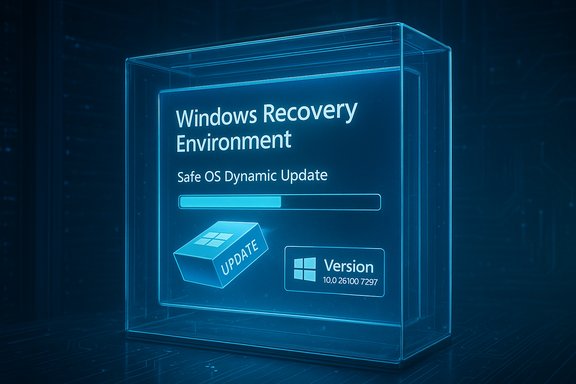
Blue Windows Recovery Environment screen showing a progress bar and an Update cube.Background​

Microsoft ships two narrow classes of dynamic updates that rarely make headlines but matter a great deal to recovery and upgrade reliability: Setup Dynamic Updates (updates to setup.exe and the small runtime Setup uses during feature updates) and Safe OS (WinRE) Dynamic Updates (updates to the compact pre‑boot recovery image used by Reset, Automatic Repair, cloud reinstall and other recovery flows). These packages are intentionally small and targeted: they refresh a trimmed set of drivers and orchestration binaries so long‑stale install media and images behave like freshly built ones. In early December Microsoft published a Safe OS Dynamic Update (KB5071844) that targets Windows 11, version 24H2 and 25H2, and Windows Server 2025. The published manifest shows a WinRE image and supporting drivers stamped with build numbers that identify the WinRE target version as 10.0.26100.7297 for 24H2/25H2 servicing branches. Microsoft’s KB states the update “makes improvements to the Windows recovery environment (WinRE).” At the same time the Windows ecosystem is receiving a broader operational change: Microsoft is now offering Windows 11 version 25H2 as an enablement package and using a machine‑learning driven rollout to silently download the package to many eligible consumer devices, leaving users to accept the final restart to complete installation. That change — intended to speed migrations to supported servicing baselines — has raised fresh questions about download behavior and user control.

What Microsoft actually shipped (the technical facts)​

  • Scope: KB5071844 — Safe OS Dynamic Update for Windows 11, version 24H2 and 25H2, and Windows Server 2025. The package is available via Windows Update, the Microsoft Update Catalog and WSUS synchronization.
  • Purpose (public summary): “This update makes improvements to the Windows recovery environment (WinRE).” The published KB is deliberately terse about behavioral changes — this is standard for Safe OS DUs.
  • WinRE target version (after install): 10.0.26100.7297 for the 24H2/25H2 servicing family, according to Microsoft’s file manifests.
  • Delivery and permanence:
  • The KB states the update “is available through Windows Update. It will be downloaded and installed automatically.”
  • “You do not have to restart your device after you apply this update.”
  • “This update cannot be removed once it is applied to a Windows image” — reverting requires restoring an earlier image.
  • Files affected: the manifest lists pre‑boot drivers (USB/host controllers, storage, TPM/BitLocker handlers), core boot files (winload.*, bootux.dll), and small orchestration libraries — the exact set typical of Safe OS refreshes.
These facts align with multiple community analyses and archived forum briefings describing recent Safe OS and Setup dynamic updates that target the same servicing families and deliver similar WinRE versions. Administrators tracking image hygiene have observed Microsoft replacing earlier Safe OS DUs and publishing small manifests for verification.

Why this matters: recoverability, upgrades, and image hygiene​

The Windows Recovery Environment (WinRE) is the platform’s last line of defense when a device fails to boot or needs an offline repair. WinRE must carry the correct drivers and mini‑binaries to:
  • Present a functioning recovery UI,
  • Communicate with storage and USB devices (keyboard/mouse input),
  • Interact with firmware, TPM and BitLocker for automated resets,
  • Support network or cloud reinstall flows.
When WinRE’s components fall out of sync with the running OS — for example because an image is months old — recovery flows can fail in subtle but critical ways: USB keyboards or mice may not work in recovery, BitLocker may block automated resets, or cloud reinstall flows may stall. Dynamic Updates are Microsoft’s pragmatic fix: small surgical packages to refresh WinRE without rebuilding entire ISOs.
For imaging teams and enterprise deployments, the practical benefits of Safe OS DUs include:
  • Ability to inject the DU into install.wim/winre.wim to harden frozen images without a full media rebuild.
  • Reduction in unexpected upgrade fails during major feature updates or manual reboots.
  • Preservation of language packs and Features on Demand content during upgrades, where the DU specifically claims to help retain LP and FOD content.
For consumer devices, the DU reduces the risk of being unable to recover a device in the field — a real-world benefit when a small fraction of systems experience recovery breaks.

The flip side: why a “small” update matters a great deal​

Although Safe OS DUs are small in size and narrow in scope, they carry a handful of operational quirks that make them worth attention:
  • Permanent integration: Once applied to an image, the DU cannot be rolled back via standard Windows Update controls. Restoring the previous state requires restoring a pre‑update image or reinstalling the OS from older media. Microsoft’s KB is explicit about this permanence.
  • No restart required (but still impactful): The KBs note no restart is required to apply the DU to a running image, which reduces friction — but the permanence and pre‑boot nature mean this update touches components used during the critical recovery path.
  • Hidden scope: Microsoft’s public text is intentionally vague — “improvements to WinRE” — which is reasonable from a support perspective but leaves admins wanting more detail about exact behavioral fixes. Image teams must rely on file manifests and local validation tools (GetWinReVersion.ps1, DISM) to confirm the package content.
  • Precedent of regressions: Recent months saw at least one emergency out‑of‑band patch after a recovery component update broke USB input inside WinRE, leaving some users unable to use recovery tools without alternate input devices. That incident required a rapid fix (an emergency cumulative or targeted update) and highlights how fragile the recovery surface can be.

What administrators and power users should verify now​

For IT pros, imaging teams, and advanced users, these points are non‑negotiable checklist items. The list below covers verification and mitigation steps that reduce risk when small but consequential WinRE changes are applied.
  • Create a full system image backup or snapshot of representative hardware before rolling out the DU.
  • If you manage images, download the DU CAB/MSU from the Update Catalog, inject it into your install.wim/winre.wim, then validate recovery flows (Reset, Automatic Repair, cloud reinstall) on a lab device.
  • Verify the WinRE version after application using the published PowerShell helper or DISM:
  • Use GetWinReVersion.ps1 (Microsoft‑supplied) or
  • Inspect winre.wim and use DISM to check file versions.
    Microsoft’s KB gives the expected WinRE version numbers to confirm successful application.
  • For enterprise deployment, stage the DU in pilot rings and monitor telemetry (EDR/monitoring) for anomalies; because the update is non‑removable on images, broad rollouts without a tested rollback strategy are risky.
  • Use WSUS or Microsoft Endpoint Manager if you need to control delivery; the DU is available via Microsoft Update Catalog and WSUS, enabling offline injection and controlled synchronization for enterprise images.

Practical steps for checking whether your device has the update​

  • Open an elevated PowerShell and run the Microsoft helper script GetWinReVersion.ps1 — the script prints the current WinRE version. Compare with the expected value (for 24H2/25H2 the KB lists 10.0.26100.7297).
  • Use DISM to inspect your winre.wim file if you maintain offline images:
  • Mount or export winre.wim and query file versions for key boot files (winload.efi, bootux.dll).
  • Check Settings → Windows Update for applied dynamic update metadata or check the Microsoft Update Catalog entry for KB5071844 if you prefer manual confirmation.

The broader rollout context: 25H2 enablement packages and machine‑learning targeting​

Separately but importantly, Microsoft’s larger rollout strategy for Windows 11 version 25H2 is changing the operational context in which DUs are being applied. 25H2 was made generally available as an enablement package — a tiny flip update for devices already on the 24H2 servicing branch — and Microsoft has begun using an ML‑based “intelligent rollout” model that silently downloads the enablement package to many eligible consumer devices, letting the user decide whether to install and restart. The rationale is to move devices to supported baselines quickly while minimizing user friction. This practice reduces upgrade friction for many users but also increases the number of systems that will receive background downloads and platform servicing changes — including dynamic updates for Setup and WinRE — without a separate opt‑in step. Microsoft’s Release Health and KB guidance emphasize safeguard holds and compatibility checks, but the net effect is more automatic interventions on unmanaged devices.

Analysis: strengths of Microsoft’s approach​

  • Security-first lifecycle management: Moving more devices onto a supported servicing baseline reduces the population of systems that will stop receiving security updates. That is a clear net positive for ecosystem security.
  • Reduced friction for consumers: The enablement package model and ML targeting make upgrades faster and less disruptive for users who are ready and compatible. An enablement package is smaller and quicker than a full feature update.
  • Targeted recoverability fixes: Safe OS DUs directly address the most catastrophic class of update failures — those that impede recovery — and allow Microsoft to harden recovery flows without forcing full media rebuilds. This lowers the operational overhead for both Microsoft and device vendors.

Risks and open questions​

  • Opaque rollout decisions: Machine‑learning based targeting is inherently opaque to end users and IT admins. When Microsoft decides a device is “ready” and silently downloads enablement and servicing packages, administrators may find unexpected artifacts on endpoint images that are difficult to reverse. This raises trust and change‑control concerns, especially in regulated environments.
  • Non‑removable image changes: Because Safe OS DUs are not removable once integrated into an image, untested rollouts can create long‑lived regressions that require full image reversion or reinstall to remediate. That permanence places a premium on testing and staged deployment.
  • Recovery regressions have occurred: The recent emergency patching after USB input broke in WinRE is a cautionary example. Changes to the recovery stack can have outsized consequences because they affect device recovery for users who may already be locked out. Rapid fixes are possible, but the incident demonstrates the systemic risk.
  • User awareness & control: Consumers may be surprised by background downloads and the prospect of feature activation without an explicit, visible consent step beyond the final restart. While Microsoft preserves final install choice and delay options, the background activity is a material change in user‑facing behavior.

Recommended guidance for WindowsForum readers (practical, prioritized)​

  • For all users:
  • Back up critical data and create a full image if you rely on specific recovery workflows.
  • Keep Windows Update enabled and check Settings → Windows Update regularly for the “Download and install Windows 11, version 25H2” message if you are on a supported device.
  • For advanced users and small IT shops:
  • Download KB5071844 from the Microsoft Update Catalog for offline injection and testing.
  • Inject into a test install.wim/winre.wim and validate Reset, Automatic Repair and cloud reinstall flows on representative hardware.
  • Verify WinRE version with GetWinReVersion.ps1 or DISM after injection.
  • If managing multiple devices, pilot a phased rollout using Windows Update rings or WSUS so you can detect regression patterns early.
  • For enterprise admins:
  • Use WSUS or Microsoft Endpoint Manager to control distribution. Don’t assume the consumer ML‑driven model will apply to managed devices, but validate policy settings and safeguard holds.
  • Update your media‑refresh playbook: include DU injection and WinRE verification in any golden image refresh cycle.
  • Maintain rollback strategies (golden images, PXE rescue media) because the DU cannot be removed after integration.

What to watch next​

  • Microsoft Release Health for any safeguard holds, documented issues, or revised KB entries that expand on the DU’s technical rationale.
  • Community reports or telemetry from pilot rings that indicate regressions in specific hardware families — USB controller and TPM/BitLocker interaction bugs are the most sensitive.
  • Any further emergency out‑of‑band patches that would indicate the DU introduced unexpected regressions; the last year already produced at least one emergency fix for WinRE input problems.

Conclusion​

Microsoft’s KB5071844 Safe OS dynamic update is small in download size but large in operational importance: it explicitly refreshes the Windows Recovery Environment to WinRE version 10.0.26100.7297 for the 24H2/25H2 servicing families, installs automatically in many consumer scenarios, and cannot be removed from an image once applied. That combination of permanence and background delivery makes verification, testing and backup essential for image teams and careful users. At the same time, Microsoft’s wider decision to use machine‑learning to accelerate the background delivery of Windows 11 25H2 enablement packages increases the pace at which these behind‑the‑scenes changes reach devices — a trade‑off between moving the ecosystem to supported baselines and preserving administrative control and transparency. For those managing images or mission‑critical systems: update your media‑refresh checklist today, test the KB in a lab, and make sure you can restore a prior image. For everyday users: let Windows Update download the update, but make a current backup — the update protects the workflows that save your PC when things go wrong, and that protection becomes harder to reverse once applied.

Source: Forbes Microsoft Issues ‘Critical Update’ For All Windows 11 Users
 

Microsoft has quietly pushed a targeted Safe OS dynamic update for Windows 11 that refreshes the Windows Recovery Environment (WinRE) for modern feature branches — a small but operationally significant change that will become permanent once applied to an image and is being distributed automatically via Windows Update to eligible devices.

Glowing blue server rack with a holographic display showing winre.wim and a progress bar.Background / Overview​

Microsoft uses two tightly scoped update types to keep installation and recovery tooling in sync with the running OS: Setup Dynamic Updates (patches applied to the small set of binaries Setup.exe and its helpers uses during feature upgrades) and Safe OS (WinRE) Dynamic Updates (packages that refresh the pre‑boot recovery image — winre.wim — and its drivers). These packages are intentionally surgical: they touch only the files that matter during setup or pre‑boot recovery to avoid wholesale ISO rebuilds while reducing upgrade and repair failures.
On December 1, 2025 Microsoft published a Safe OS dynamic update identified as KB5071844 (Safe OS Dynamic Update for Windows 11, version 24H2 and 25H2, and Windows Server 2025). The update’s public KB entry confirms three operational facts that every IT pro and power user should know right away:
  • It updates the WinRE image and the bundled pre‑boot binaries and drivers used by Reset, Automatic Repair and cloud reinstall flows.
  • After successful installation the device’s WinRE version should report 10.0.26100.7297.
  • The update is permanent on a Windows image once applied and cannot be removed; it is available via Windows Update and the Microsoft Update Catalog and does not require a restart to take effect.
That short summary masks why this small update matters: WinRE is the last line of defense for unbootable systems. If WinRE lacks the correct USB, storage, or TPM/BitLocker helpers, recovery flows become unusable and help‑desk calls spike. Microsoft’s Safe OS DUs intentionally close the gap between bitten-by-time recovery images and fast‑moving cumulative updates on the running OS.

What KB5071844 actually changes​

The technical surface (what Microsoft reports)​

The KB page lists the files replaced and the expected WinRE version after servicing. The package swaps a small set of pre‑boot drivers and orchestration binaries — items such as USB host/hub drivers, storage helpers, securekernel components and the recovery orchestration utilities. The visible, user‑facing change is not new features but better reliability for recovery and setup flows.
  • WinRE version target: 10.0.26100.7297 after successful servicing.
  • Applies to: Windows 11 version 24H2 and 25H2, and Windows Server 2025 (therefore it does not apply to unsupported 23H2 installations).
  • Delivery: Windows Update (automatic), Microsoft Update Catalog (CAB/MSU for offline injection), and synchronizable via WSUS where applicable.
  • Restart / Removal: No restart required after application; the package cannot be removed once applied to a WinRE image.

Setup binaries — partial verification and nuance​

Some outlets described the December servicing window as addressing both Setup.exe / setup binaries and WinRE. Microsoft’s KB for KB5071844 is explicit about WinRE, but it does not claim to change Setup.exe itself. Historically Microsoft publishes Setup Dynamic Updates separately (different KB numbers) when they exist. Administrators should therefore treat the WinRE refresh as the confirmed action for KB5071844 and verify whether a companion Setup Dynamic Update exists for the same servicing window before assuming Setup binaries were changed. In other words: the WinRE change is verified; the Setup binary claim should be validated against the Update Catalog or a Setup DU KB before operational action.

Why this matters: the operational impact​

WinRE may be rarely used on a working PC, but its failures are catastrophic when they occur. Dynamic Updates like KB5071844 matter for three main operational reasons:
  • Device recoverability: If WinRE lacks compatible USB or storage drivers, a device may boot into WinRE with no usable input or no access to the system disk, making local recovery impossible without external media. Past servicing cycles have produced exactly that scenario and required emergency fixes.
  • Golden image hygiene for imaging teams: Organizations that freeze install.wim/winre.wim for months can end up with recovery images that are out of step with the running OS. Injecting Safe OS DUs into golden images reduces the risk of failed feature upgrades and broken cloud reinstall/reset flows.
  • BitLocker/TPM continuity: Mismatched pre‑boot binaries can produce unexpected BitLocker prompts during reset or cloud reinstall — an administrative burden that delays recovery. Dynamic updates realign the small pre‑boot stack and lower that friction.
Concrete example: the October 2025 servicing incident that left USB input unresponsive inside WinRE forced Microsoft to ship an out‑of‑band correction because many devices could not navigate recovery tiles. That episode demonstrates how a small pre‑boot regression can have disproportionate impact and why Microsoft treats Safe OS DUs as surgical but essential hygiene.

How to verify KB5071844 (and why verification matters)​

Microsoft publishes straightforward verification artifacts and recommends administrators validate the WinRE version after servicing. Use several checks in combination:
  • Run the PowerShell helper GetWinReVersion.ps1 with Administrator rights — it reads the version embedded inside winre.wim and should return 10.0.26100.7297 after KB5071844 installs.
  • Use reagentc /info to confirm WinRE is enabled and to see the active winre.wim path. Then mount that WIM with DISM and inspect file versions in Windows\System32 to match the KB file manifest if deeper assurance is required.
  • Monitor the WinREAgent event log (System events) — look for servicing events (Event ID 4501) that indicate servicing succeeded and include the WinRE version string.
Why multiple checks? Because the update may be applied to the on‑device WinRE, or an image in your imaging pipeline, or both. If you inject the CAB/MSU into a captured winre.wim, DISM inspection on the offline image gives the definitive file‑level confirmation.

Deployment guidance: safe practices for admins​

Because Safe OS DUs are effectively permanent to the image, treat KB5071844 as image hygiene that demands planning. Follow this conservative rollout:
  • Inventory: Identify devices with modern USB‑only input, devices with custom OEM recovery partitions, and BitLocker configurations. Prioritize high‑risk endpoints.
  • Preserve golden images: Keep immutable backups of every install.wim/winre.wim you maintain; label them with checksums. Restoring a prior image is the only practical rollback once a DU is injected.
  • Lab pilot: Inject KB5071844 into copies of representative winre.wim images, boot a sample of hardware (including USB hubs, docking stations, and BitLocker scenarios) and run Reset, Automatic Repair and cloud reinstall flows. Observe for 48–72 hours.
  • Staged rollout: Move through progressive rings — pilot, small rollout, broad rollout — confirming GetWinReVersion.ps1 results across each stage. Monitor help‑desk tickets for any increase in recovery failures.
  • Archive pre‑ and post‑servicing manifests: Keep file manifests for both images so you can quickly detect an unexpected file replacement. Automation (CI) pipelines that inject the DU and run GetWinReVersion.ps1 reduce human error.
Administrators who rely on WSUS or SCCM should verify that the Update Catalog has synchronized the DU CAB/MSU; large fleets sometimes need to import the standalone package manually to hit precise timing windows.

Short checklist for end users and small businesses​

  • Check Windows Update — Microsoft is distributing KB5071844 automatically for eligible devices; if you prefer to wait, make sure you have verified recovery USBs before deferring security/quality updates.
  • Create a recovery USB: Use the Windows recovery drive creator on a known‑good machine and store the BitLocker key in a safe location (Microsoft account, AD/Intune, or secure password manager). A pre‑patched recovery USB can be a lifesaver if a local WinRE regression occurs.
  • Verify WinRE: Run reagentc /info and, if confident, run the GetWinReVersion.ps1 script to confirm your WinRE version post‑patch.

Strengths of Microsoft’s approach​

  • Surgical updates reduce churn: Dynamic Updates let Microsoft update only the pre‑boot and setup surface rather than forcing image rebuilds. That lowers the friction for maintaining stable deployment artifacts.
  • Automatic distribution for most users: The DU is available via Windows Update, which reduces the manual workload for consumers and many managed devices.
  • Explicit verification guidance: Microsoft publishes tools and event IDs (GetWinReVersion.ps1, WinREAgent logs, DISM paths) so administrators can confirm results instead of guessing.

Risks, caveats and potential downsides​

  • Non‑removability is operationally significant. Once KB5071844 is applied to an image the change cannot be uninstalled; rollback requires using a pre‑servicing golden image. This makes testing mandatory and increases the cost of mistakes.
  • Sparse public details. Many Safe OS KBs publish file manifests but omit engineering narratives or root‑cause explanations. That forces admins to rely on labs and manifest diffs to understand what changed. Treat public KB prose as operational metadata, not a technical post‑mortem.
  • Dependency chains and firmware interaction. The KBs in this servicing cycle also reference Secure Boot certificate expirations and firmware interactions that may require OEM coordination; a WinRE refresh alone can’t fix firmware or certificate mismatches that break boot chains. Plan firmware and certificate updates in parallel for affected hardware.
  • Risk of regression in a tiny runtime. Because WinRE is small and carries a limited driver set, even benign file replacements can produce unexpected behaviors on some OEM stacks (e.g., unusual USB host controllers or vendor‑specific drivers). That’s the exact problem that required an out‑of‑band fix in October 2025.

Critical analysis: Microsoft’s testing model vs. real‑world diversity​

Microsoft’s dynamic update model is pragmatic: ship small, verifiable fixes for the narrow runtime that supports critical flows. That approach reduces the blast radius relative to wide cumulative updates. The catch is the small pre‑boot runtime is fragile and diverse: it must work across tens of thousands of OEM firmware permutations, many vendor driver stacks, and rapidly changing cumulative servicing. The October 2025 USB regression — which required emergency remediation — is an instructive example of the trade‑offs.
Strengths of Microsoft’s posture:
  • Rapid issuance of targeted Safe OS DUs shortens remediation timelines for critical regressions.
  • Publicly documented verification hooks empower administrators to validate outcomes.
Weaknesses and areas for improvement:
  • The public KB narrative is intentionally terse; larger organizations and OEMs would benefit from more transparent, file‑level changelogs and postmortems so they can triage rapidly.
  • Non‑removability requires stronger pre‑release testing and wider pilot ring diversity (docking stations, USB hubs, vendor NVMe stacks) to catch pre‑boot regressions in a lab rather than the field.

Practical remediation steps if you hit trouble after applying a Safe OS DU​

  • Don’t panic — WinRE may still work in most cases. Verify reagentc /info and test Reset/Automatic Repair flows on a test device.
  • If WinRE is unusable and you have BitLocker, retrieve the recovery key from your escrow (Microsoft account, AD/Intune, backup). If you lack the key, offline recovery becomes complex.
  • Use external recovery media: boot from a recovery USB created from another machine, then inspect or replace the on‑device winre.wim with a validated copy if necessary.
  • Restore a pre‑serviced golden image (the only practical rollback for injected DUs). Maintain a catalog of pre‑ and post‑servicing images for rapid restore.

Bottom line and recommended actions​

KB5071844 is not flashy, but it is important: it refreshes WinRE to version 10.0.26100.7297 for Windows 11 versions 24H2/25H2 and Windows Server 2025, and the update is permanent once applied to a Windows image. Administrators should treat this as image hygiene that must be validated in labs and staged rollouts before wide deployment; consumers should ensure they have verified recovery media and BitLocker keys in case recovery behavior changes on their hardware. Recommended immediate steps:
  • For administrators: download the KB from the Microsoft Update Catalog, inject into copies of your winre.wim, run the GetWinReVersion.ps1 and automated regression tests across a representative hardware matrix, and only then progress through staged deployment rings.
  • For home users and small businesses: allow Windows Update to install the Safe OS DU if it is offered, but first create a bootable Windows recovery USB and ensure BitLocker keys are accessible from your Microsoft account or other escrow.
This update illustrates a broader operational maxim: recovery infrastructure is quietly critical, and small, well‑scoped updates to pre‑boot tooling deserve the same discipline as any security patch. The DU’s permanence raises the stakes — treat it like a surgical operation and validate thoroughly before making it part of your organization’s golden images.

(Verified against Microsoft’s KB for KB5071844 and independent reporting in the Windows community; WinRE version and delivery/removal semantics are documented by Microsoft and reflected in community analysis.
Source: Dataconomy Must not miss: Permanent Windows 11 patch fixes setup binaries and WinRE
 

Microsoft released a targeted Safe OS Dynamic Update today for Windows 11, version 23H2 — KB5072543 — designed to refresh the Windows Recovery Environment (WinRE) on affected devices, raise the WinRE image version to 10.0.22621.6337, and replace the earlier November Safe OS DU for the 23H2 servicing family. The package is available through Windows Update, the Microsoft Update Catalog, and will sync to WSUS; it does not require a restart and, as with prior Safe OS dynamic updates, cannot be removed once applied to a Windows image.

IT professional in a dark data center inspects a server rack displaying OFFLINE IMAGE INJECTION.Background / Overview​

What is a Safe OS Dynamic Update?​

A Safe OS Dynamic Update (often shortened to Safe OS DU) is a small, surgical servicing package Microsoft uses to refresh the pre‑boot recovery runtime — the Windows Recovery Environment (WinRE) — and a small set of supporting drivers and binaries. These updates are not full cumulative updates to the running OS; they update the WinRE payload (winre.wim) and pre‑boot components so that recovery and setup flows remain compatible with recent servicing and varied hardware. Safe OS DUs let organizations preserve frozen install images while still getting critical recovery fixes without rebuilding entire ISOs.

Why WinRE updates matter​

WinRE is the last line of defense when a system fails to boot, when you need an offline reset or cloud reinstall, or when BitLocker/TPM interplay has to be handled outside the main OS. If WinRE lacks the right USB, storage, or TPM drivers (or carries a mismatched orchestration component), common recovery flows can fail or become non‑interactive. That risk has operational costs for help desks and imaging teams, so maintaining WinRE parity with the running OS and recent cumulatives is an operational hygiene priority. Community and enterprise guidance consistently frames Safe OS DUs as image‑level hygiene rather than functional feature updates.

What KB5072543 actually delivers​

Public summary and distribution​

Microsoft’s public KB page for KB5072543 states the update “makes improvements to the Windows recovery environment (WinRE).” The update is available via standard channels — Windows Update (it will be downloaded and installed automatically for applicable devices), the Microsoft Update Catalog for offline download and injection, and WSUS when Products and Classifications are configured appropriately. The KB also points administrators to the Update Catalog and to guidance for adding a package into Windows RE for manual installs.

Technical highlights published by Microsoft​

  • Post‑install WinRE target version: 10.0.22621.6337. This is the canonical indicator that WinRE on a device or an injected image reflects the DU’s payload.
  • No restart required: The KB explicitly notes a restart is not required after applying the update to a WinRE image.
  • Non‑removable on image: Once the DU is applied to a Windows image (including winre.wim or install media), it cannot be removed short of restoring a preserved golden image. This permanence is standard for Safe OS Dynamic Updates.
  • Replaces prior DU: KB5072543 replaces the previously released Safe OS DU for 23H2 (KB5069341), meaning it carries a newer/updated set of WinRE binaries and drivers.

Inside the update — what changes are likely included​

Microsoft’s KB pages are intentionally concise about behavioral detail; the authoritative, machine‑readable confirmation of what changed is in the KB file manifest and Update Catalog entries (file names, file versions, timestamps). Typical Safe OS DU contents — and what administrators should expect when they examine the KB manifest — include:
  • An updated winre.wim image or a refreshed set of WinRE files.
  • Pre‑boot kernel helpers and secure‑boot/TPM handler components (for example, securekernel variants).
  • Storage and USB controller drivers that WinRE uses to access disks, external media, and USB input devices.
  • Small orchestration and UI libraries used by Reset/Automatic Repair flows and the recovery UX.
These are the exact categories that Microsoft and community analyses have shown Safe OS DUs update repeatedly; administrators should validate file-level details in the catalog manifest before injecting into images.

Concrete verification steps (how to confirm the KB applied successfully)​

Microsoft provides practical verification methods on the KB page. Administrators and power users should include these checks in any rollout plan:
  • Check WinRE state and location:
  • Run: reagentc /info
  • Note the “Windows RE location” path (where winre.wim is stored).
  • Use DISM to inspect the WinRE image:
  • Example: Dism /Get-ImageInfo /ImageFile:\?\GLOBALROOT\device\harddisk0\partition5\Recovery\WindowsRE\winre.wim /index:1
  • This returns image metadata you can compare to the expected WinRE version.
  • Run Microsoft’s provided PowerShell helper:
  • The KB includes the signed GetWinReVersion.ps1 script and instructions. Running the script mounts the WinRE image, inspects winpeshl.exe (or other canonical WinRE binaries) and prints the installed WinRE version. After KB5072543, the script should report 10.0.22621.6337.
  • Inspect Event Viewer for WinREAgent servicing events:
  • Look for WinREAgent event ID 4501 “Servicing succeeded” and confirm the message contains the new WinRE version. Microsoft’s KB documents sample WinREAgent output and explains how to find the event.
  • Manual file validation (for imaging teams):
  • Mount the winre.wim with DISM, list file versions in Windows\System32 and drivers under System32\drivers, and match them to the file manifest published with the KB/Update Catalog CAB. Exact file names and version stamps in the catalog manifest are the authoritative artifacts for image hygiene.

Deployment guidance — recommended approach for admins and imaging teams​

Safe OS DUs are small and low‑risk by design, but the permanence of the change means conservative, staged deployment is best practice.
  • Preserve golden images first. Always keep a validated backup of your golden install.wim/winre.wim before injecting the DU. If you need to roll back, restore the saved golden image.
  • Pilot on representative hardware. Test the updated WinRE on devices that cover the range of firmware/OEM permutations in your estate — including devices with BitLocker, uncommon USB controllers, and legacy peripherals.
  • Validate BitLocker, Reset this PC, Automatic Repair, and cloud reinstall workflows after the DU is applied. These are the WinRE codepaths most likely to surface an incompatibility if one exists.
  • Use the Microsoft Update Catalog for imaging work. Download the CAB/MSU artifact and inject it with DISM into offline images (no restart required for the image itself when mounted). The catalog manifest provides file-level verification for compliance.
  • Sync to WSUS in controlled channels if you manage updates centrally. Configure Products and Classifications per Microsoft’s KB guidance so the package syncs into on‑premises catalogs.
  • Add WinRE checks into monthly validation cycles. Make reagentc /info and the GetWinReVersion.ps1 check part of your patch testing checklist.

Notable strengths and operational benefits​

  • Targeted risk reduction for recovery flows. By refreshing WinRE drivers and orchestration components, the update reduces the chance of a broken Reset, cloud reinstall, or non‑interactive recovery session when users need it most. This is the core value of Safe OS DUs.
  • Low operational cost for image hygiene. Injecting a DU into an existing offline winre.wim is far cheaper than rebuilding ISOs or recapturing golden images. That operational model has been the primary reason enterprises adopt Safe OS dynamic packages.
  • Clear verification artifacts. Microsoft provides GetWinReVersion.ps1, DISM methods, and WinREAgent event patterns so administrators can precisely validate success. The explicit WinRE version value (10.0.22621.6337) is a single, actionable success criterion.

Risks, edge cases, and what to watch for​

  • Permanence on images. Once applied to an image, the DU cannot be reversed without restoring a previous image. That means mistakes in an injection step or an overlooked incompatibility will require reverting to a preserved golden image. Plan accordingly.
  • OEM/firmware permutations can still surprise. Pre‑boot environments interact with firmware in unusual ways; some OEM‑specific WinRE variants or custom recovery partitions may require extra validation. Past servicing cycles have shown that small differences in firmware or driver bundles can produce unexpected recovery behavior. Treat representative hardware testing as mandatory.
  • Community incidents demonstrate the value of testing. In prior months, the Windows ecosystem saw cases where a servicing interaction impacted WinRE behavior (for example, temporary USB/input problems surfaced in narrow device populations), prompting rapid follow‑ups and revised Safe OS packages. Those incidents underline that while DUs are small, their pre‑boot scope means regressions can be disruptive in the field. Administrators should test USB/keyboard/mouse behavior in WinRE after applying the update.
  • End of support context for 23H2 devices. Note that Microsoft has been accelerating migrations: consumer Home/Pro servicing for 23H2 reached end‑of‑support earlier, and Microsoft has been automatically upgrading eligible consumer devices to 25H2 to ensure continued security servicing. Organizations should weigh the operational choices between keeping 23H2 images current (with DUs like KB5072543) and planning OS swaps to newer servicing baselines. This dynamic increases the importance of a clear migration and imaging policy.

Practical rollout checklist (concise)​

  • Backup golden images (install.wim, winre.wim) and confirm checksums.
  • Download KB5072543 CAB from the Microsoft Update Catalog for offline injection.
  • Pilot: inject the CAB into a test winre.wim and run:
  • reagentc /info — confirm WinRE path.
  • DISM /Get-ImageInfo against the mounted winre.wim.
  • Run GetWinReVersion.ps1 — expect 10.0.22621.6337.
  • Test core recovery flows: Reset this PC, Automatic Repair, cloud reinstall, BitLocker unlocks, and USB input on the device.
  • If all tests pass, schedule staged rollout using WSUS/MECM with wave deployments.
  • Monitor WinREAgent events and helpdesk tickets closely for the first 72 hours of broader rollout.

Cross‑referencing and verification: how this KB fits recent DU activity​

This update follows a sequence of WinRE DU releases throughout 2024–2025 where Microsoft has issued successive Safe OS DUs for different servicing families (22H2, 23H2, 24H2, 25H2 and Server branches). The pattern has been: publish a short KB with a single‑line summary (“improvements to the Windows recovery environment”), publish the Update Catalog manifests with file‑level details, and supply GetWinReVersion verification tooling for administrators. The new KB5072543 explicitly replaces the November 11, 2025 Safe OS DU for 23H2 (KB5069341), advancing the WinRE image revision to the new target. Community operational briefings have reinforced that the manifest is the authoritative artifact for file‑level validation.

Who should apply KB5072543 and when​

  • Home users on Windows 11, version 23H2: If you rely on built-in recovery, let Windows Update install the package automatically. For most consumer devices, the DU is low‑risk and improves the last‑resort recovery experience. Note: many consumer 23H2 devices may be being migrated to 25H2 automatically; consider the OS migration path your device is on.
  • IT administrators and imaging teams: Treat the package as image hygiene. Download the Update Catalog CAB, inject into test images, validate WinRE version and recovery flows, then roll out in waves. Preserve golden images and make the verification steps (GetWinReVersion.ps1, reagentc, DISM) part of test plans.
  • Enterprises planning an OS swap: If you are actively migrating fleets off 23H2 to 24H2/25H2, evaluate whether it’s more efficient to update WinRE images now (apply DU) or expedite migration plans; both are valid operational strategies depending on timelines and device counts.

Final assessment — balanced view​

KB5072543 is a focused, necessary piece of maintenance for the lingering 23H2 servicing family: it advances WinRE to 10.0.22621.6337, replaces an older DU, and provides the standard verification and deployment paths administrators expect. The release continues Microsoft’s pragmatic approach to keep pre‑boot tooling in step with the evolving servicing landscape without forcing full image rebuilds. For teams that maintain frozen install media, it’s a high‑value, low‑cost fix to reduce recoverability risk. At the same time, the permanence of Safe OS DUs, the diversity of OEM firmware permutations, and past narrow regressions in pre‑boot behavior mean conservative testing remains essential. The safest operational posture is: preserve golden images, pilot on representative hardware, validate recovery scenarios (including BitLocker and USB input), and then adopt a staged rollout policy. If organizations are also in the middle of migrating 23H2 devices to supported baselines (24H2/25H2), that migration plan should be coordinated with the DU rollout to avoid unnecessary image churn.

KB5072543 is available now; administrators can retrieve the standalone package from the Microsoft Update Catalog and follow the included GetWinReVersion.ps1 and DISM checks to confirm WinRE has been updated to 10.0.22621.6337. For imaging teams, injecting the CAB into your offline winre.wim and validating recovery UX and BitLocker behavior should be the first operational steps before broad deployment.
Source: Microsoft Support KB5072543: Safe OS Dynamic Update for Windows 11, version 23H2: December 9, 2025 - Microsoft Support
 

Back
Top