

I accepted every recommendation Microsoft presented during the Windows 11 Out‑Of‑Box Experience and kept every toggle at its default — the result is a clear window into what the company now expects from new PCs, why many users are unsettled, and which setup behaviors are reversible without reductive hacks.
Microsoft’s Windows 11 continues to evolve around cloud‑first services, AI-powered features, and a tightened security posture. The most recent public feature wave, referenced by users and reviewers as 25H2, carries forward the same trade‑offs that dominated 24H2: stronger hardware and security gating, deeper integration with Microsoft accounts and OneDrive, and new on‑device AI features for qualifying machines. Community reaction has been loud and varied: complaints range from forced online sign‑in flows to telemetry defaults and the privacy implications of on‑device AI like Windows Recall. Those discussions are reflected across community forums and technical writeups that document both workarounds and the ways vendors are closing them.
This feature article summarizes the practical experience of taking a fresh PC through OOBE while accepting Microsoft’s suggested defaults, verifies the major technical claims against Microsoft documentation and independent reporting, and analyzes strengths, risks, and remediation paths for power users and administrators.
Most of the complaints are fixable through better discoverability and a single, durable opt‑out path that survives updates. Until Microsoft gives users that control, power users and privacy‑minded consumers will continue to remediate settings post‑OOBE or look to alternatives for systems where control is non‑negotiable. Meanwhile, the company’s security and AI advances are real and useful — they simply require clearer consent models and better choices at setup.
In short: Windows 11’s defaults tilt the platform toward a cloud‑centric, AI‑enhanced future. That future has clear benefits, but it must be paired with transparent choices and durable privacy controls if Microsoft wants to keep both mainstream users and the technically proficient loyal to the platform.
Source: Windows Central https://www.windowscentral.com/micr...crosofts-suggested-windows-11-setup-settings/
 Background / Overview
Microsoft’s Windows 11 continues to evolve around cloud‑first services, AI-powered features, and a tightened security posture. The most recent public feature wave, referenced by users and reviewers as 25H2, carries forward the same trade‑offs that dominated 24H2: stronger hardware and security gating, deeper integration with Microsoft accounts and OneDrive, and new on‑device AI features for qualifying machines. Community reaction has been loud and varied: complaints range from forced online sign‑in flows to telemetry defaults and the privacy implications of on‑device AI like Windows Recall. Those discussions are reflected across community forums and technical writeups that document both workarounds and the ways vendors are closing them.This feature article summarizes the practical experience of taking a fresh PC through OOBE while accepting Microsoft’s suggested defaults, verifies the major technical claims against Microsoft documentation and independent reporting, and analyzes strengths, risks, and remediation paths for power users and administrators.
What I clicked “Yes” to — the critical setup screens
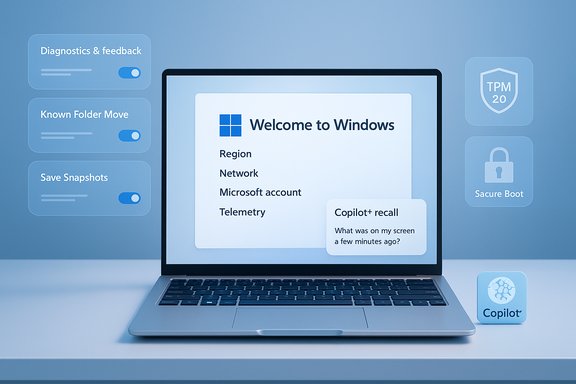
The typical OOBE flow still opens with the basic region/keyboard choices, then steps into network connectivity, account sign‑in, telemetry and privacy options, and — on compatible hardware — optional AI features. The practical friction points observed when accepting defaults are:- Mandatory internet connection (OOBE requires a network to progress in many consumer scenarios).
- Microsoft account sign‑in nudges and, in many builds, no supported local‑account path without using Pro/Enterprise or automation.
- Optional diagnostic telemetry set to a richer level by default.
- Consent prompts for on‑device AI features on Copilot+ hardware such as Recall (opt‑in for snapshot saving but not skippable without a decision during OOBE).
- Automatic prompts to enable OneDrive Known Folder Move, suggested apps, and other promotional nudges.
Mandatory Internet and the fading local account
What’s changing
In current public Insider builds and in subsequent releases, Microsoft has patched the common OOBE bypasses that previously let users create local accounts without an internet connection. Where earlier trickery (oobe\bypassnro, start ms‑cxh:localonly, or similar workarounds) allowed offline setup, newer builds increasingly enforce an online connection and a Microsoft account (MSA) during consumer OOBE. Independent reporting and Microsoft community channels confirm that Microsoft removed or neutralized those shortcuts for reasons it frames as ensuring a “complete setup” and avoiding skipped critical configuration steps.Why it matters
- Security and management: Microsoft argues an online account aids device recovery, encryption key escrow, and integration with modern management/security services.
- Accessibility and contingency: The new requirement penalizes users without immediate internet — field technicians, disconnected labs, privacy‑first users, and certain enterprise imaging scenarios.
- Trust and autonomy: For users who intentionally prefer a local account for privacy or to avoid cloud sync, the change reads as a loss of control and an escalation of vendor lock‑in.
Practical options today
- Install Windows 11 Pro where Pro sometimes still exposes domain‑join or other enterprise flows that can be used to create local users during setup, though that path is neither universal nor guaranteed.
- Use unattended installations (autounattend.xml) or IT imaging tools. These remain the supported, repeatable route for administrators but are inaccessible for casual consumers.
- Reinstall from an older ISO (e.g., 24H2) and update after setup — a brittle workaround that requires additional steps and risks introducing regression windows. Community documentation flags this as fragile and increasingly time‑dependent.
Telemetry and diagnostics: defaults, scope, and mitigation
What Microsoft collects by default
During OOBE, Windows 11 typically offers diagnostic options including Required and Optional diagnostic telemetry. Microsoft’s documentation defines Optional diagnostic data to include richer device details such as feature usage, site‑visit metadata, and enhanced crash dumps that can include memory contents. In plain terms: selecting the richer telemetry setting increases how much Microsoft receives about how you use apps and websites on the device.Why users react strongly
- Optional telemetry may include site URLs and broader usage signals that many users consider sensitive.
- AI features (Copilot experiences and personalization) can combine telemetry signals with on‑device and cloud models to surface tailored content — amplifying privacy concerns if users are uncomfortable with data being used to personalize features or ads.
- The perception that a paid OS comes with “watching” baked in, especially when default toggles favor richer collection, damages trust.
How to mitigate after setup
- Settings > Privacy & security > Diagnostics & feedback: set diagnostic data to Required only, turn off Tailored experiences, and consider using “Delete diagnostic data” to remove previously uploaded optional records.
- Disable Advertising ID and limit app‑specific tracking via Settings > Privacy & security.
- For fleets: enforce restrictive telemetry via Group Policy or MDM (Enterprise/Pro controls exist to lock telemetry levels).
Windows Recall and Copilot+ PCs: an on‑device memory with guards
What Recall does
Windows Recall is part of Microsoft’s Copilot+ feature set for qualifying AI PCs. It creates periodic visual snapshots of your activity so you can “retrace your steps” — searching for things you saw, documents you opened, or webpages you visited. Recall runs locally on Copilot+ hardware and leverages on‑device encryption tied to Windows Hello and TPM. Microsoft’s documentation stresses that saving snapshots is opt‑in by default and that snapshots are protected with Windows Hello ESS and TPM, with filtering and deletion capabilities available to users.The Copilot+ hardware requirement
Copilot+ PCs are marketed by Microsoft as machines with dedicated NPUs (Neural Processing Units). Microsoft’s public framing for Copilot+ centers on a minimum NPU performance level (commonly cited as 40 TOPS or higher), and the initial wave of qualifying Arm‑based Snapdragon X Elite/X Plus chips feature NPUs rated around 45 TOPS. That TOPS threshold is important because it limits which devices can run the full set of Copilot+ experiences at launch. Independent reporting corroborates the TOPS numbers and the fact that Intel and AMD NPUs at the time did not match Qualcomm’s highest TOPS figures.Privacy and operational safeguards
Microsoft baked multiple guardrails into Recall’s rollout:- Snapshots are not uploaded to Microsoft by default and are stored encrypted on the device.
- Users must opt in to saving snapshots (the toggle is Off by default); opening Recall prompts a decision.
- Windows Hello biometric confirmation is required to access Recall content.
- Filtering mechanisms exist to exclude apps and websites and to automatically filter sensitive content.
- Snapshots could be seen by anyone with access to your unlocked account or if Windows Hello credentials are compromised.
- Filtering is only as good as implementation; edge cases may leak sensitive bits before they’re filtered.
- Enterprises can disable Recall through policy, but consumer devices depend on the user to opt out.
Security posture and hardware gating: TPM 2.0 and e‑waste tradeoffs
Windows 11’s baseline security improvements — including mandatory Secure Boot and TPM 2.0 as a supported platform requirement — deliver a measurable uplift for platform integrity and attack surface reduction. Microsoft has described TPM 2.0 as a “non‑negotiable” baseline for many modern features and strongly encouraged OEMs and users to ensure TPM is enabled. Independent analysis and reporting have confirmed Microsoft’s messaging and emphasized that this choice excludes a swath of older hardware from being officially supported. The trade‑off is real: enforcing TPM and newer CPU generations improves security nationwide but risks accelerating device obsolescence for older but otherwise functional PCs. That creates two practical problems:- Users with older hardware may feel forced to buy new machines to remain supported.
- Environmental impact: upgrading hardware at scale generates legitimate e‑waste concerns.
The good: what Microsoft got right by default
Not every default is a loss. There are several legitimate places where Microsoft’s setup choices serve a clear user or security benefit:- Device encryption, Secure Boot, and TPM integration materially raise the bar for remote and physical attacks.
- Requiring a network during OOBE helps devices fetch critical updates and the latest drivers before first use — often avoiding painful update marathons later.
- Built‑in accessibility prompts and easy Windows Hello enrollment can increase security for mainstream users who otherwise skip MFA or biometrics.
- Copilot+ offloads many AI tasks to specialized NPUs, improving battery life and preserving user privacy in scenarios where on‑device inference removes the need to send content to the cloud.
The risks: trust erosion comes from defaults and friction
Where Microsoft’s defaults fall short is in the perception of choice and the cost of opting out.- Defaults matter: when richer telemetry and cloud ties are the path of least resistance, privacy‑minded users are pushed to remediate after setup instead of being offered a simple privacy‑first onboarding option.
- Hidden controls: scattering settings across the Settings app, Control Panel, Group Policy, and registry requires users to search and learn before asserting control.
- Closing of community bypasses: neutralizing long‑standing local‑account workarounds without a supported local‑account alternative for consumers damages trust for a segment of users.
- Complexity of enterprise vs consumer flows: some capabilities are trivially managed via Intune or GPO in enterprise settings but inaccessible to everyday consumers.
Practical, prioritized checklist: what to change immediately after setup
For readers who accept Microsoft’s defaults during OOBE and want to reclaim privacy and reduce noise, the following sequence is efficient and low‑risk.- Diagnostics & feedback: Settings > Privacy & security > Diagnostics & feedback — set to Required only and turn off Tailored experiences.
- OneDrive: Pause or disable Known Folder Move from the OneDrive tray menu if you don’t want Desktop/Documents pushed to the cloud.
- Suggestions and promotions: Settings > Personalization > Start — turn off Show recommendations and related suggestions. Settings > System > Notifications — disable “Show the Windows welcome experience after updates” and “Get tips and suggestions.”
- Recall: If you have a Copilot+ PC and do not want snapshots, leave Save snapshots off; if enabled, use filtering and set a short retention period. Confirm Windows Hello is secured if you use Recall.
- Advertising ID & app permissions: Settings > Privacy & security > General — turn off Advertising ID and review App permissions.
What Microsoft should do next (practical product recommendations)
- Ship a discoverable Pro/Expert OOBE toggle that:
- Makes local account creation a first‑class, supported option.
- Sets telemetry to Required by default and hides promotional placements.
- Exposes a single, durable global “no promotions” flag that survives feature updates.
- Publish a clear privacy ledger: a human‑readable, real‑time log of outbound telemetry items with purpose statements and an easy per‑category mute control.
- Provide an official offline setup path in consumer editions for legitimate scenarios (field work, labs, privacy‑first users) without relying on fragile community hacks.
- Expand documentation and tooling for migrating older hardware securely (TPM firmware updates, vendor BIOS guidance) to reduce forced upgrades and e‑waste.
Final analysis and conclusion
Accepting Microsoft’s suggested Windows 11 setup settings offers a revealing, practical look at the company’s priorities: security by default, cloud continuity, and an AI roadmap tied to qualifying hardware. Many of these priorities are defensible — TPM, Secure Boot, on‑device AI for performance and privacy — but the execution matters. Defaults that favor richer telemetry and an uphill path to a local account harm trust, and closing community workarounds without a supported alternative is a usability failure.Most of the complaints are fixable through better discoverability and a single, durable opt‑out path that survives updates. Until Microsoft gives users that control, power users and privacy‑minded consumers will continue to remediate settings post‑OOBE or look to alternatives for systems where control is non‑negotiable. Meanwhile, the company’s security and AI advances are real and useful — they simply require clearer consent models and better choices at setup.
In short: Windows 11’s defaults tilt the platform toward a cloud‑centric, AI‑enhanced future. That future has clear benefits, but it must be paired with transparent choices and durable privacy controls if Microsoft wants to keep both mainstream users and the technically proficient loyal to the platform.
Source: Windows Central https://www.windowscentral.com/micr...crosofts-suggested-windows-11-setup-settings/
