

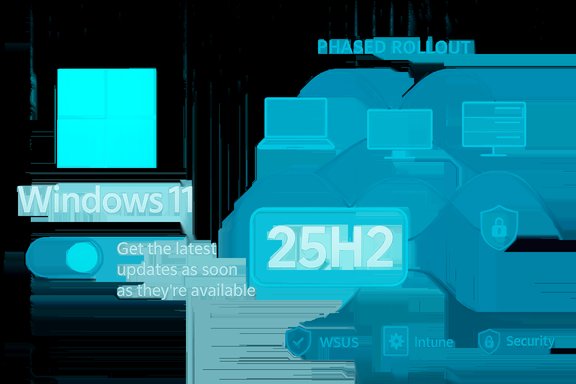
Microsoft is now offering the Windows 11 25H2 update to all eligible devices, but getting it immediately requires turning on the Get the latest updates as soon as they’re available toggle in Windows Update.
Microsoft delivered Windows 11, version 25H2 (the "Windows 11 2025 Update") as a streamlined, lightweight enablement package that unlocks features already present in version 24H2 rather than shipping a monolithic, full-image upgrade. That approach keeps installation quick and minimizes downtime for most users who are already on 24H2. The company began the controlled rollout at the end of September 2025 and has been expanding availability in waves since then. Microsoft’s release and rollout messaging makes two important points: the update is optional for now, it will be offered automatically to unmanaged Home and Pro devices over time, and some systems will be blocked by safeguard holds if incompatibilities are detected. Those safeguard mechanisms are intended to prevent mass breakage, but they also help explain why many computers will not see the option immediately even after the official launch.
Windows 11 25H2 is available now for those who want it immediately—enable the toggle, check for updates, and proceed with standard preparation steps. For everyone else, the staged rollout and safeguard holds provide a reasonable buffer while Microsoft irons out remaining issues.
Source: Windows Report Microsoft is now rolling out Windows 11 25H2 to all eligible devices, but it requires you to enable a toggle
 Background
Microsoft delivered Windows 11, version 25H2 (the "Windows 11 2025 Update") as a streamlined, lightweight enablement package that unlocks features already present in version 24H2 rather than shipping a monolithic, full-image upgrade. That approach keeps installation quick and minimizes downtime for most users who are already on 24H2. The company began the controlled rollout at the end of September 2025 and has been expanding availability in waves since then. Microsoft’s release and rollout messaging makes two important points: the update is optional for now, it will be offered automatically to unmanaged Home and Pro devices over time, and some systems will be blocked by safeguard holds if incompatibilities are detected. Those safeguard mechanisms are intended to prevent mass breakage, but they also help explain why many computers will not see the option immediately even after the official launch. Why 25H2 is different: enablement, shared codebase, and servicing
The enablement-package model
Instead of shipping a full new build, Microsoft used an enablement package for 25H2. That means most of the 25H2 features were already delivered to devices earlier via monthly cumulative and preview updates, but left dormant until the enablement package flips them on. The net effect is a very small download and a rapid install process for devices already on 24H2.Shared servicing branch with 24H2
Windows 11 versions 24H2 and 25H2 share the same servicing branch and a largely identical code base. This reduces fragmentation and lets Microsoft continue to deliver monthly feature enhancements to both versions concurrently. It also means that in practice the jump from 24H2 to 25H2 is more of a feature activation than a full upgrade.Support and lifecycle ramifications
Because 25H2 is positioned as the 2025 Update, Microsoft has adjusted its servicing guidance: consumers and small business editions receive the standard consumer-level servicing period while enterprise SKUs follow their longer servicing windows. IT departments need to map these lifecycle changes into their maintenance and patching schedules.What’s actually new in 25H2
25H2 is not a radical UI overhaul; instead, it contains a mix of small user-facing enhancements, enterprise-focused improvements, and security and management upgrades. Key areas to watch:- Updated Start menu and personalization tweaks that refine layout and suggestions.
- Security-focused fixes and hardened components, including removal of legacy tools (PowerShell 2.0, WMIC) and improvements in vulnerability detection and runtime protections.
- Enterprise management features such as policy-based removal of preinstalled Microsoft Store apps, expanded Windows Backup for Organizations, and Quick machine recovery for improved remediation on devices that fail to boot.
- Networking and connectivity updates, including enterprise-targeted Wi‑Fi 7 support and improvements for high-density deployments.
Rollout mechanics: the toggle that matters
The toggle: what it is and where to find it
To force the update to appear now, Microsoft tells users to enable the setting Get the latest updates as soon as they’re available under Settings > Windows Update. With the toggle on, eligible devices will see the option Download and install Windows 11, version 25H2 when they select Check for updates. If your device is queued but not yet offered, Microsoft may place it behind a safeguard hold until any detected incompatibilities are resolved.Who needs to enable the toggle?
- Home and Pro devices that are unmanaged and fully compatible will begin to receive the update automatically later in Microsoft’s staged rollout. Enabling the toggle accelerates that offer, effectively making your machine eligible to be included earlier in the controlled rollout waves.
- Devices in corporate environments that are managed via WSUS, Windows Update for Business, Intune, or other IT tooling will follow administrator policies and may not be eligible to use the toggle. Enterprise admins control the cadence for their fleets.
Why Microsoft asks users to opt in with a toggle
The toggle is a pragmatic compromise: Microsoft can expand rollout breadth to users who want the update early, while still giving it the ability to hold back devices that show signs of possible incompatibility. That reduces the blast radius of unforeseen issues but also places responsibility on users who choose to receive updates as soon as possible.Dates and availability: reconciling the timeline
Microsoft’s official communications and third‑party reporting show a phased timeline:- Initial announcement and controlled availability began publicly on or around September 30, 2025, with Microsoft’s Windows Experience Blog and Windows IT Pro blog posting guidance that day.
- Some rollout milestones and administrative availability (for example via WSUS) were noted to expand in mid-October 2025—WSUS availability was documented as around October 14, 2025, and Microsoft’s release health pages show updates and status messaging in October.
- Microsoft’s Windows release health documentation reflected the broader availability announcement with status updates posted in October 2025 (for example, the page noting availability to all eligible devices for users who turned on the “get latest updates” toggle).
Known issues, reliability and risk profile
Microsoft-published issues
Microsoft maintains a release health page that lists known issues tied to 25H2, including server-side impacts affecting IIS sites in earlier updates, Task Manager-related anomalies, and other items that have been tracked, mitigated, or resolved in subsequent cumulative updates. Administrators and power users should review the release health page before broad rollouts.Reported post‑update regressions
Independent reporting has highlighted potential post-update UI problems for some enterprise scenarios, including Start menu, Taskbar and Settings loading issues following certain update packages. Microsoft has acknowledged and is investigating several such incidents and has provided mitigation workarounds where applicable. These problems appear to be relatively rare on consumer devices but can be disruptive in managed or non-persistent environments.Safeguard holds and Known Issue Rollback (KIR)
When Microsoft detects app or driver incompatibilities, it can place a safeguard hold to keep affected devices from receiving the enablement package until the problem is resolved—or until a patch is shipped. Known Issue Rollback and other mitigation measures can automatically rectify some problems without a new cumulative update; however, in severe cases administrators will need to apply targeted fixes or follow Microsoft mitigation scripts.AI features and emerging risk vectors
Windows 11’s increasing integration of AI features has raised new classes of risk—particularly around models that interact with local content or system operations. Independent reporting has flagged vulnerabilities such as hallucinations and the potential for prompt injection in agent-like features. While these concerns are not unique to 25H2, they are relevant to the broader Windows roadmap and should factor into risk assessments for environments that will enable advanced conversational or autonomous features. Users and IT teams should treat AI features the same way they treat any capability that has broad system access: enable cautiously and monitor telemetry.Practical guidance: how to get 25H2 now (step-by-step)
- Confirm eligibility: verify your device is running Windows 11, version 24H2 and meets the hardware and driver compatibility requirements. If you're on 23H2 or Windows 10, a full reinstall or manual upgrade path may be required.
- Back up: create a full system backup or at least a system image and ensure your important files are backed up to external media or cloud storage. The update is small for 24H2 systems, but backups guard against unexpected regressions.
- Enable the toggle: open Settings > Windows Update and turn on Get the latest updates as soon as they’re available. Then click Check for updates. If your device is eligible and not blocked by a safeguard hold, you’ll see Download and install Windows 11, version 25H2.
- Install at a convenient time: if offered, choose a download and restart schedule that minimizes disruption. You can postpone restarts or pick an out-of-hours window.
- If you manage multiple devices: test first on a small pilot group, validate critical apps and drivers, and use Windows Update for Business, WSUS, or Intune to stage the broader deployment based on telemetry from your pilot.
Enterprise and IT pros: deployment considerations
WSUS, Autopatch, and admin controls
Microsoft made 25H2 available to commercial customers via Windows Autopatch and the Microsoft 365 admin center early on, and planned WSUS availability followed Microsoft's staged schedule. Administrators should confirm WSUS catalog availability and use ringed deployments to reduce risk. Microsoft’s IT pro resources and blog posts provide detailed guidance for enterprise rollouts.Policy options for locking or deferring the update
Enterprises that need to delay adoption can leverage existing management tools:- Windows Update for Business (defer feature updates)
- Group Policy or Intune Feature Update policies
- WSUS approval processes
- Block/allow driver compatibility lists
Testing matrix and application compatibility
Given the mixed reports of issues in specific edge cases, IT teams should expand compatibility testing beyond basic boot and network tests. Include:- Line-of-business applications
- Virtual desktop images and non-persistent environments
- Antivirus/endpoint protection agents
- Custom shell extensions and device drivers
Troubleshooting: if something goes wrong
- If you encounter post-update UI failures (Start, Taskbar, Settings), try restarting the machine and checking for additional cumulative updates—Microsoft sometimes ships rapid mitigations. For enterprise environments, Microsoft has provided temporary workarounds (for example, PowerShell logon scripts in non-persistent VDI scenarios) while fixes are developed.
- Use System Restore or boot into Safe Mode to uninstall the last preview or cumulative update if needed. If the enablement package is the only change, reverting to 24H2 may involve uninstalling specific packages or using recovery media. Maintain current recovery images and test restore procedures before mass deployment.
- For driver or application incompatibility, check vendor sites for updated drivers and consult Microsoft’s release health page for known mitigations. Known Issue Rollback (KIR) can sometimes resolve issues without manual intervention, but KIR timelines vary.
The trade-offs: why some users should wait
25H2’s lightweight model and incremental nature reduce upgrade friction, but waiting remains a valid strategy for many organizations and cautious consumers. Reasons to delay include:- Presence of mission-critical apps with unknown compatibility.
- Use of non-persistent VDI or complex virtualized environments where UI-init issues can have outsized impacts.
- Environments that require absolute stability during peak business cycles.
Strengths of Microsoft’s approach
- The enablement package model minimizes download size and local disruption for most users already on 24H2, making upgrades fast and less network-intensive.
- Shared servicing and a single code branch reduce fragmentation and make it easier for Microsoft to deliver features continuously to both 24H2 and 25H2.
- Safeguard holds and Known Issue Rollback mechanisms provide pragmatic protection against large-scale regressions.
Potential weaknesses and risks
- Staged rollouts can create fragmentation in availability that frustrates users who expect immediate parity across devices and regions. Different reporting timelines from Microsoft and third-party outlets reflect that inconsistency.
- Some high-impact bugs (UI loading failures, compatibility regressions) have been reported in enterprise contexts, suggesting that non-trivial edge cases still surface post-release. That underlines the importance of pilot testing.
- Increased AI surface area in Windows creates new security and trust challenges. Features that process or act on local content must be evaluated for prompt injection, hallucination risks, and data-leak possibilities. IT teams should consider policies to disable or limit advanced AI features until they have been validated for internal use cases.
Recommended checklist before enabling the toggle or approving 25H2
- Back up full system images and critical data.
- Ensure drivers (graphics, storage, network) are up to date from vendor sites.
- Pilot the update on a small representative sample (workstations, laptops, VDI images, kiosks).
- Review Microsoft’s release health and known issues pages for the latest mitigations.
- For organizations: schedule staggered rings via WSUS, Intune, or Windows Update for Business and monitor telemetry for regressions before expanding rollout.
Final verdict
Windows 11, version 25H2 continues Microsoft’s recent direction toward incremental, low-friction feature delivery. For individuals and small businesses running 24H2 on supported hardware, enabling the Get the latest updates as soon as they’re available toggle is a straightforward way to adopt 25H2 earlier, with minimal downtime. For enterprises and mission‑critical environments, the recommendation remains conservative: test widely, stage deployments, and rely on management tools and safeguard holds to reduce risk. Microsoft’s published known issues and vendor updates should be part of every deployment checklist. The enablement-package model is a net positive for reducing upgrade overhead, but it doesn’t remove the need for careful compatibility testing—particularly in complex, managed environments where the impact of an edge-case bug can be significant.Windows 11 25H2 is available now for those who want it immediately—enable the toggle, check for updates, and proceed with standard preparation steps. For everyone else, the staged rollout and safeguard holds provide a reasonable buffer while Microsoft irons out remaining issues.
Source: Windows Report Microsoft is now rolling out Windows 11 25H2 to all eligible devices, but it requires you to enable a toggle
