Microsoft has quietly shifted from a slow, optional rollout to an assertive distribution posture for the Windows 11 2025 feature update — Windows 11, version 25H2 — making the release available to all eligible PCs through Windows Update while simultaneously moving to protect consumer systems that would otherwise sit on unsupported builds. The move is consequential: Microsoft’s enablement-package delivery model makes the upgrade low-friction for many devices, but the company is also confronting a stubborn migration gap — industry estimates put the pool of upgrade-capable but reluctant PCs in the hundreds of millions — and early post-update reports show real stability and driver risks that merit a cautious rollout strategy for many users and IT teams.
Windows 11, version 25H2 is the 2025 feature update and, for most up-to-date Windows 11 machines, it is being delivered primarily as an enablement package (eKB) — a tiny “flip-the-switch” patch that activates features Microsoft has already shipped inside prior cumulative updates. That approach lowers download size and downtime dramatically for devices already on the 24H2 baseline, while machines on older builds or on Windows 10 still follow the conventional in-place feature upgrade route. The enablement model is deliberate: it consolidates staged features, reduces bandwidth and validation cost for administrators, and restarts the servicing clock for consumer SKUs so affected devices can continue receiving monthly security and quality updates.
Microsoft’s broader distribution choice was driven in part by hard lifecycle timelines. Consumer servicing for older Windows builds — notably Windows 11 23H2 — reached its end‑of‑support window in late 2025, leaving Home and Pro devices on those releases without routine monthly security updates. To reduce the population of unsupported consumer machines, Microsoft’s Windows Update pipeline now treats eligible, unmanaged Home and Pro PCs on out-of-support builds as candidates for automatic update to the next supported consumer release — in this case 25H2. The practical upshot: if your Home or Pro PC ran 23H2 and meets compatibility checks, it may be scheduled for an upgrade to 25H2 to restore security coverage.
At the same time, Microsoft is not quietly mass-forcing Windows 10 machines to leap to Windows 11. Windows 10 users continue to be offered Windows 11 as an opt-in upgrade route; automatic conversion of Windows 10 systems without explicit user action is not Microsoft’s stated behavior. That distinction matters for organizations and users who rely on long testing cycles or Extended Security Updates (ESU) for Windows 10.
Technical prerequisites are consistent with the platform baseline Microsoft set earlier in the Windows 11 era: UEFI with Secure Boot enabled, TPM 2.0, and a supported processor family remain core gating checks for in-place upgrades. Where hardware or firmware blocks exist, Microsoft’s compatibility holds will continue to delay the update until vendor drivers or firmware are updated.
Caveat and verification note: many error codes and symptom descriptions come from user-reported forum threads and early-adopter testing; they require careful cross-checks with vendor advisories and Microsoft’s Release Health pages before declaring a general platform-wide fault. Some of the specific error codes and driver pairings circulating in the wild are difficult to verify centrally without reproducing the exact hardware, driver, and update history that triggered the failure. Treat these items as actionable warnings rather than definitive systemic failures.
At the same time, the scale of non-upgrading devices — industry reporting places the hesitant cohort in the hundreds-of-millions range — underlines that user behavior and hardware limitations will continue to complicate the migration. Early community reports of installation errors and driver conflicts are a meaningful caution: the platform-wide rollout is not risk-free, and the decision to upgrade must be informed by device specifics, vendor driver support, and an organization’s tolerance for rollout risk. Where there is uncertainty about a specific error, model or driver, treat the community reports as early warnings and seek vendor or Microsoft advisories before proceeding.
For users and administrators planning upgrades, the practical path is clear: back up critical data, validate vendor drivers, stage the update in controlled rings, and consult Microsoft’s release-health guidance before broad deployment. That balanced approach captures the best of Microsoft’s enablement-package promise — fast installs and renewed security — while avoiding the most common post-upgrade pitfalls.
Microsoft’s decision to expand 25H2 availability is an inflection point in the Windows lifecycle: it privileges security and reduced fragmentation while relying on staged controls to limit harm. The result is not a risk-free solution, but for most modern systems the trade-offs favor upgrading once device-specific compatibility checks are satisfied and vendor drivers are validated.
Source: Swikblog Windows 11 25H2 Upgrade: Microsoft Pushes Update as 500 Million Delay Switching
 Background / Overview
Windows 11, version 25H2 is the 2025 feature update and, for most up-to-date Windows 11 machines, it is being delivered primarily as an enablement package (eKB) — a tiny “flip-the-switch” patch that activates features Microsoft has already shipped inside prior cumulative updates. That approach lowers download size and downtime dramatically for devices already on the 24H2 baseline, while machines on older builds or on Windows 10 still follow the conventional in-place feature upgrade route. The enablement model is deliberate: it consolidates staged features, reduces bandwidth and validation cost for administrators, and restarts the servicing clock for consumer SKUs so affected devices can continue receiving monthly security and quality updates.Microsoft’s broader distribution choice was driven in part by hard lifecycle timelines. Consumer servicing for older Windows builds — notably Windows 11 23H2 — reached its end‑of‑support window in late 2025, leaving Home and Pro devices on those releases without routine monthly security updates. To reduce the population of unsupported consumer machines, Microsoft’s Windows Update pipeline now treats eligible, unmanaged Home and Pro PCs on out-of-support builds as candidates for automatic update to the next supported consumer release — in this case 25H2. The practical upshot: if your Home or Pro PC ran 23H2 and meets compatibility checks, it may be scheduled for an upgrade to 25H2 to restore security coverage.
At the same time, Microsoft is not quietly mass-forcing Windows 10 machines to leap to Windows 11. Windows 10 users continue to be offered Windows 11 as an opt-in upgrade route; automatic conversion of Windows 10 systems without explicit user action is not Microsoft’s stated behavior. That distinction matters for organizations and users who rely on long testing cycles or Extended Security Updates (ESU) for Windows 10.
What exactly is 25H2 — the technical outline
Enablement package vs full feature upgrade
- For devices on Windows 11, version 24H2 that are fully patched, 25H2 is usually an enablement package: a small downloadable package that flips dormant features on and updates the version string. Install time is typically short and often requires only a single reboot.
- For devices on older Windows 11 builds (23H2, 22H2, etc. or Windows 10, the path to 25H2 is a conventional, larger in-place feature upgrade that may step through 24H2 or perform a full feature update — expect a bigger download, longer install windows, and standard compatibility checks.
Key platform changes in 25H2 (practical view)
25H2 is best described as consolidation, hardening and staged AI enablement rather than a radical consumer-facing redesign. Notable practical items include:- Incremental Start menu and shell refinements, personalization tweaks, and File Explorer polish.
- Platform and security hardening, including removal of legacy in-box components (examples called out in vendor guidance include older command-line tooling) and improved runtime vulnerability detection measures.
- Enterprise-oriented manageability improvements (new Group Policy/MDM CSPs, expanded backup options, and faster recovery tools).
- Staged Copilot/AI features that remain hardware-gated and subscription- or licensing-gated in many cases.
Why Microsoft is pushing 25H2 now
The driving rationale is lifecycle and security:- Installing 25H2 resets the device’s servicing clock, restoring eligibility for monthly security updates on consumer SKUs and materially reducing the risk of leaving devices unpatched.
- A smaller base of supported code makes it easier for Microsoft to protect the ecosystem at scale and lowers the attack surface of unsupported configurations.
- The enablement-package model reduces upgrade friction for the majority of devices that are already kept current on 24H2.
How to check whether your PC can receive 25H2 (simple steps)
Microsoft’s in‑OS guidance and community reporting consolidate to these practical checks:- Open Settings → Windows Update.
- Ensure the toggle Get the latest updates as soon as they're available is enabled if you want to surface the offer early.
- Click Check for updates and look for Download and install — Windows 11, version 25H2.
Technical prerequisites are consistent with the platform baseline Microsoft set earlier in the Windows 11 era: UEFI with Secure Boot enabled, TPM 2.0, and a supported processor family remain core gating checks for in-place upgrades. Where hardware or firmware blocks exist, Microsoft’s compatibility holds will continue to delay the update until vendor drivers or firmware are updated.
Reported upgrade problems and active stability concerns
Early adopters and community forums documented an array of issues during the November–December rollout window. The most load‑bearing problems reported include:- Installation and component-store failures producing Windows Update errors during cumulative installs and feature upgrades (community reports cite various error codes and blocked installs).
- Visual and UX regressions on some devices (for example, dark mode inconsistencies in File Explorer reported anecdotally by users in community threads).
- GPU and driver conflicts — in some cases tied to recent Intel Arc or other vendor drivers — that manifested as performance regressions, display errors, or rollback prompts.
Caveat and verification note: many error codes and symptom descriptions come from user-reported forum threads and early-adopter testing; they require careful cross-checks with vendor advisories and Microsoft’s Release Health pages before declaring a general platform-wide fault. Some of the specific error codes and driver pairings circulating in the wild are difficult to verify centrally without reproducing the exact hardware, driver, and update history that triggered the failure. Treat these items as actionable warnings rather than definitive systemic failures.
What the change means for Windows 10 users
Windows 10 reached its mainstream support cutoff in mid‑ to late‑2025, and Microsoft’s guidance to consumers has been consistent:- Upgrade to Windows 11 25H2 if your PC meets hardware requirements and you want to remain on a fully supported consumer platform.
- Remain on Windows 10 only with a clear plan — either enroll in Extended Security Updates (ESU) where available, or accept the growing security and compliance risk as time passes.
- For devices that fail the Windows 11 hardware checks, consider hardware replacement or a new PC purchase if staying on a supported platform is a priority.
Enterprise and IT implications — control vs security
For IT teams the 25H2 enablement strategy is both an opportunity and a headache:- Benefits: For fleets already standardized on 24H2, the eKB model simplifies mass upgrades — minimal downtime, smaller bandwidth impact, and a clearer baseline for security and management. Enterprises can treat the eKB as a light change with fewer variables to validate than a full image rebase.
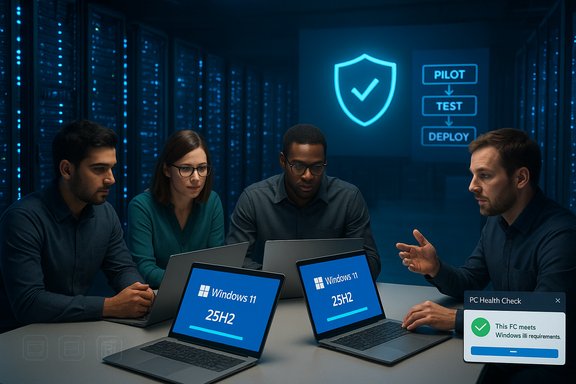
- Risks: For fleets still validating specialist apps, device drivers, or vendor agents, the eKB still enables new features that could interact with legacy management tooling. Microsoft’s controlled rollout and safeguard holds mitigate blast radius, but administrators must still pilot widely, test critical workloads, and confirm vendor compatibility before broad deployment.
- Stage 25H2 in small pilot rings and extend only after validation.
- Use configuration management (WSUS, Intune, or Windows Update for Business) to control rollout cadence and prevent unmanaged push-through on production systems.
- Maintain rollback playbooks and backup strategies for machines running business-critical services.
Practical upgrade guidance (recommended steps)
If you’re considering 25H2 now, follow these concrete steps to reduce upgrade risk:- Back up everything important. Create an image backup or at minimum a verified file backup before attempting a feature upgrade.
- Check Windows Update Settings → ensure the toggle “Get the latest updates as soon as they’re available” is on only if you want to be prioritized for the offer; otherwise, leave it off to let Microsoft expand availability more conservatively.
- Confirm hardware compatibility: TPM 2.0, Secure Boot, supported CPU family, and minimum RAM/storage thresholds are still gating checks for Windows 11 upgrades.
- Review Microsoft’s Release Health and the manufacturer’s driver advisory pages for your exact device model before committing. Wait for vendor-supplied graphics/firmware drivers to be validated for 25H2 if your workflow depends on advanced GPU features.
- For enterprises: validate in a pilot ring, test vendor agents and imaging, and coordinate rollback options with your standard change-control process.
Strengths and benefits of Microsoft’s approach
- Low-friction upgrades for up-to-date systems. The enablement model is a pragmatic way to flip features on with minimal downtime for machines already on 24H2. This significantly reduces the operational cost of keeping consumer and small-business machines secure.
- Cleaner servicing footprint. Consolidating devices onto supported releases reduces the number of unpatched systems and simplifies ecosystem-wide security efforts.
- Fewer large downloads for enterprises. Reduced bandwidth spikes and simpler staged deployments make the eKB model attractive for fleet management.
Risks and trade-offs — a critical appraisal
- Compatibility fragility. Even a small enablement flip can surface driver, firmware, or edge-case application incompatibilities that were dormant under previous configurations. The staged rollout and safeguard holds can help, but they are not a replacement for broad vendor validation.
- Perception vs reality. The eKB model can confuse users who expect visible feature changes immediately; server-side gating means functionality arrives unevenly across hardware, region and licensing tiers, which can drive support calls and user frustration.
- Scale of reluctant users. The reported cohort of hundreds of millions of upgrade-capable but non-upgraded PCs is both a symptom and a constraint: user inertia, hardware limitations, and cautious enterprises will continue to fragment the installed base, making perfect enforcement impossible without significant friction or coercion. Treat large cohort figures as indicative of scale, not precise census.
- Opaque error signals. Early community problem reports include a mix of user-reported error codes and symptoms that are challenging to correlate into a single, reproducible platform bug without vendor and telemetry data. That creates noise for support channels and complicates blanket recommendations.
Decision framework — should you upgrade immediately?
From a pure security posture, moving to a supported Windows 11 baseline is the best way to preserve monthly protective updates. That said, the practical decision depends on three things:- Do you need the new capabilities or a fresh servicing window right now? If yes, prioritize upgrading but follow the preparatory checklist above.
- Does your device rely on hardware or drivers known to show issues in early reporting (high‑end GPUs, certain network adapters, vendor-specific agents)? If yes, wait for vendor-validated drivers or Microsoft hotfixes.
- Are you an enterprise admin with strict compliance/compatibility requirements? If yes, test in pilot rings and use management controls to stagger rollout.
What to watch next (short- and medium-term signals)
- Microsoft’s Release Health pages and KB updates for 25H2 will list new compatibility holds, hotfixes, and documented mitigations; those pages are the authoritative place to check for model-level safeguards.
- Hardware vendors (especially GPU and chipset suppliers) posting validated 25H2 driver updates is a strong signal that it’s safe to proceed for affected devices.
- Community forums and enterprise telemetry will surface reproducible failure modes that Microsoft and vendors may address with targeted patches; monitor for convergence on root causes rather than anecdotal symptom lists.
Final assessment
Microsoft’s push to make Windows 11, version 25H2 broadly available is understandable and defensible: it resets the security clock for consumer devices, simplifies servicing, and leverages an enablement-package model that dramatically reduces install friction for well-maintained 24H2 PCs. For the majority of users with current hardware, the upgrade is a pragmatic step to preserve security and support.At the same time, the scale of non-upgrading devices — industry reporting places the hesitant cohort in the hundreds-of-millions range — underlines that user behavior and hardware limitations will continue to complicate the migration. Early community reports of installation errors and driver conflicts are a meaningful caution: the platform-wide rollout is not risk-free, and the decision to upgrade must be informed by device specifics, vendor driver support, and an organization’s tolerance for rollout risk. Where there is uncertainty about a specific error, model or driver, treat the community reports as early warnings and seek vendor or Microsoft advisories before proceeding.
For users and administrators planning upgrades, the practical path is clear: back up critical data, validate vendor drivers, stage the update in controlled rings, and consult Microsoft’s release-health guidance before broad deployment. That balanced approach captures the best of Microsoft’s enablement-package promise — fast installs and renewed security — while avoiding the most common post-upgrade pitfalls.
Microsoft’s decision to expand 25H2 availability is an inflection point in the Windows lifecycle: it privileges security and reduced fragmentation while relying on staged controls to limit harm. The result is not a risk-free solution, but for most modern systems the trade-offs favor upgrading once device-specific compatibility checks are satisfied and vendor drivers are validated.
Source: Swikblog Windows 11 25H2 Upgrade: Microsoft Pushes Update as 500 Million Delay Switching