Windows 11 Agent Workspace: On-Device AI Agents in a Contained Session

  • Thread Author
Microsoft’s latest Insider preview quietly lays the groundwork for a new class of on‑device automation: an Agent Workspace and an experimental toggle that prepares Windows 11 to let AI agents act on your behalf inside a contained session — a move that shifts the OS from suggestion to action while raising real security, privacy and operational questions for both consumers and IT teams.

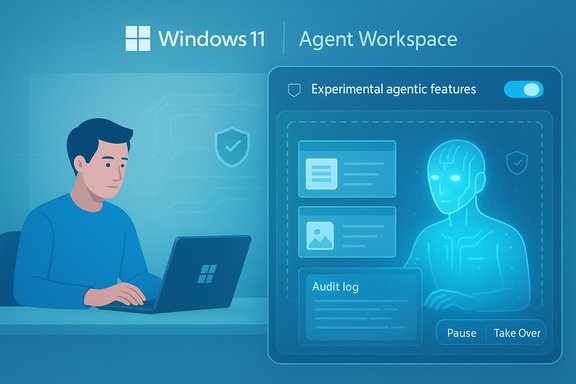
Windows 11 Agent Workspace: person at laptop with a futuristic AI control panel.Background / Overview​

Windows 11’s Copilot evolution has been incremental but relentless: from a sidebar chat to voice, vision, and now agentic automation. The most recent Insider preview surfaces a new master control in Settings — Experimental agentic features — that provisions an agent runtime and enables what Microsoft calls Agent Workspace, a separate, permissioned desktop session where signed AI agents can open apps, click UI elements, and operate on files within a scoped permission model. Microsoft describes this as a lightweight runtime boundary that is more efficient than a full virtual machine, but stronger than running code directly in the user’s primary session. The feature set is explicitly experimental and opt‑in, delivered to Windows Insiders in staged flights. Early reporting and preview notes tie the exposure of the toggle to cumulative updates in the 26220 flight (the preview branch), with some Insiders seeing the toggle appear in builds identified by the cumulative package KB5070303. That means the plumbing is arriving first; the full agent experiences will be rolled out and refined over subsequent Insider releases.

What is Agent Workspace?​

A contained session for agents, not just another sandbox​

Agent Workspace is a purpose‑built runtime that gives an AI agent its own Windows session, desktop and a distinct standard Windows account. The design goals are explicit:
  • Separation of identity: agents run under dedicated agent accounts so their actions are auditable and distinct from the human user.
  • Runtime isolation: the workspace provides a contained desktop session where agents execute UI interactions in parallel to the user’s session.
  • Transparent execution: users can see what an agent is doing, pause, stop or take over the session in real time.
  • Scoped file access: in the preview, agents are limited to known user folders (Documents, Desktop, Downloads, Pictures) unless the user grants broader permissions.
This is not identical to Windows Sandbox or a full virtual machine. Microsoft positions Agent Workspace as a middle ground: it’s lighter than a VM (for responsiveness and resource efficiency) but provides stronger process and identity boundaries than simply running automation inside the primary user session. That hybrid approach is intended to make everyday automation practical while offering a set of enforceable security primitives.

What agents can (and can’t) do in preview​

In the early preview the capability set is conservative and focused on productivity tasks that benefit from UI‑level automation:
  • Open desktop apps and certain web apps, interact with menus and controls, and perform multistep flows.
  • Manipulate local files inside scoped folders — for example, batch resize or de‑duplicate images, extract tables from PDFs, compile files into a document, or assemble a playlist.
  • Work in the background while the user continues with other tasks; progress is visible in the Agent Workspace UI.
What agents cannot do (in preview) is unrestricted disk crawling, unrestricted administrative changes, or silent actions that bypass explicit user consent. The platform is being delivered with a least‑privilege default and an emphasis on opt‑in enablement.

How to enable Experimental Agent Capabilities​

Microsoft has placed the control in a single, discoverable location in Settings to make consent explicit. The steps reported from Insider previews are short and intentionally clear; enabling this toggle provisions the agent infrastructure on the device.
  • Open Settings.
  • Choose System.
  • Select AI Components (or AI components → Agent tools in some builds).
  • Find and flip on the Experimental agentic features toggle.
  • Read the warning about privacy, security and performance implications and confirm.
  • Restart your PC if prompted. After reboot, the agent account and workspace plumbing begin provisioning.
A few practical notes: the toggle is off by default and gated to Insiders (Dev and Beta channels) while Microsoft collects feedback. The Copilot app may also need a specific Insider build/version to surface “Take Action” or similar agent triggers. If you don’t see the capability immediately, the rollout is staged — not every Insider will have it at once.

Security, Privacy and Operational Controls​

Four foundational controls Microsoft emphasizes​

Microsoft’s security posture for agentic features is explicitly built around four pillars that are already present in the preview documentation:
  • User Control: agentic features must be consciously enabled by the user via the Experimental toggle.
  • Agent Accounts: agents execute under their own Windows accounts, creating a clear authorization boundary and enabling ACLs and policy to be applied at the agent level.
  • Agent Workspace: runtime isolation and a separate desktop session confine an agent’s view and minimize direct access to the human user’s interactive session.
  • Operational Trust (Signatures & Revocation): agents must be digitally signed so publishers can be verified, and certificates can enable revocation if an agent is compromised or behaves maliciously.
These controls are pragmatic and necessary; they create a framework where audit trails, policy enforcement and runtime revocation are possible.

Transparency, logging and human takeover​

A crucial design detail is that agent actions produce visible, human‑readable logs and step‑by‑step progress inside the Agent Workspace. Microsoft stresses the “human in the loop” model: sensitive actions should prompt for confirmation and users can intervene at any point. This is a meaningful safety affordance, but it relies on both robust logging integrity and real‑time UI affordances that are easy for people to interpret.

Practical security caveats and open questions​

  • Agent accounts and a separate desktop reduce risk, but they do not eliminate it. Misconfigurations, privilege escalation in third‑party agents, or flawed signing pipelines remain plausible exploitation vectors.
  • The platform promises certificate‑based revocation, but details about emergency revocation timelines, enterprise integration points (Entra, MDM hooks) and SIEM/logging semantics were described as “coming soon” — enterprises should demand specifics before enabling broad rollouts.
  • The feature increases the attack surface for social engineering and automation misuse — for example, a user could be tricked into enabling an agent that requests broad permissions. Clear UI cues and permission manifests are essential to mitigate that risk.
Where Microsoft has been specific, their documentation and Windows Experience blog explain the model in detail; where they remain high level, independent testing and enterprise pilots will be necessary to validate that the controls operate as intended in production environments.

Performance and Resource Management​

Microsoft frames Agent Workspace as a lightweight runtime that scales memory and CPU use based on activity, aiming to be more efficient than spinning up full virtual machines. In practice:
  • Lightweight agents that perform simple file operations likely have minimal impact.
  • Complex agents (app automation combined with heavy local model inference or long‑running tasks) could use noticeable resources and affect responsiveness, especially on devices without dedicated NPUs.
Microsoft has not published specific performance budgets or worst‑case CPU/memory figures for Agent Workspace in the preview. That gap means performance claims should be treated cautiously until benchmarks — especially on a range of hardware profiles — are available. For power users and enterprises, conservative rollout on test hardware remains the sensible approach.

Accessibility, UI and Input Improvements in the Same Build​

The Insider build that surfaced the agent toggle also includes notable accessibility and UX refinements:
  • Narrator and Magnifier: new higher‑fidelity on‑device voices are included for improved clarity and reduced fatigue, and Narrator gained early support for reading math expressions in Microsoft 365 apps. These voices are downloadable and run locally, which is a win for privacy and responsiveness.
  • Click to Do and UI hints: Click to Do behavior is refined, teaching tips rewritten, and a tutorial button added; haptic feedback for compatible pens may appear when hovering over UI elements.
  • File Explorer: several AI‑powered actions in File Explorer are being reworked; some image tools or Copilot summary actions are temporarily unavailable while Microsoft adjusts reliability. Microsoft also paused a tested change that opened new File Explorer windows as tabs due to reliability issues.
These refinements show Microsoft continues to iterate on accessibility and UI flows in parallel with agentic features, which is important for broad user adoption.

Known Issues, Fixes and Preview Limitations​

Preview builds often come with a set of fixes and outstanding issues. The build series that exposed the agent toggle included fixes (keyboard/mouse behavior in the Windows Recovery Environment, Task Manager anomalies, Virtual Workspace configuration) but also retained some known issues (Start menu reliability, missing system tray items, dark mode copy dialog bugs, .NET crashes on ARM64). These quirks underline the importance of testing agentic features only on non‑critical devices during insider previews.
Microsoft has explicitly stated several features will be limited or unavailable temporarily while the company gathers telemetry and hardens security. Insiders should expect a phased functionality roll‑out where the toggles enable the runtime first, and richer agent behaviors arrive later.

Enterprise and IT Implications​

Treat agents like service accounts​

From an enterprise governance standpoint, the agent model resembles a new class of service account with direct desktop capabilities. Recommended initial posture:
  • Block or keep Experiment agentic features disabled via group policy or MDM until pilots are complete.
  • Treat agent accounts as managed principals in identity systems: require signing policies, certificate lifecycle management, and revocation workflows.
  • Integrate agent telemetry into SIEM and endpoint telemetry: agent start/stop events, files accessed, network calls and agent identity should be logged and monitored.

Pilot low‑risk automation first​

Start with low‑risk use cases (image resizing, file cleanup, PDF table extraction) on non‑production endpoints. Establish rollback/undo procedures and require snapshots/backups prior to agent runs that modify volumes of user data. The human‑in‑the‑loop UI is helpful, but automation can still make large changes quickly if misconfigured.

Vendor and regulatory scrutiny​

Agentic automation that can access user data and act on it will attract attention from security vendors, privacy teams and regulators. Enterprises should insist on clear documentation about data retention, telemetry collection, and how Microsoft surfaces audit logs for compliance reviews. Some regional availability restrictions have been reported in early Insider materials; organizations with cross‑border data obligations should validate regional availability and legal exposure.

Developer and Ecosystem Considerations​

Third‑party developers and ISVs will quickly want to build agent experiences. Microsoft’s current model emphasizes signing, explicit permission manifests, and runtime isolation — a sensible starting point. Key demands developers should plan for:
  • Clear permission manifests that show exactly which folders, services and connectors an agent needs.
  • Robust error handling and transactional safety: if an agent performs multi‑step operations, there should be clear rollback semantics or at least easy remediation steps.
  • Test suites for UI automation resilience: agents that click and type are brittle; reliance on control APIs or sanctioned app contracts will be more stable than pixel‑driven flows.
  • Enterprise‑grade signing and revocation support for publishing and updating agents in a managed environment.

Practical Guidance for Power Users and Insiders​

  • Use the Experimental toggle only on secondary or test devices. Back up important files before running agents that will modify large sets of data.
  • Start with sample folders or copies of real files. Give agents the minimum permission needed for their task.
  • Watch agent executions in the Agent Workspace and test the takeover/pause UI to confirm it behaves as expected on your hardware and apps.
  • Report problems through the Feedback Hub: early previews are precisely the time Microsoft needs robust, real‑world telemetry to refine both safety controls and usability.

Strengths, Risks and the Tradeoffs​

Strengths​

  • Productivity potential: agentic automation can convert hours of repetitive GUI tasks into a single natural‑language instruction, which is especially valuable for content assembly, batch file operations, and accessibility workflows.
  • Principled architecture: agent accounts, signing and an explicit opt‑in toggle give Microsoft a sensible framework for governance that can, in theory, be managed by enterprises.
  • Transparency and control: visible Agent Workspace execution and human takeover reduce the odds of silent, destructive automation.

Risks and open questions​

  • Operational security: identity and signing models reduce risk but do not eliminate it — the supply chain and developer ecosystem must be tightly governed.
  • Privacy and telemetry: the precise retention, logging and telemetry semantics for agent runs (what’s stored where, for how long, and who has access) will matter for compliance and user trust.
  • Performance and reliability: Microsoft’s “lightweight” claim lacks concrete metrics. Real world impact on low‑spec hardware and the effect of many concurrent agents remain to be measured.
  • Automation brittleness: UI automation is inherently brittle; long‑term success will hinge on sanctioned APIs and more robust integration points rather than clicking and typing alone.
Where Microsoft’s documentation and blog posts are explicit, the architecture and design narrative are consistent. Independent coverage and hands‑on reports broadly confirm both the capability direction and the conservative, opt‑in approach — but certain operational details remain intentionally unspecified during the preview and should be validated during pilots.

What to Watch Next​

  • Official enterprise controls: Intune/MDM policies, Entra integration and DLP hooks that let administrators govern agent behavior.
  • Signing and revocation mechanics: how quickly Microsoft and partner ecosystems can revoke a compromised agent and propagate that revocation to endpoints.
  • Performance benchmarks: independent tests that measure CPU, memory and battery impact across hardware tiers, including Copilot+ NPUs vs. standard configurations.
  • Developer tooling and manifests: robust permission models and test harnesses for agents to reduce automation brittleness.
  • Documentation of telemetry retention and audit export features for compliance use cases.
Expect Microsoft to iterate over many months in the Insider program before any broad commercial rollout; the company is deliberately staging exposure while it tightens governance and collects telemetry.

Conclusion​

The Agent Workspace and the Experimental agentic features toggle mark the most consequential reimagining of Windows’ role in everyday productivity since the introduction of the Store and integrated web services: Windows is being prepared to host agents that can act — not just suggest — while giving users and administrators explicit controls to govern that activity. The architecture Microsoft has chosen — separate agent accounts, a contained workspace, signed agents and visible, interruptible execution — is pragmatic and improves the odds that agentic automation can be adopted safely.
That said, the preview is precisely that: foundational plumbing. Several critical operational questions remain, especially around signing and revocation mechanics, telemetry and log integrity, enterprise management hooks and the resource profile of longer‑running or model‑heavy agents. Until independent tests and enterprise pilots validate these behaviors at scale, Insiders and organizations should approach agentic features with cautious curiosity: experiment, test, and insist on meaningful governance before moving agentic automation into production.
The promise is real — faster workflows, better accessibility, and a more capable PC — but the path to widespread, safe adoption will be measured, policy‑driven and dependent on details that remain to be hardened in the months ahead.
Source: PCQuest Windows 11 Insider Build Sets the Stage for New AI Automation Power
 

Microsoft’s latest updates make explicit what industry insiders have been predicting for months: Windows 11 is being re‑architected from a traditional app platform into an AI‑native, agentic operating system — one that can see, hear, reason, and crucially act on a user’s behalf through scoped, auditable autonomous agents. This shift is visible in three linked moves: the introduction of a permissioned Agent Workspace and agent accounts, expanded multimodal inputs (voice and vision), and a hardware/entitlement tier (Copilot+ PCs) plus runtime standards (Model Context Protocol and Windows AI Foundry) that together create a platform for low‑latency, on‑device AI.

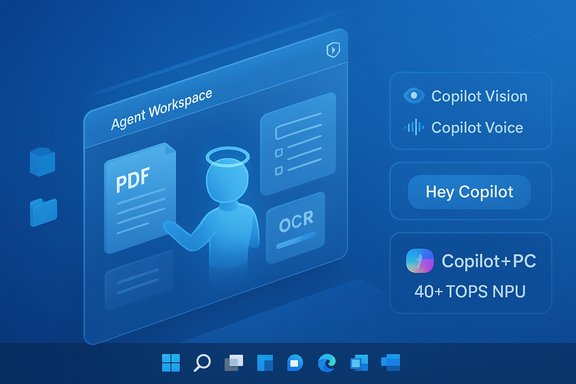
Blue holographic Agent Workspace UI with PDF and OCR panels and Copilot features.Background​

Windows has historically been a platform for apps; Microsoft’s recent announcements frame a new direction where agents are first‑class runtime entities inside the OS. Rather than an assistant that only suggests actions, Microsoft is introducing primitives that let assistants execute multi‑step workflows — opening apps, clicking, typing, editing files, and calling services — all while running in a contained, visible environment with separate identity and explicit permissions. The company is staging these features through Windows Insider previews, Copilot Labs, and phased rollouts, and it emphasizes opt‑in defaults and layered controls. This is not a single feature launch; it’s an architectural shift that touches user experience, developer tooling, hardware requirements, and enterprise management. The headline components are:
  • Agent Workspace: a contained, separate Windows session where agents run under distinct, low‑privilege agent accounts. This model is intended to provide runtime isolation while permitting agents to operate on UIs and files in parallel to human users.
  • Copilot Actions: the agentic capability that translates natural‑language intent into chains of UI interactions and file operations, producing visible step‑by‑step progress and offering pause/stop/takeover controls.
  • Copilot Vision & Copilot Voice: system‑level vision that can analyze windows or the whole desktop with explicit consent, and a wake‑word experience (“Hey, Copilot”) for hands‑free interactions — both designed to lower friction for complex tasks.
  • Platform plumbing: Model Context Protocol (MCP) integration, the Windows AI Foundry runtime to run local models on NPUs, and a Copilot+ PC hardware tier specifying NPU capabilities (40+ TOPS) for richer on‑device experiences.

What Microsoft actually shipped and previewed​

Agent Workspace and the Experimental toggle​

Microsoft’s Insider previews expose a clear, user‑facing control named Experimental agentic features (Settings → System → AI components → Agent tools), which gates provisioning of the agent runtime and agent accounts. When enabled, the OS can create isolated agent accounts and launch Agent Workspaces for Copilot Actions or third‑party agents; when disabled, these primitives remain dormant. Microsoft repeatedly emphasizes opt‑in deployment and staged experimentation in the Insider program. Technically, the Agent Workspace is implemented as a separate Windows session — lighter than a full VM but still isolated — that allows an agent to interact with app UIs, manipulate files, and show a visible progress UI while the signed‑in user continues to work. The separate agent account is intended to make agent actions auditable and subject to existing OS controls (ACLs, Intune/MDM policies, and revocation).

Copilot Actions: agents that act​

Copilot Actions is the visible, user‑facing manifestation of this agentic model. In preview scenarios Microsoft has shown, an agent can:
  • discover and open files in scoped folders (Documents, Desktop, Downloads, Pictures — initial scopes vary by preview),
  • extract structured data from PDFs or images with OCR,
  • batch‑process media (resize, de‑duplicate, tag),
  • assemble reports or emails with attachments and send them with user confirmation, and
  • interact with web flows by filling and submitting forms.
Each execution is intended to be visible and interruptible; agents produce logs and visual progress so users can pause, stop, or take over at any time. Microsoft’s public tests deliberately restrict reach in early previews to mitigate surprises.

Vision and Voice as first‑class inputs​

  • Copilot Vision: lets Copilot analyze a selected window, a shared region, or (with explicit permission in some preview builds) the entire desktop. It can OCR, identify UI elements, summarize content, and visually highlight where to click. This reduces friction for tasks that require interpreting on‑screen information. The feature is session‑bound and opt‑in.
  • Copilot Voice: Microsoft reintroduces a wake‑word experience, “Hey, Copilot,” using a small on‑device spotter that runs locally for detection while heavier transcription/understanding may still use cloud models unless the device supports richer on‑device inference. Voice sessions are multi‑turn, have transcripts, and are explicitly terminable.

Hardware: Copilot+ PCs and on‑device inference​

Microsoft is packaging premium on‑device intelligence behind the Copilot+ PC designation. Copilot+ devices are defined around an NPU baseline of 40+ TOPS, a specification Microsoft documents in its Copilot+ developer guidance and marketing materials. That NPU floor is the company’s engineering answer to delivering low‑latency, private local inference for small‑to‑medium sized models and richer vision workloads. Devices that do not meet the Copilot+ spec will rely more on cloud fallbacks and therefore experience higher latency and different feature sets.

Platform standards: MCP and Windows AI Foundry​

To coordinate agents, apps, and tools, Microsoft has integrated support for the Model Context Protocol (MCP) as a way for agents to discover and call capability providers (local apps, services, cloud connectors) via a registry and mediated access points. The Windows AI Foundry runtime is Microsoft’s vehicle for running local models and integrating with device NPUs, enabling developers to deploy models that agents can call with consistent APIs and telemetry. These standards aim to make agents composable, auditable, and controllable across local and cloud contexts.

Why this matters: upside and new capabilities​

The practical benefits are immediate and tangible for many workflows. Autonomous agents running in a secure OS runtime can:
  • Save time on repetitive, multi‑step desktop chores (file triage, data extraction, report assembly).
  • Reduce context switching by letting an agent complete background work while the human continues to use the PC.
  • Improve accessibility by offering multimodal inputs (voice and vision) that help people with dexterity or vision constraints.
  • Extend automation to apps and services that lack APIs, because agentic automation can operate at the UI level.
For businesses, agentic Windows can be a productivity multiplier: imagine delegating invoicing reconciliation or content assembly to an agent that can extract, correlate, and submit results with auditable trails — all within managed policy constraints.
From an engineering standpoint, Microsoft’s design choices — agent accounts, visible Agent Workspaces, signing and revocation, and MCP mediation — are meaningful attempts to adapt traditional OS security models to a new class of autonomous runtime entities. Treating agents as principals that can be governed via ACLs and MDM is a pragmatic way to add governance without inventing a wholly new security surface.

Risks and unresolved questions​

The technical design is thoughtful, but the move to an agentic OS raises substantial and sometimes novel risks that organizations and consumers must evaluate.

Privacy risks​

  • Screen access expands the threat model. System‑level vision that can analyze full desktops — even when session‑bound and opt‑in — increases potential for sensitive data exposure if permissions are misconfigured, if an agent is compromised, or if telemetry policies are unclear. Past missteps in related features (e.g., earlier Recall telemetry concerns) have heightened users’ sensitivity to system‑level screen capture.
  • Always‑listening wake words invite scrutiny. Even a local spotter with a short audio buffer is an always‑on sensor; privacy‑conscious users and enterprises will want guarantees about buffering, retention, and whether any raw audio or derived transcripts leave the device. Microsoft documents local detection, but the heavier reasoning chain often moves to cloud models unless on‑device inference is available.

Security risks​

  • Agents that act enlarge the attack surface. Agents that can click, type, and move files are powerful: a compromised agent or a malicious third‑party agent could perform destructive actions. Microsoft’s mitigations — distinct agent accounts, signing, revocation, visibility controls — reduce but do not eliminate this risk. The devil is in operational detail: certificate lifecycle, revocation propagation, and integration with EDR/AV matter a great deal.
  • Tool‑poisoning and prompt/tool injection risks. MCP and agent tool registries are a bet on mediated discovery; if MCP registries or proxies are compromised, agents might be routed to malicious tools. The community and Microsoft will need hardened registries, signed tool manifests, runtime sandboxing, and telemetry that flags anomalous tool behavior.

Operational and management risks​

  • Hardware bifurcation and fleet complexity. Copilot+ hardware requirements (40+ TOPS NPU) create a two‑tier reality: devices that deliver fast, local experiences, and those that depend on the cloud and suffer higher latency or reduced features. Enterprises face upgrade decisions and potential fragmentation in capability or user experience across mixed fleets.
  • Compliance, data residency, and telemetry transparency. Enterprises will need clear contracts and configuration options for where data is processed, what telemetry is collected, and how long logs are retained. Until Microsoft publishes production‑grade telemetries and SLAs for agent behavior, compliance teams will treat agentic features as high‑risk.

Usability and trust​

  • User expectations vs. reality. Agents acting on behalf of users create new trust dynamics: users must be confident that agents won’t make surprising decisions, act on incorrect assumptions, or leak data. Microsoft’s visible progress UI and opt‑in defaults are necessary but not sufficient; ongoing transparency reporting and clear consent flows will be essential.

How to evaluate Microsoft’s security and privacy claims (what’s verifiable today)​

Microsoft’s official documentation and Windows Experience blog clearly state the architectural primitives (Agent Workspace, agent accounts, Experimental toggle, signing and revocation), and Insider builds have exposed the Settings toggle and early behaviors. Those claims are verifiable in Microsoft’s support pages and in the Windows Experience post describing Copilot Actions. Other claims — notably NPU performance thresholds for Copilot+ PCs and the 40+ TOPS requirement — are confirmed in Microsoft’s Copilot+ developer guidance and business pages. That establishes an explicit hardware gating that will materially change on‑device feature availability. Where independent reporting helps: outlets such as Reuters and The Verge have validated key experiences (wake‑word, expanded Vision, and Copilot Actions preview) and have observed the opt‑in gating and phased rollouts. These independent accounts correlate with Microsoft’s official documentation and hands‑on Insider reporting. Cautionary note: some specific, granular behaviors reported from early Insider hands‑ons — such as the exact list of known folders accessible by default or precise Agent Workspace memory scaling metrics — vary between previews and may change before general availability. Treat those details as preview‑era artifacts until Microsoft publishes stable release documentation.

Practical guidance for IT teams and power users​

Given the potential upside and novel risk profile, organizations should adopt a cautious, staged approach.
  • Patch and pilot: run Agent Workspace and Copilot Actions only in controlled test segments via Windows Insider or pilot rings. Require a documented risk assessment before broad deployment.
  • Gate via policy: ensure the Experimental toggle remains disabled in production unless explicitly enabled by IT; enforce this through Intune/MDM and group policy where possible.
  • Audit and logging: require agents to emit detailed action logs, and integrate those logs into SIEM/EDR to detect anomalous agent behavior. Confirm that agent signatures and revocation events are visible to endpoint security tooling.
  • Data governance: define clear policies for data residency and telemetry. Determine whether agents may call cloud tools or must operate locally for sensitive datasets.
  • Hardware strategy: plan Copilot+ adoption deliberately — reserve on‑device features for roles that benefit from low latency or strict privacy, while mitigating fragmentation for other users.
  • Supply‑chain controls: require signed agents from vetted publishers, and adopt certificate lifecycle and revocation checks as part of the enterprise security baseline.

How developers and ISVs should prepare​

  • Design agents for least privilege: request only the precise MCP capabilities needed and clearly document what an agent touches.
  • Instrument for observability: produce user‑readable step traces and machine‑readable logs for every action.
  • Embrace MCP best practices: sign tool manifests, support secure registration, and design fail‑safes for tool unavailability.
  • Test for adversarial cases: include prompt‑injection, tool‑poisoning, and escalation scenarios in threat models and CI test suites.

Final analysis — a pragmatic verdict​

Microsoft’s agentic push for Windows 11 is a major, credible investment in making the OS an AI platform rather than merely hosting a single assistant app. The company has paired new UX metaphors (taskbar agents, Ask Copilot) with substantive platform plumbing (Agent Workspace, MCP, Windows AI Foundry) and hardware gating (Copilot+ PCs) to deliver a coherent story for on‑device and hybrid agents. The preview behaviors and documentation demonstrate a security‑first mindset: opt‑in defaults, agent accounts, visible workspaces, signing and revocation, and mediator patterns for tool discovery. That said, the approach introduces new operational responsibilities for Microsoft, developers, and IT teams. The success of agentic Windows will depend on rigorous implementation across several fronts: hardened MCP registries and proxies, robust agent signing and immediate revocation propagation, transparent telemetry and data‑handling guarantees, and enterprise tooling to manage hardware and feature entitlements across fleets. Without those, the promise of autonomous productivity risks being outweighed by privacy surprises, supply‑chain failures, or management overhead.
For users and IT leaders, the prudent path is to pilot deliberately, insist on auditability, and require contractual clarity about telemetry, processing locations, and revocation behavior before enabling agentic features broadly. Microsoft’s vision for an AI‑native Windows 11 is technically coherent and offers meaningful productivity gains — but it will only become a trusted platform if executed with ruthless attention to security, privacy, and operational transparency.
Conclusion: Windows is being remade for an era of autonomous AI agents — a transformation that is both exciting and fraught. The building blocks now exist in preview: visible Agent Workspaces, Copilot Actions that can act, system‑level vision and voice, MCP for discovery, and Copilot+ hardware for local models. Those primitives create powerful new capabilities, but also shift significant responsibility onto Microsoft, ISVs, and enterprise operators to make sure agents remain helpful, auditable, and safe. The coming months of Insider testing and Microsoft’s documentation updates will determine whether agentic Windows becomes a trusted productivity platform or an early‑adopter headache; prudent pilots and strong governance will be the deciding factors for most organizations.
Source: VentureBeat https://venturebeat.com/ai/microsoft-remakes-windows-for-an-era-of-autonomous-ai-agents/
 

Microsoft has quietly begun shipping the first true, system‑level AI agents into Windows 11, rolling out an experimental feature called Agent Workspace to Windows Insiders that lets AI helpers open apps, click and type, manipulate files, and run multi‑step workflows from a contained, auditable desktop session. The capability — surfaced through a new Settings control labeled Experimental agentic features and delivered initially as part of Copilot Actions in Copilot Labs — marks a decisive shift: Copilot is moving from “assistant that suggests” to an OS‑hosted assistant that can do on your behalf.

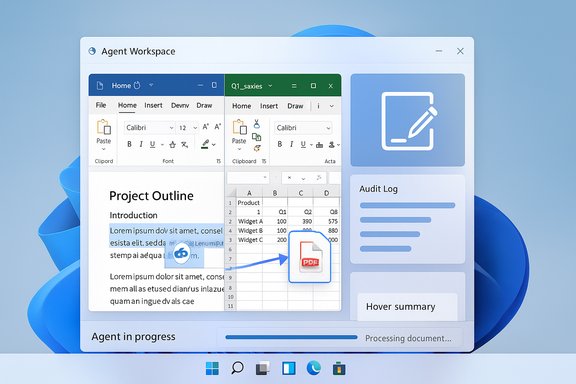
Agent Workspace UI showing Word and Excel panes with a PDF export and progress dashboard.Background​

Microsoft has been evolving Copilot from a chat pane into a multimodal, cross‑app platform for months. Recent updates combined voice activation, vision capabilities and now agentic automation — a set of features Microsoft groups under Copilot Actions that translate plain‑language intent into sequences of UI interactions and file operations. Agent Workspace is the runtime primitive that makes those actions possible on‑device in a controlled way. The company is staging the rollout conservatively: the workspace is currently available to Windows Insiders in a private developer preview, gated behind explicit opt‑in controls and an administrator‑only toggle. Microsoft’s public documentation frames the effort as experimental and security‑focused, promising visibility, auditable identities for agents, and revocable signing for agent binaries.

What is Agent Workspace? — Overview​

A contained, per‑agent desktop​

Agent Workspace is a lightweight, runtime‑isolated Windows session provisioned for an AI agent to perform tasks in parallel with your interactive desktop. Unlike a simple background service or an in‑app plugin, each agent runs in a separate Windows session and is associated with its own, dedicated agent account. That identity separation enables traditional OS controls — ACLs, auditing, Intune/MDM policy, and certificate revocation — to be applied to agent activity as if the agent were a separate user or service principal.

Why it’s not a VM (and why that matters)​

Microsoft designed Agent Workspace to be lighter than a virtual machine while still providing a stronger boundary than in‑process automation. The implementation behaves like a contained desktop instance (some briefings and early reporting refer to a Remote Desktop child‑session model) so agents can interact with UI elements, click, type and move files without the resource costs and startup latency of full virtualization. The tradeoff is explicit: better performance and responsiveness for everyday automation, with distinct auditability and isolation.

The user model: visible, interruptible automation​

A core design principle is visibility and human‑in‑the‑loop control. When an agent runs, users see a dedicated workspace showing step‑by‑step progress, and they can pause, stop, or take over the workspace at any time. Agents are not intended to run entirely silently without a trace; Microsoft emphasizes logs, visible progress and explicit confirmation prompts for sensitive steps.

What Agent Workspace Can (and Can’t) Do — Current Capabilities​

Practical tasks shown in preview​

In the initial Copilot Actions preview, agents can:
  • Open desktop and web applications, navigate menus and dialogs.
  • Perform UI interactions (click, type, scroll, select).
  • Manipulate files in scoped “known folders” (Documents, Desktop, Downloads, Pictures, Music, Videos).
  • Chain multistep workflows: e.g., collect documents, extract tables from PDFs, assemble a report in Word or Excel, batch‑process images (resize, deduplicate), and draft an email with attachments.

Scoped access is deliberate​

By default in preview, agents are limited to a small set of known folders within a user profile and to resources that are explicitly shared among accounts on the device. The master experimental toggle must be enabled before agent runtime components are provisioned, and agent requests for additional resource access should require explicit permission. This conservative permission model is Microsoft's early containment strategy.

What agents cannot do (today)​

  • They should not have unrestricted access to system folders or arbitrary file paths by default.
  • They are not, in the preview phase, allowed to run as administrative users or perform system‑level changes without explicit elevation flows.
  • Silent, opaque background actions that cannot be audited or interrupted are explicitly avoided in the current model.

How to Enable and Try It (Insider Flow)​

  • Join the Windows Insider Program and opt into channels that receive Copilot Labs/Copilot Actions previews.
  • Update the Copilot app from the Microsoft Store to an Insider build that includes Actions (Copilot app versions beginning at 1.25112.74 were identified in Microsoft’s rollout notes).
  • As an administrator, go to Settings → System → AI components → Agent tools → Experimental agentic features and enable the toggle. This is device‑wide and requires admin permission.
  • In the Copilot composer choose “Take Action,” optionally attach files or folders, and instruct the agent in natural language. Monitor the Agent Workspace, and use the pause/stop/takeover controls as needed.
Note: rollout is staged and region‑limited in the early preview; not all Insiders will see it immediately. Microsoft also excluded certain jurisdictions from the initial Copilot Actions rollouts.

Technical Anatomy — Identity, Isolation, and Trust​

Agent accounts as first‑class principals​

Each agent is provisioned a standard, non‑interactive Windows account that runs only the agent's processes. Treating agents as distinct principals gives administrators familiar control points: group policy, ACLs, MDM/Intune policies, and SIEM/audit trails can attribute actions to an agent rather than to a human user. This model simplifies governance compared with ad‑hoc automation that runs under a user’s profile.

Runtime isolation — session boundaries​

The workspace provides a separate session with its own desktop and process space, permitting parallel execution and audible action traces. Technically, this is implemented as a contained Windows session that is more efficient than spawning a VM but stronger than in‑process scripting. The session is transient and provisioned per‑task or per‑agent as needed.

Signing, revocation and operational trust​

Microsoft expects agents to be digitally signed so platform trust checks (certificate validation, revocation) can be used to block or revoke misbehaving or compromised agents. This allows AV/EDR and enterprise defenses to treat agents similarly to other signed services. The supply‑chain control is a critical mitigation for malicious third‑party agents.

Model Context Protocol and developer plumbing​

Microsoft is also advancing companion standards (e.g., a Model Context Protocol) and runtime components (Windows AI Foundry) so agents can discover context, locate relevant files and operate with local models where appropriate. These elements are intended to enable third‑party agents and connectors to integrate with the OS while respecting the agent account and permission model.

Security and Privacy — Where the Risks Live​

Agent Workspace introduces new capabilities — and therefore new attack surfaces. Microsoft is upfront about tradeoffs and known limitations in its support documentation and early blog posts. Key risk areas include:
  • Hallucinations and incorrect actions. Agents can misinterpret UI elements or produce plausible‑sounding but incorrect outcomes; the support materials explicitly warn that agents may hallucinate and that users should monitor actions.
  • Prompt injection and cross‑prompt attacks. Agents that navigate web content or poorly vetted inputs could be manipulated into leaking data or performing unsafe actions unless connectors, permission dialogs and model guards are robust. Microsoft calls out cross‑prompt injection as a real class of risk.
  • Data exfiltration from local files. Giving agents access to local folders obviously opens the possibility that sensitive content could be read and sent externally by the agent or a compromised agent. Scoped folder access mitigates this but does not eliminate it; enterprise controls and explicit consent are essential.
  • Supply‑chain compromises. Third‑party agents need to be signed and managed; if signing or certificate authorities are undermined, attackers could deploy malicious agents that abuse the agent model. The signing and revocation model is Microsoft’s mitigation but must be operationalized carefully.
  • UI fragility and automation brittleness. Automated UI interactions can break when apps change layout, resulting in erroneous clicks or data corruption. Agents that execute complex multi‑app flows require robust error detection and rollback strategies that are still immature.
  • Enterprise governance complexity. Treating agents as principals simplifies some governance tasks, but it also introduces new policy decisions: how to catalog trusted agents, how to configure agent‑level DLP, how to audit agent telemetry, and how to respond to agent incidents. Those operational processes are nontrivial.
Because of these risks, Microsoft’s guidance is blunt: only enable experimental agentic features if you understand the security implications and are prepared to test in controlled environments. The company emphasizes an opt‑in, staged rollout for that reason.

Enterprise Impact — Management, Compliance and Incident Response​

Policy and device configuration​

From an IT perspective, Agent Workspace surfaces familiar knobs (accounts, ACLs, Intune policies) and new ones (agent catalogs, certificate revocation lists). Administrators will need to:
  • Define lists of approved agent publishers and versions.
  • Extend DLP and EDR policies to identify and contain agent activity.
  • Adjust Group Policy and MDM templates to control whether the experimental toggle can be enabled.

Auditing and forensic trails​

Because agent actions run under separate accounts, audit logs should be able to attribute actions to an agent principal. However, organizations must validate that logs are comprehensive (including UI events, file reads/writes and network calls) and that SIEM rules can detect anomalous agent behavior. Early previews will determine whether logging granularity is sufficient for compliance use cases.

Compliance and data residency​

Enterprises bound by regulatory regimes should evaluate whether agents are permitted to access regulated datasets, whether connectors transmit data off‑device, and how telemetry is handled by Copilot and third‑party agents. The preview’s device‑local emphasis helps, but policy reviews and contractual assurances will be required for broad adoption.

Usability and Performance — What Users Can Expect​

Agent Workspaces are designed to be responsive: the session is lighter than a VM, and CPU/memory scale with activity. For routine UI automation (sorting photos, extracting tables, batch conversions) the experience should be fast and productive. However, heavy workloads (on‑device model inference, video processing, large dataset parsing) will consume resources and can impact foreground performance depending on hardware. Microsoft’s long‑term vision includes a Copilot+ PC hardware tier with accelerators (NPUs) for richer on‑device inference and lower latency.
On the UX side, agents will appear as Taskbar items with progress indicators and hover summaries so users can monitor status without being surprised. The Ask Copilot search box and taskbar integrations are part of the broader "agentic OS" experience that surfaces agents and makes their activity discoverable.

Developer and Third‑Party Ecosystem​

Microsoft envisions third‑party agents and connectors plugging into the Agent Workspace model via standard interfaces and protocols. The Model Context Protocol and Copilot Studio are examples of the ecosystem plumbing intended to let external agents discover context, request scoped access and behave within Windows‑enforced boundaries.
That said, third‑party adoption raises supply‑chain and trust challenges: signing requirements, vetting pipelines, and the need for clear telemetry and privacy disclosures will be essential if organizations and users are to trust external agents.

Practical Guidance — How to Experiment Safely (For Users and IT)​

  • Start in a lab: enable Experimental agentic features only on test devices, not on production machines. Validate logging, backup and rollback procedures first.
  • Limit scope: test agents only against non‑sensitive known folders (e.g., a test Documents folder) and avoid connecting production cloud accounts during initial experiments.
  • Use agent catalogs: only enable signed agents from trusted publishers; maintain a whitelist and promptly revoke unknown signatures.
  • Monitor audits: ensure SIEM and EDR ingest agent account events and create detection rules for anomalous UI actions or unexpected external connections.
  • Train users: agents can produce plausible outputs that are wrong. Require human review of critical outputs — for example, any automated financial reconciliation or customer communications.

Strengths and Strategic Opportunity​

  • Productivity leap. Agents can automate tedious, cross‑application workflows that previously required manual choreography — saving time on document assembly, data extraction and media management. The visible workspace model reduces friction by letting users watch, intervene or take over.
  • Platform governance. Treating agents as principals makes them manageable with existing enterprise tooling (ACLs, Intune, SIEM), which is a pragmatic way to integrate these new capabilities into IT workflows.
  • On‑device potential. The pathway to low‑latency, private on‑device processing (Windows AI Foundry, Copilot+ PC hardware) enables scenarios where sensitive data can be processed without cloud egress. This is attractive for regulated industries if executed correctly.

Key Limitations and Risks​

  • Early fragility. UI automation is brittle. Small UI or app updates can break agent flows, which makes reliable long‑term automation challenging until agents gain stronger app‑integration APIs.
  • Security surface increases. Even with scoped folders and signing, introducing autonomous software that can read and manipulate files on demand expands the threat model. Attackers targeting agent signing keys or user consent flows could cause significant damage if defenses aren’t robust.
  • Operational complexity. Enterprises will need new processes to manage agent identity lifecycle, incident response, and compliance auditing. That cost must be weighed against productivity gains.
  • Model errors and hallucinations. Agents may make mistakes; for high‑stakes actions human confirmation should remain required. Microsoft’s documentation warns Insiders explicitly about hallucinations in early previews.

Final Analysis — A Pivotal, Cautious Step Toward an Agentic Windows​

Agent Workspace is the clearest signal yet that Microsoft intends to make Windows an agentic OS — a platform that does more than host apps, but can host agents that act across apps and files. The architectural choices — separate agent accounts, contained sessions, signing and revocation, visible workspaces — reflect deliberate attempts to balance utility and control. If Microsoft successfully operationalizes signing, auditing and enterprise policy hooks at scale, Agent Workspace could materially accelerate desktop automation and reduce repetitive work for millions of users.
At the same time, the preview exposes real questions: can agents be made reliably accurate when interacting with fragile UIs? Can signing and revocation be managed at the scale of third‑party publishers? Will telemetry and logging be sufficiently detailed and privacy‑sensitive for regulated enterprises? Early previews will reveal whether the platform primitives hold up under real‑world adversarial and operational pressure.
For cautious testers and IT teams the guidance is straightforward: treat Agent Workspace as a powerful but experimental capability. Test in controlled environments, scope access tightly, require human review for critical outputs and verify that your logging and incident response workflows capture agent actions comprehensively. If you do that, the potential upside — automated, auditable, on‑device workflows that save hours of manual effort — is real.
Agent Workspace makes visible what many had long expected: the next desktop will not just assist, it will act. The preview is conservative and gated, but its arrival marks the start of a new era in which Windows hosts autonomous helpers that operate like managed, auditable coworkers on your PC. The coming months of Insider testing will determine how safely and reliably that promise can be delivered to wider audiences.
Source: thedailyjagran.com Windows 11 Is Getting Its First True AI Agent: Microsoft Begins Testing ‘Agent Workspace’
 

Qualcomm’s Snapdragon X2 Elite isn’t just an incremental update — it’s a systemic challenge to the way Windows laptops are built, sold, and experienced, promising desktop‑class compute, far larger on‑device AI power, and a new platform cadence from Microsoft that explicitly readies Windows for the next wave of Arm‑based PCs.

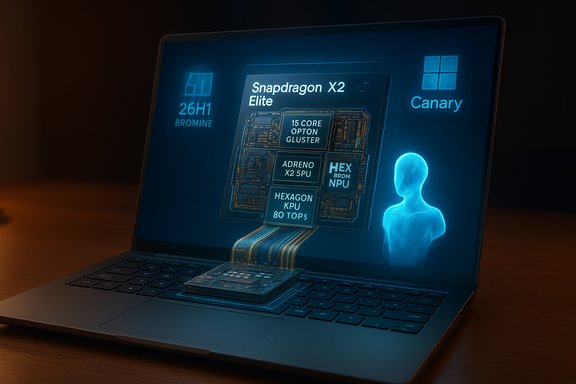
A futuristic laptop screen shows a blue holographic Snapdragon X2 Elite processor diagram.Background / Overview​

Qualcomm unveiled the Snapdragon X2 family — marketed as Snapdragon X2 Elite and Snapdragon X2 Elite Extreme — as a major generational leap for Windows on Arm. The chips introduce third‑generation Oryon CPU cores, higher core counts (up to 18 cores on top SKUs), dramatically larger Hexagon NPUs (Qualcomm quotes up to 80 TOPS of INT8 throughput for certain X2 SKUs), and much higher memory bandwidth on the Extreme parts. Qualcomm positions X2 as a direct competitor to high‑end x86 silicon and Apple’s M‑series chips, while Microsoft has prepped Windows with a new platform branch (visible as Windows 11, version 26H1, Canary Build 28000) specifically to support next‑gen silicon like X2. Put simply: Qualcomm’s pitch is a Windows laptop that is faster, more power efficient, capable of sustained AI workloads on the device, and available in a wider range of designs — from thin‑and‑light to higher‑power mobile workstations. Those claims are backed by vendor numbers, independent early benchmarks, and Microsoft’s decision to gate platform plumbing to a device‑targeted release window.

Why this matters: the platform shift and Microsoft’s Bromine/26H1 move​

The Bromine/26H1 context​

Microsoft’s Canary update (Build 28000) updates the visible Windows version to 26H1 and explicitly states it is not a broad feature update but a platform update to support “specific silicon.” That’s a deliberate engineering signal: when silicon vendors ship parts that change how an OS must interact with CPU clusters, NPUs, memory topologies, and firmware, Microsoft prefers a narrow, validated baseline for OEM factory images rather than risking regressions across the entire Windows installed base. Why that matters to end users and IT teams:
  • OEMs can ship devices with a validated OS image (drivers, firmware, NPU runtimes) that works day‑one.
  • Microsoft keeps its mainstream annual feature cadence intact (25H2/26H2) while still enabling on‑device AI experiences for qualifying hardware.
  • Enterprises must plan validation and imaging for any first‑wave X2 machines that may ship with Bromine/26H1 images.
This isn’t academic: it affects device availability windows, update servicing, and how features that rely on local NPUs (for privacy or latency reasons) are delivered to customers.

Technical deep dive: CPU, GPU, NPU, memory and power​

CPU: Oryon evolution and core counts​

The X2 family uses updated Oryon cores in heterogeneous clusters: top SKUs list an 18‑core arrangement (commonly described as 12 “Prime” plus 6 “Performance”), with burst clocks that break Arm records for client silicon. Qualcomm and independent press report boost frequencies up to 5.0 GHz on the Extreme SKU, with other SKUs showing 4.7–4.4 GHz boost behavior and multi‑core ceilings in the ~3.4–4.4 GHz range depending on SKU and power settings. This is a dramatic change from prior Arm laptop chips and closes the single‑thread gap versus x86 and Apple silicon in many workloads. Key implications:
  • Better single‑thread speeds reduce the penalty for workloads that remain single‑threaded or lightly threaded.
  • Heterogeneous clusters require scheduler and power governor updates in the OS to place work correctly — one reason Microsoft created 26H1/Bromine.

GPU: Adreno X2 family and gaming/graphics expectations​

Qualcomm’s Adreno X2 GPUs (X2‑85/X2‑90 variants) ship with higher clocks (around 1.70–1.85 GHz on some SKUs) and claim substantial performance per watt improvements over prior Adreno parts. Qualcomm’s messaging targets both productivity (hardware acceleration for creative apps) and heavier gaming than previous Snapdragon laptop efforts could sustain. Early vendor and press tests show notable 3DMark and Solar Bay improvements, but real‑world gaming depends heavily on thermal budgets and OEM cooling choices.

NPU: on‑device AI at scale — 80 TOPS and why that number matters​

The headline NPU figure is 80 TOPS (INT8) on several X2 SKUs. That’s a big leap from the original X Elite’s ~45 TOPS and is central to Qualcomm’s “Copilot+” strategy: enable on‑device Copilot features, local indexing (Recall‑style), and concurrent AI agents without cloud round‑trips. Multiple outlets and Qualcomm’s materials repeat the 80 TOPS figure, and early Procyon/AI benchmark runs show very large gains in on‑device inference scenarios. Caveats:
  • TOPS is a raw throughput metric measured at a precision/activation type (e.g., INT8). Real model inference performance depends on memory bandwidth, model support in the runtime, quantization strategy, and thermal headroom.
  • Early TOPS claims are vendor‑weighted and must be validated in retail devices with finalized firmware and drivers. Treat 80 TOPS as a credible vendor claim backed by press coverage, but expect real‑world performance to vary by OEM tuning.

Memory and system packaging: on‑package RAM and bandwidth​

The Extreme SKU introduces on‑package memory configurations (Tom’s Hardware and other outlets report 48 GB on‑package LPDDR5X for certain Extreme configurations, with up to 228 GB/s of memory bandwidth on Extreme). That combination — large on‑package RAM + wide bus — changes how the SoC feeds the NPU/GPU and helps sustained throughput without thermal penalties associated with discrete DRAM. It’s a major architectural move that reduces latency and boosts sustained AI and GPU work.

Power, thermal envelopes and battery life​

Qualcomm claims efficiency wins (examples: “31% faster at ISO power” and substantial reductions in chipset power for common tasks), and demo units we've seen indicate strong battery prospects for thin‑and‑light 22W designs. However, the Extreme SKUs are being evaluated at higher power points (some reference testing >50W), meaning there will be distinct product categories: ultramobile thin laptops and heavier handheld workstation styles. OEM thermal design will determine whether X2 devices push sustained performance or prioritize battery and thinness.

Benchmarks and early testing — what the numbers actually say​

Vendor vs independent testing: read the context​

Manufacturers and press outlets released early benchmark sets showing major wins for X2 — multi‑thread and AI workloads in particular. For example, early Geekbench, Cinebench, 3DMark, and Procyon AI runs have been widely reported, with some engineering sample results placing X2 Extreme ahead of Apple’s M‑series and certain Intel/AMD mobile chips in multi‑thread workloads. However, context is essential:
  • Many published numbers are from Qualcomm demos or Qualcomm‑guided engineering systems; vendor demos can be tuned to favorable conditions.
  • Engineering samples are not final retail devices — OEM firmware, drivers, and cooling change outcomes.
  • Apple’s M‑series continues to lead in single‑thread raw performance in several tests where frequency and microarchitecture advantages matter. Qualcomm has closed the gap but not necessarily bested Apple in every single‑thread scenario.

Real‑world impressions (based on hands‑on demos and reviewed leaks)​

Hands‑on demos emphasize fluid day‑to‑day performance: browsing, office productivity, complex spreadsheets, and on‑device AI features ran smoothly on demo hardware, with Qualcomm’s systems showing both lower active chipset power for light tasks and stronger multi‑thread performance than prior Snapdragon laptop chips. Gaming frame rates were improved thanks to Adreno X2, though sustained heavy gaming remains sensitive to OEM cooling decisions. Battery life claims (e.g., 10% chipset power reduction in light workloads) look plausible but require retail validation across manufacturer variations.

What to watch when retail devices arrive​

  • Retail device thermals and sustained performance in long render/gaming sessions.
  • Native vs emulated app performance; the number of critical apps shipping native Arm builds at launch matters.
  • NPU model support across frameworks (ONNX, TensorFlow Lite, Microsoft’s Hexagon runtimes) and whether local Copilot experiences are polished and reliable on day one.

Software compatibility and the emulation story​

One of the biggest historical hurdles for Windows on Arm has been compatibility — legacy x86 apps, drivers, and certain high‑end creative tools didn’t run natively. Qualcomm’s approach with X2 is twofold:
  • Improve raw compute so native Arm builds and JITs run faster.
  • Improve background emulation so x86 applications remain usable without obvious lag.
Qualcomm’s first X Elite generation faced minor compatibility gaps; the company and Microsoft have been working to close them by co‑engineering drivers, partnering with ISVs for native builds, and leveraging improved emulation layers. But the ecosystem still depends on native ISV support for the best user experience. Expect better compatibility than earlier Arm efforts, but don’t assume perfect parity on day one.

Ecosystem and OEM picture: which laptops and when​

Qualcomm publicly targeted first‑half 2026 for device availability, and multiple OEMs — the same tier that adopted earlier X Elite silicon (Microsoft, Dell, Lenovo, HP, Samsung, Asus, Acer) — are expected to ship X2 systems in a range of form factors. Microsoft’s Bromine/26H1 move signals OEMs will likely receive validated images and ship new hardware preinstalled with that platform baseline, ensuring day‑one feature parity for hardware‑dependent AI experiences. What to expect in practice:
  • Thin‑and‑light X2 Elite laptops focused on battery and mobility (likely ~22W configurable designs).
  • Higher‑power X2 Elite Extreme notebooks and mini‑PCs that trade thinness for sustained throughput and higher clocks.
  • Premium pricing for Extreme SKUs initially; mainstream X2 Elite options will trickle down into more accessible price points later in 2026.

Strengths: where Snapdragon X2 could genuinely change Windows laptops​

  • On‑device AI at scale: 80 TOPS plus generous memory bandwidth on Extreme SKUs means real, local inference capacity for Copilot+ features, Recall, and offline generative workflows.
  • Improved multi‑thread and sustained performance: 12–18 core options and revised Oryon cores push Arm toward performance parity with x86 in many productivity workflows.
  • Superior efficiency per watt: Qualcomm’s ISO power claims and real hands‑on battery figures indicate excellent battery life potential in thin designs.
  • New platform hygiene: Microsoft’s 26H1/Bromine baseline means devices can ship with validated NPU runtimes and signed drivers — fewer day‑one reliability problems.
  • Diverse form factors: Qualcomm’s SiP and on‑package memory design allow OEMs to build both ultra‑thin and higher‑power designs from the same family.

Risks and unknowns: what could limit X2’s impact​

  • Final retail thermals and OEM tuning: The same SoC can deliver dramatically different outcomes depending on chassis cooling and firmware. Benchmarks from engineering samples don’t guarantee the same results in consumer laptops.
  • Software ecosystem readiness: Emulation and native app support remain critical. Professional creative tools, specialized workstation apps, and certain drivers may lag or require tuning.
  • Vendor‑provided metrics and early leaks: TOPS, cache sizes, and benchmark numbers often originate in vendor materials or selective engineering tests — treat them as directional until independent, retail device testing is widespread.
  • Pricing and availability: Extreme SKUs with on‑package RAM and wider buses will likely be expensive, limiting immediate mainstream adoption.
  • Platform fragmentation risk: A device‑gated platform branch can create short‑term fragmentation for enterprise imaging and software lifecycle management, requiring IT teams to validate images for Bromine devices separately.

Practical guidance for buyers, IT managers and OEMs​

For consumers shopping in 2026​

  • If you prioritize battery life and always‑on local AI features, an X2 Elite thin laptop is worth serious consideration.
  • If you need maximum single‑thread raw speed for specific workloads (some legacy creative tools), compare results against Apple M‑series and x86 competitors in retail device reviews once those laptops ship.
  • Wait for retail reviews before betting on Extreme SKU claims; early benchmarks are promising but not dispositive.

For enterprise IT​

  • Inventory planned purchases and ask OEMs directly whether a device will ship with a Bromine/26H1 image.
  • Plan a validation lab for device imaging, driver signing, and security baselines if purchasing first‑wave X2 devices.
  • Treat Canary images as experimental; do not deploy Bromine devices at scale without thorough testing and rollback plans.

For OEMs and ISVs​

  • Co‑validate drivers and firmware with Microsoft and Qualcomm early to avoid day‑one updates.
  • Prioritize native Arm builds of high‑value apps and thoroughly test emulation scenarios for critical workflows.
  • Consider thermal/performance tiers carefully — buyers will expect different experiences from Elite vs Extreme SKUs.

What remains unverifiable and what to watch​

  • Specific long‑term battery claims (e.g., “multi‑day” battery life) are marketing forward‑looking statements until consistent retail testing confirms them.
  • Exact real‑world NPU throughput for customer workloads will vary by model, driver maturity, and runtime optimizations; TOPS is a useful headline but not a complete predictor of performance.
  • NVIDIA N1X or other Arm entrants remain possible second‑wave drama in Windows on Arm; Microsoft’s platform branch is flexible, but vendor timelines and OEM choices could alter the competitive map.
Flag: Several widely reported numbers (TOPS, specific Geekbench/Cinebench scores) originated from vendor briefings and limited engineering tests — treat those numbers as indicative, not final. Independent cross‑validation across retail OEM devices will be the true test.

Final analysis: how Snapdragon X2 reshapes the Windows laptop market​

The Snapdragon X2 family marks a pivot from “mobile chip ported to a laptop” to purpose‑built laptop silicon that intentionally blends high single‑thread bursts, many‑core throughput, increased GPU oomph, and significant on‑device AI horsepower. Qualcomm has addressed many of the prior objections to Windows on Arm — compatibility gaps, poor AI capability, and insufficient GPU/compute — while Microsoft’s platform strategy (26H1/Bromine) signals the OS industry is taking these hardware shifts seriously.
If retail devices ship with balanced OEM tuning, robust driver stacks, and broad ISV support, the X2 generation could significantly accelerate Windows on Arm adoption and force a competitive realignment among Apple, Intel, and AMD. But the path isn’t automatic: the ecosystem — OEMs, ISVs, and Microsoft itself — must execute tightly to realize the X2 promise.
  • Strengths are real and broad: NPU scale, improved multi‑thread performance, and efficiency.
  • Risks are manageable but material: thermal tuning, pricing, and software ecosystem readiness.
  • The overarching result: Windows laptops are about to change — not overnight, but very quickly if vendors and the OS deliver on the co‑validation work already underway.

Quick checklist: What to watch next​

  • Retail device reviews for X2 Elite and X2 Elite Extreme (real battery, thermal, and benchmark results).
  • Microsoft’s Canary to Beta progression and any public guidance on Bromine/26H1 rollouts.
  • ISV announcements for native Arm builds of major creative and productivity apps.
  • OEM pricing tiers and product roadmaps for the first half of 2026.

Qualcomm’s X2 family is not merely another chip announcement; it’s a coordinated hardware‑software ecosystem play that includes Microsoft’s platform changes, OEM factory images, and a renewed emphasis on on‑device AI. The technical leaps — Oryon cores, Adreno X2 graphics, 80 TOPS Hexagon NPU, and on‑package memory options — are substantial. The long‑term question isn’t whether X2 is competitive; it’s whether the wider Windows ecosystem moves fast enough to turn those specs into a consistent, mainstream reality for laptop buyers.
(Technical claims, vendor performance figures and timeline expectations referenced in this article reflect Qualcomm’s announcements and independent early testing coverage; Microsoft’s Canary Build 28000/26H1 notes and community reporting contextualize the platform delivery approach.
Source: t3.com I tested Qualcomm’s new X2 Elite – here's why Windows laptops are about to change forever
 

Back
Top