Windows 11 Insider Build 26220 7344 Removes AI Actions From File Explorer

  • Thread Author
Microsoft has quietly restored control to users: in the latest matched Insider preview build for Windows 11 — 26220.7344 — the new AI Actions section that earlier cluttered File Explorer's right‑click menu will no longer appear when there are no enabled or available AI Actions, effectively making the feature optional and removable via Settings.

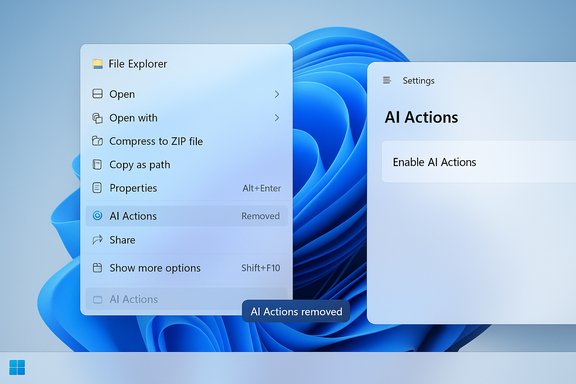
AI Actions removed from the File Explorer context menu in a Windows-style UI.Background​

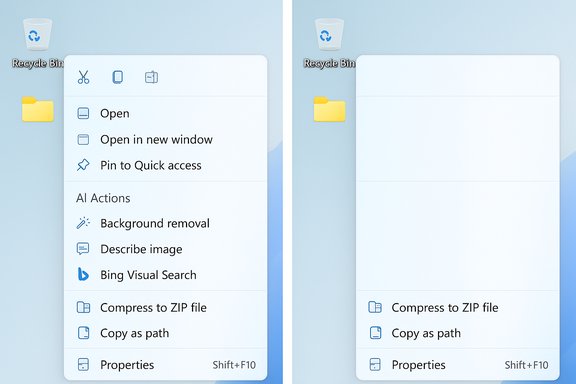
When Microsoft began integrating AI‑driven convenience features into Windows 11, one of the more visible additions was AI Actions — a context‑sensitive submenu in File Explorer that surfaces image‑editing and search options (for example: Visual search with Bing, Blur background, Erase object, Remove background) directly from the right‑click menu. The idea was to provide fast, AI‑powered workflows without forcing users to remember which app exposes a given tool. The implementation, however, quickly drew criticism. For many users the submenu simply redirected to existing apps (Paint, Photos, Teams, etc. rather than performing the work in place, and worse, it persisted in the context menu even when all underlying App Actions had been disabled — leaving an empty placeholder that consumed valuable menu space. That friction prompted community complaints and a re‑examination of the UX tradeoffs. Microsoft’s December Insider update, rolling as build 26220.7344 to Dev and Beta channels, changes that behavior: “If there are no available or enabled AI Actions, this section will no longer show in the context menu.” That line in the official release notes is short but consequential for anyone who found the AI Actions entry to be unwanted clutter.

What changed in build 26220.7344​

The practical change​

  • If you open Settings > Apps > Actions and uncheck every registered App Action (Paint, Photos, Teams, Copilot/Microsoft 365 entries, etc., the AI Actions parent entry in File Explorer’s right‑click menu will disappear instead of remaining as an empty entry.
This resolves the earlier annoyance where disabling feature flags left a hollow menu item that still took up vertical space in a menu already burdened with entries. Insiders and early reports indicate the change is rolling out gradually and may be gated server‑side in some rings.

Related quality improvements in File Explorer​

Build 26220.7344 also consolidates other context menu changes that aim to reduce clutter and improve discoverability:
  • A new Manage file sub‑menu groups actions like Compress to… and Copy as path so they’re not scattered across the top level of the right‑click menu.
  • OneDrive items such as Always keep on this device and Free up space are being grouped under a single OneDrive parent entry, instead of appearing as several disparate menu items.
  • The Open With dialog is smarter: if a relevant app is not installed, Microsoft is now surfacing Store app suggestions inline in the list, so users can install the correct app directly from that dialog without switching to the Microsoft Store separately.
These smaller layout changes, coupled with the AI Actions fix, are an incremental move toward a cleaner File Explorer right‑click experience.

Why Microsoft bent to user demand​

The UX problem: a busy, vertical menu​

The Windows File Explorer context menu is one of the most visible UI surfaces in the OS. Over the years it’s become a dumping ground for default OS actions, integrated cloud services (OneDrive), third‑party shell extensions (compression tools, image editors), and platform experiments (Copilot/Ask Copilot). Adding an AI Actions parent that can expand into multiple app links risked making the menu taller and less usable — especially on low‑resolution displays or when users need a quick one‑click action. Early builds showed menus with dozens of entries; community screenshots compared unfavorably with lean context menus in other desktop environments.

The functional problem: nothing unique under the hood​

Critics pointed out that AI Actions did not, in its initial form, perform AI editing or search in place. Instead, it largely delegated users to existing apps where the actual processing occurred. That made AI Actions feel like a redundant shortcut that didn’t add meaningful capability beyond what Edit with Paint or Open with Photos already provided. When a new UI element duplicates behavior without offering distinct value, users treat it as bloat. Microsoft’s change acknowledges that duplication should not be forced on users.

The politics of friction: user trust and control​

Modern UI design increasingly recognizes that control is as valuable as automation. Users react poorly when an OS surface inserts new AI options without an easy off‑switch. By making AI Actions optional and removable via Settings, Microsoft reduces friction and gives users agency — a pragmatic decision amid broader scrutiny of AI features across platforms. Community reaction on forums and social media showed immediate appreciation for the small but meaningful restoration of choice.

Technical context: App Actions, MCP and the wider AI surface​

App Actions framework and Settings > Apps > Actions​

The AI Actions submenu is implemented on top of Windows’ App Actions framework: a registration model that lets applications expose small, discrete behaviors (actions) to other parts of the OS. Those actions are surfaced in places like context menus and the Actions settings page. Turning off the registered App Actions for specific apps removes their entries from system surfaces — and with build 26220.7344, removing them completely hides the AI Actions section when nothing remains to show.

Model Context Protocol (MCP) — the plumbing behind the scenes​

This same preview build also shipped a larger, more consequential OS‑level change: Model Context Protocol (MCP) support and early agent connectors (File Explorer and Settings). MCP is an open‑standard approach for LLM‑based agents to discover and call tools and connectors. On Windows, MCP is being integrated as an on‑device registry that helps agents find and interact with apps and services in a controlled, auditable way. That infrastructure is broader than AI Actions, and it’s the foundation Microsoft wants for agentic workflows that can do more than one‑off image edits. MCP’s arrival explains why Microsoft has been experimenting with many small AI surfaces in the OS: the company is building plumbing that will let agents orchestrate across apps securely and with consent, rather than hard‑coding each AI capability into a single UI element. AI Actions can be seen as a simple, early consumer‑visible surface built on top of these deeper platform changes.

How to remove AI Actions now (practical steps)​

If you’re running an Insider build or later public releases that include the change, here’s how to remove AI Actions from your context menu:
  • Open Settings (Win + I).
  • Go to Apps on the left.
  • Click Actions on the right.
  • Uncheck the App Actions for apps listed (Paint, Photos, Teams, Microsoft 365 Copilot, etc..
  • If no AI Actions remain enabled, the AI Actions parent will be hidden from the File Explorer context menu.
Note: The rollout is staged and server‑gated for Insiders; some devices in Dev/Beta may not immediately receive the change even when updated to the same build. If the behavior doesn’t change right away, wait for the staged flag to propagate or check for subsequent cumulative updates.

Strengths and benefits of the change​

  • Restores user control. Giving users a straightforward Settings toggle that truly removes the UI element is a classic usability win, reducing annoyance and cognitive load.
  • Reduces context menu clutter. Hiding empty or disabled parent menus helps make important actions quicker to find, improving productivity on low‑res screens and with long right‑click menus.
  • Signal that Microsoft listens. The change is a quick, visible example of Microsoft responding to feedback, which matters as the company ships more AI features across Windows. Community forums and social feeds noted relief when the fix first appeared in release notes.
  • Aligns with broader quality work. The change comes alongside other small reorganizations (Manage file, OneDrive consolidation, smarter Open With), signaling a focus on polishing UX rather than only adding new AI gimmicks.

Risks, open questions, and criticisms​

Is this just a band‑aid?​

Hiding AI Actions when there are no enabled actions is the right immediate fix, but it doesn’t address deeper usability questions: why was a redundant shortcut surfaced in the first place, and how will Microsoft prevent future bloat? The OS still needs a coherent policy for what belongs in the context menu. Without a more systematic approach — like a user‑accessible context menu editor — similar clutter will recur. Community calls for a built‑in context menu editor remain unanswered.

Server‑side gating and inconsistent experiences​

Because many of these features are gated and staged per device/account, Insiders and early adopters may see different behavior. That complicates testing and can make it hard for users to know whether a change is a bug, a staged rollout, or an intentional setting. Microsoft’s matched build approach helps manage rollout complexity, but it also means behavior can vary across machines with identical binaries.

Privacy and agentic access tradeoffs​

The broader platform changes (MCP, agent connectors) create powerful possibilities, but also legitimate security and privacy questions. MCP is designed with identity‑scoped connectors and consent models, but agents that can orchestrate across connectors could, in theory, create surprising data flows if not strictly governed. Enterprises and privacy‑conscious users should evaluate entitlements and connector audit trails when enabling agentic capabilities. The AI Actions change is small in scope, but it's part of a much larger AI surface area that requires careful governance.

Functionality expectations vs reality​

If users expected AI Actions to perform local, in‑place AI edits without launching full apps, that expectation was not met. A better path forward would be to clarify which actions are in‑context and which merely redirect. Transparently describing the action’s behavior in the UI (for instance, “Opens Photos to remove background”) would reduce confusion. The current fix hides the menu when empty, but it doesn’t make the behavior more transparent when it is present.

Wider implications: Microsoft’s AI strategy in Windows​

Microsoft’s approach is twofold: ship visible, user‑friendly features (AI Actions being a simple example) while simultaneously building platform plumbing (MCP, UOP, Agent Workspace) that enables more capable, orchestrated agentic workflows. The tension between lightweight UX experiments and heavyweight platform architecture explains why small UI missteps can become symbolic: they are the most visible evidence of a broader AI push. For administrators, MCP’s emergence is the bigger story. If agents can be granted scoped access to files and Settings through a managed, discoverable registry, enterprises gain powerful automation options — but they also need policy controls, audit trails, and attestation mechanisms to mitigate exfiltration and privilege escalation risks. These are real technical challenges Microsoft appears to be addressing, but they require mature tooling and clear documentation before enterprises can safely adopt the model at scale.

Recommendations for users and IT admins​

  • If the AI Actions entry bothers you: disable App Actions via Settings > Apps > Actions and confirm the context menu no longer shows the section. Expect staged rollouts; patience or repeating updates may be necessary.
  • For testers and Insiders: track the staged flag behavior and report inconsistencies. When a single build can show different features across machines, clear bug reports help Microsoft identify gating problems.
  • For IT admins: review MCP and agent connector policies as they leave preview. Ensure audit and consent parameters are acceptable to corporate policy before enabling agentic capabilities on managed devices. Consider testing on non‑production devices first.
  • For power users: lobby for a proper context menu editor in Windows. The ability to remove or pin items at will is a pragmatic, long‑overdue feature that would solve many complaints about clutter. Community feedback suggests demand for that tool remains strong.

Conclusion​

The decision to make AI Actions optional and to hide the parent menu when no actions are enabled is a concise, user‑friendly correction to a UX misstep. It’s small in code but significant in message: Microsoft is listening to feedback and willing to change defaults when a feature proves more intrusive than helpful. That responsiveness is welcome, but it’s only one piece of a larger puzzle. As Windows adds deeper AI plumbing — Model Context Protocol, agent connectors, and orchestration layers — the platform will require consistent design principles that prioritize clarity, control, and auditability.
Short‑term, users have a simple path to reclaim a leaner right‑click menu via Settings. Long‑term, Microsoft needs to codify how AI experiences are surfaced in the shell so that future features add real value without degrading everyday productivity. The company’s recent move is the right step; the harder work is turning that instinct into a repeatable, principled approach for integrating AI across Windows.
Source: Neowin Microsoft bows to user demand and makes Windows 11's AI Actions optional
 

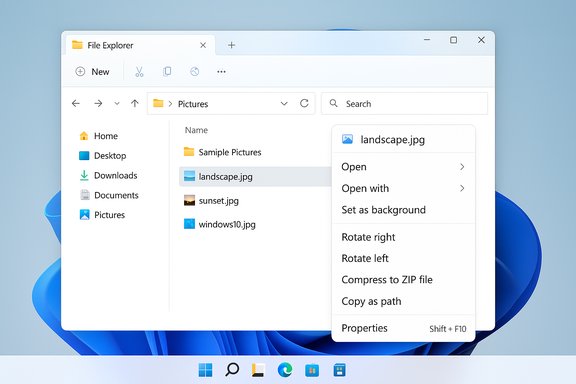
Windows 11 File Explorer showing Pictures folder with a right-click on landscape.jpg.
Microsoft has quietly given Windows 11 users a way to make the intrusive AI Actions entry vanish from the File Explorer right‑click menu — but only if you actually disable every AI action that was visible in Settings first. This behavioral fix arrived in the Windows 11 Insider Preview build numbered 26220.7344 and changes File Explorer so that if there are no available or enabled AI Actions, the AI Actions section will no longer appear in the context menu.

Background​

What are AI Actions and why they were added​

Over the past year Microsoft has been integrating small, AI‑powered shortcuts across Windows 11 to make common tasks faster. The AI Actions feature surfaces file‑specific operations directly in File Explorer’s context menu — for images this has included items like Blur Background, Erase Objects, Remove Background (which launches Paint), and Bing Visual Search; for Office documents stored in OneDrive or SharePoint, Microsoft has pushed a Summarize action powered by Copilot/Microsoft 365 entitlements. These actions are not full in‑Explorer editors; they act as launch points that open Photos, Paint, Edge, or Copilot to perform the task.

Why the context menu change mattered​

File Explorer’s right‑click menu is already dense with legacy shell extensions, OneDrive entries, compression and sharing options, and more. The addition of a new parent entry labelled AI Actions compounded that clutter, and — crucially — there was a usability bug: even after users disabled every AI action via Settings, the empty AI Actions header continued to occupy vertical space in the menu. That hollow placeholder became a frequent complaint among power users and testers, making the menu feel more like advertising than helpful UI. Community discussion and user feedback pressed Microsoft to address the annoyance.

What changed in Build 26220.7344​

The precise change​

Microsoft’s Windows Insider release notes for Build 26220.7344 include this short but important entry under File Explorer fixes: “If there are no available or enabled AI Actions, this section will no longer show in the context menu.” That single line alters the conditional display logic so the UI no longer shows an empty AI Actions parent when no sub‑actions exist or are enabled.

How Microsoft surfaces and hides AI Actions now​

The system now evaluates registered App Actions and user toggles at the time File Explorer builds its context menu. If no handlers are registered or all relevant App Actions have been disabled in Settings, File Explorer suppresses the AI Actions header entirely. In practice this means users who prefer a leaner context menu can disable every AI action exposed by apps and see the parent entry disappear — an outcome users have asked for since the feature’s introduction. Early reporting and community tests confirm the behavior when the build and its server‑side gating flag reach a device.

How to remove the AI Actions menu (practical steps)​

  1. Open Settings (Win + I).
  2. Select Apps from the left column.
  3. Click Actions.
  4. Toggle off every app listed that exposes Actions (Photos, Paint, Describe image/System, Microsoft 365/Copilot entries, etc..
  5. After toggling all actions off, right‑click a supported file in File Explorer and confirm the AI Actions parent is no longer present.
This is the supported, system‑level approach Microsoft implemented; no Registry hacks are necessary. Note that the new behavior is rolling out to Insiders in Dev and Beta channels and is sometimes server‑gated — devices on the same build can show different behavior until the staged flag fully propagates. If you update but still see the empty menu item, expect it to disappear once the rollout completes for your device.

Why this fix matters — design, usability, and perception​

Restoring control to users​

The change is a classic usability win: if a feature offers a user‑visible toggle, toggling it off should remove the UI footprint. The old behavior — leaving a placeholder visible after disabling actions — violated user expectations and generated avoidable friction. Ensuring that Settings truly remove UI elements restores a basic principle of interface design: user choices must have predictable outcomes.

Cleaning up a crowded context menu​

Windows’ context menu has been a recurring source of complaints for decades. Each new feature risks making it more crowded, and the AI Actions entry was particularly noticeable because it often appeared even when empty. Hiding the entire section when unused saves vertical space and reduces noise, which helps users get to the commands they actually rely on. This incremental cleanup aligns with other context menu experiments Microsoft has trialed aimed at grouping, consolidating, and de‑duplicating entries.

The perception problem: utility vs. advertising​

A repeat criticism of AI Actions is that many of its items duplicate functionality already available in full‑featured apps. When a context menu entry primarily functions as an advertisement for a feature — surfacing Copilot workflows or prompting Microsoft 365 purchases — it erodes trust. Making the entry disappear when unused is a modest fix, but it doesn’t address the broader perception that some AI surfaces prioritize product promotion over genuine productivity gains.

Technical anatomy: App Actions, MCP and how AI Actions are implemented​

App Actions framework​

AI Actions are implemented on top of Windows’ App Actions framework: an extensible registry that allows apps to advertise small, task‑oriented operations to other parts of the OS (context menus, Click To Do, Recall, etc.. That modular design is intended to be flexible — apps register small “actions” and the OS lists them where relevant. Disabling an app’s actions in Settings effectively unregisters those handlers from surfaced lists.

Model Context Protocol (MCP) and future plumbing​

The build that included the AI Actions fix also advanced broader platform work such as Model Context Protocol (MCP) support and early agent connectors. MCP is an emerging standard designed to let LLM‑based agents discover and call app tools and connectors securely. Microsoft’s inclusion of MCP‑style plumbing suggests AI Actions are an early, surface‑level use of a much larger platform that will enable agentic workflows across apps. That background helps explain why Microsoft is iterating on these small surfaces now: they’re building the layers agents will depend on in future releases. However, MCP remains early and subject to change as the platform evolves.

Not in‑place editing — pointers not processors​

It is important to stress that when you select a Blur or Remove Background action, Explorer does not perform the edit itself. Instead Explorer launches the appropriate app and passes the file to the app’s AI tool. This design reduces complexity inside Explorer but means the menu is more of a launcher than an editor — a subtle but important distinction for power users.

Cross‑verification of the key claims​

  • The file‑explorer conditional hiding of AI Actions is explicitly listed in Microsoft’s official Insider blog post for Build 26220.7344.
  • Independent coverage from mainstream tech outlets and community forums confirms the same behavior and documents the Settings path to toggle actions. These sources include technology news analysis and community tests showing the AI Actions entry disappears when all app actions are toggled off.
Because the claim comes directly from Microsoft’s release notes and is reproduced by multiple independent sites and community reports, it meets a solid verification standard. When evidence diverges across platforms, that would be flagged below; here the evidence is consistent.

Privacy, enterprise control, and security implications​

Privacy and telemetry considerations​

AI Actions may invoke cloud services (Copilot, Microsoft 365) for operations like document summarization; those features can send file contents or metadata to cloud endpoints depending on the action and entitlements. Users concerned about data leaving a device should verify which actions rely on cloud processing, and whether their usage transmits content to Microsoft services. In corporate environments, admins should consider auditing these behaviors before wide enablement.

Enterprise rollout and policy controls​

The rollout of AI Actions and related agentic features has been staged through Insider channels with server‑side gating, meaning behavior can differ across devices even on identical builds. Enterprises evaluating these features must plan pilot programs, document expected behavior in their environment, and wait for Microsoft to expose MDM/Group Policy options that map to these actions. Early guidance suggests admins will be able to control distribution via update rings or future policy constructs tied to the App Actions framework and agent connectors. Until explicit Group Policy or MDM settings are published, the safest route for cautious organizations is to withhold preview updates from production machines.

Attack surface considerations​

Any time the OS registers handlers that accept user files and forward them to external services or apps, there’s a potential attack surface for misuse. The current design opens apps rather than manipulating files in Explorer, which keeps the risky logic inside dedicated apps; however, attackers could still attempt to abuse poorly validated handlers. Security teams should verify that all apps exposing Actions follow secure coding and content validation practices, and ensure endpoint protection policies consider these new integration touchpoints.

Community reaction and persistent demands​

From annoyance to advocacy: what users asked for​

Community threads and insider commentators welcomed the change, but many pushed for further control: users frequently ask for a context menu editor that allows granular removal of any top‑level command (not just AI Actions). The hollow AI Actions entry had become a top example of why such an editor would be useful. While Microsoft’s toggle fix is welcome, a broader user‑managed editor would be a stronger long‑term solution.

Mixed feelings about AI being baked into Windows​

There’s a clear split between users who appreciate quick AI shortcuts and those who view the same integrations as bloat or product placement. The change to hide unused items addresses one annoyance, but critics argue it does not address the root cause: a proliferation of small AI surfaces across the shell that can feel intrusive and confusing. Many community members continue to press Microsoft for better discoverability, clearer consent language, and more straightforward disable options.

Remaining limitations, risks and things to watch​

  • Rollout and gating: The change is staged and server‑gated. Expect staggered behavior across devices and channels. Insiders should not assume immediate parity even if their build number matches.
  • No single “kill switch” for all context menu additions: While App Actions toggles remove AI Actions when empty, other context menu entries (Ask Copilot, Edit with…) remain and still require separate controls or future policy. Users continue to request a unified context menu editor.
  • Platform evolution: The broader MCP and agent connectors are early‑stage. Their final shape, security model, and privacy controls may change as Microsoft integrates third‑party connectors and agentic capabilities. Any forward‑looking technical claims about MCP should be treated as provisional until Microsoft publishes detailed specs or standards converge. Treat MCP references as a technology in progress.
  • Enterprise policy availability: Group Policy and MDM support for these new controls is still incomplete; administrators should plan conservative testing before enabling such features in production.

Recommendations for users and administrators​

  • If the AI Actions entry bothers you: follow the supported steps — Settings → Apps → Actions — and toggle off registered App Actions. Wait for the staged change to propagate if the entry persists after updating.
  • Avoid installing Dev or Beta builds on production machines. Preview builds are for testing; deploying them on workstations invites inconsistent behavior and possible instability. Use non‑production devices or virtual machines for Insider testing.
  • For administrators: pilot features on a representative test group, document the telemetry and cloud dependencies of actions you enable, and prepare mitigation controls (update rings, feature gating, MDM policies) before broad rollouts. Track Microsoft’s guidance for future Group Policy/MDM mappings of the App Actions framework.
  • Advocate for a context menu editor: provide structured feedback to Microsoft asking for a native UI to trim or pin context menu entries. This is a pragmatic request that benefits both consumer and enterprise users. Community pressure has moved Microsoft on smaller issues; continued, focused feedback can push larger improvements.

Final analysis — small fix, larger signal​

Microsoft’s change in Build 26220.7344 is small but important: it fixes a specific UX regression and demonstrates that the company is listening to feedback from power users and Insiders. The toggle behavior now behaves as users reasonably expect — disabling features should remove their UI presence. That responsiveness is welcome.
However, the fix is also a reminder that surface‑level adjustments will not fully satisfy users who want holistic control over their environment. The proliferation of AI surfaces across Windows — combined with staged rollouts and cloud dependencies — raises bigger questions about discoverability, consent, and enterprise governance. The inclusion of plumbing like MCP hints at a future where agents are first‑class citizens in the OS; that future could be powerful but will need transparent security and privacy controls to earn user trust.
For now, the pragmatic takeaway is simple: if AI Actions clutter your context menu, use Settings → Apps → Actions and toggle them off; once the staged rollouts reach your device, the parent entry will disappear. For power users and administrators, the larger work remains: insist on better management tools, clear privacy guarantees, and policies that let organizations control how and when agentic features are allowed to operate.

Source: BetaNews Microsoft will let you remove AI Action from the Windows 11 context menu
 

Microsoft quietly fixed a small but vexing File Explorer annoyance: the AI Actions entry in the right‑click context menu will now be hidden when there are no applicable AI actions or when the user has disabled them, removing an empty submenu that previously cluttered the menu.

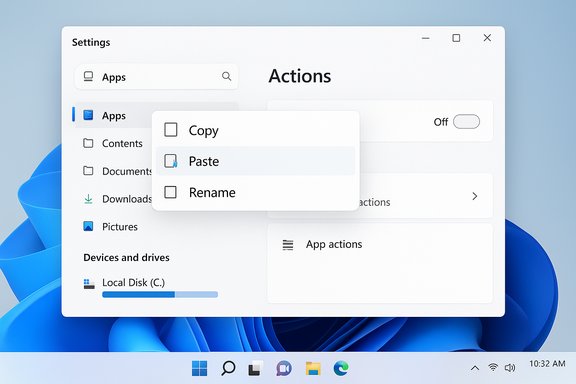
Windows 11 Settings screen with a floating menu offering Copy, Paste, Rename.Background / Overview​

The change is part of a recent Windows 11 preview build and addresses a usability complaint that’s been persistent since Microsoft began integrating broader AI features into the OS. The new behavior changes the context‑menu logic so the AI Actions header is omitted entirely when the system detects no registered or enabled AI handlers. That means users who opt out of AI features via Settings will no longer see an inert menu placeholder taking up vertical space in the right‑click menu.
This is a small, targeted polish in a larger wave of adjustments to Windows 11 File Explorer aimed at reducing UI clutter, improving discoverability, and tightening the integration points for Copilot and other AI features across Windows.

What were AI Actions and why they annoyed users​

What the AI Actions feature did​

When Microsoft expanded AI functionality into core Windows apps, it added a contextual shortcut layer—AI Actions—to File Explorer’s context menu. The idea was to expose quick, AI‑powered tasks directly when users right‑clicked a file, for example:
  • Image operations like background removal, object erasure, or blur.
  • Visual search and recognition shortcuts backed by online services.
  • Quick summarization or content suggestions for documents (Copilot/Microsoft 365 integrations).
  • Launch points to first‑party apps (Photos, Paint, Edge, Copilot) that expose AI features.
These were intended as workflow accelerators: a right‑click → action → quick result model without opening a full app manually.

The real annoyance: an empty menu​

In practice, the implementation had a glaring flaw. Even after a user turned off the related app actions in Settings, the AI Actions parent would still show up in File Explorer’s right‑click menu. Because the submenu itself could be empty (no registered or enabled handlers), the result was a useless, single‑line entry that consumed screen space and added cognitive clutter to the context menu.
This behavior especially irked users on smaller displays, touch devices, or anyone who relies on a compact, efficient right‑click menu. The empty AI Actions entry behaved like an advertisement or hardcoded UI element, rather than a respectful, conditional control.

The fix: conditional display logic​

What changed in the code path​

The preview build updates File Explorer’s logic so that the AI Actions section is conditionally displayed. The system now evaluates two things at context‑menu build time:
  • Are there any registered App Actions (handlers) that expose AI Actions for the selected file type?
  • Are those App Actions currently enabled by the user in the Settings > Apps > Actions page?
If the answer to both is “no,” File Explorer omits the AI Actions header entirely from the right‑click menu. The submenu will continue to appear in scenarios where an action is applicable, preserving functionality without the clutter.

How to actually remove AI Actions from your menu (practical steps)​

  • Open Settings (Win + I).
  • Select Apps in the left column.
  • Click Actions on the Apps page.
  • Toggle off every app action listed that you don’t want (Photos, Paint, Describe image/System, Copilot entries, etc..
  • If you have the updated preview build and the staged flag for the fix has reached your device, the AI Actions parent entry will disappear once no enabled actions remain.
Note: Some preview devices may require waiting for a server‑side flag to propagate even after installing the build. Attempting to force feature flags with third‑party tools is possible but not recommended for mainstream users or managed devices.

The broader clean‑up: what else Microsoft is doing in File Explorer​

This AI Actions fix is not an isolated tweak—it fits into a broader effort to refine File Explorer’s UX and performance. Recent changes and experiments include:
  • Context menu consolidation: Moving less‑used items into grouped submenus (e.g., compress/copy-as-path grouped into a “Manage file” submenu).
  • Cloud item consolidation: Grouping OneDrive/Send to Phone entries into single flyouts to reduce duplication.
  • Preload and startup performance: Background preloading of a minimal Explorer runtime to reduce perceived launch latency.
  • Improved dark mode consistency: Extending dark theme coverage to legacy dialogs such as file deletion prompts and copy dialogs.
  • New Settings controls: Instance of a dedicated Actions page in Settings to control which apps can surface suggested actions across Windows.
These improvements aim to address two long‑standing complaints: the context menu’s vertical bloat and the inconsistency in modern vs legacy UI styling.

Why this seemingly small change matters​

1) Restores basic user expectation: toggles should remove UI footprint​

There’s a core usability principle at stake: if a feature is disabled, its UI representation should be removed. Leaving a disabled feature visible in the UI — especially as an empty menu entry — violates that expectation and undermines trust. The fix restores predictable behavior: turn something off, and it’s out of sight.

2) Reduces cognitive load and improves efficiency​

Right‑click menus are meant to be fast, scannable tools. Each superfluous line adds milliseconds to visual search and intercepts attention. For power users who rely on muscle memory, or for people using assistive tech, a leaner context menu meaningfully improves day‑to‑day work.

3) Signals responsive product design​

This update shows Microsoft is listening to feedback and willing to iterate. It’s an incremental but visible polish that improves perceived product quality—especially important as new AI features risk making the OS feel crowded.

Critical analysis — strengths and remaining issues​

Strengths​

  • Respecting user choice: The system honors user toggles by actually removing the menu entry, not just disabling underlying handlers.
  • Targeted and low‑risk: This is a UI change with little surface area for regressions; it simplifies behavior without removing functionality for those who want it.
  • Fits other cleanup work: It complements larger efforts to declutter File Explorer and reduce duplicate functionality across submenus.

Remaining weaknesses and risks​

  • Discoverability vs. declutter tradeoff: Hiding AI Actions when none are available is sensible, but making the feature too invisible risks users never finding valuable AI shortcuts when they do apply. Balancing discoverability with minimalism is delicate.
  • Inconsistent rollout and gating: Microsoft frequently uses staged, server‑side gating for preview features. Users on the same build can see different behaviors depending on flags. That inconsistent experience is confusing and complicates testing and documentation.
  • Fragmentation across channels and devices: Copilot/AI features are often gated by device type, subscription status, or channel (Dev/Beta/Release Preview). This can lead to unpredictable context menus on mixed fleets or in support environments.
  • Behavioral inconsistency in early implementations: Several of the early AI Actions merely launched the host app (Photos, Paint) rather than performing the operation in‑place. That creates a poor expectation mismatch: a menu advertised as “AI Actions” but effectively a shortcut to existing tools.
  • Enterprise management and policy controls lag: Enterprises will want clear Group Policy or MDM controls to manage the exposure of Copilot/AI elements. Until Microsoft maps these settings to enterprise policy constructs, admins will wrestle with update channels and feature gating to control distribution.
  • Privacy and telemetry concerns: AI actions often rely on cloud services. Users and organizations will want granular control over what data is sent and when. Clear controls and documentation are necessary; otherwise, distrust can grow even for benign UI elements.

Practical guidance for users and admins​

For everyday users​

  • Use Settings > Apps > Actions to control which apps can surface Actions in the OS. Toggling everything off should remove AI Actions entirely once your device has the fix.
  • If the menu still shows empty entries after toggling offs, be patient—this behavior can be server‑gated even on preview builds.
  • Avoid unofficial registry hacks or third‑party tools unless you understand the risks; they can break future updates or produce unsupported states.

For IT admins and power users​

  • Pilot the preview build(s) on a small set of devices to observe behavior and compatibility.
  • Use Windows Update deployment policies and insider program controls to stage and test changes in your environment.
  • Expect Microsoft to map user‑facing toggles to MDM/Group Policy constructs over time; plan for that transition and document interim controls.
  • Communicate changes to end users, highlighting both the benefits (decluttered menus) and the steps to re‑enable features if desired.

What Microsoft should do next (recommendations)​

  • Ship a native Context Menu Editor in Settings that allows per‑entry toggling and per‑app visibility controls. This is the single best outcome to reduce friction for users who want fine‑grained control.
  • Provide explicit enterprise policy controls (Group Policy and MDM) that map to Actions/AI features, making mass management straightforward for admins.
  • Improve discoverability for AI Actions when they are available—use contextual hints or unobtrusive tooltips rather than permanently visible menu entries.
  • Clarify privacy defaults and provide clear UI to inspect what data AI Actions will send to cloud services before invoking them.
  • Avoid staging inconsistencies where the same build yields different UX on different devices. When staging is necessary, provide clearer signals to testers about server‑gated flags and expected behavior.

The ecosystem angle: app developers and the App Actions framework​

AI Actions rely on a framework that lets apps register contextual handlers—an App Actions model. That ecosystem is important because:
  • It allows third‑party and first‑party apps to offer contextual capabilities without complex integration work.
  • It centralizes discovery for the user: the OS surface can present actions across apps in a consistent way.
  • It also requires discipline from app developers to ensure their handlers are meaningful (not simply shortcuts) and that they respect the user’s settings.
If handlers simply redirect to installed apps instead of performing lightweight in‑place operations, the contextual model loses value and feels like duplication rather than enhancement.

Rollout expectations and timeline caveats​

While the preview build that introduced this fix is now in testers’ hands, broad availability to all Windows 11 users typically follows a staged schedule. Historically, Microsoft rolls changes from Dev/Beta channels into general availability across cumulative updates or larger feature releases. Claims about an exact public rollout date are speculative until Microsoft publishes a roadmap; users should treat “early next year” or similar phrasing as an expectation rather than a guarantee.
Server‑side gating means some users on the same build will get the UI change earlier than others. If you manage devices, assume a period of staggered behavior and test accordingly.

Why polish matters when adding AI to an OS​

AI can add genuine value—speeding repetitive tasks, improving accessibility, offering contextual intelligence—but its integration into a mature desktop OS must be done with restraint and finesse.
  • Desktop users prize predictability and control. A misplaced AI button or a persistent empty menu undermines that trust faster than a missing feature.
  • Small UX irritations compound: multiple marginal annoyances create a perception that the product is less polished, even if the underlying capabilities are powerful.
  • Responsiveness to feedback (like this change) is a positive sign: it shows a product team listening to real user pain and fixing low‑risk, high‑impact issues.

Final thoughts — a small change, meaningful signal​

Hiding the AI Actions menu when it has no content is a pragmatic, user‑centric fix. It addresses a minor but visible friction point, restoring sensible behavior and improving the everyday experience of the right‑click menu.
This adjustment is more than a cosmetic tweak: it’s a visible signal that the evolution of Windows 11’s AI integrations is being tempered by usability concerns. If Microsoft continues this pattern—pairing new AI functionality with thoughtful control surfaces, enterprise management options, and clear privacy defaults—the platform can gain useful automation without alienating long‑time Windows users who prize a clean, efficient desktop.
Until then, the immediate takeaway for users is simple: check Settings > Apps > Actions, toggle the actions you don’t want, and expect that the OS will now behave more respectfully by removing the empty AI Actions entry from File Explorer’s right‑click menu when no action is available. For admins and power users, plan for staged rollouts, and push for explicit policy tools to manage these capabilities at scale.
This change won’t rewrite how people use Windows, but it’s the kind of focused polish that improves daily interactions—and in the long run, those small improvements add up.

Source: Windows Central https://www.windowscentral.com/micr...ai-finally-decluttering-the-right-click-menu/
 

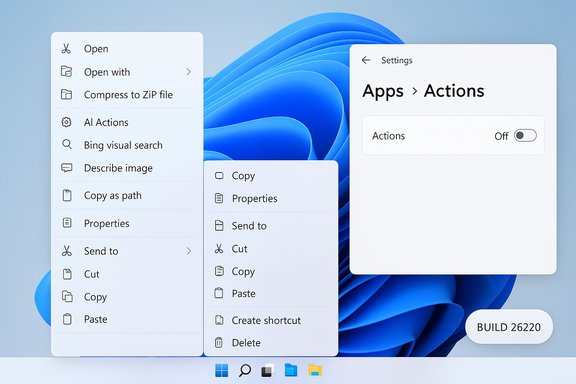
Microsoft’s latest Insider preview does something deceptively simple: it finally lets you make the “AI Actions” entry in Windows 11’s File Explorer context menu go away — for real. After months of user complaints that the AI Actions header remained visible even when its sub-actions were disabled, the Windows Insider release notes for Build 26220.7344 confirm the fix: if there are no available or enabled AI Actions, the entire section will be suppressed from the right‑click menu. For users fed up with a growing, cluttered context menu, this is a welcome bit of polish — and it also reveals how Microsoft is balancing new AI surfaces against long‑standing usability friction.

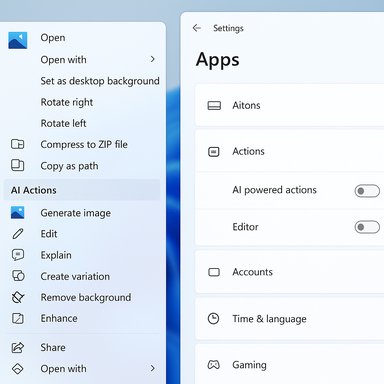
Split-screen UI showing a file actions menu on the left and Apps settings on the right.Background: how AI Actions appeared and why they annoyed users​

When Microsoft began rolling AI‑driven shortcuts into File Explorer earlier in the year, the stated goal was convenience: provide quick, context‑aware tasks (for example, background blur, object removal, visual search, or document summarization) as top‑level options when you right‑click a file. In practice, these “AI Actions” are often launch points — they open Photos, Paint, Edge, or Copilot to perform the requested operation rather than editing the file inline inside Explorer.
That design choice created tension. On the one hand, the shortcuts promised to shorten common workflows for people who rely on Microsoft’s built‑in apps. On the other, they duplicated functionality already available through “Open with” or the apps themselves. Early screenshots showed both the traditional verbs such as “Edit with Paint” sitting next to AI‑branded equivalents, and some context menus ballooning to well over a dozen items. Power users who prize a compact, predictable right‑click menu were quick to call the feature redundant and noisy.
The irritation wasn’t just aesthetic. A usability bug compounded the problem: even after toggling off all AI Actions in Settings, many users still saw the AI Actions header — an empty container that consumed vertical space in an already dense menu. That hollow placeholder felt, to many, like a UI remnant that should have been removable by the user.

What changed in Build 26220.7344​

Microsoft’s December Insider preview (Build 26220.7344) addresses that exact complaint. The File Explorer fixes in the release notes include a terse but consequential line: “If there are no available or enabled AI Actions, this section will no longer show in the context menu.”
Put plainly, the context menu now evaluates whether any registered AI‑backed App Actions are both present and enabled. If none are available, File Explorer suppresses the AI Actions parent entry entirely. That means toggling off the last AI Action actually makes the UI element disappear rather than leaving an empty header.
This change is small in code but large for UX. It respects the user’s choice to opt out of a particular UI surface without resorting to registry hacks or third‑party shell editors. It also demonstrates a responsiveness to community feedback in the Insider program: a common complaint was identified, prioritized, and fixed in a client update.

How to remove AI Actions today: step‑by‑step​

If your device has received Build 26220.7344 or a later release that carries the same conditional‑display logic, here’s the straightforward sequence to remove AI Actions from File Explorer:
  • Open Settings (press Win + I).
  • Navigate to Apps in the left pane.
  • Select Actions on the right.
  • Untick or toggle off every app listed that exposes App Actions (for example, Paint, Photos, Teams, Microsoft 365/Copilot entries).
  • Right‑click a supported file in File Explorer (e.g., a JPG, PNG, or supported document). If no enabled AI Actions remain, the AI Actions parent entry should be absent.
A few implementation notes and caveats:
  • The rollout is staged and can be server‑gated. Even with the same build number installed, devices may receive the UI change at different times.
  • The toggles in Settings remove the functional hooks that provide AI Actions; under the updated logic, removing these hooks also removes their UI footprint.
  • This method affects only the AI Actions parent; other AI‑related surfaces (for example, “Ask Copilot” or Copilot integrations in individual apps) are controlled by separate toggles and policies.

Why this matters: UX, discoverability and duplication​

At first glance, hiding a redundant header looks like an uncontroversial clean‑up. But it exposes deeper tradeoffs Microsoft faces as it grafts AI into a decades‑old OS:
  • Restoring control: For many users, the ability to remove the AI Actions header without manual hacks or registry edits is a significant win. Simplicity matters; a compact menu improves scan‑ability and reduces the time needed to find the right command.
  • Discoverability vs. clutter: Microsoft’s intent with AI Actions was discoverability — make intelligent tools obvious and easy to access. But discoverability becomes clutter when the surface duplicates existing commands or when the system over‑promotes features that most users don’t need on every file type.
  • Platform plumbing: Beneath the UI sits a more ambitious effort — agentic plumbing that enables AI agents to discover and interact with apps (Model Context Protocol and File Explorer connectors are early examples). AI Actions is a visible, conservative surface built on that plumbing. Hiding it when unused is a pragmatic measure that preserves discoverability without permanently imposing clutter.
  • Perception and trust: When new AI features appear aggressively in core OS surfaces, they can feel like promotion rather than assistance. Allowing users to opt out visibly reduces friction and helps preserve goodwill.

What else changed in the build: small consolidations that add up​

Build 26220.7344 includes a number of seemingly minor File Explorer and context menu refinements that point to a gradual rethinking of the right‑click UX:
  • Manage file submenu: Frequently used but scattered commands such as Compress to and Copy as path are being grouped into a single Manage file submenu. This reduces repetition and keeps the top level of the menu more focused.
  • OneDrive consolidation: OneDrive’s multiple shell entries are being tucked into a single, consolidated OneDrive section rather than listing each sync action separately.
  • Stability and fixes: The flight also includes stability fixes for context‑menu‑related crashes that some Insiders reported after previous previews.
Taken together, these changes suggest Microsoft is experimenting with two parallel approaches: consolidate and group existing items to reduce surface area, and make optional new surfaces dismissible when unused. Both approaches aim to make File Explorer feel lighter and more predictable.

A critical look: strengths, unanswered questions, and risks​

Strengths​

  • User agency restored: The most obvious benefit is giving users control. If you don’t want AI Actions cluttering your context menu, you can now remove it cleanly through Settings.
  • Low‑risk UX fix: The change is conservative and low risk — it simply hides an empty container. It doesn’t remove functionality for users who rely on AI Actions.
  • Signals responsiveness: Microsoft’s quick pivot in response to feedback demonstrates that the Insider feedback loop is working in this case — user complaints moved the needle.
  • Platform continuity: The update aligns with the broader platform direction (Model Context Protocol and app connectors) while avoiding heavy‑handed UI defaults.

Unanswered questions and potential risks​

  • Staged rollouts can confuse users. Because the fix is server‑gated, some Insiders on the same build may still see the AI Actions header while others do not. That inconsistent behavior can breed confusion, especially for users following online instructions.
  • Duplication remains a design problem. Hiding an empty header fixes the symptom but not the underlying duplication of functionality. Unless Microsoft rethinks how AI Actions surface unique capabilities, the temptation to duplicate “Open with” behavior will persist.
  • Discoverability may suffer for new users. For people who would benefit from quick AI workflows, hiding the parent when disabled could reduce discoverability; Microsoft will need other mechanisms (tooltips, onboarding, app suggestions) to surface useful features without making the menu heavy.
  • Privacy and consent complexity. Some AI Actions invoke cloud services (Copilot, Microsoft 365 summarization, Bing Visual Search). Hiding the UI entry doesn’t change the underlying instrumentation and telemetry. IT administrators and privacy‑conscious users will want clarity on data flow, consent, retention, and enterprise policy controls for agentic features.
  • Enterprise management and policy gaps. Large organizations typically control device configuration through group policy and MDM. While toggles in Settings are a start, enterprises will need clear Group Policy or MDM CSP controls to centrally manage which AI Actions (or agent connectors) are allowed, especially where data exfiltration or compliance is a concern.

Where the fix doesn’t go far enough​

The change addresses visual noise when the feature is disabled, but it does not provide a holistic editing experience for the context menu. Power users — and many IT pros — still lack an official, supported interface to fine‑tune context menu contents at a granular level. Third‑party shell editors and registry hacks will remain a patch for people who want full control until Microsoft ships a proper editor or management policy.

Enterprise and admin implications​

Organizations should treat this as a user‑interface change rather than a privacy or security control, but it intersects with broader concerns about AI controls in the OS:
  • Centrally enforceable controls: Administrators should expect Microsoft to expose enterprise controls for agentic connectors and App Actions. Until such policies are widely published and supported in Intune/Group Policy, admins will need to rely on app restrictions and application control policies to limit AI‑powered actions.
  • Visibility and auditability: Agentic connectors such as the File Explorer connector and MCP introduce new flows that can access user files by design. Enterprises will want logging and audit trails that show when agents access or transmit data, and whether those actions used cloud processing.
  • Licensing effects: Some AI Actions — especially document summarization and advanced Microsoft 365 capabilities — are gated behind commercial Copilot or Microsoft 365 licensing. Admins should review licensing implications before enabling these features for a broad user base.
  • Staged deployment: Because Microsoft is rolling many features using controlled feature rollouts, organizations piloting new Windows 11 features should use Insider or preview rings to evaluate functionality, telemetry, and management controls before broad deployment.

Practical tips for users and IT​

  • If you dislike AI Actions, the cleanest route is Settings > Apps > Actions and untick every entry. Once the build’s server flag reaches your device, the AI Actions parent will be hidden.
  • If you rely on particular AI Actions, leave only the relevant app toggles enabled. This reduces menu clutter while keeping the features you use.
  • Keep deployments staged: in enterprise environments, validate the behavior in a pilot ring before enabling new 25H2/25H2+ features broadly.
  • Monitor Windows Update and the Windows Insider blog for release notes. Many of these UI shifts are documented in the flight notes and may be staged separately from the binary build.
  • For privacy‑minded users, review Copilot and Microsoft 365 settings and account scopes to understand what data might be processed in the cloud when using AI Actions.

The broader picture: AI Actions as a canary for larger design choices​

AI Actions are more than an isolated right‑click experiment. They’re a visible expression of Microsoft’s strategy to weave AI affordances into everyday workflows while building the underlying interoperability layer for agentic experiences.
  • Model Context Protocol (MCP) and connectors suggest the company plans for agents to orchestrate across apps and services with a discoverable registry and consent model.
  • AI Actions are an early consumer surface that demonstrates how agents might present capabilities in context. The current iteration errs on the side of discoverability — perhaps too aggressively for some users.
  • The responsive fix shows Microsoft understands the tension between promotion and usefulness. Hiding the UI when unused preserves user control without killing the underlying architecture.
If Microsoft continues to ship small, reversible UI surfaces and pair them with adequate admin controls and user toggles, it can iterate toward a balance that both surfaces AI capability and respects user preferences.

Final assessment: incremental, sensible, but not the end of the story​

The change in Build 26220.7344 is exactly the kind of incremental polish that improves day‑to‑day usability: a small behavioral tweak that respects user intent and restores a leaner context menu. It doesn’t solve the larger questions about discoverability, duplication, enterprise management, or the longer‑term design of AI surfaces in the shell — but it is the right move from a usability perspective.
Windows 11’s context menu has accumulated decades of legacy items and modern integrations. As Microsoft continues to fold AI capabilities into the OS, the company faces two primary design imperatives: give users clear, frictionless ways to opt out of unwanted surfaces, and provide discoverability pathways that don’t overwhelm the primary interface. The AI Actions hide‑when‑unused change checks the first box. The second box will require more thoughtful grouping patterns, official context menu editing tools, and stronger enterprise controls.
For now, users who want a quieter right‑click experience have a supported option to make AI Actions disappear — a modest, practical fix that tells a larger story about how AI features should be introduced: respectfully, reversibly, and with obvious controls.

Source: digit.in Microsoft now lets users remove AI actions menu, here is how
 

Microsoft has quietly given Windows 11 users a genuine off‑switch for the intrusive “AI Actions” entry in File Explorer’s right‑click menu: with Insider Preview Build 26220.7344 Microsoft changed the shell’s logic so that if there are no available or enabled AI Actions, the entire AI Actions section is suppressed from the context menu, and you can trigger that by turning every Action off in Settings → Apps → Actions.

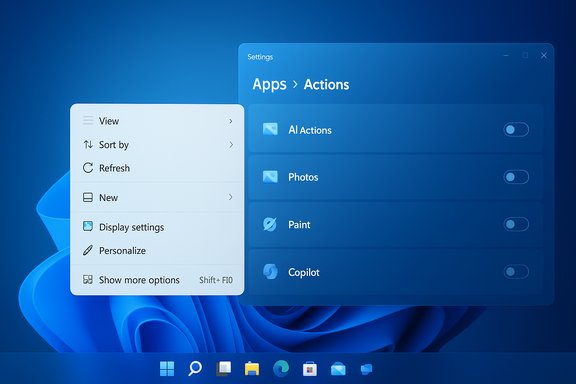
Windows 11 Settings: Apps > Actions with toggles for AI Actions, Photos, Paint and Copilot.Background​

When Microsoft began surfacing small, AI‑driven shortcuts directly inside File Explorer, the goal was straightforward: make common, context‑sensitive tasks—like visual lookup, background blur, object removal, or document summarization—available without extra clicks. The UI surface that hosted those shortcuts is commonly called AI Actions. In practice the submenu most often acts as a launcher—it opens Photos, Paint, Edge, or Copilot to perform the chosen task rather than editing files inline inside Explorer. That implementation decision shaped both the feature’s utility and the critiques that followed.
The friction point that led to this change was narrow but highly visible: even after users disabled AI Actions toggles for every supporting app, the AI Actions header would still appear in the right‑click menu as an empty placeholder. That inert line consumed vertical space and made an already crowded menu feel more like advertising than a productive tool. Insiders and community testers flagged this repeatedly, and Microsoft’s December Insider release notes now record the fix in a single, consequential sentence.

What Microsoft actually changed​

The release‑note summary (exact wording)​

The Windows Insider blog entry for Build 26220.7344 lists a short File Explorer fix: “If there are no available or enabled AI Actions, this section will no longer show in the context menu.” That is the behavioral change: the shell now evaluates whether any App Actions that expose AI Actions are registered and enabled for the selected file; if none exist the parent AI Actions header is suppressed.

Where the change lives (builds & channels)​

This change shipped as part of Windows 11 Insider Preview Build 26220.7344 and is rolling to both the Dev and Beta channels. Microsoft describes many Insider updates as gradually being rolled out, and the blog makes clear some fixes and changes are staged, meaning the new behavior may appear on devices at different times even if they have the same binary installed. Plan for a staged rollout rather than an immediate, uniform change across all machines on that build.

How to remove AI Actions today — the supported method​

If you want the AI Actions header to disappear from File Explorer now and you have the build (or a later release) that contains the fix, follow these supported steps:
  • Open Settings (press Win + I).
  • Go to Apps in the left column.
  • Click Actions.
  • Uncheck or toggle off every app listed that exposes App Actions (for example: Photos, Paint, Describe image (system), Microsoft 365 / Copilot entries, Teams, etc..
  • Right‑click a supported file in File Explorer. If you have the updated behavior and no enabled actions remain, the AI Actions parent entry should no longer appear.
This path is the system‑level, supported approach Microsoft implemented — no registry hacks or third‑party shell editors are required to make the menu go away. If the AI Actions header remains visible after toggling everything off, it’s likely due to staged feature‑gating; wait for the staged flag to propagate or for a subsequent cumulative update.

Why this matters: small code, large UX impact​

A short conditional check in the code can have outsized effects on daily usability. File Explorer is one of the most frequently used surfaces in Windows; small irritations there compound quickly. Removing an empty submenu saves vertical screen space, reduces clutter, and restores a basic expectation of interface behavior: when a feature is disabled, its UI footprint should disappear. The change is low risk and reversible, and it respects user choice without disabling the feature for those who find value in it.
But this fix is also symptomatic of larger tensions as Microsoft integrates AI across Windows:
  • Discoverability vs. bloat: AI Actions was intended to surface helpful capabilities, but when the same options appear in existing menus (or simply launch existing apps), people see duplication rather than productivity. Early screenshots showed AI Actions items sitting next to “Edit with Paint” and “Edit with Photos,” and community screenshots even documented menus growing to 18 or more items—an unmistakable sign of vertical bloat.
  • Platform plumbing and future risk: AI Actions is built on the App Actions framework and on experimental agent plumbing the company is developing. That means more AI affordances are likely to follow; Microsoft must find a systematic policy for what belongs in the context menu so the same clutter problem does not recur. Some community coverage links these changes to emerging platform work (Model Context Protocol and agent connectors), which may explain why Microsoft is iterating on small surfaces now — but that broader plumbing still needs clearer documentation and governance. Treat platform‑level claims as early and evolving.

Cross‑verification and the evidence base​

This behavioral change is documented in the Windows Insider announcement for Build 26220.7344; that official note contains the precise sentence quoted above. Independent reporting from multiple outlets and community threads corroborates the practical steps a user must take to hide AI Actions (Settings → Apps → Actions → untick everything) and confirms the staged rollout behavior. Multiple community forums and coverage reproduced the same guidance and reproduced screenshots showing the prior redundant menu layout, confirming the scope of the UX complaint and the nature of the fix. Where claims are less settled — for example, the exact composition of other platform features shipped in the same build (some community threads mention MCP or agent connectors in the same preview) — the available evidence comes primarily from community reporting and early analysis rather than a single clear official documentation line. Those items should be treated with cautious language until Microsoft publishes explicit technical docs tying those components to the build.

The practical implications for different users​

Casual users​

  • If you dislike seeing “AI Actions” on a right‑click, toggling the Actions entries off will remove the header once the staged flag for your device is active. It’s a supported, safe, and reversible path.

Power users​

  • This is a welcome polish but not full control: Windows still lacks a first‑party, granular context menu editor that lets you selectively remove built‑in entries (Ask Copilot, Edit with…, etc. without registry edits or third‑party tools. The change reduces itch, but not the underlying absence of fine‑grained menu customization. Community voices continue to push for a proper editor.

IT professionals and enterprise admins​

  • Staged rollouts can complicate fleet management. Because the fix is server‑gated, two machines on the same build may behave differently while the feature flag ramps. Admins should pilot on controlled rings, validate behavior, and hold off mass deployment until governance and policy mappings (Group Policy / MDM) for AI surfaces are clear. Also review data‑flow implications for any AI Actions that invoke cloud processing—document summarization and some image processes may call cloud services; enterprises must treat those actions like new potential data egress paths.

What else changed in Build 26220.7344 — small consolidations that add up​

The AI Actions fix is one of several modest File Explorer refinements in the same preview flight designed to reduce menu noise and improve discoverability:
  • Manage file sub‑menu: Frequently used but scattered options such as Compress to… and Copy as path are being gathered into a single location to reduce top‑level clutter.
  • OneDrive consolidation: OneDrive’s multiple shell entries are being tucked into a single consolidated OneDrive flyout rather than spreading separate items across the menu.
  • Smarter Open With: The Open With dialog now suggests Store apps inline when a relevant app is not installed, making it faster to find and install the right handler.
Taken together these changes indicate Microsoft is experimenting with two complementary approaches: consolidate existing entries to reduce vertical space and make new AI surfaces truly optional when not used. Both tactics reduce perceived bloat without removing functionality for users who want it.

Critical analysis — strengths, risks, and remaining pain points​

Strengths​

  • Restores user choice: The new conditional logic respects explicit user toggles in Settings; turning off a feature now removes its visible chrome. That’s consistent with core usability expectations.
  • Low technical risk: The change is a conservative UI adjustment with a small surface area; it’s easy to ship and roll back if issues arise.
  • Signals responsiveness: Microsoft responded quickly to clear, consistent feedback from Insiders. That responsiveness is important as the OS accumulates more AI surfaces.

Risks and remaining issues​

  • Not a substitute for a context‑menu editor: Power users and many community members still want a built‑in editor or policy surface that allows granular removal of first‑party commands without hacks. This fix addresses the symptom (an empty header) but not the deeper control gap.
  • Fragmented rollout confuses support: Staged, server‑gated experiments produce inconsistent behavior across devices on the same build. That complicates documentation, troubleshooting, and enterprise testing. Plan communications accordingly.
  • Privacy/enterprise governance: Some AI Actions potentially use cloud services (for example, document summarization tied to Microsoft 365/Copilot entitlements). Enterprises must confirm where processing happens and whether files leave corporate tenancy; at present, per‑action disclosures and enterprise policy mappings aren’t always obvious. Treat such items cautiously during pilot programs.
  • Accessibility tradeoffs: Consolidation into nested menus reduces top‑level clutter but increases navigation depth, which can adversely affect keyboard and screen‑reader users unless accessibility testing and remediation accompany these UI changes. Microsoft needs to ensure reorganizations don’t regress discoverability for assistive tech users.

Recommendations for readers​

  • For everyday users who dislike the AI Actions header: follow the supported path — open Settings → Apps → Actions and untick everything. After the staged flag reaches your device under Build 26220.7344 or later, the AI Actions header will disappear.
  • For power users who need more control today: consider conservative third‑party context menu tools or registry edits with caution and documentation; keep copies of any changes and be prepared to reverse them after system updates. Advocate in community channels and Feedback Hub for an official context menu editor.
  • For IT admins piloting this update: test in a small cohort and validate both functional behavior and any integrations (DLP, third‑party shell extensions, backup or sync clients). Confirm which AI Actions invoke cloud services and update DLP/usage policy accordingly. Coordinate staged rollout timing with user communications to avoid confusion.

A look forward: what to watch next​

Microsoft’s quick fix here shows how small, incremental adjustments can materially improve day‑to‑day use of Windows, but the broader challenge remains managing the steady influx of AI capabilities in a platform with decades of legacy behaviors and countless third‑party shell extensions.
Key things to watch:
  • Whether Microsoft ships a first‑party context menu editor or expands the Windows Settings UI to allow per‑menu customization without hacks. Community demand for that feature is strong.
  • How Microsoft documents per‑action privacy and processing details (local vs cloud) for AI Actions and future agentic features. Enterprises will require clear mapping to compliance and DLP policies before broad adoption.
  • Continued consolidation efforts (Manage file submenu, OneDrive grouping) and any WinUI-sourced split‑menu controls that reduce vertical growth while preserving discoverability. These architectural moves (including SplitMenuFlyoutItem patterns) may be the sustainable path to shorter, more usable context menus.

Conclusion​

The suppression of the AI Actions header when no actions are enabled is a deceptively simple but meaningful usability correction. It restores a basic expectation — that toggles in Settings should remove UI chrome — and demonstrates Microsoft’s willingness to iterate in response to community feedback. The change is low risk, effective, and easily reversible, and it arrives alongside other quiet but useful File Explorer cleanups that, together, make the right‑click experience feel less cluttered.
That said, the fix does not remove the underlying problem: Windows still needs a coherent, cross‑platform policy and controls for what appears in the context menu and better per‑action transparency for cloud‑backed AI workflows. For now, users who want the AI Actions header gone have a supported path to remove it; organizations and power users should treat the change as a welcome polish while continuing to press for deeper, more permanent control surfaces.
Source: digit.in Microsoft now lets users remove AI actions menu, here is how
 

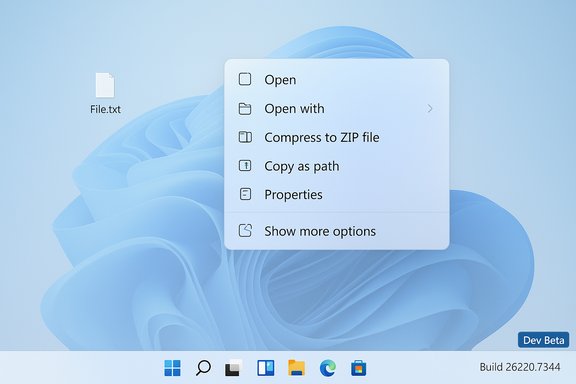
Microsoft has quietly fixed one of the most irritating little UI bugs in Windows 11: in the latest Insider preview (Build 26220.7344) File Explorer will no longer show the AI Actions section in the right‑click context menu when there are no enabled or available AI Actions to display. This change is documented in the official Windows Insider release notes and is rolling to the Dev and Beta channels as part of a broader set of File Explorer polish items.

Windows-like desktop showing File.txt with a large right-click context menu on a blue abstract wallpaper.Background​

File Explorer’s right‑click menu is one of the most frequently used UI surfaces in Windows, and over the past year Microsoft has been experimenting with blending small, context‑sensitive AI shortcuts — collectively labeled AI Actions — into that menu. The idea was straightforward: surface quick, AI‑driven tasks (for example, visual search, background blur, object removal, or quick summarization of documents) directly when you right‑click a supported file so users can start common tasks with fewer clicks. In practice, most AI Actions work as launch points that open one of Microsoft’s apps (Photos, Paint, Edge) or Copilot to complete the operation rather than editing the file inline inside Explorer. That design and implementation produced mixed reactions. While some users welcomed the shortcut-style convenience, many power users and testers complained the context menu was becoming crowded and the AI Actions entry felt redundant — especially because it often redirected users to existing apps that already exposed the same tools. The single most visible annoyance was a bug/UX mismatch: even after toggling all AI Actions off via Settings, the parent AI Actions header would remain as an empty placeholder in the menu and occupy vertical space with no useful content beneath it. Microsoft has now documented a fix for that problem in Build 26220.7344.

What changed in Build 26220.7344​

The concise fix​

Microsoft’s File Explorer note in the build’s release details is short and explicit: “If there are no available or enabled AI Actions, this section will no longer show in the context menu.” That means File Explorer will evaluate registered App Actions and user toggles at menu‑build time and suppress the AI Actions parent entry entirely when nothing would appear underneath it. This is a conditional UI‑suppression change rather than a removal of AI Actions functionality.

Channels and rollout behavior​

The update ships to the Windows Insider Dev and Beta channels, and Microsoft uses staged feature rollouts (server‑gated flags) even within the same build number. That means two machines running Build 26220.7344 might behave differently for a short period while the feature flag ramps. Expect a gradual change: if the parent entry still appears after you toggle everything off, the fix may simply not have reached your device yet.

How AI Actions worked — and how to hide them today​

AI Actions: what you saw in the menu​

Typical AI Actions surfaced for image files included:
  • Bing Visual Search (launches Edge to run a visual lookup)
  • Blur background, Erase object, Remove background (entry points into Photos or Paint)
  • Summarize for Office documents stored in OneDrive/SharePoint (requires Microsoft 365/Copilot entitlements)
Crucially, selecting many of these options launched another app or Copilot to perform the task rather than performing an in‑Explorer edit. That contributed to the sense that AI Actions duplicated existing app capabilities.

Supported method to hide the AI Actions parent (step‑by‑step)​

  • Open Settings (press Win + I).
  • Go to Apps.
  • Select Actions.
  • Toggle off every app action that exposes AI Actions (Photos, Paint, Describe image/system actions, Microsoft 365 Copilot items, etc..
  • After your device receives the staged change for Build 26220.7344 or later, the AI Actions parent section will be suppressed from the right‑click menu when no enabled actions remain.
Note: before this build the toggles removed the individual entries but left a hollow AI Actions header in the menu; the new behavior removes that orphan header entirely when appropriate.

Why this matters: small polish, real productivity impact​

Right‑click menus are dense, frequently used interfaces. An empty submenu — even a small one — disrupts scan patterns, increases visual noise, and can slow repetitive workflows. Removing an inert UI element restores a basic expectation of software behavior: if a user disables a feature, the interface should stop advertising it. This change is a pragmatic win that respects user choices without dismantling AI Actions for users who value them.
Key immediate benefits:
  • Less visual clutter in the context menu, improving scanability and speed.
  • Predictable opt‑out behavior: toggling off an action now means the system ceases to present that UI surface.
  • Low risk: the change is a conditional UI suppression and does not alter the underlying AI plumbing or app implementations.

Critical analysis — strengths, limitations, and remaining risks​

Strengths: Microsoft listened and applied a targeted fix​

This change checks several boxes for good product stewardship. It addresses a real, repeatedly reported annoyance with a focused adjustment that reduces friction without removing the feature for users who actually want it. It demonstrates responsiveness in the Insider program: prioritize high‑visibility nuisances and apply low‑surface‑area fixes quickly. The approach aligns with best practices for iterative UX improvements.

Limitations: not a cure for context‑menu bloat​

Hiding an empty header solves one symptom — the orphan placeholder — but it doesn’t give users the deeper control they keep asking for: a built‑in, granular context menu editor. Power users, IT teams, and accessibility advocates continue to request:
  • A user-friendly context menu editor inside Settings to toggle or hide specific top‑level entries.
  • An enterprise policy surface (Group Policy / CSP / Intune) that centrally manages which AI Actions or connectors are available.
    Until Microsoft ships those tools, users will still rely on toggles, registry tweaks, or third‑party shell editors for fine-grained control.

Privacy and governance considerations​

AI Actions are a visible front for several underlying platform components (agent connectors, the Model Context Protocol, and App Actions). Some actions process data locally, others invoke cloud services (for example, document Summarize tied to Microsoft 365 Copilot or Bing Visual Search). Hiding the UI entry doesn’t change the underlying telemetry, data flows, or licensing boundaries. Enterprises and privacy‑sensitive users must still understand:
  • Which actions upload data to the cloud and under what entitlements.
  • How to control those actions centrally (current Settings toggles are per‑device and user).
  • Where audit trails and DLP integration are available for agentic connectors.

Staged rollouts and the perception problem​

Because Microsoft stages many changes via server flags, the same build number can exhibit different behavior across devices. That complicates communications and troubleshooting: help desks and documentation need to account for server‑gated features rather than binary build numbers alone. Expect a short period of fragmentation where some users see the suppressed header and others still get the empty entry until the staged rollout completes. Claims about an exact consumer rollout date remain speculative until Microsoft publishes a timetable. Treat any published conjecture about broad availability with caution.

Enterprise guidance — what admins should do now​

  • Pilot the updated build in a controlled test ring before broad deployment. The File Explorer change is low risk, but context‑menu reorganizations can interact unpredictably with third‑party drivers, sync clients (OneDrive), or security overlays.
  • Update policies and DLP guidance: if your organization prohibits cloud processing of sensitive documents, verify whether any AI Actions would upload files or metadata and adjust Intune/AppLocker/MDM settings accordingly.
  • Prepare for policy mapping: track Microsoft’s roadmap for exposing Group Policy / CSP controls that map to the Settings toggles for App Actions and agent connectors. In the interim, use standard app‑restriction tools to limit exposure.

Recommendations for Microsoft (user‑centric perspective)​

  • Ship a native Context Menu Editor in Settings that lets users and admins toggle visibility for first‑ and third‑party entries, and persist those preferences across updates.
  • Publish a per‑action privacy disclosure that explicitly states whether processing is local or cloud‑based and what telemetry is collected.
  • Map user toggles to enterprise controls (Group Policy and Intune) so organizations can manage these features centrally and auditably.
  • Add UI affordances that clarify when an action will launch another app or process the file inline — a short label like “Opens Photos to perform this action” would reduce confusion.
These moves would turn an iterative fix into a platform‑level improvement in trust, control, and manageability.

The bigger picture: AI in the OS​

AI Actions are a small but revealing example of Microsoft’s broader strategy: embed discoverable AI affordances across Windows while building platform plumbing (connectors, Model Context Protocol) that enables more agentic workflows. These early consumer surfaces are useful testbeds but also expose the tensions between discoverability and control, between convenience and privacy, and between rapid experimentation and predictable enterprise manageability. Hiding an empty menu is a thoughtful, necessary correction — but the long‑term challenge is building a coherent governance and control story that scales beyond the Insiders’ feedback loop.

What to expect next​

  • Rolling availability to more Insider rings and, eventually, production builds as Microsoft folds the change into cumulative updates or a larger feature release; the exact timing will depend on staged rollout progress. Treat any date projection as provisional.
  • Continued context‑menu refinements alongside other File Explorer experiments (grouping less‑used commands into submenus, consolidating OneDrive actions, smarter “Open with” suggestions). These are part of a deliberate effort to reduce UI noise while keeping discoverability for useful features.

Final take​

This is not a headline‑grabbing feature launch, but it is the kind of everyday polish that improves millions of interactions for Windows users. The suppression of an empty AI Actions header when no actions exist is a practical, user‑centric fix: it keeps the convenience of AI shortcuts for those who want them while respecting the preferences of people who find the added menu noise distracting or unnecessary. It also exposes the next set of priorities for Microsoft: give users and admins clearer, more granular control, and make the privacy and data‑flow implications of AI features transparent and manageable. Until those higher‑level governance features arrive, this small change reduces friction and restores a basic expectation: if you opt out, the UI should stop asking you about it.

Source: TechRadar https://www.techradar.com/computing...ng-you-banish-them-from-the-right-click-menu/
 

Floating context menus show file actions and app settings on a blue Windows-style desktop.
Microsoft has quietly given users a reliable way to make the intrusive AI Actions entry in File Explorer disappear — provided you’re running a build that contains the fix and you turn off the associated Actions in Settings.

Background / Overview​

When Microsoft began surfacing AI-driven shortcuts in Windows 11’s File Explorer, the goal was clear: make common, context-sensitive tasks visible and fast. The new AI Actions submenu aimed to expose things like Bing visual search, background removal, object erasure, and document summarization directly from the right‑click menu. In practice, however, many of those items acted as launch points into Photos, Paint, Edge, or Copilot rather than editing files inline inside Explorer — and the feature introduced a fresh usability problem: context‑menu bloat.
The irritation reached a peak when disabling every AI action via the Settings page left an empty AI Actions header in the modern context menu. That hollow placeholder consumed vertical space, made menus harder to scan, and felt like an advertising stub more than a useful UI element. Microsoft’s recent Insider preview changed the underlying conditional display logic so that the AI Actions section is suppressed when there are no available or enabled actions — a small code tweak with a large UX payoff.

What changed in Build 26220.7344​

The exact behavior Microsoft documented​

Microsoft’s Insider release notes for Windows 11 Insider Preview Build 26220.7344 include one concise File Explorer fix: “If there are no available or enabled AI Actions, this section will no longer show in the context menu.” That line describes the new conditional logic: File Explorer checks whether any registered App Actions that expose AI Actions exist and are enabled for the selected file; if none are found, the entire AI Actions header is omitted.

Channels and rollout​

The change was introduced in Insider preview builds and is rolling to the Dev and Beta channels. Microsoft commonly stages UI changes and feature flags, so the behavior may appear on some devices before others even when running the same binary. Expect a staged rollout rather than an instant, uniform update. If the AI Actions header persists after toggling everything off in Settings, your device might simply be waiting on the staged flag.

How to remove AI Actions from File Explorer (step‑by‑step)​

If you want the AI Actions header to vanish, follow these supported steps. This method uses system settings — no registry hacks or third‑party shell editors required.
  1. Open Settings (press Windows + I).
  2. Select Apps from the left column.
  3. Click Actions on the Apps page.
  4. Toggle every app/action listed to Off (for example: Photos, Paint, Describe image (system), Microsoft 365 / Copilot entries, Teams, etc..
  5. Right‑click a supported file in File Explorer to confirm the AI Actions parent is no longer displayed.
If you follow these steps on a device that has the updated logic and the staged flag has reached it, the AI Actions parent will disappear entirely instead of remaining as an empty menu line. If it doesn’t disappear immediately, wait for the staged feature flag or a subsequent update to propagate.

Why this matters: small change, meaningful UX improvement​

File Explorer’s context menu is a high‑frequency interface; small vertical clutter compounds quickly during day‑to‑day use. Removing an empty submenu:
  • Restores predictable behavior: when a feature is disabled, its UI footprint should disappear.
  • Reduces cognitive load and improves scanability of the right‑click menu.
  • Preserves the feature for users who find value in it while respecting those who want a leaner experience.
This is a surgical fix: a relatively minor conditional check in the menu assembly with a low risk of regression and a disproportionately positive impact on perceived polish.

Technical anatomy: App Actions, AI Actions and the platform plumbing​

App Actions framework​

AI Actions are implemented on top of Windows’ App Actions framework — an extensible registry that lets applications advertise small, task‑oriented operations to the OS. Apps register handlers (actions) that the shell can surface in context menus or other discovery surfaces. Turning off an app’s actions via Settings effectively unregisters those handlers from surfaced lists.

Model Context Protocol (MCP) and agent plumbing (emerging)​

The AI Actions surface is an early consumer-facing use of broader platform work such as Model Context Protocol (MCP) and agent connectors. MCP is an emerging mechanism for LLM‑based agents to discover and call app tools and connectors securely. Microsoft’s inclusion of MCP-style plumbing suggests AI Actions are a visible, conservative surface built atop a larger agent‑orchestration foundation — but MCP and agent connectors are still early, evolving technologies. Treat platform‑level claims as provisional until Microsoft publishes complete technical documentation.

Critical analysis: strengths and benefits​

Strengths​

  • Respects user choice. The Settings toggles now actually remove the UI element, restoring a basic usability expectation.
  • Low risk, high impact. This conditional suppression is straightforward to implement and reversable, minimizing potential regressions.
  • Part of broader Explorer cleanup. The fix aligns with other context‑menu reorganizations (Manage file grouping, OneDrive consolidation, smarter Open With), indicating a focus on polish rather than piling on new surfaces.

Practical benefits to everyday users​

  • Faster visual search of menu items.
  • Reduced accidental clicks and clutter on small screens and touch devices.
  • Less friction for power users who depend on muscle memory.

Risks, limitations and remaining pain points​

Not a full context‑menu editor​

Power users have long asked for a built‑in, per‑entry context menu editor. This fix removes an empty parent header but does not give granular, user-friendly control to remove or reorder specific first‑party entries (e.g., Ask Copilot, Edit with…). Many users will still need third‑party tools or registry edits to achieve that level of customization.

Server‑side gating creates fragmentation​

Because Microsoft stages some UI changes via server flags, devices on the same build can behave differently. That complicates testing and user expectations — is the feature a bug, a staged rollout, or simply not available yet? Organizations should pilot in controlled rings before broad deployment.

Transparency about data flows and privacy​

Some AI Actions (for example, document summarization tied to Copilot) may require cloud processing or specific Microsoft 365 entitlements. Enterprises and privacy‑conscious users must confirm whether an action performs inference on device or uploads data to cloud services. Microsoft’s documentation ties certain flows to licensing and hardware gating, but per‑action data‑flow disclosures would improve transparency. Treat claims about “on‑device” vs “cloud” processing cautiously unless Microsoft explicitly documents the behavior for each action.

Accessibility and navigation cost​

Grouping or hiding menu items reduces visual clutter but can increase navigation steps, which matters for keyboard and screen‑reader users. Changes must be validated for accessibility to ensure reorganizing does not regress discoverability for assistive technologies. Microsoft’s Insider process includes feedback loops, but accessibility testing remains essential.

Enterprise guidance and governance​

For IT administrators evaluating the change, consider these practical controls and checks:
  • Pilot the update in a test ring (Insider or staged deployment) and validate behavior before broad rollout. Server‑side flags mean identical binaries may still behave differently across devices.
  • Verify per-action processing locations and whether actions require Microsoft 365/Copilot entitlements. If cloud processing is required, confirm compliance with your organization’s data‑handling policies.
  • Where policy controls exist, map Actions exposure to Group Policy/MDM settings or use established tooling (AppLocker, MDM restrictions) to reduce surface area. If no enterprise GPO exists for a particular action yet, control exposure through update management and application deployment policies.

Practical tips and troubleshooting​

  • If you don’t see Settings → Apps → Actions, your device may not yet have the UI changes or you might be on an older build. Confirm your Windows build and channel before proceeding.
  • After toggling Actions off, if the AI Actions header remains, give it time for the staged flag to propagate. Check for cumulative updates and staged server flags rather than forcing feature flags with third‑party tools. Using unsupported tools (ViveTool, etc. can break update behavior and is not recommended for production machines.
  • For persistent unwanted entries that aren’t controlled by Actions toggles, consider uninstalling the app that registers the shell extension or use vetted third‑party shell editors — with caution and appropriate backups.

Broader implications: discoverability vs. bloat​

AI Actions exposes a recurring product design tension: discoverability (making new, useful features easy to find) versus bloat (cluttering high‑frequency UI surfaces with duplicative or promotional items). AI Actions attempted to increase discoverability but initially duplicated existing verbs and, in some instances, behaved like an advertisement for first‑party apps or paid entitlements. Hiding AI Actions when unused is the pragmatic middle ground — it reduces friction for those who opt out while preserving discoverability for those who opt in. However, the OS still needs a clearer, consistent policy for what belongs in a context menu to prevent similar bloat in future.

What remains unverifiable or speculative​

Some coverage has suggested the AI Actions fix might not reach the stable channel until a future major Windows 11 feature update — and there are speculative timelines floating around that place broad availability as late as a major update in late 2026. That assertion is speculative and depends on Microsoft’s public release roadmap and internal rollout decisions; it is not confirmed in the release notes themselves. Treat multi‑quarter timeline claims as uncertain until Microsoft publishes a clear, dated plan for stable‑channel shipment.

Conclusion​

The recent Insider change that suppresses the AI Actions header when no associated App Actions remain is a welcome, low‑risk polish that restores control to users and cleans up one frequent annoyance in File Explorer’s context menu. By toggling Actions off under Settings → Apps → Actions, users can hide the entire AI Actions section without resorting to hacks — provided their device has received the updated build and the staged flag.
That fix is an incremental but meaningful example of how small UX adjustments can improve everyday productivity. It also highlights larger questions that remain unresolved: better per‑entry customization for context menus, clearer per‑action privacy disclosures, and a documented policy for what belongs in high‑frequency OS surfaces as Microsoft continues to integrate AI across Windows. Until those systemic answers arrive, this targeted suppression gives users a practical way to remove AI Actions from File Explorer while preserving the functionality for those who rely on it.

Source: gHacks Technology News Windows 11: How to remove AI Actions from File Explorer - gHacks Tech News
 

Microsoft has quietly given Windows 11 users a real way to remove the intrusive “AI Actions” entry from File Explorer’s right‑click (context) menu by changing the shell’s display logic so the AI Actions section is hidden whenever no actionable AI handlers are available or enabled.

Two Mac desktops side by side; left shows a long file actions context menu, right a collapsed panel.Background / Overview​

Windows 11’s steady infusion of AI features into the shell has been one of the platform’s defining efforts over the past year. Among those additions was AI Actions — a context‑sensitive submenu in File Explorer designed to surface quick, generative or helper tasks (for example: background removal, object erasure, Bing visual search, or document summarization) when a user right‑clicks a supported file. The intention was to shorten common workflows by offering one‑click access to AI‑backed tools without manually opening full applications. What followed was a classic UX backlash: the context menu grew crowded, and — crucially — an empty AI Actions header often remained visible even after users disabled all the underlying actions. That inert menu entry consumed vertical space and became a constant irritant for power users and administrators who prize a compact right‑click menu. Community pressure through the Windows Insider channels and public coverage prompted Microsoft to adjust the behavior.

What Microsoft changed — the practical fix​

The code tweak​

In the Windows Insider Preview release notes for Build 26220.7344, Microsoft added a targeted File Explorer fix: “If there are no available or enabled AI Actions, this section will no longer show in the context menu.” That sounds minor, but it changes the rendering logic: File Explorer now evaluates whether any App Actions that expose AI Actions are registered and enabled for the selected file type, and if none exist the parent AI Actions header is suppressed. This is a conditional UI suppression rather than a removal of AI Actions as a capability. When an applicable AI Action exists (for example, when Photos or Paint expose an actionable handler for a JPG), the submenu will still be offered. When nothing is registered or all actions are toggled off, the entire UI footprint disappears.

Where it appeared and rollout notes​

  • The change is present in Insider Preview Build 26220.7344 and has been observed rolling to the Dev and Beta channels.
  • Microsoft commonly stage‑gates UI changes with server flags; two machines running the same build may experience different behavior while the feature flag ramps. If the AI Actions header persists after toggling options off, it’s likely due to staged rollout timing rather than a misconfiguration.

How to remove AI Actions from File Explorer today​

If you want the AI Actions parent entry to vanish and your device has received the updated behavior, follow this supported sequence. This avoids registry hacks or third‑party shell editors.
  • Open Settings (press Win + I).
  • Select Apps in the left column.
  • Click Actions.
  • Uncheck or toggle off every app listed that exposes App Actions (for example: Photos, Paint, Describe image/system, Microsoft 365 Copilot entries, Teams).
  • Right‑click a supported file in File Explorer (e.g., JPG, PNG, DOCX). If no enabled AI Actions remain and the staged flag is present on your device, the AI Actions parent entry will be absent.
Key caveats:
  • The steps are the supported method Microsoft implemented; no unsupported registry edits are required.
  • Because of staged rollouts, you may need to wait for the flag to propagate even after installing the build.

Why this matters: usability, perception, and control​

The right‑click menu in File Explorer is a high‑frequency UI. Small vertical clutter compounds quickly, so the presence of an empty header became much more than an aesthetic complaint — it was a productivity and scanning‑efficiency issue. Restoring the expectation that disabling a feature removes its UI footprint is a fundamental usability win and signals that user control matters.
But the fix is also symptomatic. Hiding an empty menu header removes the immediate annoyance while leaving broader questions unanswered:
  • How should the OS decide which AI affordances merit a direct place in the context menu?
  • Should there be a native per‑menu editor to let users permanently remove or reorder entries?
  • How will Microsoft communicate whether an action performs local processing or uploads the file to a cloud service?
Those are design and governance questions that go beyond a single conditional check.

Technical underpinnings — App Actions, shell logic, and agent plumbing​

AI Actions are implemented on top of Windows’ App Actions framework — a registry and discovery layer that lets applications advertise small, task‑oriented handlers to the OS. The context menu assembles a list of handlers at runtime and shows the AI Actions parent only when one or more handlers are available and enabled. The recent change simply adds a guard at menu build time to omit the parent when the handler collection is empty.
Beyond App Actions, Microsoft is also investing in deeper platform plumbing — often described in community coverage as agentic features and standards like the Model Context Protocol (MCP) — that allow local agents and apps to expose capabilities to a central agent runtime. Those broader platform efforts are why small context‑menu adjustments matter: the plumbing aims to enable more agentic behaviors, and without careful policy the same clutter problem could recur. Treat platform‑level claims as early and evolving until Microsoft publishes complete documentation.

Privacy, performance, and NPU realities​

A recurring set of concerns around AI Actions and similar OS‑level AI features are privacy and performance.
  • Privacy: Some AI Actions rely on cloud processing — meaning the selected file or metadata could be uploaded to Microsoft (or a cloud provider) for inference. That raises data‑egress, governance, and compliance questions for enterprise users. Removing the UI footprint does not change whether an action uses cloud compute; enterprises must confirm processing locations for any AI workflows they permit.
  • Performance and hardware tiers: Microsoft has been explicit about a tiered Windows strategy where richer, low‑latency, privacy‑sensitive AI experiences are gated to Copilot+ PCs equipped with dedicated NPUs (Neural Processing Units). Independent reporting and Microsoft’s materials commonly reference an NPU throughput guideline in the ballpark of 40+ TOPS (trillions of operations per second) for advanced on‑device inference. On devices without such NPUs, AI features will fall back to cloud processing — with higher latency and potential battery or bandwidth impact. This hardware gating means some AI Actions may be more responsive on newer machines and require cloud calls on older ones.
That two‑tier reality is important: the ability to hide AI Actions in the menu does not remove the underlying policy decision that determines where processing occurs. Administrators and security teams should map which AI Actions invoke cloud services and update DLP or compliance policies accordingly.

Enterprise, admin, and deployment implications​

For IT departments and enterprise rollouts, the change is meaningful but partial.
  • The supported Settings path (Apps → Actions) gives a straightforward way to remove AI Actions without unsupported hacks, which simplifies imaging and compliance testing for pilot groups.
  • Because UI changes are often staged with server flags, IT pilots should validate both binary versions and server‑side behavior before broad deployment. Two identical machines can behave differently until rollout completes.
  • Enterprises still need granular visibility into which AI Actions perform cloud calls. Without per‑action privacy metadata and audit trails, organizations cannot easily prove data residency or compliance for AI‑driven processing. The removal toggle addresses surface clutter but not auditability.
Practical steps for admins:
  • Test the Settings → Apps → Actions toggles on representative endpoints.
  • Validate which actions call cloud endpoints and update DLP exclusions or conditional access as required.
  • Communicate the change to users so they understand how to re‑enable actions if a job requires them.

Market reaction and competitive context​

This adjustment fits a broader market pattern: users want AI that helps without imposing, and OS vendors are learning that discoverability must be balanced with control. Coverage in tech media and community forums framed this change as Microsoft listening to users and making a small but meaningful UX correction. Apple and Google are also rolling AI features into their platforms, typically with opt‑in prompts and clearer permission surfaces in recent updates. Microsoft’s move to let users remove the AI Actions header is consistent with industry pressure to provide clearer opt‑outs and avoid surprise UI additions. Whether Microsoft will follow with more granular per‑action permission controls or a first‑party context‑menu editor remains an open question.

Strengths of Microsoft’s response​

  • Rapid iteration on high‑visibility UX issues. The fix demonstrates responsiveness to community feedback and the agility of Insider testing channels.
  • Supported, non‑hacky opt‑out path. Users can remove the AI Actions surface via Settings rather than registry edits, which reduces breakage risk.
  • Low‑risk engineering change. The conditional suppression is surgically small in code but high return for perceived polish.

Risks and unresolved issues​

  • Lack of granular per‑action permissions. The current Settings approach toggles entire apps’ actions; it does not provide fine‑grained, per‑action privacy metadata or per‑app, per‑action consent logs that enterprises often require. This limits auditability and granular control.
  • Staged rollout confusion. Server‑gated flags mean end users — and even admins — can be confused when behavior differs across devices. Clearer rollout notes and telemetry would help IT plan pilots.
  • Potential for recurrence. The plumbing for agentic features and the App Actions model means more AI affordances may follow; without a broader context‑menu policy (or a native editor) the clutter problem could reappear as third‑party apps also register actions.
Flagged claim: some public posts attribute the exact NPU threshold or specific hardware lists to Microsoft’s official certification rules; while multiple independent reports reference a 40+ TOPS guideline, treat the exact numeric bar as a working spec rather than a hard guarantee, since OEM certification criteria can evolve.

What power users and administrators should do now​

  • If you dislike the AI Actions header, toggle off the relevant Actions under Settings → Apps → Actions and wait for the staged flag to propagate if it doesn’t disappear immediately.
  • Audit which AI Actions perform cloud processing and update governance or DLP rules where necessary; do not assume local processing unless your device is a Copilot+ PC with a qualified NPU.
  • For enterprise deployments, pilot the change in a small cohort and validate how the change interacts with third‑party shell extensions, backup/sync clients, and DLP agents.
  • Advocate for a native context‑menu editor via Feedback Hub and enterprise channels; many admins see this change as a step in the right direction but not a final answer.

Looking ahead — signals and likely next steps​

Microsoft’s small but visible concession suggests a path forward where AI features are treated as modular surfaces that users can mix and match. Reasonable expectations for the near future include:
  • More granular settings panels that map actions to privacy, locality (on‑device vs cloud), and auditability.
  • Policy controls for enterprises that allow centralized management of App Actions and AI hookups.
  • Potential UI tools (first‑party context menu editor or groupings) to reduce vertical menu growth while preserving discoverability for users who want AI affordances.
However, the underlying tension remains: Microsoft must balance aggressive AI integration with respect for established desktop ergonomics. Small fixes like hiding an empty submenu are good optics, but durable user trust will require clearer documentation, predictable permissions, and robust enterprise controls.

Conclusion​

The change in Windows 11 Insider Preview Build 26220.7344 that hides the AI Actions section in File Explorer when no actionable handlers are present is a practical, user‑centered correction to a widely reported UX annoyance. It restores a basic expectation — when you opt out, the UI should stop advertising the feature — and does so in a supported, low‑risk way. That said, the fix is partial: it addresses the visible symptom of menu clutter but not the governance, privacy transparency, or per‑action controls that enterprises and power users will demand as agentic AI features proliferate. The arrival of Copilot+ NPUs and two‑tier processing models complicates the story further; hiding UI chrome helps, but true trust will come from clear processing metadata, audit trails, and easier administrative control of what AI can access and where it runs.
For now, users who want a leaner File Explorer can toggle Actions off in Settings and, with Build 26220.7344 or later and the staged flag in place, watch the unwanted AI Actions entry disappear — a small but telling sign that user feedback still shapes the evolution of Windows.

Source: WebProNews Microsoft Allows Removing AI Actions from Windows 11 File Explorer
 

Back
Top