

Windows 11’s quietly expanding AI layer is no longer an experiment; it’s now a practical toolkit that can speed up everyday tasks, rescue messy photos, bridge language gaps, and even act as a searchable memory for your desktop. If you’ve upgraded in the last year or are shopping for a new PC in 2026, there are seven AI features in Windows 11 you should be using — and understanding — right now.
Microsoft has steadily reworked Windows 11 to make AI a system-level capability rather than an add-on. The company split experiences across two vectors: features that run in the cloud for broad compatibility, and on-device AI that requires newer hardware — what Microsoft brands as Copilot+ PCs. That split matters because it determines speed, privacy, and what’s available when you’re offline.
Some features are immediately useful on almost any modern PC; others unlock the fastest, lowest-latency versions only on machines with a Neural Processing Unit (NPU) meeting Microsoft’s Copilot+ threshold. Over the past 18 months Microsoft, hardware partners, and the Windows Insider program have iterated on these capabilities, adding voice wake words, improved vision features, and tighter privacy controls. Below I summarize each feature, explain what it really does today, and give practical tips for getting the most value — without trading away control of your data.
That said, value is conditional. For many users, cloud-assisted Copilot features are enough. For power users and privacy-sensitive professionals, a Copilot+ PC with an NPU above Microsoft’s stated threshold will unlock faster, local experiences and added controls. Use the checklist above, test features in non-sensitive contexts first, and keep security hygiene (Windows Hello, BitLocker, account protection) current. When combined with prudent settings and a clear understanding of what runs locally versus in the cloud, Windows 11’s AI can be not just helpful — but genuinely time-saving.
Source: TechRepublic 7 AI Features in Windows 11 You Should Start Using in 2026
 Background
Microsoft has steadily reworked Windows 11 to make AI a system-level capability rather than an add-on. The company split experiences across two vectors: features that run in the cloud for broad compatibility, and on-device AI that requires newer hardware — what Microsoft brands as Copilot+ PCs. That split matters because it determines speed, privacy, and what’s available when you’re offline.Some features are immediately useful on almost any modern PC; others unlock the fastest, lowest-latency versions only on machines with a Neural Processing Unit (NPU) meeting Microsoft’s Copilot+ threshold. Over the past 18 months Microsoft, hardware partners, and the Windows Insider program have iterated on these capabilities, adding voice wake words, improved vision features, and tighter privacy controls. Below I summarize each feature, explain what it really does today, and give practical tips for getting the most value — without trading away control of your data.
Copilot: your built-in AI assistant
Copilot is the hub of Microsoft’s AI strategy on Windows 11 — a single, integrated assistant that lives in the taskbar and works across apps, files, and system controls.What Copilot does
- Acts as a system-level assistant for writing, summarizing, brainstorming, and troubleshooting.
- Can run across applications: summarize a PDF, draft an email from a note, or extract key points from a meeting transcript.
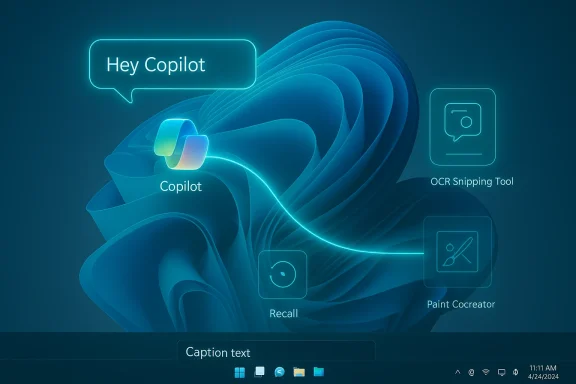
- Supports voice input with the wake phrase “Hey, Copilot” for hands-free interaction, plus Copilot Vision, which can analyze what’s on your screen and highlight where to click.
Why it matters
Copilot collapses several separate workflows into one interface. Instead of opening a browser for research, a separate writing app for drafting, and a third utility for system help, Copilot aims to be the single place you ask questions and take actions. When you use voice, the experience feels more conversational and immediate.How Copilot processes requests
Copilot uses a hybrid model: a small on-device component listens for the wake word (when that option is enabled), and larger queries are processed in the cloud unless the task is explicitly routed to the local NPU on a Copilot+ PC. That hybrid architecture delivers both responsiveness and richer reasoning when you’re online.Practical tips
- Try Copilot for quick summaries: paste a dense email thread and ask for a two-line brief.
- Use Hey, Copilot only after you confirm the wake-word setting — it’s off by default and must be enabled, which gives you control over always-listening behavior.
- If privacy is a concern, check Copilot settings to see which services you’ve connected (OneDrive, Outlook, external accounts) and limit access.
Live Captions and real-time translation
If accessibility and multilingual meetings are part of your daily life, Live Captions is one of the highest-value AI features available in Windows 11.What it does
- Transcribes any audio output from your PC into on-screen captions in real time.
- Can capture system audio — from streaming video to video calls — and render text in a floating caption bar.
- On capable devices, Live Captions can also translate spoken audio from dozens of languages into your chosen display language, turning your PC into a live translator.
Why you should use it
Live Captions helps accessibility (hearing impairments), noisy environments, and international collaboration. For remote teams with multilingual speakers, the instant translation feature breaks down friction in real time — no third-party interpretation service required.How to enable and use it
- The caption bar can be toggled from Settings > Accessibility > Captions, or with the keyboard shortcut Windows + Ctrl + L.
- The first time you enable it, Windows may download speech recognition language packs for on-device transcription.
- You can position the caption bar, change the look of captions, and choose whether to capture system audio or microphone input.
Caveats and accuracy
Automatic captions and translation are powerful but not perfect: accuracy varies by audio quality, speaker accent, and domain-specific language (technical jargon can be mis-transcribed). Treat captions as assistive rather than authoritative transcripts for legal or compliance uses.Text Actions: grab text from screenshots (and redact it)
The Snipping Tool’s Text Actions brings OCR and simple redaction directly into the Windows screenshot workflow.What Text Actions does
- Uses OCR to identify and extract text from screenshots so you can copy and paste without retyping.
- Includes a Quick Redact feature that can remove email addresses and phone numbers from an image before you share it.
- Lets you copy selected text from a captured image or copy everything recognized in a single click.
Why it’s helpful
Students, researchers, and anyone who frequently captures slides or published pages will save time. The redaction option is a practical safety tool that eliminates a common sharing mistake: posting a screenshot that accidentally includes contact details.How to use it
- Take a screenshot with Snipping Tool.
- Click the Text Actions button in the Snipping Tool toolbar.
- Select text to copy or use Quick Redact to hide phone numbers and email addresses.
Limitations
Currently, Quick Redact targets phone numbers and email addresses specifically — it won’t automatically identify account numbers, Social Security-style identifiers, or arbitrary personally identifiable information. Always verify redactions visually before sharing.Microsoft Recall: a searchable timeline of your desktop
Windows Recall is one of the boldest — and most debated — features Microsoft has shipped: it creates a searchable, on-device timeline of the things that appeared on your screen.What Recall does
- Periodically takes encrypted snapshots of your screen activity and indexes them so you can search natural-language queries like “the spreadsheet I was editing last Tuesday” and return the relevant timeline entry.
- On Copilot+ PCs, this processing runs locally and leverages the device’s NPU to index and search efficiently.
- Includes controls to exclude apps, pause recording, and delete snapshots.
Important privacy and security guardrails
Microsoft has layered several protections around Recall because of obvious risks:- Recall is off by default; you must choose to enable it.
- Access to the Recall timeline is gated by Windows Hello or Enhanced Sign-in Security.
- Snapshots and index data are encrypted on-device and protected by BitLocker and TPM-based keys in a Virtualization-based Security enclave.
- Microsoft says Recall does not send stored snapshots to its cloud for indexing or model training — the feature is designed to run locally on Copilot+ hardware.
System requirements and storage
Recall needs a Copilot+ PC with an NPU that meets Microsoft’s performance threshold — devices certified as Copilot+ typically include NPUs rated at or above 40 TOPS (trillions of operations per second), along with minimum RAM and storage requirements. The feature reserves a portion of your drive by default (for example, a 256 GB PC might allocate ~25 GB for Recall), and you can adjust how much space it uses; older snapshots are purged automatically when space runs low.Practical security advice
- If you handle sensitive or regulated data, keep Recall off or exclude sensitive apps like banking and password managers explicitly.
- Use Windows Hello and BitLocker if you enable Recall — those are listed as prerequisites for a secure experience.
- Remember: on-device does not equal unhackable — if someone gains access to an unlocked profile or your encryption keys, they may be able to see saved snapshots. Administrative and physical security remain critical.
Paint Cocreator and the new creative toolset
Microsoft has reimagined Paint for the AI era: Paint Cocreator pairs your sketches with generative models (DALL·E-based workflows) and adds editing features that used to be exclusive to higher-end apps.What Cocreator and the new Paint offer
- Cocreator: enter a text prompt and a rough sketch; the AI generates variations that you can accept, refine, or re-prompt.
- Layers and Background Removal: Paint now supports layers and one-click background removal, making compositing far easier.
- Generative Fill and Erase: add or remove elements based on a brush selection and a text prompt.
How it’s delivered
Cocreator and some local generative features are optimized for Copilot+ PCs with NPUs, but Paint also leverages cloud-based image models for generation where on-device hardware isn’t available. Microsoft sometimes caps initial usage with a credit model — new users may receive a set of free credits for creative experimentation.Why creators should care
Paint’s upgrades make it possible to iterate visual ideas quickly without leaving Windows. You can combine a quick doodle with text prompts to produce usable assets for presentations, thumbnails, or concept work in minutes.Practical tips
- Use Copilot’s image tools for mood boards and thumbnails; export to a more advanced editor only when you need pixel-level control.
- Be mindful of usage credits for cloud generation and sign-in requirements for some features.
Windows Studio Effects: better video calls without extra gear
If you’re on video calls daily, Windows Studio Effects is an immediate upgrade to your virtual presence — and it works in the background across video apps.Core features
- Auto Framing: keeps you centered as you move.
- Portrait Light: brightens and evens facial lighting when rooms are dim.
- Eye Contact: subtly adjusts your gaze to appear to look into the camera.
- Voice Focus: filters background noise and isolates your voice.
Why it’s useful
Studio Effects applies consistent, low-latency enhancements that make you look and sound more professional without expensive lighting or a better mic. It’s particularly valuable in hybrid-work environments where participants may not have dedicated AV setups.Hardware notes
While basic Studio Effects run on many systems, the smoothest and most advanced variants are accelerated by NPUs on Copilot+ PCs. Some effects (like higher-quality eye contact or advanced background effects) have better performance and power characteristics on devices with 40+ TOPS NPUs.Practical use
- Find Studio Effects in Quick Settings when your hardware supports it — turn on Eye Contact for client calls and Voice Focus when you’re in a noisy environment.
- Toggle effects as needed to preserve battery life on laptops; some effects can increase power draw.
Generative Erase in Photos: clean up images fast
Windows 11’s Photos app now includes a Generative Erase tool that can remove unwanted objects — photobombers, clutter, or blemishes — and intelligently fill the removed area.How it works
- Select the erase brush, paint over the object you want gone, and let the AI fill the space by synthesizing background texture.
- For many everyday edits this is a one-click fix that previously required Photoshop or advanced mobile apps.
Where it shines — and where it doesn’t
Generative Erase is excellent for simple scene cleanups: removing a stray person, erasing trash in the corner, or cleaning scanning artifacts from an old photo. For complex scenes with repeating patterns, reflections, or intricate occlusion, you may still see artifacts or seams that need manual adjustment.Practical tips
- Use a modest brush and multiple passes for tricky areas rather than a single large erase.
- Keep originals: always save an edited copy rather than overwrite the source photo.
Do you need a Copilot+ PC?
Short answer: not necessarily — but the experience differs.When you don’t need one
- If you use Windows for email, office productivity, web browsing, and occasional creative tasks, many Copilot features are available through cloud processing. Copilot, Live Captions (basic), Text Actions OCR, and Generative Erase (Photos) work on a wide set of PCs.
- Cloud-assisted generation and Copilot’s text features still deliver value on older hardware, although responses may be slower and require connectivity.
When a Copilot+ PC matters
- If you want the fastest local experiences, low-latency voice wake, offline Recall, advanced Studio Effects, local generative image refinement (Cocreator), and higher-capacity photo upscales (Super Resolution up to larger multipliers), Copilot+ hardware makes a difference.
- Microsoft’s public documentation and partner materials list a practical baseline for Copilot+ certification: an NPU performance target (commonly quoted as 40+ TOPS), 16 GB RAM, and 256 GB storage minimums. Those hardware requirements enable on-device inference for many of the features labeled Copilot+.
Value assessment
Copilot+ PCs currently target users who will gain real benefit from on-device AI — frequent video collaborators, content creators who use on-device super-resolution and local generative tools, and privacy-minded professionals who prefer processing sensitive data locally. For many mainstream users, the best choice is to evaluate specific features you care about and decide whether the premium for Copilot+ hardware is justified.Risks, caveats, and what to watch
AI baked into an operating system delivers convenience, but it also introduces new risks you should consider before enabling everything.- Privacy surface: features that capture audio or screen content increase the attack surface if the device is compromised. Microsoft has implemented encryption, Windows Hello gating, and local processing for many features, but on-device storage is still subject to physical or account compromise if other protections are weak.
- False confidence: AI-generated outputs (summaries, captions, erased photo fills) are fallible. Always verify facts and keep source material for auditability in sensitive contexts.
- Regulatory and compliance concerns: organizations in regulated verticals must carefully review how Recall and local AI indexing interact with records retention, supervision, and data residency requirements.
- Hardware marketing vs. reality: TOPS figures are a useful shorthand for NPU capability, but they aren’t a direct measure of real-world latency, power consumption, or model performance. Insist on hands-on benchmarks for workloads that matter to you.
- Ethical editing: generative erase and fill can alter imagery in ways that mislead. Journalists, researchers, and professionals should apply clear labeling and retain originals to avoid misrepresentation.
Practical checklist: enable, configure, and test safely
- Audit which features you plan to use and whether they require on-device hardware.
- Enable Windows Hello and BitLocker if you plan to use Recall or other local indexing features.
- Turn on Live Captions (Windows + Ctrl + L) and download language packs you actually need.
- For Snipping Tool OCR, update Snipping Tool to the latest Microsoft Store version and test Quick Redact on non-sensitive examples.
- Try Copilot tasks with low-risk content before connecting third-party accounts or pointing it at confidential files.
- If you’re an IT admin, evaluate Copilot and Recall in a controlled environment before broad rollout; enforce configuration controls via Intune or your device management stack.
Conclusion
Windows 11’s AI layer has matured from novelty to productivity toolkit. Copilot’s assistant features, system-wide Live Captions, Snipping Tool OCR, Paint’s Cocreator, Studio Effects, Generative Erase, and Recall each bring immediate, practical value — whether you want cleaner photos, faster meeting notes, or the ability to find something you only glimpsed weeks ago. The true turning point is that these features are integrated at the OS level: you don’t need to bounce between apps to assemble basic workflows anymore.That said, value is conditional. For many users, cloud-assisted Copilot features are enough. For power users and privacy-sensitive professionals, a Copilot+ PC with an NPU above Microsoft’s stated threshold will unlock faster, local experiences and added controls. Use the checklist above, test features in non-sensitive contexts first, and keep security hygiene (Windows Hello, BitLocker, account protection) current. When combined with prudent settings and a clear understanding of what runs locally versus in the cloud, Windows 11’s AI can be not just helpful — but genuinely time-saving.
Source: TechRepublic 7 AI Features in Windows 11 You Should Start Using in 2026
