Windows 11 AppXSVC Now Starts Automatically: Performance Tradeoffs

  • Thread Author
Microsoft’s December cumulative rollup for Windows 11, published as KB5072033, quietly changed a long‑standing service startup policy: the AppX Deployment Service (AppXSVC) — the background engine that handles Microsoft Store app installation and updates — is now configured to start automatically at boot on supported Windows 11 servicing streams. That single change has triggered a wave of user reports and enterprise support threads about higher CPU, memory and disk activity on some devices, and it raises practical questions for home users, IT pros, and anyone managing performance‑sensitive systems. Microsoft documents the change as an intentional reliability tweak, but community troubleshooting and Microsoft Q&A commentary show this move has real trade‑offs, particularly for lower‑spec and server workloads.

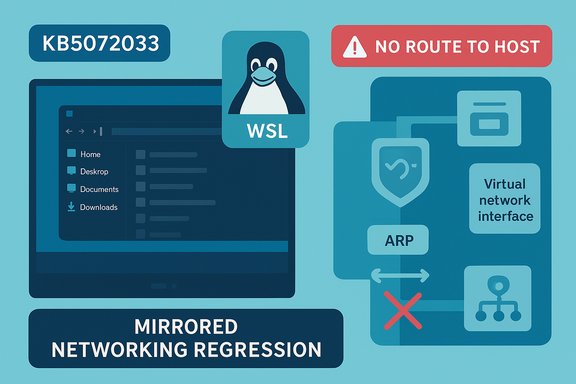
Futuristic blue UI featuring a glowing gear for AppXSVC with CPU and memory charts beside a Windows logo.Background​

What AppXSVC does and how it behaved before KB5072033​

The AppX Deployment Service (service name AppXSVC) is the core component used to install, update and register Microsoft Store (AppX/MSIX/UWP) packages. Historically the service is a trigger‑start component: it remains in a manual (on‑demand) state and is launched by system triggers when the Store, an app installer, or a scheduled background update requires it. That behavior keeps AppXSVC idle most of the time and limits its impact on everyday responsiveness. Third‑party coverage of the service and Microsoft documentation make clear AppXSVC’s role in unpacking packages, registering app containers and coordinating license and deployment tasks.

The KB5072033 change in plain terms​

Microsoft’s official KB note for KB5072033 (released December 9, 2025) includes a short but consequential entry in the change log: “The AppX Deployment Service (Appxsvc) has moved to Automatic startup type to improve reliability in some isolated scenarios.” In other words, the update alters the service configuration so AppXSVC starts automatically during boot rather than only when triggered by the Store or package operations. Microsoft frames this as a reliability improvement for isolated cases, but the change has obvious performance implications for many deployments.

Why this matters: performance, telemetry and real‑world reports​

Why an always‑running AppXSVC can cost resources​

When AppXSVC is trigger‑start, the service wakes only for specific tasks, performs its work, then exits; this pattern keeps resource use low. Switching the startup type to Automatic means the service process (and any threads it spawns) are present from boot. Even when idle, background services poll, register timers, or perform periodic checks — and when AppXSVC activates its update, provisioning, or registration sub‑routines, the CPU, memory and disk I/O impact can be significant on constrained machines.
This is especially visible on:
  • Systems with limited RAM (4–8 GB).
  • Devices with slower storage (older HDDs or saturated NVMe under heavy background IO).
  • Virtualized or server environments where background service churn is surfaced by monitoring systems as repeated start/stop cycles.

Community evidence and support threads​

Within days of the December rollup, administrators and users began reporting resource spikes and erratic behavior. Microsoft’s Q&A forum shows server administrators observing AppXSVC being forced to “Automatic” after KB5072033 and recommending reverting to a demand start to stop repetitive start/stop cycles that trip monitoring alerts. Independent monitoring vendors and patch‑management commentary echoed similar cautions: the change is real and it’s landed in production channels. Community posts from Windows enthusiast forums and telemetry summaries compiled by MSP and systems tools vendors reflect increased attention on File Explorer fixes bundled in the same update and the AppXSVC startup change.

Who feels the pain most​

  • Lower‑spec laptops and older desktops — everyday multitasking and UI responsiveness can suffer when a background service consumes CPU cycles or forces extra paging.
  • Virtual Desktop Infrastructure (VDI) and Azure Virtual Desktop (AVD) hosts — any service that runs continuously affects consolidation ratios and density; there are early reports of RemoteApp errors and session host anomalies tied to the December servicing window on some host builds.
  • Monitored server environments — monitoring systems that expect AppXSVC to be manual may flag the automatic start/stop behavior as failures or resource anomalies, generating alerts and false positives at scale.

Microsoft’s stated rationale and immediate trade‑offs​

Microsoft’s position​

Microsoft’s support entry explicitly records the change and frames it as improving reliability “in some isolated scenarios.” The KB also bundles other non‑security improvements — File Explorer dark mode white‑flash fixes, Ask Copilot (Click to Do) reliability updates and a servicing stack update — so the AppXSVC change came inside a larger, otherwise helpful cumulative rollup. Microsoft removed the long‑running visual glitch for many users while adding this service configuration change.

The trade‑off​

  • Benefit: Potentially smoother app provisioning and fewer edge‑case failures where apps or the Store misbehave because the deployment service wasn’t ready.
  • Cost: Possible continuous background overhead, especially visible on constrained or monitored systems, and potential instability in some server or image‑managed environments where the service’s expected start behavior is part of the baseline. Community guidance cautions against disabling the service entirely because doing so can break Store installs and updates and interfere with certain platform workflows.

Diagnosing the impact on your machine​

Quick checks to confirm whether KB5072033 changed AppXSVC​

  • Open an elevated command prompt and run:
  • sc qc AppXSVC — shows configured START_TYPE and service binary details.
  • sc qtriggerinfo AppXSVC — shows registered trigger events that would normally start the service.
    These commands reveal whether AppXSVC is now set to Automatic or remains trigger‑start.
  • Use Task Manager or Process Explorer:
  • Look for AppXSVC in the Services/process list and note memory and CPU use over time. If the process is present immediately after boot and remains running, the startup mode is Automatic.
  • Check Windows Update / Windows Logs:
  • Event Viewer → Applications and Services Logs → Microsoft → Windows → AppXDeployment‑Server (and related channels) for repeated start/stop entries and registration errors.
  • On servers or VDI hosts, correlate monitoring alerts with the KB install time to see if the rollup coincides with new alerts. Microsoft Q&A threads show monitoring systems like Zabbix flagging repeated start/stop cycles after the update.

Practical mitigations and step‑by‑step fixes​

Important: Microsoft and community experts advise not to disable AppXSVC entirely because it is required for Microsoft Store app installation and might be required by parts of the modern servicing stack. If you decide to change startup behavior, prefer reverting to demand/manual rather than disabling the service. The steps below are validated by community guidance and Microsoft Q&A recommendations. 1. Temporary, reversible change (recommended for troubleshooting)
  • Open an elevated command prompt (Run as Administrator).
  • Set the service to manual trigger start:
  • sc config AppXSVC start= demand
  • Confirm the change:
  • sc qc AppXSVC
  • Reboot and monitor resource usage and application behavior.
2. If you need to stop the service immediately (short‑term)
  • net stop AppXSVC — stops the service until next boot. Do not leave it disabled.
3. Avoid disabling via services.msc or registry unless you fully understand the downstream impacts — disabling may break app installs, Store function, and certain system features that rely on AppX. Use sc config to revert to manual instead.
4. For enterprise images and VDI:
  • Patch pilot rings first and measure density and latency.
  • If AppXSVC causes alerts in monitoring, revert to manual in the image and escalate to Microsoft through support channels and the Feedback Hub for a product‑level correction. Microsoft Q&A responses suggest this approach when the change is undesirable for server SKUs.
5. Collect diagnostic telemetry if you escalate:
  • Capture ETW traces (Windows Performance Recorder / WPA), Process Explorer dumps, WindowsUpdate and CBS logs, and minidumps if crashes occur.
  • Correlate the timeline to the install date of KB5072033 for a clear support case.

Enterprise guidance: rollout, testing and policy options​

Pilot, pilot, pilot​

Treat KB5072033 like any other Patch Tuesday cumulative: test on a representative fleet ring that includes low‑spec devices, VDI/VDI‑like session hosts, and any hardware profiles with historically sensitive drivers (gaming, virtualization, specialized laptops). Community analysis shows heterogeneous interactions between Windows updates and vendor drivers create unexpected regressions; this update is no different.

Group Policy and management strategies​

  • Use phased deployment through WSUS, SCCM/ConfigMgr, or Windows Update for Business to limit blast radius.
  • For non‑persistent images, ensure AppX package registration is validated during provisioning; known issue rollbacks (KIR) and feature‑rollout controls can temporarily mitigate problematic behaviors while a permanent fix or coordinated vendor driver update arrives.

Monitoring and alert tuning​

If your monitoring system raises noise due to AppXSVC being Automatic, adjust alert thresholds while you evaluate whether that configuration is intentional in your environment. For server SKUs where AppXSVC was previously never set to Automatic, consider reverting the service to Manual to maintain baseline behavior and file a support ticket so Microsoft can track the deployment manifest issue on server images.

The larger picture: why this update matters beyond one service​

Windows is moving toward deeper Store and AI integration​

KB5072033 is more than a bugfix rollup — it’s part of a broader trend where Microsoft tightens integration between Windows, the Store, and Copilot components. The cumulative bundled several UI and reliability fixes while also refreshing AI components used by Copilot and related features. The AppXSVC change is consistent with a platform where Store apps and background provisioning are a more central part of the user experience. For many users this is benign or beneficial; for others it shifts resource costs to always‑on background processes.

The risk vector is cross‑vendor complexity​

Past update cycles have shown how OS servicing and third‑party drivers can interact unpredictably: gaming regressions, virtualization host failures, and OEM BIOS interactions have all been observed after other cumulatives. KB5072033’s AppXSVC change is another example where even a small configuration tweak amplifies ecosystem complexity. Administrators should expect cross‑vendor debugging and coordinated fixes where necessary.

What Microsoft and community feedback indicate about fixes and next steps​

  • Microsoft’s KB entry documents the change and notes it was included to improve reliability in isolated scenarios. That statement signals intent, but not universality: Microsoft is rolling the change as part of a standard cumulative rather than a targeted feature switch.
  • Community threads on Microsoft Q&A and other forums recommend reverting the startup configuration to Manual for server and monitored environments while filing feedback so Microsoft can address any manifest or image misconfiguration in a subsequent servicing stack update. Those threads also caution against disabling the service entirely.
  • Early evidence suggests Microsoft is monitoring post‑release telemetry and community reports; expect follow‑ups or targeted patches if significant regressions are confirmed in enterprise images or common OEM configurations. Meanwhile, practical mitigations (manual startup reversion, pilot deployments) remain the best operational defense.

Practical checklist: what to do now​

  • Confirm the update and build: open Winver to verify you’re on a build advanced by KB5072033 (26100.7462 / 26200.7462).
  • Check AppXSVC startup type:
  • sc qc AppXSVC — if START_TYPE = 2 (Automatic), the update changed it.
  • If you see performance regressions and you’re in a controlled environment, revert to demand start:
  • sc config AppXSVC start= demand and reboot.
  • Avoid disabling the service entirely; prefer Manual trigger start.
  • For VDI, servers or images, pilot the update and collect diagnostics (ETW traces, CBS logs) before broad deployment.
  • File structured feedback with Microsoft (Feedback Hub or support ticket), and attach diagnostic artifacts if you need Microsoft engineering engagement.

Conclusion​

KB5072033 fixed visible and annoying issues in Windows 11 — notably File Explorer’s white‑flash and Copilot “Click to Do” behavior — while also making a quiet but impactful change to service configuration: AppXSVC’s move to Automatic. That decision reflects Microsoft’s intent to increase provisioning reliability in specific scenarios, but it comes with measurable trade‑offs in resource usage and monitoring noise for some environments. The prudent approach for enthusiasts and administrators alike is to test the update in representative rings, use Microsoft’s documented troubleshooting techniques, and prefer a reversible reconfiguration (Manual/demand start) over disabling the service.
The episode is another reminder that even small, well‑motivated platform tweaks can ripple across a complex PC ecosystem. Where Microsoft prioritized reliability for app deployment, many users and admins must balance that against performance and density considerations — and the best defense remains careful testing, clear telemetry, and rapid, evidence‑based feedback into the product cycle.
Source: Windows Report Windows 11 KB5072033 Turns On Background Service That May Hurt Performance
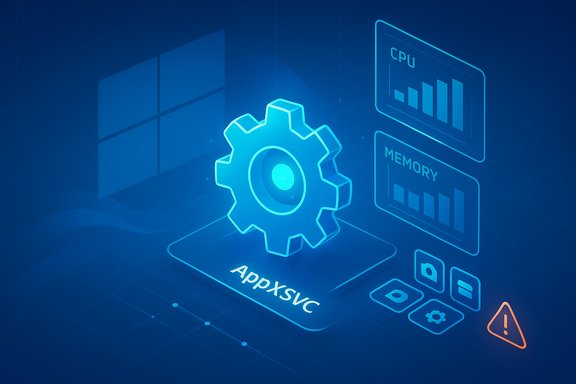
 

Diagram of mirrored networking regression showing WSL, ARP, and no route to host.
Microsoft’s December cumulative for Windows 11 (KB5072033) landed as a mixed bag: it bundled fixes for a widely reported File Explorer dark‑mode flashing glitch but also carries an acknowledged networking regression that can leave Windows Subsystem for Linux (WSL) distributions unable to reach VPN‑protected resources when mirrored networking is enabled. The problem is not hypothetical — Microsoft has documented the symptom and probable cause, and administrators should treat this as a real operational compatibility incident rather than a niche bug.

Background​

What shipped in KB5072033​

KB5072033 is the December 2025 cumulative rollup for Windows 11 that consolidates prior preview fixes and security hardening, and it explicitly aimed to address several high‑visibility UI and virtualization issues. Among the release notes are an attempt to eliminate white flashes in File Explorer under dark mode, improvements to Copilot behavior, and a set of stability fixes targeted at developer and enterprise scenarios. The update also carries Known Issue Rollback (KIR) artifacts intended to help managed environments undo a problematic change temporarily.

The WSL mirrored‑networking model (short primer)​

Mirrored networking in WSL lets a WSL2 distribution appear on the same network as the Windows host by exposing host interfaces and IPs to the guest. This mode solves long‑standing developer pain points — direct IPv6 support, easier service discovery, and consistent localhost semantics — but it also exposes WSL to the same low‑level link behavior that physical hosts and other VMs must handle, including ARP (Address Resolution Protocol) interactions that map IP addresses to MAC addresses on the local link. When a third‑party VPN client interposes itself on the host and introduces virtual network interfaces, those interfaces must handle link‑layer exchanges in a way that is compatible with mirrored guests. If they do not, the guest can be left stranded.

The problem: WSL loses network access with some VPNs​

Symptom and scope​

When a Windows host has KB5072033 (or an earlier update on the same servicing path) installed and WSL is configured for mirrored networking (networkingMode=mirrored in %USERPROFILE%.wslconfig), network connectivity inside the Linux guest may fail selectively while the Windows host remains connected. Inside WSL, users see errors such as “No route to host” while trying to reach corporate services, package repositories, or other VPN‑only resources. The Windows host and non‑WSL apps continue to operate normally over the VPN, making diagnosis harder and leading to confusing helpdesk tickets.

Root cause as Microsoft describes it​

Microsoft’s advisory points to a specific link‑layer interaction: the VPN client’s virtual network interface is not answering ARP requests from the mirrored WSL guest, so the guest cannot resolve MAC addresses for next hops and therefore cannot deliver packets — which manifests as “No route to host.” Microsoft cited reported examples of affected VPN stacks, including Cisco Secure Client (formerly AnyConnect) and OpenVPN. The company classifies the issue as primarily enterprise‑facing, because managed fleets are more likely to run corporate VPNs and to enable mirrored networking for developer workstations.

What Microsoft provided and what it did not​

Official acknowledgement and KIR availability​

Microsoft has publicly documented the regression in its KB notes and explained the ARP‑response behavior suspected to cause the failure. For enterprise environments, Microsoft has made Known Issue Rollback (KIR) packages and Group Policy/Intune guidance available so administrators can selectively disable the change that triggered the regression while the vendor and Microsoft converge on a permanent fix. That KIR path is the primary enterprise‑grade mitigation Microsoft recommends for managed fleets.

What Microsoft has not done (yet)​

  • Microsoft has not published a vendor‑level, permanent code fix in the cumulative package itself; the company’s guidance is to use KIR for managed rollouts or to await a future servicing update that addresses the root cause more definitively.
  • There is no universal consumer workaround published by Microsoft beyond falling back from mirrored networking to the default NAT behavior; for many home users this is sufficient, but for enterprise developers it is a material change.

Real‑world impact — who’s hurt and how badly​

Enterprise developers and CI agents​

The highest‑impact group are developers and engineering CI agents that rely on WSL in mirrored mode to access internal services behind a corporate VPN. Typical breakages include:
  • Package managers (apt, pip, npm) failing to fetch artifacts.
  • SSH and API calls to internal hosts timing out with “No route to host.”
  • CI jobs running inside WSL containers that cannot reach corporate artifact feeds or deployment endpoints.
These failures can halt builds and block debugging for devs who expect parity between Windows and their Linux environments.

Managed fleets and helpdesks​

For IT teams, the problem creates a support surge: tickets where users report the host has network access but developer tools in WSL do not. Diagnosing requires understanding WSL configuration, VPN client behavior, and whether KIR is appropriate for a given OU or device. If KIR is used, admins must weigh the rollback’s side effects against the disruption the bug causes.

Home users and power users​

Microsoft frames home users as unlikely to be affected, but that understates reality: many remote workers run corporate VPN clients on Home/Pro machines. If a home user enabled mirrored networking and uses an affected VPN client, they will see the same failures and will have fewer management tools (no Intune/GPO) to deploy rollbacks. The practical consumer mitigation is to revert to NAT mode, but that can break workflows intentionally designed around mirrored networking.

Secondary issues in KB5072033​

File Explorer white flashes​

KB5072033 purported to fix a jarring visual regression where File Explorer briefly flashed white when navigating under dark mode or opening new tabs. Microsoft lists a fix in the release notes. However, multiple reports indicate a residual flash still occurs when opening new tabs (Ctrl+T or clicking the + button), which suggests the remediation is incomplete for that narrower scenario. This is a usability problem — not a security or networking failure — but it affects accessibility and user comfort, especially on OLED displays.

Installation failures and performance concerns​

A subset of users report installation errors with codes such as 0x800f0991 when applying KB5072033, and some telemetry indicates extra background services or changed service behavior that may affect lower‑end systems’ responsiveness. Microsoft’s guidance for these installation anomalies is standard: use offline installers, DISM/SFC repairs, or pause updates until the servicing stack stabilizes. Enterprises should test the update in a pilot ring before broad rollout.

Mitigations and practical workarounds​

For enterprise admins — recommended sequence​

  1. Inventory devices with mirrored networking enabled (%USERPROFILE%.wslconfig containing networkingMode=mirrored).
  2. Test KB5072033 in a small pilot ring that includes representative developer machines and VPN clients.
  3. If you observe the regression, deploy Microsoft’s Known Issue Rollback (KIR) MSI via Group Policy or Intune to the affected OUs and restart devices as instructed. Test that WSL + mirrored networking + VPN functionality returns.
  4. Coordinate with VPN vendors (Cisco, OpenVPN, etc. to verify whether client updates or configuration changes address ARP behavior with mirrored guests.
  5. After a vendor fix or Microsoft servicing update is available, remove KIR and validate the environment before expanding the rollout.

For developers and home/power users — fast fixes​

  • Revert WSL to NAT mode by editing %USERPROFILE%.wslconfig and removing or changing networkingMode=mirrored to networkingMode=nat (or deleting the line), then run wsl --shutdown and restart the distro. This usually restores VPN‑dependent connectivity at the cost of mirrored networking benefits.
  • Run VPN‑dependent operations on the Windows host instead of inside WSL until the issue is resolved, or use a separate VM (Hyper‑V or VirtualBox) that handles the VPN stack predictably.
  • Check for and install updates from your VPN vendor; vendors often ship client updates that change virtual NIC behavior or driver responses that can restore compatibility.

A technical deep dive: why ARP non‑responses matter for mirrored WSL​

Mirrored networking makes the guest appear as a direct participant on the same layer‑2 network as the host. When the WSL guest tries to reach an IP address on the same link, it issues an ARP request to learn the destination MAC. If the host’s VPN virtual interface does not reply to these ARP probes — for example, because it filters or proxies ARP at a different layer, or because its driver isolates the interface’s link‑layer behavior — the guest cannot resolve the next hop and cannot send packets. Windows itself can still route traffic because the host’s networking stack interacts with the VPN’s virtual interface using internal mechanisms that bypass the guest’s link‑layer ARP expectations. That discrepancy is why the host stays online while the WSL guest reports “No route to host.” Microsoft’s KB frames the issue using precisely this link‑layer explanation.

Critical analysis — strengths, risks, and what this episode reveals​

Strengths in Microsoft’s handling​

  • Microsoft moved quickly to document the regression in KB notes and to provide KIR artifacts that let enterprises roll back the change non‑disruptively at scale. That demonstrates operational discipline and respects enterprise change control.
  • Publicly calling out affected VPN stacks (examples: Cisco Secure Client, OpenVPN) helps vendors and customers triage faster and opens a channel for coordinated fixes.

Weaknesses and risks​

  • Messaging that “Home users are unlikely to be affected” is technically defensible but understates the reality for many remote workers who run corporate VPN clients on consumer SKUs. That gap leaves a cohort without an obvious Microsoft‑managed mitigation.
  • The underlying trigger (third‑party virtual adapters that do not respond to ARP) will frequently require vendor updates. Vendor coordination can be slow where drivers or kernel‑mode components are involved, so the fix timeline is uncertain.
  • KIR is a blunt instrument: it temporarily undoes a change rather than surgically correcting the incompatibility. Depending on what the original update intended to fix, rolling it back may reintroduce other regressions or security changes that the update addressed. Administrators must weigh that trade‑off.

Operational takeaways​

  • Organizations should treat mirrored networking as a managed option, not a default for corporate images, until the ecosystem of VPN clients demonstrates consistent compatibility.
  • Pilot rings and explicit inventory of WSL configuration are now essential parts of update verification for dev workstations.
  • Vendors that ship VPN clients with virtual network interfaces need to validate ARP and link‑layer behavior against emerging virtualization and mirrored networking scenarios; this is a coordination problem more than a single‑vendor bug.

What we can expect next (timeline and verification)​

Microsoft’s KBs and advisory language indicate the issue is under investigation and will be addressed in a future servicing update. Historically, confirmed regressions are often addressed in the next Patch Tuesday if they require broad validation, but Microsoft has also delivered out‑of‑band fixes for high‑impact incidents. Several coverage summaries and community threads recommend watching the January 2026 Patch Tuesday for a permanent correction; however, that exact delivery date should be treated as an expectation reported by outlets rather than a firm commitment unless Microsoft posts an explicit date in its support notes. Until Microsoft or the VPN vendors publish a concrete fix, enterprises should rely on KIR, pilot testing, and vendor coordination. This article flags the January‑Patch‑Tuesday timeline as reported but not universally confirmed by Microsoft at the time of writing.

Quick checklist — what to do now (concise)​

  • For admins:
    • Inventory mirrored WSL usage across the fleet.
    • Test KB5072033 in a pilot ring that includes representative VPN clients.
    • If affected, deploy KIR selectively via GPO/Intune and restart tested devices.
    • Coordinate with VPN vendors and collect logs/evidence for vendor support.
  • For developers and power users:
    • Revert to NAT mode (edit %USERPROFILE%.wslconfig, run wsl --shutdown) or run VPN‑dependent tasks on Windows/another VM.
    • Report reproducible failures to Microsoft via Feedback Hub and to your VPN vendor with the traces.
  • For everyone:
    • Install KB5072033 if you want the File Explorer dark‑mode fixes, but stage the deployment if your environment relies on mirrored WSL + VPNs.

Conclusion​

KB5072033 illustrates the tradeoffs inherent in rapid, feature‑driven OS servicing: progress on user‑facing polish and developer capabilities arrived alongside an operational regression that materially affects a specific but important use case — WSL mirrored networking with certain third‑party VPN clients. Microsoft’s acknowledgement and the availability of Known Issue Rollback give administrators a responsible path to contain the impact, but the permanent resolution will likely require vendor updates or a targeted Microsoft servicing change that corrects the ARP‑response compatibility gap.
Until then, conservative rollout practices, explicit inventory and pilot testing of developer machines, and temporary configuration workarounds (reverting to NAT or offloading VPN‑dependent processes to Windows or alternative VMs) are the pragmatic responses. The incident is a timely reminder that link‑layer behavior still matters in modern virtualized workflows, and that coordination between platform vendors and third‑party networking stacks is essential to keep developer productivity and enterprise reliability aligned.

Source: Windows Report Windows 11 KB5072033 Breaks WSL Networking With VPNs, Microsoft Confirms
 

Back
Top