

Microsoft is using the April 2026 Windows 11 security update to do something more valuable than splashy redesign theater: it is quietly smoothing out the parts of the OS people actually touch every day. The update appears set to soften Smart App Control, expand Narrator’s image-description abilities beyond Copilot+ hardware, refine Settings, improve File Explorer, and add broader display and device-handling support. Taken together, the package looks like a classic quality-of-life release—not dramatic, but potentially meaningful in the long run. That is exactly the kind of update that can make Windows 11 feel a little less like a work in progress and a little more like a finished product.
Microsoft’s monthly servicing rhythm has become one of the most important ways Windows 11 evolves. The company increasingly uses cumulative updates to deliver both security fixes and hidden feature rollouts, with Controlled Feature Rollout allowing it to switch improvements on gradually rather than all at once. The April 2026 update fits that pattern, arriving after March’s preview and out-of-band releases for Windows 11 version 24H2 and 25H2, which already established the shared servicing model across the two branches.
That matters because Windows 11 is no longer being treated like a product that gets one or two big redesign moments per year. Instead, Microsoft is leaning into a more continuous approach, where the operating system is constantly being tuned through a mix of preview updates, security patches, and gradual feature exposure. The practical effect is that users may notice fewer “launch-day” headline moments, but they will see more persistent refinement in the surfaces they use most often.
The broader context is also important. Windows 11 has long been criticized for being visually polished yet occasionally awkward in everyday use. Small friction points—settings pages that hide useful details, file handling that feels brittle, accessibility functions that depend too heavily on specialized hardware, and security features that are difficult to control—can erode confidence in an otherwise attractive interface. Microsoft’s April changes seem aimed directly at those pain points, which suggests a more mature phase in the OS’s evolution.
There is another reason this update is notable: Windows 11 version 24H2 and 25H2 remain effectively aligned through shared servicing, meaning a feature like this can influence a broad base of users without requiring distinct product tracks. That makes the monthly update cycle more than maintenance. It becomes the main delivery mechanism for the company’s product philosophy, whether that philosophy is stricter security, broader accessibility, or just fewer annoyances in the Windows shell.
That shift could be especially important for consumers who buy a new machine with a clean install, then later decide they want tighter app vetting without taking the nuclear option of reinstalling Windows. It also gives enterprise IT a more flexible story when talking about endpoint hardening. Security policy is always easier to support when it can be adjusted without wiping a device.
The keyboard shortcuts also matter. Microsoft says users can invoke image description with Narrator key + Ctrl + D for the focused image or Narrator key + Ctrl + S for the full screen. Those shortcuts indicate the company wants the feature to feel embedded, not experimental. That is the right direction for accessibility tooling: fast, predictable, and discoverable.
For consumers, this means a potentially more helpful screen-reading experience when browsing content, describing screenshots, or navigating image-heavy interfaces. For enterprise users, it suggests a clearer path toward accessibility compliance without requiring every workstation to be a top-end AI PC. That could matter a lot in mixed fleets where some machines are Copilot+ devices and others are not.
It is also a reminder that AI features are most compelling when they solve a real problem, not when they merely demonstrate capability. A screen reader that can better interpret visual content is useful. A screen reader that requires a specific new laptop is less useful. The April update seems to move in the right direction.
The Home page changes matter for a different reason. A settings app that loads faster and behaves more reliably reinforces a sense that the platform is stable. That may sound minor, but system settings are one of those places where lag instantly reads as neglect. Users may forgive a slow app launcher; they are much less forgiving when the control center for their PC feels sluggish.
For IT admins and helpdesk staff, this kind of change can reduce back-and-forth. When users can self-verify core hardware information more easily, fewer tickets start with “I think my laptop has…” That saves time, and in Windows support, time saved is often the most measurable improvement of all.
The redesigned dialog on the Other users page is less controversial, but still meaningful. Windows 11’s overall design language has always prized consistency, and dialogs are one of the easiest places for the product to feel fragmented. A cleaner account-switching experience might not sell new PCs, but it does help the system feel more coherent. Consistency is a feature, even if it does not market well.
That kind of consistency is especially important for convertibles and tablets, where users move between typing, drawing, and touch-based navigation constantly. If an input path feels different for no good reason, the experience becomes harder to learn and easier to forget. Microsoft appears to be smoothing those edges one at a time rather than trying to redesign the whole input stack at once.
The new Voice Typing rename support is particularly interesting because it extends accessibility into an everyday task most users perform manually. Renaming files is a simple operation, but it can be an annoying one when you are batch editing, working from a tablet, or trying to avoid repetitive typing. Giving users another entry path makes Explorer feel more flexible.
This is also the kind of fix that benefits power users disproportionately. People who work with documents, installers, archives, and previews all day notice friction instantly. A smoother Explorer is not glamorous, but it is central to whether Windows feels efficient or fussy. That distinction matters more than many UI debates.
The USB4, sleep-state, and auto-rotation fixes are more broadly useful. These are the kinds of issues that especially frustrate laptop and detachable-device users because they interrupt the assumption that the machine will behave the same way after waking as it did before sleeping. Better sleep handling and rotation recovery can make a device feel more polished immediately.
That is a good sign for long-term stability. When Microsoft keeps improving the plumbing, it gives users and OEMs more confidence that new hardware categories will feel supported rather than semi-compatible.
It will also be worth watching how Microsoft frames accessibility going forward. The company has made a clear choice to push more AI-assisted capability into mainstream Windows features, and that could either become a lasting strength or a new dependency problem depending on implementation. If the Narrator change works smoothly, it could become a model for future accessibility work. If it feels too tied to cloud behavior, the backlash could be real.
For enterprise customers, the key metric will be whether the update reduces helpdesk noise. Better Settings visibility, better Explorer behavior, and easier security management all have the potential to lower support friction. That kind of benefit is hard to market, but it is exactly what many IT departments need from Windows in 2026.
That may not be the kind of Windows update that earns applause on day one, but it is the kind that earns goodwill over time. And for an operating system as widely used and widely judged as Windows 11, that kind of incremental progress may be the most important progress of all.
Source: Windows Central 8 new Windows 11 features arriving in April that make everyday use a little easier
 Background
Microsoft’s monthly servicing rhythm has become one of the most important ways Windows 11 evolves. The company increasingly uses cumulative updates to deliver both security fixes and hidden feature rollouts, with Controlled Feature Rollout allowing it to switch improvements on gradually rather than all at once. The April 2026 update fits that pattern, arriving after March’s preview and out-of-band releases for Windows 11 version 24H2 and 25H2, which already established the shared servicing model across the two branches.That matters because Windows 11 is no longer being treated like a product that gets one or two big redesign moments per year. Instead, Microsoft is leaning into a more continuous approach, where the operating system is constantly being tuned through a mix of preview updates, security patches, and gradual feature exposure. The practical effect is that users may notice fewer “launch-day” headline moments, but they will see more persistent refinement in the surfaces they use most often.
The broader context is also important. Windows 11 has long been criticized for being visually polished yet occasionally awkward in everyday use. Small friction points—settings pages that hide useful details, file handling that feels brittle, accessibility functions that depend too heavily on specialized hardware, and security features that are difficult to control—can erode confidence in an otherwise attractive interface. Microsoft’s April changes seem aimed directly at those pain points, which suggests a more mature phase in the OS’s evolution.
There is another reason this update is notable: Windows 11 version 24H2 and 25H2 remain effectively aligned through shared servicing, meaning a feature like this can influence a broad base of users without requiring distinct product tracks. That makes the monthly update cycle more than maintenance. It becomes the main delivery mechanism for the company’s product philosophy, whether that philosophy is stricter security, broader accessibility, or just fewer annoyances in the Windows shell.
Smart App Control becomes less rigid
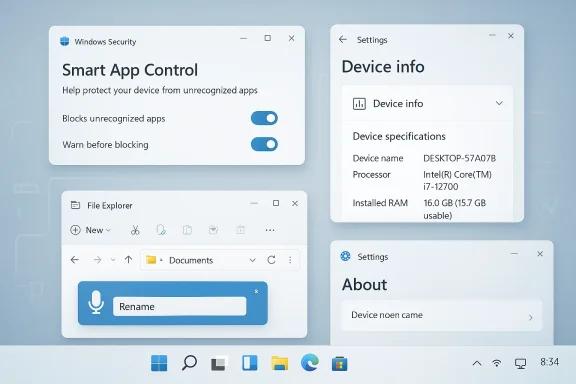
One of the most practical changes in April is the adjustment to Smart App Control. Historically, Smart App Control was a somewhat unforgiving security feature: it was designed to only allow trusted apps, but it was also tied to an operating system state that made it inconvenient to enable or disable after the fact. Microsoft’s reported change removes the need for a full OS reinstall just to manage it, which is a big deal for a security setting that ordinary users should be able to control more freely.Why that matters
The old behavior was a classic example of security design colliding with usability reality. A feature can be technically sound and still feel inaccessible if it imposes a steep setup or recovery cost. By making Smart App Control easier to manage through Windows Security, Microsoft is effectively admitting that security tools only matter when users can actually live with them.That shift could be especially important for consumers who buy a new machine with a clean install, then later decide they want tighter app vetting without taking the nuclear option of reinstalling Windows. It also gives enterprise IT a more flexible story when talking about endpoint hardening. Security policy is always easier to support when it can be adjusted without wiping a device.
- It lowers the cost of experimenting with tighter app protection.
- It makes Windows Security feel more like a control center than a gatekeeper.
- It removes a major barrier to adoption for cautious home users.
- It should reduce support friction for administrators and advanced users.
- It may increase the chance that people leave the feature enabled longer.
Narrator gets broader image description support
The April update also appears to broaden Narrator’s image-description capability. Previously, Microsoft tied this feature to Copilot+ PCs and local AI capabilities, but the new approach shifts the processing to Copilot, removing the dependence on a local AI model. That means the accessibility feature should become more widely available, which is the kind of move that gives a niche tool a much bigger real-world audience.Accessibility without a hardware wall
This is one of the best examples in the release of Microsoft taking a specialized AI capability and making it more practical. Accessibility features often get trapped behind hardware requirements because the fastest implementations rely on onboard acceleration or very specific device classes. By moving the task to Copilot, Microsoft is broadening the feature’s reach and making it less dependent on a premium PC tier.The keyboard shortcuts also matter. Microsoft says users can invoke image description with Narrator key + Ctrl + D for the focused image or Narrator key + Ctrl + S for the full screen. Those shortcuts indicate the company wants the feature to feel embedded, not experimental. That is the right direction for accessibility tooling: fast, predictable, and discoverable.
For consumers, this means a potentially more helpful screen-reading experience when browsing content, describing screenshots, or navigating image-heavy interfaces. For enterprise users, it suggests a clearer path toward accessibility compliance without requiring every workstation to be a top-end AI PC. That could matter a lot in mixed fleets where some machines are Copilot+ devices and others are not.
What Microsoft is really signaling
The deeper signal here is that Microsoft is trying to normalize AI-assisted accessibility across more of Windows. That matters because AI features can easily become elitist if they only work on the newest hardware. Expanding Narrator’s image support to broader device classes shows Microsoft understands that accessibility should be baseline functionality, not a luxury add-on.It is also a reminder that AI features are most compelling when they solve a real problem, not when they merely demonstrate capability. A screen reader that can better interpret visual content is useful. A screen reader that requires a specific new laptop is less useful. The April update seems to move in the right direction.
Settings gets the kind of cleanup people actually notice
Microsoft is also making several changes to the Settings app, and while none of them sound flashy, they may be among the most useful items in the update. The Home page is getting refinements to the Device info card, better loading performance, and reliability improvements related to downloading updates from Settings > System > Advanced. The About page is also regaining top cards for processor, memory, graphics, and storage, while the Device info section is gaining graphics and storage details.The value of better device visibility
This is a subtle but very real usability improvement. People do not open Settings because they enjoy navigating a maze; they open it because they need answers. Putting key hardware details front and center on the About page reduces friction for support calls, upgrade checks, and troubleshooting. It also makes Windows feel more internally coherent, which is not a small thing when so many users complain that modern Windows hides the information they want.The Home page changes matter for a different reason. A settings app that loads faster and behaves more reliably reinforces a sense that the platform is stable. That may sound minor, but system settings are one of those places where lag instantly reads as neglect. Users may forgive a slow app launcher; they are much less forgiving when the control center for their PC feels sluggish.
- Device information is easier to find at a glance.
- The About page now better matches user expectations.
- Settings Home should feel more responsive.
- Update-related reliability improvements reduce frustration.
- Visual consistency should make support interactions easier.
Why these changes matter for normal users
For everyday users, the Settings app is not a place to admire design language. It is where they check specs before buying memory, confirm a graphics configuration, or figure out why a device feels slower than it should. Adding those details more directly on the About page is exactly the sort of mundane improvement that has outsized value.For IT admins and helpdesk staff, this kind of change can reduce back-and-forth. When users can self-verify core hardware information more easily, fewer tickets start with “I think my laptop has…” That saves time, and in Windows support, time saved is often the most measurable improvement of all.
Accounts and Microsoft 365 get more commercial polish
The Accounts section is also being updated, including an upgrade option for users with a Microsoft 365 Family plan connected to the OS. Microsoft is additionally updating the “Other users” page dialog to better match Windows 11’s design language. These are smaller changes than the security and accessibility updates, but they matter because they show how Microsoft is increasingly using Windows as a surface for service linkage and subscription visibility.Subscription touchpoints inside the OS
That upgrade prompt for Microsoft 365 Family users is a classic Microsoft move: turn a settings page into a gentle commercial opportunity. From the company’s perspective, this is efficient because the user is already in an account-management context. From the user’s perspective, however, it can feel like a nudge they did not ask for. The key question is whether Microsoft keeps this tasteful or lets it drift toward clutter.The redesigned dialog on the Other users page is less controversial, but still meaningful. Windows 11’s overall design language has always prized consistency, and dialogs are one of the easiest places for the product to feel fragmented. A cleaner account-switching experience might not sell new PCs, but it does help the system feel more coherent. Consistency is a feature, even if it does not market well.
- Microsoft 365 integration keeps the OS tied to the broader service ecosystem.
- Subscription nudges may help conversion, but they risk visual fatigue.
- Updated dialogs improve the feel of account management.
- Matching Windows 11 styling reduces the sense of legacy clutter.
- Better polish here matters most to households and small teams.
Pen and input settings inch forward
Microsoft says the pen settings page is also being updated, including support for a new “Same as Copilot key” option that can open the same app as the Copilot key. That is a small-sounding tweak, but it reflects a larger Windows trend: the company is trying to harmonize physical input hardware, key bindings, and system actions so they behave more predictably across device types.Why input consistency matters
Input settings are one of the areas where Windows can still feel fragmented. A user with a pen, a keyboard, a touchscreen, and a Copilot key may interact with the machine in many different ways, and each of those entry points needs to land in the same logical system. When Microsoft maps a pen-related option to the same app action as the Copilot key, it is trying to reduce the sense that hardware controls live in separate worlds.That kind of consistency is especially important for convertibles and tablets, where users move between typing, drawing, and touch-based navigation constantly. If an input path feels different for no good reason, the experience becomes harder to learn and easier to forget. Microsoft appears to be smoothing those edges one at a time rather than trying to redesign the whole input stack at once.
- Cross-device consistency lowers learning cost.
- Pen users benefit from clearer hardware-to-software mapping.
- Copilot-key behavior becomes more predictable.
- Input surfaces feel more unified across device classes.
- Small settings changes can have big workflow impact.
File Explorer keeps getting more useful
File Explorer is not getting a giant visual overhaul in April, but it is receiving a set of quality fixes and one particularly useful accessibility improvement: Voice Typing can now be used to rename a file. Microsoft is also addressing a white flash bug when opening a new tab or window with This PC as the startup page, and it is fixing a flash that appears when changing the size of UI elements. In addition, the update improves reliability when unlocking files downloaded from the internet, which should make previews and file handling smoother.Why File Explorer changes matter more than they seem
File Explorer is one of those Windows surfaces that people use constantly without thinking about it, which is exactly why tiny bugs become so irritating. A flash at launch, an awkward rename flow, or a file-unlock reliability issue does not sound major in isolation, but together they chip away at confidence. Windows gets judged heavily by how File Explorer behaves because so much of daily work runs through it.The new Voice Typing rename support is particularly interesting because it extends accessibility into an everyday task most users perform manually. Renaming files is a simple operation, but it can be an annoying one when you are batch editing, working from a tablet, or trying to avoid repetitive typing. Giving users another entry path makes Explorer feel more flexible.
The internet-download unlock fix
The reliability improvement around files downloaded from the internet is easy to overlook, but it may be one of the most practical parts of the release. Windows still has to balance safety warnings with convenience, and anything that makes trusted previewing less brittle is a net win. If Microsoft can make those file states easier to manage without weakening protection, the result is a better user experience with minimal downside.This is also the kind of fix that benefits power users disproportionately. People who work with documents, installers, archives, and previews all day notice friction instantly. A smoother Explorer is not glamorous, but it is central to whether Windows feels efficient or fussy. That distinction matters more than many UI debates.
Display and device support get a quiet but notable boost
The last major area in the April update is display and hardware handling. Windows 11 will be able to recognize displays reporting 1000Hz or more for refresh rates, a niche but real improvement for cutting-edge panels. If you use a native USB4 monitor connection, the controller will drop to the lowest power state during sleep to conserve battery. Auto-rotation should also work more reliably after waking from sleep, HDR performance has been improved for some displays with non-compliant DisplayID 2.0 blocks, and monitor size reporting through WMI APIs should be more accurate.Why this matters beyond gaming
At first glance, 1000Hz refresh-rate support looks like a feature built for marketing slides and enthusiast bragging rights. But it is actually a sign that Windows is trying to keep pace with display hardware that is moving faster than the software layer in some cases. Even if few users need 1000Hz today, the OS should not be the bottleneck when the panel arrives.The USB4, sleep-state, and auto-rotation fixes are more broadly useful. These are the kinds of issues that especially frustrate laptop and detachable-device users because they interrupt the assumption that the machine will behave the same way after waking as it did before sleeping. Better sleep handling and rotation recovery can make a device feel more polished immediately.
- Higher refresh-rate recognition helps future-proof Windows display support.
- USB4 power-state improvements may help battery life on supported hardware.
- Better auto-rotation reduces wake-from-sleep annoyances.
- HDR compatibility fixes can improve visual consistency.
- More accurate monitor reporting helps management and diagnostics.
What Microsoft is signaling with this hardware work
Microsoft is clearly trying to show that Windows 11 is not just about UI polish or Copilot integration. It still has to serve as the operating system layer for increasingly sophisticated hardware, and that includes niche displays, modern docking standards, and hybrid devices that suspend and resume all day. This update reinforces the idea that Windows is still being tuned as a platform, not merely branded as a product.That is a good sign for long-term stability. When Microsoft keeps improving the plumbing, it gives users and OEMs more confidence that new hardware categories will feel supported rather than semi-compatible.
Strengths and Opportunities
The best thing about this April update is its restraint. It does not try to wow anyone with a giant redesign. Instead, it targets the kinds of pain points that shape whether Windows feels trustworthy in everyday use, and that is often where the most durable improvements happen.- Security becomes easier to live with through Smart App Control changes.
- Accessibility broadens because Narrator’s image descriptions are no longer tied to Copilot+ hardware.
- Settings becomes more informative, faster, and less frustrating.
- File Explorer gains practical everyday refinements.
- Display support looks more future-ready for high-end panels.
- Battery and sleep behavior should improve on some USB4-connected devices.
- Windows 11 polish deepens without forcing a new workflow.
- Microsoft 365 integration may create smoother account and subscription management.
Risks and Concerns
The biggest risk in a release like this is that the changes may be individually useful but collectively underappreciated. Windows features often fail not because they are bad, but because they are buried, inconsistent, or hard to discover. If Microsoft does not surface these improvements clearly, many users will never know they exist.- Controlled Feature Rollout means not everyone will get everything at once.
- Copilot dependence for Narrator may still raise privacy or connectivity questions.
- Subscription prompts in Settings could annoy some users.
- Hardware-specific gains may only help a subset of devices.
- File Explorer fixes may solve old bugs while introducing new edge cases.
- Security features can still be misunderstood or disabled.
- Accessibility features often need better onboarding to be truly effective.
What to Watch Next
The most important thing to watch is how broadly these changes land once Microsoft begins the April rollout. Because the company uses gradual exposure, some users will see features sooner than others, and that can make the update feel inconsistent. The real question is not whether the features exist, but whether they arrive cleanly and behave predictably across the supported Windows 11 base.It will also be worth watching how Microsoft frames accessibility going forward. The company has made a clear choice to push more AI-assisted capability into mainstream Windows features, and that could either become a lasting strength or a new dependency problem depending on implementation. If the Narrator change works smoothly, it could become a model for future accessibility work. If it feels too tied to cloud behavior, the backlash could be real.
For enterprise customers, the key metric will be whether the update reduces helpdesk noise. Better Settings visibility, better Explorer behavior, and easier security management all have the potential to lower support friction. That kind of benefit is hard to market, but it is exactly what many IT departments need from Windows in 2026.
- Watch rollout pace under Controlled Feature Rollout.
- Watch whether Smart App Control adoption increases.
- Watch Narrator performance and reliability on non-Copilot+ PCs.
- Watch whether File Explorer fixes eliminate long-standing annoyance points.
- Watch if Settings changes reduce support questions.
- Watch for any compatibility issues with display and USB4 hardware.
That may not be the kind of Windows update that earns applause on day one, but it is the kind that earns goodwill over time. And for an operating system as widely used and widely judged as Windows 11, that kind of incremental progress may be the most important progress of all.
Source: Windows Central 8 new Windows 11 features arriving in April that make everyday use a little easier
