

Microsoft is finally making a serious, visible push to fix one of Windows 11’s most persistent problems: the disconnect between a modern-looking shell and a patchwork of legacy surfaces that still feel awkward, cluttered, or plainly out of place. The company’s April update wave is shaping up to be less about headline-grabbing novelty and more about the kind of design cleanup that users notice immediately, even if they can’t always describe why. According to the reporting and the accompanying forum analysis, Microsoft is targeting the Settings app, dark mode consistency, accessibility, pen workflows, and voice-driven file management as part of a broader effort to make Windows feel more coherent and intentional .
Windows 11 has always been a platform with an identity problem. On paper, it is Microsoft’s cleanest and most visually unified desktop operating system in years, with rounded corners, softer surfaces, and a more restrained design language than the older Windows generations. In practice, it still carries a long tail of legacy interfaces that break the illusion of modernity the moment they appear. That tension has shaped nearly every discussion about the product since launch, and it is exactly what Microsoft now seems determined to address .
The Settings app sits at the center of that effort. It is no longer just a convenience layer for casual users; it has become the front door for configuration across the operating system. Microsoft has been steadily moving more tasks out of Control Panel and into Settings, and that migration has made the modern app a trust surface for both consumers and enterprise admins. When Settings feels crowded, inconsistent, or too dense, users do not just blame the page they are on; they start to question the polish of Windows as a whole .
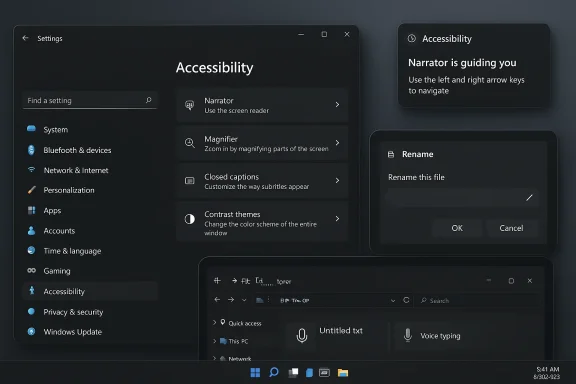
That is why the upcoming April changes matter more than they might first appear. Microsoft is not just polishing an About page or changing a few colors. It is trying to reduce the visible seams in the operating system: better dark mode behavior in account dialogs, clearer and less cluttered Settings layouts, cleaner pen settings, more practical accessibility integration, and even voice typing support for renaming files and folders in File Explorer . These are small changes with a large cumulative effect.
The timing is also important. Microsoft appears to be shipping some of these improvements through preview and optional update channels first, which suggests a deliberate, feedback-driven rollout rather than a single dramatic reset. That approach fits the reality of Windows: the company cannot rip out decades of compatibility plumbing overnight, but it can keep sanding down the rough edges until the system feels less assembled and more designed .
This matters for more than aesthetics. A fragmented configuration stack creates uncertainty. Users forget where a setting lives, search in the wrong place, or get bounced between old and new experiences that do not quite match. That inconsistency slows down troubleshooting and raises the perceived complexity of Windows, even when the underlying task is simple. Microsoft’s effort to unify those paths is as much about reducing cognitive friction as it is about modernization .
That is why these seemingly modest changes have strategic weight. Microsoft is not merely cleaning up a page; it is strengthening the place where users form their most frequent judgments about the platform. If the company can make Settings feel calmer, faster, and more deliberate, it improves the credibility of Windows 11 far beyond the Settings app itself.
Microsoft’s decision to fix this is important because it shows the company understands that polish is not superficial. A consistent theme is a kind of promise: the operating system is one environment, not a collection of unrelated components. When that promise breaks, users notice immediately. That is why dark mode fixes often feel bigger than their changelog entries suggest.
The payoff, however, is real. Better dark mode coverage reduces visual jank, strengthens the impression of quality, and makes the system feel more intentional. It also tells users that Microsoft is paying attention to the parts of Windows that are easiest to ignore but hardest to forgive when they are wrong.
That matters because accessibility features are often the best indicators of product maturity. When Microsoft invests in tools that help users navigate the OS more efficiently, it is doing more than checking a compliance box. It is building a more usable platform for everyone, including people who are not using assistive tech full time but still benefit from clearer guidance and fewer barriers.
That is why the framing matters. Microsoft seems to be positioning Copilot as a helper inside practical workflows rather than as a constant presence. That is the right instinct. Accessibility plus AI can be powerful, but only if the result feels like assistance rather than promotion.
That is why this update matters beyond the page itself. It is not just about visual tidiness. It is about making sure the interface matches the expectations that Microsoft has built around Surface and other pen-enabled devices. If the company wants Windows to feel capable on premium hardware, the control surfaces for those devices need to look and behave like they belong in 2026, not 2018.
The broader lesson is that polishing old settings pages is not glamorous, but it is effective. It reinforces the idea that Microsoft is thinking about actual usage patterns, not just showcase features.
This is also where Microsoft’s broader interface philosophy becomes visible. The company is not only trying to make Windows prettier; it is trying to reduce the number of moments where users feel slowed down by the OS. A voice-driven action in File Explorer may be one of the clearest examples of that effort.
Of course, that future only works if the tools are dependable. Users will not embrace voice features if they are slow, inconsistent, or awkward. But when they work well, they can turn Windows from a system you operate into a system that helps you operate faster.
That does not mean Microsoft has failed. It means the company is dealing with a much harder design problem. The goal is not to erase the past, but to make the seams less visible. The latest update wave suggests Microsoft understands that the seams themselves are now one of the biggest things undermining the Windows 11 experience.
The company’s recent tone suggests it is finally treating design as a functional priority again. That is a healthy shift. Windows cannot rely on capability alone anymore; it has to feel coherent if it wants users to see it as modern.
That is why a polish pass can have real impact even when it does not dominate headlines. It removes annoyance from routine tasks, and routine tasks are where people spend most of their time.
That makes the rollout approach especially important. Microsoft’s cautious, staged delivery is probably the right choice because it gives administrators time to observe and adapt. But the company still needs to prove that the new interface surfaces are not merely prettier versions of the old confusion.
The second thing to watch is whether these changes arrive smoothly enough that users barely think about them. That may sound paradoxical, but the best Windows polish often becomes invisible once it works. If users stop noticing bad transitions, mismatched dialogs, and awkward navigation, Microsoft will have done something valuable even if the changelog looks modest.
Third, the company’s broader trajectory matters. Windows is being asked to support AI, accessibility, enterprise management, consumer simplicity, and legacy compatibility all at once. That is an extremely difficult balancing act. If Microsoft can keep making the shell calmer while adding useful new capabilities, it may finally start closing the gap between what Windows 11 promises and how it actually feels to use.
Source: windowsreport.com https://windowsreport.com/microsoft-finally-focuses-on-windows-11-settings-and-new-design/
 Overview
Windows 11 has always been a platform with an identity problem. On paper, it is Microsoft’s cleanest and most visually unified desktop operating system in years, with rounded corners, softer surfaces, and a more restrained design language than the older Windows generations. In practice, it still carries a long tail of legacy interfaces that break the illusion of modernity the moment they appear. That tension has shaped nearly every discussion about the product since launch, and it is exactly what Microsoft now seems determined to address .The Settings app sits at the center of that effort. It is no longer just a convenience layer for casual users; it has become the front door for configuration across the operating system. Microsoft has been steadily moving more tasks out of Control Panel and into Settings, and that migration has made the modern app a trust surface for both consumers and enterprise admins. When Settings feels crowded, inconsistent, or too dense, users do not just blame the page they are on; they start to question the polish of Windows as a whole .
That is why the upcoming April changes matter more than they might first appear. Microsoft is not just polishing an About page or changing a few colors. It is trying to reduce the visible seams in the operating system: better dark mode behavior in account dialogs, clearer and less cluttered Settings layouts, cleaner pen settings, more practical accessibility integration, and even voice typing support for renaming files and folders in File Explorer . These are small changes with a large cumulative effect.
The timing is also important. Microsoft appears to be shipping some of these improvements through preview and optional update channels first, which suggests a deliberate, feedback-driven rollout rather than a single dramatic reset. That approach fits the reality of Windows: the company cannot rip out decades of compatibility plumbing overnight, but it can keep sanding down the rough edges until the system feels less assembled and more designed .
Why Settings Has Become Windows 11’s Most Important Surface
The Settings app is now the most visible proof point for whether Microsoft is serious about usability. If a user opens Settings and immediately encounters clutter, awkward spacing, or old-school behavior, that impression bleeds into their view of the whole OS. That is especially true because so many essential tasks now begin there: display, sound, network, accessibility, hardware, updates, accounts, and system information all pass through the same front door .The Control Panel transition is still shaping the experience
For years, Microsoft has been trying to move Windows from a dual-system configuration model into a single modern hub. That process has been slow, partial, and sometimes frustrating, because legacy compatibility still matters. But the direction is clear: Settings is becoming the authoritative place for everyday administration, while Control Panel is increasingly treated as a compatibility layer rather than the future of the platform .This matters for more than aesthetics. A fragmented configuration stack creates uncertainty. Users forget where a setting lives, search in the wrong place, or get bounced between old and new experiences that do not quite match. That inconsistency slows down troubleshooting and raises the perceived complexity of Windows, even when the underlying task is simple. Microsoft’s effort to unify those paths is as much about reducing cognitive friction as it is about modernization .
Why a cleaner Settings app has strategic value
A better Settings experience helps Microsoft in three ways at once. First, it reduces frustration for everyday users who just want to change a display setting or add an account without feeling punished by the interface. Second, it gives enterprise administrators a more predictable environment for configuration and support. Third, it creates a foundation for new Windows features, especially AI-assisted ones, to land on top of a coherent shell rather than a messy one .That is why these seemingly modest changes have strategic weight. Microsoft is not merely cleaning up a page; it is strengthening the place where users form their most frequent judgments about the platform. If the company can make Settings feel calmer, faster, and more deliberate, it improves the credibility of Windows 11 far beyond the Settings app itself.
- Less clutter means less user fatigue.
- Clearer layouts reduce support friction.
- Better structure improves discoverability.
- Consistency makes Windows feel more trustworthy.
- A cleaner hub helps future features land more naturally.
Dark Mode Consistency Is More Than Cosmetic
One of the most visible fixes in the April wave is Microsoft’s effort to make account dialogs respect dark mode more consistently. That sounds minor until you actually live with it. A bright white dialog suddenly appearing inside a dark-themed desktop is one of those details that instantly breaks immersion and makes the OS feel unfinished, even if everything technically works .Theme consistency signals platform maturity
Modern desktop users expect their chosen theme to apply broadly, not selectively. When dark mode works on the shell but fails on key dialogs, it signals that different parts of the platform are still being modernized at different speeds. That inconsistency can be distracting, especially for users who spend long hours at the screen or rely on visual comfort as part of accessibility and productivity .Microsoft’s decision to fix this is important because it shows the company understands that polish is not superficial. A consistent theme is a kind of promise: the operating system is one environment, not a collection of unrelated components. When that promise breaks, users notice immediately. That is why dark mode fixes often feel bigger than their changelog entries suggest.
The long tail of legacy windows
The hard part is that Windows still contains many older UI paths that were never designed with modern theming in mind. Some of these are simple repainting problems, but others require deeper behavioral and accessibility work. That is why dark mode support has taken so long to fully mature in Windows. It is not just a design challenge; it is a compatibility challenge, and Microsoft cannot afford to break older workflows just to make a dialog look prettier .The payoff, however, is real. Better dark mode coverage reduces visual jank, strengthens the impression of quality, and makes the system feel more intentional. It also tells users that Microsoft is paying attention to the parts of Windows that are easiest to ignore but hardest to forgive when they are wrong.
- Dark mode consistency improves comfort.
- Theme coherence strengthens trust.
- Legacy dialogs can undermine the whole UI.
- Small theme fixes have outsized emotional impact.
- Better coverage makes the OS feel finished.
Narrator, Copilot, and Practical Accessibility
Microsoft is also tying accessibility into this design refresh, which is where the update becomes more meaningful than a simple visual cleanup. According to the reporting, Narrator will work with Copilot on more devices, and Microsoft is broadening accessibility integration in ways that suggest a more practical relationship between AI and assistive technology .Accessibility works best when it is useful, not flashy
There is a big difference between adding AI to a product and making AI genuinely helpful. Microsoft appears to be choosing the second path here, at least in principle. Narrator is one of Windows’ most important accessibility tools, so any improvement that makes it more responsive, more capable, or more broadly available has real value for users who depend on it every day .That matters because accessibility features are often the best indicators of product maturity. When Microsoft invests in tools that help users navigate the OS more efficiently, it is doing more than checking a compliance box. It is building a more usable platform for everyone, including people who are not using assistive tech full time but still benefit from clearer guidance and fewer barriers.
Copilot’s role needs to feel earned
The risk, of course, is that Microsoft overplays the AI angle. Users are already wary of assistant-style features that show up everywhere but solve very little. If Copilot is used to reduce friction, support discovery, or make accessibility workflows smoother, it can be valuable. If it becomes another layer of interruption, it will only reinforce the sense that Microsoft is trying to force AI into places where it does not belong .That is why the framing matters. Microsoft seems to be positioning Copilot as a helper inside practical workflows rather than as a constant presence. That is the right instinct. Accessibility plus AI can be powerful, but only if the result feels like assistance rather than promotion.
What this could mean in daily use
For users who rely on Narrator, even incremental changes can be transformative. Better device coverage, smoother integration, and fewer rough edges in system navigation can make Windows feel significantly more usable. For everyone else, those same improvements can still matter because they often translate into clearer feedback, more predictable behavior, and a more considerate interface overall.- Accessibility should reduce effort, not add confusion.
- AI is most useful when it solves a specific pain point.
- Narrator improvements help both core users and casual users.
- Better integration can reduce support overhead.
- Practical assistive features reinforce Windows’ broader usability story.
Pen Settings and the Surface Device Reality
Microsoft’s refresh also reaches a part of Windows that has often felt forgotten: pen settings. That is a significant move, because stylus support is not a niche concept anymore. Between 2-in-1 laptops, detachable tablets, and pen-capable notebooks, a large portion of the Windows hardware ecosystem still benefits from thoughtful stylus workflows .A neglected page sends the wrong message
When a pen settings page looks dated or behaves awkwardly, it signals neglect in a category that is still very important to the broader Windows story. Microsoft has spent years promoting flexibility across device classes, and pen support is part of that promise. A stale or poorly structured settings page undercuts the message that Windows is designed for modern touch-first and hybrid hardware .That is why this update matters beyond the page itself. It is not just about visual tidiness. It is about making sure the interface matches the expectations that Microsoft has built around Surface and other pen-enabled devices. If the company wants Windows to feel capable on premium hardware, the control surfaces for those devices need to look and behave like they belong in 2026, not 2018.
Why pen workflows are a good modernization target
Pen settings are a smart place for Microsoft to focus because the user expectations are clear. People who use a stylus typically want quick access, simple controls, and predictable behavior. They are not looking for elaborate complexity. That makes the area ideal for a usability pass: better labels, better layout, and fewer interface dead ends can produce a real improvement without huge engineering risk.The broader lesson is that polishing old settings pages is not glamorous, but it is effective. It reinforces the idea that Microsoft is thinking about actual usage patterns, not just showcase features.
The hardware implication
There is also a hardware strategy angle here. Windows devices increasingly compete not just on specs, but on how well they support different modes of work. Better pen settings help preserve the value proposition of hybrid PCs, especially in professional and educational scenarios. That makes the redesign a quiet but relevant part of Microsoft’s broader device story.- Pen users benefit from cleaner control surfaces.
- Hybrid devices need first-class settings support.
- Modern hardware deserves modern configuration pages.
- Neglected UI can weaken premium positioning.
- Better pen workflows support productivity across form factors.
File Explorer Voice Typing Shows How Small Features Change Habit
One of the more interesting additions in the update is voice typing for renaming files and folders in File Explorer. On the surface, it sounds like a modest convenience. In practice, it points to something larger: Microsoft is trying to make core workflows less click-heavy and more adaptable to how people actually work .Convenience can become a usability advantage
Being able to rename items by voice is not a headline feature, but it is exactly the kind of tool that can save time and reduce friction in repetitive tasks. The best productivity features are often invisible until you use them repeatedly. This one fits that pattern well because renaming files is common enough that even a small improvement can matter over time.This is also where Microsoft’s broader interface philosophy becomes visible. The company is not only trying to make Windows prettier; it is trying to reduce the number of moments where users feel slowed down by the OS. A voice-driven action in File Explorer may be one of the clearest examples of that effort.
Voice control and the future of interaction
There is a deeper significance here too. Microsoft seems to be moving toward a world where users can interact with Windows through whichever method is most convenient at the moment: mouse, keyboard, touch, voice, or AI-guided assistance. That is a more flexible model than the old desktop assumption that everything should be done manually and visually.Of course, that future only works if the tools are dependable. Users will not embrace voice features if they are slow, inconsistent, or awkward. But when they work well, they can turn Windows from a system you operate into a system that helps you operate faster.
Why this matters for discoverability
Small features like this also improve discoverability by widening the set of possible interactions. If a user can say what they want instead of hunting through menus, the OS becomes less intimidating. That matters for both experienced and novice users, because it reduces the penalty for not knowing where a feature lives.- Voice typing reduces repetitive effort.
- File Explorer gets a more modern workflow.
- Interaction becomes less dependent on memory.
- Accessibility and convenience overlap here.
- Small tools can reshape daily habits.
Why Microsoft’s Design Language Needs Coherence
The deeper story behind these updates is not any one feature. It is the fact that Microsoft is trying to make the visual language of Windows 11 feel like a single system again. That may sound abstract, but it matters a great deal in a desktop OS where the shell, dialogs, settings pages, and helper tools all need to feel related .Windows has always been a layered product
Microsoft’s challenge is different from Apple’s or Google’s because Windows must preserve older layers rather than replace them outright. That means visual consistency is harder to achieve and easier to lose. A dialog from one era opening inside a shell from another era immediately reminds users that the platform is stitched together rather than unified .That does not mean Microsoft has failed. It means the company is dealing with a much harder design problem. The goal is not to erase the past, but to make the seams less visible. The latest update wave suggests Microsoft understands that the seams themselves are now one of the biggest things undermining the Windows 11 experience.
Design is functional, not decorative
This is where Microsoft’s messaging is becoming more mature. Design consistency is not a luxury item. It affects speed, trust, readability, and error rates. Users spend less time second-guessing an interface when it behaves predictably. That is a real productivity gain, not just a visual one.The company’s recent tone suggests it is finally treating design as a functional priority again. That is a healthy shift. Windows cannot rely on capability alone anymore; it has to feel coherent if it wants users to see it as modern.
A better visual grammar helps future features
If Microsoft wants to keep adding AI surfaces, assistant features, and smarter search experiences, it needs a strong design grammar underneath them. Otherwise every new capability risks looking bolted on. A cleaner shell gives future features room to breathe and makes the platform easier to extend without increasing visual noise.- A unified design language improves trust.
- Coherence makes new features feel native.
- Visual consistency reduces cognitive load.
- Old seams hurt the modern image.
- Design quality supports platform strategy.
Enterprise and Consumer Impact Are Not the Same
Microsoft’s design changes will be welcomed differently depending on who is using Windows. Consumers mostly care about convenience and comfort. Enterprise users care about predictability, compatibility, and whether the new UI causes support headaches. The same update can be a quality-of-life improvement in one environment and a change-management issue in another .What consumers will notice
Most consumers will feel the update in small, repeated moments. Settings should be easier to navigate, dark mode should look more consistent, and File Explorer should offer a few more modern conveniences. Those are not dramatic changes, but they add up to a better daily experience. Users generally do not care where a control lives in the code stack; they care whether it is easy to find and pleasant to use .That is why a polish pass can have real impact even when it does not dominate headlines. It removes annoyance from routine tasks, and routine tasks are where people spend most of their time.
What enterprise customers will care about
Enterprise customers will look at the same changes through a different lens. They will want to know whether settings migration is stable, whether accessibility tools remain dependable, and whether any interface changes introduce training or support costs. For them, visual polish is only useful if it does not disrupt policy, administration, or device management workflows .That makes the rollout approach especially important. Microsoft’s cautious, staged delivery is probably the right choice because it gives administrators time to observe and adapt. But the company still needs to prove that the new interface surfaces are not merely prettier versions of the old confusion.
The larger organizational implication
The best enterprise outcome is simple: less dependency on legacy paths, more consistent configuration flows, and fewer places where users and admins have to guess. If Microsoft can keep moving in that direction without breaking compatibility, it will have solved one of Windows’ hardest long-term problems.- Consumers want ease and comfort.
- Enterprises want predictability and stability.
- Both groups want fewer legacy detours.
- Support teams benefit from cleaner navigation.
- Rollout discipline matters as much as design.
Strengths and Opportunities
Microsoft’s current approach has several strengths that are easy to overlook if you focus only on the modest scale of the features. The company is targeting the parts of Windows that users touch every day, which gives the changes a practical value that many flashier updates never achieve. Just as importantly, it is improving the platform in ways that support both usability and long-term architecture, rather than chasing isolated visual novelty.- Better Settings layout reduces everyday frustration.
- Dark mode consistency improves the emotional quality of the OS.
- Accessibility work makes Windows more inclusive and practical.
- Pen settings refresh supports a major hardware category.
- Voice typing in File Explorer adds a genuinely useful convenience.
- Cleaner dialogs strengthen trust in the platform.
- Incremental polish can deliver goodwill without a risky redesign.
Risks and Concerns
The biggest risk is that Microsoft could stop at surface-level polish and leave the deeper usability problems untouched. Windows 11’s criticism has never been about one bad dialog or one cluttered page; it has been about a broader feeling that the platform is still too fragmented. If the company fixes the visible symptoms but not the underlying complexity, users may remain skeptical.- Partial fixes may not solve the trust problem.
- Fragmented rollout could create uneven experiences.
- Legacy transitions may still confuse users.
- AI features could feel intrusive if poorly integrated.
- Enterprise admins may resist instability.
- Accessibility improvements must be genuinely useful.
- Visual polish without functional gains will disappoint power users.
Looking Ahead
The next few Windows 11 updates will tell us whether this is a real design shift or simply a useful cleanup pass. The most important signal will be whether Microsoft can keep shipping improvements across multiple surfaces at once, rather than isolating them to a few visible tweaks. A coherent package would suggest the company is finally treating design consistency as a platform priority instead of a side project .The second thing to watch is whether these changes arrive smoothly enough that users barely think about them. That may sound paradoxical, but the best Windows polish often becomes invisible once it works. If users stop noticing bad transitions, mismatched dialogs, and awkward navigation, Microsoft will have done something valuable even if the changelog looks modest.
Third, the company’s broader trajectory matters. Windows is being asked to support AI, accessibility, enterprise management, consumer simplicity, and legacy compatibility all at once. That is an extremely difficult balancing act. If Microsoft can keep making the shell calmer while adding useful new capabilities, it may finally start closing the gap between what Windows 11 promises and how it actually feels to use.
- Watch for broader rollout beyond preview channels.
- Track whether dark mode consistency extends further.
- Observe how Narrator and Copilot behave in practice.
- See whether pen settings feel truly refreshed.
- Check if File Explorer voice tools remain practical.
- Monitor enterprise feedback on stability and support impact.
Source: windowsreport.com https://windowsreport.com/microsoft-finally-focuses-on-windows-11-settings-and-new-design/
Last edited:
