

Windows 11’s built-in audio “enhancements” — the DSP-driven presets, virtual surround and device optimizations that ship with many drivers and the OS itself — are intended to make sound fuller and voices clearer, but for a surprising number of users they do the opposite: introducing crackle, hiss, latency and unpredictable coloration that breaks workflows from gaming to professional audio work. Recent platform changes (notably Bluetooth LE Audio and the 24H2 wave of updates) have improved some scenarios, but they’ve also exposed how fragile and opaque Windows’ layered audio stack can be; in many cases the simplest, lowest-risk fix remains: turn off audio enhancements and let hardware or dedicated software do the processing.
Windows audio is not a single black box — it’s a layered pipeline composed of the OS audio engine, vendor-supplied drivers and userland apps that can inject processing at multiple points. At the driver and OS level, processing is implemented as Audio Processing Objects (APOs): in-process COM objects that can be registered as stream, mode, or endpoint effects to alter audio in real time. APOs are powerful and flexible, but that same flexibility means effects can be inserted unexpectedly, run at inopportune times, or clash with other software in the chain. Microsoft documents how APOs are implemented and where they sit in the signal path, and it warns developers that APOs must be real‑time safe and avoid blocking operations — yet the practical result for end users is often unpredictable behavior when multiple APOs or vendor suites try to optimize the same stream. On top of APOs are vendor suites (Realtek, Dolby, DTS, Nahimic, etc. that present their own EQs, “Game/Cinema/Voice” profiles, and spatializers. Windows exposes a front-end toggle — often labeled Enhance audio, Device Default Effects, or similar — which typically acts as a gate that allows driver-supplied DSP to run. But whether the toggle appears and exactly what it controls depends on the driver package your PC uses; some vendors move all controls into their proprietary app and hide or remove the classic Enhancements tab. Community troubleshooting and vendor notes make it clear: the setting’s behavior and default state vary by OEM and driver, so users must inspect their specific device properties rather than rely on a universal Windows default.
For now, the best “enhancement” for Windows audio may be a modest one: more transparency, clearer controls and a stronger separation between optional consumer-facing effects and the unadulterated signal paths professionals and assistive technologies depend on. Until that balance is consistently delivered across OEMs and drivers, savvy users will continue to find that sometimes the cleanest, clearest sound comes from doing nothing at the OS level at all.
Source: WebProNews Windows 11 Audio Enhancements: Disable for Better Sound and Less Issues
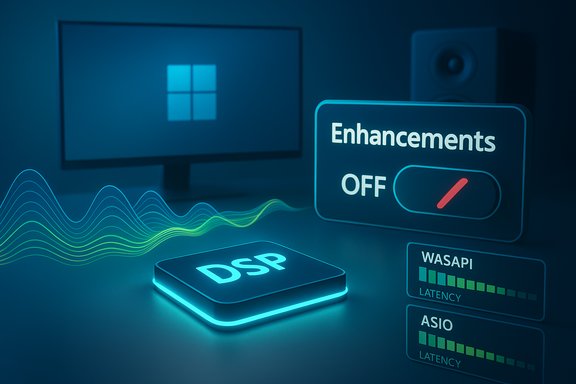 Background / Overview
Windows audio is not a single black box — it’s a layered pipeline composed of the OS audio engine, vendor-supplied drivers and userland apps that can inject processing at multiple points. At the driver and OS level, processing is implemented as Audio Processing Objects (APOs): in-process COM objects that can be registered as stream, mode, or endpoint effects to alter audio in real time. APOs are powerful and flexible, but that same flexibility means effects can be inserted unexpectedly, run at inopportune times, or clash with other software in the chain. Microsoft documents how APOs are implemented and where they sit in the signal path, and it warns developers that APOs must be real‑time safe and avoid blocking operations — yet the practical result for end users is often unpredictable behavior when multiple APOs or vendor suites try to optimize the same stream. On top of APOs are vendor suites (Realtek, Dolby, DTS, Nahimic, etc. that present their own EQs, “Game/Cinema/Voice” profiles, and spatializers. Windows exposes a front-end toggle — often labeled Enhance audio, Device Default Effects, or similar — which typically acts as a gate that allows driver-supplied DSP to run. But whether the toggle appears and exactly what it controls depends on the driver package your PC uses; some vendors move all controls into their proprietary app and hide or remove the classic Enhancements tab. Community troubleshooting and vendor notes make it clear: the setting’s behavior and default state vary by OEM and driver, so users must inspect their specific device properties rather than rely on a universal Windows default.How those enhancements actually work (technical underpinnings)
APOs and where processing happens
APOs can be implemented as:- Stream effects (SFX) — applied per-stream and suitable for channel conversions before a mix.
- Mode effects (MFX) — applied to all streams mapped to a mode and useful for scenario-based processing.
- Endpoint effects (EFX) — applied at the endpoint level, closest to the device itself.
Spatial sound and the separate processing layer
Spatial sound (Windows Sonic, Dolby Atmos, DTS Sound Unbound) is a separate set of processing tools focused on 3D positioning and virtualization. Spatialization is valuable for movies and certain games, but it is independent of the “Enhancements” toggle and can add its own buffering and coloration. Turning one off does not always turn the other off, which is why some users mistakenly think they’ve disabled all processing when spatial sound remains active.Why enhancements help some users — and harm others
- For casual listeners on tiny laptop speakers or cheap earbuds, simple EQ, loudness equalization or bass boost can produce perceptually fuller sound and improve intelligibility on voice calls.
- For accessibility cases, certain vendor features can make speech clearer for users with hearing challenges.
- Added latency: Each DSP stage usually buffers samples, adding measurable latency that interferes with live monitoring, gaming voice chat, and DAW work. Community testing and professional audio guidance repeatedly recommend bypassing system-level DSP for any real-time-sensitive task.
- Signal coloration: Equalizers and dynamic processors change the reference signal. For mastering, mixing or critical listening, any unsolicited coloration breaks the accuracy of the session.
- Interoperability issues: Enhancements often clash with third-party EQs, streaming apps, or exclusive-mode drivers, creating double-processing or unexpected mute/duck behavior.
Symptoms and widespread user reports
Symptoms that commonly trace back to enhancements include:- Crackling, popping or hissing during playback or full-screen video.
- Robotic or muffled voices when using microphones in calls.
- Strange volume jumps or automatic equalization that ruins the intended mix.
- Latency that is perceptible when monitoring live input or during competitive gaming.
Recent platform changes that matter (LE Audio and 24H2)
Windows 11’s evolution complicates the picture. The 24H2 updates brought improvements for Bluetooth LE Audio and a “super wideband stereo” mode that allows stereo playback while the headset’s microphone is active — resolving the old A2DP vs HFP mono tradeoff that forced poor quality in calls. This is a meaningful improvement for wireless users, but it’s contingent on hardware and driver support: your PC and headset must both support LE Audio, and optional driver or firmware updates may be required. In short, newer Windows builds can remove old Bluetooth compromises, but they don’t eliminate APO/driver conflicts. Microsoft’s 24H2 release notes and support guidance acknowledge these changes while emphasizing that feature availability depends on device vendor support — a reminder that the ecosystem fragmentation (OEM drivers, Bluetooth radios, headset firmware) still drives a lot of real-world variability.The case for disabling audio enhancements — practical reasons
Disabling Windows-level enhancements is a low-risk, high-value troubleshooting and performance step in many scenarios:- You do audio production, recording, or live monitoring; system DSP will usually harm the signal chain.
- You use a USB DAC or dedicated audio interface; the external device is intended to manage its own processing and preserve signal integrity.
- You experience crackles, pops, robotic voices, sample-rate mismatches or sudden changes in dynamics — these often clear once system processing is bypassed.
Step-by-step: how to identify and disable enhancements (clean and repeatable)
- Open Settings → System → Sound and pick the active device under Output (or Input for microphones).
- Click Device properties → Additional device properties. This opens the classic Sound control panel entry for the device.
- Look for an Enhancements tab (sometimes labelled Effects or a driver-supplied name). Check Disable all enhancements or uncheck Enable audio enhancements. Apply and test.
- Check the vendor’s control app (Realtek Audio Console, Dolby Access, DTS app). Some vendors moved settings into those apps or into the Microsoft Store package.
- Reinstall the correct DCH vs legacy driver package for your motherboard or laptop; using the wrong Realtek package can hide UI elements. Uninstall the driver, reboot, and install the OEM package if necessary.
- As a last resort, power users can inspect registry keys or vendor documentation for hidden toggles, but registry edits carry risk and should be backed up first.
- Under the Advanced tab for the device, uncheck “Allow applications to take exclusive control of this device.” Exclusive mode is a frequent source of app-level conflicts.
- If you use Bluetooth, verify whether your PC exposes a “Use LE Audio when available” switch under Settings → Bluetooth & devices; enable it only if you have compatible hardware and drivers.
Advanced workflows: what pros should do instead
- Use a dedicated audio interface and its ASIO driver (or a proper WASAPI exclusive configuration) for DAW work; this bypasses the Windows mixer and most system DSP. If a native ASIO driver doesn’t exist, ASIO4ALL is a workaround but has tradeoffs.
- Run LatencyMon or similar diagnostics to profile DPC/driver latency if you experience stuttering; this helps isolate kernel-level drivers that interfere with audio streams.
- Match sample rates and buffer sizes across Windows device settings and your application to avoid resampling artifacts. Test alternate default formats (e.g., 16-bit/44.1kHz vs 24-bit/48kHz) if you see clicks and pops.
Accessibility considerations and real harm
Some vendor enhancements were explicitly designed to improve clarity for users with hearing difficulties. However, poor implementations can worsen assistive scenarios: screen readers and voice prompts that rely on consistent pitch/level can be affected by aggressive processing, and some users report that enhancements interfere with screen reader audio and conversational clarity. Given the stakes for accessibility, it’s critical that any audio processing intended to help not be applied blindly by default; users should be able to opt in or choose a minimal, certified set of assistive enhancements. Community reports emphasize that one-size-fits-all DSP can inadvertently harm inclusivity.When updates and drivers make things worse — and what to do about it
Windows updates are occasionally reported to re-enable settings or ship driver updates that change the behavior of enhancements. The ecosystem dependency (Intel SST, Realtek DCH vs legacy, OEM packaging) means that a patch intended to fix one thing can have side effects elsewhere. If audio breaks after an update:- Check Device Manager → Sound, video and game controllers for driver versions and roll-back options.
- Reinstall OEM drivers (prefer the vendor’s support page). Do not rely on random repositories.
- Run System Restore to a known-good point if the update immediately introduced regressions and no vendor fix is available. Remember that rolling back updates has security tradeoffs.
Critical analysis: strengths, weaknesses, and risks
Strengths
- Perceptual gains for casual users: On tiny laptop speakers the net experience often improves; loudness and clarity tricks have practical value for non-critical listening.
- Unified Windows controls: The OS-level toggles and Exposure of spatial sound give ordinary users easier access to advanced features they previously had to install separately.
Weaknesses
- Ecosystem fragmentation: Vendor drivers, OEM customization, and the difference between DCH and legacy packages produce inconsistent behavior and hidden UI.
- Opaque processing chain: Users rarely know which APO or app is applying which effect; the visible toggle may not reflect the full set of transformations being applied.
Risks
- Accessibility regression: Default processing that modifies pitch/level can break assistive technology workflows unless opt-in and well-documented.
- Professional impact: For creators and audio professionals the presence of uninvited DSP risks ruined takes and mistrusted monitoring.
- Update-induced regressions: Updates that re-enable processing or swap driver packages can silently change user experience and require manual repair. Community records show this has happened repeatedly.
Recommendations (for users, OEMs, and Microsoft)
For users:- Start by disabling enhancements and testing; if the audio improves, keep them off for that device. Use per-device profiles to preserve convenience (e.g., off for your USB interface, on for laptop speakers).
- Use vendor drivers from the manufacturer and avoid installing random packages. If you must roll back updates, do so cautiously and document changes.
- Expose clear, discoverable toggles and document the exact processing applied. Don’t hide critical transform switches in opaque store apps with missing parity in the classic control panel.
- Make the Enhance audio toggle accurately reflect all system-side processing and provide a per-app/per-device profile UI that can be scripted or automated by power users. Consider a “developer” or “studio” mode that disables all APOs globally for predictable chains. Community feedback and repeated troubleshooting threads show this would substantially reduce user frustration.
Practical checklist: five minutes to better sound
- Open Settings → System → Sound → Device properties → Additional device properties. Disable all enhancements.
- Turn off Spatial sound (if you want the purest signal) under the same device properties.
- Uncheck Allow applications to take exclusive control in the Advanced tab.
- Test with wired audio (USB DAC or headset) to isolate Bluetooth profile and codec issues; if Bluetooth is required, confirm LE Audio support and driver updates.
- If you do pro audio work, switch to your interface’s ASIO driver or WASAPI exclusive and use LatencyMon to profile for DPC spikes.
Conclusion
Windows 11’s audio enhancements are well-meaning: they aim to make everyday audio sound better for the broad majority of users. Yet the reality of APOs, vendor driver stacks, and the OS’s continuous update cadence creates a fragile environment where those same “improvements” can produce distortion, latency and incompatibility — sometimes undoing hours of fine-tuning by creators or disrupting assistive workflows. The pragmatic path for anyone who needs predictable, high‑fidelity audio is straightforward: disable system enhancements, let dedicated hardware or trusted software handle processing, and keep vendor drivers and firmware current. For casual listeners, the toggle remains a convenient way to squeeze more life from weak speakers — but with the caveat that this convenience can break other use cases.For now, the best “enhancement” for Windows audio may be a modest one: more transparency, clearer controls and a stronger separation between optional consumer-facing effects and the unadulterated signal paths professionals and assistive technologies depend on. Until that balance is consistently delivered across OEMs and drivers, savvy users will continue to find that sometimes the cleanest, clearest sound comes from doing nothing at the OS level at all.
Source: WebProNews Windows 11 Audio Enhancements: Disable for Better Sound and Less Issues
