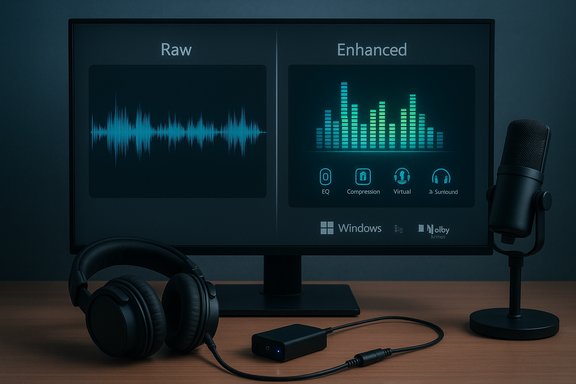
Windows 11 will often alter the way your headphones, speakers, or microphone sound — sometimes for the better, sometimes not — and many users should at least consider turning those automatic “audio enhancements” off to avoid unexpected distortion, compatibility problems, or added latency.
Microsoft and PC vendors ship Windows systems with a layered audio stack: the operating system, hardware device drivers, vendor sound suites (Realtek, Dolby, Nahimic, DTS, etc., and optional userland apps. That stack includes two broad categories of system-level processing that change the raw audio signal: audio enhancements (a set of DSP effects such as EQ, loudness equalization, virtual surround and voice clarity processing) and spatial sound (virtualized 3D audio such as
Microsoft has been updating Windows 11 to support
Practical, immediate steps: check the active device in
Source: MakeUseOf Windows 11 is 'enhancing' your audio, and you should probably turn it off
 Background / Overview
Microsoft and PC vendors ship Windows systems with a layered audio stack: the operating system, hardware device drivers, vendor sound suites (Realtek, Dolby, Nahimic, DTS, etc., and optional userland apps. That stack includes two broad categories of system-level processing that change the raw audio signal: audio enhancements (a set of DSP effects such as EQ, loudness equalization, virtual surround and voice clarity processing) and spatial sound (virtualized 3D audio such as Windows Sonic or Dolby Atmos). In recent Windows 11 releases the OS exposes a simple front-end toggle called Enhance audio (or “Device Default Effects”) while the underlying driver or vendor suite supplies the actual processing. Microsoft documents how to disable those enhancements from the Settings or classic Sound control panel, because the feature can be a source of microphone and playback issues. This article explains exactly what those enhancements do, why Windows and OEMs enable them, when they help, why they sometimes hurt, and how to make a practical choice for every category of user — from casual listeners to pro audio engineers.How Windows 11 applies audio processing
Two layers: Windows toggle and driver-supplied DSP
On modern Windows 11 systems the visible toggle in Settings (Enhance audio on/off, or Device Default Effects) typically acts as a gateway that allows device-level audio processing to run. In other words, switching the setting on doesn’t create brand-new effects in Windows itself so much as it lets the vendor driver or enhancement package (Realtek, Dolby, etc. apply EQ, compression, or virtual surround to that endpoint. If the driver doesn't advertise enhancements to Windows, the toggle may be absent or effectively a no-op. This driver-dependent behavior explains why some users see a change and others don’t.- If
Enhance audiois enabled and a vendor stack (for exampleRealtek Audio Console,Dolby Access, orDTS Sound Unbound) is present, that vendor’s EQ, loudness, or virtual surround profiles will be applied to the device output or input. - If
Enhance audiois disabled, Windows will bypass those drivers’ DSP pipelines for a cleaner, more “raw” signal path — useful for USB DACs, digital recording, or professional audio workflows.
Spatial sound is separate
Spatial sound (Windows Sonic, Dolby Atmos, DTS Sound Unbound) is a separate feature focused on spatialization — not equalization or compression. It creates an immersive or object-based soundstage and is typically optional. You can enable spatial sound independently of audio enhancements, and Microsoft provides the built-in Windows Sonic option while Dolby/DTS require vendor apps. The OS guides explain how to enable spatial sound per device. Why Microsoft and OEMs enable enhancements by default
- Immediate perceptual wins for casual users. Small laptop speakers and cheap earbuds sound thin and quiet; loudness equalization, bass boost, and presence boosts make voices and music sound fuller with no user configuration. That “it sounds better” effect helps support and satisfaction metrics.
- OEM-provided UX and brand differentiation. Laptop makers bundle tuned audio stacks (e.g., Dolby, Bang & Olufsen profiles) so the machine ships with a vendor-approved sound signature.
- Backwards compatibility for app expectations. Some bundled apps expect a particular audio path or DSP; enabling the enhancements by default ensures those behaviour assumptions are met.
What the enhancements actually do — and the tradeoffs
Enhancements typically include a mix of:- Loudness/volume leveling (dynamic range compression) — raises low signals and reduces peaks to make quiet videos and voice clearer. This can flatten musical dynamics.
- EQ and bass boost — compensates for lack of low-frequency response in tiny speakers. This can produce boominess or muddy mixes.
- Virtual surround / spatial widening — attempts to create a wider stereo image but can smear stereo localization (bad for gaming positional audio).
- Voice clarity/denoise processing — helpful for dialogue, but can over-aggressively suppress soft consonants and produce artifacts on real vocal performances.
- Proprietary vendor effects (e.g., “Game,” “Cinema,” or “Voice” profiles) — subjective and often marketed as “improvements.”
Bluetooth and codecs: why wireless headsets can sound worse, and how Windows 11 is changing that
A longtime source of confusion is Bluetooth audio: the headset often sounds excellent for music but degrades drastically when you use the built-in microphone in calls. That’s due to the way Bluetooth profiles historically separated high‑quality stereo playback (A2DP) from microphone-capable hands‑free profiles (HFP) — the latter used low-bit-rate codecs and mono channels.Microsoft has been updating Windows 11 to support
LE Audio and “super wideband stereo,” which changes that tradeoff by enabling stereo playback while the microphone is in use — but it requires compatible hardware (Bluetooth radio + headset firmware) and appropriate drivers. Microsoft’s guidance and recent coverage confirm that Windows 11 (especially 24H2 and later updates) includes improved LE Audio handling and new codec support (AAC, aptX variants on certain platforms) — which means the stereo+mic compromise is being addressed at the OS level. Still, you must have compatible devices and updated drivers to benefit. Key takeaways for Bluetooth users:- If voice calls sound muffled but media playback is fine, that’s almost always a Bluetooth profile/codecs limitation.
- If your PC and headset support LE Audio and Windows 11 24H2 (or later), you may get stereo with mic active — a major practical improvement when available.
When you should turn enhancements off — and when you shouldn’t
Turn them off if:
- You do audio production, recording, or live monitoring (DAW work:
Pro Tools,Ableton Live, etc.. The extra DSP introduces latency and can alter the signal before it reaches your interface. Use ASIO drivers or a dedicated audio interface for low-latency, unprocessed monitoring. - You use an external USB DAC or high‑end headphones — let the DAC do the work; Windows-level DSP can degrade the carefully tuned output.
- You’re troubleshooting hiss, crackles, robotic voices, dropouts, or sample-rate mismatches — disabling enhancements is a low-risk first step. Microsoft and community troubleshooting guidance list this as a primary remedy.
- You require consistent, predictable audio for competitive gaming or latency-sensitive streaming.
Keep them (or try them) if:
- You’re listening on laptop speakers, cheap earbuds, or want louder, more intelligible voice during video calls. For many non-critical listeners enhancements provide a net benefit.
- You rely on vendor-specific features (Dolby profiles, Nahimic voice enhancements) for accessibility — some features can improve clarity for users with hearing challenges.
How to check and change the setting (step‑by‑step)
- Open
Settings→System→Sound. - Under Output (or Input for microphones) select the device you want to change.
- Click
Device properties→Additional device properties(or open the classicSoundcontrol panel viammsys.cpl). - On the
Enhancementstab (orAdvancedtab if the manufacturer placed the option there), check Disable all enhancements or uncheck Enable audio enhancements. - For spatial sound, toggle the
Spatial sounddropdown and selectOff,Windows Sonic for Headphones, orDolby Atmosas desired.
Practical troubleshooting checklist (short & actionable)
- If you hear hissing, crackling, or voice suppression during calls:
- Disable
Enhance audiofor the active input/output device. - Uncheck
Allow applications to take exclusive controlin the device’sAdvancedtab (avoids app-level conflicts). - If Bluetooth call audio is poor:
- Verify device supports
LE Audioand the PC has updated Bluetooth drivers; Windows 11 24H2 adds optimizations for stereo+mic. If not supported, try a wired connection or a USB dongle that supports better codecs. - If audio is needed for pro work:
- Use native ASIO drivers or a dedicated audio interface to bypass Windows mixer and system DSP.
- If the enhancement toggle is missing:
- Update or reinstall the OEM audio driver (Realtek DCH vs legacy packages matter), check the vendor app, and use the classic Sound panel to inspect endpoint-specific properties. Community troubleshooting archives detail that the Realtek and OEM console behavior can hide or move controls.
Advanced: why audiophiles and pros avoid system-level DSP
- Latency: Every DSP stage adds buffering. While negligible for music playback, it’s harmful for live monitoring and gaming.
- Signal coloration: Equalizers, compressors, and virtualizers alter frequency response and dynamics. For mastering or mixing you need a reference (unprocessed) signal.
- Driver unpredictability: OEM vendor suites can apply processing inconsistently across endpoints; turning off Windows-level enhancements ensures a predictable chain to your external pro hardware. Community guides strongly recommend disabling enhancements when using DAWs and external interfaces.
Common misconceptions and unverifiable claims (flagged)
- Claim: “Windows 11 always enables enhancements by default.” — Caution: This is not universally true. Whether enhancements are enabled by default depends on the specific driver and OEM package installed on the machine. Microsoft documentation explains how to disable enhancements but does not guarantee a single global default across all hardware. Check your device’s properties to confirm the state.
- Claim: “Enhancements cause massive CPU load on new systems.” — Caution: On modern machines the CPU cost is generally minimal for casual use. However, in real-time or resource-constrained scenarios (virtual machines, older notebooks, DAWs running many plugins) the additional processing can be measurable and problematic. The exact load varies by vendor implementation and the specific effects in use.
Vendor apps, Realtek quirks, and the “Enhancements tab missing” problem
OEM audio packages have evolved: some vendors moved per-device EQ and profiles into store apps or proprietary control panels. That has produced two recurring support threads: (1) users can’t find the Enhancements tab, and (2) enabling both Windows and vendor EQs can double-process audio. The practical advice is:- Use OEM installers from your vendor (not random driver sites).
- If the Enhancements tab is missing, open the vendor console (Realtek Audio Console, Dolby app, etc. or reinstall the correct DCH/legacy driver for your device.
- If you rely on third-party EQs like Equalizer APO/Peace, know that Windows toggling of enhancements can interfere; reinstall or reconfigure them after changing the Enhance toggle.
For the power user: recommended workflows
- For reliable low-latency audio work: use a dedicated audio interface + manufacturer ASIO driver. Disable Windows enhancements for the system audio endpoint used by the DAW.
- For consistent stereo fidelity on headphones: prefer wired USB DAC or high-quality USB headphone adapter that bypasses Windows DSP.
- For mixed usage (gaming + calls + music): create device-specific profiles:
- Keep enhancements off for DAW USB device.
- Keep enhancements on (or try spatial sound) for the laptop’s internal speakers when watching movies.
- If experimenting with LE Audio or new Bluetooth codecs, update Bluetooth drivers and headset firmware and test both stereo and mono+mic modes as Windows may default differently depending on the detected hardware.
Final verdict — practical guidance you can apply in 5 minutes
- If you primarily use your PC for music production, streaming, or any task where latency and fidelity matter, turn off audio enhancements and use dedicated audio hardware or ASIO drivers.
- If you mostly watch videos and accept vendor tuning for a “better” sound on small speakers, enhancements are fine; just be prepared to disable them if you run into artifacts or incompatibility with a specific app.
- If your Bluetooth calls sound poor but media is fine, check Windows 11’s LE Audio support and your headset’s firmware; a compatible setup can eliminate the old mono‑mic compromise.
Enhance audio is low-risk and usually the fastest troubleshooting step when something sounds off. Microsoft documents the exact steps to disable these features, and community troubleshooting histories confirm it resolves many of the most common audio headaches. Conclusion
Windows 11’s audio enhancements were designed to be helpful, and for many everyday users they are — especially on diminutive laptop speakers and inexpensive headphones. But they are not universally benign: added DSP can introduce artifacts, latency, and incompatibility with pro gear and some Bluetooth profiles. The correct choice depends on your hardware and how you use sound: if you care about fidelity and latency, disable enhancements and use dedicated hardware; if you just want louder, more intelligible output from tiny speakers, they can stay on.Practical, immediate steps: check the active device in
Settings → System → Sound, toggle Enhance audio off to test whether the problem disappears, and if you rely on Bluetooth for calls, verify your PC and headset support Windows 11’s LE Audio improvements and keep drivers/firmware updated. These simple checks will resolve a large fraction of the real-world audio complaints and put you back in control of what your Windows PC is doing to your sound. Source: MakeUseOf Windows 11 is 'enhancing' your audio, and you should probably turn it off