

Fast Startup—Windows’ hybrid shutdown that feels like a modern convenience—still quietly shapes how many PCs boot today, and on modern machines it often trades reliability and predictability for a marginal few seconds of saved time.
Fast Startup was introduced to solve a real problem: slow cold boots on machines with mechanical hard drives and limited I/O performance. Rather than perform a full kernel teardown on shutdown, Windows would save the kernel session and loaded drivers to disk (a partial hibernation) and restore them on the next power up. The result: a substantially shorter time from pressing the power button to seeing the desktop on older systems.
Hardware and usage patterns have changed. Modern laptops and desktops almost universally use NVMe or SATA SSDs and have far faster CPUs, so cold boot times are measured in seconds rather than the tens of seconds or minutes of the HDD era. That shift has exposed the trade-offs baked into Fast Startup: faster warm boot at the cost of skipping a full hardware and kernel reinitialization. Many users now see intermittent hardware or driver oddities that are resolved only by a full restart—behavior that’s directly tied to Fast Startup’s hybrid shutdown model.
That said, the feature can still produce dramatic improvement on machines that still use spinning HDDs, older SATA SSDs, or low-power CPUs. The decision is therefore contextual: Fast Startup solves an old problem but it is increasingly an optimization that modern hardware makes optional at best.
If your machine is showing intermittent hardware or driver problems, try a controlled test: disable Fast Startup, perform a couple of full shutdowns and restarts, and evaluate whether stability improves. For most modern SSD systems, the time cost is minimal and the predictability gain is worth it.
Source: MakeUseOf This legacy Windows feature still slows down modern PCs
 Background
Fast Startup was introduced to solve a real problem: slow cold boots on machines with mechanical hard drives and limited I/O performance. Rather than perform a full kernel teardown on shutdown, Windows would save the kernel session and loaded drivers to disk (a partial hibernation) and restore them on the next power up. The result: a substantially shorter time from pressing the power button to seeing the desktop on older systems. Hardware and usage patterns have changed. Modern laptops and desktops almost universally use NVMe or SATA SSDs and have far faster CPUs, so cold boot times are measured in seconds rather than the tens of seconds or minutes of the HDD era. That shift has exposed the trade-offs baked into Fast Startup: faster warm boot at the cost of skipping a full hardware and kernel reinitialization. Many users now see intermittent hardware or driver oddities that are resolved only by a full restart—behavior that’s directly tied to Fast Startup’s hybrid shutdown model.
How Fast Startup actually works
The hybrid shutdown model, step by step
- Windows logs off user sessions and closes applications as with a normal shutdown.
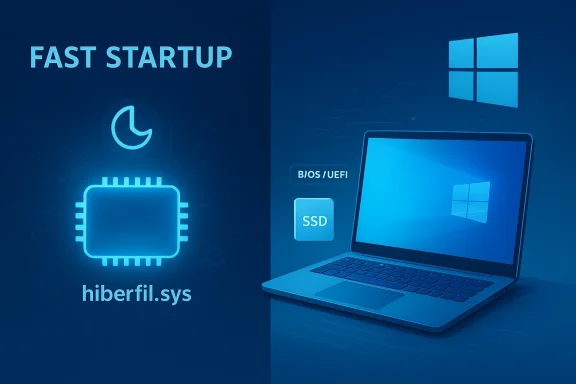
- Instead of tearing down the kernel session, the OS asks device drivers to prepare for hibernation and then writes the kernel memory image (including kernel-mode drivers) to the hibernation file (hiberfil.sys).
- On the next power-on, Windows reloads that kernel image and resumes a system session that is functionally similar to a wake-from-hibernation—but without restoring individual user sessions.
Where the saved state lives
The kernel and driver snapshot is stored in the hibernation file (hiberfil.sys) on the system volume. Fast Startup depends on the hibernation subsystem being available; if hibernation is disabled, Fast Startup won’t show up as an option. Administrators can control the feature through Power Options, Group Policy, or the registry—Fast Startup is effectively controlled by the HiberbootEnabled registry flag and the hibernation capability.Why Fast Startup can cause modern problems
1) Drivers don’t get a clean reset
When the kernel and drivers are restored from disk instead of being freshly loaded, device drivers may not receive the full initialization sequence they expect. Modern drivers (especially those for Wi‑Fi, GPU, audio, and USB controllers) assume a clean initialization on cold boot; skipping that step can leave devices in inconsistent states—failed connections, devices not enumerating correctly, or audio hardware that needs a plug‑replug to recover. These aren’t just theoretical: users and support forums report exactly these symptoms on machines where Fast Startup is active.2) Updates and firmware changes may not complete
Driver updates, firmware updates, and certain Windows components expect a full shutdown/start cycle to complete file replacements, driver registration, and firmware handshakes. Because a Fast Startup shutdown effectively resumes part of the prior session, some changes can remain partially applied until the system is restarted. In practice, that results in repeated “restart required” prompts, features that don’t appear to activate, or updates that only become effective after a manual restart.3) Dual‑boot and cross‑platform file integrity risks
If you dual‑boot with Linux or access a Windows-formatted drive from another OS, Fast Startup can mark the NTFS volume as “in use” (in a hibernated/unsafe state). Linux’s NTFS drivers will refuse read-write mounts on such volumes to avoid corruption, or mount them read-only—because the Windows kernel’s cached state and on-disk metadata can disagree. This is a real data-safety reason to disable Fast Startup on machines that share the disk with other OSes.4) BitLocker and security interactions
Hibernation and Fast Startup can change how encryption subsystems and pre-boot authentication interact with resumed sessions. Microsoft’s documentation highlights scenarios where hibernation affects BitLocker performance or behavior; administrators should be mindful of the interaction between Fast Startup, hibernation, and disk encryption policies in enterprise deployments.5) It can complicate troubleshooting
Because Fast Startup hides whether a shutdown actually produced a true clean state, reporting and reproducing problems becomes harder. Support desks and sysadmins are frequently surprised when a user “restarted” their PC but actually only performed a shutdown+FastStartup cycle until someone insists on a full Restart or a Shift+Shutdown to force a cold boot. That mismatch wastes time during incident triage.How noticeable is the speed difference?
With modern SSDs the raw benefit of Fast Startup is small. On NVMe-equipped machines the difference between a Fast Startup boot and a cold boot is often only a few seconds—commonly reported at roughly 2–5 seconds—and in many configurations the BIOS/UEFI time dominates total power-on-to-desktop time. If your system already hits the desktop in less than 10 seconds, the human-perceivable gain from Fast Startup is minimal while the risks persist. Multiple Windows-focused outlets and practical testing notes confirm the marginal benefit on SSD systems.That said, the feature can still produce dramatic improvement on machines that still use spinning HDDs, older SATA SSDs, or low-power CPUs. The decision is therefore contextual: Fast Startup solves an old problem but it is increasingly an optimization that modern hardware makes optional at best.
Diagnosing whether Fast Startup is affecting you
If you suspect Fast Startup is behind flaky behavior, here’s a practical checklist to narrow it down:- Do symptoms resolve after a Restart but not after a Shutdown → Power-on? If yes, that’s a red flag for Fast Startup. Restart performs a full cold boot; Shutdown may not.
- Are NTFS partitions appearing as “hibernated” when you try to mount them from Linux? If so, hybrid shutdown semantics are involved.
- After installing drivers or firmware, do problems persist until you perform a restart? That’s another symptom of incomplete reinitialization.
- Is the system set up in a dual‑boot configuration, or do you use BitLocker-managed volumes? If yes, Fast Startup can interfere with cross‑OS safety and encryption behavior.
How to turn Fast Startup off (and safe ways to do a one‑off full shutdown)
Disabling Fast Startup is straightforward and reversible. Use one of these methods:- GUI (Control Panel method)
- Open Power Options → Choose what the power buttons do → Change settings that are currently unavailable.
- Uncheck “Turn on fast startup (recommended)” and Save changes.
- Command line (disable hibernation)
- Open an elevated command prompt or terminal and run:
powercfg -h off - This disables hibernation and removes the hiberfil.sys file; Fast Startup requires hibernation and will be disabled as a result.
- Group Policy or Registry (for managed environments)
- GPO: Computer Configuration → Administrative Templates → System → Shutdown → “Require use of fast startup” can be managed in Pro/Edu/Enterprise SKUs.
- Registry: HKEY_LOCAL_MACHINE\SYSTEM\CurrentControlSet\Control\Session Manager\Power\HiberbootEnabled (0 disables). Use these with caution and inventory the change for auditability.
- Hold Shift while clicking “Shut down” in the Start menu—Windows will perform a true full shutdown for that power‑off event.
- Run shutdown /s /t 0 from an elevated command prompt to force a full shutdown.
When you should absolutely disable Fast Startup
- Dual‑booting with Linux or using the Windows partition from another OS. Hybrid shutdown can leave the filesystem in an unsafe state and risk data loss.
- When BitLocker or full‑disk encryption behavior is impacted by hibernation interactions, especially in corporate environments where pre‑boot authentication is required.
- If you see repeated device initialization failures (USB devices, networking, audio) that only clear after a Restart.
- When firmware updates or driver installations refuse to finish without repeated restarts.
Enterprise and IT operations considerations
For IT admins, Fast Startup adds complexity to change management and supportability:- Imaging and deployment: Hybrid shutdown state can interfere with image capture, driver injection, and post‑deploy tasks that expect a cold boot. Test imaging workflows with Fast Startup disabled during deployment.
- Group Policy: Use policy to enforce a consistent power behavior across managed endpoints—either disable Fast Startup centrally or document an acceptable exception list.
- Helpdesk triage: Train frontline support to ask whether the user performed a Restart vs Shutdown and to try Shift+Shutdown as a quick diagnostic. That single question often speeds resolution.
Alternatives for faster, reliable booting
If your goal is both speed and reliability, consider these measures rather than relying on Fast Startup:- Optimize BIOS/UEFI boot path:
- Disable unnecessary POST checks.
- Use Fast Boot options in firmware only when compatible.
- Keep firmware updated—motherboard manufacturers frequently improve boot timing and memory training.
- Reduce driver and startup load:
- Audit autostart items, background services, and scheduled tasks.
- Keep drivers updated from vendor packages, but prefer vendor drivers only when needed.
- Use Sleep for instant resume:
- When you need near‑instant availability and battery/power trade‑offs are acceptable, Sleep mode delivers quick resume without hybrid-kernel semantics. Modern systems have highly optimized sleep/modern standby options. Evaluate sleep vs Fast Startup for your usage pattern.
- Tune NVMe/SSD and storage drivers:
- Ensure firmware on SSDs is up to date and that storage drivers are matched to platform recommendations; poorly behaving storage stacks can mask themselves as a Fast Startup problem when they are not.
A practical checklist for power users and sysadmins
- If you encounter device or driver issues that the user says are fixed by Restart but not Shutdown, test with Fast Startup disabled for 48 hours.
- If you dual‑boot or share disks with another OS, disable Fast Startup immediately to avoid data integrity problems.
- For enterprise imaging or mass deployment, default to Fast Startup off while capturing or validating images; enable it only if a use case requires it.
- Use Shift+Shutdown or shutdown /s /t 0 as a one‑off when you need a true cold boot without changing global settings.
Risks and caveats you should know
- Disabling Fast Startup removes a tiny optimization; you’ll typically see a negligible increase in cold-boot seconds on SSD systems but gain reproducibility. For HDD systems the boot penalty can still be meaningful.
- Some OEMs or driver stacks historically assumed hybrid shutdown behavior; rare hardware/driver combos may demonstrate unexpected behavior if you change power semantics—test changes in a controlled environment before rolling them out widely.
- The Fast Startup option may disappear if hibernation is disabled; conversely, toggling Fast Startup by flipping hibernation can affect available features like the Hibernate button. Use the command-line powercfg -h on/off carefully.
Conclusion
Fast Startup solved a real pain point on legacy hardware by reducing boot time through an elegant hybrid approach. On modern hardware, however, that elegance becomes a liability for many users: the few seconds saved are often outweighed by driver reinitialization problems, update finalization issues, and cross‑OS file integrity concerns. For technicians, sysadmins, and power users who value predictability, the prudent default is to disable Fast Startup and rely on restarts, firmware tuning, and sleep states to achieve both fast and reliable behavior. For casual users who never dual‑boot and who prioritize every fraction of a second on older hardware, Fast Startup remains a usable option—but it should be understood as a trade‑off rather than a pure win.If your machine is showing intermittent hardware or driver problems, try a controlled test: disable Fast Startup, perform a couple of full shutdowns and restarts, and evaluate whether stability improves. For most modern SSD systems, the time cost is minimal and the predictability gain is worth it.
Source: MakeUseOf This legacy Windows feature still slows down modern PCs
