

Windows 11’s steady stream of feature updates hasn’t stopped a persistent undercurrent of frustration: long-time Windows users and power users are increasingly vocal about preinstalled apps and background services they call “bloatware,” reduced desktop customization compared with earlier Windows releases, and the deeper, sometimes intrusive, integration of Microsoft’s AI features—above all, Copilot.
When Windows 11 launched it brought a modern visual refresh, new windowing and productivity features, and a roadmap that explicitly tied more of the OS to cloud services and AI capabilities. Many reviewers welcomed the design and some productivity improvements, but users quickly highlighted trade‑offs: stricter hardware requirements, removed or changed UI behaviors, and an operating model that nudges people toward Microsoft services and Store apps. Those early grievances have evolved into louder calls for more control over what ships on a fresh install and how tightly AI is woven into the desktop experience.
Windows enthusiasts and forum communities now frequently treat Windows 11 as two overlapping debates: one about what Microsoft includes by default, and one about how tightly it integrates AI into everyday workflows. Both debates share a common theme—users want more control.
Common user complaints include:
Supporters see measurable productivity gains for finishing repetitive tasks, drafting content, and discovering shortcuts. Detractors argue the integration is too aggressive: AI features show up by default, context menus gain “Ask Copilot” entries, and the assistant feels less like an optional add‑on and more like a baked‑in component. The net effect: some users are asking for a full opt‑out, more privacy controls, and an assurance that AI can be kept strictly optional.
Still, there have also been regressions and compatibility issues tied to updates—examples include shutdown and hibernation regressions in some cumulative rollups and the occasional functional break in update packages—feeding a perception that frequent feature pushes can destabilize predictable behavior for some users.
At the same time, the growth of debloat tools is an important indicator: when a large segment of users feels the product doesn’t fit their needs, they’ll build or adopt solutions. Microsoft risks a long tail of unsupported configurations if it continues to default toward heavier, service‑rich installations without explicit, simple opt‑outs.
For Windows to remain a platform that scales from minimalist desktops to AI‑rich workstations, the company should embrace three principles: clarity (what’s on by default), consent (user opt‑in for AI), and control (easy, supported ways to choose a lean baseline). Those moves would both reduce repair‑and‑support friction and restore trust among long‑time Windows power users.
If Microsoft responds with clearer opt‑in models, stronger consumer provisioning controls, and an officially supported minimal profile, it can satisfy both camps—preserving the benefits of new AI features while honoring the desire for a light, controlled desktop. Until then, expect the community to continue building the tools and guides that keep Windows usable for those who simply want a clean, efficient system.
Source: thewincentral.com Windows 11 Users Frustrated With Bloatware, AI Integration
 Background
When Windows 11 launched it brought a modern visual refresh, new windowing and productivity features, and a roadmap that explicitly tied more of the OS to cloud services and AI capabilities. Many reviewers welcomed the design and some productivity improvements, but users quickly highlighted trade‑offs: stricter hardware requirements, removed or changed UI behaviors, and an operating model that nudges people toward Microsoft services and Store apps. Those early grievances have evolved into louder calls for more control over what ships on a fresh install and how tightly AI is woven into the desktop experience.Windows enthusiasts and forum communities now frequently treat Windows 11 as two overlapping debates: one about what Microsoft includes by default, and one about how tightly it integrates AI into everyday workflows. Both debates share a common theme—users want more control.
What users are complaining about
Less control, more “stuff” out of the box
A recurring complaint is that Windows 11 still ships with many preinstalled apps, occasional promotional content, and background services that users feel are unnecessary. Threads and user posts repeatedly list examples: standalone apps (media editors, games, Microsoft services), duplicate or overlapping utilities, and components that appear to return after updates. The frustration is particularly acute for people who prefer a lean, performance‑focused setup.Common user complaints include:
- Apps that cannot be removed through simple UI controls.
- Preinstalled apps that seem to be re‑provisioned or reinstalled after cumulative updates or feature updates.
- Background services and telemetry hooks that consume memory and complicate tuning.
Customization rollback: what’s missing
Customization—once a hallmark of Windows—has felt curtailed to many users moving from Windows 10 to Windows 11. The commonly requested returns include:- A movable taskbar (top or side placement instead of only centered/left‑aligned).
- More granular control of the Start menu layout (restore tile‑like or more flexible pinning).
- Richer File Explorer customization options (consistent folder view settings, thumbnail behavior).
- The ability to toggle off modern design elements that interrupt established workflows.
AI integration: helpful innovation or baked‑in bloat?
Microsoft’s push to make Windows an “AI PC” has been visible and persistent. Copilot, Recall, AI Actions and other model‑assisted features appear in places users don’t always expect: the taskbar, context menus, File Explorer actions, and the first‑time setup experience. Reactions are mixed.Supporters see measurable productivity gains for finishing repetitive tasks, drafting content, and discovering shortcuts. Detractors argue the integration is too aggressive: AI features show up by default, context menus gain “Ask Copilot” entries, and the assistant feels less like an optional add‑on and more like a baked‑in component. The net effect: some users are asking for a full opt‑out, more privacy controls, and an assurance that AI can be kept strictly optional.
Microsoft’s response so far — frequent updates and incremental concessions
It’s important to acknowledge that Microsoft has regularly shipped updates addressing performance, security, and user feedback. The Windows Insider program offers a two‑way feedback channel where features are shaped and sometimes pulled back based on testing. There are indications Microsoft is aware of concerns: features to give users greater control over preinstalled Store apps were signaled for upcoming feature updates, and some Insider releases have tested more opt‑in behavior for Copilot surfaces.Still, there have also been regressions and compatibility issues tied to updates—examples include shutdown and hibernation regressions in some cumulative rollups and the occasional functional break in update packages—feeding a perception that frequent feature pushes can destabilize predictable behavior for some users.
Community tools and workarounds: a double‑edged sword
Faced with defaults they dislike, many users have turned to community tools and scripts:- Talon, Winslop, and similar open‑source debloat utilities aim to remove preinstalled apps, disable certain AI surfaces, and reduce telemetry.
- PowerShell scripts and consolidated “Sophia” or custom registry scripts let power users automate a tailored setup.
Technical analysis: what’s happening under the hood
Why preinstalled apps can return after updates
There are multiple engineering reasons some apps or provisioning packages can reappear after updates:- Windows uses provisioning packages during feature updates and OEM images to ensure consistent app availability; those packages can re‑apply defaults when a feature update modifies system components.
- The Microsoft Store and Store app provisioning are tied into servicing mechanisms; uninstalling an app that’s still part of the provisioning baseline does not always remove its re‑provisioning trigger.
Copilot and system integration: layers and surfaces
Copilot in Windows 11 is not a single monolith but a set of integrations:- A taskbar‑anchored assistant and app.
- Context menu and File Explorer actions that surface AI‑driven commands.
- Cloud‑backed models for certain capabilities, and on‑device models for faster, privacy‑sensitive scenarios (implementation differences depend on hardware and the feature set a device ships with).
Strengths: where Microsoft’s direction benefits users
It’s not all downside. Several concrete benefits have driven adoption and praise:- A modernized UI and improved window management (Snap Layouts) are genuinely useful for many workflows.
- AI features can accelerate routine tasks: drafting, summarizing, and pattern discovery that once required manual work. For some users, Copilot reduces friction.
- Security advancements (Secure Launch, TPM‑backed features) are meaningful for modern threat models—though opinions differ on hardware requirements and older hardware support.
Risks and downsides Microsoft must manage
- Fragmentation of control: Frequent feature pushes without robust consumer opt‑out paths create a two‑tier experience between users who accept defaults and those who insist on minimalism. That division can breed support complexity and user churn.
- Trust and privacy: Tight AI integration that is not clearly labeled or easily disabled raises understandable privacy concerns. Users want transparent data lineage—what is processed locally vs. what is sent to Microsoft—and simple UI controls to manage this.
- Update fragility: Reprovisioned apps, unexpected reinstalls, and occasional regressions in cumulative updates create an experience where maintenance can feel risky rather than routine. That erodes trust in the servicing model.
- Third‑party remediation fragility: Community debloat tools solve immediacy problems but increase the risk of broken updates and unsupported states. Users who apply heavy debloating may face difficulty in getting support or maintaining a secure, fully patched system.
Recommendations — what Microsoft should do next
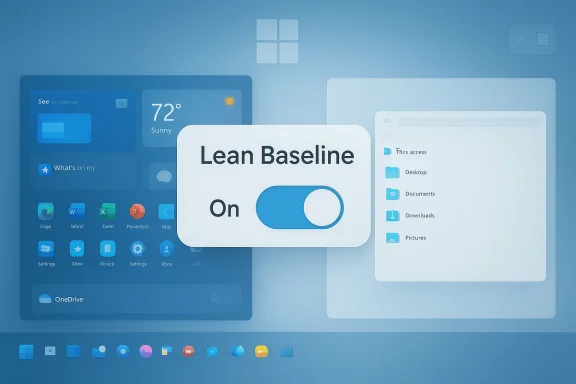
These recommendations are shaped by user feedback patterns present across forums and Insider channels:- Ship an explicit “minimal” OOBE option that allows users to opt into a lean baseline at first boot—no Store apps, no promotions, no AI surfaces enabled by default. This would be a clearly visible consumer choice rather than an advanced, hidden setting.
- Make AI features fully opt‑in with clear privacy controls in the Settings app. Each prominent AI surface should include an obvious toggle and a single‑page privacy explainer describing what data is used and whether processing is local or cloud‑based.
- Extend provisioning and servicing controls to consumer editions so reprovisioning of default Store apps after updates becomes a configurable option. That could be a simple “do not reprovision default apps” checkbox in Settings or an advanced toggle.
- Harden update testing for consumer‑visible flows that historically cause regressions (shutdown, hibernate, reprovisioning). Invest more in canarying updates across representative device configurations to reduce breakage risk.
- Publish clearer guidance and safe rollback paths for users who remove components, plus an official Microsoft “debloat” profile that provides a supported thin baseline for users who want it. This avoids third‑party scripts becoming the de facto standard and reduces risk.
Practical guidance for users who want a lean system today
If you want to reduce bloat and regain control now, consider the following steps. Note: each step carries trade‑offs; test on a non‑critical machine or create system backups before proceeding.- Create a full system image or recovery point before making major changes.
- Use Windows Settings and modern uninstaller first to remove extraneous apps (Apps & features).
- For deeper cleanup, use trusted and well‑maintained scripts or tools—but understand they can affect updates. Read tool documentation and community feedback. Examples widely used in the community include PowerShell removal scripts and the well‑documented Talon or Winslop utilities; both are discussed extensively in forum threads.
- Leverage Group Policy or MDM profiles (for business or education devices) to control provisioning and prevent reprovisioning of default apps—this is the supported enterprise‑grade approach.
- If Copilot or AI surfaces bother you, turn off the features via Settings where available, and in the meantime monitor Insider channels for Microsoft policy controls targeting consumer devices.
The community response: pragmatism and craftsmanship
One of the more notable outcomes is the community’s pragmatism. Rather than simply complain, enthusiasts and IT pros have built tooling, documented safe removal patterns, and shared recovery steps—an open ecosystem of knowledge that helps less technical users replicate lean setups. That communal engineering is a powerful corrective, but it’s a stopgap: ideally, those capabilities should be supported out of the box or via clearly documented Microsoft tooling.At the same time, the growth of debloat tools is an important indicator: when a large segment of users feels the product doesn’t fit their needs, they’ll build or adopt solutions. Microsoft risks a long tail of unsupported configurations if it continues to default toward heavier, service‑rich installations without explicit, simple opt‑outs.
Where this goes next
Microsoft has signaled incremental concessions—policy controls in enterprise channels, Insider experiments that experiment with opt‑in Copilot surfaces, and feature update notes that occasionally address reprovisioning. But community sentiment suggests Microsoft must move faster and make explicit distinctions between core OS capabilities and optional cloud‑backed features.For Windows to remain a platform that scales from minimalist desktops to AI‑rich workstations, the company should embrace three principles: clarity (what’s on by default), consent (user opt‑in for AI), and control (easy, supported ways to choose a lean baseline). Those moves would both reduce repair‑and‑support friction and restore trust among long‑time Windows power users.
Conclusion
Windows 11 sits at an inflection point. Microsoft’s push to modernize the OS with AI and cloud connectivity offers real potential to boost productivity, but the product experience is only as good as the user’s control over it. Forums and community threads make one thing clear: users aren’t asking Microsoft to stop innovating—they are asking for choice. They want the ability to choose a lean, fast, and privacy‑respecting Windows just as easily as they can choose an AI‑augmented Windows.If Microsoft responds with clearer opt‑in models, stronger consumer provisioning controls, and an officially supported minimal profile, it can satisfy both camps—preserving the benefits of new AI features while honoring the desire for a light, controlled desktop. Until then, expect the community to continue building the tools and guides that keep Windows usable for those who simply want a clean, efficient system.
Source: thewincentral.com Windows 11 Users Frustrated With Bloatware, AI Integration
