

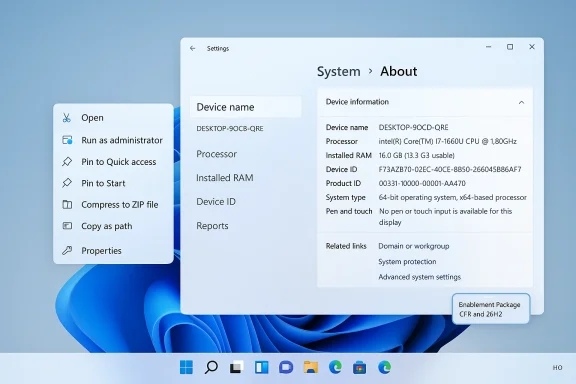
Microsoft released Windows 11 Insider Preview Build 26220.7872 (KB5077231) to the Beta Channel on February 20, 2026, delivering a small but focused set of user-facing refinements—most notably a visual tweak to File Explorer’s context menu behavior, a refined Device info card and System > About layout in Settings, and smoother taskbar animations—while reiterating Microsoft’s continued use of an enablement-package model and controlled feature rollouts for Beta-channel Insiders.
Windows 11’s servicing model has moved further into the enablement-package and shared-servicing-branch pattern that Microsoft adopted in recent cycles. Instead of shipping a monolithic rebase, Microsoft stages capability binaries in cumulative updates and flips them on through tiny enablement packages (eKBs) when they are ready for wider validation. Build 26220.7872 is presented as an enablement package tied to Windows 11, version 25H2 and shipped to the Beta Channel with the usual caveat: many features will be ramped via Controlled Feature Rollout and may not appear for every Insider immediately.
That delivery approach matters: it reduces upgrade surface area and deployment friction for testers and enterprises while letting Microsoft exercise fine-grained control over who sees what, when. For Insiders it means you might see incremental experiences appear only after turning on the “get the latest updates as they are available” toggle in Settings > Windows Update. If you leave that toggle off, you’ll still receive new features eventually—just on a slower ramp.
Why it matters: icons are semantically powerful UI signals. Matching the verb icon to the default app helps users scan options quickly—especially important in mixed environments (developer machines, scripting-heavy workflows) where executables and scripts are common.
Why it matters: troubleshooting and support workflows are frequently hamstrung by fragmented hardware info. A compact, copy-friendly About view reduces friction for users and help desks alike, and surfaces like this are a pragmatic win for day-to-day support scenarios.
Why it matters: animation tuning is often underestimated. Well-tuned transitions make the UI feel faster and more responsive—even when raw CPU cycles are unchanged—and reduce visual jank in daily interactions.
Key operational points for Insiders:
Strengths:
What to watch:
Recommendations for admins:
Several prior Insider posts and community summaries document the evolution of Settings and File Explorer polishing across recent flights, providing precedence for the small-but-meaningful UX changes delivered in this build. Those historical notes help set expectations for the likely scope and impact of the changes in Build 26220.7872.
Caveat: Microsoft explicitly notes that features may change or be removed, and that controlled rollouts mean not every Insider will see the same things at the same time. If you encounter behavior not described here, file feedback and include build and cohort details when possible.
For Insiders and pilots, the immediate takeaway is procedural: decide whether you want to receive Controlled Feature Rollout experiments, plan small automation and accessibility checks, and update internal support materials to account for the revised Settings > System > About presentation. For IT teams, the enablement-package model remains the central operational reality—fast to deploy and conservative in impact, but something that requires attention to feature flags and per-device state to avoid surprises.
Ultimately, this build is indicative of Microsoft’s current priorities: steady servicing, measured experimentation, and UX polish—an approach designed to keep Windows stable for enterprise use while continuing to evolve the desktop with iterative, feedback-driven changes.
Source: Microsoft - Windows Insiders Blog Announcing Windows 11 Insider Preview Build 26220.7872 (Beta Channel)
 Background / Overview
Windows 11’s servicing model has moved further into the enablement-package and shared-servicing-branch pattern that Microsoft adopted in recent cycles. Instead of shipping a monolithic rebase, Microsoft stages capability binaries in cumulative updates and flips them on through tiny enablement packages (eKBs) when they are ready for wider validation. Build 26220.7872 is presented as an enablement package tied to Windows 11, version 25H2 and shipped to the Beta Channel with the usual caveat: many features will be ramped via Controlled Feature Rollout and may not appear for every Insider immediately.That delivery approach matters: it reduces upgrade surface area and deployment friction for testers and enterprises while letting Microsoft exercise fine-grained control over who sees what, when. For Insiders it means you might see incremental experiences appear only after turning on the “get the latest updates as they are available” toggle in Settings > Windows Update. If you leave that toggle off, you’ll still receive new features eventually—just on a slower ramp.
What’s included in Build 26220.7872 (Beta Channel)
This flight is intentionally light on headline features and heavier on polishing and iterative UX changes. The announcement highlights three changes being gradually rolled out to the subset of Insiders with the toggle enabled, plus notes about rollout behavior and telemetry-backed ramping.Context menu: “Open” verb icon now matches underlying default app
When right-clicking a .exe, .bat, or .cmd file, the context menu’s “Open” verb will now show the icon that matches the file’s default application. The change is a small visual consistency tweak, but one designed to make command semantics clearer and to reduce accidental clicks when multiple apps could handle a file. This follows the broader trend of polishing the modernized File Explorer and context menu surfaces introduced in earlier Windows 11 flights.Why it matters: icons are semantically powerful UI signals. Matching the verb icon to the default app helps users scan options quickly—especially important in mixed environments (developer machines, scripting-heavy workflows) where executables and scripts are common.
Settings: refined Device info Card and consolidated System > About
Microsoft revisited the Device info Card on the Settings Home page (first seen in earlier Insider flights) and has simplified the layout to emphasize key hardware specs and to create a clear path from the Home Card to Settings > System > About. The About page itself brings core device hardware details back to the top, and the new Device information section consolidates graphics and storage details in one place with easy copy/paste support for sharing diagnostics or support-ready text. The consumer variant is rolling out to Insiders in the United States; enterprise-managed devices continue to receive an IT-oriented variant. Feedback is requested via Feedback Hub under Settings.Why it matters: troubleshooting and support workflows are frequently hamstrung by fragmented hardware info. A compact, copy-friendly About view reduces friction for users and help desks alike, and surfaces like this are a pragmatic win for day-to-day support scenarios.
Taskbar & system tray: improved animation for app groups
Hovering over app groups on the taskbar should now feel smoother—Microsoft updated the hover animations and some underlying taskbar transition behavior. The announcement references improved hover/animation fidelity for app groups and notes earlier fixes that have matured into a steadier user experience. These are incremental but visible interface refinements that can materially change perceived polish.Why it matters: animation tuning is often underestimated. Well-tuned transitions make the UI feel faster and more responsive—even when raw CPU cycles are unchanged—and reduce visual jank in daily interactions.
Rollout model and what Insiders should expect
Microsoft again emphasized that this build is tied to Windows 11, version 25H2 via an enablement package (Build 26220.7872). The company continues to use Controlled Feature Rollout (CFR) to stage experiences to a subset of Insiders, ramping those experiences as telemetry and feedback indicate readiness. The Beta Channel will receive features closer to what will ship to general customers, but that does not guarantee every previewed feature will ship. Some experiences may be removed or significantly changed during the flighting process.Key operational points for Insiders:
- Turning on the “get the latest updates as they are available” toggle (Settings > Windows Update) increases your chance of seeing CFR experiments.
- Features may appear in some regions before others; the Device info Card variant is currently being rolled out to Insiders in the United States according to Microsoft. Treat early behavior as experimental.
- Not all previewed features will ship; Microsoft explicitly warns some previews may never reach general availability. Expect iteration and removal as part of the process.
Critical analysis — what’s significant and what to watch
1) The enablement-package model remains the defining story
Microsoft’s choice to continue shipping 25H2 features as an enablement package is deliberate. It minimizes upgrade disruption, simplifies validation for enterprises, and allows Microsoft to hedge feature exposure by toggling functionality server-side or via CFR. Practically, that reduces the churn and risk of a full OS rebase. This is a stable, enterprise-friendly approach that keeps the Windows servicing pipeline nimble.Strengths:
- Lower upgrade friction and smaller patches for administrators.
- Easier rollback and staged experimentation without heavy imaging.
- Predictable cadence for Insiders and IT pilots.
- The user experience may feel “incremental” rather than transformational, which could reduce press/play attention.
- IT teams must track which enablement packages and policies have been applied across fleets to avoid management confusion.
- Hidden server-side toggles and CFR complexity can make reproducibility of issues harder for admins and community debuggers.
2) Surface-level polish is valuable—but expectations should be managed
The attention to taskbar animation, context-menu icons, and the Device info Card is precisely the kind of polish that improves daily use for millions of users. These are not architectural changes; they’re refinements that compound when distributed broadly. But because the changes are small, they won’t move large adoption metrics on their own.What to watch:
- Whether these small UX changes drive appreciable reductions in reported support cases (e.g., fewer “what is my GPU” tickets thanks to the consolidated About page).
- If animation changes intersect badly with specific GPU drivers or accessibility configurations; UI tweaks sometimes expose regressions for assistive technologies.
3) Regional rollouts and enterprise/user variants raise support complexity
The Device info Card is being rolled out to US Insiders first and the card will differ for managed enterprise devices. While tailoring experiences to consumer vs. enterprise makes sense, it also increases the matrix of supported experiences support teams must handle.Recommendations for admins:
- Track which Insiders in your pilot group are receiving the Device info Card and whether they’re using enterprise-managed variants.
- Use Group Policy and Intune reporting to detect discrepancies introduced by the new About layout.
- Instruct help desk teams on the new copy/paste support flow for System > About.
4) Feedback channels and telemetry remain central to CFR
Microsoft again points Insiders to Feedback Hub (WIN + F) for early-stage impressions, and their rollout strategy will react to that feedback. For power users and enterprise pilots, this means your reports matter—especially when tied to reproducible scenarios. However, be aware that telemetry sampling and CFR cohorts can make it hard to replicate an issue elsewhere, complicating triage.Notable strengths in this build
- Clear attention to supportability: consolidating hardware details and adding copy/paste support in About is an immediate operational improvement for troubleshooting workflows. This reduces friction for both end users and support engineers.
- Polished visual consistency: matching the “Open” verb icon to the default application is a small but meaningful alignment that improves UX discoverability and reduces potential user errors.
- Conservative, measurable rollout model: the enablement package plus CFR approach balances stability and experimentation—ideal for Beta-channel testing that sits close to production.
Potential risks, regressions, and caveats
- Accessibility regressions: UI animation and layout changes sometimes create unexpected effects for screen readers or keyboard-only navigation. Insiders with accessibility needs should flag regressions early in Feedback Hub.
- Driver interoperability: taskbar and animation improvements can put pressure on graphics drivers; Insiders with older or OEM-unique drivers may reveal regressions. Monitor display driver updates when installing Beta builds.
- Rollout unpredictability: Controlled Feature Rollouts mean not everyone sees the same features; community reports may be fragmented and difficult to aggregate into a single actionable bug report unless telemetric detail is included.
Practical advice for Windows Insiders and IT pilots
For casual Insiders and enthusiasts
- If you enjoy seeing new experiences early, turn ON Settings > Windows Update > get the latest updates as they are available. This increases your chances of receiving CFR experiments like the context menu icon tweak and Device info Card. Expect changes to land gradually.
- Use Feedback Hub (WIN + F) for targeted bug reports. When reporting UI regressions, include repro steps, whether you have accessibility features enabled, and your display driver version.
For power users and developers
- Test automation flows that parse System > About output if you rely on scripting to collect device inventory; the consolidated layout with copy/paste support should make scripts simpler, but parsing tests are recommended.
- Keep a local copy of driver installers for rollback. Small UI updates occasionally surface driver bugs that can be mitigated by rolling back to a known-good driver or updating to the OEM’s latest.
For IT administrators and help desks
- If you run a pilot, segment your devices: decide which machines will enable CFR and which will remain on the slower rollout path.
- Update internal KB articles to note the consolidated Device information layout and the new copy/paste support in Settings > System > About. Train help desk staff to ask for the About text block to accelerate triage.
- Monitor telemetry and Windows Update rollouts; because features are gated, don’t assume uniform feature presence across your pilot fleet. Keep your change-control logs in sync with Insider Feature flags and enablement-package application state.
How to test the changes and file useful feedback
A pragmatic test plan for the most visible changes:- Confirm build: Verify your device is on Build 26220.7872 (KB5077231) and that the “get the latest updates” toggle is set according to your test cohort.
- Context menu icon check:
- Right-click a .exe, .bat, and .cmd file where the default app is different (e.g., Notepad vs. VS Code).
- Verify the “Open” verb icon matches the default app icon and report inconsistencies.
- Settings / About validation:
- Open Settings > System > About and compare key hardware details to Device Manager and dxdiag outputs.
- Use the copy/paste support to share the device info and verify formatting and completeness. Report missing fields or misreported values.
- Taskbar animation test:
- Create an app group on the taskbar and mouse over it to assess the hover animation.
- Test on machines with different GPUs and drivers to surface any jank or rendering anomalies.
- Accessibility checks:
- Use Narrator, high-contrast themes, and keyboard navigation to ensure the adjusted UI surfaces remain operable.
- File focused feedback when a change affects keyboard traversal or screen-reader output.
- Use clear categories (File Explorer, Settings, Taskbar) and include build numbers, hardware model, driver versions, and reproduction steps.
- Attach screenshots or short screen recordings showing the issue and the expected behavior.
- If a problem is intermittent, include timestamps and note whether CFR-denied devices saw different behavior.
Cross-references and verification
The release note explicitly ties Build 26220.7872 to the 25H2 enablement flow and reiterates Microsoft’s CFR approach to Beta-channel features. Independent context from related Insider posts and forum writeups confirms the enablement-package pattern and the Beta Channel’s role as a near-production preview ring—both of which align with the statements in the build announcement.Several prior Insider posts and community summaries document the evolution of Settings and File Explorer polishing across recent flights, providing precedence for the small-but-meaningful UX changes delivered in this build. Those historical notes help set expectations for the likely scope and impact of the changes in Build 26220.7872.
Caveat: Microsoft explicitly notes that features may change or be removed, and that controlled rollouts mean not every Insider will see the same things at the same time. If you encounter behavior not described here, file feedback and include build and cohort details when possible.
Conclusion
Build 26220.7872 (KB5077231) to the Beta Channel is a typical Microsoft “polish and practicality” release: modest in scope, but targeted at everyday frictions—improving iconography in context menus, consolidating device information for easier support, and smoothing taskbar animations. Those changes don’t rewrite the Windows playbook, but they are the kind of incremental improvements that matter in aggregate for usability and supportability.For Insiders and pilots, the immediate takeaway is procedural: decide whether you want to receive Controlled Feature Rollout experiments, plan small automation and accessibility checks, and update internal support materials to account for the revised Settings > System > About presentation. For IT teams, the enablement-package model remains the central operational reality—fast to deploy and conservative in impact, but something that requires attention to feature flags and per-device state to avoid surprises.
Ultimately, this build is indicative of Microsoft’s current priorities: steady servicing, measured experimentation, and UX polish—an approach designed to keep Windows stable for enterprise use while continuing to evolve the desktop with iterative, feedback-driven changes.
Source: Microsoft - Windows Insiders Blog Announcing Windows 11 Insider Preview Build 26220.7872 (Beta Channel)
