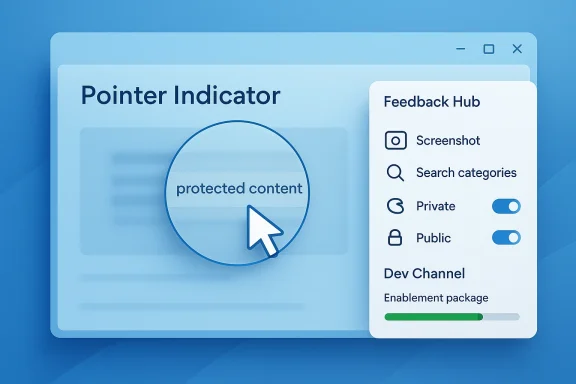
Windows 11 Insider Preview Build 26300.8085 (KB 5079483) is a small-but-telling Dev Channel release: it resumes the Pointer Indicator accessibility rollout, extends Windows Magnifier to protected content, and introduces a modernized Feedback Hub that looks designed to make Microsoft’s internal feedback loop faster, richer, and easier to scale. Just as importantly, the build continues to underscore the Dev Channel’s current identity: a living testbed for Windows 11 version 25H2, delivered as an enablement-package-based flight with Controlled Feature Rollout behavior rather than a single, monolithic software drop. For everyday Insiders, that means incremental change; for Microsoft, it means more telemetry, more A/B-style validation, and more room to refine features before they ever escape the preview lanes.
Microsoft’s Windows Insider program has long been more than a simple preview track. It is the company’s public experimentation engine, where features are tested in the wild, risks are surfaced earlier, and product direction can be adjusted before broad release. Over the last several cycles, the Dev Channel has become the most important place to observe Windows’ future direction because it increasingly mirrors the branch where Microsoft verifies servicing mechanics, feature toggles, and AI-assisted workflows before they are generalized to the wider Windows audience.
That context matters because Build 26300.8085 is not arriving into a vacuum. Microsoft has spent the past year normalizing a pattern in which Insider builds are not just about flashy new UI, but about the machinery behind the operating system: the feature delivery model, the way updates are staged, the feedback pathways, and the way accessibility and Copilot+ capabilities are layered into the shell. The cumulative effect is a Windows platform that is being shaped as much by rollout logic as by visible user-facing changes.
The build also lands in a Dev Channel that is explicitly tied to Windows 11, version 25H2 through an enablement package. That detail is important because it tells us Microsoft is treating this branch as a low-friction path to the next annual feature update, rather than a dramatic fork with a separate codebase identity. In practical terms, this usually means fewer disruptive transitions, faster servicing, and a stronger emphasis on iterative features that can be switched on or off remotely.
Historically, the specific features highlighted in this build also fit Microsoft’s broader accessibility arc. The Pointer Indicator feature first appeared in the Insider pipeline before being disabled and later revisited, which is typical of a feature that was deemed promising but not yet ready for long-term exposure. Similarly, the modern Feedback Hub reflects a recurring Microsoft pattern: when a platform matures, the company eventually turns inward and optimizes the tooling it uses to hear from users, because feedback volume is only useful if the submission process is not cumbersome.
Just beneath the surface, this update says something broader about Windows in 2026. Microsoft is still balancing three constituencies at once: consumers who want polish, enterprises that want predictability, and power users who want the future now. A Dev Channel build like 26300.8085 is essentially Microsoft’s attempt to satisfy all three without letting any one group dictate the pace.
The Pointer Indicator rollout is a good example. Low-vision users benefit from a cursor locator that is easy to enable and quick to toggle, and Microsoft’s inclusion of the keyboard shortcut reinforces the idea that accessibility should feel native rather than bolted on. The update also suggests Microsoft is comfortable revisiting features that were previously paused or removed from circulation, which is a healthy sign for any preview program built around experimentation.
The Windows Magnifier change is even more significant than it sounds. The ability to magnify protected content closes a practical gap for accessibility users who may need to inspect secured or sensitive material without losing context. That’s the sort of improvement that tends to matter more in real-world usage than in demo decks, because it addresses an everyday frustration that can quietly exclude users from core workflows.
Meanwhile, the new Feedback Hub is a signal that Microsoft wants better-quality input, not merely more input. A cleaner submission flow, faster navigation, private/public feedback options, and stronger screenshot tooling all point to a system designed to reduce friction between the tester and the engineering team. In a preview ecosystem where telemetry is abundant but human explanation still matters, that is a meaningful investment.
The reliability fixes are also worth noting even though they are not glamorous. Problems like duplicate Wi-Fi entries, fragile input flyouts, and voice typing configuration issues may seem minor in isolation, but they affect confidence in the platform. Microsoft knows that preview users often judge a build by whether it feels solid, not just by whether it contains a new feature label.
Build 26300.8085 reflects that evolution. Microsoft’s reminder that features may arrive gradually depending on the “toggle” is not just a convenience note; it is part of the operating model. Users who enable the latest updates are effectively volunteering for a more aggressive, more experimental feed, while everyone else gets a slower drip. That distinction gives Microsoft a richer set of data and a safer way to validate changes under real-world conditions.
This matters because Windows is no longer a static product with a single release cadence. It is a continuous delivery platform, and the Dev Channel is one of the places where the company rehearses how to ship continuously without exhausting users’ patience. That is why a build like 26300.8085 is about timing, targeting, and trust as much as it is about actual feature content.
For enterprises, this is good news because it suggests a more manageable transition. For consumers, it usually means fewer surprises and a better chance that new features can be layered in gradually rather than forcing a big-bang reboot of workflows.
The pointer indicator setting is simple in concept: help users find the cursor more easily, and make the experience fast to enable. Yet the practical significance is larger. Cursor visibility is central to navigating Windows, and even a modest improvement can reduce fatigue, improve precision, and make a system feel more usable across a broader range of users.
The shortcut Win + Ctrl + Shift + X also deserves attention because it gives power users and accessibility users a fast way to control the feature without diving into settings. A keyboard-first toggle is often a better accessibility story than a menu-only option because it works under more circumstances and reduces the number of steps required to recover usability.
That is especially relevant in enterprise environments, where users often work with protected documents, secure apps, or managed content. A more capable Magnifier can therefore have impact far beyond consumer convenience; it can directly influence how usable secure workflows are for employees who rely on magnification tools.
The redesign emphasizes a simpler, more modern workflow. Microsoft is consolidating feedback into a unified template, improving category search, moving My Feedback into the navigation pane, and replacing the broader “All feedback” concept with Community feedback. The result is an experience that should feel more direct and less cluttered, especially for Insiders who submit feedback frequently.
The new private or public feedback option is another thoughtful addition. Some feedback is best shared broadly because it helps other Insiders validate the same issue. Other feedback is more useful when kept private, either because it involves sensitive context or because the user simply wants to report a specific problem without turning it into a public discussion.
That is especially valuable in a channel like Dev, where features may be partially rolled out or conditionally enabled. In such cases, the visual state of the UI often tells engineers more than the raw text of the report.
The Network and Sharing Center fix, for example, addresses a confusing display issue where two Wi-Fi connections could appear active after a switch. For most users, that may look like a cosmetic bug. For troubleshooting, however, clarity matters enormously, and incorrect state reporting can waste time or lead users down the wrong diagnostic path.
The same logic applies to input flyouts more broadly. If the shell hesitates, flickers, or crashes at the moment a user is trying to type or dictate, the experience breaks trust. Microsoft’s decision to tighten these areas indicates it is still actively pressure-testing the modern Windows input stack.
That is a small fix with a practical consequence: it helps keep Windows predictable in the places where people notice when it is not.
That governance angle matters. As AI features proliferate, users and administrators need ways to constrain what the OS can recommend, surface, or automate. A settings page that governs app-derived actions is therefore not just a convenience feature; it is a trust feature.
This is the kind of control enterprise IT teams will care about, but consumers benefit too. The more AI-inflected Windows becomes, the more important it is that users can decide what participates in those experiences.
That pairing is not accidental. Voice interaction, intelligent actions, and accessibility tooling all depend on input systems that understand intent, context, and preference. Windows is being nudged toward an environment where those systems are more responsive, more local, and more configurable.
The Feedback Hub redesign is especially interesting in enterprise contexts because it may encourage better bug reporting from technical users and pilot groups. If Microsoft can make feedback capture less annoying, organizations participating in the Insider Program may produce more actionable reports, which helps everyone downstream.
Accessibility changes also have compliance and inclusion value. Enterprises increasingly need to ensure the platform is usable by a wider set of employees, and small enhancements to cursor visibility and magnification can have outsized workforce impact.
Consumers often underestimate how much platform quality depends on these “plumbing” changes. A slick UI does not matter much if core input features feel inconsistent, if reporting bugs is cumbersome, or if a basic accessibility tool does not handle protected content gracefully.
And if you are the sort of enthusiast who installs Dev Channel builds to see where Windows is headed, this release gives you a good read on Microsoft’s priorities: accessibility first, gradual rollout second, visual polish third.
That belief is important because the Windows Insider Program depends on goodwill. Microsoft cannot sustain public testing if the experience feels burdensome or disconnected from the final product.
The most interesting thing to watch now is not whether every feature in this build becomes permanent. It is whether Microsoft can keep the Dev Channel feeling both experimental and trustworthy at the same time. That balance is difficult, but if the company gets it right, Insiders will see a more responsive Windows experience and Microsoft will get the data it needs to refine the platform more intelligently.
Source: Microsoft - Windows Insiders Blog Announcing Windows 11 Insider Preview Build 26300.8085 (Dev Channel)
 Background
Microsoft’s Windows Insider program has long been more than a simple preview track. It is the company’s public experimentation engine, where features are tested in the wild, risks are surfaced earlier, and product direction can be adjusted before broad release. Over the last several cycles, the Dev Channel has become the most important place to observe Windows’ future direction because it increasingly mirrors the branch where Microsoft verifies servicing mechanics, feature toggles, and AI-assisted workflows before they are generalized to the wider Windows audience.That context matters because Build 26300.8085 is not arriving into a vacuum. Microsoft has spent the past year normalizing a pattern in which Insider builds are not just about flashy new UI, but about the machinery behind the operating system: the feature delivery model, the way updates are staged, the feedback pathways, and the way accessibility and Copilot+ capabilities are layered into the shell. The cumulative effect is a Windows platform that is being shaped as much by rollout logic as by visible user-facing changes.
The build also lands in a Dev Channel that is explicitly tied to Windows 11, version 25H2 through an enablement package. That detail is important because it tells us Microsoft is treating this branch as a low-friction path to the next annual feature update, rather than a dramatic fork with a separate codebase identity. In practical terms, this usually means fewer disruptive transitions, faster servicing, and a stronger emphasis on iterative features that can be switched on or off remotely.
Historically, the specific features highlighted in this build also fit Microsoft’s broader accessibility arc. The Pointer Indicator feature first appeared in the Insider pipeline before being disabled and later revisited, which is typical of a feature that was deemed promising but not yet ready for long-term exposure. Similarly, the modern Feedback Hub reflects a recurring Microsoft pattern: when a platform matures, the company eventually turns inward and optimizes the tooling it uses to hear from users, because feedback volume is only useful if the submission process is not cumbersome.
Just beneath the surface, this update says something broader about Windows in 2026. Microsoft is still balancing three constituencies at once: consumers who want polish, enterprises that want predictability, and power users who want the future now. A Dev Channel build like 26300.8085 is essentially Microsoft’s attempt to satisfy all three without letting any one group dictate the pace.
Overview
At first glance, Build 26300.8085 looks modest. It does not headline a dramatic redesign, a large Copilot reinvention, or a sweeping shell change. Instead, it focuses on a handful of targeted improvements: accessibility, feedback tooling, and reliability fixes. But that restraint is revealing, because the most strategically important updates in Windows are often the ones that improve the platform’s operational quality rather than its visual novelty.The Pointer Indicator rollout is a good example. Low-vision users benefit from a cursor locator that is easy to enable and quick to toggle, and Microsoft’s inclusion of the keyboard shortcut reinforces the idea that accessibility should feel native rather than bolted on. The update also suggests Microsoft is comfortable revisiting features that were previously paused or removed from circulation, which is a healthy sign for any preview program built around experimentation.
The Windows Magnifier change is even more significant than it sounds. The ability to magnify protected content closes a practical gap for accessibility users who may need to inspect secured or sensitive material without losing context. That’s the sort of improvement that tends to matter more in real-world usage than in demo decks, because it addresses an everyday frustration that can quietly exclude users from core workflows.
Meanwhile, the new Feedback Hub is a signal that Microsoft wants better-quality input, not merely more input. A cleaner submission flow, faster navigation, private/public feedback options, and stronger screenshot tooling all point to a system designed to reduce friction between the tester and the engineering team. In a preview ecosystem where telemetry is abundant but human explanation still matters, that is a meaningful investment.
The reliability fixes are also worth noting even though they are not glamorous. Problems like duplicate Wi-Fi entries, fragile input flyouts, and voice typing configuration issues may seem minor in isolation, but they affect confidence in the platform. Microsoft knows that preview users often judge a build by whether it feels solid, not just by whether it contains a new feature label.
Why This Build Matters
Build 26300.8085 matters because it reinforces three trends at once. It shows Microsoft is still investing in accessibility, it is still tightening feedback loops, and it is still using the Dev Channel as a place to validate controlled rollouts before wider exposure. Those are not separate priorities; together, they define how Windows is being evolved in the 25H2 era.- It keeps accessibility visible as a first-class Windows investment.
- It treats feedback infrastructure as product surface area, not back-office plumbing.
- It continues the move toward gradual, toggle-driven deployment.
- It uses small fixes to improve trust in preview quality.
- It maintains the Dev Channel’s role as a proving ground for future releases.
The Dev Channel’s Current Identity
The Dev Channel used to be easier to summarize: it was simply the place where new Windows features appeared early. That description is now too narrow. Today it is a channel for testing not just features, but delivery models, servicing assumptions, and staged rollouts that can be monitored and adjusted in near real time.Build 26300.8085 reflects that evolution. Microsoft’s reminder that features may arrive gradually depending on the “toggle” is not just a convenience note; it is part of the operating model. Users who enable the latest updates are effectively volunteering for a more aggressive, more experimental feed, while everyone else gets a slower drip. That distinction gives Microsoft a richer set of data and a safer way to validate changes under real-world conditions.
Toggle-Driven Rollouts as Product Strategy
The toggle is a deceptively small UI element with outsized strategic importance. It lets Microsoft split the audience inside a single flight, which makes it easier to compare behavior across cohorts and identify regressions before they spread. It also gives enthusiasts a clear signal that they are opting into the sharp end of experimentation, not just installing updates blindly.This matters because Windows is no longer a static product with a single release cadence. It is a continuous delivery platform, and the Dev Channel is one of the places where the company rehearses how to ship continuously without exhausting users’ patience. That is why a build like 26300.8085 is about timing, targeting, and trust as much as it is about actual feature content.
The Meaning of 25H2
Microsoft’s note that the Dev Channel is based on Windows 11 version 25H2 via an enablement package tells us the branch is being aligned with an annual feature release pattern that is meant to minimize upheaval. Enablement packages generally allow Microsoft to activate features that already exist in the underlying servicing branch, reducing the need for a separate, heavyweight upgrade path.For enterprises, this is good news because it suggests a more manageable transition. For consumers, it usually means fewer surprises and a better chance that new features can be layered in gradually rather than forcing a big-bang reboot of workflows.
- Enablement packages usually mean lower-risk release transitions.
- Shared servicing branches can simplify validation for IT teams.
- Smaller deltas can improve reliability and adoption.
- The model supports gradual innovation rather than disruptive jumps.
- It gives Microsoft more room to gate features behind toggles.
Accessibility as a Core Windows Story
The return of Pointer Indicator is the headline accessibility story in Build 26300.8085, but the deeper story is that Microsoft keeps using Insiders to refine features that affect users with low vision and other accessibility needs. That is not accidental. Accessibility features often require iterative tuning because they sit at the intersection of design, hardware, and human perception.The pointer indicator setting is simple in concept: help users find the cursor more easily, and make the experience fast to enable. Yet the practical significance is larger. Cursor visibility is central to navigating Windows, and even a modest improvement can reduce fatigue, improve precision, and make a system feel more usable across a broader range of users.
Pointer Indicator Returns
Microsoft says the rollout is resuming, which is a subtle but important phrase. It implies the feature had already been in circulation, then paused, and is now being reintroduced after further work. That kind of stop-start cadence is typical in preview programs, and it usually means the feature had value but needed more refinement before broader exposure.The shortcut Win + Ctrl + Shift + X also deserves attention because it gives power users and accessibility users a fast way to control the feature without diving into settings. A keyboard-first toggle is often a better accessibility story than a menu-only option because it works under more circumstances and reduces the number of steps required to recover usability.
Magnifier and Protected Content
The change to Windows Magnifier is less visible but potentially more consequential in daily use. Protected content has always been a tricky edge case because accessibility tools need to interact with what is displayed without breaking security assumptions or content protections. If Microsoft gets this right, it improves the usability of software that otherwise might remain frustrating or partially inaccessible.That is especially relevant in enterprise environments, where users often work with protected documents, secure apps, or managed content. A more capable Magnifier can therefore have impact far beyond consumer convenience; it can directly influence how usable secure workflows are for employees who rely on magnification tools.
Accessibility Takeaways
- Pointer visibility remains one of the most practical accessibility enhancements.
- Fast toggles matter because they reduce friction under stress.
- Magnifier support for protected content expands real-world usefulness.
- Accessibility improvements often benefit all users, not just the target audience.
- Preview channels are where Microsoft can test these edge cases safely.
Feedback Hub Gets a Redesign
If the new Feedback Hub sounds like a small administrative update, that is only because feedback tools are easy to overlook. In reality, Microsoft is reshaping one of the most important inputs into the Windows development process. A better submission system means better diagnostics, more complete reports, and fewer user frustrations when trying to explain what went wrong.The redesign emphasizes a simpler, more modern workflow. Microsoft is consolidating feedback into a unified template, improving category search, moving My Feedback into the navigation pane, and replacing the broader “All feedback” concept with Community feedback. The result is an experience that should feel more direct and less cluttered, especially for Insiders who submit feedback frequently.
Why the New Experience Matters
Feedback systems succeed when they disappear into the background. The ideal user experience is not “wow, what a great feedback app”; it is “this took almost no effort, and Microsoft got exactly what it needed.” By shortening the path from problem discovery to submission, Microsoft improves the odds that important issues are described while the context is still fresh.The new private or public feedback option is another thoughtful addition. Some feedback is best shared broadly because it helps other Insiders validate the same issue. Other feedback is more useful when kept private, either because it involves sensitive context or because the user simply wants to report a specific problem without turning it into a public discussion.
Screenshot and Visual Reporting
The improved screenshot capture and review tooling may prove more important than any single navigation tweak. Visual evidence is often the difference between a vague bug report and an actionable engineering issue. When users can capture, annotate, and review screenshots more easily, Microsoft gets a better shot at reproducing the problem the first time.That is especially valuable in a channel like Dev, where features may be partially rolled out or conditionally enabled. In such cases, the visual state of the UI often tells engineers more than the raw text of the report.
Feedback Hub Highlights
- A single unified template should reduce friction.
- Searchable categories can help users find the right path faster.
- My Feedback in the nav pane should improve follow-up visibility.
- Community feedback can help Insiders discover related reports.
- Private/public visibility adds flexibility for different reporting needs.
Reliability Fixes That Actually Matter
Preview builds are often judged by what they add, but they are just as often remembered for what they break. That is why the reliability fixes in 26300.8085 deserve serious attention. They may not dominate headlines, yet they directly affect whether the build feels stable enough for daily use.The Network and Sharing Center fix, for example, addresses a confusing display issue where two Wi-Fi connections could appear active after a switch. For most users, that may look like a cosmetic bug. For troubleshooting, however, clarity matters enormously, and incorrect state reporting can waste time or lead users down the wrong diagnostic path.
Input and Shell Stability
The improvements to explorer.exe reliability when closing the input flyout, and to configuring fluid dictation in voice typing, are the kind of fixes that improve the subjective sense of quality. These are interaction points users hit repeatedly, which means even small reliability wins can have an outsized effect on how polished Windows feels.The same logic applies to input flyouts more broadly. If the shell hesitates, flickers, or crashes at the moment a user is trying to type or dictate, the experience breaks trust. Microsoft’s decision to tighten these areas indicates it is still actively pressure-testing the modern Windows input stack.
Network State and Administrative Clarity
The corrected Network and Sharing Center behavior is also useful for admins and support technicians. When a system reports the wrong active connection, troubleshooting becomes ambiguous, especially in environments where users hop between networks or use managed wireless configurations. A more accurate display reduces confusion and makes support outcomes more deterministic.That is a small fix with a practical consequence: it helps keep Windows predictable in the places where people notice when it is not.
- Better shell reliability reduces perceived flakiness.
- Accurate network state improves troubleshooting.
- Dictation stability matters for accessibility and productivity.
- Bug fixes in frequent workflows often outperform flashy features.
- Quiet reliability gains can have the biggest enterprise payoff.
Copilot+ and the Broader AI Layer
Although Build 26300.8085 is not packed with overt AI announcements, it still sits inside a broader Windows strategy that increasingly assumes the PC is becoming an intelligent, context-aware platform. Even the settings change for managing which apps Windows can recommend actions from on Copilot+ PCs points in that direction. Microsoft is steadily exposing more control surfaces around AI-assisted behaviors, which is exactly what happens when a platform transitions from novelty to governance.That governance angle matters. As AI features proliferate, users and administrators need ways to constrain what the OS can recommend, surface, or automate. A settings page that governs app-derived actions is therefore not just a convenience feature; it is a trust feature.
Managing Recommendations on Copilot+ PCs
The newly introduced settings page under Settings > Apps > Actions gives users a way to manage which apps Windows can recommend actions from. That sounds minor until you consider the implications for the broader Copilot+ experience. If an app is disabled there, related actions in Click to Do can be affected, which means Windows is moving toward a more policy-like model of feature exposure.This is the kind of control enterprise IT teams will care about, but consumers benefit too. The more AI-inflected Windows becomes, the more important it is that users can decide what participates in those experiences.
Voice Access and Language Expansion
The broader Dev Channel ecosystem around this build has also been steadily adding voice access enhancements, including more flexible command interpretation and language expansion. Even if those aren’t the central story in 26300.8085, they provide the context for why accessibility and AI keep appearing together in Microsoft’s roadmap.That pairing is not accidental. Voice interaction, intelligent actions, and accessibility tooling all depend on input systems that understand intent, context, and preference. Windows is being nudged toward an environment where those systems are more responsive, more local, and more configurable.
What the AI Direction Suggests
- Windows is moving toward context-aware actions.
- Users need more control over AI-related recommendations.
- Accessibility and AI are converging in practical ways.
- Local moderation and local execution reduce cloud dependence.
- Copilot+ features are becoming part of the core Windows control surface.
Enterprise Implications
For enterprises, Build 26300.8085 is less about novelty and more about the shape of Microsoft’s delivery model. The build reinforces that Dev Channel flights are being used to validate the next Windows servicing wave, with features delivered gradually and guarded by toggles. That can be useful for IT departments that want early visibility into what may come next, but it also creates a moving target that must be managed carefully.The Feedback Hub redesign is especially interesting in enterprise contexts because it may encourage better bug reporting from technical users and pilot groups. If Microsoft can make feedback capture less annoying, organizations participating in the Insider Program may produce more actionable reports, which helps everyone downstream.
Why IT Teams Should Care
The feature mix in 26300.8085 suggests Microsoft is still focused on the quality of friction points in Windows, not just headline features. Network state accuracy, dictation reliability, and shell stability all matter to IT because they affect help desk load and user satisfaction. Every small fix in those areas can reduce ticket volume or at least reduce the ambiguity behind tickets.Accessibility changes also have compliance and inclusion value. Enterprises increasingly need to ensure the platform is usable by a wider set of employees, and small enhancements to cursor visibility and magnification can have outsized workforce impact.
Preview Builds as Operational Intelligence
A mature IT organization can learn a great deal from Dev Channel behavior. Not because the build should be deployed broadly, but because it reveals where Microsoft is spending engineering attention. If accessibility, feedback tooling, and input reliability are getting this level of attention, then those are likely to remain strategic areas in the next Windows release cycle.- Dev Channel builds act as early warning signals for IT.
- Accessibility improvements can reduce support burden.
- Better feedback tooling can improve pilot validation.
- Controlled rollouts mirror how enterprises stage change.
- Stability fixes help predict the direction of future servicing.
Consumer Impact
For consumers, the headline is simpler: Windows is becoming a little more accessible, a little more navigable, and a little more self-aware about how feedback is collected. The pointer indicator and magnifier improvements are the most directly usable features here, while the Feedback Hub redesign is the kind of behind-the-scenes change that makes participation in the Insider Program less annoying.Consumers often underestimate how much platform quality depends on these “plumbing” changes. A slick UI does not matter much if core input features feel inconsistent, if reporting bugs is cumbersome, or if a basic accessibility tool does not handle protected content gracefully.
Everyday Use Cases
If you are a low-vision user, the cursor indicator can make Windows easier to use in a very literal sense. If you use Magnifier frequently, support for protected content can remove a recurring annoyance. If you file feedback regularly, the new Hub may make it easier to do so without feeling like you are fighting the tool itself.And if you are the sort of enthusiast who installs Dev Channel builds to see where Windows is headed, this release gives you a good read on Microsoft’s priorities: accessibility first, gradual rollout second, visual polish third.
The Insider Experience Itself
There is also a consumer psychology angle here. Preview users are more forgiving when they feel they are part of a meaningful feedback loop. A modern Feedback Hub makes that loop feel real. When the reporting process is simpler and the interface looks current, users are more likely to believe their input matters.That belief is important because the Windows Insider Program depends on goodwill. Microsoft cannot sustain public testing if the experience feels burdensome or disconnected from the final product.
Strengths and Opportunities
The most important strength of Build 26300.8085 is that it stays focused. Instead of overloading the Dev Channel with a sprawling feature dump, Microsoft is tightening areas that influence usability, accessibility, and feedback quality. That kind of discipline suggests the company is thinking carefully about what Windows needs to be before the next broad release wave.- Accessibility remains central, not peripheral.
- Pointer Indicator and Magnifier improvements have clear real-world value.
- The new Feedback Hub can improve report quality and user participation.
- Reliability fixes target frequent, high-friction workflows.
- The 25H2 enablement model supports smoother servicing.
- Toggle-based rollout gives users more control over risk.
- The build reflects a more mature, iterative Windows engineering model.
Risks and Concerns
The challenge with Dev Channel builds is that they are inherently unstable, even when they look polished on paper. Microsoft’s own reminder that features may change, disappear, or never ship beyond Insiders is not just boilerplate; it is a warning that what looks promising today may be revised tomorrow. For users who expect consistency, that can be frustrating.- Features may be removed or replaced before release.
- Toggle-based rollouts can create uneven user experiences.
- Accessibility features may still have edge-case bugs.
- The Feedback Hub redesign could confuse long-time users at first.
- Dev Channel changes may not represent the final product.
- Some improvements may remain limited to specific hardware classes.
- Preview stability issues can still affect daily productivity.
Looking Ahead
Build 26300.8085 is not a “big bang” release, but it is a useful indicator of where Microsoft wants Windows to go next. The company is clearly investing in the parts of the OS that make experimentation sustainable: accessibility, input reliability, feedback capture, and phased feature exposure. That is the kind of foundation that matters if Windows 11 version 25H2 is meant to arrive as a comparatively smooth update rather than a disruptive overhaul.The most interesting thing to watch now is not whether every feature in this build becomes permanent. It is whether Microsoft can keep the Dev Channel feeling both experimental and trustworthy at the same time. That balance is difficult, but if the company gets it right, Insiders will see a more responsive Windows experience and Microsoft will get the data it needs to refine the platform more intelligently.
- Watch for broader rollout of Pointer Indicator.
- Track whether the Feedback Hub design changes again based on Insider response.
- Monitor whether Magnifier’s protected-content support expands further.
- Look for additional Copilot+ settings controls around AI actions.
- Pay attention to how quickly reliability fixes move from Dev to Beta.
- Observe whether 25H2 continues to behave like a low-friction enablement release.
Source: Microsoft - Windows Insiders Blog Announcing Windows 11 Insider Preview Build 26300.8085 (Dev Channel)
Last edited: