

Microsoft has pushed a fresh Canary-channel preview — Windows 11 Insider Preview Build 28020.1362 (KB 5073095) — that pairs visible UX polish with a broad set of device-gated, Copilot+ AI features and a raft of stability fixes targeted at common File Explorer, Taskbar, and sign‑in problems. The release continues Microsoft’s phased approach of shipping platform binaries broadly while enabling user-facing experiences selectively via server-side flags and OEM entitlements, meaning what you see on your PC will depend on hardware, drivers, and the rollout cohort.
Windows Insider Canary builds are the bleeding edge of Windows development: they contain early platform changes and experimental features that may never ship to general customers. Microsoft has increasingly used a model where the same binary is distributed broadly while features are turned on per-device using Controlled Feature Rollout (CFR). That lets Microsoft test new ideas across many systems without forcing every user to see every change at once. Expect a mixed experience across devices: some Copilot+ AI features will appear only on eligible hardware and some UI tweaks will be rolled out gradually.
This particular update pairs several visible additions — expanded Full Screen Experience (FSE) for handheld gaming, the Click to Do context menu updates, broader support for Windows Studio Effects on alternate cameras, and File Explorer dark‑mode polish — with important fixes for reliability and responsiveness across Explorer, Settings, the taskbar, and sign‑in flows. Many items are staged, and the update also includes non‑security reliability work to address LSASS instabilities that previously affected sign‑in reliability.
For Insiders and IT teams the best approach is conservative: pilot broadly representative hardware, validate authentication and driver interactions, measure battery/thermal behavior for Studio Effects, and document support paths for the mixed configurations you will inevitably see while Microsoft experiments with these features. The update presents clear forward progress, but it’s one step in a longer rollout — expect the experience to evolve as Microsoft gathers feedback and toggles features on or off for broader audiences.
Source: Microsoft - Windows Insiders Blog Announcing Windows 11 Insider Preview Build 28020.1362 (Canary Channel)
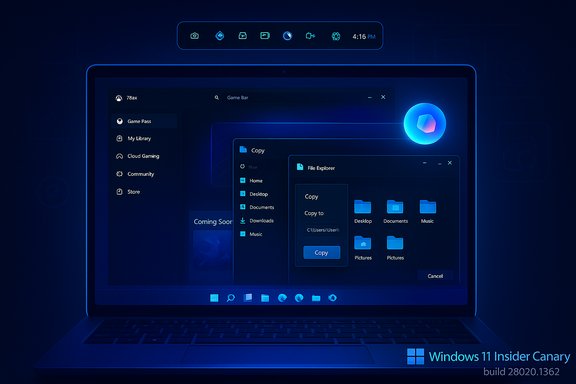 Background / Overview
Windows Insider Canary builds are the bleeding edge of Windows development: they contain early platform changes and experimental features that may never ship to general customers. Microsoft has increasingly used a model where the same binary is distributed broadly while features are turned on per-device using Controlled Feature Rollout (CFR). That lets Microsoft test new ideas across many systems without forcing every user to see every change at once. Expect a mixed experience across devices: some Copilot+ AI features will appear only on eligible hardware and some UI tweaks will be rolled out gradually.This particular update pairs several visible additions — expanded Full Screen Experience (FSE) for handheld gaming, the Click to Do context menu updates, broader support for Windows Studio Effects on alternate cameras, and File Explorer dark‑mode polish — with important fixes for reliability and responsiveness across Explorer, Settings, the taskbar, and sign‑in flows. Many items are staged, and the update also includes non‑security reliability work to address LSASS instabilities that previously affected sign‑in reliability.
What’s new — feature highlights
Full Screen Experience (FSE): console‑style mode expands to more handhelds
- Microsoft is rolling FSE out to additional Windows 11 handheld devices beyond the ASUS ROG Ally and ROG Ally X. FSE is a session posture that launches a chosen home app (commonly the Xbox PC app) full‑screen at sign‑in, mutes many desktop ornaments, and applies controller‑first navigation to give a console‑like experience while preserving Windows kernel and driver behavior. This reduces desktop overhead and can free runtime resources on thermally constrained hardware.
- Why it matters: FSE keeps anti‑cheat, DRM, and GPU driver models intact because it’s implemented in userland as a layered shell rather than as a separate OS. On tuned handhelds testers have observed measurable memory savings (commonly cited in the 1–2 GB range), though specific gains vary by device, software, and installed background services — Microsoft does not publish a single universal “GB saved” guarantee, so treat empirical numbers as device‑specific observations.
- How to enable: Settings > Gaming > Full screen experience, choose Xbox (or another supported home app), and optionally set FSE to start on boot. Entry and exit points include Task View, Game Bar, and keyboard/controller shortcuts. Note that OEM entitlements or firmware updates may be required before the toggle appears on some systems.
Click to Do: faster contextual actions on Copilot+ PCs
- The Click to Do context menu on Copilot+ machines is being simplified and streamlined so common actions — Copy, Save, Share, Open — are easier to find and use. The menu can automatically surface when a large image or table is detected on screen to speed workflows. This is part of Microsoft’s ongoing effort to integrate lightweight Copilot-driven actions into system surfaces. These changes are staged for Copilot+ devices.
Agent‑driven Settings: smarter search and inline recommended actions
- Settings gains an inline agent action surface for Recommended Settings and improved search flyouts that show more results and let you modify settings directly from the search pane. Where settings can’t be adjusted inline, the agent explains why and offers actionable next steps. This is rolling out on Copilot+ PCs and illustrates Microsoft’s push to embed assistant‑style workflows deeper into OS management interfaces.
Windows Studio Effects on additional cameras (Copilot+ devices)
- On supported Copilot+ hardware, Windows Studio Effects — the on‑device AI camera enhancements — can be applied to an additional camera (for example, an external USB webcam or a laptop’s rear camera). This removes a longstanding limitation that often confined Studio Effects to the built‑in front-facing camera and benefits users who prefer higher‑quality external webcams for meetings and content creation. The feature requires a compatible NPU and OEM driver support; availability is staged and vendor-dependent.
- How to enable: Settings > Bluetooth & devices > Cameras, select the camera, then in Advanced camera options toggle Use Windows Studio Effects. Effects can be adjusted from the camera page or the taskbar quick settings once enabled. Expect battery and thermal impact on laptops when high‑cost effects are active.
Drag Tray / Nearby sharing improvements
- Drag Tray gains multi‑file sharing, smarter suggested target apps/folders, and seamless movement into a chosen folder. Microsoft also added a user-facing toggle to enable/disable Drag Tray: Settings > System > Nearby sharing. This opt‑out addresses user feedback that the Drag Tray could be intrusive in professional workflows. Availability is staged.
File Explorer dark mode and quick actions
- File Explorer sees targeted dark‑mode polish for copy/move/delete dialogs, progress bars, chart views, and many confirmation/error dialogs so the dark theme experience is more visually consistent. The File Explorer Home hover experience has been extended to Entra ID (work/school) accounts for Copilot+ PCs — quick actions like Open file location and Ask Copilot appear when hovering over files (not available in some markets, notably the EEA).
Input, pens, and keyboards
- Microsoft is migrating more keyboard settings from Control Panel into Settings (character repeat delay/rate and cursor blink rate), improving HID keyboard backlight performance on compatible hardware, enabling AltGr behavior for Arabic 101/102 layouts (including Saudi Riyal symbol mapping), and adding haptic feedback for pens that support it in certain system UI interactions. These are usability improvements that tidy longstanding gaps between legacy Control Panel options and modern Settings.
OneDrive, Game Pass branding, and Quick Machine Recovery
- OneDrive iconography is refreshed in Accounts and Settings homepages; Game Pass references were altered to reflect updated branding and benefits; Quick Machine Recovery (QMR) behavior was adjusted so a one‑time scan runs with certain settings enabled and directs users to recovery options when fixes aren’t immediately found. These are incremental but practical UX updates.
Notable fixes and reliability work
This build contains many fixes across system areas that matter to daily stability:- File Explorer: fixes for missing thumbnails in certain video EXIF cases, elimination of an old white toolbar, context menu behavior corrections, extraction failures for very large archives, and unresponsive Home view issues.
- Settings: fixes for navigation hangs in Network & Internet, search bar overlap issues, and truncated processor names on the About page.
- Taskbar and Start: resolution of auto‑hide toggles resetting, scaled taskbar icon anomalies, and taskbar preview selection not bringing windows forward. Windows Search panel sizing was adjusted to match a revised Start menu for Insiders on the new Start.
- Display, graphics, and performance: improved monitor mode queries to avoid stutters on high‑resolution displays, fixes for brightness slider regressions on all‑in‑one PCs, and corrected false “Unsupported graphics card detected” messages in some games.
- Login/lock screen and Narrator: fixes for slow first‑time sign‑in, taskbar loading delays after sleep, slideshow lock screen memory leak, and resolved abrupt narrator pauses during continuous reading in Word docs.
- Windows Update: fixed scenarios where “Update and shutdown” failed to shut down, and fixes for specific upgrade error codes when moving channels.
Deep dive — what the FSE architecture means for handheld gaming
The Full Screen Experience is one of the more consequential UX experiments in recent Insider builds because it reframes how Windows presents itself on handheld devices:- It's a session posture: FSE does not alter kernel, GPU driver models, or anti‑cheat/DRM kernels. Those remain active and required. Instead, FSE changes which user‑mode components and services run at session start, deferring non‑essential desktop subsystems to preserve memory and reduce background CPU wakeups. This choice reduces technical risk to compatibility with existing games and launchers while delivering a console‑like UX.
- Controller-first UX and multitasking: the interface is reorganized for thumb navigation, a controller‑friendly Task View lets users maintain multiple games as separate full‑screen entries, and the Game Bar is elevated. This matters for handhelds where touch and keyboard are not the default input.
- Practical impact: users will see faster pick‑up‑and‑play sessions and potential runtime headroom for games on thermally constrained devices. However, the actual gains vary by installed software, background services, and OEM firmware. Reported memory reclamation figures (commonly 1–2 GB) are empirical and device‑specific; rely on measured results on your own hardware rather than headline numbers.
- OEM gating: Microsoft distributes the plumbing in Windows but OEMs often need to provide firmware, driver, and button‑mapping updates for a smooth, fully‑supported FSE. Expect staggered availability by vendor and model.
Security, privacy, and compliance considerations
- Hardware‑gated AI features: Windows Studio Effects depend on on‑device NPUs and OEM drivers. That reduces cloud privacy risk because effects run locally, but it places new demands on driver distribution, firmware updates, and hardware validation. Enterprises should inventory Copilot+ eligible devices before enabling these features broadly.
- LSASS and sign‑in stability: the build includes a non‑security LSASS remediation to address access‑violation conditions that could affect sign‑in reliability. This fix is important for organizations running pilot deployments; it also highlights that early Insider builds can include changes that affect core authentication paths, so staged testing is prudent.
- Market limitations and regulation: some features (for example, certain sharing experiences) are not available in the European Economic Area or other markets for regulatory reasons. Enterprises with cross‑border deployments should validate availability against local compliance needs.
- Data collection and assistant features: Click to Do and agents in Settings surface assistant actions and contextual results. While these are powerful productivity tools, administrators should confirm any telemetry or service dependencies before enabling them at scale. If uncertain, limit rollout to pilot groups.
Practical guidance — how Insiders and admins should proceed
- Check eligibility and prerequisites:
- Confirm your device is enrolled in the Canary (or appropriate Insider) channel and verify the build number via winver. Expect that some Copilot+ features require specific hardware (NPU) and OEM drivers.
- Pilot before broad deployment:
- Use a representative set of machines (Copilot+ and non‑Copilot, touch and non‑touch, handhelds and desktops) to validate battery, thermal, and driver behavior with Studio Effects and FSE enabled. Collect power draw and thermal metrics for battery‑sensitive devices.
- Validate authentication paths and recovery:
- Because this release includes LSASS stability work and changes to sign‑in flows, validate Windows Hello and sign‑in options in pilot rings. Keep recovery paths ready (system restore points, image backups) before wider deployment.
- Update OEM drivers and firmware:
- For managed fleets, coordinate with OEMs for platform and camera driver updates required to unlock Studio Effects and FSE entitlements. Without vendor updates the UI toggles may remain hidden.
- Use Settings paths and new controls:
- Remember the new Settings locations for migrated Control Panel options (keyboard repeat/cursor blink). The Drag Tray opt‑out is exposed at Settings > System > Nearby sharing. Studio Effects toggles for alternate cameras are in Settings > Bluetooth & devices > Cameras → Advanced camera options.
Strengths and what to like
- Focused, practical polish: the build doubles down on high‑value UI polish (File Explorer dark mode, copy/move dialogs, thumbnail fixes) that materially improves daily usability for many Insiders. These are the kind of small fixes that add up to a noticeably smoother experience.
- Device‑aware AI rollout: extending Studio Effects to external cameras solves a frequent pain point for hybrid workers and creators who prefer USB webcams, and doing this on‑device preserves privacy compared with cloud‑only solutions. The hardware gating reduces the attack surface and aligns features to capable devices.
- Pragmatic FSE design: by implementing FSE as a session posture rather than an OS fork, Microsoft preserves compatibility across the PC gaming ecosystem while delivering a console‑like UX for handhelds. This lowers the risk of breaking anti‑cheat or DRM systems.
Risks, limitations, and open questions
- Staged availability complicates support: because features are enabled gradually and are hardware/driver gated, IT support documentation may need to account for mixed configurations where some users see features and others do not. This can increase helpdesk overhead.
- Battery and thermal impact for on‑device AI: Windows Studio Effects run on local NPUs and can increase power draw on portable devices. Expect measurable battery life and thermal effects on laptops; teams should test realistic workloads before broad enablement.
- Canary instability and rollback cost: Canary channel builds can be unstable. Exiting the Canary channel to return to a lower channel typically requires a clean install of Windows 11, which is a non‑trivial operation for managed devices. Plan pilots and backups accordingly.
- Unverifiable performance claims: statements such as “FSE reclaims X GB of RAM” are often the product of hands‑on reporting and will vary by device. Microsoft’s documentation describes resource reductions but does not publish a one‑size‑fits‑all numeric guarantee. Treat any specific reclaimed‑memory figure as empirical and device‑specific rather than an absolute.
- Market and regulatory exclusions: certain features (sharing options, some Copilot experiences) may not be available in the EEA or other markets; this can complicate global deployments. Confirm availability for each target market.
Quick checklist for enthusiasts and admins
- Confirm build: Run winver and verify you’re on Build 28020.1362 (Canary) if you expect the KB 5073095 changes. If you don’t see planned features, check OEM driver availability and whether your device is Copilot+ eligible.
- To try FSE:
- Settings > Gaming > Full screen experience.
- Set Xbox (or preferred home app) as home app and optionally enable start on boot.
- Enter FSE via Task View, Game Bar, or configured shortcut.
- To enable Studio Effects on an alternate camera:
- Settings > Bluetooth & devices > Cameras.
- Select the camera → Advanced camera options → Toggle Use Windows Studio Effects.
- To disable Drag Tray:
- Settings > System > Nearby sharing.
- Toggle Drag Tray off if enabled for your device.
- Keep recovery options ready: create restore points or disk images before installing Canary updates on production or mission‑critical devices. Canary builds can include experimental fixes that may change core behaviors.
Conclusion
Build 28020.1362 (KB 5073095) continues Microsoft’s twin strategy of incremental UX polish and device‑gated AI feature expansion. The release delivers meaningful day‑to‑day improvements (File Explorer dark mode fixes, Drag Tray controls, Click to Do refinements) while expanding ambitious Copilot+ functionality like Windows Studio Effects for alternate cameras and the Xbox Full Screen Experience on more handhelds. These are pragmatic and useful updates for power users and creators — provided you accept the Canary channel’s tradeoffs: staged rollouts, hardware gating, and the potential for instability that demands careful piloting.For Insiders and IT teams the best approach is conservative: pilot broadly representative hardware, validate authentication and driver interactions, measure battery/thermal behavior for Studio Effects, and document support paths for the mixed configurations you will inevitably see while Microsoft experiments with these features. The update presents clear forward progress, but it’s one step in a longer rollout — expect the experience to evolve as Microsoft gathers feedback and toggles features on or off for broader audiences.
Source: Microsoft - Windows Insiders Blog Announcing Windows 11 Insider Preview Build 28020.1362 (Canary Channel)
