

Microsoft has pushed Windows 11 Insider Preview Build 28020.1362 (KB5073095) to the Canary Channel, a compact but consequential flight that widens the Xbox-led Full Screen Experience, tightens Copilot-driven interactions, and delivers a raft of File Explorer, Settings, and peripheral refinements aimed at gamers, Creators, and Copilot+ PC owners.
Windows Insider Canary builds are the laboratory where Microsoft trials bold UI and platform ideas before they mature (or sometimes disappear). This build follows earlier preview flights that introduced the Full Screen Experience and Copilot integration in Windows 11’s 25H2 preview stream, and it continues Microsoft's strategy of iterating features via staged rollouts and OEM gating. The Canary Channel remains the most experimental stream, so features in KB5073095 are best treated as in‑progress and subject to change.
For Canary Insiders and early testers, KB5073095 is worth installing to preview Microsoft’s next steps for gaming, AI‑driven UI, and integration between phones and PCs — provided it is evaluated with appropriate safeguards (backups, pilot rings, and careful testing of anti‑cheat and enterprise sign‑in flows).
KB5073095 keeps the momentum of the Windows 11 preview cycle moving: pragmatic UI polish, targeted AI integration on Copilot+ hardware, and a more complete gaming posture for handhelds. The build is not a single transformational update, but it is a meaningful incremental step that tightens the seams between gaming, productivity, and AI‑augmented interactions on Windows 11.
Source: Windows Report New Windows 11 Canary Update KB5073095 Adds Big UI and Gaming Improvements
 Background
Windows Insider Canary builds are the laboratory where Microsoft trials bold UI and platform ideas before they mature (or sometimes disappear). This build follows earlier preview flights that introduced the Full Screen Experience and Copilot integration in Windows 11’s 25H2 preview stream, and it continues Microsoft's strategy of iterating features via staged rollouts and OEM gating. The Canary Channel remains the most experimental stream, so features in KB5073095 are best treated as in‑progress and subject to change. Why this update matters now
- It expands the Full Screen Experience (FSE) to more handhelds — a tangible sign that Microsoft is doubling down on console‑style, controller‑first UX for portable Windows gaming.
- It rolls forward several Copilot+ PC features (Click to Do, Agent‑driven Settings, Studio Effects) that change how AI and system UI interact in day‑to‑day workflows.
- It polishes core areas users touch most often: File Explorer dark mode, Drag Tray sharing, Settings/mobile device integration and small but meaningful Paint and OneDrive UI updates.
What’s new in Build 28020.1362 (KB5073095) — the headline features
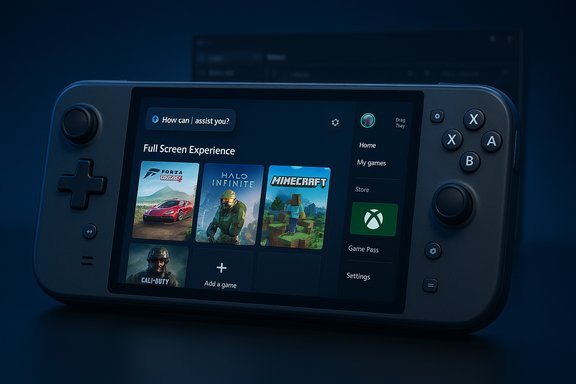
Full Screen Experience (FSE): console‑style gaming on more handhelds
Microsoft has broadened the Full Screen Experience — the Xbox app‑centered shell that behaves like a console launcher — to additional handheld gaming PCs beyond the ASUS ROG Ally family. When enabled, FSE reduces desktop background activity, prioritizes runtime resources for games, and presents a controller‑friendly UI as the primary session surface. The setting lives at Settings > Gaming > Full screen experience and can be configured to start on login.- Benefits: reduced background noise, improved responsiveness on thermally constrained handheld APUs, and a simplified launch flow that aggregates games from multiple storefronts.
- Limits: FSE is a session posture, not a replacement OS — kernel, drivers, DRM and anti‑cheat modules still operate as usual. Performance gains depend heavily on device configuration, driver maturity, and which background services are present. Early community tests show directional improvements (sometimes reclaiming ~1–2 GB of RAM in favorable cases), but results vary. Treat headline uplift numbers as contextual rather than universal.
Click to Do and Agent in Settings: Copilot+ PC refinements
KB5073095 tightens Copilot‑centric workflows:- Click to Do now surfaces a streamlined context menu (Copy, Save, Share, Open) automatically when Windows detects large images or tables, reducing friction for common actions. This is gated to Copilot+ PCs and will roll out in stages.
- Agent in Settings introduces a small agent section on Copilot+ PCs that highlights recently modified or recommended settings. Search results in Settings aim to be more relevant and — in some cases — let you toggle options right from the search pane. Expect Controlled Feature Rollout behavior: available to subsets of Insiders first.
Drag Tray: multi‑file sharing and smarter suggestions
Drag Tray, the drag‑to‑share UI introduced earlier, receives meaningful expansion: multi‑file sharing support, improved app suggestions when dragging content, smoother folder drops, and an on/off toggle exposed under Settings > System > Nearby sharing. That toggle is an important admission: after community pushback over hidden registry tweaks and ViVeTool flags, Microsoft is adding a supported switch for users who want to disable the feature.- This change improves touch and hybrid workflows and reduces repetitive context menu navigation.
- Because it’s a staged rollout (CFR), not every Canary tester will see it immediately.
File Explorer: dark mode consistency and quick actions
File Explorer’s dark‑mode treatment gets a broad polish: dialogs for copy/move/delete, progress bars, and confirmation prompts now respect dark mode more consistently to avoid jarring white flashes during common file operations. On Copilot+ machines, the search box shows placeholder text and Explorer Home hover actions reveal context controls like Open file location and Ask Copilot. These are UX improvements that reduce friction in everyday tasks.Camera & Windows Studio Effects on external webcams
Copilot+ PCs can now apply Windows Studio Effects to external cameras (USB webcams or rear cameras), expanding AI‑driven background blur, lighting, and framing beyond built‑in laptop webcams. The control appears under Settings > Camera > Advanced camera options on supported devices. This materially raises the value of external webcams for creators and hybrid workers on Copilot+ hardware, while remaining device‑dependent.Settings and mobile device integration
Settings gains a Mobile Devices section that lets you add and manage phones directly — with features such as using a phone as a camera or browsing phone storage from File Explorer. The Game Pass entry in Settings was also revised to present plans and benefits more clearly. These are practical improvements that make Settings a better one‑stop place for device workflows.Paint, OneDrive, Quick Machine Recovery, Virtual Workspaces
- Paint (version 11.2511.281.0 on Canary/Dev) adds an option to hide the toolbar for creators who want more canvas space.
- OneDrive receives a refreshed icon across Accounts pages and Settings Home.
- Quick Machine Recovery can perform a one‑time automated scan to detect issues and suggest fixes when enabled. Virtual Workspaces toggles (under Advanced Settings) let users enable/disable features like Hyper‑V and Windows Sandbox for more control over virtualization features.
Under the hood: reliability and staged fixes
As typical for Canary builds, KB5073095 also bundles a suite of reliability and quality‑of‑life fixes. Microsoft continues to push many changes behind Controlled Feature Rollouts, which means behavior and visibility will vary across Insiders and OEM models. Administrators and testers should treat this build as experimental and validate any enterprise‑critical scenarios in a controlled pilot before wider adoption.Technical verification and what’s confirmed vs. what’s still murky
Microsoft’s official Insider communications and multiple community posts confirm the ship of Build 28020.1362 as KB5073095 to the Canary Channel and list the high‑level changes summarized above. The Windows Report piece consolidates the build’s feature list and UI changes, and community threads provide hands‑on detail and caution about the CFR mechanics. That said, two important verification points require careful framing:- Performance uplift claims: independent measurements vary. Some early reporting indicates memory savings and smoother frame delivery on handhelds when FSE defers desktop services, but there is no single authoritative number for universal FPS or battery gains. Reports of ~1–2 GB RAM reclaimed on tuned systems exist but should be treated as device‑dependent. Flag: verify on target hardware before basing purchasing or deployment decisions on these figures.
- Feature gating and availability: many of these features are Copilot+ gated or delivered via Controlled Feature Rollout. That means even if you install KB5073095, your device might not surface every capability until Microsoft expands the CFR or OEMs enable entitlements. This is explicitly noted in Insider blog guidance and community posts.
Practical implications: who benefits and how
Gamers & handheld owners
- The Full Screen Experience is the marquee quality‑of‑life win for handheld gamers. It reduces UI noise and offers controller‑first navigation — ideal for quick sessions and couch‑style play. Expect smoother UX and potential runtime headroom on thermally constrained devices. Test competitive titles and anti‑cheat interactions carefully before relying on FSE for tournament or critical play.
Creators and hybrid workers
- Windows Studio Effects on external webcams and a Paint hide‑toolbar option are small but meaningful upgrades for creators who rely on video calls and quick image edits. The ability to run Studio Effects on USB webcams is particularly helpful for users with higher‑quality external devices.
Copilot+ PC owners
- Click to Do, Agent in Settings, and inline search controls accelerate common tasks and make Copilot feel more integrated with system controls. These are productivity accelerants for users on Copilot+ hardware but are gated and may require device entitlements.
Enterprise and IT
- Controlled Feature Rollouts increase variability: IT teams should pilot KB5073095 in a small ring and validate features like Quick Machine Recovery, Virtual Workspaces toggles, and any changes to Windows Hello or credential flows. Canary builds are not production releases and sometimes change behavior unexpectedly.
Strengths — what Microsoft got right in this build
- Focused UX wins: Polishing dark mode across File Explorer dialogs and adding hide‑toolbar in Paint are low‑risk, high‑reward changes that improve day‑to‑day comfort.
- Gaming posture maturity: Expanding FSE shows Microsoft is iterating on the handheld gaming experience and addressing key pain points (background processes, touch/controller navigation). The approach balances console‑like simplicity with Windows’ app openness.
- Copilot integration that respects workflows: Click to Do and Agent‑driven Settings show progress toward contextual, agentic UI without forcing full automation on users — if Microsoft keeps the balance right, these will speed routine tasks.
- User control: Exposing a supported toggle to disable Drag Tray is a pragmatic move that acknowledges power users and enterprise needs. It’s a better model than hidden registry hacks.
Risks and trade‑offs — what to watch for
- Controlled Feature Rollouts (CFRs) fragment testing experiences. CFRs let Microsoft limit exposure, but they make reproducible testing and documentation difficult for administrators and reviewers. Expect inconsistent visibility across otherwise identical machines.
- Device dependence for Copilot+ features. Many AI enhancements are only available on Copilot+ hardware or when Microsoft gates them to specific telemetry buckets. This fragments the user base and complicates expectations.
- Anti‑cheat and overlay interactions. Any change that alters session posture or defers services introduces surface area for anti‑cheat or overlay conflicts. Validate multiplayer titles and platform overlays when using FSE. Past community reporting underscores the need for careful testing.
- Performance expectation management. While FSE can reclaim resources, the actual uplift depends on installed services and OEM tuning. Avoid broad claims about FPS or battery increases without device‑specific benchmarks.
How to try KB5073095 (practical steps and tester checklist)
- Join the Windows Insider Program and select the Canary Channel if you’re comfortable with experimental builds. Note: leaving Canary may require a clean install to move to lower channels.
- Install the update (Windows Update > Check for updates) and confirm the build string shows Build 28020.1362 (KB5073095). If the update doesn’t appear, the CFR gating may not have opened for your device.
- To test Full Screen Experience: Settings > Gaming > Full screen experience — choose Xbox as your home app and optionally enable “Enter full screen experience on startup.” Test common games and utility workflows, and measure memory and frame stability before/after.
- To evaluate Drag Tray and File Explorer dark mode: drag files to trigger the tray, try multi‑file drags, and perform copy/move/delete operations to observe dark mode consistency. Toggle Drag Tray off from Settings > System > Nearby sharing if needed.
- For Copilot+ features: ensure you’re on Copilot+ hardware and that Copilot services are enabled. Test Click to Do on pages with large images and tables and try adjusting settings directly from the Settings search pane where available. Flag any missing entries — these features are CFR gated.
- Backup user data and create a restore point or system image.
- Test anti‑cheat titles and overlays for regressions.
- Validate Quick Machine Recovery scans and Virtual Workspaces toggles in admin scenarios.
- Note that Paint and Studio Effects app changes may require separate app updates from the Store.
Final analysis — where this fits in Microsoft’s Windows strategy
KB5073095 is a concentrated, user‑facing update that illustrates two threads in Microsoft’s Windows strategy: making Windows more agentic and AI‑augmented on Copilot+ hardware, and making Windows more appliance‑like for gaming on handhelds via the Full Screen Experience. The update shows maturity in small UX details while continuing the Controlled Feature Rollout model that keeps Microsoft agile but increases variability for end‑users and IT teams. Strengths of the approach include incremental wins that reduce friction (Drag Tray, File Explorer dark mode, Paint toolbar option) and a practical, non‑invasive Full Screen Experience that leaves Windows’ openness intact. The principal risks remain the fragmentation introduced by CFR and Copilot gating, and the challenge of managing expectations about performance gains.For Canary Insiders and early testers, KB5073095 is worth installing to preview Microsoft’s next steps for gaming, AI‑driven UI, and integration between phones and PCs — provided it is evaluated with appropriate safeguards (backups, pilot rings, and careful testing of anti‑cheat and enterprise sign‑in flows).
KB5073095 keeps the momentum of the Windows 11 preview cycle moving: pragmatic UI polish, targeted AI integration on Copilot+ hardware, and a more complete gaming posture for handhelds. The build is not a single transformational update, but it is a meaningful incremental step that tightens the seams between gaming, productivity, and AI‑augmented interactions on Windows 11.
Source: Windows Report New Windows 11 Canary Update KB5073095 Adds Big UI and Gaming Improvements
