

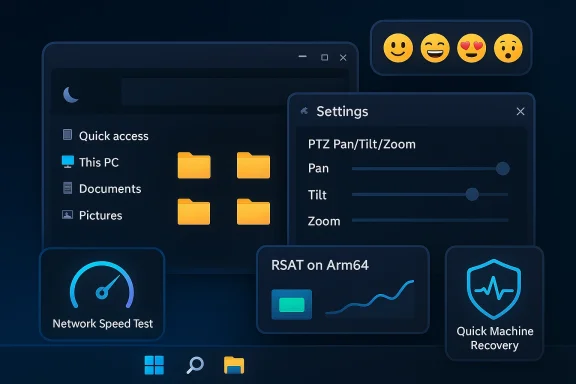
Microsoft’s latest Canary-channel flight, Windows 11 Build 28020.1673, looks modest at first glance, but it is doing exactly what the Dev and Canary pipelines have increasingly become built for: proving out small, high-value changes that make the operating system feel more coherent, more accessible, and more controllable. The build centers on a taskbar network speed test, broader dark-mode coverage in File Explorer and legacy UI, PTZ camera controls in Settings, Emoji 16 additions, and enterprise-facing improvements such as RSAT on Arm64 and continued refinement of Quick Machine Recovery. Taken together, those changes say less about a dramatic Windows reboot than about a steady effort to sand down friction points that users encounter every day, especially as Microsoft pushes Windows 11 deeper into an AI- and cloud-managed era.
Microsoft’s preview strategy in 2026 has clearly moved away from the old model of a single, giant feature wave. Instead, Windows 11 is now being shaped through a constant stream of incremental flights, each one testing a narrow set of interface, hardware, or servicing ideas before they can graduate into broader release channels. Build 28020.1673 fits that pattern perfectly: it is not trying to impress with a splashy new shell or a one-off showcase feature, but to validate a handful of practical changes that help the platform feel more polished and more useful.
That matters because the modern Windows Insider program is no longer just a preview lane for enthusiasts. It is where Microsoft tests how the operating system behaves under real-world pressure, including how well it handles modern peripherals, how consistently it presents UI state, and how effectively it surfaces network and recovery tools without forcing users into deeper settings pages. The Canary line, in particular, has become the company’s most experimental sandbox, and this release shows the same philosophy that has defined earlier 28020 flights: ship a little, observe a lot, then refine again.
There is also a clear pattern here in the balance between consumer-facing polish and enterprise practicality. On one side, Microsoft is improving things users notice immediately, such as the ability to run a network speed test from the taskbar or use more expressive Emoji 16 characters. On the other, it is extending administrative tooling to Arm64 and continuing to evolve recovery workflows that matter most in managed environments. That split is not accidental. It reflects the reality that Windows 11 has to serve both the casual user who wants less friction and the IT team that wants fewer tickets.
Just as importantly, Build 28020.1673 suggests Microsoft is treating the Canary branch as a living laboratory for the next phase of Windows interaction design. The company has already used the 28020 line to explore cross-device continuity, voice typing tuning, storage reliability, and shared audio refinements. This latest update continues that trajectory, reinforcing the idea that Microsoft is no longer only asking, “What new feature should Windows have?” It is also asking, How should Windows explain itself, recover itself, and adapt itself across more device types?
This update also reflects Microsoft’s growing emphasis on small meaningful interactions rather than dramatic visual reinventions. The taskbar network test is a great example. It is not glamorous, but it targets a real pain point: users often want to know whether the problem is their connection, their ISP, or their local machine, and the fastest path to that answer is usually the best one. By putting a speed test closer to where people already look for status, Microsoft is reducing the amount of digging required to diagnose basic connectivity issues.
The same logic appears in the expanded dark-mode work. Windows has long struggled with consistency in older dialogs, legacy contexts, and mixed UI surfaces that were never fully redesigned together. Extending dark mode into more of File Explorer and its older adjoining surfaces is not a cosmetic afterthought; it is an attempt to make the system feel internally coherent. For many users, that kind of consistency is what separates a modern-feeling desktop from one that still looks patched together from several eras of Windows history.
Microsoft is also using the Insider pipeline to validate support for newer hardware categories and hardware-adjacent workflows. PTZ camera controls in Settings, for example, show that Windows is continuing to absorb the management of specialized peripherals into native UI rather than leaving them to third-party tools. That’s a strong signal to both creators and enterprise admins: Windows increasingly wants to be the control plane for the device, not just the host operating system sitting beneath it.
At the same time, the appearance of RSAT for Arm64 underscores the company’s platform transition work. Arm devices are no longer niche in Microsoft’s ecosystem, and IT administrators need first-class tooling on those systems if they are to deploy them widely. Build 28020.1673 therefore matters not only for its visible UI changes, but because it continues the slow normalization of Arm64 as a serious Windows class rather than a compatibility compromise.
It also hints at a more opinionated Windows networking model. Microsoft seems to be moving toward a world where the OS itself helps users reason about connection quality, not merely display an icon with bars or a disconnected badge. That could be especially useful for hybrid workers, students, and anyone on variable broadband or Wi-Fi environments where the state of the network matters as much as the state of the machine.
There is also a trust component. Consistency makes Windows feel more deliberate, and deliberate software usually feels more reliable. Users may not consciously articulate that relationship, but they feel it when a context menu, picker, or dialog box suddenly behaves like part of the same system rather than a relic bolted on from an earlier release.
This also improves the odds of consistency across apps. When the operating system provides a baseline control surface, users are less dependent on whichever conferencing tool they happen to use that day. That matters in enterprise environments, where standardization and predictability are often more valuable than feature novelty.
There is a second-order effect too: emoji changes are a low-risk way to validate rendering and font pipeline updates. That may sound invisible, but rendering quality across languages and symbols is one of those quiet foundations that users only notice when it breaks. Incremental updates like this often tell you that the plumbing underneath is still being tuned.
This is especially meaningful as Microsoft continues to position Arm as a long-term Windows platform, not an experimental side path. The more management tools that work natively, the easier it becomes for IT departments to standardize on Arm devices for mobile employees, field workers, and certain knowledge workers who need battery life and always-on connectivity more than raw workstation power.
The bigger point is that Microsoft is building a more serviceable desktop operating system. Quick recovery, feedback loops, and visible diagnostics all feed into that same goal. Build 28020.1673 reinforces the idea that Windows’ future is not only about new capabilities, but about how quickly the system can restore itself when things go wrong.
The inclusion of a compliment or praise path is also noteworthy. That may seem cosmetic, but it matters because companies need positive signal as well as negative signal. Knowing what users value can be just as important as knowing what breaks, especially when feature rollout is gradual and experimental.
The real signal to watch is whether these small refinements start appearing together more often in the channels closest to release. If they do, that will suggest Microsoft believes the OS’s next big story is not a single feature headline, but a broader confidence play: fewer rough edges, more native control surfaces, better recovery, and more capable support for modern hardware. That is a very different kind of Windows narrative, and it may be the one the platform needs most.
Source: Fathom Journal Fathom - For a deeper understanding of Israel, the region, and global antisemitism
 Overview
Microsoft’s preview strategy in 2026 has clearly moved away from the old model of a single, giant feature wave. Instead, Windows 11 is now being shaped through a constant stream of incremental flights, each one testing a narrow set of interface, hardware, or servicing ideas before they can graduate into broader release channels. Build 28020.1673 fits that pattern perfectly: it is not trying to impress with a splashy new shell or a one-off showcase feature, but to validate a handful of practical changes that help the platform feel more polished and more useful.That matters because the modern Windows Insider program is no longer just a preview lane for enthusiasts. It is where Microsoft tests how the operating system behaves under real-world pressure, including how well it handles modern peripherals, how consistently it presents UI state, and how effectively it surfaces network and recovery tools without forcing users into deeper settings pages. The Canary line, in particular, has become the company’s most experimental sandbox, and this release shows the same philosophy that has defined earlier 28020 flights: ship a little, observe a lot, then refine again.
There is also a clear pattern here in the balance between consumer-facing polish and enterprise practicality. On one side, Microsoft is improving things users notice immediately, such as the ability to run a network speed test from the taskbar or use more expressive Emoji 16 characters. On the other, it is extending administrative tooling to Arm64 and continuing to evolve recovery workflows that matter most in managed environments. That split is not accidental. It reflects the reality that Windows 11 has to serve both the casual user who wants less friction and the IT team that wants fewer tickets.
Just as importantly, Build 28020.1673 suggests Microsoft is treating the Canary branch as a living laboratory for the next phase of Windows interaction design. The company has already used the 28020 line to explore cross-device continuity, voice typing tuning, storage reliability, and shared audio refinements. This latest update continues that trajectory, reinforcing the idea that Microsoft is no longer only asking, “What new feature should Windows have?” It is also asking, How should Windows explain itself, recover itself, and adapt itself across more device types?
Background
The 28020 series did not arrive in isolation. Microsoft has spent the last year turning the Insider channels into a more segmented product laboratory, where Canary gets the earliest and roughest experiments while Dev and Beta often receive more refined or narrower variations. That evolution has made each flight less like a feature dump and more like a test case. Build 28020.1673 is one more example of how Windows development now happens in layers: a feature may start as a concept in one ring, gain better controls in the next, and only later appear in a more polished public release.This update also reflects Microsoft’s growing emphasis on small meaningful interactions rather than dramatic visual reinventions. The taskbar network test is a great example. It is not glamorous, but it targets a real pain point: users often want to know whether the problem is their connection, their ISP, or their local machine, and the fastest path to that answer is usually the best one. By putting a speed test closer to where people already look for status, Microsoft is reducing the amount of digging required to diagnose basic connectivity issues.
The same logic appears in the expanded dark-mode work. Windows has long struggled with consistency in older dialogs, legacy contexts, and mixed UI surfaces that were never fully redesigned together. Extending dark mode into more of File Explorer and its older adjoining surfaces is not a cosmetic afterthought; it is an attempt to make the system feel internally coherent. For many users, that kind of consistency is what separates a modern-feeling desktop from one that still looks patched together from several eras of Windows history.
Microsoft is also using the Insider pipeline to validate support for newer hardware categories and hardware-adjacent workflows. PTZ camera controls in Settings, for example, show that Windows is continuing to absorb the management of specialized peripherals into native UI rather than leaving them to third-party tools. That’s a strong signal to both creators and enterprise admins: Windows increasingly wants to be the control plane for the device, not just the host operating system sitting beneath it.
At the same time, the appearance of RSAT for Arm64 underscores the company’s platform transition work. Arm devices are no longer niche in Microsoft’s ecosystem, and IT administrators need first-class tooling on those systems if they are to deploy them widely. Build 28020.1673 therefore matters not only for its visible UI changes, but because it continues the slow normalization of Arm64 as a serious Windows class rather than a compatibility compromise.
Why this matters now
The broader significance of the build is that it shows Microsoft trying to keep Windows 11 relevant in three different ways at once: as a consumer desktop, as an enterprise-managed endpoint, and as a platform for emerging hardware experiences. The Canary channel is where that balancing act is exposed most clearly, because the company can test whether a feature is useful without committing to how it will finally ship. That is why these small flights deserve attention: they reveal the shape of Microsoft’s priorities long before the marketing language catches up.Taskbar Network Testing
The taskbar network speed test is probably the most immediately practical user-facing addition in Build 28020.1673. Instead of making users hunt for diagnostic pages or external utilities, Microsoft is moving a basic but frequently needed check closer to the system tray, where network state already lives. That is a subtle design shift, but it fits the company’s broader effort to make Windows feel more self-explanatory and less like a maze of settings panes.What it changes
In practice, this feature could reduce the time it takes to separate a local Windows problem from a wider network issue. If your browser is slow, your stream is buffering, or a meeting keeps stalling, a quick speed test from the taskbar gives you a useful first answer without changing contexts. That means fewer steps, fewer interruptions, and a better chance that users will diagnose issues before assuming the PC itself is to blame.It also hints at a more opinionated Windows networking model. Microsoft seems to be moving toward a world where the OS itself helps users reason about connection quality, not merely display an icon with bars or a disconnected badge. That could be especially useful for hybrid workers, students, and anyone on variable broadband or Wi-Fi environments where the state of the network matters as much as the state of the machine.
Consumer and enterprise value
For consumers, the appeal is obvious: convenience. For enterprises, the value is more about reducing support ambiguity. If the OS can expose a first-line diagnostic quickly, help desks may get fewer vague complaints and more informed users. That will not eliminate deeper troubleshooting, but it can improve the quality of the initial report and make triage faster.- Faster first-pass troubleshooting
- Less dependence on third-party utilities
- Better visibility into local vs upstream network issues
- More accessible diagnostics for non-technical users
- Stronger alignment with taskbar-based system status
Dark Mode Completeness
Microsoft’s ongoing dark-mode expansion in File Explorer is one of those changes that sounds minor until you spend hours inside Windows and notice how many surfaces still flash back to light mode. Build 28020.1673 continues the cleanup effort by extending dark coverage deeper into Explorer and some legacy dialogs, which helps the OS feel more cohesive and less like a collage of design eras.Why visual consistency matters
This is not merely about aesthetics. Mixed theme behavior can be fatiguing, especially for users who work late or spend long periods in the shell. When legacy dialogs don’t match the system theme, they stand out not because they are bright, but because they signal unfinished integration. Microsoft’s effort here is a reminder that modernization is often won not by adding brand-new UI, but by making old UI stop looking old.There is also a trust component. Consistency makes Windows feel more deliberate, and deliberate software usually feels more reliable. Users may not consciously articulate that relationship, but they feel it when a context menu, picker, or dialog box suddenly behaves like part of the same system rather than a relic bolted on from an earlier release.
The broader design direction
Microsoft has been working for years to unify Windows’ visual language, but the work is especially important now because the company is also layering AI, cloud, and device-management features onto the OS. If the surface itself feels fragmented, the platform risks seeming overcomplicated. If the visual language is coherent, then new features feel like additions rather than intrusions. That is why small polish items like these deserve real attention.- Fewer theme clashes across shell surfaces
- Better readability in low-light environments
- Reduced sense of “legacy fragmentation”
- More polished File Explorer experience
- Stronger perception of OS maturity
PTZ Camera Controls
The inclusion of pan/tilt/zoom camera controls in Settings is one of the clearest signs that Windows is becoming more device-aware at the OS level. Instead of leaving camera adjustment to vendor utilities or meeting apps, Microsoft is bringing peripheral management into the core Settings experience. That makes Windows feel more like a unified control center and less like a launcher for separate device tools.Why PTZ support matters
PTZ control is especially important for creators, remote workers, educators, and conference-room users. A camera that can physically move or zoom is only as useful as the software that can direct it, and native support inside Windows lowers the barrier to using the hardware properly. In other words, Microsoft is acknowledging that camera control is no longer a niche workflow. It is part of everyday communication infrastructure.This also improves the odds of consistency across apps. When the operating system provides a baseline control surface, users are less dependent on whichever conferencing tool they happen to use that day. That matters in enterprise environments, where standardization and predictability are often more valuable than feature novelty.
The hardware platform angle
PTZ support also suggests a broader hardware strategy. Windows is increasingly expected to manage richer endpoint behavior, from cameras and audio devices to recovery and admin tooling. That means the OS itself has to provide enough awareness to make modern peripherals feel native, not aftermarket. The more Microsoft succeeds here, the less likely users are to think of Windows as just the thing running under their devices rather than the thing orchestrating them.- Native control for meeting and creator hardware
- Less reliance on vendor-specific apps
- Better baseline experience across conference setups
- More predictable behavior in managed environments
- Stronger fit for hybrid work scenarios
Emoji 16 and Small UX Signals
The addition of Emoji 16 support may be the most lightweight change in the build, but it still matters as a signal. Microsoft keeps updating Windows with new emoji sets because shared digital language is part of everyday communication, and the OS needs to stay current even in details that many users will never consciously notice.Why this is not trivial
Emoji updates often appear decorative, yet they serve a practical role in keeping Windows aligned with modern communication standards. They also help ensure that text-heavy workflows, messaging, and social interactions do not feel out of date. A platform as broad as Windows can’t afford to look stale in even small expressive elements, because those details shape the sense that the system is maintained actively and continuously.There is a second-order effect too: emoji changes are a low-risk way to validate rendering and font pipeline updates. That may sound invisible, but rendering quality across languages and symbols is one of those quiet foundations that users only notice when it breaks. Incremental updates like this often tell you that the plumbing underneath is still being tuned.
Why users should care
Most users will never describe an OS as “current” because of one emoji set. But they will feel the cumulative effect of a platform that keeps pace with modern language, fonts, and symbol support. That helps reinforce the perception that Windows 11 is still evolving, not just accumulating patches.- Better compatibility with contemporary messaging conventions
- Subtle modernization of the Windows text stack
- Low-risk validation of rendering paths
- More complete experience for users who communicate visually
- Small sign of continued platform maintenance
RSAT on Arm64
The appearance of RSAT support for Arm64 is one of the most strategically important enterprise changes in Build 28020.1673. Remote Server Administration Tools are not flashy, but they are essential for IT teams that manage infrastructure from their endpoints. Bringing them to Arm64 helps normalize Arm-based Windows devices as legitimate administrative workstations rather than limited-purpose laptops.Why this is a big deal
For years, one of the most common objections to deploying Arm-based Windows devices in professional environments has been tool compatibility. If the device is efficient but the admin stack is incomplete, adoption stalls. RSAT support chips away at that friction by allowing more of the core management workflow to happen directly on Arm hardware.This is especially meaningful as Microsoft continues to position Arm as a long-term Windows platform, not an experimental side path. The more management tools that work natively, the easier it becomes for IT departments to standardize on Arm devices for mobile employees, field workers, and certain knowledge workers who need battery life and always-on connectivity more than raw workstation power.
Enterprise deployment implications
For organizations, the practical implication is confidence. Tooling maturity often matters more than CPU architecture in procurement decisions, because IT teams need assurance that day-to-day support tasks will not require workarounds. RSAT on Arm64 does not solve every compatibility issue, but it meaningfully narrows the gap between “interesting hardware” and “deployable hardware.”- Better parity between Arm and x64 admin workflows
- Easier deployment of Arm-based management stations
- Reduced need for fallback devices
- Stronger case for broader Arm adoption
- Improved alignment with Microsoft’s hardware roadmap
Quick Machine Recovery and Resilience
Quick Machine Recovery continues to be one of the more consequential under-the-hood themes in Windows 11 development, even when it is not the headline item. Microsoft’s ongoing attention to recovery and resilience features suggests that the company is still responding to the reality that modern endpoint failure often needs to be repaired quickly, remotely, and with minimal user intervention.Why resilience is now a first-class feature
Windows has become too central to business and personal productivity for recovery to be treated as an afterthought. When a machine cannot boot cleanly or gets stuck in a bad state, the cost is no longer just technical inconvenience; it is lost work, delayed meetings, and support overhead. That is why recovery mechanisms increasingly matter as much as feature launches.The bigger point is that Microsoft is building a more serviceable desktop operating system. Quick recovery, feedback loops, and visible diagnostics all feed into that same goal. Build 28020.1673 reinforces the idea that Windows’ future is not only about new capabilities, but about how quickly the system can restore itself when things go wrong.
Implications for IT and end users
Enterprise teams should read this as a sign that Microsoft is investing in operational continuity, not just UI polish. Consumers benefit too, even if they never think about the feature directly. The more reliably Windows can self-heal or guide the user back into a functioning state, the less each incident becomes a support event.- Faster restoration after serious failures
- Lower support burden for managed PCs
- Better fit for remote and hybrid work
- More confidence in preview-channel stability
- Stronger foundation for future servicing changes
Feedback Hub and Insider Telemetry
Microsoft’s ongoing redesign of Feedback Hub is a reminder that the company sees feedback collection as part of the product itself. This is not just a form for complaints; it is the mechanism by which Microsoft interprets Insider experience and decides what to fix, what to refine, and what to discard. A better pipeline means better signal, and better signal is what determines whether preview experimentation is useful or just noisy.Why the feedback pipeline matters
As Windows has become more modular and feature-flag-driven, two people on the same build can have very different experiences. That makes structured feedback more important than ever. If Microsoft wants to know whether a taskbar feature is usable, or whether a dark-mode extension solves a real inconsistency, it needs reports that are specific, reproducible, and easy to classify.The inclusion of a compliment or praise path is also noteworthy. That may seem cosmetic, but it matters because companies need positive signal as well as negative signal. Knowing what users value can be just as important as knowing what breaks, especially when feature rollout is gradual and experimental.
What the redesign suggests
The redesign implies Microsoft wants less friction and more context. That is a good sign for the Insider ecosystem because a clunky reporting process tends to suppress useful feedback. If users can describe problems more quickly and more clearly, the quality of the whole experiment improves.- Easier report submission
- Better categorization of feedback
- More actionable screenshots and context
- Positive feedback channel alongside bug reporting
- Stronger alignment between testers and engineers
Strengths and Opportunities
Build 28020.1673 is strongest where it focuses on utility, not spectacle. The build advances several themes at once: better diagnostics, better visual consistency, better device management, and better enterprise support. That broad but disciplined approach gives Microsoft room to improve Windows without destabilizing the larger release path.- The taskbar network test can shorten troubleshooting time.
- Expanded dark mode improves visual coherence across Windows.
- PTZ controls bring more hardware management into native Settings.
- Emoji 16 keeps the platform current in small but visible ways.
- RSAT on Arm64 strengthens the case for Arm in enterprise deployments.
- Quick Machine Recovery reflects a more resilient Windows strategy.
- Feedback improvements can raise the quality of Insider reports.
- The build supports Microsoft’s long-term goal of making Windows feel more integrated and serviceable.
Risks and Concerns
The biggest risk with Canary builds is not any one feature; it is that users can mistake an experiment for a promise. Microsoft repeatedly reminds Insiders that preview features can change, disappear, or never ship, and that caution is especially important here. Build 28020.1673 may foreshadow future Windows behavior, but it does not guarantee a final product shape.- Features may be altered before reaching stable Windows.
- Gradual rollout can make user experiences inconsistent.
- Some improvements may remain hardware-specific.
- The feedback redesign may require a learning period.
- Enterprise value depends on whether Arm64 support broadens further.
- UI polish can still be undermined if underlying reliability lags.
- Canary-channel instability remains part of the bargain.
Looking Ahead
What matters next is not whether every single item in Build 28020.1673 survives intact, but which direction Microsoft continues to reinforce. If the company keeps improving diagnostics, recovery, hardware control, and theme consistency, then the next phase of Windows 11 will feel less like a product reboot and more like a carefully managed maturation. That may sound less exciting than a radical redesign, but it is usually more valuable for the people who depend on Windows every day.The real signal to watch is whether these small refinements start appearing together more often in the channels closest to release. If they do, that will suggest Microsoft believes the OS’s next big story is not a single feature headline, but a broader confidence play: fewer rough edges, more native control surfaces, better recovery, and more capable support for modern hardware. That is a very different kind of Windows narrative, and it may be the one the platform needs most.
- Watch whether the taskbar speed test expands beyond Canary.
- Track whether dark-mode cleanup reaches more legacy dialogs.
- Monitor broader rollout of PTZ controls and other device settings.
- See whether RSAT on Arm64 drives more enterprise Arm deployment.
- Observe how Microsoft tunes Quick Machine Recovery in later flights.
- Watch for further Feedback Hub simplification based on Insider response.
Source: Fathom Journal Fathom - For a deeper understanding of Israel, the region, and global antisemitism
