

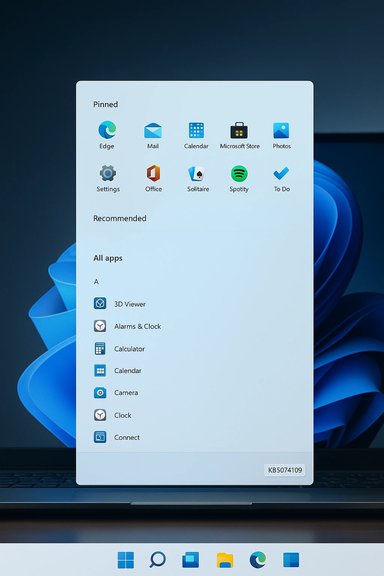
Microsoft's multi-month redesign of the Windows 11 Start menu quietly crossed a new threshold this month: the updated single‑page, Categories layout is appearing on far more machines after installation of the January 2026 cumulative update (KB5074109), but the new experience still exposes a glaring omission — there is no way to resize the Start menu, and that omission undermines what should be a clear usability win.
Microsoft began testing a reimagined Start menu for Windows 11 in late 2024 and iterated on it through 2025. The headline change is simple: the Start menu is now a single, scrollable page that surfaces Pinned apps, a Recommended area that can be disabled, and the full apps list without forcing users to flip between separate panes. The update has been rolling out in stages — preview channels received variations earlier, and production PCs began receiving the change as part of the January 2026 Patch Tuesday cumulative update (KB5074109). The rollouts are controlled server‑side and staged to device types and regions to reduce breakage and to collect user feedback.
The staged delivery means that installing the cumulative update does not guarantee immediate access to every UI change. Microsoft continues to ship many UI features under staged gating so that the same build number can contain different experiences across machines while the company evaluates telemetry and feedback.
Because no official roadmap or commitment to add a resize control is available, this is one of the friction points that will decide whether the new Start menu is widely accepted or remains actively resented by a significant subset of users.
Source: Windows Latest Windows 11's new Start menu with Categories layout begins showing up on more PCs, and it really needs a resize button
 Background
Microsoft began testing a reimagined Start menu for Windows 11 in late 2024 and iterated on it through 2025. The headline change is simple: the Start menu is now a single, scrollable page that surfaces Pinned apps, a Recommended area that can be disabled, and the full apps list without forcing users to flip between separate panes. The update has been rolling out in stages — preview channels received variations earlier, and production PCs began receiving the change as part of the January 2026 Patch Tuesday cumulative update (KB5074109). The rollouts are controlled server‑side and staged to device types and regions to reduce breakage and to collect user feedback.The staged delivery means that installing the cumulative update does not guarantee immediate access to every UI change. Microsoft continues to ship many UI features under staged gating so that the same build number can contain different experiences across machines while the company evaluates telemetry and feedback.
What’s different: the Categories Start menu explained
The new Start menu is a purposeful redesign that addresses several long‑standing usability complaints about Windows 11’s original Start.- Single‑page layout: All content — Pinned, Recommended, and All apps — appears in one vertically scrollable view instead of two or more separate panes.
- Multiple All view modes: The All apps section supports Category, Grid, and List arrangements so users can choose how apps are grouped and presented.
- Larger pinned grid: Pinned apps can be shown with more columns and more visible items per row on wider displays, which reduces the need to dig into the apps list to reach frequently used programs.
- Configurable Recommended area: The Recommended / Recent files area can be disabled if users find it noisy, though the Start layout still reserves space in many cases.
- Phone Link and Copilot hooks: The redesigned Start integrates modern hooks such as Phone Link and makes room for Copilot-era features that Microsoft continues to add across the shell.
Why the new Start menu often looks “too tall”
Several readers and testers report that the updated Start menu can feel over‑tall — occupying more vertical space than necessary and sometimes placing the app grid far below the taskbar. There are three technical reasons for this behavior:- Single‑page content density: Because the Start now contains Pinned, Recommended, and All apps on the same scrollable surface, Windows sizes the menu to accommodate section headers, category rows, and initial content so that scrolling feels consistent across changes in view mode.
- Minimum height target: The Shell appears to use a minimum height or target for the Start surface so that headers, category separators, and scroll handles don’t jump position when you change modes (for example, when toggling to Category view or removing a row of pins). This prevents layout jitter but makes the menu larger than a compact, resizable pane would be.
- Reserved space for optional content: Even when Recommended is disabled, the area is often reused or left reserved to maintain layout continuity, especially on systems with server‑side feature gating. That makes the menu seem wasteful of vertical real estate on smaller screens and laptops.
The missing feature: why a resize button matters
Windows power users and many longtime Windows veterans expect a Start menu that can be resized like a window or like the Windows 10 Start experience. The lack of a manual resize control has tangible usability and accessibility implications:- Vertical screen real estate: Many users work on laptops or ultrawide monitors where vertical space is precious. A Start menu that consumes a large central column forces users to hide or minimize other windows or to perform extra scrolling.
- Muscle memory and workflow: Users who rely on a quick, compact launcher to jump between open apps find the larger Start menu slower to navigate. That small time penalty adds friction across dozens of daily interactions.
- Accessibility and contrast: Resizing would help users with vision or motor impairments tailor the Start area to their needs — larger tiles or a compact list depending on preference.
- Consistency with customization expectations: Windows historically allowed substantial UI customization — users reasonably expect a similar level of control in 2026.
Because no official roadmap or commitment to add a resize control is available, this is one of the friction points that will decide whether the new Start menu is widely accepted or remains actively resented by a significant subset of users.
Taskbar placement and the broader customization debate
The bigger conversation around Start fits into a longer debate about taskbar customization in Windows 11. When Microsoft launched Windows 11, it removed several long‑used taskbar capabilities — moving the bar to the top or side of the screen, ungrouping icons the way Windows 10 did, and directly resizing the taskbar height without registry hacks.- Microsoft restored a modest left alignment option for the centered taskbar but did not add full top/side positioning in native settings.
- Third‑party utilities such as Start11 and StartAllBack continue to be the default workaround for users who want classic taskbar behavior.
- Microsoft frames some of these omissions as a design choice to preserve a consistent animation and motion language across the new Shell; critics counter that removing customization in the name of aesthetics sacrifices power and accessibility for many real‑world workflows.
Copilot integration and taskbar changes: convenience vs. privacy
The Copilot era of Windows brings new elements into the shell, and some of these features are now visible in the taskbar and Start interactions:- Share with Copilot button: Hovering over taskbar thumbnails or certain UI elements can surface a quick action to share an app window or screen with Copilot Vision. This lowers the friction for getting AI assistance but raises clear privacy and consent considerations.
- Colored battery icons and simplified overlays: Taskbar indicators like the battery icon now appear with color cues (green for charging, yellow for low battery), which is a small but welcome visibility improvement.
- Click‑to‑Do and in‑shell translation hooks: Microsoft continues to roll out micro‑productivity features that let you select or hover to trigger Copilot actions from the desktop without opening a separate app.
Rollout realities: staged deployments, server‑side gating, and KB5074109
The January 2026 cumulative update (KB5074109) is the latest baseline that many production machines installed in Patch Tuesday cycles. Important practical points for readers and administrators:- Installation ≠ feature availability: Installing the cumulative update updates the OS build, but Microsoft continues to gate some UI experiences server‑side or by device eligibility. That means two PCs with the same build number can show different Start menu experiences.
- Staged rollout: Microsoft uses telemetry and feedback to control the percentage of devices viewing new UI features. This reduces blast radius when issues appear but fragments the user experience across the ecosystem.
- Mandatory security baseline: As a January baseline, the patch delivers security fixes and an SSU (servicing stack update) that administrators should treat seriously. In managed environments, pilot testing remains essential before broad deployment.
- Compatibility considerations: The update continues to introduce changes around Secure Boot certificates and device signaling; administrators need to validate firmware and driver compatibility, particularly on specialized or older hardware.
Accessibility, performance, and animation trade-offs
Microsoft’s emphasis on motion and fluid animation underlies several design constraints in the modern shell. Animations can enhance clarity and affordances, but they also introduce complexity:- Performance trade‑offs: Rich animations can increase GPU use and power consumption on low‑end devices. Proper fallbacks are necessary for battery life and performance‑sensitive contexts.
- Accessibility trade‑offs: Motion can create problems for users with vestibular disorders. Windows provides Visual Effects and Accessibility toggles to reduce or disable animations, but the default design choices still prioritize animations.
- Consistency vs. flexibility: A rigid animation model simplifies testing and delivers a unified aesthetic, but it limits power users who want to configure the shell to their workflows.
Security and privacy implications of the new Start and Copilot features
The Start menu’s Recommended area and the Copilot sharing hooks surface private artifacts such as recently opened documents and live content. Key considerations:- Local data exposure in Recommended: Showing recent files or cloud items in Start can leak sensitive context in shared or public environments. Users must manually configure privacy settings to limit the items surfaced.
- Copilot screen sharing: Quick actions that share windows or screens with Copilot need prominent consent flows. Even if processing is on‑device, users should be able to see clear indicators and to revoke sharing easily.
- On‑device models and updates: Microsoft is shipping on‑device models to power Copilot features. Those components receive periodic KB updates targeted to hardware families. Administrators should track these model updates as part of their patching processes.
Workarounds and third‑party options
While waiting for Microsoft to reconsider adding a resize handle or broader taskbar placement controls, several workarounds exist:- Third‑party utilities: Tools such as Start11 and StartAllBack restore many classic Start and taskbar behaviors, including alternative placements and sizing. They remain the practical choice for users unwilling to adapt to the native UI.
- Settings tweaks: You can limit the Start menu’s vertical footprint indirectly by reducing the number of pinned rows and hiding the Recommended area where applicable; this doesn’t change the minimum height target but can reduce perceived bloat.
- Accessibility settings: Turning off animations from Accessibility settings can make the Start menu feel snappier and less visually heavy, although it doesn’t change the size.
- Enterprise controls: Administrators can delay deployment with standard Windows Update for Business policies or WSUS, or they can pilot the update on a subset of devices before broader rollout.
What Microsoft could do next (recommendations)
The new Start menu is a reasonable evolution that reduces clicks and modernizes app discovery, but several straightforward steps could improve adoption and satisfaction:- Add a resizable Start option: A user‑driven handle to resize the Start surface or toggle between compact and expanded modes would address the primary complaint without breaking visual polish.
- Expose taskbar placement settings more broadly: Restoring top/side taskbar placement as an advanced option would reduce reliance on third‑party tools and win back power users.
- Provide clearer privacy controls for Copilot sharing: Add persistent, visible indicators when content is shared with Copilot and an easy global toggle to opt out of quick sharing.
- Document gating behavior and rollout timelines: Clearer messaging about staged rollouts and eligibility would reduce confusion when users with the same update see different UI experiences.
- Offer a low‑motion compact mode: A compact, low‑motion Start option designed for small vertical displays would help laptop and tablet users.
Practical advice for readers today
- If you want to see the new Start menu, install the January 2026 cumulative update (KB5074109) via Windows Update and allow the staged rollout to complete. Expect the feature to appear more widely in the following days and weeks.
- If the Start menu feels too large, temporarily reduce pinned rows and disable Recommended entries to reclaim space.
- For users who require taskbar placement or Start resizing today, evaluate reputable third‑party solutions and weigh support risks before installing.
- Review privacy settings for Recommended and Copilot sharing in Settings > Privacy & Security and disable any auto‑sharing or file surfacing options that don’t suit your environment.
- Administrators should pilot KB5074109 on a limited device group and verify drivers, firmware, and key applications before wide deployment.
Conclusion
The Windows 11 Categories Start menu is a competent redesign that solves real usability pain points by consolidating app discovery into a single, scrollable interface. But Microsoft left a meaningful gap by not providing a simple resize control or broader taskbar placement options, forcing users to choose between modern aesthetics and practical configurability. The staged rollout of KB5074109 means the new Start experience will be visible on many more machines, and the company will continue to refine the shell based on telemetry and user feedback. Until Microsoft reverses course or adds a compact/resizable mode, power users and organizations will continue to rely on third‑party utilities or workarounds to restore the flexibility they expect from a mature desktop OS. The modern Start moves Windows forward in one dimension; it still needs a simple slider or handle to meet users where they work.Source: Windows Latest Windows 11's new Start menu with Categories layout begins showing up on more PCs, and it really needs a resize button
