

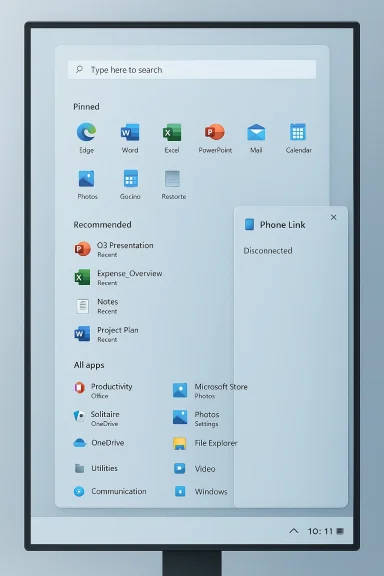
Microsoft has quietly pushed another Start menu redesign into the mainstream Windows 11 rollout cycle, and this time the changes are arriving for most regular users as part of the January cumulative update KB5074109 — an extension of the Start overhaul first seeded in the October 2025 preview (KB5067036). The redesign reshuffles the Start surface into a single, vertically scrollable canvas, places the search field at the top, promotes the “All apps” view into a more discoverable categories/grid experience, and ties the Start menu’s Recommended content to a single recent‑activity engine that also powers File Explorer “Recent” and Taskbar jump lists. Microsoft has framed this as an accessibility‑and‑discoverability focused update, but the rollout has surfaced usability tradeoffs, compatibility headaches for third‑party shell tools, and privacy implications that users and IT teams should understand before accepting the change wholesale.
Windows’ Start menu has been a moving target for a decade. Each major Windows release tries to balance discoverability for casual users, fast keyboard-driven access for power users, and corporate manageability for IT. In October 2025 Microsoft offered an optional non‑security preview update, KB5067036, that introduced a rework of the Start surface: a single, scrollable Start canvas, multiple views for “All apps” (Category, Grid, and List), responsive layout behavior across DPI and screen sizes, and a tighter Phone Link integration for connected mobile devices. That preview paved the way for the wider rollout announced in the January 2026 cumulative update KB5074109, which explicitly states the redesigned Start is being made available to more devices.
This is not a completely new experiment. Microsoft spent months iterating on dozens of design options before settling on the current layout, and the company says the goal is a Start that’s “quicker” to use and more personal and calm for everyday workflows. While Microsoft’s guidance highlights discoverability and adaptive layout as wins, users and independent reporters have quickly identified concrete behavior changes and limitations that matter in daily use.
Important caution: Microsoft’s public documentation and KB notes describe the feature and its settings but do not publish the underlying telemetry or scoring algorithms that power “Recommended” suggestions. Any claim about how recommendations are ranked or what data is used beyond local recent activity should be treated as unverified unless Microsoft publishes specifics. Always assume recommended suggestions are based on recent local activity and may include cloud locations (for example, OneDrive) if those locations are indexed on the device.
Microsoft has the opportunity to address the most glaring UX and policy gaps — particularly the one‑toggle coupling — quickly through follow‑up patches or policy additions. Until then, a cautious, tested approach to adoption is the prudent path for anyone who depends on consistent shell behavior in production or workflow‑sensitive environments.
Conclusion: the redesigned Start is arriving, and for many it will be an improvement. But it’s not purely cosmetic; it changes how Windows surfaces recent work, how apps are discovered, and how legacy customizations behave. Understand the new defaults, pilot the update, and hold Microsoft to its promise of iterative improvement — because the Start menu is where most Windows journeys begin, and small design decisions there ripple through daily productivity in large ways.
Source: hi-Tech.ua Microsoft has redesigned the Start menu again in Windows 11
 Background
Windows’ Start menu has been a moving target for a decade. Each major Windows release tries to balance discoverability for casual users, fast keyboard-driven access for power users, and corporate manageability for IT. In October 2025 Microsoft offered an optional non‑security preview update, KB5067036, that introduced a rework of the Start surface: a single, scrollable Start canvas, multiple views for “All apps” (Category, Grid, and List), responsive layout behavior across DPI and screen sizes, and a tighter Phone Link integration for connected mobile devices. That preview paved the way for the wider rollout announced in the January 2026 cumulative update KB5074109, which explicitly states the redesigned Start is being made available to more devices. This is not a completely new experiment. Microsoft spent months iterating on dozens of design options before settling on the current layout, and the company says the goal is a Start that’s “quicker” to use and more personal and calm for everyday workflows. While Microsoft’s guidance highlights discoverability and adaptive layout as wins, users and independent reporters have quickly identified concrete behavior changes and limitations that matter in daily use.
What changed — a clear walk‑through of the new Start surface
Search is primary: positioned at the top
The most immediately visible shift is the relocation of the Start search entry to the top of the Start surface. Microsoft positions the search field as the first element in the Start hierarchy — above pinned apps and recommendations — with the explicit aim of speeding the path from intent to result when users want to launch apps, open files, or find images. For keyboard-first users this is functionally similar to pressing the Windows key and typing, but visually it changes the moment you open Start: your eye is drawn to the search box first, rather than the pinned grid.- Why it matters: Search-first design reduces friction for quick lookups and suits devices where typing is fast (keyboards) or where people expect mobile‑style app search.
- Tradeoff: Some users, accustomed to visual muscle memory for pinned icons, may find an extra conceptual step — the search field — before reaching pinned shortcuts.
Pinned apps, then Recommended, then everything else — a strict hierarchy
The Start surface now follows a strict vertical order: Search → Pinned Apps → Recommended → All/Everything else. Microsoft describes this as a hierarchy that helps users find what they need faster, but it’s a deliberate reordering that affects screen real estate and perceived prominence for each section. The Recommended list remains on by default but can be disabled in Settings.The Recommended toggle is linked — a critical nuance
There’s a key behavioral coupling built into the new Settings option: the toggle that hides the Start menu’s Recommended feed is the same toggle that controls recently opened files in File Explorer and the items shown in Taskbar jump lists. Turning off “Show recently opened items in Start, Jump Lists, and File Explorer” will clear or suppress those recent‑activity lists system‑wide. That coupling surprised and frustrated users who expected a Start‑only toggle. Independent reporting and hands‑on guides have confirmed the linkage.- Implication: You cannot currently hide Recommended in Start only while preserving Quick Access recents in File Explorer or jump lists — the control is global.
- Practical effect: Organizations or shared‑device environments that disable the Recommended feed to avoid distractions should be aware this also removes recent documents from Explorer and jump lists, which may break workflows for power users.
All apps promoted and reimagined: categories, grids, and a single‑page surface
Microsoft has promoted the All apps list into the main Start surface and added view modes:- Category view, which automatically groups apps into buckets (e.g., Productivity, Games), with frequently used apps highlighted.
- Grid view, a dense icon grid optimized for scanning.
- List view, an alphabetical list for the purists.
Phone Link / “Connect to your smartphone” becomes less intrusive
The Phone Link integration — a panel that surface phone activity and allows quick access to messages or recent mobile items — is present but positioned so it does not dominate the Start surface by default. Microsoft made the phone content expandable rather than always visible to reduce clutter. The goal is to let connected phone activity be available, not to replace the primary app‑and‑file discovery flow.Rollout mechanics and how to get the redesigned Start
- The redesigned Start first appeared as part of the October 28, 2025 non‑security preview (KB5067036). That release seeded the UI to a subset of machines and tested behavior.
- In mid‑January 2026 the cumulative release KB5074109 broadened the rollout, with Microsoft explicitly stating the redesigned Start is “available to more devices.” The KB is distributed via Windows Update and will install automatically on many devices, but some users will see the change earlier or later depending on update channels and staged rollout progress.
- Check Windows Update for KB5074109 (or the earlier KB5067036 preview builds).
- If you are comfortable with command‑line tools, third‑party utilities such as ViVeTool have been used to toggle flag IDs and enable the UI early; this is unsupported by Microsoft and carries risk.
Early reports: bugs, compatibility, and user friction
Rolling out UI changes to hundreds of millions of PCs is inherently messy. Independent reporting and community threads have cataloged several categories of problems users have seen since the October preview and the broader January deployment.- UI sizing and tallness complaints: Many users notice the new Start can be very tall on certain displays and DPI settings, covering a large portion of the screen. Microsoft says the Start surface is responsive and adapts to screen dimensions, but until those adaptive thresholds are tuned some users on laptops and smaller displays will see a large Start surface.
- Known functional regressions and breakages: January updates have been associated with a cluster of UI issues — from Start opening on the wrong side for certain language orientations to reports of the Explorer/Taskbar failing in some configurations. Microsoft has acknowledged other unrelated update issues and continues to publish known issues/mitigations.
- Third‑party shell utility incompatibility: Tools that alter or restore legacy Start behavior — such as ExplorerPatcher or other Start‑replacement utilities — have reported breakages after recent cumulative updates, including the January rollouts. The ExplorerPatcher public issue tracker lists multiple issues opened after KB5074109 and related builds, indicating breakage or missing options for users who rely on those tools. Admins and tinkerers should expect a transition period.
- UX coupling surprises: As covered above, hiding Recommended in Start also disables recent files in File Explorer and jump lists. This linkage is a UX decision with real downstream effects — clearing recent lists, altering taskbar behavior, and removing a navigational shortcut many users rely on. Independent testing has confirmed the coupling.
What this means for different user groups
Casual and mobile‑style users
For people who approach Windows like a smartphone — tapping, swiping, and scanning visually — the single‑surface Start, top search, and categories can be an improvement. It surfaces more content without extra clicks and makes phone activity available in a contextual, non‑intrusive way. Microsoft’s design intent to make Start feel personal and calm will likely resonate with these users.Power users and knowledge workers
Power users often rely on keyboard launchers (Windows key + type), pinned grids, jump lists, and quick access to recent files in Explorer. The global toggle that disables Recommended and clears recents can be disruptive. Likewise, inability to resize the Start surface or granularly disable Recommended only in Start reduces fine‑grained control. Power users may prefer third‑party launchers or continue to use keyboard shortcuts, but those options come with their own tradeoffs and compatibility issues.IT admins and enterprises
Enterprises must weigh the benefits of an updated, more discoverable Start against potential helpdesk tickets and application compatibility. The update is deployed via normal Windows servicing channels, but the staged rollout means some fleets will receive changes sooner than others. Admins should test the new Start surface in a controlled ring, validate any management tooling and endpoint agents that interact with Explorer or shell components, and prepare communications for users who may be surprised by layout and recent‑file behavior changes. Known issues and compatibility notes in Microsoft’s KB entries should be monitored closely.Privacy and telemetry implications — what to watch
The Recommended feed is powered by a shared recent‑activity mechanism that surfaces files, apps, and potentially promoted Store content. Because Microsoft links the “Show recently opened items in Start, Jump Lists, and File Explorer” setting across multiple surfaces, disabling recommendations in Start is not a purely cosmetic privacy toggle — it suppresses the shared recent list system‑wide. For environments where document visibility must be tightly controlled (shared kiosks, public terminals, or developer machines with sensitive temp files), administrators should explicitly test the setting to ensure it achieves the intended privacy posture. Independent reporting has flagged this coupling and the limitations of the toggle.Important caution: Microsoft’s public documentation and KB notes describe the feature and its settings but do not publish the underlying telemetry or scoring algorithms that power “Recommended” suggestions. Any claim about how recommendations are ranked or what data is used beyond local recent activity should be treated as unverified unless Microsoft publishes specifics. Always assume recommended suggestions are based on recent local activity and may include cloud locations (for example, OneDrive) if those locations are indexed on the device.
Compatibility and ecosystem friction
Third‑party shell utilities (Start menu replacements, legacy‑style taskbars, and Explorer customization tools) form a small but vocal ecosystem. Recent cumulative updates, including KB5067036 and KB5074109, have produced issues for programs that rely on undocumented shell behaviors or intercept OS shell APIs. The ExplorerPatcher issue tracker shows multiple reports directly tied to post‑update regression, and community troubleshooting threads report that uninstalling the cumulative update restores previous behavior in some cases. This means IT teams using such utilities should plan to:- Test updates in a non‑production ring.
- Maintain rollback procedures if the Windows Update behavior negatively affects critical workflows.
- Engage with vendors of third‑party tools for patches or supported workarounds.
Practical guidance: how to approach the change safely
- Check the update: Look for KB5067036 (October 2025 preview) or KB5074109 (January 13, 2026 cumulative) in Windows Update if you want to confirm whether your device is slated to get the redesign. Microsoft’s support pages list the rollout notes and known issues.
- Pilot before broad deployment: IT shops should evaluate the redesign in a small ring and validate that document access, jump lists, and third‑party shell tools behave as required.
- If you dislike Recommended but need Recent files: Understand that turning off the Recommended toggle in Settings also disables Explorer Recents and jump lists. There is currently no supported way to hide Recommended only in Start while keeping Explorer recents.
- Avoid unsupported hacks in production: Tools like ViVeTool can force‑enable the new Start UI earlier than Microsoft’s staged rollout, but they operate by toggling internal feature flags and are unsupported. Use them only on test machines if you need to preview the UI.
- Watch for follow‑up patches: Microsoft is actively fixing update‑related regressions; keep Windows Update active and monitor KB release notes for mitigations if you hit problems.
Critical analysis — the strengths and the risks
Strengths
- Modernized discoverability: The single canvas and category/grid options reduce clicks and surface more content at a glance, an improvement for users with extensive app libraries. The design aligns Start more closely with contemporary mobile launchers, which many users already understand.
- Search prioritization: Positioning search at the top emphasizes fast retrieval, which is appropriate in a world where users expect immediate results from typed queries. This reduces friction for people who habitually use search for app launching.
- Phone Link integration: Making phone content accessible but collapsible respects the primary role of Start while exposing mobile continuity when beneficial.
Risks and unresolved issues
- Over‑coupled preferences: The global toggle that links Start’s Recommended feed with File Explorer recents and jump lists is a poor UX tradeoff for users and admins who need selective controls. Many will reasonably expect an option to hide Recommended only in Start without losing Explorer recents. Independent reporting flagged this as a design misstep.
- Compatibility friction: Changes to the shell surface have historically broken third‑party extensions and utilities. The current rollout has already created issues for ExplorerPatcher and other tools that restore legacy experiences. Enterprises that rely on those utilities will face support hurdles.
- Usability regressions for small displays: The adaptive layout can produce a Start surface that feels disproportionately large on laptops or displays with certain scaling. Until adaptive thresholds are refined, this will frustrate a subset of users.
- Insufficient granularity for privacy controls: Users who want to eliminate Start recommendations but keep Explorer recents have no supported option today. From a privacy and admin standpoint, the lack of granular toggles and visibility into recommendation ranking is a legitimate concern.
- Potential for more update‑related breakage: The January rollout arrived alongside a group of cumulative changes that produced separate known issues in other UI subsystems. The timing magnifies the perception that the updates are risky on production machines, especially for enterprises with heterogeneous hardware and software.
Recommendations for Microsoft (constructive)
- Add separate toggles for Start recommendations and Explorer/JumpList recency so users can independently control each surface. The current single toggle is an easy fix that would remove substantial user friction.
- Provide explicit enterprise policy controls for the new Start behaviors (GPO/MDM) that allow admins to pin default views, disable categories, or lock the Start surface size for managed fleets.
- Publish clearer guidance on what data sources feed the Recommended engine (local only vs. cloud‑indexed content) so administrators can accurately assess privacy implications.
- Work with third‑party shell utility maintainers and publish compatibility guidance so tools like ExplorerPatcher can adapt quickly to shell changes or receive well‑documented extension points.
- Introduce an optional compact Start mode for smaller displays that behaves like the legacy, less‑tall UI until adaptive thresholds are refined.
Final verdict
The Windows 11 Start redesign is a defensible evolution: it modernizes the app discovery surface, emphasizes search, and brings Phone Link and categories into a single, scrollable canvas that many users will find intuitive — especially those accustomed to mobile launchers. At the same time, the rollout exposes important tradeoffs: a tied Recommended toggle that impacts Explorer recents and jump lists, UI sizing concerns on smaller displays, and compatibility problems for third‑party shell utilities and some enterprise configurations. The change is substantial enough that IT teams should pilot and communicate the update, and individual users who rely on jump lists or third‑party Start replacements should test before committing to the new build.Microsoft has the opportunity to address the most glaring UX and policy gaps — particularly the one‑toggle coupling — quickly through follow‑up patches or policy additions. Until then, a cautious, tested approach to adoption is the prudent path for anyone who depends on consistent shell behavior in production or workflow‑sensitive environments.
Conclusion: the redesigned Start is arriving, and for many it will be an improvement. But it’s not purely cosmetic; it changes how Windows surfaces recent work, how apps are discovered, and how legacy customizations behave. Understand the new defaults, pilot the update, and hold Microsoft to its promise of iterative improvement — because the Start menu is where most Windows journeys begin, and small design decisions there ripple through daily productivity in large ways.
Source: hi-Tech.ua Microsoft has redesigned the Start menu again in Windows 11
