Windows 11 Start Menu Redesign Expands with New Canvas and Phone Link

  • Thread Author
Microsoft has quietly begun pushing a redesigned Start menu to a much wider audience of Windows 11 users, and the change — while not radical in visuals — is a fundamental rework of how apps, recommendations and phone integration appear in the shell. Microsoft says the refreshed Start is being enabled progressively after months of Insider testing, and for many users the experience will arrive automatically through servicing updates; for others it may appear faster if they opt into early updates in Windows Update. ])

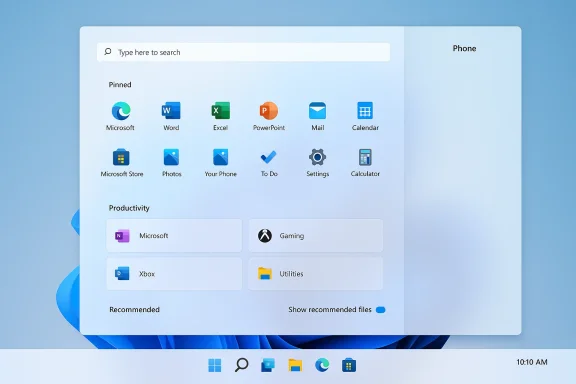
A Windows 11-style search panel with pinned apps and productivity tiles on a blue desktop.Background / Overview​

Microsoft began publicly testing a new Start experience in late 2025 and packaged the necessary code in the October 28, 2025 optional preview update (KB5067036). That preview contains the redesigned Start menu plus a batch of adjacent UI refinements and servicing fixes. Microsoft’s delivery model intentionally separates the binary (the update you install) from the feature flip (server-side enablement), so many PCs will have the new Start’s code present for weeks before the company activates the experience for specific devices. This staged, telemetry-driven rollout is how Microsoft reduces risk when changing a system-level UI used by millions.
Why this matters: the Start menu is the single most frequently used launcher on Windows. Changes here affect muscle memory, discoverability and enterprise support documentation. The new design fixes long-running complaints about reachability (the extra click to open “All apps”), but it also increases Start’s on-screen footprint and changes how recommendations and phone content surface — trade-offs that administrators and users should plan for.

What changed — the anatomy of the redesigned Start​

The redesign is subtle on first glance, but important in how it reorders priorities and interactions inside Start.

A single, vertically scrollable canvas​

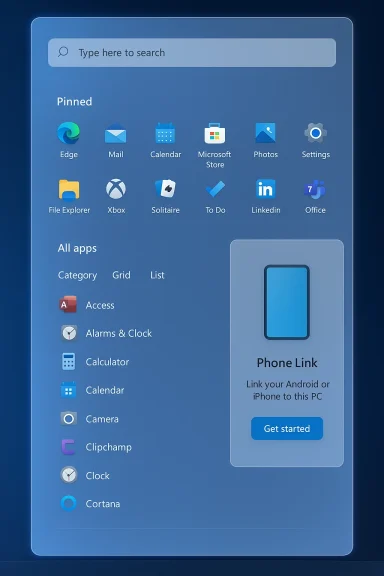
  • The separate “All apps” pane has been promoted into the main Start canvas. Instead of opening Start and then clicking into All apps, you now open Start and scroll through a single surface that includes pinned apps, recommended items (if enabled), and your installed apps. Microsoft says this reduces friction and speeds app discovery.

Three presentation modes for the app inventory​

  • Category view (default in many configurations): apps are grouped into topical buckets such as Productivity, Games, Creativity and Communication, with frequently used apps surfaced inside categories.
  • Grid view: a denser, tile-like alphabetical grid optimized for horizontal scanning on larger displays.
  • List view: the classic A→Z vertical list preserved for keyboard-first power users. The Start menu remembers your last-selected view and restores it when you reopen Start.

New Phone Link integration​

  • A slim Phone Link control can expand inside Start to display recent calls, messages and photos from a paired smartphone. Microsoft describes it as a “phone sliver” that glides in and stays out of the way when not needed. The panel is optional and collapsible.

Recommended feed: enabled by default but hideable​

  • Microsoft left a “Recommended” area turned on by default to deliver personalized suggestions and recently used files. The company argues users asked for “smart suggestions” and the feed learns in real time; however, Microsoft also added a single toggle to remove those recommendations if you prefer a clean, app-first launcher. The setting is: Settings → Personalization → Start → turn off “Show recommended files in Start, recent files in File Explorer, and items in Jump Lists.” Disabling that toggle also impacts Recent files in File Explorer and Jump Lists.

Responsiveness and density behavior​

  • Start now adapts to screen size and DPI. On larger monitors Start shows more columns, more pinned icons per row and larger category blocks; on small screens it compresses to remain usable. That responsiveness is why some users are seeing Start cover a large portion of their screen — what looks like a “giant” Start is an intentional decision to use available real estate for discovery.

Why Microsoft redesigned Start again — the company's explanation and the trade-offs​

Microsoft explains the redesign with three core goals: make Start quicker (fewer mental hops), make it feel personal and calm, and improve app discovery across device types. According to the company, feedback from the Feedback Hub drove the changes: users wanted faster access to apps and files, but also the option to remove suggestions if they find them noisy.
What Microsoft says it gained by this design:
  • Faster access — promoting All apps to the main surface removes a click and speeds launches for people with many installed programs.
  • Personalization — the recommended feed and categories aim to surface the right thing at the right time.
  • Cross-device continuity — the Phone Link sliver brings mobile context into the desktop launcher.
Notable trade-offs and why some users object:
  • Visual footprint — the single-surface approach increases Start’s vertical size on many laptops and small-screen devices; what some call “oversized” is by design to prioritize discoverability.
  • Predictability vs. automation — auto-generated categories can surprise users and administrators who prefer deterministic, curated lists.
  • Integration vs. privacy — recommended items, web-suggestions and phone content are more prominent; although Microsoft provides toggles, enabling these by default increases telemetry and surface area for data-driven suggestions.

The rollout: how Microsoft is delivering the change and what that means for you​

Microsoft delivered the redesigned Start menu’s binaries in an optional, non-security preview update (KB5067036) on October 28, 2025. The preview is targeted at Windows 11 versions 24H2 and 25H2 and produces OS builds such as 26100.7019 and 26200.7019. However, Microsoft is enabling the feature via server-side, staged rollout (feature flags), so installing the preview package may be necessary but not always sufficient to see the new Start immediately.
Practical implications of the staged model:
  • The update can be installed via Settings → Windows Update (or the Microsoft Update Catalog), but the experience appears only when Microsoft flips the enablement flag for your device cohort.
  • Devices enrolled in Release Preview or users who enable “Get the latest updates as soon as they’re available” will often see the feature earlier. Windows Central and other outlets explicitly recommend enabling that toggle if you want to speed up arrival.
Risk considerations:
  • Optional previews can carry unrelated regressions; some preview installations of KB5067036 coincided with reports of Task Manager duplication and other edge-case bugs in test fleets. If stability matters, waiting for the mainstream Patch Tuesday cumulative release is the safer path.
How to check whether your PC has the required builds:
  • Press Windows+R, type winver, and press Enter.
  • Look for build numbers 26100.7019 (24H2) or 26200.7019 (25H2) or later.
    If you’re on those builds and still don’t see the new Start, Microsoft’s staged enablement is the likely reason — either wait or enable early access in Windows Update.

How to control the new Start (settings every user and admin should know)​

Microsoft preserved explicit toggles so users can tailor Start. Here are the critical controls and where to find them.
  • Disable Recommended items (removes files from Start, File Explorer Recent and Jump Lists): Settings → Personalization → Start → turn off Show recommended files in Start, recent files in File Explorer, and items in Jump Lists. Note: this is a single master toggle — it affects recent-file surfaces elsewhere in the OS as well.
  • Show/Hide Recently added apps and Most used apps: Settings → Personalization → Start → use Show recently added apps and Show most used apps toggles.
  • Collapse or expand Pinned area: Start’s UI can show more rows of pinned apps on large screens; a Show more/Show less control is available in the UI for pin density.
  • Change All apps presentation mode: Open Start, choose the view selector (Category / Grid / List), and the menu will remember your selection.
Enterprise controls and automation:
  • Administrators can enforce similar behavior via Group Policy / Intune policies or registry keys; community documentation and Microsoft guidance show registry keys and MDM policy paths to control recommendation visibility and start layout at scale. IT teams should pilot and document policies before broad enforcement.

For power users: can you revert to the old Start?​

Short answer: not officially. Microsoft does not provide a built-in toggle to restore the classic Windows 11 Start once your device is feature-flagged into the redesign. Enthusiasts and administrators have options, but each carries caveats.
  • Third-party tools. Open-source and commercial utilities such as ExplorerPatcher, StartAllBack, and StartIsBack offer ways to restore previous Start behaviors or classic Start styles. These tools are widely used and frequently updated, but you should expect breakage after major OS updates and recognize they run outside Microsoft’s supported configuration.
  • Unsupported community workarounds. Some users temporarily flip experimental flags or use registry hacks; Microsoft can (and sometimes does) close those workarounds in later updates. Use at your own risk and maintain a rollback plan.
  • Officially: use Start personalization toggles to approximate the old behavior (hide Recommended, choose List view, collapse pins). That path preserves supportability and avoids instability.
Be cautious: relying on third-party Start replacements in enterprise environments is a maintenance burden. If your production users require deterministic Start behavior, plan piloting and a support strategy — or keep a small set of machines running a legacy layout for continuity until an acceptable, supported configuration is available.

Strengths — what the redesign gets right​

  • Reduced friction for app discovery. Removing the secondary “All apps” step means fewer clicks and faster launches for people with extensive app libraries. That’s a clear productivity win, particularly on touch and high‑DPI desktops.
  • Adaptive layouts that respect screen real estate. The menu’s responsiveness better uses space on ultrawide and high‑resolution screens — a long-standing criticism of the original Windows 11 Start’s “small, centered” footprint.
  • Clear controls to remove noise. Microsoft added toggles to hide recommendations, recently added apps and most used apps; these let users and admins return to an app-first launcher quickly. The single toggle that disables recommended items also affects File Explorer’s Recent and Jump Lists, which is powerful for privacy and tidiness.
  • Cross-device continuity via Phone Link. Folding phone interactions into Start lowers the friction for common smartphone‑to‑PC tasks. When implemented well, this is convenience without adding a permanently intrusive surface.

Risks, unanswered questions and things to test before broad deployment​

  • Inconsistent experience across fleets while staged rollout is active. Because Microsoft controls the enablement, mixed environments will see both old and new Starts for some time. That complicates documentation, training and help‑desk workflows. Plan communications accordingly.
  • Behavioral side-effects of the Recommended toggle. Turning off the recommended feed removes recent files across other OS surfaces. That’s convenient for privacy but may surprise people who rely on Quick Access and File Explorer Recent lists; warn users and include guidance in support articles.
  • Third-party compatibility and accessibility validation. Start-level changes touch accessibility pathways (screen readers, keyboard navigation) and can interact unpredictably with shell‑level extensions, toolbars and third‑party shell mods. Test assistive technology and approved customizations before rolling out.
  • Preview bugs that creep in via optional updates. Optional preview channels are exactly that — optional. They can contain fixes and features, but also regressions. Reports tied to KB5067036 included edge-case Task Manager issues in some test environments; that’s why many seasoned admins recommend piloting and waiting for Patch Tuesday stabilization.

A practical rollout checklist for home users and IT administrators​

  • Inventory: Confirm Windows 11 version and build using winver. Target builds for the preview are 26100.7019 (24H2) and 26200.7019 (25H2).
  • Decide exposure level:
  • Enthusiasts: enable “Get the latest updates as soon as they’re available” and install the optional preview KB5067036. Expect staged activation.
  • Stability-first: wait for the March/November-style cumulative release where Microsoft folds preview changes into mainstream Patch Tuesday updates.
  • Pilot group: Deploy to a small, representative pilot group (laptop, hybrid, desktop, accessible devices) and validate search, Jump Lists, Explorer Recent, and Phone Link pairing.
  • Accessibility test: Run screen reader and keyboard-only flows through Cat; confirm predictable behaviour.
  • Communications: Provide users with quick steps to turn off Recommended items and how to pick List view to emulate the older Start layout. Include guidance about third‑party Start utilities and the risks of unsupported tools.
  • Rollout: Expand gradually, monitor telemetry and support requests, and keep a rollback path (remove the preview or disable early-update opt-in) if problems appear.

Verdict — for most users, this is a practical improvement; for enterprises, plan carefully​

Microsoft’s redesigned Start menu is not a dramatic re‑branding so much as a functional rebalancing: it places discoverability and adaptability ahead of the minimalist, centered aesthetic that dominated early Windows 11. For the majority of users, that trade-off will be positive — fewer clicks, better use of large screens, and straightforward toggles to remove unwanted recommendations. Independent coverage and hands‑on testing found the changes pragmatic and well-targeted.
That said, the implementation path (binaries in servicing updates, staged server-side enablement) means admins and support teams must expect inconsistent exposure in the near term and should pilot before wide deployment. Users who explicitly dislike the new arrangement still have options (settings to hide recommendations or third-party Start replacement tools), but third‑party tools carry long-term maintenance costs and may break after future Windows updates.

Final takeaways and next steps​

  • If you want the new Start now: enable early updates in Windows Update and install the optional preview (KB5067036), then wait for Microsoft’s enablement to reach your device. Expect staged activation even after installing the update.
  • If you want to avoid surprises: delay installing optional previews and wait for the mainstream cumulative release or for Microsoft’s staged rollout to complete across your organization.
  • If you prefer the older behavior: hide recommendations and switch to List view to approximate the prior launcher; third‑party Start replacers can restore older layouts but carry compatibility risk.
  • If you manage devices at scale: pilot, test for accessibility and app/search compatibility, and document a user-facing guide that shows how to control Recommended items and view modes.
Microsoft’s decision to “redesign Start again” is plainly an attempt to reconcile modern aesthetics with practical productivity demands — and the result is an incremental, considered update rather than an abrupt reinvention. For most Windows users this will feel like a sensible, if noticeable, improvement; for admins and power users the top priority is validation and a clear communication plan while Microsoft finishes the staged rollout.

Source: Windows Latest Microsoft confirms wider release of Windows 11’s revamped Start menu, explains why it "redesigned" the Start again
 

Microsoft is rolling a noticeable redesign of the Windows 11 Start menu to more devices as part of its recent servicing updates, and the change—packaged inside preview and cumulative updates and gated via staged enablement—represents the most consequential Start update since Windows 11’s original launch.

Windows 11-style start panel with pinned apps and a Phone Link card.Background​

Microsoft has been quietly iterating on the Start menu for months inside the Windows Insider and Release Preview channels before broadening the rollout to mainstream devices. The new Start experience was first made available in an optional, non-security preview package identified as KB5067036, with build families shown in public notes for Windows 11 versions 24H2 (build 26100.7019+) and 25H2 (build 26200.7019+). Microsoft is delivering the redesign through the same phased, server-side enablement model it has used for other surface-level changes: the binaries may be present on a device but the experience itself is activated selectively by feature flags on Microsoft’s servers.
That rollout model explains why some users see the new Start immediately after installing the patch while others install the same update and see no visible change. Microsoft says the rollout is staged and prioritized, and the company recommends enabling the “Get the latest updates as soon as they’re available” option in Settings → Windows Update if you want to receive optional, non-security preview bits sooner. For managed or enterprise devices, Group Policy / update management can lock that toggle off, preventing early access even for local admins.

What changed: a practical overview​

The redesign is not a radical visual reboot; instead, it’s a re-think of structure and discoverability. The Start menu now acts as a single, vertically scrollable surface that unifies three previously distinct zones: pinned shortcuts, the Recommended feed, and the full All apps inventory. Key user-visible changes include:
  • A large search box at the top of Start so search becomes the initial, primary access point for apps, files, and images.
  • A unified, vertical canvas where Pinned, Recommended, and All apps live on the same surface, reachable by scrolling rather than by opening a separate All apps page.
  • Three viewing modes for the All apps section: Category view (auto-grouped topical buckets such as Productivity, Games, Creativity), Grid view (denser, alphabetical tile-style layout for horizontal scanning), and List view (classic A→Z vertical list for keyboard-first users).
  • Promotion of the All apps list to the main Start home screen to reduce clicks and make discovery more immediate.
  • A slimmer, optional Phone Link slide-in panel embedded in Start that surfaces recent call/message activity, recent phone photos, and quick phone-related continuity actions.
  • New toggles under Settings → Personalization → Start that allow turning off features such as recently added apps, most used apps, and the Recommended feed—though some toggles are combined and affect multiple surfaces.
  • Responsive density behavior so Start adapts its layout and number of columns depending on display size and DPI; on many laptop configurations Start appears significantly larger because it intentionally uses available vertical real estate.
These are significant interaction changes: instead of “open Start → click All apps,” you now open Start and scroll. That reduces intermediate clicks and aligns Start’s behavior with single-surface mobile app drawers and modern launcher patterns.

Deep dive: the new Start anatomy​

Single, scrollable surface​

At the heart of the redesign is consolidation. Pinned apps, recommendations, and the full app catalog now live in one continuous vertical surface. That change addresses one of the most common criticisms of early Windows 11 releases—extra clicks and split navigation to reach less-frequent apps.
This single-canvas approach benefits large app libraries and high-DPI or ultrawide displays because Start can expose more content without forcing page hops. Conversely, it increases Start’s footprint on smaller screens, which is a deliberate trade-off Microsoft accepted to prioritize discoverability.

All apps: Category, Grid, and List modes​

Microsoft added three presentation modes to the All apps area:
  • Category view: Apps are automatically grouped into functional buckets (for example, Productivity, Games, Creativity, Communication). Frequently used apps “bubble up” inside these groups to speed task-oriented discovery.
  • Grid view: Alphabetical, denser tiles optimized for horizontal scanning—great for widescreen displays or users who prefer a visual, tiled layout.
  • List view: The classic, compact alphabetical list retained for power users and keyboard navigation.
The Start menu remembers your last-selected view and restores it on subsequent opens, letting users choose the discovery model that best matches their mental model.

Search first​

Microsoft places a larger search box at the top of the Start menu. The emphasis on search is intentional: Microsoft wants people to be able to jump directly to files, apps, or images without navigating multiple interface layers. This aligns with broader OS efforts to surface relevant results quickly and reduce time-to-action.

Recommended feed: optional but tangled​

The Recommended feed (recent files and suggested apps) remains enabled by default but can now be disabled from Start personalization settings. Crucially, Microsoft combined the toggle that hides Recommended with other recent-file surfaces: turning it off also disables recent files in File Explorer and items that appear in Jump Lists on the taskbar.
That combined toggle is a notable limitation. Users who want to remove the in-Start “Recommended” panel while retaining recent-file lists elsewhere have no separate control—disabling Recommended has wider consequences. That design choice has already drawn criticism from users seeking more granular personalization.

Phone Link: from fixed panel to slide-in sliver​

Phone Link integration was a visible presence in earlier Start experiments; Microsoft now offers it as an optional slide-in panel. When expanded, the Phone Link sliver surfaces recent phone activity and quick actions; when collapsed it stays out of the way. Making Phone Link optional reduces the permanent visual cost of cross-device continuity while preserving convenience for paired-device users.

Adoption and enablement: the rollout model​

The update was packaged in optional preview servicing (KB5067036) and folded into subsequent cumulative updates. However, feature activation uses server-side gating and progressive enablement. That means:
  • Installing the preview or cumulative update is often necessary but not sufficient to see the redesign immediately.
  • Microsoft enables the experience in waves, monitoring telemetry and rollback signals to limit impact when problems are encountered.
  • Enabling “Get the latest updates as soon as they’re available” increases your chance of receiving the preview quickly, but managed devices and domain policies can lock that toggle off.
From a practical standpoint, early adopters can opt into Release Preview or install the optional KB, then wait for the server-side flag to flip. Enterprises should treat this as a UX change that requires staged internal validation.

Practical impacts for users and administrators​

For everyday users​

  • Faster app discovery for people with many installed applications. The single-surface approach reduces clicks and often surfaces frequently used apps earlier.
  • If you dislike the Recommended feed, you can hide it—but know that doing so will also silence recent-file surfaces in File Explorer and Jump Lists.
  • Start will look larger on many laptops and tablets; that may feel unfamiliar at first. You can reduce perceived clutter by collapsing pin sections or toggling off recent suggestions.
  • Phone Link content is easier to reach when paired, but only shows if you expand the panel.

For power users and keyboard-first workflows​

  • List view preserves an A→Z experience and remains the most deterministic option for those who rely on keyboard navigation.
  • Category and Grid modes provide alternatives for users who prefer contextual grouping or denser visual scanning.

For enterprise IT and imaging teams​

  • Expect staggered exposure across fleets because Microsoft flips feature flags at scale. The same image and binary set may behave differently across identically configured machines until the server-side enablement is uniform.
  • Admins deploying via Windows Update for Business or MDM should test KB5067036 in pilot rings and validate any interactions with custom shell extensions, Start menu customizations, and third-party start menu replacements.
  • The “Get the latest updates as soon as they’re available” toggle can be locked by policy—managed devices will typically not be fast-tracked absent an admin decision.
  • Documentation and helpdesk scripts need updates: user screenshots and workflows will vary as Start’s layout and visibility change across different stages of the rollout.

What’s good: strengths and thoughtful decisions​

  • Improved discoverability: Promoting All apps to the main canvas reduces friction and is a clear win for users with large install catalogs.
  • Multiple views: Category/Grid/List choices are smart—Microsoft recognizes different mental models and preserves the classic list for power users.
  • Search-first design: Giving search top billing speeds access to apps, files, and images and aligns with modern task flows.
  • Optional Phone Link: Making Phone Link a slide-in panel reduces permanent clutter while keeping cross-device continuity accessible.
  • Personalization toggles: The addition of explicit toggles for recently added apps, most-used apps, and recommendations is an overdue piece of user control that responds to long-standing feedback.
  • Server-side staged rollout: While sometimes frustrating, staged enablement reduces the blast radius of regressions and lets Microsoft monitor real-world telemetry before broad exposure.

Where the design still falls short — risks and trade-offs​

  • Combined toggles reduce granularity: The combined switch that disables Recommended and simultaneously turns off recent files in File Explorer and Jump Lists is a blunt instrument. Users who want separate controls cannot have them today.
  • Large footprint on small screens: The responsive behavior can make Start feel oversized on many laptops; users who prefer compact launchers may be displeased.
  • Potential breakage for third-party Start utilities: Open-source and third-party Start menu replacements are often brittle and may become unreliable as the shell evolves. Users relying on classic Start restorers should plan for maintenance risk.
  • Admin unpredictability: The server-side enablement model creates uncertainty in managed environments. Admins attempting to standardize training or images will see mixed behaviors until the rollout completes.
  • Subjective performance claims: While Microsoft and hands-on reports indicate the new Start reduces clicks and can feel faster in many cases, measured performance gains are situational and hardware-dependent; they are not a universal guarantee.
  • Discoverability vs. cognitive load: The single, scrollable surface increases discoverability, but it also demands a new muscle memory. Users habituated to the compact centered Start may find the larger surface distracting until they adapt.

How to get it now (and how to avoid it)​

  • Check your Windows 11 version. The updated Start is associated with Windows 11 versions 24H2 and 25H2 and specific servicing builds.
  • Install available optional, non-security preview updates via Settings → Windows Update. Look for the October preview (KB5067036) or subsequent cumulative releases that fold the feature into broader servicing.
  • Enable Settings → Windows Update → Advanced options → “Get the latest updates as soon as they’re available” to increase your likelihood of receiving the preview early. Be aware this only affects optional non-security rollouts and can be locked by Group Policy on managed devices.
  • If you prefer not to have the redesign, avoid installing optional previews and wait for the broader cumulative rollout to complete. There’s no supported rollback to the legacy Start after the feature is enabled; you can only toggle some of the personalization switches.
  • For advanced users: community tools exist that toggle hidden features, but using them carries risk. Microsoft’s enablement model and evolving internals can make such tools unreliable and may lead to unsupported states.

Verification and cross-checking​

This article’s technical claims and rollout descriptions are grounded on Microsoft’s servicing notes and independent hands-on reporting from multiple outlets that observed the preview packages and subsequent cumulative updates. Exact preview identifiers, build numbers, and the behavior of the “Get the latest updates as soon as they’re available” toggle all appear in Microsoft’s update documentation and were corroborated by multiple independent publications that tested the KB packaging and server-side enablement pattern.
Where a claim could not be fully verified—such as subjective performance gains on every hardware profile—this article flags the claim as experiential and hardware-dependent. For the combined Recommended toggle behavior, multiple on-the-ground reports and settings screenshots confirm the current coupling between Recommended, File Explorer recent files, and Jump Lists; users should treat that toggle as a compound control unless Microsoft introduces granular splits in future updates.

Recommendations for different reader types​

For enthusiasts and early adopters​

  • Install KB5067036 or join Release Preview if you want the new Start sooner. Prepare for a server-side enablement wait and keep a recovery plan if you rely on older shell integrations.
  • Try all three views to determine which improves your workflow; the Category view may be useful if you think in tasks rather than app names.

For power users and keyboard-first users​

  • Use List view to maintain fast, predictable navigation. Test for any changes in hotkey behavior or third-party utilities you depend on.
  • Carefully evaluate whether collapsible pin areas or toggles reduce friction without breaking muscle memory.

For enterprise administrators​

  • Treat the Start redesign as a UX update—pilot it in a representative group first and validate MDM, Group Policy, and accessibility tool interactions.
  • Expect mixed exposures across the fleet. Update helpdesk guidance and internal documentation to reflect multiple possible Start layouts.
  • Consider whether your update policies should allow early, optional updates. If not, be ready for the redesign to arrive via standard servicing in the weeks following the preview waves.

The broader signal: what this means for Windows​

The Start menu redesign illustrates Microsoft’s ongoing approach to Windows: incremental, iterative interface improvements delivered via staging and feature gating rather than a single monolithic OS release. That approach reduces risk, lets Microsoft test ideas at scale, and allows faster iteration—yet it also increases variability across devices and complicates the job of admins and power users who manage large or uniform deployments.
Functionally, the redesign is consistent with Microsoft’s goals for Windows 11: better use of screen real estate, cross-device continuity, and more discoverable systems for apps and files. The changes also show an appetite for mobile-style launcher patterns applied to desktop workflows—auto-grouping, dense grid scanning, and a search-first approach all point toward converging interaction models across device classes.
Whether this iteration will satisfy long-standing critics of Windows 11’s original Start layout depends on user preferences. For many, the new design fixes the chief usability irritation—extra clicks to reach the full app catalog. For others, the larger visual footprint and combined personalization toggles will feel like compromises.

Final verdict​

Microsoft’s revised Start menu is a thoughtful evolution rather than a jarring rewrite. It answers persistent feedback by making app discovery faster and more flexible, introduces useful viewing choices, and folds phone continuity into the launcher in a less intrusive way. The staged rollout and optional preview packaging reflect a cautious deployment model designed to limit regressions.
At the same time, the design leaves room for improvement. The combined toggles for Recommended and recent-file surfaces, the increased Start footprint on many devices, and the potential fragility of third-party Start replacements are real concerns for some users and IT environments. If you manage multiple PCs, prioritize pilot testing; if you’re an individual user, experiment with the new views and personalization controls and keep in mind that you may need time to adapt.
This update is one of the most significant Start menu adjustments Windows 11 has seen since launch: it reshapes how users find apps and content and signals Microsoft’s ongoing commitment to iterative UX refinement delivered through phased updates. If you prefer to receive the redesign sooner, enable early update delivery and join preview channels; if you prefer to wait, the experience will reach devices more widely as Microsoft expands the staged rollout in the coming weeks and months.

Source: digit.in Windows 11 Start menu gets a new look and is rolling out to more devices
 

Back
Top