

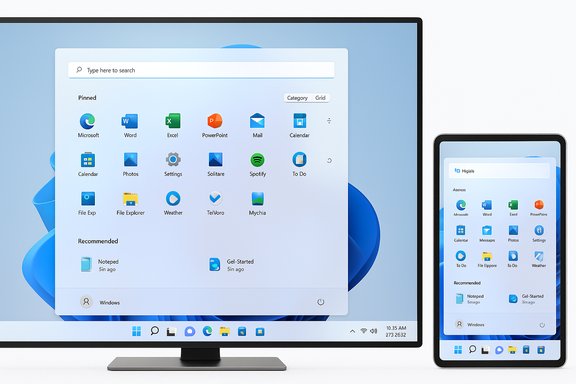
Microsoft’s redesigned Start menu for Windows 11 has started rolling out to users, bringing a fundamentally different way to reach apps, files, and mobile device content from the desktop — and it’s arriving as part of staged updates via Windows Update and the Windows Insider program. The update replaces the old two-tier app list with a top-level, scrollable “All” section, adds two new browsing modes (Category and Grid), introduces a Phone Link panel inside Start for quicker mobile-to-PC continuity, and adapts the menu’s size and layout to your screen — all while giving users more control over recommendations and layout density.
Microsoft has been experimenting with the Start menu for years, but this release is the most substantial redesign since Windows 11 debuted. The core goals are simple: reduce friction when launching apps, make better use of larger screens, and integrate cross-device workflows without forcing Android emulation or a separate subsystem.
Under the new model the Start menu’s main page can show:
Follow this sequence to check or opt in:
Adoption will be gradual — Microsoft is rolling the update in waves — but once it lands the redesigned Start is likely to become a tangible daily productivity win for many Windows users. Users who value control should take advantage of the new personalization switches, and IT teams should pilot the experience to ensure it meets security and accessibility requirements before broad deployment.
Source: PCWorld Windows 11's new Start menu is now available! Here's how to get it
 Background
Microsoft has been experimenting with the Start menu for years, but this release is the most substantial redesign since Windows 11 debuted. The core goals are simple: reduce friction when launching apps, make better use of larger screens, and integrate cross-device workflows without forcing Android emulation or a separate subsystem.Under the new model the Start menu’s main page can show:
- A scrollable “All” section that surfaces installed apps at top level.
- Two selectable views for the “All” section — Category view (apps grouped by type and surfaced by usage) and Grid view (an alphabetical, wider layout for scanning).
- A responsive layout that expands or contracts the number of pinned apps, recommendations, and category columns based on screen size.
- A new mobile device/Phone Link toggle inside Start for quick access to calls, messages, photos, and app continuity prompts from a paired smartphone.
What changed — the Start menu reimagined
A single, scrollable “All” section
The old Start experience required a separate page to reach “All apps.” The redesign elevates an All section to the top level and makes it scrollable vertically. This reduces clicks and keeps your primary actions on one surface.- Why it matters: Faster app discovery, particularly on tablets and touch devices where secondary pages were slower to navigate.
- Behavioral note: The Start menu now remembers which view you used last (Category or Grid) and restores that the next time you open Start.
Two new views: Category and Grid
You can switch how installed apps are presented:- Category view: Apps are grouped into categories (like Productivity or Entertainment). Categories are formed automatically when there are several apps of the same type; frequently used apps “bubble up” within a category.
- Grid view: An alphabetized grid intended for quick scanning, providing more horizontal real estate and a denser, familiar layout.
Responsive, density-aware layout
Start now adapts to different screen sizes and window dimensions:- Larger displays may show more pinned app columns, more recommended items, and more category columns by default.
- Smaller displays scale the layout down to reduce visual clutter and retain ergonomics.
- Sections such as Pinned and Recommended expand or collapse based on how much content exists, so a sparse pin set won’t leave an oversized empty area.
Phone Link integration inside Start
A new mobile device button next to the integrated Search box opens a Phone Link panel embedded in the Start menu. That panel surfaces content from a linked smartphone — incoming calls, recent messages, photos available to transfer, and continuity prompts that let you “resume” certain phone activities on your PC.- Important distinction: The cross-device resume model is context-based. In many cases Windows receives a brief activity descriptor from your phone and opens the corresponding native PC app to the matching state (for example, continuing playback in a desktop music client). It is not the same as running an Android runtime directly on the PC; the phone often remains the authoritative runtime for the session unless a native desktop handler exists.
- The Phone Link experience still requires pairing and appropriate permissions on both devices.
Control over recommendations and personalization
You can now control whether the Recommended section appears at all, and how Start prioritizes pinned apps versus recommendations via Settings > Personalization > Start. This addresses longtime user requests to remove or shrink the recommendation feed.How to get the new Start menu (step-by-step)
There are two primary paths to receive this update: as part of a staged Windows Update push (available to some non-Insider systems through preview KBs) or by joining the Windows Insider Program.Follow this sequence to check or opt in:
- Verify you are on Windows 11 and fully up to date:
- Open Settings > Windows Update and install any pending updates.
- For faster access, optionally enable Insider builds:
- Open Settings > Windows Update > Windows Insider Program.
- Choose your channel:
- Release Preview: the least risky preview path that gets staged features before broad rollout.
- Beta: broader preview with more features enabled earlier.
- Dev: earliest access to experimental builds (most variable).
- Enroll and follow the prompts; restart if required.
- Check Windows Update after enrolling and install the available preview update.
- Make sure device settings that enable staged features are enabled:
- Settings > Windows Update > Advanced options > Get the latest updates as soon as they’re available (toggle on for earlier staged flags).
- If you prefer not to join Insider channels, check Windows Update for preview KB packages (these are occasionally issued as optional previews); install an optional preview if one is available for your build and then allow any staged features to arrive.
- Sign out and sign back in, reboot the PC, and make sure you’re signed into your Microsoft account.
- Phone Link and cross-device prompts will require a paired phone and Link to Windows / Phone Link permissions on the handset.
Setup and quick customization tips
Change the “All” view
- Open Start, go to the “All” section, and toggle between Category and Grid view. Start preserves the last-used view.
Disable or reduce Recommended
- Settings > Personalization > Start — toggle off “Show recommendations” or adjust how many recommendations are shown.
Configure Phone Link inside Start
- Settings > Bluetooth & devices > Mobile devices (or open Phone Link app).
- Pair your phone using Link to Windows; allow background permissions on the phone.
- Use the new Phone Link button in Start to expand or collapse the phone panel.
Screen-size adjustments
- No manual scaling needed: Start will adapt based on screen resolution and device type. If results seem off for a particular DPI or layout, check Settings > System > Display and verify scaling and resolution; sign out and sign back in after changes.
Technical specifics confirmed in the update
Several UI density and layout figures are part of the new design:- On larger displays, Start may present up to eight columns of pinned apps, six recommendations, and four category columns.
- On smaller screens the defaults adjust down (e.g., six pinned columns, four recommendations, and three category columns).
- Categories are formed when there are at least three related apps; otherwise apps will appear in an “Other” or uncategorized bucket.
- The Start menu remembers the last view choice (Category or Grid) and restores it automatically on reopen.
What this means for users — strengths and practical benefits
Faster access and less friction
The single-page Start with a scrollable app area eliminates an extra tap/click for most users. That reduces friction for both keyboard and touch users and streamlines workflows throughout the day.Smarter app discovery
Category view helps surface groups of apps by use — a boon if you have many installed programs and previously relied on search or manual pinning to find essentials.Better use of larger screens
Designs that scale to show more pins, recommendations, or category columns make Start feel modern on ultrawide or desktop-class monitors rather than squeezed into a small panel.More cross-device practicality
Built-in Phone Link controls and resume prompts can meaningfully reduce context switching: start playing media on your phone and move playback to the PC in one click, or get quick access to photos and messages without opening an extra app.More control for power users and privacy-minded
The ability to disable the Recommended feed and to control how much of each section appears reflects clear user feedback. IT teams and privacy-conscious users can shrink telemetry-exposed surfaces and reduce visible content in shared/work PCs.Risks, caveats, and practical limits
Staged, server-gated rollout means inconsistent availability
The feature is rolled out in waves. Having the required build or preview package does not guarantee immediate access because Microsoft often enables features on the server side for subsets of devices and accounts. Patience or Insider enrollment may be required.Cross-device “resume” is not universal Android app execution
The resume model relies on a continuity handshake: your phone shares a small activity descriptor and Windows attempts to open a corresponding desktop handler or provide a web fallback. This is not the same as running arbitrary Android apps natively on Windows. Some third-party apps will need to integrate with the Continuity/Resume model, and the initial public examples are limited to a small set of partners.- Implication: Don’t expect every Android app to “resume” on the PC — it depends on developer support and available desktop handlers or fallback paths.
Feature availability varies by region and device
Some Phone Link features and lock screen personalization options roll out by region and device class. Expect variations in supported phone manufacturers, OS versions, and licensing in different markets.Enterprise deployment and manageability
Enterprises should evaluate the changes carefully:- Group Policy and MDM controls will likely be updated, but some staged features or server-side capabilities can be harder to control centrally until fully released.
- The recommended feed and phone integration surfaces may expose new data flows and privacy considerations for corporate-managed endpoints; IT administrators should test policies and disable features where necessary.
Accessibility and discoverability risks
Changing the classic Start layout can temporarily slow users who have muscle memory of the prior layout. Enterprises and users with accessibility needs should test the new views and ensure there are no regressions with screen readers or keyboard navigation in their workflows.Performance on low-end devices
Adaptive layouts and additional UI surfaces may add rendering overhead on very low-end devices. Most modern devices should be fine, but expect varied experiences on older hardware.Troubleshooting common issues
- New Start menu not appearing after installing updates:
- Reboot the PC and sign in with your Microsoft account.
- Confirm Windows Update shows the relevant preview or cumulative update has been applied.
- If enrolled in Insider channels, try toggling the “Get the latest updates as soon as they’re available” option and check for updates again.
- Phone Link panel not showing content:
- On the phone, open Link to Windows (or the manufacturer’s Link to Windows client), sign into the same Microsoft account, and allow background permissions.
- On the PC, confirm Settings > Bluetooth & devices > Mobile devices shows the phone paired and allowed.
- Check battery optimization settings on the phone and exempt Link to Windows from aggressive background killing.
- Resume prompts not appearing for an activity:
- Ensure the same app account is used on both phone and PC (where applicable).
- The experience can be server-gated — waiting or switching to a faster Insider channel may be required.
- If an app lacks a desktop handler, Windows may instead prompt to install a desktop equivalent from the Store; that flow requires Microsoft Store availability and sign-in.
- Layout or scaling looks wrong:
- Check Display settings for scaling and resolution; sign out and back in after changes.
- If pinned items are missing, check the Pinned list and re-pin items manually.
Enterprise considerations and recommendations
- Pilot the new Start menu in a test ring before broad deployment. The staged rollout and server-side gating mean pilot feedback is crucial for assessing user impact.
- Update Group Policy and MDM profiles to control Start menu content and phone integration as needed. Confirm that administrative templates for Start/Taskbar and Phone Link are present and tested.
- Review privacy and data flow for Phone Link integrations: phone notifications, messages, photos, and cross-device handoff create new surfaces that may be inappropriate for some regulated environments.
- Train frontline staff and provide short internal notes explaining how to:
- Disable the Recommended feed,
- Pair and unpair phones,
- Use the Category vs Grid view,
- Troubleshoot “resume” flows.
The design trade-offs and user experience implications
Microsoft’s approach balances continuity, performance, and practicality:- By favoring context handoff over full Android emulation, the company reduces complexity and avoids reintroducing a heavy Android runtime on every PC.
- The category grouping promises better discovery but depends on sensible automatic categorization; users who rely on manual organization may need to re-pin or use search at first.
- The responsive layout is a long-overdue recognition that Start must scale on large displays without leaving dead space or forcing tiny, inefficient layouts.
Looking ahead: what to expect next
This release is a platform-level change, not a static endpoint. Expect:- More developer integrations for cross-device resume and continuity as Microsoft opens or expands the developer-facing continuity SDK.
- Additional customization controls for Start, including possibly more enterprise-focused options for admins to lock down or standardize Start experiences.
- Continued gradual rollouts and fine-tuning of layout thresholds as Microsoft collects telemetry and user feedback.
Conclusion
The new Windows 11 Start menu is a meaningful evolution: it reduces clicks with a top-level, scrollable app surface, offers two practical views for discovering installed apps, adapts to different screen sizes, and brings smartphone context into the desktop through an integrated Phone Link panel. For users, the immediate gains are speed and better use of space. For enterprises and privacy-minded users, the important next steps are testing, policy validation, and carefully controlling which cross-device features are enabled.Adoption will be gradual — Microsoft is rolling the update in waves — but once it lands the redesigned Start is likely to become a tangible daily productivity win for many Windows users. Users who value control should take advantage of the new personalization switches, and IT teams should pilot the experience to ensure it meets security and accessibility requirements before broad deployment.
Source: PCWorld Windows 11's new Start menu is now available! Here's how to get it
