Windows 11 Start Menu Redesign: Category Grid Views and Copilot

  • Thread Author
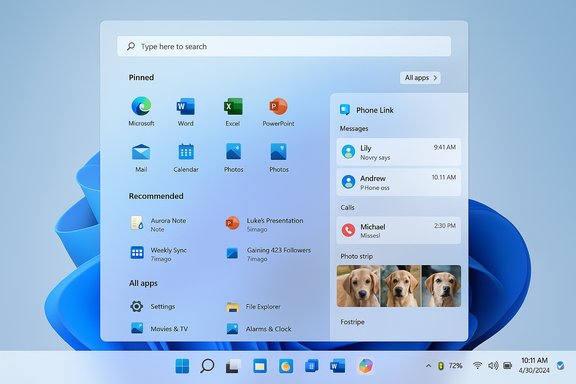
Microsoft’s latest Windows 11 preview fundamentally reshapes the Start menu into a single, scrollable hub that promotes the All apps list to the main surface, adds two new browsing modes (Category and Grid), folds a Phone Link pane into the Start chrome, and ties Copilot and File Explorer more tightly into everyday discovery — a set of changes arriving to Windows Insiders now through a phased, controlled feature rollout.

Windows 11 desktop showing the Start menu with apps and a File Explorer window.Background​

Microsoft has been iterating the Windows 11 Start experience for more than a year, experimenting in Dev/Canary/Beta channels and flipping features on for select machines via enablement packages and server-side gating. The latest packaged preview appears as KB5067036 in the Release Preview Channel (builds 26100.7015 for Windows 11 24H2 and 26200.7015 for 25H2), and Microsoft explicitly calls the Start redesign a gradual rollout — not every Insider will see the same UI on day one. This update bundles visible UI changes with platform-level improvements and on-device AI features, so the Start changes are best understood as one visible face of a larger maturation in how Windows surfaces content and AI-powered actions. Independent hands‑on reporting and the Insider announcement line up on the core claims: a single, scrollable Start canvas; Category and Grid views for All apps; a collapsible Phone Link pane; and tighter Copilot hooks across the shell and File Explorer.

What’s changing in the Windows 11 Start menu​

All apps on the main page: one surface to scroll​

The most visible change is that All apps now lives directly on the main Start page, instead of behind a separate All apps page. The Start surface is vertically scrollable, placing Pinned apps, Recommended items, and the full installed-apps list in a single, continuous canvas. This reduces the old two-step flow to one motion and aligns Start with modern, mobile-style launchers. Early test footage and the Insider notes confirm this behavioral shift. Benefits:
  • Faster app discovery for users with large software catalogs.
  • A single mental model for launching apps and accessing recent files.
  • Better use of tall or high‑DPI displays.
Potential trade-offs:
  • Higher vertical density can feel overwhelming until users adjust.
  • Some long-time users may miss the explicit separation that made Recommended and Pinned feel distinct.

Two new browsing modes: Category view and Grid view​

Microsoft adds two distinct browsing modes for the All apps list:
  • Category view — apps are auto-grouped into topical buckets like Productivity, Games, Creativity, Communication and so on. The system generates categories when there are enough apps to form a group and surfaces frequently used apps higher in each bucket.
  • Grid view — presents apps alphabetically in a denser, tile-like grid with wider spacing for better scanning on widescreen, high-resolution displays. The classic alphabetical List remains available for users who prefer it.
The Start menu remembers your last chosen view and adapts the visible density and columns based on screen size. These view choices aim to balance discoverability with predictability.

Screen-aware layout and layout flexibility​

Start now responds to display size and DPI:
  • On larger monitors you’ll see more pinned columns, fuller category rows, and a longer Recommendations pane.
  • On smaller laptops the layout tightens to keep essentials visible without visual clutter.
Pinned and Recommended sections can be expanded or collapsed, and there’s a Show all pins by default option to avoid extra clicks. These small layout controls let you dial in a Start that emphasizes the things you open most.

Phone Link, Copilot and system hooks​

Phone Link: a collapsible pane inside Start​

A new mobile device button next to Start’s search opens a Phone Link side pane that surfaces calls, messages, photos and phone notifications without launching a separate app. This pane is collapsible and user-controllable; if you don’t need phone controls on your desktop they can be hidden. Reports and the Insider notes confirm the feature works with Android and iOS in most markets, with regionally phased availability (the EEA noted specifically for delay). Practical note: because the feature is gated in staged rollouts, some Insiders have reported that the Phone Link pane appears, disappears, or behaves inconsistently across reboots and machines — expected behavior while Microsoft A/B‑tests the experience. Community reports show troubleshooting often revolves around preview-channel variability and regional gating.

Copilot deeper in the shell: Share with Copilot and Ask Copilot​

Microsoft is weaving Copilot into everyday touchpoints:
  • Share with Copilot appears on taskbar thumbnail previews for open windows, enabling quick analysis or Q&A about on‑screen content via Copilot Vision.
  • In File Explorer, hover actions add an Ask Copilot option alongside basics like “Open file location,” letting users query a file’s content without opening it.
These Copilot hooks are designed to speed common tasks and to surface AI assistance where you already are, not as a separate app. They are toggleable in settings for users or admins who prefer to limit AI integration.

File Explorer and taskbar tweaks that support the shift​

File Explorer: Recommended files and Copilot actions​

File Explorer’s Home now shows recommended files for both Microsoft accounts and local accounts, highlighting recent downloads, frequently accessed docs, and items in Gallery. Hover quick‑actions include Open file location and Ask Copilot. StorageProvider APIs are also exposed for cloud providers to surface their suggestions within File Explorer Home. These changes are meant to reduce context switching between apps and the file system. Privacy and control: recommendations in File Explorer can be disabled via Folder Options or Settings if you prefer not to display recent or suggested items on a shared device.

Taskbar: colored battery icon and Copilot thumbnail actions​

Small but useful changes:
  • The battery icon now uses color to signal status: green while charging/healthy, yellow at 20% or lower, and red for critical levels, with an option to show exact battery percentage in the System Tray.
  • Hovering over taskbar app icons shows a thumbnail with a Share with Copilot shortcut for quick Copilot Vision actions — a convenience for creators and knowledge workers who want instant analysis of screenshots or app views.

Why this Start overhaul matters​

  • Reach: Windows 11’s installed base has been growing rapidly throughout 2025, and monthly StatCounter figures show the share moving from the mid‑30s to parity with Windows 10 in mid‑2025 and beyond — meaning any Start changes touch a very large audience. That share is fluid month‑to‑month, so quotes like “roughly one‑third” are now dated; real adoption figures should be checked against current StatCounter snapshots when planning deployments.
  • Usability: The Category view is particularly valuable for enterprise environments where app sprawl and shadow IT make discovery difficult. Grouping by function reduces training friction and search time. For home users the single-surface model simplifies launching apps and finding recently used files.
  • Competitive baseline: Third‑party Start replacements such as Start11 and Open‑Shell exist for heavy customizers, but the enhanced built‑in Start may be good enough for many users, reducing the market opportunity for replacements and raising the bar on what those tools must offer.

Critical analysis — strengths, trade-offs and risks​

Strengths​

  • Single-surface efficiency. Reducing a two‑step flow to a single scroll is a pragmatic, measurable improvement for many workflows; studies and Microsoft’s own usability work consistently show that shaving steps improves perceived speed and task completion.
  • Choice and persistence. The ability to pick Category, Grid or List and have Start remember it is a small but meaningful personalization that reduces churn for users.
  • Tighter cross‑device and AI integrations. Phone Link and Copilot actions reduce app switching and put contextual assistance at point of need.

Trade-offs and potential risks​

  • Privacy surface area. Recommended files in File Explorer and Copilot hooks necessarily analyze usage or content to provide suggestions. While Microsoft provides toggles, organizations concerned with data governance and DLP must assess how recommendations interact with local policies and whether Copilot processing occurs on‑device or server‑side in their configuration. Admins should validate behavior on pilot machines.
  • Inconsistent experience during rollout. Staged enablement and A/B testing mean two machines on the same build might show different Start experiences. That complicates support scripts, training materials, and screenshots for documentation. IT departments should plan phased pilots and capture telemetry before broad deployment.
  • Auto-grouping without manual control. Category view auto‑generates groups when it detects enough apps, but early previews do not provide robust tools to rename, merge or manually curate categories. Power users and sysadmins who require deterministic layouts for kiosks or shared systems may find this limiting.
  • Hardware and region gating for Copilot+ and Click‑to‑Do features. Some AI features remain gated by Copilot+ hardware, Microsoft 365 licensing, or regional restrictions, meaning experience parity across fleets is not guaranteed.

Unverifiable or partially verified claims​

A few specific claims circulating in previews and community posts — for example, that Microsoft has made local account setup harder in onboarding, or that you can “manually set the default user folder name with commands” in a fully supported way — did not have clear, authoritative confirmation in Microsoft’s Release Preview notes or major independent coverage at the time of writing. Treat these as community-reported workarounds that should be validated before using in production imaging or provisioning scripts. Flag them for testing rather than assuming they are official behavior.

How to get it and what to expect from the rollout​

  • Join the Windows Insider Program from Settings > Windows Update > Windows Insider Program and opt into the Release Preview ring to see the KB5067036 preview sooner.
  • Check for updates and install the KB5067036 preview (Build 26100.7015 for 24H2, Build 26200.7015 for 25H2) if available on your device. The rollout is phased and may be server‑gated — two identical machines may not show the UI at the same time.
  • After the update, switch between Category and Grid views from Start’s layout options; collapse Pinned or Recommended if you prefer a minimal launcher.
  • If Phone Link in Start feels redundant, collapse or hide the pane from Personalization settings. If File Explorer recommendations raise privacy concerns, disable them in Folder Options or Settings.
Practical rollout guidance for IT:
  • Start with a small pilot group and document any behavioral differences across device classes (Copilot+ hardware, non‑Copilot machines, region settings).
  • Verify any imaging scripts or OOBE customizations against the new behavior (notably changes to .NET packaging and the optional components story in this servicing branch).
  • Audit DLP and telemetry settings to ensure File Explorer recommendations and Copilot interactions comply with organizational policy.

For power users: customization and quick tips​

  • To try Category vs Grid: open Start, scroll to the All area, and use the layout control to switch views; Start will remember your choice.
  • To reduce noise: Settings > Personalization > Start lets you hide Recommended files, recently added apps, and other suggestion types.
  • To remove Phone Link from Start: use the Start personalization toggles or uninstall/adjust Phone Link settings if you don’t want the pane present on your desktop.
  • To manage Copilot actions: Copilot-related quick actions can be toggled in Taskbar and Copilot settings; for enterprises, these settings can be controlled through policy once Microsoft advertises supported ADMX/Intune controls.

The enterprise angle: why IT teams should care​

  • Discovery and training: Category view can lower the support burden for users who struggle to find line-of-business apps or corporate tools — a measurable win for onboarding and training.
  • Imaging and compatibility: KB5067036 represents a staged feature activation model; imaging teams must test both the presence and absence of the new Start UI when validating images, and watch for the .NET packaging change noted in the broader preview.
  • Privacy & compliance: File Explorer recommendations and Copilot interactions must be evaluated under corporate policies. Ensure DLP and e‑discovery tools continue to function as expected when AI features are enabled.
  • Pilot recommendations: Roll out to tightly controlled pilot groups (power users, help desk, developers) for 2–4 weeks, monitor telemetry and support queue metrics, then expand to broader cohorts. Keep training docs up to date with screenshots from devices that reflect the new Start behavior.

Final assessment — practical, overdue, and cautiously optimistic​

This Start menu overhaul is one of the most practical — and long overdue — UX improvements for Windows 11. It answers the most common criticisms about the original layout (overweight Recommended content, rigid two‑pane navigation) while introducing sensible personalization and cross‑device features. The Category view in particular addresses a real problem: how to discover relevant apps in an era of app sprawl.
However, the preview cadence and experimental distribution mean the experience is still being tuned. Privacy concerns around recommendations and the breadth of Copilot hooks deserve careful attention from users and administrators. The staged nature of the rollout also raises short‑term friction for support teams as devices in the wild may not show the same UI simultaneously. For most users the result should be a faster, smarter Start that bends to how people actually work — fewer clicks, clearer app discovery, and contextual AI where it helps. For enterprises, the benefits are real but require pilot testing, privacy review, and imaging validation before wide deployment.

Microsoft’s narrative with this update is clear: Start is moving from a static launchpad to a responsive, personalized hub that surfaces the right signal in the right place. The change is not dramatic in a single headline gesture, but cumulative: layout choices, screen‑aware scaling, Phone Link convenience, Copilot shortcuts, and File Explorer recommendations together mark a meaningful step toward a more efficient Windows 11 desktop. Test carefully, toggle what you don’t want, and expect a gradual rollout as Microsoft collects feedback and refines the experience.
Source: findarticles.com Windows 11 Update Overhauls the Start Menu Design
 

Microsoft has started rolling out the October 2025 non‑security preview for Windows 11 to the Release Preview channel: builds 26100.7015 (24H2) and 26200.7015 (25H2) are available now under KB5067036, bringing a sizable collection of user‑facing refinements — a redesigned Start menu, deeper Copilot and File Explorer integrations, taskbar and battery UI tweaks, and a patch for a stubborn DRM playback regression — while Microsoft continues to gate many changes through a gradual, server‑side rollout.

A blue, glassy Windows-like desktop with pinned apps, a search bar, and a bottom taskbar.Background / Overview​

Microsoft’s monthly servicing model separates the big security rollups (Patch Tuesday) from optional non‑security preview releases that let Microsoft test user‑facing improvements and quality fixes before they ship widely. Preview updates like KB5067036 are delivered to Insiders in the Release Preview channel and to consumers who opt into “get the latest updates as soon as they are available.” These packages typically contain a mix of UI polish, staged feature activations, and targeted fixes; Microsoft often uses server flags to enable features progressively across devices. This October preview arrives against a busy servicing calendar: Microsoft shipped the October Patch Tuesday security cumulatives earlier in the month while also publishing several preview and out‑of‑band fixes to address early regressions. The broader context matters: some recent preview updates introduced regressions — notably playback issues for certain DRM/HDCP scenarios — and KB5067036 aims to close that loop while previewing new productivity and accessibility improvements.

What’s in KB5067036 (high‑level summary)​

KB5067036 is a feature‑rich non‑security preview that the company describes as a mixture of gradual rollouts and normal (immediate) rollouts. The most visible changes reported by Microsoft and independent outlets include:
  • A redesigned, more flexible Start menu with new layout options (scrollable All Apps, category/grid views, remembered view state and phone/device integration).
  • File Explorer Home improvements: a Recommended Files section visible to local and personal Microsoft accounts, on‑hover quick actions for files (including “Ask Copilot” / “Get summary”) and new StorageProvider APIs for third‑party cloud integration.
  • Copilot / AI context tools surfaced more tightly into system UI: contextual Copilot prompts in menus, Ask Copilot quick actions, and expanded Click to Do capabilities (summarization and categorized suggestions). Some AI features remain gated to Copilot/Copilot+ entitlements and on‑device AI hardware.
  • Taskbar and lock screen tweaks: colorized battery icons (green when charging/healthy, yellow for low battery) and refined overlays that don’t obscure percentage bars; hover previews now show a “Share with Copilot” shortcut for supported apps.
  • Accessibility and small productivity improvements: updates to voice access, a broader Narrator Braille Viewer, and a new lightweight terminal editor (“edit”) for quick in‑terminal file edits.
  • Targeted quality fixes, notably a partial or full resolution of a playback/DRM problem that affected some Blu‑ray/DVD/TV apps using the legacy Enhanced Video Renderer (EVR) with HDCP or apps that used digital audio DRM. Microsoft lists this scenario in Release Health and KB notes; the October preview is reported to address remaining cases.
Because many of these changes are server‑gated or rolled out gradually, not every device that installs KB5067036 will immediately see every UI or Copilot change. That rollout model reduces blast radius but can create confusion for early adopters who expect immediate visibility after installation.

Technical specifics and delivery​

Builds and KB identifier​

  • Target OS builds: Windows 11 24H2 → 26100.7015 and Windows 11 25H2 → 26200.7015.
  • Knowledge Base: KB5067036 — published to the Release Preview channel on October 21, 2025.

How Microsoft rolls these updates​

  • The preview is published to the Release Preview channel first; Microsoft uses staged feature activation (A/B testing and server flags) so many features flip on for subsets of devices over days or weeks. This is the same approach Microsoft has used for previous previews such as KB5065789 and other September/October preview packages.

How to get KB5067036 (consumer / Release Preview)​

  • Enroll in the Windows Insider Program and select Release Preview.
  • Open Settings → Windows Update → Check for updates. The preview should appear as an optional/preview update (KB5067036).
  • Download, install, and reboot as needed.
  • Wait 24–72 hours for gradual feature activation; verify via Settings → System → About or Update history for the build number.
For enterprise environments, use your established deployment channels (WUfB, WSUS, Intune) but treat preview releases as validation candidates rather than production pushes. Pilot KB5067036 in a representative hardware/application ring first.

Deeper look: major user‑facing changes and impact​

Redesigned Start menu — what changed and why it matters​

The Start menu redesign focuses on discoverability and personalization: a scrollable All Apps view, two new views (category and grid), memory of the last used view, and a phone/device integration button next to the search box for Phone Link content. These changes reduce friction for power users who manage large app sets and improve consistency across screen sizes. The new Start is a visual and navigational refinement rather than a rearchitecture; it retains the underlying Start experience while improving navigation. Impact:
  • Faster app discovery for users with many installed apps.
  • Reduced reliance on third‑party start menu tools.
  • Administrators should validate group policy and shell‑extension interactions that integrate with Start (third‑party security agents or legacy management tools may expect the old structure).

File Explorer Home and Recommended Files​

File Explorer Home now surfaces Recommended Files to local accounts and personal Microsoft accounts, and hovering over entries reveals quick actions including “Ask Copilot” and “Open file location.” Microsoft also added APIs to let third‑party cloud storage providers integrate recommended items into the Home view.
Impact:
  • Productivity gains for users who rely on quick access to recent or frequently used documents.
  • Privacy and enterprise data governance implications: Ask Copilot and some AI actions may send data to cloud services depending on settings and entitlements — organizations should review Copilot and Microsoft 365 policies before broadly enabling these features.

Copilot integration and Click to Do​

The update extends Copilot presence into context menus and quick file actions, while Click to Do gets categorized tags and improved summarization. These are incremental UX moves that further integrate AI into everyday tasks. Note: some AI capabilities require Copilot/Copilot+ licensing or on‑device NPUs; availability is intentionally limited.

Battery and taskbar refinements​

Colorized battery icons and an improved hover‑preview UI with a “Share with Copilot” shortcut aim to improve glanceability and surface AI actions where they’re useful. These are small but visible touches that make system state easier to read — especially on laptops and devices used on the go.

The DRM playback regression: what was broken and how KB5067036 addresses it​

In late August and September 2025 Microsoft acknowledged a regression that caused some Blu‑ray/DVD and certain digital TV apps to fail when playing protected content. The root cause: interactions with the legacy Enhanced Video Renderer (EVR) when HDCP enforcement or certain audio DRM flows were present; symptoms included black screens, abrupt stops, or freezes. Streaming services were largely unaffected, but local playback apps and hardware DVD/Blu‑ray software could fail. Microsoft documented the issue in Release Health and published partial fixes in previous previews (KB5065789), with KB5067036 reported as the Release Preview package that finally addresses the remaining affected scenarios. Practical takeaway:
  • If you experienced playback problems with EVR‑based apps after August/September updates, installing KB5067036 in Release Preview should help. However, because the fix was staged and not all apps are affected the same way, validate your specific playback apps (e.g., vendor players, TV tuner applications) on test hardware before wide deployment.

Enterprise considerations — risk, testing, and rollout plans​

  • Pilot first: Use a controlled validation ring that represents hardware diversity (GPU drivers, monitor setups, custom shell extensions). Many taskbar/File Explorer integrations are sensitive to third‑party shell extensions and security products.
  • Review AI/data policies: Features that route file content to Copilot or cloud services can create privacy and data residency concerns. Turn on or restrict Copilot actions according to your organizational policies.
  • Driver and peripheral checks: New UI elements and DRM fixes can interact with video drivers and legacy hardware (e.g., fax/modem drivers were affected by earlier October cumulatives). Maintain vendor driver compatibility lists before broad installs.
  • Pre‑install prerequisites: Ensure the latest Servicing Stack Update (SSU) is present; Microsoft bundles SSU/LCU combinations and some updates will not offer until the latest SSU is installed.
  • Rollback and recovery planning: Preview LCUs may be removable via DISM/Remove‑Package, but SSUs are not removable once installed; document rollback steps and verify backups before pushing the preview widely.

Known issues, caveats, and unverifiable claims​

  • Gradual rollouts mean not all features will appear after installation; being on KB5067036 does not guarantee immediate visibility of a new UI element. Microsoft confirms the staged model and community posts show many early adopters reporting “no visual changes” until server flags reach their device.
  • The DRM playback fix is reported to be included in KB5067036 and to resolve many EVR/HDCP cases. Independent coverage and Microsoft’s Release Health entries corroborate this, but some apps using audio DRM still showed intermittent issues after earlier previews; organizations should validate vendor players specifically.
  • Dates for wider public rollout remain fluid. Some outlets and community trackers suggested a public/optional Install phase or a fuller November Patch Tuesday inclusion (for example, one independent outlet projected additional rollout timing), but those schedules are tentative and subject to change; treat any published “public release” dates as provisional until Microsoft updates the official Release Health or support KB pages. This projection is an inference based on Microsoft’s cadence rather than a firm guarantee.
  • Feature gating and Copilot entitlements: Claims about “Ask Copilot” availability for local and Microsoft accounts are correct for many preview installs, but Copilot‑backed features may require account sign‑in, licensing, or hardware gating; treat on‑device experience as conditional.

How to validate the update and what to check after installation​

  • Confirm build: Settings → System → About or run winver (expect 26100.7015 or 26200.7015).
  • Check Update history to ensure LCU/SSU were applied successfully. If an SSU was needed and missing, Windows Update may refuse to install the preview until updated.
  • Verify visible features: Start menu layout, File Explorer Home changes, battery icons, and on‑hover file actions. If not present immediately, wait 24–72 hours for feature flags and server activations.
  • Test playback scenarios if you experienced DRM errors previously: run affected Blu‑ray/DVD/TV apps and reproduce prior failure cases. Validate both video and audio DRM flows.
  • Monitor Event Viewer for errors related to shell extensions, Explorer, or DRM subsystems, and gather crash dumps where applicable for vendor escalation.

Recommendations — who should install the preview and when​

  • Enthusiasts and power users who want early access to UI changes and are comfortable troubleshooting: opt into Release Preview, install, and test on non‑critical machines.
  • IT teams and enterprises: treat KB5067036 as a test/validation build. Pilot in a narrow ring, confirm vendor app compatibility (especially drivers, third‑party security software, and playback apps), validate backup/rollback procedures, and only promote to production after pilot telemetry is satisfactory.
  • Users affected by the EVR/DRM playback regression: test KB5067036 on a device that reproduces the issue; the preview has been reported to address many of the problem cases. If you rely on mission‑critical playback apps, coordinate with the app vendor and validate the fix before broad adoption.

Verdict — strengths, tradeoffs, and risk summary​

KB5067036 is one of the more substantial non‑security previews of recent months: it bundles meaningful productivity improvements, deeper Copilot integration, and important quality fixes (notably for DRM playback). The strengths are clear: improved discoverability in Start, convenience in File Explorer, and incremental UI polish that benefits everyday workflows. Microsoft’s staged rollout model is pragmatic: it lowers risk by enabling A/B testing and telemetry‑driven activation. However, the tradeoffs matter. Server‑gated activations can create inconsistent experiences across devices, and AI/Copilot integrations introduce privacy and governance considerations for organizations. Preview updates are not a substitute for rigorous enterprise testing: driver or third‑party hooks, legacy shell extensions, and specialized hardware (medical devices, industrial controllers, legacy media players) can expose incompatibilities. The DRM playback regression history underlines that even “quality” updates can introduce or reveal platform regressions; the practical lesson is to pilot and verify. Finally, independent reporting and Microsoft’s own Release Health indicate this preview is part of an ongoing stabilization and feature‑staging cadence. Plan for measured adoption: pilot now if you need the fixes or want early access, but hold production rollout until vendor validation and telemetry confirm stability.

Quick checklist for Windows users and admins​

  • If you are a power user or Insider: enable Release Preview, grab KB5067036, and test the new Start, File Explorer, and Copilot features on a non‑critical device.
  • If you’re an admin: open a pilot ring, validate device drivers and security agents, test DRM playback scenarios if affected, and confirm SSU presence before mass deployment.
  • If you depend on Copilot or AI features for work: review Copilot licensing and data routing settings; configure enterprise consent and data retention policies.
  • If you experienced playback errors: validate the install of KB5067036 on representative devices and coordinate with player vendors as needed.

KB5067036 represents a meaningful step in Microsoft’s incremental approach to Windows feature rollouts: it packages useful UI refinements and fixes into a preview LCU while keeping activation conservative and telemetry‑driven. For enthusiasts, it’s a welcome preview of what’s coming; for IT teams, it’s a validation target — useful, but one to handle with the usual care before broad deployment.
Source: Microsoft - Message Center https://support.microsoft.com/help/5067036
 

Microsoft’s phased refresh of the Windows 11 Start menu is more than a cosmetic tweak — it’s a deliberate redesign that reframes how apps, files, and mobile content are discovered on the desktop, folding phone continuity directly into the primary launcher while giving users genuinely new layout options and personalization controls.

Windows 11 desktop Start menu with pinned apps and a Phone Link panel.Background​

Since Windows 11 debuted, the Start menu has been a lightning rod for feedback: praised for a cleaner look but criticized for limited density, discoverability, and a rigid layout that frustrated power users. Microsoft’s latest changes arrive as part of the optional preview update KB5067036 — shipped to Release Preview Insiders as Builds 26100.7015 (24H2) and 26200.7015 (25H2) — and represent the most visible Start rework since the OS launched. The company is deploying the redesign as a staged feature flip, meaning the binaries appear via the servicing update but feature flags control activation across devices. This update sits inside a broader release that also touches File Explorer, taskbar polish, on‑device language models for voice access, and a variety of Copilot-related enhancements. Those adjacent changes are relevant because they illustrate Microsoft’s dual aim: make the interface more productive while incrementally inserting AI-based assistance into everyday flows.

What’s new — the redesign, at a glance​

The Start menu changes center on three design and productivity pillars: discoverability, personalization, and cross‑device continuity. The headline features are:
  • A single, vertically scrollable Start surface that places the “All” apps view at the top level rather than a separate page.
  • Multiple “All apps” viewsCategory, Grid, and List — letting users choose how installed apps are surfaced.
  • Responsive layout that adapts pinned columns, recommendation slots, and category columns to screen size.
  • Phone Link integration surfaced as a collapsible panel inside Start so mobile call/message/photo flows are one click away.
  • Taskbar and UI polish, including colored battery icons and optional battery percentage in the system tray.
These features are documented in Microsoft’s Release Preview notes and corroborated by independent coverage and testing reports.

The scrollable “All” surface​

The old Windows 11 Start separated Pinned apps, Recommended items, and “All apps” into separate interactions. The new surface merges these into one vertically scrollable canvas so users can sweep through pins, recommendations (if enabled), and the full app list in one continuous motion. The behavior is intentionally familiar to users of mobile launchers and many modern app drawers: one surface, one primary navigation gesture. Practical benefits include fewer clicks and faster discovery for users with many installed apps, especially on tablets and touch devices.

Category, Grid, and List views​

Users can now switch the “All” section between three browsing modes:
  • Category view — apps auto‑group into buckets such as Productivity, Entertainment, Games, and Communication, with frequently used apps surfaced within each category.
  • Grid view — an alphabetical tile grid intended for horizontal scanning and denser visual scanning.
  • List view — the classic alphabetical list retained for predictability.
The Start menu remembers the last view used and restores it on next open, which reduces friction for users who prefer a particular browsing model. Note: categories are auto‑generated in the initial rollout and are not user‑editable yet — a limitation that will matter to administrators and power users who want deterministic layouts.

Responsive, density‑aware layout​

Microsoft calibrated the menu to scale with display size. In published examples and testing, larger screens can show up to 8 columns of pinned apps, 6 recommendation slots, and 4 columns of categories, while smaller devices reduce those counts (examples commonly cited are 6/4/3 for smaller displays). The intention is to use larger canvases intelligently rather than simply stretching the old UI. This is a practical improvement for ultrawide and high‑DPI setups but can feel too expansive on some monitors if users expect compactness.

Phone Link inside Start — tighter phone-to-PC continuity​

Perhaps the most strategic change is the Phone Link integration. A small mobile device button next to the embedded Search box expands a collapsible Phone Link panel inside Start, surfacing:
  • Recent messages and notifications
  • Incoming/missed calls and call controls
  • Phone photos available for transfer
  • Quick file‑sharing and continuity prompts
That panel leverages the existing Phone Link app’s connectivity stack and Adaptive Cards for a compact display inside the Start surface. Microsoft intends the experience to support Android broadly and iOS in selected markets, with EEA availability staged per the Release Preview notes. Because Phone Link’s capabilities differ between Android and iPhone (Apple’s platform restrictions limit parity), the lived experience will vary by phone OS and region.

Enterprise and IT implications​

For IT teams, these changes present both opportunity and operational nuance.

Productivity and training​

The ability to tailor the Start layout by toggling recommended content, expanding pinned grids, and choosing view modes can reduce training friction. Teams can provision devices with configurations that emphasize the tools each role needs — developers can keep IDEs and terminals at the top, while executives can surface communication and dashboard apps.
  • Potential benefits
  • Lowered training overhead from role-oriented Start layouts.
  • Faster app discovery for software-heavy roles.
  • Consolidated phone access in Start reduces multi‑device context switching during hybrid meetings.

Rollout strategy and risk​

The staged rollout model is a double‑edged sword for enterprises. Microsoft’s approach (delivery as a small enablement/preview package with server‑side feature flags) reduces network and reboot costs, but it also introduces inconsistent experiences across identically configured machines until feature flags are flipped. The official guidance and community reports stress a cautious pilot phase before broad deployment. Microsoft Q&A posts and Insider feedback show users who installed the KB but didn’t see the UI changes because of staged activation — a reminder that installing the preview package does not guarantee immediate feature exposure.

Security and manageability​

Enterprises should verify:
  • Group Policy and Intune controls for Start personalization in their environment.
  • Whether the Phone Link panel’s exposure of phone content interacts with corporate data‑loss prevention (DLP) policies.
  • Compatibility with managed images and vendor software that assume the classic Start layout.
Administrators should run compatibility tests for third‑party shells (Start11, StartAllBack) and line-of-business launchers, as those tools have been a common workaround for prior Start limitations. For mission‑critical fleets, staged pilots will show whether the updated Start improves or complicates user workflows.

Accessibility, discoverability, and power‑user tradeoffs​

The redesign improves discoverability and gives users more options — but not every complaint is solved.

Accessibility and discoverability improvements​

  • The consolidated surface reduces the number of interactions to reach apps, which benefits users with reduced dexterity.
  • The Category view can help users who rely on semantic groupings rather than exact app names.
  • Fluid Dictation and on‑device small language models for voice access (part of the same update package) strengthen alternative input modes and reduce latency/privacy concerns by doing more processing locally on Copilot+ hardware.

What’s still missing for power users​

  • Manual, freeform resizing of Start remains unsupported: users can’t arbitrarily resize the Start window to a custom footprint.
  • Categories are currently auto‑generated and not user‑editable, limiting deterministic layouts for admins and power users.
  • Some long‑time Windows customizers will still prefer third‑party shells for extreme personalization, such as arbitrary pin positioning, full theming, or legacy Start menu behaviors. Independent reporting and community commentary make clear that for those wanting ultimate control, tools like Start11 or Open‑Shell remain relevant.

Visual polish and micro‑interactions​

Beyond the structural changes, Microsoft shipped several visual refinements intended to improve glanceability and reduce micro‑friction.
  • Colored battery icons now use green/yellow/red states to indicate charge/healthy/critical, plus an option to show battery percentage in the system tray and lock screen.
  • Smoother animations and thumbnail preview improvements add continuity to window switching and taskbar interactions.
  • File Explorer context actions (hover menus and Copilot actions) make common workflows faster and are tied into the broader Copilot and AI action palette.
These are incremental but meaningful: small improvements in at-a-glance diagnostics and microflow shortcuts add up in daily productivity, especially for mobile workers who care about battery and quick transfers.

Validation, rollout mechanics, and known caveats​

This refresh was released as an optional preview update (KB5067036) to Release Preview Insiders and uses staged feature flags. Verified claims and caveats:
  • Microsoft’s Windows Insider Blog confirms the builds (26100.7015 and 26200.7015) and the gradual rollout of Start menu features.
  • Independent outlets such as The Verge and Windows Report tested preview builds and reported the scrollable All section, view modes, and Phone Link integration, matching Microsoft’s published notes.
  • Community feedback and Microsoft Q&A indicate some users will not see the changes immediately after installing KB5067036 because activation is staged; this is an expected behavior and part of Microsoft’s telemetry-driven deployment.
Important verification notes and areas to watch:
  • Feature parity between Android and iPhone in the Phone Link panel is constrained by platform capabilities and Apple’s restrictions; iPhone experiences will likely remain more limited than Android for certain tasks such as deep app mirroring. This is corroborated by multiple coverage threads and prior Phone Link behavior seen in Insider previews.
  • Some AI-driven functions and “Click to Do” enhancements are hardware- and license‑gated (Copilot+ hardware or Microsoft 365 entitlements). Enterprises should confirm entitlements before relying on these features in workflows.

Risks and downside scenarios​

No update is risk‑free. Organizations and users should weigh tradeoffs.
  • Stability and early bugs: This release is a preview in many channels; early adopters report cosmetic glitches and inconsistent activation. Rollout pace helps Microsoft reduce regressions, but pilots should expect some rough edges.
  • Inconsistent experience across machines: Because Microsoft gates features server‑side, identical systems can show different UIs until flags are flipped, complicating support documentation and training.
  • Privacy and DLP considerations: Surfacing phone content in Start raises legitimate data‑loss concerns. IT should review how Phone Link content appears on corporate machines and whether DLP policies or endpoint protections need adjustment.
  • Power‑user dissatisfaction: For folks who rely on third‑party Start replacements for advanced customization, Microsoft’s changes will be meaningful but not exhaustive; the ecosystem for deep customizers will remain relevant.

Practical steps for users and IT​

For individuals and IT teams ready to test or adopt the new Start menu, follow this staged checklist:
  • Join the Windows Insider Release Preview channel or obtain KB5067036 through Windows Update if testing a preview. Expect the package to install quickly on 24H2/25H2 devices.
  • Pilot on a representative set of devices (high‑density, laptop, tablet) to evaluate layout responsiveness and the Phone Link experience. Assess whether categories, grid, or list views fit the primary workflows.
  • Validate Phone Link behaviors against the required Phone Link app version and connectivity prerequisites (Bluetooth LE, Microsoft Account sign‑in). Confirm iPhone and Android parity where it matters for your users.
  • Review DLP and endpoint protections for any phone content surfaced inside Start. Adjust policies where Phone Link would surface personal data in corporate contexts.
  • Communicate changelog and training pointers: highlight the new view modes, how to toggle Recommended items, and where to find phone controls inside Start. Keep documentation for helpdesk staff updated since activation may be staggered.

Competitive context and what’s next​

This Start redesign is part of Microsoft’s larger strategic push to make Windows the central hub of users’ multi‑device lives. It addresses criticisms about the original Windows 11 launcher while leaning into continuity and AI. Apple’s macOS has long had deep Continuity features that keep iPhone integrations feelless; Microsoft’s push to put phone content directly into Start is an explicit play to narrow that advantage and make Windows more attractive to mixed‑ecosystem users. Expect iterative increments rather than an overnight parity: Phone Link will expand over time, but platform limitations will shape what’s feasible. On the AI front, the Start rework sits alongside Copilot enhancements and on‑device small language models for voice access; future Start iterations could incorporate smarter app recommendations, context-aware shortcuts, or AI-surfaced tasks — but many of those experiences will depend on hardware gating and licensing. Enterprises should keep an eye on Microsoft’s staged announcements and documentation for evolving entitlements and hardware requirements.

Final assessment: meaningful progress with pragmatic limits​

Microsoft’s Start menu redesign is a substantive and well‑targeted improvement: it restores discoverability, introduces flexible views that fit distinct mental models, and importantly folds Phone Link into the primary launcher to shorten cross‑device friction. For average users and many enterprises, the net result should be a more efficient daily experience once the staging and any initial bugs settle.
That said, the update is not a panacea. Some advanced customizations remain out of reach, category editing is not yet available, and platform differences in Phone Link will limit parity between Android and iPhone experiences. The staged rollout model reduces immediate risk but creates short‑term inconsistency across fleets. Organizations and power users should pilot carefully, validate Phone Link behaviors against compliance requirements, and plan for incremental adoption rather than an immediate, blanket flip.
Microsoft has built a practical, iterative Start experience that emphasizes productivity and connectivity. If the rollout continues to be guided by telemetry and real user feedback, subsequent adjustments — particularly around category control, enterprise manageability, and cross‑platform parity — could close the remaining gaps and make this one of the more consequential UI updates in Windows 11’s lifecycle.

Source: WebProNews Windows 11 Update Revamps Start Menu with Custom Features and Phone Link
 

Back
Top