

Microsoft has quietly rebuilt the Windows 11 Start menu into something that finally feels useful again — and if you don’t want to wait for Microsoft’s staged rollout, there’s a straightforward (but unsupported) way to turn it on today using the community tool ViVeTool.
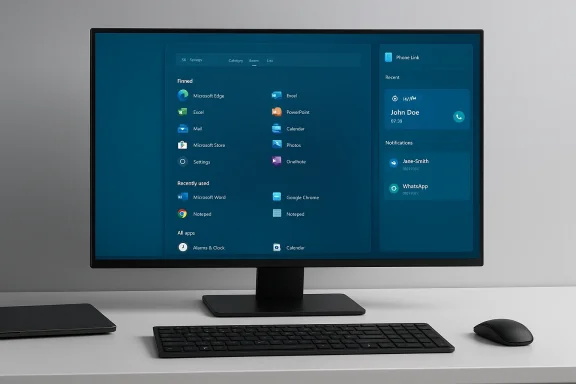
The Start menu is the single-most-visible piece of daily desktop UX for many people, and Microsoft’s original Windows 11 design traded density and discoverability for a cleaner, centered aesthetic. That decision left power users and anyone with a large app library frustrated by an extra click to reach the full app list and by a prominent Recommended pane that many found noisy. Microsoft responded by iterating in Insider channels and has packaged a longer-awaited redesign into the October 2025 preview patch KB5067036. The update delivers a single, vertically scrollable Start surface, three app-list views (Category, Grid, List), tighter Phone Link integration, and more granular toggles for Recommended content.
The practical takeaway is this: Microsoft shipped the code in an optional preview update but is enabling the new experience gradually via server-side feature gating. That means installing the update alone may not show the new Start immediately — Microsoft may still flip a visibility flag on the back end for a subset of machines while telemetry is monitored. Enthusiasts and IT testers who are comfortable accepting risk can force the feature locally; everyone else can quietly install the preview and wait for the rollout to reach their device.
If you value convenience and control, ViVeTool gives you a path to the new Start now; if you value stability and support, installing KB5067036 and patiently waiting for Microsoft’s rollout is the wiser choice. Either way, back up first, and if you are experimenting, do it in a safe test environment. The new Start is a meaningful usability win — just approach the enablement step thoughtfully.
Source: MakeUseOf Windows 11 has a new Start menu — here's how to unlock it
 Background: why this matters now
The Start menu is the single-most-visible piece of daily desktop UX for many people, and Microsoft’s original Windows 11 design traded density and discoverability for a cleaner, centered aesthetic. That decision left power users and anyone with a large app library frustrated by an extra click to reach the full app list and by a prominent Recommended pane that many found noisy. Microsoft responded by iterating in Insider channels and has packaged a longer-awaited redesign into the October 2025 preview patch KB5067036. The update delivers a single, vertically scrollable Start surface, three app-list views (Category, Grid, List), tighter Phone Link integration, and more granular toggles for Recommended content. The practical takeaway is this: Microsoft shipped the code in an optional preview update but is enabling the new experience gradually via server-side feature gating. That means installing the update alone may not show the new Start immediately — Microsoft may still flip a visibility flag on the back end for a subset of machines while telemetry is monitored. Enthusiasts and IT testers who are comfortable accepting risk can force the feature locally; everyone else can quietly install the preview and wait for the rollout to reach their device.
What’s actually new in the redesigned Start
Single, scrollable surface
The new Start replaces the old split between Pinned shortcuts and a separate All apps page with one continuous, vertically scrollable canvas. Pinned apps, the Recommended area (if enabled), and the full app inventory now live in a single surface so you can find most apps with one scroll instead of an extra tap. This change directly addresses the “extra click” complaint that has dogged Windows 11 since its launch.Three views for All apps
You can choose how the All apps list is presented:- Category view — the OS auto-groups apps into topical buckets such as Productivity, Games, Communication, etc., and surfaces frequently used apps within those groups.
- Grid view — an alphabetized, denser icon grid that maximizes the number of visible apps at a glance.
- List view — the classic vertical A→Z list for keyboard-oriented users.
Responsive layout and Phone Link integration
The Start canvas adapts to screen size and DPI: larger displays show more columns of pinned apps and more visible content by default. A small Phone Link button next to the Start search area expands a collapsible panel that surfaces recent phone activity (calls, messages, photos) from a paired device. Availability of phone features depends on your phone pairing and regional rollout.Configurable Recommended content
Microsoft added explicit toggles in Settings > Personalization > Start so you can:- Hide the Recommended files/apps area,
- Show or hide recently added apps,
- Show or hide most-used apps.
How to get the new Start: supported path (recommended for most users)
- Open Settings > Windows Update.
- Turn on “Get the latest updates as soon as they’re available” (optional; this exposes preview updates).
- Check for updates and install the optional preview labeled KB5067036 (October 28, 2025 preview). The KB places the necessary bits on your machine and updates your servicing build to the preview builds commonly reported as 26100.7019 (24H2) or 26200.7019 (25H2).
- Restart your PC and open Start. If Microsoft’s server-side gating has flipped for your device the new Start will appear; if it hasn’t, the KB is installed but the feature will remain hidden until Microsoft enables it for your device group.
How to enable the new Start now (ViVeTool method — unsupported)
If you’re an enthusiast, tester, or you have a spare machine or VM, many community posts and hands‑on guides show a reliable method to enable the new Start immediately by flipping feature flags with ViVeTool.What ViVeTool is
ViVeTool is an open-source command-line utility that toggles Windows feature flags stored locally. It is widely used by Windows enthusiasts to reveal staged features that Microsoft has shipped but not yet activated on a particular device. ViVeTool is not supported by Microsoft; using it is an advanced, user‑driven trick and carries risk.Preflight checklist (do this first)
- Confirm your build: Run winver and verify you’re on build 26100.7019 or 26200.7019 (or later); KB5067036 must be installed for the feature flags to be present.
- Make a full backup or system image and create a System Restore point.
- Record BitLocker recovery keys and any enterprise recovery or management credentials.
- Do not run ViVeTool on managed or corporate devices without IT approval — Group Policy, MDM, or security controls may block changes and you may violate your organization’s policies.
Step-by-step ViVeTool walk-through
- Download the latest ViVeTool release from its official GitHub releases page and extract the ZIP to a folder you control (for example: C:\ViVe). Choose the release that matches your CPU architecture.
- Open Command Prompt as Administrator (right‑click → Run as administrator) and change into the ViVeTool folder:
- Example: cd C:\Users\YourName\Downloads\ViVe
- Verify ViVeTool runs by typing vivetool and pressing Enter; the usage output should appear.
- Run the community-reported enable command(s). There are two commonly used forms:
- Single-ID (often sufficient): vivetool /enable /id:47205210
- Multi-ID (community set used to enable the full Start redesign plus companion bits):
vivetool /enable /id:57048231,47205210,56328729,48433719
How to revert
- Reset a specific ID to tell Windows to follow Microsoft’s normal staged rollout again:
vivetool /reset /id:47205210 - Or disable the whole multi-ID set you enabled:
vivetool /disable /id:57048231,47205210,56328729,48433719 - After running reset/disable, reboot. If problems persist you can uninstall KB5067036 or restore the system image you created.
What to expect after enabling: practical user notes
- The Category view creates buckets only when your installed apps meet the heuristic for a category; you’ll see category tiles only if there are at least a few apps that belong together. The OS uses store metadata and local heuristics to group apps. If you dislike categories you can switch to Grid or List.
- The Start menu remembers your last selected view; it will reopen in the same mode you left it in.
- Several companion UI improvements — an updated battery icon with percentage, taskbar thumbnail animation tweaks, and File Explorer refinements — are part of the same preview package and may appear after installing KB5067036. Expect these additional changes if you install the preview.
Benefits: why many users are happy
- Faster discovery: No extra tap to open All apps; everything is reachable by a single scroll.
- Flexible presentation: Category/Grid/List gives users multiple ways to browse apps, making the Start menu useful for both visual and keyboard-centric workflows.
- Better use of screen real estate: The responsive layout scales to high-DPI and widescreen monitors, showing more pinned apps and categories where appropriate.
- User control: You can hide Recommended content without third‑party hacks, making the Start menu less noisy for those who prefer a minimalist launcher.
Risks and real-world issues you should weigh
Using ViVeTool or installing preview updates carries trade-offs. Be explicit about these before you proceed.1) Server-side gating and inconsistent behavior
Even with the preview installed, Microsoft’s server-side gating means identical systems may show different Start menus. ViVeTool flips local flags, but some features have additional server checks — enabling flags is not a guaranteed complete solution on every machine.2) Unsupported tool, unsupported state
ViVeTool manipulates internal feature flags that Microsoft does not document for public use. While the tool is widely used by enthusiasts, it remains unsupported; Microsoft’s support organization can decline to assist if you’ve modified local enablement state with third‑party tools. If you rely on official support, don’t run ViVeTool on critical systems.3) Known bugs in the KB preview
Early adopters of KB5067036 reported stability issues in the October preview: the most notable widely reported bug is an issue where Task Manager spawns hidden duplicates when closed, causing many background taskmgr.exe instances and memory bloat. Several outlets and community threads documented the problem shortly after the preview dropped; Microsoft has tracked reports and, in some cases, provided workarounds (e.g., using taskkill) while working on fixes. There are also community reports of search input not working in Start for some users after enabling the redesign. These are real, observable problems — treat the preview as just that: a preview.4) Managed devices and enterprise policies
Devices under management will often block local flag flips. Group Policy, MDM configuration, and enterprise update rings may prevent ViVeTool from changing behavior, or running ViVeTool could conflict with compliance policies. If you are in a corporate environment, coordinate with IT.5) IDs and behavior can change between builds
The numeric feature IDs used in community commands are not fixed public APIs. They can change across servicing branches and builds. If an ID doesn’t work, don’t assume the tool is broken — the community set might have shifted for your specific build. Always verify your servicing build and the most recent community guidance before proceeding.Practical mitigation: make testing safe
- Use a VM or a secondary test machine to experiment first. If the new Start or KB update causes problems, you’ll avoid disrupting primary workflows.
- Create a full disk image before installing KB5067036 or before toggling flags with ViVeTool so you have a reliable rollback point.
- Keep recovery tools at hand: a Windows installation USB, BitLocker recovery keys, and another admin account are all important if you need to repair or restore.
- If you see Task Manager duplicating or other odd behavior, use taskkill /im taskmgr.exe /f to end instances and then patch or roll back when Microsoft issues a fix.
For IT teams: how to approach deployment
- Pilot KB5067036 and the new Start in a controlled ring (test/dev) first, verifying business-critical apps and management tooling.
- Validate Group Policy and MDM interactions (especially telemetry, update settings, and Shell behavior).
- Don’t allow ViVeTool-style local changes in managed images — require documented change control for any feature-flag manipulation.
- Track Microsoft’s formal guidance and cumulative updates; the staged rollout model means the feature will arrive broadly in time, and supported channels will stabilize bugs reported from early previews.
Verdict: should you try it now?
- If you’re a tinkerer with spare hardware or a VM and you want the new Start today: the ViVeTool route works and is well-documented in community threads. Do your preflight checks, back up, and accept that occasional glitches are possible. Use the single-ID attempt first (vivetool /enable /id:47205210) and add other IDs only if necessary.
- If you depend on a stable daily driver, a managed laptop, or an enterprise fleet: install KB5067036 via Windows Update and wait for Microsoft’s staged activation. That way you get the redesign through supported channels with fewer headaches.
Final thoughts
This Start redesign is one of the rare, function-first corrections Microsoft has made to Windows 11’s UX: it restores discoverability without abandoning the modern look. The changes are practical, and the combination of responsive layout, multiple app-list views, and configurable Recommended content should make the Start menu far more useful for a broad set of users. That said, the delivery model — shipping the code in servicing updates while gating activation server-side — combined with the community’s use of feature-flag tools like ViVeTool, produces a trade-off between instant access and system stability.If you value convenience and control, ViVeTool gives you a path to the new Start now; if you value stability and support, installing KB5067036 and patiently waiting for Microsoft’s rollout is the wiser choice. Either way, back up first, and if you are experimenting, do it in a safe test environment. The new Start is a meaningful usability win — just approach the enablement step thoughtfully.
Source: MakeUseOf Windows 11 has a new Start menu — here's how to unlock it
