

Microsoft’s refreshed Start menu in the Windows 11 November 2025 wave is a deliberate redesign — not just a cosmetic tweak — that returns a scrollable, single-surface launcher to the heart of the OS while adding new views, smarter discovery, phone continuity, and clearer personalization controls. The update aims to reduce clicks, make large app catalogs usable again, and give users control over recommendations, but it also introduces rollout, privacy, and IT-management trade-offs that every Windows admin and power user should understand before flipping switches or rushing to upgrade.
Microsoft’s Start menu evolution has been iterative: the original Windows 11 Start emphasized a centered, minimalist grid with a separated “All apps” page and a prominent Recommended feed, which many users found visually tidy but functionally limiting. The November 2025 refresh restores a single, vertically scrollable Start surface where Pinned apps, Recommended (or personalized) entries, and the full All apps inventory appear on one continuous canvas. Microsoft has delivered this redesign through preview/optional updates and staged, server‑side enablement rather than a single monolithic feature update. That means you may need to both install an optional update and wait for Microsoft's feature flags to flip on your device. The visible goals are clear: better discoverability, greater flexibility (three app‑list views), and smarter use of large displays. Under the hood the change is part of a larger push to fold platform AI, Phone Link continuity, and Copilot hooks into daily workflows. Expect regional and hardware gating for some features (notably Phone Link parity and certain Copilot/AI actions).
Another tension is between smart auto‑grouping (Category view) and user predictability. Auto‑generated categories are convenient, but deterministic layouts are important for certain workflows and standardized training environments. Microsoft currently does not expose first‑class controls to rename or reorder automatic categories; that could frustrate power users and ISVs who want predictable application locations.
Before broad adoption:
Source: Analytics Insight How to Use the New Windows 11 Start Menu
 Background / Overview
Microsoft’s Start menu evolution has been iterative: the original Windows 11 Start emphasized a centered, minimalist grid with a separated “All apps” page and a prominent Recommended feed, which many users found visually tidy but functionally limiting. The November 2025 refresh restores a single, vertically scrollable Start surface where Pinned apps, Recommended (or personalized) entries, and the full All apps inventory appear on one continuous canvas. Microsoft has delivered this redesign through preview/optional updates and staged, server‑side enablement rather than a single monolithic feature update. That means you may need to both install an optional update and wait for Microsoft's feature flags to flip on your device. The visible goals are clear: better discoverability, greater flexibility (three app‑list views), and smarter use of large displays. Under the hood the change is part of a larger push to fold platform AI, Phone Link continuity, and Copilot hooks into daily workflows. Expect regional and hardware gating for some features (notably Phone Link parity and certain Copilot/AI actions). What’s new — feature-by-feature
Single, scrollable Start surface
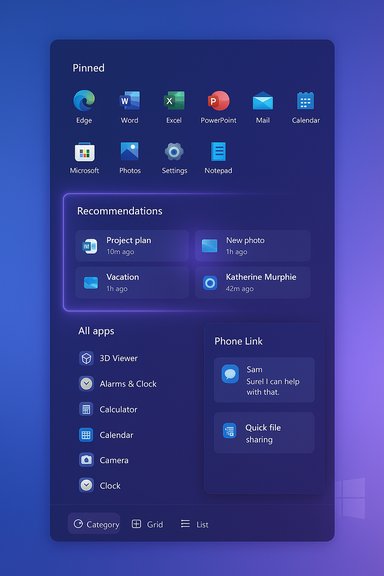
The new Start replaces the two‑page model (Pinned + a separate All apps page) with a single, vertically scrollable canvas. Open Start and you’ll find pinned shortcuts at the top, recommendations in the middle (if enabled), and the All apps list immediately accessible via scrolling — no extra tap required. This saves a repeated click for users with large app sets and mirrors the single-surface launchers familiar from mobile platforms.- Benefit: faster app discovery and fewer clicks.
- Trade‑off: increased vertical density may feel overwhelming until users adjust.
Three views in “All” — Category, Grid and List
You can now choose how your installed apps are shown:- Category view (default): System‑generated buckets like Productivity, Games, Creativity, Communication, and Other. Frequently used apps “bubble up” in each group. Categories are created when the OS detects sufficient apps to form a cluster.
- Grid view: Alphabetical, dense icon grid optimized for horizontal scanning on widescreen and high‑DPI displays.
- List view: The classic A→Z vertical list retained for deterministic, keyboard‑centric workflows.
Responsive, screen‑aware sizing
Start dynamically adapts to your screen. On larger monitors you’ll see more columns and visible content; on smaller devices the layout compacts. Microsoft’s published defaults are illustrative: on larger screens expect up to 8 columns of pinned apps, 6 recommendation slots, and 4 category columns; on smaller screens those figures scale down (commonly cited as 6/4/3). These counts are device‑dependent and are adaptive rather than hard limits.Phone Link integration inside Start
A mobile‑device button sits near the Start search box that expands a collapsible Phone Link sidebar. When paired, that panel surfaces messages, recent calls, phone photos, and quick file‑sharing actions without leaving Start. Android support is more feature rich; iOS support and some region availability will vary as Microsoft stages the rollout.Stronger personalization toggles
Settings → Personalization → Start now exposes granular toggles so you can hide or show:- Recently added apps
- Recommended files in Start
- Websites from browsing history
- Recommendations for tips and shortcuts
Folders, drag-and-drop and visual polish
You can create Start folders by dragging multiple pinned icons together — a mobile‑style convenience that reduces visual clutter. Expect smoother animations, refined app icons, and micro‑interactions (pin/unpin animations, hover effects) meant to make Start feel more fluid.How to get and enable the new Start menu — step‑by‑step
- Open Settings → Windows Update and check for updates. Look for the optional preview update related to the Start redesign (often packaged in preview KBs such as KB5067036) and install it if available. Microsoft also ships these bits to Insider channels first.
- Reboot your PC after the update to apply system files.
- Open Start and look for the new layout. If you don’t see it immediately, Microsoft may still be flipping a server‑side flag on your device (staged rollout). Installing the update does not always guarantee instant activation.
- To control recommendations and appearance, go to Settings → Personalization → Start and use the toggles to show/hide recently added apps, recommended files, and web suggestions. Use the view switch in Start to choose Category, Grid, or List. The menu remembers your last selection.
- If you prefer not to receive preview/optional packages, avoid enabling “Get the latest updates as soon as they’re available.” That prevents preview KBs from showing under Optional Updates.
- Feature gating means different machines may show different UIs for a period; plan pilots accordingly if you manage fleets.
Tips for everyday use — get the most from Start
- Pin productivity apps you use every day (Word, Teams, Edge) to speed launch times. Organize them into folders for project‑based workflows.
- Use Category view when you think in tasks (e.g., editing, communications, gaming). The OS surfaces relevant apps even if you don’t remember exact names.
- Use Grid view on ultrawide or high‑res monitors for faster visual scanning.
- Turn off recommendations if you’re privacy‑sensitive or need a deterministic Start for shared/kiosk devices. This also reduces the chance of exposing recent file names on shared screens.
- Keyboard power users: press Win to open Start, then begin typing to search instantly; arrow keys and Enter still work. For a compact, keyboard‑friendly layout switch to List view and disable recommendations.
Why this matters — strengths and opportunities
- Faster discovery: Putting All apps on the main Start surface reduces the number of interactions required to launch software, a tangible productivity win for users with large app catalogs.
- Flexible UX: The three viewing modes let Windows serve different user mental models — task oriented, visual scanning, or alphabetical.
- Large‑screen friendliness: The Start canvas intelligently uses extra screen real estate, which benefits multi‑monitor and ultrawide setups.
- Cross‑device continuity: Having Phone Link inside Start reduces context switching for quick phone tasks and file transfers. This tightens the PC/phone continuity story Microsoft has been building.
- User control: New toggles address previous criticisms about the Recommended feed being too prominent; users (and admins) can now opt for a minimalist experience.
Risks, trade‑offs and things to watch
1) Staged rollout and inconsistent UX
Microsoft enables the new Start via server‑side flags and staged pilots. That means devices running identical builds can show different Start experiences at the same time — confusing for users and a headache for support teams. Administrators should plan pilot rings, not shotgun deployments.2) Privacy and telemetry concerns with AI recommendations
The “recommended”/personalized area surfaces recent files, web suggestions and, in some concept designs, richer “For You” suggestions. While Microsoft documents controls to hide recent items and web suggestions, organizations with strict data handling policies should review whether these features comply with privacy and data‑residency rules. Also, some AI actions may process data in the cloud unless your device is Copilot+ (on‑device NPU) enabled, so check licensing and processing locality before enabling AI features. Flag any Copilot/Microsoft 365‑gated actions in enterprise policies.3) Hardware and regional gating
Phone Link parity between Android and iOS and certain Copilot features are region/hardware gated. Expect variations in behavior across geographies and devices. Administrators should verify regional availability before rolling out Phone Link‑dependent workflows.4) Management and imaging implications
Some servicing packages for Start changes are being shipped as enablement packages layered on existing servicing branches. Imaging and offline provisioning workflows should be validated — .NET Framework delivery and other small platform changes have already altered packaging models in recent preview builds. Test images with the optional preview KBs before broad deployment.5) Dependence on server flags for activation
Installing preview KBs may not immediately enable the new Start; Microsoft sometimes flips features server side. Don’t assume the presence of binaries equals active UI. This complicates troubleshooting and rollbacks.Practical guidance for home users and IT teams
For home and power users
- Test the new Start on a single machine first. Install optional preview packages only if you want the latest UI early.
- Use Settings → Personalization → Start to hide recommended content if you prefer privacy or a deterministic layout.
- Arrange pinned apps and create folders for project workflows — it reduces clutter and makes keyboard shortcuts/pinned layouts more reliable.
For IT admins and organizations
- Create a pilot ring: validate the preview KB and feature gating behavior across representative hardware, user profiles, and management systems (MDM, SCCM).
- Validate imaging and offline installs: check for packaging changes to components such as .NET Framework that could alter image size or installation behavior.
- Review privacy settings: decide whether to allow recommendations, Phone Link, and Copilot hooks by policy. Document controls and communicate to users.
- Update support documentation: include steps for toggling Start views and hiding recommendations, and prepare responses for user confusion caused by staged rollouts.
Critical analysis — balancing design goals and operational reality
The Start redesign checks a lot of important UX boxes: discoverability, choice, and scalability across displays. The return to a single‑surface, scrollable launcher is a pragmatic correction to the early Windows 11 ergonomics that separated All apps behind an extra click. The addition of Category and Grid views is particularly thoughtful: it recognizes that users navigate by task, by visual scanning, or by alphabet depending on context. That said, the design introduces complexity in delivery. Microsoft’s A/B testing and server‑gating model mean the UX is inconsistent during rollout. From an enterprise perspective, staged activation is reasonable from a telemetry and quality perspective, but it places the burden on IT to pilot patiently. The presence of AI and cloud‑backed “recommendations” also forces organizations to choose between convenience and strict data governance. The fact that disabled recommendation toggles collapse the region in Start is good, but administrators should verify the downstream effects (for example, whether Jump Lists or Explorer recent files behaviours are also affected) before adopting a blanket setting.Another tension is between smart auto‑grouping (Category view) and user predictability. Auto‑generated categories are convenient, but deterministic layouts are important for certain workflows and standardized training environments. Microsoft currently does not expose first‑class controls to rename or reorder automatic categories; that could frustrate power users and ISVs who want predictable application locations.
What’s still unclear or possibly overstated (caution flags)
- Some media and vendor writeups use the phrase “For You” for the new recommendations area or imply a broader AI‑curated feed; Microsoft’s own documentation more commonly uses “Recommended” and “Recommended files” in the preview notes. Concept designs shown by Microsoft included “For You” variants that didn’t ship as shown. Treat the “For You” label and claims of advanced AI curation as marketing shorthand unless Microsoft explicitly confirms it in product docs for your build. Flag: verify the exact naming and behaviour on your device before relying on the term.
- The rollout packaging and exact build numbers can vary between preview channels and production servicing. Published preview KB identifiers and build numbers are useful guides (commonly cited in 26100.xxxx and 26200.xxxx families around the October/November 2025 previews) but confirm with winver on the target machines. If your environment requires strict build control, use the Update Catalog or WSUS channels and test end‑to‑end.
- The availability of Copilot hooks and certain AI actions is tied to licensing (Microsoft 365/Copilot entitlements) and hardware (Copilot+ on‑device NPU). Those constraints affect whether some context menu AI actions or File Explorer “Summarize” features are present. Always verify licensing and regional availability before planning feature‑dependent workflows.
Conclusion
The Windows 11 November 2025 Start menu redesign is a meaningful, user‑focused improvement that restores faster, more intuitive app discovery and introduces flexible views that fit diverse workflows. For most users, the change will feel like a long‑overdue quality‑of‑life upgrade: fewer clicks, smarter use of screen real estate, and options to limit recommendations when privacy matters. For organizations, the benefits are real but must be balanced against staged rollouts, packaging changes, and privacy/telemetry implications.Before broad adoption:
- Test preview packages in a pilot ring.
- Validate image and update workflows.
- Review privacy and licensing implications for AI and Phone Link features.
- Update internal documentation and support processes to reflect the new Start views and personalization toggles.
Source: Analytics Insight How to Use the New Windows 11 Start Menu
