

If you spend your day fighting Slack pings, calendar reminders, browser alerts, and the constant drip of Windows toast notifications, Microsoft already shipped a surprisingly effective way to get your attention back: Focus sessions in the Clock app. The feature is easy to miss, but it can flip on Do not disturb, suppress badge and flashing alerts, and give you a clean block of uninterrupted time with just a few clicks. In practice, that makes it one of the simplest productivity tricks built into Windows 11—and one that still flies under the radar for many users. (support.microsoft.com)
Microsoft’s push toward built-in focus tools did not appear out of nowhere. The company has spent years trying to solve the same problem every modern desktop user knows too well: too many interruptions, too little deep work. Windows 11 brought that philosophy into the operating system more visibly, and the Clock app became one of the more practical homes for it. (support.microsoft.com)
The feature originally launched as part of the Windows 11-era Clock redesign, where Microsoft folded a Pomodoro-style timer into the app and tied it to notification suppression. Over time, it evolved beyond a simple timer into a broader productivity pane with task integration and toggles that control how aggressively the system quiets itself during a session. That shift matters because it shows Microsoft is not just adding a stopwatch; it is building a behavioral layer around attention management. (howtogeek.com)
At a high level, Focus sessions are Microsoft’s answer to the always-on workplace. They try to reduce cognitive switching costs, which are often more damaging than the notifications themselves. The feature is appealing precisely because it lives inside Windows, where the interruptions originate, instead of requiring a third-party app that users might forget to open. (support.microsoft.com)
That is also why the feature feels more relevant now than when it first appeared. Hybrid work, persistent messaging, and multitasking-heavy workflows have made notification overload a mainstream pain point. Windows has responded by turning the operating system into a more opinionated gatekeeper: fewer prompts, fewer flashes, and a stronger default toward silence when you ask for it. That is a subtle but important design shift. (support.microsoft.com)
Microsoft’s own support guidance makes it clear that the feature is not just cosmetic. A session can enable Do not disturb, hide notification badges, and stop taskbar apps from flashing at you. That combination is the real trick. One setting alone is useful; several coordinated settings together are what make the environment feel genuinely calmer. (support.microsoft.com)
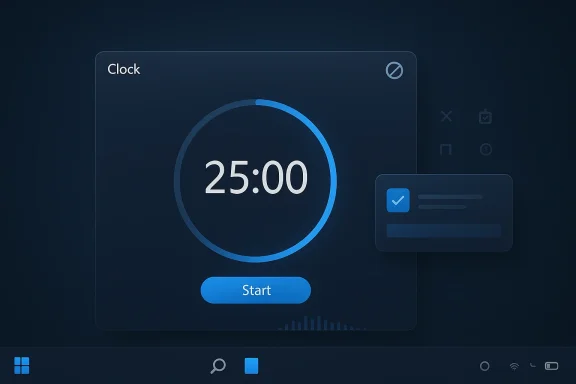
In the Clock app, the interface is intentionally lightweight. You can set a duration, choose tasks, and begin the session without digging through menus. That simplicity is part of the design philosophy, because the best focus tools do not create more friction than they remove. (support.microsoft.com)
This is where Windows’ implementation beats many standalone focus apps. Third-party tools often require account setup, cloud sync, or a separate browser-based dashboard. The built-in approach is leaner, and for many users, leaner is better. (support.microsoft.com)
There is also a psychological benefit. When the operating system itself says “you are now in focus mode,” the cue is stronger than a random app timer floating somewhere on the desktop. That can help reinforce the habit loop that makes time-blocking work in the first place. (support.microsoft.com)
In Microsoft’s documentation, focus can also be launched through other parts of the system, including Windows settings and the quick access surfaces that control notifications. That means the feature is not trapped in a single app screen. It is part of the broader Windows attention model, which is a more mature way to think about productivity. (support.microsoft.com)
The current model also shows Microsoft refining the boundaries between productivity and interruption management. Instead of asking users to micromanage every app alert, Windows can handle the blanket policy for a timed session. That is an important usability distinction because it moves the burden from the user to the platform. (support.microsoft.com)
For enterprises, the value is different. Knowledge workers often need structured attention blocks, and IT teams increasingly want standardized ways to reduce alert fatigue without deploying extra software. Built-in focus controls are easier to document, support, and explain than a random assortment of productivity apps. (microsoftpressstore.com)
That said, the enterprise case depends on consistency. If employees use mixed Windows versions or different device policies, the experience can vary. The feature is strongest when Windows 11 is the common baseline. That is where Microsoft’s design intent really aligns with real-world usage. (support.microsoft.com)
Windows’ implementation is especially useful for people who struggle to remember to turn on Do not disturb. In many workflows, the problem is not that a focus tool is unavailable; it is that activating it takes too many steps. The Clock app cuts that down, and that lower activation energy can be enough to change behavior. (support.microsoft.com)
The integration with tasks also gives the session a more concrete shape. Rather than staring at a timer and hoping for the best, users can anchor the block to a specific item from Microsoft To Do. That is a small detail, but it turns abstract “focus time” into a more actionable work unit. (support.microsoft.com)
It also helps with the tendency to bounce between tools. If every alert remains live, even a perfectly structured schedule falls apart the moment your desktop lights up. Windows’ focus tools are designed to blunt that reaction before it starts. (support.microsoft.com)
The fact that the feature is built in also improves the odds that users actually keep using it. Many productivity apps are downloaded with enthusiasm and abandoned within days. Native features have a better chance of surviving because they feel like part of the machine rather than an extra project. (support.microsoft.com)
That flexibility is useful because different people think about focus differently. Some want a rigid 25-minute block, others prefer a long uninterrupted stretch, and some simply want the operating system to stop shouting at them while they work. Windows supports all three use cases reasonably well. (support.microsoft.com)
Daily use tends to work best when the feature becomes a ritual. Launch it before email, before writing, or before a coding sprint. The key is consistency, because the system benefits compound when your brain begins associating the session with a predictable mode of work. (support.microsoft.com)
The To Do connection matters because it links time management to task management. That makes it easier to choose a session goal without leaving the app. For many users, that removes just enough friction to prevent procrastination from winning before the timer even starts. (support.microsoft.com)
Spotify support is more subjective, but it shows Microsoft understands that focus is not only about silence. Some people work better with music or ambient sound, and letting users connect that environment to the same session is a smart touch. It keeps the whole experience under one roof. (howtogeek.com)
The integration strategy also makes the Clock app more relevant than it might otherwise seem. Clock is no longer just where you go to check alarms and timers. In Windows 11, it is a quiet little control center for attention management. (support.microsoft.com)
Still, the value of these extras depends on personal workflow. Some users will never link Spotify, and others already use a different task system. The core feature remains the notification shield, and that is the part most people will notice first. (support.microsoft.com)
Third-party tools often offer deeper customization. They may track habits more granularly, integrate with more services, or provide stronger scheduling features. But they also require trust, installation, and maintenance. Built-in Windows focus tools win on convenience, which is frequently the deciding factor. (howtogeek.com)
There is also a platform effect at work. If Microsoft makes focus part of the default Windows experience, a meaningful number of users will never bother looking elsewhere. That is not because alternatives are inferior in every way, but because default tools tend to define behavior for mainstream users. (support.microsoft.com)
Another area is predictability. Productivity tools live or die by reliability, and some user reports across the Windows ecosystem suggest focus-related features have not always behaved perfectly. Even when the concept is strong, implementation quality is what determines whether people keep trusting it. That is especially important for a feature designed to reduce frustration. (reddit.com)
Still, the core story is clear. Microsoft has positioned Windows so that a deep-work block is now an operating system feature rather than an add-on. That makes the competition less about features on paper and more about which experience is easiest to sustain every day. (support.microsoft.com)
The broader market will be watching because this is one of those features that can influence expectations beyond Microsoft’s ecosystem. If Windows users come to expect one-click focus blocks with built-in suppression, competing platforms and third-party apps will need to match that convenience or offer something better. Convenience, once normalized, becomes the baseline.
Source: How-To Geek Stop the notification overload: This 1-click Windows trick locks in my focus for hours
 Background
Microsoft’s push toward built-in focus tools did not appear out of nowhere. The company has spent years trying to solve the same problem every modern desktop user knows too well: too many interruptions, too little deep work. Windows 11 brought that philosophy into the operating system more visibly, and the Clock app became one of the more practical homes for it. (support.microsoft.com)The feature originally launched as part of the Windows 11-era Clock redesign, where Microsoft folded a Pomodoro-style timer into the app and tied it to notification suppression. Over time, it evolved beyond a simple timer into a broader productivity pane with task integration and toggles that control how aggressively the system quiets itself during a session. That shift matters because it shows Microsoft is not just adding a stopwatch; it is building a behavioral layer around attention management. (howtogeek.com)
At a high level, Focus sessions are Microsoft’s answer to the always-on workplace. They try to reduce cognitive switching costs, which are often more damaging than the notifications themselves. The feature is appealing precisely because it lives inside Windows, where the interruptions originate, instead of requiring a third-party app that users might forget to open. (support.microsoft.com)
That is also why the feature feels more relevant now than when it first appeared. Hybrid work, persistent messaging, and multitasking-heavy workflows have made notification overload a mainstream pain point. Windows has responded by turning the operating system into a more opinionated gatekeeper: fewer prompts, fewer flashes, and a stronger default toward silence when you ask for it. That is a subtle but important design shift. (support.microsoft.com)
Why this feature stands out
Focus sessions are not revolutionary on paper, but they are unusually accessible. A user does not need to install a separate productivity suite, learn a new interface, or create a rigid routine before getting value from it. The cost of adoption is low, which is exactly what makes it compelling. (support.microsoft.com)- It lives inside the Clock app most Windows users already have.
- It can turn on Do not disturb automatically.
- It can hide taskbar badges and flashing alerts.
- It can tie work blocks to Microsoft To Do.
- It can optionally pair with Spotify for ambient audio. (support.microsoft.com)
What Focus Sessions Actually Do
The key appeal of Focus sessions is that they compress several attention-saving actions into one workflow. Start a session, and Windows can suppress distractions, quiet the desktop, and keep the task timer visible while you work. The effect is simple but powerful: fewer opportunities to interrupt yourself mid-thought. (support.microsoft.com)Microsoft’s own support guidance makes it clear that the feature is not just cosmetic. A session can enable Do not disturb, hide notification badges, and stop taskbar apps from flashing at you. That combination is the real trick. One setting alone is useful; several coordinated settings together are what make the environment feel genuinely calmer. (support.microsoft.com)
In the Clock app, the interface is intentionally lightweight. You can set a duration, choose tasks, and begin the session without digging through menus. That simplicity is part of the design philosophy, because the best focus tools do not create more friction than they remove. (support.microsoft.com)
The one-click idea
The “one-click” appeal is not that there is literally only one action in every setup. It is that the path from distraction to focus is short enough to be habitual. Open Clock, start the session, and Windows handles the rest. That tiny reduction in effort matters more than it sounds like it should. (support.microsoft.com)This is where Windows’ implementation beats many standalone focus apps. Third-party tools often require account setup, cloud sync, or a separate browser-based dashboard. The built-in approach is leaner, and for many users, leaner is better. (support.microsoft.com)
There is also a psychological benefit. When the operating system itself says “you are now in focus mode,” the cue is stronger than a random app timer floating somewhere on the desktop. That can help reinforce the habit loop that makes time-blocking work in the first place. (support.microsoft.com)
- It reduces decision fatigue.
- It lowers the barrier to starting deep work.
- It provides a clear end point for the session.
- It creates a visible cue that work mode has begun.
How It Fits Into Windows 11
Windows 11 integrated Focus more deeply than earlier versions of Windows, and that matters for the user experience. Instead of treating focus as a niche timer feature, Microsoft attached it to the system’s notification behavior and task ecosystem. The result is more coherent than the old patchwork approach to distractions. (support.microsoft.com)In Microsoft’s documentation, focus can also be launched through other parts of the system, including Windows settings and the quick access surfaces that control notifications. That means the feature is not trapped in a single app screen. It is part of the broader Windows attention model, which is a more mature way to think about productivity. (support.microsoft.com)
The current model also shows Microsoft refining the boundaries between productivity and interruption management. Instead of asking users to micromanage every app alert, Windows can handle the blanket policy for a timed session. That is an important usability distinction because it moves the burden from the user to the platform. (support.microsoft.com)
Consumer vs enterprise impact
For consumers, the advantage is obvious: fewer distractions during writing, studying, coding, or even household admin work. Focus sessions make Windows feel less noisy and more intentional without requiring a subscription or a new workflow. (support.microsoft.com)For enterprises, the value is different. Knowledge workers often need structured attention blocks, and IT teams increasingly want standardized ways to reduce alert fatigue without deploying extra software. Built-in focus controls are easier to document, support, and explain than a random assortment of productivity apps. (microsoftpressstore.com)
That said, the enterprise case depends on consistency. If employees use mixed Windows versions or different device policies, the experience can vary. The feature is strongest when Windows 11 is the common baseline. That is where Microsoft’s design intent really aligns with real-world usage. (support.microsoft.com)
- Consumers get immediate relief from notification noise.
- Enterprises get a standard, low-friction attention control.
- The feature works best when paired with policy discipline.
- Mixed-device environments may see uneven behavior.
Why It Matters for Productivity
The best productivity tools do not simply help you work faster; they help you stay with the task long enough for speed to matter. Focus sessions are valuable because they address interruption, not just time management. That distinction is often overlooked, but it is central to why deep work feels difficult in the first place. (support.microsoft.com)Windows’ implementation is especially useful for people who struggle to remember to turn on Do not disturb. In many workflows, the problem is not that a focus tool is unavailable; it is that activating it takes too many steps. The Clock app cuts that down, and that lower activation energy can be enough to change behavior. (support.microsoft.com)
The integration with tasks also gives the session a more concrete shape. Rather than staring at a timer and hoping for the best, users can anchor the block to a specific item from Microsoft To Do. That is a small detail, but it turns abstract “focus time” into a more actionable work unit. (support.microsoft.com)
Why the timer alone is not the point
A plain timer can tell you when to stop, but it cannot reshape the environment around you. Focus sessions do more by muting interruption channels at the OS level. That environment control is what makes the feature feel bigger than a stopwatch. (support.microsoft.com)It also helps with the tendency to bounce between tools. If every alert remains live, even a perfectly structured schedule falls apart the moment your desktop lights up. Windows’ focus tools are designed to blunt that reaction before it starts. (support.microsoft.com)
The fact that the feature is built in also improves the odds that users actually keep using it. Many productivity apps are downloaded with enthusiasm and abandoned within days. Native features have a better chance of surviving because they feel like part of the machine rather than an extra project. (support.microsoft.com)
- Helps protect attention, not just track minutes.
- Reduces the need for manual notification toggling.
- Encourages task-based work sessions.
- Improves consistency by living in a built-in app.
Setup and Everyday Use
Microsoft keeps the start process relatively straightforward. In the Clock app, users can open Focus sessions, choose a duration, optionally pick a task, and begin. The broader Windows documentation also notes that focus can be started from other system surfaces, giving users more than one doorway into the same experience. (support.microsoft.com)That flexibility is useful because different people think about focus differently. Some want a rigid 25-minute block, others prefer a long uninterrupted stretch, and some simply want the operating system to stop shouting at them while they work. Windows supports all three use cases reasonably well. (support.microsoft.com)
Daily use tends to work best when the feature becomes a ritual. Launch it before email, before writing, or before a coding sprint. The key is consistency, because the system benefits compound when your brain begins associating the session with a predictable mode of work. (support.microsoft.com)
Practical setup habits
Users often get more out of Focus sessions when they combine the feature with simple workflow rules. The session is strongest when it begins with a clear objective and ends with a defined break. That structure makes the timer useful instead of merely decorative. (support.microsoft.com)- Pick one task before starting the session.
- Silence or ignore other communication tools for the block.
- Keep the block long enough to enter the work flow.
- Use the end of session as a hard reset.
- Repeat the pattern until it becomes automatic.
- Choose a task before beginning.
- Avoid stacking too many goals into one block.
- Use the end of the session as a break trigger.
- Pair it with calendar or to-do habits.
The Spotify and To Do Angle
One of the most interesting parts of Focus sessions is that Microsoft did not stop at notification suppression. The company also added integrations that make the feature feel more like a productivity hub. Microsoft To Do and Spotify are the headline examples, and both broaden the feature’s appeal. (support.microsoft.com)The To Do connection matters because it links time management to task management. That makes it easier to choose a session goal without leaving the app. For many users, that removes just enough friction to prevent procrastination from winning before the timer even starts. (support.microsoft.com)
Spotify support is more subjective, but it shows Microsoft understands that focus is not only about silence. Some people work better with music or ambient sound, and letting users connect that environment to the same session is a smart touch. It keeps the whole experience under one roof. (howtogeek.com)
A productivity hub, not just a timer
This is where the feature starts to look strategic. Microsoft is not merely offering a stopwatch; it is building a small ecosystem around a work block. That ecosystem encourages the user to stay within Microsoft’s own apps longer, which is good for continuity and bad for app-hopping. (support.microsoft.com)The integration strategy also makes the Clock app more relevant than it might otherwise seem. Clock is no longer just where you go to check alarms and timers. In Windows 11, it is a quiet little control center for attention management. (support.microsoft.com)
Still, the value of these extras depends on personal workflow. Some users will never link Spotify, and others already use a different task system. The core feature remains the notification shield, and that is the part most people will notice first. (support.microsoft.com)
- To Do makes focus sessions task-aware.
- Spotify makes them more livable for music users.
- The integrations deepen the feature without adding clutter.
- Not every user will need the extras, but many will appreciate them.
The Competition: Third-Party Apps vs Built-In Windows Tools
Windows is competing here not just against distraction, but against the entire market of productivity apps. That market includes Pomodoro timers, to-do managers, website blockers, and full attention suites. Microsoft’s advantage is not that it invented the category; it is that it can bundle the core experience into the OS. (support.microsoft.com)Third-party tools often offer deeper customization. They may track habits more granularly, integrate with more services, or provide stronger scheduling features. But they also require trust, installation, and maintenance. Built-in Windows focus tools win on convenience, which is frequently the deciding factor. (howtogeek.com)
There is also a platform effect at work. If Microsoft makes focus part of the default Windows experience, a meaningful number of users will never bother looking elsewhere. That is not because alternatives are inferior in every way, but because default tools tend to define behavior for mainstream users. (support.microsoft.com)
Where Microsoft still has room to improve
The built-in approach is good, but not flawless. Power users may want stronger analytics, more automation, or better cross-device continuity. Those are the kinds of features that third-party apps often emphasize, and Microsoft could still go further without making the experience heavier. (makeuseof.com)Another area is predictability. Productivity tools live or die by reliability, and some user reports across the Windows ecosystem suggest focus-related features have not always behaved perfectly. Even when the concept is strong, implementation quality is what determines whether people keep trusting it. That is especially important for a feature designed to reduce frustration. (reddit.com)
Still, the core story is clear. Microsoft has positioned Windows so that a deep-work block is now an operating system feature rather than an add-on. That makes the competition less about features on paper and more about which experience is easiest to sustain every day. (support.microsoft.com)
- Third-party apps may be more customizable.
- Built-in Windows tools are easier to adopt.
- The default experience shapes user behavior.
- Reliability remains crucial for long-term trust.
Strengths and Opportunities
The biggest strength of Windows Focus sessions is that they solve a real, common problem with very little setup. They are practical, integrated, and easy to start using immediately, which is rare for productivity features that claim to reduce distraction. The opportunity is for Microsoft to keep refining that simplicity without turning the feature into bloat.- Low friction makes the feature approachable for casual users.
- System-level suppression of alerts is more effective than app-only blocking.
- Task integration adds structure without requiring another app.
- Do not disturb automation prevents missed steps.
- Native placement in Clock means the tool is easy to discover.
- Spotify support improves usability for people who work better with background audio.
- Enterprise adoption could grow if admins standardize on Windows 11.
Why the opportunity is bigger than it looks
This feature is a small part of Windows, but small features can have outsized impact when they sit at the right point in the workflow. Focus sessions touch the exact moment when users decide whether to work or wander. That makes them strategically valuable, not just convenient.Risks and Concerns
The obvious risk is that a feature meant to reduce friction can become another layer of complexity if it is unreliable or over-promoted. Productivity features are judged harshly because people depend on them in the middle of work, not in a demo. If focus mode misbehaves, users remember that failure longer than they remember the concept.- Inconsistent behavior can erode trust quickly.
- Version fragmentation may produce uneven results across devices.
- Overreliance on defaults can frustrate users with custom notification needs.
- Integration bugs can undermine the Spotify or To Do experience.
- Too much automation may suppress alerts people actually need.
- Discoverability issues may keep casual users from ever trying it.
- Cross-device sync limits could weaken the experience for multi-PC users.
The human factor
There is also the risk that users treat focus sessions as a magic fix. They are not. The feature can reduce distractions, but it cannot force discipline, prioritize work, or solve poorly planned calendars. It is a tool, not a replacement for habits.Looking Ahead
If Microsoft keeps investing in this area, Focus sessions could become an even more important part of the Windows productivity story. That might include better automation, tighter links to scheduling, or more transparent controls over which notifications get muted and when. The direction is clear: Windows is becoming more opinionated about when it should stay quiet.The broader market will be watching because this is one of those features that can influence expectations beyond Microsoft’s ecosystem. If Windows users come to expect one-click focus blocks with built-in suppression, competing platforms and third-party apps will need to match that convenience or offer something better. Convenience, once normalized, becomes the baseline.
- Better automation could make sessions more seamless.
- Stronger analytics might help users see what actually works.
- Deeper calendar integration could align focus with meetings.
- More robust policy controls would help enterprises deploy it at scale.
- Improved reliability would be the biggest win of all.
Source: How-To Geek Stop the notification overload: This 1-click Windows trick locks in my focus for hours
