

Windows 11 users are still reporting a recurring and frustrating set of connectivity failures tied to recent feature and cumulative updates — the kind of "connected but no internet" or outright service disappearance headlines have dubbed "deleting the internet." Community troubleshooting, Microsoft support notes, and follow-up emergency patches show two overlapping but distinct problems: (1) a service-dependency regression in the network stack that can leave DNS, WLAN and related services disabled (producing the familiar "connected, no internet" symptom) and (2) separate update regressions that broke the Windows Recovery Environment (WinRE) and removed legacy modem drivers in later cumulative updates. Microsoft has issued targeted out‑of‑band fixes for some issues, but the network-service regression still requires manual remediation on affected machines in many cases — and for some users the safest short-term fix remains rolling back or delaying the problematic update until a tested patch or OEM driver is available. .com]
Windows 11’s servicing model bundles security and quality updates into monthly cumulative packages while delivering larger "feature" updates as 23H2/24H2/25H2 channels. In mid‑late 2025 and into early 2026 several cumulative updates and enablement packages produced high‑impact regressions on 24H2 and 25H2 branches. Two problems are central to the current discussion:
Separately, January’s security rollup (KB5074109) intentionally removed several legacy modem drivers from the in‑box image — an action Microsoft documented as by design — leaving users who still depend on dial‑up or serial‑modem devices without functioning hardware unless vendor drivers are available. While not a bug per se, it is another example of a broad update producing significant functional loss for niche but real user segments.
1.) Quick checks (low risk)
Windows update regressions are unpleasant reminders that complex systems produce complex failure modes. The good news: Microsoft has deployed targeted patches for some failures, community responders have documented repeatable workarounds for others, and conservative deployment strategies (backups, test rings, and paused updates for critical systems) remain the most reliable protection while vendor and Microsoft fixes make their way through production channels. If you’re troubleshooting an affected PC: start with safe diagnostics, prepare recovery media, and escalate to registry edits or rollbacks only after backups are in place.
Source: Neowin Windows 11 25H2, 24H2 allegedly still 'deleting internet' and with only one way to fix it
 Background / Overview
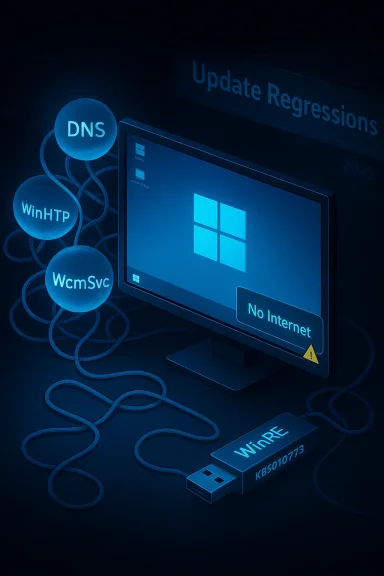
Windows 11’s servicing model bundles security and quality updates into monthly cumulative packages while delivering larger "feature" updates as 23H2/24H2/25H2 channels. In mid‑late 2025 and into early 2026 several cumulative updates and enablement packages produced high‑impact regressions on 24H2 and 25H2 branches. Two problems are central to the current discussion:- A networking regression seen on some upgrades to 24H2/25H2 that leaves core networking services (DNS Client/Dnscache, Windows Connection Manager/WcmSvc, and WinHTTP Auto‑Proxy) misconfigured or disabled, which in turn causes the system to report Internet access while user‑mode apps cannot reach the outside world.s frequently show Event ID 7001 and the UI message “Some settings are managed by your organization.”
- A separate, widely reported regression introduced by an October cumulative (tracked as KB5066835) that broke USB input inside WinRE and disrupted localhost/HTTP.sys behavior for some developers. Microsoft shipped emergency out‑of‑band updates to address WinRE input failures (reported as KB5070773 and a companion Safe OS update KB5070762).
What exactly is happening: the two failure modes explained
1) The network‑service regression (the "connected but no internet" scenario)
The symptom set many users describe — network icon shows “Internet access” but browsers and apps cannot reach external websites — usually maps to a service‑level failure rather than a physical-layer problem. Common signs in logs and forum reports include:- DNS Client (Dnscache) failing to start with Event ID 7001 reported in System logs.
- WinHTTP Auto‑Proxy Service (WinHttpAutoProxySvc) or the WinHTTP auto‑proxy / WPAD dependency blocking WcmSvc startup because a dependency group fails, which cascades and prevents the Windows Connection Managerom functioning.
- A UI prompt or behavior that prevents saving DNS/proxy settings with the text “Some settings are managed by your organization.” — a symptom that the OS believes a policy or service is enforcing configuration.
2) The WinRE and other collateral regressions introduced by cumulative updates
A separate but high‑impact regression surfaced after the October cumulative update KB5066835: inside the Windows Recovery Environment (WinRE) USB keyboards and mice could be unresponsive, rendering local recovery tools inaccessible for affected devices. Microsoft labeled the issue and pushed an out‑of‑band cumulative (KB5070773) plus a Safe OS dynamic update to repair WinRE in many scenarios. That problem is distinct from the network‑service regression but amplified user risk — if the network is broken and WinRE is also damaged, users faced a difficult recovery path.Separately, January’s security rollup (KB5074109) intentionally removed several legacy modem drivers from the in‑box image — an action Microsoft documented as by design — leaving users who still depend on dial‑up or serial‑modem devices without functioning hardware unless vendor drivers are available. While not a bug per se, it is another example of a broad update producing significant functional loss for niche but real user segments.
How Microsoft responded (and what they fixed)
Microsoft’s public response followed the standard escalation path: acknowledge, investigate, and issue targeted fixes where feasible. Notable actions include:- Marking the WinRE input issue as a confirmed problem and releasing an emergency out‑of‑band update (KB5070773) that, for many devices, restores USB input functionality inside WinRE; a companion Safe OS update (KB5070762) targets the recovery image directly. Microsoft’s KB article outlines the OOB release and the rationale.
- For the network-service regression, community troubleshooting and Microsoft guidance have converged on a handful of practical remediation options: service start‑type and dependency fixes, driver updates, registry workarounds that remove a problematic dependency from WcmSvc, or rolling back the feature update where appropriate. Microsoft has not universally rejected a fix by a single emergency patch for this exact regression the way it did for WinRE; instead, many fixes are being rolled into cumulative/feature servicing and OEM driver updates.
- For the removal of legacy modem drivers (KB5074109) Microsoft confirmed the change and documented it; because this was intentional it’s handled as a compatibility decision rather than a bug fix. Many affected users were advised to pause updates or uninstall the cumulative until vendors offered alternate drivers or a supported workaround. ([windowswww.windowscentral.com/microsoft/windows-11/windows-11-update-kb5074109-breaks-modems-for-some-users-but-it-is-not-a-bug)
The practical reality: why some users still need a manual fix
Even after emergency patches for some issues, real‑world environments are messy: OEM drivers, third‑party network agents (VPNs, security suites, network filters), customized group policy keys, and prior upgrade remnants can all interact with Windows updates in ways that make one‑size‑fits‑all fixes ineffective.- OEM network drivers: an update can expose a driver incompts proper service start or device initialization. In many reported cases the missing piece was an updated chipset or NIC driver from the PC/motherboard vendor.
- Service dependency drift: when WcmSvc’s DependOnService list references WinHttpAutoProxySvc (or vice versa), and one service is disabled or misconfigured, Windows can block a group of services from starting automatically. That kind of configuration failure frequently requires a registry edit to remove a problematic dependency or a service reconfiguration to restore normal start behavior. Community-sourced PowerShell registry edits and safe-step instructions appear widely in forum threads as the most reliable local remediation when Windows Update or OEM fixes haven't arrived.
- WinRE availability: if WinRE is damaged (as with KB5066835 on some devices) and you need to uninstall an update to recover network functionality, you may be unable to do so from the built‑in recovery UI. That forces reliance on an external Windows recovery USB or other offline tools — which is why Microsoft and community responders repeatedly advised preparing recovery media before applying risky updates.
What to do right now — a pragmatic troubleshooting and mitigation checklist
Below are defensive and repair steps ordered from least invasive to more intrusive. These are practical, community‑tested steps; each entry notes risk and when to escalate to rollback or external recovery.1.) Quick checks (low risk)
- Confirm your OS build (Win + R → winver) and note the exact build and KB installed. This helps match fixes to the build.
- Check Windows Update → view update history to see if KB5066835, KB5070773, KB5074109, or other recent LCUs are installed.
- Reboot once more after a harmless network reset: Settings → Network & Internet → Advanced network settings → Network reset (this reinstalls network adapters and resets related components). This often solves transient driver/stack issues.
- Open Event Viewer → System to find Event ID 7001 or other service startup failures.
- From rompt run:
sc qc dnscache
sc query dnscache
sc qc WinHttpAutoProxySvc
sc query WinHttpAutoProxySvc
sc qc WcmSvc
sc query WcmSvc
These commands show service start types and current state. If Dnscache is disabled, try:
sc config dnscache start= auto
net start dnscache
If WcmSvc won’t start because of a dependency, note the dependent service names for the next step.
- Attempt to set WinHttpAutoProxySvc to demand start and WcmSvc to auto, then start them:
sc config WinHttpAutoProxySvc config WcmSvc start= auto
net start WcmSvc
net start WinHttpAutoProxySvc
If that succeeds, reboot and re-test. If the Start value is repeatedly changed to Disabled at boot the problem is likely enforced by a registry or group policy entry.
- BACKUP the registry key before making changes:
reg export "HKLM\SYSTEM\CurrentControlSet\Services\WcmSvc" "%USERPROFILE%\Desktop\WcmSvc-backup.reg" - In an elevated PowerShell session you can remove WinHttpAutoProxySvc from WcmSvc’s DependOnService array (community procedure). This step addresses the specific event‑7001 dependency cascade many users have reported. Do this only after backing up the system and the registry; if uncomfortable, prefer rollback instead.
- Create a Windows 11 recovery USB from a working machine before making invasive changes. Microsoft’s recovery media lets you boot and remove updates if WinRE on the device itself is unresponsive. The emergency KB for WinRE (KB5070773) restores USB input inside WinRE for many devices; check whether it is offered for your build before proceeding.
- If the device is mission-critical and standard fixes don't work, roll back to the previous feature update or uninstall the recent LCU and pause updates until Microsoft/OEM issues a confirmed fix. Rolling back is unpleasant but often the safest short‑term path for business machines. Community threads and Microsoft guidance both recommend this as a conservative route when the network or recovery environment is unusable.
- KB5074109 intentionally removed legacy modem drivers. If you depend on these devices, do not assume a Microsoft patch will restore them; instead, check with your device vendor for updated drivers or plan to keep a non‑updated image for those systems until a supported path is available.le "one true fix" is not realistic
- If the failure is the WinRE USB-input bug, the Microsoft out‑of‑band update (KB5070773 plus the Safe OS update) is the clear "single fix" once it is available and applicable to your build. That specific symptom has a discrete corrective update.
- If your failure is the network-service cascade (WPAD/WinHTTP dependency →bled), there is no universal single patch that magically fixes every machine in place because the root cause on each device can vary: driver conflicts, registry/policy remnants, or third‑party network agents can each be the proximate failure. On those machines, a short checklist — driver updates, service start corrections, the registry dependcessary, rollback — is the practical "toolbox." Forums and Microsoft community responses repeatedly recommend this mixed approach.
Risk analysis — strengths and dangers of the fix options
Strengths
- Emergency patches for discrete regressions: When Microsoft can reproduce a specific regression that applies broadly (WinRE USB input), an out‑of‑band cumulative update quickly addresses the root cause and is the correct remediation vector. It scales and is safe for most users.
- Community knowledge and repeatable workarounds: For nuanced, environment‑specific failures the Windows enthusiast and IT communities have produced robust, documented sequences (service checks, sc/net commands, registry backup-and-edit scripts) that work in many scenarios if applied carefully.
Risks and caveats
- Regce dependency changes are invasive: Removing a dependency from a service’s DependOnService value can make the system behave differently under real failure conditions; always backup the registry and create a recovery plan before editing. Community workarounds are useful, but they require care.
- Fixed updates may not be offered to all affected installations automatically: Microsoft’s KB explains that Safe OS dynamic updates and certain OOB fixes might not be offered on machines with atypical recovery images. Administrators should verify the WinRE version and follow vendor guidance before assuming the patch applied.
- Intentional removals (e.g., legacy modem drivers) are not bugs: Some loss of functionality is the result of deliberate product decisions (security hardening, removal of unmaintained drivers). Those scenarios require planning (alternate hardware, vendor drivers, or maintaining older images), not patching.
Recommended policy for administrators and power users
- Treat critical systems conservatively: Pause automatic feature upgrades on servers and critical desktops until vendors confirm driver compatibility for the new servicing branch. Test upgrades on representative devices before broad deployment.
- Keep recovery media current: Maintain a bootable Windows recovery USB image for each servicing baseline you support. If WinRE becomes damaged by an update, an external recovery USB is often the only way to uninstall a problematic LCU.
- Monitor Windows Release Health and KB announcements: Microsoft’s release health notes and out‑of‑band KB entries explain scope and remediation paths; align your patching schedule to that guidance where possible.
- Inventory legacy hardware early: If you rely on older modems or serial devices, catalog and plan for vendor driver support or hardware refreshes before a servicing change forces a break. Intentional driver removals are handled differently from regressions.
Bottom line — what readers should take away
- The sensational phrasing “Windows is deleting the internet” is a metaphor for multiple distinct failures: service-level network regressions and other update regressions that have disrupted connectivity and recoverability on some Windows 11 24H2/25H2 systems. The metaphor is atobscures the technical reality: these are interacting failures in services, drivers, and recovery images — not the OS intentionally erasing connectivity.
- Microsoft has issued targeted emergency fixes for the most acute regression that broke WinRE (KB5070773 and companion updates) and documented other changes (such as the intentional removal of legacy modem drivers). However, for the networking regression many affected users still need the combination of driver updates, service reconfiguration, and — in stubborn cases — rollback to restore normal operation.
- The most responsible course for individuals and IT operators is: verify your build, backup and create recovery media first, check for vendor driver updates, apply Microsoft's OOB fixes where offered, and only use registry/service workarounds after a careful backup and documented recovery plan. When in doubt, roll back and wait for a confirmed update that addresses the issue for your exact hardware and software mix.
Appendix: Quick commands and checks (for advanced users and IT)
Use these as diagnostic starting points (run in an elevated prompt or PowerShell):- Confirm build:
- winver
- Check service state and start types:
- sc qc dnscache
- sc query dnscache
- sc qc WinHttpAutoProxySvc
- sc query WinHttpAutoProxySvc
- sc qc WcmSvc
- sc query WcmSvc
- Try to restore DNS and connection manager:
- sc config dnscache start= auto
- sc config WinHttpAutoProxySvc start= demand
- sc config WcmSvc start= auto
- net start dnscache
- net start WcmSvc
- net start WinHttpAutoProxySvc
- Backup WcmSvc registry key (before any edit):
- reg export "HKLM\SYSTEM\CurrentControlSet\Services\WcmSvc" "%USERPROFILE%\Desktop\WcmSvc-backup.reg"
- If you must remove a dependency from WcmSvc (advanced; backup first), follow community PowerShell guidance and restore the backup if anything goes wrong.
Windows update regressions are unpleasant reminders that complex systems produce complex failure modes. The good news: Microsoft has deployed targeted patches for some failures, community responders have documented repeatable workarounds for others, and conservative deployment strategies (backups, test rings, and paused updates for critical systems) remain the most reliable protection while vendor and Microsoft fixes make their way through production channels. If you’re troubleshooting an affected PC: start with safe diagnostics, prepare recovery media, and escalate to registry edits or rollbacks only after backups are in place.
Source: Neowin Windows 11 25H2, 24H2 allegedly still 'deleting internet' and with only one way to fix it
