

Windows 11 makes plugging in a game controller deceptively simple, but getting the best possible experience — lowest latency, proper rumble and haptics, reliable Bluetooth pairing, and game recognition — still requires a few platform‑specific checks and a handful of practical tweaks.
Windows 11 ships with broad, out‑of‑the‑box support for modern controllers: Microsoft’s Game Input stack recognizes Xbox controllers natively, and the OS will enumerate PlayStation and many third‑party USB/Bluetooth controllers as standard HID gamepads. This baseline means most controllers will “just work” for menu navigation and many games, but there are important differences in feature coverage (adaptive triggers, native haptics, controller audio), connection quality (Bluetooth vs. proprietary wireless), and additional setup steps for non‑Microsoft pads.
This feature pulls together everything a Windows 11 gamer needs in 2026: step‑by‑step connection instructions (wired USB, Bluetooth, Xbox Wireless Adapter), how to test and calibrate a controller, recommended tools for PlayStation pads, latency and stability tradeoffs, and a pragmatic troubleshooting checklist. The guidance below is verified against official vendor documentation and recent platform reporting to separate what Windows 11 handles natively from what requires third‑party layers.
Conclusion
Connecting a game controller to Windows 11 in 2026 remains straightforward in principle but richer in practice: the OS recognizes modern pads quickly, but the real difference between “works” and “plays great” depends on connection choice, driver hygiene, and, for PlayStation pads, whether games support their advanced hardware. Follow the steps above, validate inputs with the Control Panel test tool, and use DS4Windows or the Xbox Wireless Adapter where those tools address real compatibility or latency issues. With a few minutes of setup you’ll enjoy a console‑like controller experience on Windows 11 — often with better flexibility than the console itself.
Source: Analytics Insight How to Connect a Game Controller to Windows 11: The Complete 2026 Guide
 Background / Overview
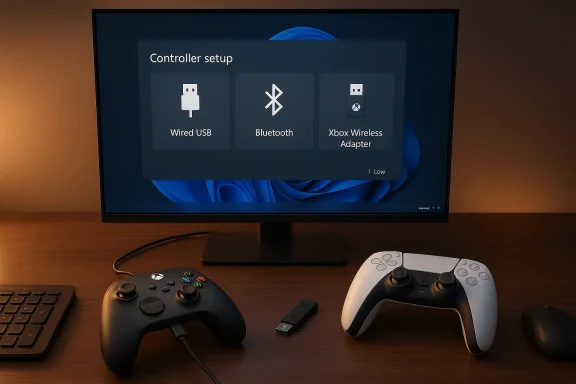
Windows 11 ships with broad, out‑of‑the‑box support for modern controllers: Microsoft’s Game Input stack recognizes Xbox controllers natively, and the OS will enumerate PlayStation and many third‑party USB/Bluetooth controllers as standard HID gamepads. This baseline means most controllers will “just work” for menu navigation and many games, but there are important differences in feature coverage (adaptive triggers, native haptics, controller audio), connection quality (Bluetooth vs. proprietary wireless), and additional setup steps for non‑Microsoft pads.This feature pulls together everything a Windows 11 gamer needs in 2026: step‑by‑step connection instructions (wired USB, Bluetooth, Xbox Wireless Adapter), how to test and calibrate a controller, recommended tools for PlayStation pads, latency and stability tradeoffs, and a pragmatic troubleshooting checklist. The guidance below is verified against official vendor documentation and recent platform reporting to separate what Windows 11 handles natively from what requires third‑party layers.
Which controllers work best on Windows 11
The easy winners: Xbox controllers
- Xbox Series X/S and Xbox One controllers integrate the most naturally with Windows 11. Microsoft’s drivers and Game Input stack give these pads the best chance of full functionality without extras (button mapping, vibration, headset passthrough on supported hardware). If you want the simplest, most compatible choice, an Xbox Wireless Controller is still the baseline recommendation.
PlayStation pads (DualSense/PS5 and DualShock 4/PS4)
- DualSense (PS5) and DualShock 4 (PS4) both pair with Windows 11 over USB‑C or Bluetooth and are usable for most games. However, advanced DualSense features — adaptive triggers and the full, high‑resolution haptic motor set — are only exposed to PC software in limited ways and usually require native game support or third‑party tools. Many players rely on DS4Windows (or its forks) to emulate Xbox controller input so games detect PlayStation pads reliably. Always check Sony’s pairing guidance as well as community tools for the latest support status.
Third‑party controllers
- Quality varies. Many third‑party USB controllers will appear as a standard XInput or DirectInput device and work fine; high‑end third‑party pads may advertise special features that require vendor software. When in doubt, prefer devices that advertise native XInput support for maximum compatibility.
Proprietary wireless adapters
- Some controllers (notably Xbox controllers) can use a proprietary radio link via the Xbox Wireless Adapter for Windows. That adapter generally delivers lower latency and more stable audio/headset passthrough than standard Bluetooth, but it’s a separate accessory and occasionally requires manual driver updates on Windows 11.
How to connect any controller to Windows 11: step‑by‑step
Below are the three primary methods you’ll use in 2026: wired USB, Bluetooth, and the Xbox Wireless Adapter (or other proprietary dongle).Method 1 — Wired USB (fastest, most reliable)
Wired USB is the minimum friction, maximum reliability option for nearly every controller.- Use a good quality USB‑C or USB‑A cable that supports data (not charge‑only).
- Plug the controller into a free USB port on the PC.
- Windows 11 should detect the device and install drivers automatically; look for the “device ready to use” notification.
- Launch your game or controller‑aware app and confirm functionality.
Method 2 — Bluetooth (convenient, wireless freedom)
Most PlayStation controllers and many third‑party pads support Bluetooth pairing.- Turn on Bluetooth in Windows 11: Settings → Bluetooth & devices → Bluetooth.
- Put the controller into pairing mode:
- DualSense (PS5): hold the PS button and the Create button until the light flashes.
- DualShock 4 (PS4): hold the PS and Share buttons until the light bar flashes.
- Xbox Series controller: press the Pair button until the Xbox logo flashes (then choose “Xbox Wireless Controller” from Windows Bluetooth list).
- Select the controller in Windows’ Bluetooth device list and confirm pairing.
Method 3 — Xbox Wireless Adapter (lowest wireless latency for Xbox pads)
If you own multiple Xbox controllers or regularly need the best wireless responsiveness from an Xbox pad, the Xbox Wireless Adapter provides a dedicated radio link and fuller feature support (including controller‑jack audio on some setups).- Plug the Xbox Wireless Adapter into a USB port and wait for Windows to install drivers.
- Press the adapter’s pairing button (if present), then press the controller’s Pair button.
- Windows should recognize the pad as an Xbox controller.
How to put popular controllers into pairing mode (quick reference)
- PS5 DualSense: hold PS + Create until light around the touchpad flashes rapidly.
- PS4 DualShock 4: hold PS + Share until the light bar flashes.
- Xbox Series X/S Controller: press Pair button (small circular button on top).
Test and calibrate — verify every button, stick and trigger
Windows still includes traditional game controller tools that are indispensable when something seems off.- Open Control Panel → Devices and Printers.
- Locate the controller, right‑click → Game Controller Settings → Properties.
- Use the test window to confirm button presses, analog axes, and trigger travel. If axes drift or buttons fail, try recalibration from the same dialog.
Steam, game platform settings, and input layers
A connected controller is only half the story — a game or launcher must accept and map that input.- Steam’s Big Picture / controller settings often provide immediate compatibility for PlayStation pads; enable “PlayStation Configuration Support” in Steam Input to improve recognition.
- Epic Games Store and other launchers vary; some games expect XInput controllers (Xbox-style). Tools like DS4Windows or x360ce emulate an Xbox controller from a PlayStation pad so legacy titles recognize input.
Key optimization decisions: latency, stability, and feature parity
- Choose wired USB when latency and stability matter. Wired connections provide consistent poll rates and avoid RF interference. For maximum responsiveness, a quality cable and an available USB controller port are the simplest upgrade.
- Prefer Xbox Wireless Adapter for Xbox pads if you need the best wireless latency and headset support. Laboratory and real‑world tests repeatedly show dedicated 2.4 GHz adapters often cut a noticeable chunk of latency versus Bluetooth, and they maintain better audio passthrough support. That said, the adapter can require driver maintenance on Windows 11.
- Use DS4Windows (or equivalent) for PlayStation controllers when games expect XInput. This preserves button mapping and compatibility; however, emulation is not a silver bullet for advanced DualSense features.
DualSense (PS5) on Windows 11: realistic expectations in 2026
Sony’s DualSense can pair to Windows 11 by Bluetooth or USB and will function as a controller in most titles, but two important caveats apply:- Advanced haptics and adaptive triggers are supported only by games and middleware that explicitly implement them — on PC this remains rare relative to console support. In practice you’ll get the standard vibration motors unless the title includes DualSense PC integration or you use specialized middleware. Sony’s official documentation confirms Bluetooth/USB pairing but does not promise full advanced feature parity for every Windows title.
- Third‑party wrappers (DS4Windows, forks) can emulate XInput and expose enhanced vibration, and the DS4Windows community has steadily improved DualSense support — but the exact behavior differs across versions and games, so treat this as a compatibility layer, not native feature parity. Always keep these tools updated from trusted sources.
Troubleshooting checklist (step‑by‑step)
If your controller connects but misbehaves, follow this prioritized list:- Confirm the cable supports data transfer if using USB. Cheap or power‑only cables are common and will charge without delivering input.
- Test the controller in Windows Control Panel → Game Controller Settings to isolate whether the OS sees the inputs.
- Check Windows Update → Optional updates for HID and controller driver packages; install any relevant entries. Microsoft occasionally ships adapter/driver updates outside the automatic driver channel.
- For PlayStation pads, try DS4Windows (or equivalent) if a game expects an Xbox/XInput pad. Make sure to install the HidHide driver if you see double‑input issues.
- If using the Xbox Wireless Adapter and the device fails to enumerate, re‑plug the adapter to a different USB port and check Device Manager for the adapter under Network Adapters; reinstall Microsoft’s adapter driver if necessary. Some Windows 11 installs need a manual driver refresh for the adapter to behave properly.
- For Bluetooth problems, remove the device and re‑pair, and if discovery repeatedly fails test the PC’s Bluetooth radio with another gadget (phone headset, keyboard) to rule out the PC radio.
- Low battery on wireless pads causes latency and disconnects — verify charge and, when possible, confirm battery level in Settings → Bluetooth & devices.
Advanced tips for power users
- Use a powered USB hub if you plan to charge controllers and use USB audio at the same time on a limited laptop port.
- For competitive play, consider a direct wired connection or the official wireless adapter; measure input lag with a capture device or a high‑speed camera if you want empirical evidence for your setup. Several independent latency tests demonstrate measurable differences between Bluetooth, proprietary adapters, and wired connections.
- If Windows is switching your audio device to the controller every time (a common annoyance with PlayStation pads), disable the controller’s audio endpoint in Device Manager under Sound, video and game controllers to stop automatic routing. Community knowledge bases and forums include detailed step guides for this exact scenario.
What’s new in Windows 11 that affects controllers (2024–2026)
Microsoft has been deliberately improving controller‑first experiences in Windows 11. Notable platform changes rolling out since late 2024 include a controller‑optimized on‑screen keyboard, the Xbox full‑screen experience (a console‑like shell for controllers), and a remapped Xbox/Guide button behavior where a short press opens Game Bar, a long press opens Task View, and a sustained hold turns the controller off. These changes target living‑room and handheld Windows PCs and change how controllers interact with the OS outside of games. Check your Insider or update channels to see when these features arrive for your machine.Security and privacy considerations
- Third‑party controller utilities (DS4Windows, HidHide, x360ce) require driver installs and elevated permissions; obtain them only from official project pages or well‑maintained forks and verify signatures where available. Running unsigned drivers can increase system risk.
- If you accept pairing requests from unknown controllers (e.g., in public spaces), you risk an unauthorized device connecting; set Bluetooth to off when not in use and remove unused device entries from Windows Bluetooth settings.
Common myths debunked
- Myth: “Bluetooth is always good enough for competitive play.” Reality: modern Bluetooth is much improved, but proprietary 2.4 GHz adapters and wired USB still offer the lowest, most stable latency in most lab tests. Competitive players and speedrunning communities still prefer wired or proprietary adapters when milliseconds matter.
- Myth: “All DualSense features work as on PS5 when plugged into a PC.” Reality: only a subset of DualSense features are available on PC and only if a game or API supports them; the majority of PC titles will treat the DualSense as a standard controller unless explicit support is present. Use DS4Windows and check game patch notes for DualSense support.
Practical checklist before you play (quick)
- Have a data‑capable USB‑C/USB‑A cable on hand.
- Update Windows 11 and optional driver packages.
- Decide whether you want wired, Bluetooth, or the Xbox Wireless Adapter.
- Install DS4Windows only if you need PlayStation → XInput emulation, and keep it updated.
- Test the device in Control Panel → Game Controller Settings before blaming the game.
Why this guide differs from other roundups
The original primer you provided covers the core steps every Windows user needs to pair a controller and begins by emphasizing wired and Bluetooth connections. I verified and expanded those steps against Microsoft’s official controller guidance and Sony’s DualSense documentation, and I added platform‑level context (Xbox Wireless Adapter behavior, Windows 11 controller UX changes, and third‑party emulation caveats) that matter to users in 2026. The baseline steps are still correct, but the real‑world differences in latency, driver management, and feature exposure are where most users gain or lose playability — and those are what this update underscores.Final recommendations
- If you want the least fuss: get an Xbox Wireless Controller and pair via Bluetooth or the official Xbox Wireless Adapter — Windows 11 will almost always handle it cleanly.
- If you prefer PlayStation ergonomics: pair the DualSense via USB for the most consistent connection, and use DS4Windows when games don’t natively support PlayStation input. Keep expectations realistic about advanced haptics — they’re still spotty on PC.
- For critical, latency‑sensitive play, choose wired USB or a proven proprietary adapter, measure your setup if you can, and disable unnecessary audio endpoints to avoid automatic device switching.
Conclusion
Connecting a game controller to Windows 11 in 2026 remains straightforward in principle but richer in practice: the OS recognizes modern pads quickly, but the real difference between “works” and “plays great” depends on connection choice, driver hygiene, and, for PlayStation pads, whether games support their advanced hardware. Follow the steps above, validate inputs with the Control Panel test tool, and use DS4Windows or the Xbox Wireless Adapter where those tools address real compatibility or latency issues. With a few minutes of setup you’ll enjoy a console‑like controller experience on Windows 11 — often with better flexibility than the console itself.
Source: Analytics Insight How to Connect a Game Controller to Windows 11: The Complete 2026 Guide
