

Microsoft appears ready to give the Windows 11 Copilot key its most honest option yet: the ability to do absolutely nothing. That small-looking setting is a notable concession after years of aggressively promoting the dedicated AI button as a defining symbol of the modern Windows PC. Yet it is not a retreat from the hardware strategy itself. New systems can still arrive with the key, and the practical change is that owners may soon be able to neutralize it through Windows settings rather than tolerate it, work around it, or rely on third-party remapping tools.
The dedicated Copilot key debuted on new Windows 11 PCs in 2024 as a major visual expression of Microsoft’s AI ambitions. It was presented as the most meaningful change to the Windows keyboard in decades: a one-press route into Copilot, positioned alongside the Windows key as a new core part of everyday computing.
That vision has collided with a much messier reality.
For a portion of users, the key is a convenient shortcut to an AI assistant. For many others, however, it has become an awkward physical reminder of a feature they do not use, do not trust, or simply prefer to open through a taskbar icon, a keyboard shortcut, a browser, or a competing AI app.
The proposed “Do nothing” option is therefore more important than its wording suggests. It recognizes that a hardware button can be present without needing to impose a workflow on its owner. A Windows PC should not require users to make peace with a dedicated assistant key simply because it was designed into the keyboard.
It is also a far more direct answer than the earlier remapping options Microsoft outlined for the key. Reassigning the Copilot key to Right Ctrl or the Context menu key is useful for people whose established workflows were disrupted. But some users do not want a substitute. They want the key to stop launching an app, invoking a service, or performing any action at all.
That is what “Do nothing” provides: a supported kill switch for the physical Copilot key.
Neither replacement landed equally well across all users.
The Context menu key may seem expendable to people who primarily right-click with a mouse or trackpad. But it remains a useful keyboard-accessibility control, particularly for navigating interfaces without a pointer device. The Right Ctrl key is also not interchangeable with Left Ctrl in every situation, especially where keyboard shortcuts, remote-desktop environments, specialist applications, legacy software, or accessibility workflows are involved.
Microsoft has acknowledged that users who depend on these keys have encountered real disruption. That matters because the objection is not limited to aesthetics or resistance to AI. It includes established productivity habits and assistive-technology use cases that a hardware redesign can unintentionally break.
The company’s previously announced remedy was to allow the Copilot key to be reassigned in Settings > Bluetooth & devices > Keyboard. The key could be configured to act as Right Ctrl or the Context menu key, restoring some of the functionality displaced by newer laptop designs.
The newly spotted Do nothing option expands that approach. Instead of assuming every physical key deserves an assigned Windows action, it allows the operating system to honor the owner’s preference to leave it inert.
A remapped key still participates in the user’s workflow. It can be useful, but it also creates another behavior to remember. Disabling it removes that mental overhead entirely. The key becomes a blank spot on the keyboard rather than a potential trigger for an app, search interface, assistant, or unexpected action.
For users who accidentally hit the Copilot key during typing, gaming, remote sessions, presentations, or keyboard-heavy work, that difference is substantial. It reduces interruptions without requiring an extra utility, a registry tweak, custom scripting, or manufacturer-specific control software.
It also provides a cleaner answer for organizations that want to keep the key from creating confusion on managed laptops, even if broader enterprise controls over Copilot itself remain a separate policy question.
Microsoft’s position remains clear: Copilot is intended to be prominent throughout Windows, and a dedicated keyboard shortcut supports that objective. The key continues to appear on new Windows PCs from major partners, particularly in laptop categories marketed around AI capabilities.
The distinction is important. Microsoft is not restoring the old keyboard layouts as a default industry standard, nor is it suggesting that PC makers stop shipping Copilot-branded buttons. Instead, it is giving users a better way to control what happens after the hardware reaches their desks.
That is a more pragmatic compromise than a reversal.
Once a laptop keyboard has been manufactured with a Copilot logo where a Right Ctrl or Context menu key once sat, that decision remains visible for the lifetime of the device. Even if the associated app changes, even if Microsoft shifts its Copilot strategy again, and even if the owner exclusively uses another AI service, the branded key remains.
That permanence helps explain why the reaction has been stronger than the response to another taskbar icon or Start menu recommendation. The key is not just software promotion. It is a company strategy physically embedded in hardware that users have already purchased.
A “Do nothing” setting does not erase the symbol, but it returns control over its behavior to the person using the machine.
Microsoft’s formal Copilot+ PC category is based on substantive hardware requirements, most notably a neural processing unit capable of delivering at least 40 TOPS of AI performance. Copilot+ PCs also require modern Windows 11 builds and baseline memory and storage specifications. The point is to enable advanced AI workloads locally, using dedicated hardware rather than relying entirely on cloud processing.
That is a meaningful technical distinction.
A physical Copilot key, by contrast, does not prove that a device has a capable NPU, strong local AI performance, or access to every Copilot+ feature. It is an interface choice. It can make a cloud-based assistant easier to launch, but it does not itself transform a conventional PC into an AI-capable machine.
This is where Microsoft and its OEM partners need clearer messaging.
The actual value of an AI PC comes from factors such as:
That does not make it pointless. It simply means it should be treated as optional convenience hardware rather than a defining proof of AI readiness. A capable Windows 11 laptop without a Copilot key does not become less technically capable because it retains a conventional keyboard layout.
Keyboard layouts matter deeply to people who work quickly, rely on shortcuts, or use assistive technologies. A change that appears minor to one person can represent a recurring interruption for another. That is especially true when the replaced key is part of muscle memory built across years of Windows, Linux, remote-desktop, terminal, development, office, or specialized enterprise software use.
Microsoft has specifically warned that reassigning the Copilot key to Right Ctrl can introduce limitations. Some shortcuts involving the physical Left Shift key and the reassigned Right Ctrl key may not operate consistently across all keyboards. The suggested workaround is to use the physical Right Shift key for those combinations.
That warning illustrates why a simple remap is not always a perfect restoration.
For most people, mapping Copilot to Right Ctrl will likely be sufficient. For some, it may not be. For others, neither Right Ctrl nor Context menu is needed, and the cleanest experience is to have the button perform no action.
The Do nothing setting is valuable precisely because it avoids pretending that every hardware substitution can be perfectly reversed in software. It gives users the option to opt out of the new behavior without requiring Microsoft to guarantee that a remap will solve every edge case.
When it reaches broader availability, users with compatible hardware should be able to select among behaviors such as:
Some devices already offer their own keyboard-management software, including settings for function keys, hotkeys, performance modes, and custom shortcuts. Windows users should avoid assigning conflicting functions through both an OEM utility and Windows Settings at the same time. Two layers of remapping can create inconsistent results that are difficult to troubleshoot.
Still, the option aligns closely with Microsoft’s broader public commitment to give users more control over the Copilot key. It is therefore a logical extension of the company’s existing plan rather than an out-of-nowhere experiment.
The more important point is that Windows is moving toward a supported answer. Users should not need to treat a branded key as an unavoidable part of their computing experience.
The best aspect of the new direction is that it preserves choice without forcing a single interpretation of what the Copilot key should be. A user who likes Copilot can keep the default. A user who needs Right Ctrl can restore it. A user who needs the Context menu key can choose that. A user who wants no behavior at all can disable it.
That is a sensible hierarchy of control.
They can also introduce complications:
Windows has historically been at its best when it accommodates different workflows: keyboard-first users, mouse-first users, accessibility users, enterprise administrators, gamers, developers, students, and people who simply want a predictable PC. A “Do nothing” option may sound unglamorous, but it fits that tradition better than a compulsory branded shortcut.
Sometimes the most user-friendly feature is the one that lets a user decline a feature.
First, the physical key remains. On a laptop where it replaced a familiar control, disabling it may be preferable to launching Copilot, but it still does not restore the lost key’s original location or tactile familiarity. A blank button is better than an unwanted button for some users, but it is not equivalent to a conventional layout.
Second, keyboard remapping cannot fully eliminate confusion in shared-device settings. A household laptop, classroom device, or corporate fleet may be used by multiple people with different preferences. The key’s behavior needs to be clear, consistent, and manageable through appropriate administrative controls.
Third, Microsoft must avoid making the option unnecessarily difficult to find. If “Do nothing” is hidden several levels deep in Settings or only appears on certain devices without clear explanation, it will feel less like genuine control and more like a technical escape hatch.
Some users do not object to Copilot because they dislike buttons. They object because they are concerned about data handling, cloud processing, account requirements, intrusive suggestions, changing product branding, or the growing sense that the operating system is steering them toward services they did not request.
Disabling one keyboard key cannot resolve those concerns.
Microsoft will need to maintain clear privacy controls, straightforward explanations of local versus cloud AI processing, reliable enterprise policies, and a consistent product strategy. The company’s AI ambitions are not inherently incompatible with user choice, but the implementation must feel optional in practice, not merely optional in marketing language.
The Copilot key is a small but highly visible test of that principle.
Instead, evaluate the machine on the characteristics that will affect daily use:
That is progress.
The most successful Windows PCs have always balanced Microsoft’s platform ambitions with the reality that people buy computers to work, create, communicate, play, and solve problems in their own ways. A physical Copilot key may suit some of those people. It may be irrelevant or disruptive to others.
Windows 11 does not need every user to embrace the key. It needs to let users decide what that key means—or whether it means anything at all.
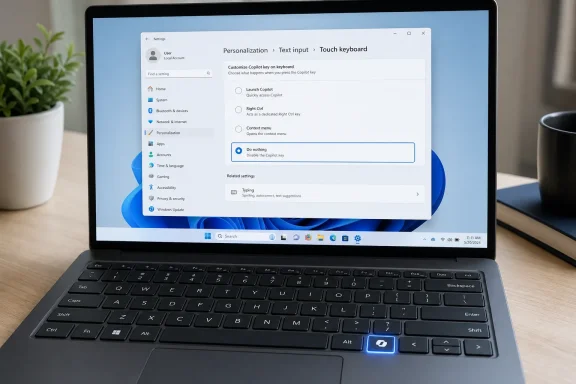 A Quiet Admission That the Copilot Key Is Not Universal
The dedicated Copilot key debuted on new Windows 11 PCs in 2024 as a major visual expression of Microsoft’s AI ambitions. It was presented as the most meaningful change to the Windows keyboard in decades: a one-press route into Copilot, positioned alongside the Windows key as a new core part of everyday computing.That vision has collided with a much messier reality.
For a portion of users, the key is a convenient shortcut to an AI assistant. For many others, however, it has become an awkward physical reminder of a feature they do not use, do not trust, or simply prefer to open through a taskbar icon, a keyboard shortcut, a browser, or a competing AI app.
The proposed “Do nothing” option is therefore more important than its wording suggests. It recognizes that a hardware button can be present without needing to impose a workflow on its owner. A Windows PC should not require users to make peace with a dedicated assistant key simply because it was designed into the keyboard.
It is also a far more direct answer than the earlier remapping options Microsoft outlined for the key. Reassigning the Copilot key to Right Ctrl or the Context menu key is useful for people whose established workflows were disrupted. But some users do not want a substitute. They want the key to stop launching an app, invoking a service, or performing any action at all.
That is what “Do nothing” provides: a supported kill switch for the physical Copilot key.
Background: How a New AI Button Replaced Familiar Keys
The Copilot key was never merely an extra key added to roomy desktop keyboards. On compact laptop layouts, key real estate is scarce. In many cases, the new button took the place of a key that had long served practical purposes: either the Right Ctrl key or the Context menu key.Neither replacement landed equally well across all users.
The Context menu key may seem expendable to people who primarily right-click with a mouse or trackpad. But it remains a useful keyboard-accessibility control, particularly for navigating interfaces without a pointer device. The Right Ctrl key is also not interchangeable with Left Ctrl in every situation, especially where keyboard shortcuts, remote-desktop environments, specialist applications, legacy software, or accessibility workflows are involved.
Microsoft has acknowledged that users who depend on these keys have encountered real disruption. That matters because the objection is not limited to aesthetics or resistance to AI. It includes established productivity habits and assistive-technology use cases that a hardware redesign can unintentionally break.
The company’s previously announced remedy was to allow the Copilot key to be reassigned in Settings > Bluetooth & devices > Keyboard. The key could be configured to act as Right Ctrl or the Context menu key, restoring some of the functionality displaced by newer laptop designs.
The newly spotted Do nothing option expands that approach. Instead of assuming every physical key deserves an assigned Windows action, it allows the operating system to honor the owner’s preference to leave it inert.
Why “Do Nothing” Is Different From Remapping
There is a meaningful difference between a remapped button and a disabled one.A remapped key still participates in the user’s workflow. It can be useful, but it also creates another behavior to remember. Disabling it removes that mental overhead entirely. The key becomes a blank spot on the keyboard rather than a potential trigger for an app, search interface, assistant, or unexpected action.
For users who accidentally hit the Copilot key during typing, gaming, remote sessions, presentations, or keyboard-heavy work, that difference is substantial. It reduces interruptions without requiring an extra utility, a registry tweak, custom scripting, or manufacturer-specific control software.
It also provides a cleaner answer for organizations that want to keep the key from creating confusion on managed laptops, even if broader enterprise controls over Copilot itself remain a separate policy question.
The Copilot Key Is Still Part of Microsoft’s Hardware Strategy
The arrival of a disable option should not be mistaken for Microsoft abandoning the Copilot key. If anything, it shows the company is attempting to preserve the hardware strategy while reducing backlash around it.Microsoft’s position remains clear: Copilot is intended to be prominent throughout Windows, and a dedicated keyboard shortcut supports that objective. The key continues to appear on new Windows PCs from major partners, particularly in laptop categories marketed around AI capabilities.
The distinction is important. Microsoft is not restoring the old keyboard layouts as a default industry standard, nor is it suggesting that PC makers stop shipping Copilot-branded buttons. Instead, it is giving users a better way to control what happens after the hardware reaches their desks.
That is a more pragmatic compromise than a reversal.
A Physical Key Is an Expensive Commitment
Software features can be changed, rebranded, relocated, or removed through an update. Physical keys cannot.Once a laptop keyboard has been manufactured with a Copilot logo where a Right Ctrl or Context menu key once sat, that decision remains visible for the lifetime of the device. Even if the associated app changes, even if Microsoft shifts its Copilot strategy again, and even if the owner exclusively uses another AI service, the branded key remains.
That permanence helps explain why the reaction has been stronger than the response to another taskbar icon or Start menu recommendation. The key is not just software promotion. It is a company strategy physically embedded in hardware that users have already purchased.
A “Do nothing” setting does not erase the symbol, but it returns control over its behavior to the person using the machine.
The “AI PC” Label Needs More Than a Button
One of the more confusing aspects of the Copilot key discussion is the way hardware branding can blur the difference between an AI PC, a Copilot+ PC, and an ordinary Windows 11 system with AI software installed.Microsoft’s formal Copilot+ PC category is based on substantive hardware requirements, most notably a neural processing unit capable of delivering at least 40 TOPS of AI performance. Copilot+ PCs also require modern Windows 11 builds and baseline memory and storage specifications. The point is to enable advanced AI workloads locally, using dedicated hardware rather than relying entirely on cloud processing.
That is a meaningful technical distinction.
A physical Copilot key, by contrast, does not prove that a device has a capable NPU, strong local AI performance, or access to every Copilot+ feature. It is an interface choice. It can make a cloud-based assistant easier to launch, but it does not itself transform a conventional PC into an AI-capable machine.
This is where Microsoft and its OEM partners need clearer messaging.
The Key Is a Shortcut, Not an AI Accelerator
A dedicated key can be useful as a fast launcher, just as media controls, calculator keys, microphone-mute buttons, and dedicated camera switches can be useful. But its presence should not carry more technical significance than it deserves.The actual value of an AI PC comes from factors such as:
- NPU performance for local AI workloads
- CPU and GPU capability for demanding productivity and creative applications
- Memory capacity for multitasking and AI-assisted workflows
- Battery efficiency under sustained workloads
- Support for on-device AI features
- Privacy controls governing what is processed locally and what is sent to the cloud
- Software quality, reliability, and compatibility
That does not make it pointless. It simply means it should be treated as optional convenience hardware rather than a defining proof of AI readiness. A capable Windows 11 laptop without a Copilot key does not become less technically capable because it retains a conventional keyboard layout.
Why Microsoft Needed to Address Accessibility and Productivity
The strongest case for the new setting is not anti-AI sentiment. It is user choice, keyboard consistency, and accessibility.Keyboard layouts matter deeply to people who work quickly, rely on shortcuts, or use assistive technologies. A change that appears minor to one person can represent a recurring interruption for another. That is especially true when the replaced key is part of muscle memory built across years of Windows, Linux, remote-desktop, terminal, development, office, or specialized enterprise software use.
Microsoft has specifically warned that reassigning the Copilot key to Right Ctrl can introduce limitations. Some shortcuts involving the physical Left Shift key and the reassigned Right Ctrl key may not operate consistently across all keyboards. The suggested workaround is to use the physical Right Shift key for those combinations.
That warning illustrates why a simple remap is not always a perfect restoration.
Hardware Identity Can Matter
At a low level, keyboards do more than send abstract “key names.” Different physical keys can produce distinct scan codes or be interpreted differently by firmware, drivers, operating systems, remote connections, and applications. The same logical mapping does not always recreate the exact behavior of the original physical key across every scenario.For most people, mapping Copilot to Right Ctrl will likely be sufficient. For some, it may not be. For others, neither Right Ctrl nor Context menu is needed, and the cleanest experience is to have the button perform no action.
The Do nothing setting is valuable precisely because it avoids pretending that every hardware substitution can be perfectly reversed in software. It gives users the option to opt out of the new behavior without requiring Microsoft to guarantee that a remap will solve every edge case.
What the New Windows 11 Setting Is Expected to Change
The emerging option appears to be part of the Windows 11 Copilot key configuration controls rather than a separate Copilot app setting. That is the right place for it. A physical keyboard behavior should be managed in Windows’ device and keyboard settings, not buried in an AI assistant’s account preferences.When it reaches broader availability, users with compatible hardware should be able to select among behaviors such as:
- Launching Copilot
- Opening a supported alternative app, where available
- Acting as Right Ctrl
- Acting as the Context menu key
- Doing nothing
Some devices already offer their own keyboard-management software, including settings for function keys, hotkeys, performance modes, and custom shortcuts. Windows users should avoid assigning conflicting functions through both an OEM utility and Windows Settings at the same time. Two layers of remapping can create inconsistent results that are difficult to troubleshoot.
Preview Features Are Not Final Features
The presence of a “Do nothing” option in Windows Insider testing does not guarantee that it will arrive unchanged, on a specific schedule, or in every supported Windows 11 release. Preview builds routinely include staged work, controlled rollouts, incomplete user-interface elements, and features that can be revised before general availability.Still, the option aligns closely with Microsoft’s broader public commitment to give users more control over the Copilot key. It is therefore a logical extension of the company’s existing plan rather than an out-of-nowhere experiment.
The more important point is that Windows is moving toward a supported answer. Users should not need to treat a branded key as an unavoidable part of their computing experience.
The Strengths of Microsoft’s New Approach
Microsoft deserves credit for recognizing that the original implementation created avoidable friction.The best aspect of the new direction is that it preserves choice without forcing a single interpretation of what the Copilot key should be. A user who likes Copilot can keep the default. A user who needs Right Ctrl can restore it. A user who needs the Context menu key can choose that. A user who wants no behavior at all can disable it.
That is a sensible hierarchy of control.
Better Than Third-Party Workarounds
Before an official setting, users often had to turn to tools such as keyboard remappers, scripting utilities, registry-level workarounds, or manufacturer software. Those approaches can be powerful, but they are not ideal for everyone.They can also introduce complications:
- A remapping utility may need to run continuously in the background.
- A script may fail after an update or conflict with another hotkey.
- Manufacturer utilities vary greatly in quality and support lifespan.
- IT departments may block unsigned scripts or unapproved desktop tools.
- Remote desktop sessions can make keyboard remapping more difficult to predict.
- Troubleshooting becomes harder when the operating system and a third-party tool both affect the same key.
A More Mature Definition of Personalization
The move reflects a healthier approach to Windows personalization. Users do not all work the same way, and they do not all share Microsoft’s enthusiasm for a particular assistant or AI service.Windows has historically been at its best when it accommodates different workflows: keyboard-first users, mouse-first users, accessibility users, enterprise administrators, gamers, developers, students, and people who simply want a predictable PC. A “Do nothing” option may sound unglamorous, but it fits that tradition better than a compulsory branded shortcut.
Sometimes the most user-friendly feature is the one that lets a user decline a feature.
The Risks and Limitations That Remain
The new option solves a narrow problem. It does not resolve every criticism of the Copilot key or Microsoft’s wider AI integration strategy.First, the physical key remains. On a laptop where it replaced a familiar control, disabling it may be preferable to launching Copilot, but it still does not restore the lost key’s original location or tactile familiarity. A blank button is better than an unwanted button for some users, but it is not equivalent to a conventional layout.
Second, keyboard remapping cannot fully eliminate confusion in shared-device settings. A household laptop, classroom device, or corporate fleet may be used by multiple people with different preferences. The key’s behavior needs to be clear, consistent, and manageable through appropriate administrative controls.
Third, Microsoft must avoid making the option unnecessarily difficult to find. If “Do nothing” is hidden several levels deep in Settings or only appears on certain devices without clear explanation, it will feel less like genuine control and more like a technical escape hatch.
The Broader Trust Issue
There is also a deeper trust issue around AI features in Windows.Some users do not object to Copilot because they dislike buttons. They object because they are concerned about data handling, cloud processing, account requirements, intrusive suggestions, changing product branding, or the growing sense that the operating system is steering them toward services they did not request.
Disabling one keyboard key cannot resolve those concerns.
Microsoft will need to maintain clear privacy controls, straightforward explanations of local versus cloud AI processing, reliable enterprise policies, and a consistent product strategy. The company’s AI ambitions are not inherently incompatible with user choice, but the implementation must feel optional in practice, not merely optional in marketing language.
The Copilot key is a small but highly visible test of that principle.
What This Means for Windows 11 Users Buying New PCs
For prospective buyers, the practical lesson is straightforward: do not judge an AI-capable Windows laptop by the presence or absence of a Copilot key.Instead, evaluate the machine on the characteristics that will affect daily use:
- Check the processor and NPU specifications. A dedicated NPU and its performance rating matter far more than a branded button.
- Confirm whether the PC qualifies as a Copilot+ PC. If local AI features are important, look for the full hardware requirements rather than relying on broad “AI PC” marketing.
- Inspect the keyboard layout carefully. Look at what the Copilot key replaced and consider whether the location of Right Ctrl, Context menu, Fn, Alt, and navigation keys suits your workflow.
- Review the manufacturer’s keyboard software. Determine whether it offers useful remapping options and whether those controls coexist cleanly with Windows settings.
- Consider the laptop’s overall value. Battery life, display quality, ports, repairability, cooling, memory, storage, wireless performance, webcam quality, and price remain more important than a one-key shortcut.
A Small Setting With a Bigger Message
The Do nothing option is not Microsoft “admitting defeat” in a literal sense. The company is still shipping and promoting Copilot-key hardware, and it still sees AI as central to the future of Windows. But the setting does represent a necessary recognition that a dedicated AI button cannot be universally useful simply because it is universally visible.That is progress.
The most successful Windows PCs have always balanced Microsoft’s platform ambitions with the reality that people buy computers to work, create, communicate, play, and solve problems in their own ways. A physical Copilot key may suit some of those people. It may be irrelevant or disruptive to others.
Windows 11 does not need every user to embrace the key. It needs to let users decide what that key means—or whether it means anything at all.
References
- Primary source: Windows Latest
Published: 2026-07-23T19:11:54+00:00
Loading…
www.windowslatest.com - Official source: support.microsoft.com
Understand updates to the Copilot key on Windows devices | Microsoft Support
Understand updates to the Copilot key on Windows devicessupport.microsoft.com - Official source: blogs.windows.com
Introducing a new Copilot key to kick off the year of AI-powered Windows PCs
Today, we are excited to take the next significant step forward and introduce a new Copilot key to Windows 11 PCs. In this new year, we will be ushering in a significant shift toward a more personal and intelligent computing future where AI will be sblogs.windows.com - Official source: learn.microsoft.com
WindowsAI Policy CSP | Microsoft Learn
Learn more about the WindowsAI Area in Policy CSP.learn.microsoft.com - Official source: microsoft.com
Loading…
www.microsoft.com