

Windows 11’s Copilot arrived as a promise: an ever-present AI assistant woven into the operating system to save time, reduce friction, and surface answers where you work. After living with it, toggling it on and off, and forcing it into daily tasks, the takeaway is clear: Copilot delivers real wins in narrow scenarios, but Microsoft’s layered approach — multiple Copilot surfaces, hardware‑tiered features, and cloud vs. on‑device distinctions — creates confusion that undercuts real everyday value for many users. The feature set is ambitious and, in parts, technically impressive, yet the practical payoff depends heavily on hardware, subscriptions, and careful user selection.
Windows 11 is shifting from a traditional OS model toward an AI‑centric platform. Microsoft has reworked Copilot from a sidebar curiosity into a system function that appears in the taskbar, File Explorer, text fields, and even via a physical key on Copilot‑certified laptops. That strategic push aims to make AI discoverable and actionable inside familiar workflows, but it’s also introduced a fragmented user experience: system Copilot, Microsoft 365 Copilot, and companion apps often look identical but behave differently. The difference matters because some flows run locally on an on‑device neural processing unit (NPU), while others require cloud services and specific Microsoft 365 licensing.
Microsoft’s roadmap includes higher automation through AI agents, on‑device registries for capabilities, and more inline integrations inside the OS. Those moves are logical for making AI useful, but they also raise governance, privacy, and trust questions. Several independent investigations and preview build artifacts confirm both the direction and the early pain points.
Key points to note:
But there are strong caveats:
Why it matters:
What this practically means for consumers:
The bottom line:
That said:
Microsoft is also testing AI agents — autonomous, task‑performing entities that can run in isolated workspaces and report progress on the taskbar. Agents promise background automation (for example, a research agent that assembles a report) but also raise trust and security concerns: what files can an agent touch? How are approvals logged? Microsoft adds an on‑device registry for agent capabilities and a Model Context Protocol to coordinate agents and tools, but for private users these systems add complexity and a new attack surface.
Key technical and governance points:
Source: PCWorld I tried making Windows 11's Copilot a habit. Here's what stuck (and what didn't)
 Background
Windows 11 is shifting from a traditional OS model toward an AI‑centric platform. Microsoft has reworked Copilot from a sidebar curiosity into a system function that appears in the taskbar, File Explorer, text fields, and even via a physical key on Copilot‑certified laptops. That strategic push aims to make AI discoverable and actionable inside familiar workflows, but it’s also introduced a fragmented user experience: system Copilot, Microsoft 365 Copilot, and companion apps often look identical but behave differently. The difference matters because some flows run locally on an on‑device neural processing unit (NPU), while others require cloud services and specific Microsoft 365 licensing.Microsoft’s roadmap includes higher automation through AI agents, on‑device registries for capabilities, and more inline integrations inside the OS. Those moves are logical for making AI useful, but they also raise governance, privacy, and trust questions. Several independent investigations and preview build artifacts confirm both the direction and the early pain points.
Getting started: visibility, discoverability, and control
Copilot’s entry points are everywhere by design. You can open it with the keyboard shortcut Windows + C or by clicking the taskbar icon. On Copilot‑certified devices you may also have a physical Copilot button, which lowers the friction to launch the assistant but adds no extra capabilities beyond easier access. For administrators, Microsoft has started shipping controls — including a narrowly scoped Group Policy (RemoveMicrosoftCopilotApp) discovered in Insider builds — so organizations can surgically remove the consumer Copilot app under certain conditions. Those policies are useful, but the fact they’re necessary highlights how much Copilot is being pushed into Windows images by default.Key points to note:
- Multiple launch methods increase visibility but also amplify the question: which Copilot is this?
- Physical Copilot buttons are convenience, not capability upgrades.
- Admin controls exist but are currently narrow and tied to preview builds; enterprise IT needs to watch policy rollout closely.
Copilot as an everyday tool: what actually helps
Where Copilot shines is specific, language‑driven, repetitive tasks — summarizing long articles, drafting rough email replies, distilling meeting notes into action items, and creating quick content outlines. When used as a first pass — a time‑saving draft to be edited and verified — Copilot can reduce the mechanical workload of many short tasks. The writing assistant that appears across text input fields can correct grammar, adjust tone, and shorten copy; for quick replies and form fills it’s genuinely useful.But there are strong caveats:
- Suggestions tend to be neutral and standardized; without editing, output can feel generic.
- The assistant’s value diminishes when it’s used as a single source of truth — Copilot can summarize, but it may omit nuance or introduce inaccuracies (hallucinations).
- Some of the most convenient features require Copilot+ hardware and/or Microsoft 365 subscriptions. That means not all users will gain equal benefit.
File Explorer: the particularly confusing dual integration
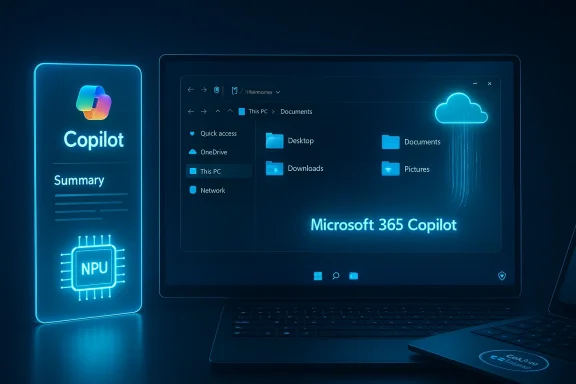
One of the clearest examples of execution friction is File Explorer. Microsoft has introduced two separate Copilot affordances in Explorer that look very similar but route to different experiences: a Home‑tab or hover “Ask Microsoft 365 Copilot” control that escalates a file to Microsoft 365 Copilot (tenant‑aware, license‑required), and the long‑standing right‑click “Ask Copilot” context menu that invokes the system Copilot. The near‑identical branding makes it easy to choose the wrong path and get unexpected results.Why it matters:
- Users may unintentionally upload files to cloud services or tenant contexts if they pick the M365 path without realizing it.
- Different results (depth, grounding to organization data) are produced depending on the backend invoked.
- The cognitive overhead increases: users must learn which entry point to use and when.
Hardware tiers, NPUs, and local processing: what Copilot+ actually brings
Microsoft distinguishes between cloud‑powered Copilot features that work on most Windows 11 devices and enhanced on‑device features reserved for Copilot+ PCs. Copilot+ hardware includes an NPU capable of significant inference work (Microsoft’s preview documentation mentions specs and performance tiers such as NPUs capable of tens of TOPS), minimum memory and storage thresholds, and driver support. On‑device capabilities include live captions, studio camera effects, the Recall snapshot feature, and local writing assistance that reduces cloud dependency and latency.What this practically means for consumers:
- If you have a Copilot+ machine, some features will be faster and more private because inference happens locally.
- Most Copilot experiences — especially deep document analysis tied to Microsoft Graph or tenant data — still require cloud processing and licensing.
- The NPU primarily improves latency, battery life, and select privacy profiles; it’s not a universal upgrade to Copilot’s intelligence.
Microsoft 365 Copilot: licensing and capability differences
Microsoft 365 Copilot is a licensed product that integrates with tenant data (OneDrive, SharePoint, Exchange, Microsoft Graph) and therefore offers deeper, context‑aware document analysis. For businesses and some personal scenarios, that richer, work‑grounded intelligence is only available if you have a qualifying Microsoft 365 plan with an assigned Copilot license. The consumer “Ask Copilot” flow in the OS does not automatically equal Microsoft 365 Copilot.The bottom line:
- Expect different outcomes if you’re an enterprise user with a Copilot license versus a consumer on a regular Microsoft 365 plan.
- Administrators should map entitlements carefully — and users should assume that when a Copilot option references Microsoft 365, cloud processing and tenant policies are in play.
Voice input, Live Captions, and accessibility
Copilot’s support for voice input and voice‑activated interaction is competent in quiet, single‑user contexts. Windows 11’s Live Captions and Voice Access leverage on‑device processing where available to provide fast captions and translations, which are powerful accessibility wins. For multilingual meetings and media consumption, Copilot+ devices deliver better translation quality and lower latency.That said:
- Voice interactions are situational — multi‑person households, open offices, or late‑night scenarios limit practical use.
- Many users still prefer typed interactions for privacy and precision.
- For mission‑critical captioning or translation, treat Copilot’s output as an aid, not a certified transcript.
Recall, agents, and the push toward autonomous actions
Recall — a feature that stores screen snapshots so you can later query past content — exemplifies Microsoft’s forward push: technically feasible, privacy‑sensitive, and of debated practical value. Recall requires active consent, device encryption, and Windows Hello; many users disable it for privacy or because results are inconsistent. The conclusion is familiar: technical novelty does not guarantee daily usefulness.Microsoft is also testing AI agents — autonomous, task‑performing entities that can run in isolated workspaces and report progress on the taskbar. Agents promise background automation (for example, a research agent that assembles a report) but also raise trust and security concerns: what files can an agent touch? How are approvals logged? Microsoft adds an on‑device registry for agent capabilities and a Model Context Protocol to coordinate agents and tools, but for private users these systems add complexity and a new attack surface.
Key technical and governance points:
- Agents are preview features and require clear handover/approval mechanisms to be trusted in production.
- Isolated workspaces and explicit permissions are necessary but not sufficient — users and admins also need transparency and audits.
- For now, agentic features are best considered experimental; they’re interesting for future automation but not yet a universal productivity winner.
Security, privacy, and governance: the tradeoffs of system‑level AI
Bringing AI into the OS changes threat models. Consider these realities:- Data flows: Some Explorer actions route files to cloud services; others use local NPUs. Organizations with strict compliance rules must assume cloud routing until Microsoft documents otherwise.
- Fragmented surfaces: Multiple Copilot entry points complicate admin control and user mental models, increasing risk of accidental disclosure.
- New attack vectors: Agentic features and file handoffs can be susceptible to prompt‑injection and exfiltration if runtime protections aren’t robust.
- Map Copilot surfaces and entitlements in their estate.
- Test the RemoveMicrosoftCopilotApp policy in controlled environments if they need deterministic removal options.
- Treat Copilot outputs as non‑authoritative and require human validation for high‑risk workflows.
What stuck for me — the useful workflows
After several weeks of deliberate experimentation, certain Copilot uses consistently saved time and worked reliably:- Quick document triage from File Explorer (when using the correct Copilot path): extracting main points from meeting minutes and summarizing PDFs without opening heavy apps.
- Universal text polishing: quick grammar fixes and tone adjustments for short emails and form fields.
- Live captions for media and meetings on Copilot+ devices — especially helpful in noisy environments or for accessibility needs.
- On‑the‑fly image resizing and small edits from within the Share UI or Explorer (where available) for fast social or messaging-ready photos.
What didn’t stick — where expectations and reality diverged
Several headline features failed to become daily habits:- Universal, always‑listening voice assistant: it sounded promising but ended up being situational and often slower or less private than typing.
- Recall for long‑term content retrieval: too brittle and too privacy‑sensitive for widespread adoption. Many users disabled it.
- Agentic automation: intriguing previews, but not yet reliable or trusted enough to leave to background execution.
- Full replacement of Windows search with Ask Copilot: natural language search is powerful for broad queries, but classic search is still faster for direct filename or path lookups. Most users switch between the two.
Practical recommendations for Windows users
If you want to make Copilot a practical, low‑risk part of your workflow, follow these steps:- Start small and deliberate — enable Copilot for specific tasks like summaries and short drafts, and evaluate time saved.
- Understand the entry points — learn the difference between the system Copilot and Microsoft 365 Copilot in File Explorer before you upload sensitive files.
- Check hardware and licensing dependencies — don’t assume every feature will work; Copilot+ NPUs and Microsoft 365 Copilot licenses unlock different capabilities.
- Treat outputs as drafts — verify facts, especially for contracts, legal text, or regulated content.
- Use admin controls where necessary — enterprises and power users should test the RemoveMicrosoftCopilotApp GP on preview builds if they require strict control.
- Disable features you won’t use — reduce attack surface and telemetry by turning off optional features such as Recall if they provide no practical value for you.
Critical analysis: strengths, business reasoning, and risks
Strengths- Productivity wins for routine tasks: summaries, triage, and short drafts are high‑value, low‑risk uses.
- Accessibility improvements: Live Captions and Voice‑assisted features are strong, tangible benefits.
- Platform reach: integrating Copilot across the OS and Microsoft 365 makes AI discoverable where users already work.
- Microsoft’s strategy is pragmatic: bake AI into the OS to increase engagement with Microsoft services and create new monetization tiers (Copilot licenses, Copilot+ hardware). That makes sense commercially, and Microsoft is executing with a mixture of cloud and on‑device options to balance latency, privacy, and capability.
- Fragmented UX and mental models risk user error and accidental data exposure.
- Hardware and licensing segmentation creates inequality of experience; many users will not see the full promise without buying new hardware or subscriptions.
- Trust and accuracy: hallucinations and inconsistent results limit use in high‑stakes workflows.
- Security concerns: agentic operations and file handoffs enlarge the threat surface unless explicit, auditable controls are in place.
Looking ahead: will Copilot become essential?
The trajectory is clear: Windows 11 will continue to expand AI presence, agent orchestration, and on‑device inference capabilities. Over time, those shifts could be genuinely transformative, especially when agents and on‑device models become reliable and transparent. But the path to broad, practical adoption requires Microsoft to fix three things:- Clear, consistent UX that distinguishes Copilot surfaces and communicates data flows.
- Transparent entitlements and simple ways for users and admins to control what Copilot can access.
- Measurably better reliability for generative outputs and agent actions so people can trust automation in semi‑autonomous workflows.
Conclusion
Windows 11’s Copilot is more than a feature — it’s a strategic pivot toward an AI‑first operating system. In daily use it can speed up routine writing, triage files, and empower accessibility in meaningful ways. Yet the current experience is uneven: split Copilot integrations, hardware and subscription gates, and preview‑grade agent features disrupt uptake. The smartest way for private users to approach Copilot is with selective adoption: turn on the features that demonstrably save you time, keep the rest off, and treat AI outputs as helpful drafts rather than final authority. Microsoft’s vision of an intelligent, agent‑enabled desktop is persuasive; the challenge now is execution — making the AI dependable, transparent, and simple enough that presence becomes practical relevance rather than background noise.Source: PCWorld I tried making Windows 11's Copilot a habit. Here's what stuck (and what didn't)
