Windows 11 Copilot: Voice, Vision, and Actions Redefining the AI Desktop

  • Thread Author
Microsoft’s latest push to weave generative AI deeper into Windows 11 moves the operating system from assistantable to assistant-first, bringing voice activation, on-screen vision, autonomous web actions, and tighter hardware-software integration that together redefine how users will interact with their desktops.

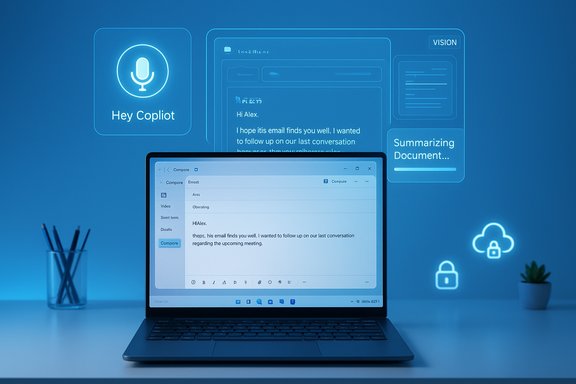
Blue neon Copilot AI on a screen with a friendly robot head and a Hey Copilot banner.Background​

Microsoft has been steadily folding AI into Windows and its productivity suite for the better part of three years, positioning Copilot as the central, cross‑product assistant that spans Windows, Microsoft 365, Edge, and mobile apps. Early moves focused on conversational help, writing and editing assistance, and in‑app suggestions. The most recent wave elevates Copilot beyond text chat: it now listens on demand, sees the screen, and—critically—can take discrete, constrained actions on the user’s behalf across the web and local apps.
These changes are part of a multi‑stage strategy that pairs cloud and on‑device capabilities. Microsoft’s hardware partners have shipped a new class of Copilot+ PCs with dedicated neural processing units (NPUs) and tuned firmware, while Windows itself now exposes deeper hooks for Copilot to interface with files, settings, and the visible desktop. IT control, governance, and opt‑in privacy are integral to the rollout, but the speed and scope of feature expansion raise immediate questions for consumers, enterprises, and security teams.

What’s included in the recent Windows 11 AI improvements​

1. Hands‑free activation: "Hey, Copilot"​

Microsoft introduced a new opt‑in voice activation keyword—“Hey, Copilot”—that lets users launch Copilot from any Windows 11 device without keyboard input. The feature is designed to work across app contexts and is implemented as an opt‑in privacy setting, so devices do not continuously transmit audio until the user enables the capability.
  • The activation is available to Windows 11 users after an update and is gated by user choice.
  • Hardware with better microphones and NPUs will offer more reliable voice detection and lower latency.
This capability is intended to make Copilot a more natural, always‑ready assistant for multitasking while preserving user control over mic access.

2. Copilot Vision: on‑screen and camera awareness​

Copilot Vision—the component that lets Copilot “see” content—has been extended to Windows. It enables Copilot to interpret what’s on the screen or camera feed and respond with contextually relevant actions or guidance.
  • Vision on Windows can read screen content, identify UI elements, summarize visible information, and suggest next steps.
  • The visual capability is opt‑in and can be turned on or off at any time, with controls to stop sharing.
  • Microsoft has added a text‑based interaction mode for Vision so users can type queries about what Copilot has seen instead of speaking.
Vision aims to flatten workflow friction: rather than switching to a browser or separate app, users can ask Copilot about a spreadsheet, a PDF, or a web page they already have open.

3. Copilot Actions: the assistant that executes​

A major functional shift is Copilot Actions, a feature that allows Copilot to complete tasks online on behalf of the user—booking a reservation, placing an order, or filling forms—by interacting with websites or services it’s been taught to use.
  • Actions operate with limited permissions and require explicit authorization.
  • Initial partnerships and compatibility targets include well‑known travel and commerce platforms.
  • Copilot Actions are presented as experimental and are being expanded progressively through the Copilot ecosystem and Copilot Pro tiers where applicable.
This moves Copilot from reactive helper to an agent that can undertake multi‑step tasks, carry state between steps, and report results back to the user.

4. Deeper File Explorer and app integrations​

Windows 11 now surfaces new AI tools directly inside File Explorer and core apps:
  • File Explorer includes a modernized Home, smarter suggestions, and a Gallery for photos with AI‑assisted organization.
  • New utilities and features—such as image restyling, automated edits inside Photos and Paint, and quick content extraction from PDFs—are surfaced as integrated AI options.
  • Third‑party apps (for example, video editors) may expose AI editing links from the Explorer context menu.
These integrations aim to let users perform common content tasks without launching specialized software or writing prompts in separate windows.

5. Copilot+ PCs and Windows Studio Effects​

Microsoft’s Copilot+ PCs remain a pillar of the AI push. These devices have NPUs and firmware optimizations that enable local inference for features tagged as Windows Studio Effects:
  • Real‑time video enhancements (voice focus, portrait effects, eye contact teleprompter, framing).
  • On‑device acceleration for image generation and restyling tools.
  • Access to more natural voice models and low‑latency speech interactions.
Copilot+ hardware is marketed for users and businesses who want a smoother AI experience with reduced cloud dependency, better privacy control, and improved battery performance for AI workloads.

6. Gaming Copilot and cross‑device features​

AI functionality has been extended to gaming experiences as well:
  • Gaming Copilot provides context‑aware tips, walkthroughs, and in‑session assistance on gaming consoles that support the feature.
  • Cross‑device integrations let Copilot tie together information from the PC, mobile, and cloud services to offer consistent assistance across contexts.
These additions illustrate Microsoft’s intention to make Copilot part of a unified ecosystem that spans entertainment and productivity.

Why this matters: benefits and user value​

Faster task completion and reduced context switching​

By letting Copilot see the screen and act on the web, Microsoft reduces the need to jump between apps. Users can ask for a summary of a document, have Copilot extract key data from a PDF, or instruct it to book travel without opening multiple tabs.
  • This is particularly valuable for multitaskers, knowledge workers, and creators who juggle many tools.
  • Copilot Actions can automate repetitive processes like booking logistics, tracking deals, and aggregating information.

Accessibility and natural interaction improvements​

Voice activation, natural language vision queries, and improved text authoring tools improve accessibility for users who rely on voice, keyboard alternatives, or simplified UIs.
  • New natural voices and voice‑based workflows increase usability for people with motor or visual impairments.
  • On‑device features in Copilot+ PCs decrease latency and improve responsiveness for assistive scenarios.

Productivity gains for professionals and IT​

For enterprises, Copilot’s integration with Microsoft 365 and Windows offers a single AI surface that can access organizational data (when allowed) and perform administrative tasks under IT governance.
  • Admin tools let IT control who can use Copilot and what data sources are permitted.
  • Copilot Actions and agents can be used to automate business processes—triaging tickets, generating reports, or summarizing meeting outcomes.

Local performance and privacy optioning​

Copilot+ devices with NPUs can run heavier workloads locally, reducing reliance on cloud calls for latency‑sensitive tasks and offering an additional privacy tier when sensitive data processing is restricted to the device.

Risks, limitations, and unanswered questions​

Accuracy and hallucination risk​

Generative AI systems remain imperfect. When Copilot summarizes documents, interprets screen content, or books services, the risk of incorrect outputs or misinterpreted context exists.
  • Automated web actions amplify potential harm: erroneous bookings, unintended purchases, or mistaken form submissions could result if Copilot misreads intent or a site’s UI changes.
  • Users must remain vigilant and verify critical outcomes, especially for financial or legal actions.

Automation safety and site compatibility​

Copilot Actions relies on interacting with third‑party websites, which may change layout, block programmatic access, or require multi‑factor authentication flows that complicate reliable automation.
  • There is no universal standard for how web actions should behave; failure modes could be messy.
  • Sites can and may block robotic access, which could limit the effectiveness of Actions on some services.

Privacy, telemetry, and data residency concerns​

Even though Vision and voice activation are opt‑in and Actions require permission, the expansion of Copilot raises persistent privacy questions:
  • How much metadata is logged when Copilot reads a screen or performs an action?
  • Which signals are stored in the cloud versus kept on‑device? Are user interactions used to improve models, and if so, how is that governed?
  • Enterprises will need to confirm that their regulatory and compliance requirements are met before enabling Copilot features at scale.

Security and attack surface​

New integrations increase Windows’ attack surface: agents that can access files, the clipboard, and web sessions must be tightly sandboxed and auditable.
  • Malicious software could try to impersonate Copilot prompts or hijack session tokens if proper isolation is not enforced.
  • Enterprises should evaluate how Copilot is governed by policy, whether actions are auditable, and what rollback or approval flows exist.

Hardware fragmentation and inconsistent experiences​

AI features that rely on NPUs will produce uneven experiences across the Windows ecosystem.
  • Older or lower‑end devices will get a degraded, cloud‑dependent experience.
  • Some features—like Windows Studio Effects—may be OEM‑specific, creating fragmentation in capability and support.

Governance and IT controls: what administrators should know​

Microsoft has made management controls a core part of its Copilot rollout. Admins can:
  • Define which users or groups can access Copilot and specific agent capabilities.
  • Control data connectors, determining whether Copilot can access SharePoint, OneDrive, or other corporate stores.
  • Monitor usage with reporting tools that show adoption, activity, and perceived business impact.
Enterprises should take a phased approach:
  • Start in controlled pilot groups to evaluate behavior, accuracy, and integration friction.
  • Harden policies around sensitive data, disable Vision or Actions where regulatory risk is high, and require human approval for financial or contract actions.
  • Use telemetry and usage reports to build training plans and user guidance.

Practical recommendations for consumers and power users​

  • Treat Copilot Actions like delegated temporary access: keep an eye on confirmations and receipts from any web transactions initiated by the assistant.
  • Turn on voice and Vision only when needed; review privacy settings regularly.
  • For creative work, use on‑device restyling tools when available to avoid unnecessary uploads of personal images.
  • For security, ensure Windows and drivers are updated and enable hardware encryption where supported.

Comparing the landscape: how Microsoft’s approach differs​

Microsoft’s strategy is to embed Copilot across devices, cloud services, and productivity apps while offering IT governance primitives. This contrasts with:
  • Competitors who focus primarily on cloud‑first models or third‑party integrations.
  • Some players who offer agentic web automation but lack the same enterprise management surface.
  • Hardware makers who emphasize closed ecosystems versus Microsoft’s partner‑driven Copilot+ PC approach that spans many OEMs.
The integrated Microsoft approach favors enterprises and users who want a single assistant across email, documents, and the desktop, backed by corporate controls.

Rollout, availability, and what to expect next​

The features are rolling out in phases:
  • New capabilities generally arrive first to members of the Windows Insider Program, then broaden to mainstream Windows 11 users.
  • Certain Actions and Copilot Pro features may be region‑ or subscription‑restricted during initial availability windows.
  • Expect more web action partners and richer agent templates over time, alongside improved model performance and reduced latency.
Microsoft is also iterating on model choices—delivering higher‑quality voice models and integrating next‑generation large models—so the capabilities will continue to change in performance and cost profile.

Critical takeaways for Windows users and IT leaders​

  • This update signals a shift: Windows 11 is becoming a platform where an AI agent can read the screen, talk to you, and act for you. For many users, this will materially speed up workflows and lower friction.
  • The new functionality provides clear productivity and accessibility benefits but also introduces automation risk, privacy questions, and a broader attack surface.
  • Successful adoption in enterprise environments depends on careful policy design: opt‑in defaults, role‑based enablement, auditing, and limits on which agents can execute financial or contractual actions.
  • Hardware matters. Users who prioritize low‑latency AI and stronger on‑device privacy will benefit most from Copilot+ PCs with NPUs.
  • The pace of change will be fast: features will arrive incrementally, and administrators must treat AI capabilities as a new class of endpoint service requiring monitoring and governance.

Conclusion​

Microsoft’s latest Windows 11 AI enhancements push Copilot from helper to an active assistant that listens, sees, and acts. The integration blurs the line between OS and agent, promising substantial productivity and accessibility gains for consumers and businesses alike. At the same time, it demands prudence: automation failures, privacy tradeoffs, and security implications require clear policies, user education, and tight administrative controls.
Windows is now a living platform for AI interactions, and the next challenge will be turning potential into safe, trustworthy, and consistently accurate outcomes. Users should explore these features with curiosity but also with the safeguards and oversight necessary for mission‑critical work.

Source: Telegrafi https://telegrafi.com/en/amp/Micros...igence-improvements-in-Windows-11-2674208405/
 

Microsoft’s newest Windows 11 update turns the operating system into a far more conversational, screen‑aware assistant by putting Copilot front and center — you can now say “Hey, Copilot,” show the assistant parts of your desktop for on‑screen help, and (with permission) let it carry out multi‑step tasks across apps.

Laptop on a desk shows a holographic AI assistant UI with a 'Hey Copilot' mic icon.Background​

Microsoft has been steadily folding its Copilot AI into Windows, Office and Edge for more than a year. What changed this fall is scope and attitude: Copilot is being repositioned from a sidebar helper into a system-level input layer that listens, sees, and — when explicitly authorized — acts on behalf of the user. That pivot coincides with the formal end of mainstream support for Windows 10, creating a commercial and technical inflection point that will accelerate Windows 11 adoption for consumers and enterprises alike. Microsoft frames the move as democratizing AI on the desktop: baseline Copilot features will be delivered to every Windows 11 device while a premium Copilot+ tier — hardware certified with a turbocharged Neural Processing Unit (NPU) — unlocks lower‑latency, on‑device experiences. This hybrid architecture mixes local inference on capable NPUs with cloud reasoning for heavier tasks.

What Microsoft announced — the essentials​

  • Copilot Voice — “Hey, Copilot”: an opt‑in wake‑word that summons Copilot without touching keyboard or mouse. A small on‑device spotter listens for the wake phrase, then starts a session with a visible microphone UI and an audible chime. The session can be ended verbally or with UI controls.
  • Copilot Vision: a permissioned, session‑bound capability that lets Copilot analyze selected windows or a shared desktop to extract text, summarize content, identify UI elements, and visually highlight “where to click.” Vision works in voice and (in some preview channels) text modes.
  • Copilot Actions (agentic automations): an experimental agent layer that, when enabled, can perform multi‑step workflows across local apps and web services — for example, summarizing documents, organizing files, or drafting and sending emails. Actions are staged through Copilot Labs and the Windows Insider Program.
  • Copilot+ hardware tier: devices carrying an NPU rated at 40+ TOPS (trillions of operations per second) get premium, low‑latency on‑device features. Non‑Copilot+ machines still receive the baseline Copilot experience but will rely more on cloud processing.
Each headline feature is opt‑in and staged: voice and vision experiences have broadened availability, but agentic Actions are initially limited to Insiders and Labs while Microsoft refines controls and logging.

Why this matters: a practical view​

This update is significant for three practical reasons:
  • It reduces friction. Voice + vision reduce context switching: instead of copying text into a chat box, you can show an app window and ask Copilot to summarize or act.
  • It expands accessibility. Hands‑free voice invocation and visual guidance lower the barrier for users with mobility or dexterity challenges.
  • It reframes value and procurement. Microsoft’s two‑tier approach means hardware choices now affect the AI experience you’ll get; organizations will have to consider NPUs when planning refresh cycles.
These are not theoretical gains. Microsoft’s internal telemetry — cited in briefings — indicates voice interactions increase engagement, and Vision reduces manual extraction and navigation steps in real workflows. That said, real‑world outcomes will vary by hardware, network conditions, language support, and the maturity of connectors and agent governance.

Deep dive: Copilot Voice — what it does and how to use it​

What to expect​

  • Opt‑in wake‑word activation using the phrase “Hey, Copilot.”
  • A lightweight on‑device wake‑word spotter that keeps a short, in‑memory buffer (Microsoft’s preview documentation references roughly a 10‑second transient buffer that is not persisted). After wake detection, the full conversation typically uses cloud processing unless the device is Copilot+ and can run parts locally.
  • Visual and audio cues: a floating microphone UI and chimes mark session start and end.
  • Multi‑turn conversational flows and voice output, plus a transcript saved in the Copilot chat history (users can delete transcripts).

How to enable (short, numbered steps)​

  • Open the Copilot app from the taskbar or Start menu.
  • Go to your profile → Settings → Voice mode.
  • Toggle Listen for “Hey, Copilot” and confirm microphone permissions.
  • With your PC unlocked and Copilot running, say “Hey, Copilot…” to start.

Caveats​

  • The wake word only works while the PC is powered on and unlocked.
  • Heavy lifting (long‑form composition, complex reasoning) often relies on cloud models; offline scenarios will surface connection errors or limited capability.

Deep dive: Copilot Vision — a screen‑aware assistant​

Capabilities​

  • OCR and extraction: convert visible tables and text into editable content that Copilot can export to Excel or Word.
  • UI understanding: identify buttons, menus and controls; visually highlight where to click and provide step‑by‑step guidance.
  • Contextual summarization: read long documents that are visible in your window and return concise summaries without manual scrolling.

How it’s gated​

Vision is explicitly session‑bound and requires user selection of the window or region to share. Microsoft has added visual indicators (glasses or other UI hints) so users know what Copilot is allowed to see; the session ends either manually or via timeout. These boundaries are central to Microsoft’s privacy messaging.

Practical examples​

  • Select a browser window showing a research article and ask Copilot to summarize key findings.
  • Share a screenshot of a software dialog box and have Copilot walk you through the correct menu options.
  • Capture a receipt or table in a PDF and export it as structured rows to Excel.

Deep dive: Copilot Actions — agentic automations and the governance challenge​

Copilot Actions is the boldest and riskiest part of the update: it lets Copilot do work on your behalf — creating drafts, organizing files, or interacting with web forms — inside a visible Agent Workspace. Early previews show useful flows: batch photo edits, PDF table extraction, and email drafting with attachments.

Key safety and governance controls​

  • Actions are off by default and staged via Copilot Labs and Windows Insiders.
  • Agents run with limited, explicit permissions and use audit logs and visible progress indicators so users can intervene.
  • Microsoft is introducing mechanisms like agent signing, certificate revocation, and AV-backed blocking to prevent spoofed agents or malicious connectors.

Why enterprises must pay attention​

Agentic capabilities dramatically expand the attack surface: a misconfigured agent could access sensitive files, send data to cloud services, or interact with internal web portals. For managed devices, organizations should test Actions in a controlled pilot, validate data loss prevention (DLP) coverage, and apply Intune/MDM policies to limit Copilot features based on sensitivity classification.

The Copilot+ hardware story: 40+ TOPS and what it means​

Microsoft’s Copilot+ label designates devices with NPUs capable of 40+ TOPS. These chips accelerate local inference for latency‑sensitive features like live translation, low‑latency Vision tasks, and some Recall/Privacy‑oriented indexing scenarios. Microsoft’s device pages and guidance make the 40+ TOPS threshold explicit. Independent coverage and product pages confirm that early Copilot+ SKUs shipped on leading OEMs and specific silicon platforms; however, Copilot+ remains a laptop‑centric marketing tier and availability varies by OEM model and region. Non‑Copilot+ Windows 11 PCs still get baseline Copilot features but will depend more on cloud processing for heavier workloads.

Practical implications​

  • Consumers who want the fastest, most private on‑device AI experiences should look for the Copilot+ badge and NPU performance claims.
  • IT teams must decide whether to standardize on Copilot+ hardware for select roles (e.g., content creators or knowledge workers) or treat Copilot features as cloud services available on mixed fleets.
  • Benchmarks and vendor TOPS claims should be treated as marketing signals; verify device-level behavior with real workloads before committing large refresh budgets.

Privacy and security — strengths, tradeoffs, and the open questions​

Microsoft’s design places consent and session scope front and center: wake‑word detection is local and opt‑in; Vision requires explicit window selection; Actions are off by default and permissioned. These are meaningful mitigations that reduce accidental exposure risk. But the update also introduces practical risks:
  • Cloud dependence: many high‑value tasks still use cloud models. That means sensitive content may traverse Microsoft cloud endpoints unless the feature runs locally on Copilot+ hardware. Organizations in regulated industries must map data flows and apply policy controls.
  • Agent risks: automated agents that operate across apps multiply the need for governance, audit trails, revocation, and least‑privilege connectors. If connectors are misused, agents could exfiltrate data or perform unintended actions.
  • Wake‑word and always‑listening concerns: although the wake spotter is local and off by default, any always‑listening mechanism expands potential privacy vectors. Users should be able to disable wake detection easily and prefer press‑to‑talk where appropriate.

Mitigations and admin checklist​

  • Audit and categorize data that could be accessed by Copilot features; apply DLP policies.
  • Enforce disk encryption, Secure Boot and Windows Hello for devices that use Recall or similar indexing features.
  • Use Intune/MDM to restrict Copilot Actions and Vision on managed endpoints until governance is verified.
  • Train users about what to share with Vision sessions and how to stop or revoke agent activity.

Enterprise impact and migration timing​

The Copilot wave accelerates the strategic case to move to Windows 11 — and Microsoft timed the release just as Windows 10 mainstream support ended on October 14, 2025, which stops free security updates for consumer Windows 10 editions. Organizations with large Windows 10 fleets must weigh upgrade costs, ESU (Extended Security Updates) enrollment, and how Copilot experiences factor into endpoint value. Practical migration steps for IT:
  • Inventory devices and tag those eligible for Windows 11 and those that qualify as Copilot+ or could be upgraded.
  • Run a controlled Windows Insider pilot to test Copilot Voice/Vision and evaluate Copilot Actions in a lab environment.
  • Update security baselines, MDM policies and DLP rules to manage Copilot features.
  • Prepare user guidance and training for what is permissible to share with Copilot Vision and which agents are allowed.

Consumer implications and upgrade advice​

For home users, the headline is convenience: Copilot Voice and Vision make everyday tasks simpler and more accessible. But the choice to upgrade depends on needs:
  • If your PC is eligible for Windows 11 and you want integrated AI help, upgrading is a straightforward path to Copilot features.
  • If your device is older and not Windows 11–eligible, consider ESU, ChromeOS Flex, or a fresh device — particularly if you use your PC for sensitive work.
  • If privacy is top priority, disable wake‑word and keep Vision and Actions off until you’re confident in the controls.

Strengths and strategic risks — a balanced assessment​

Strengths​

  • Lower friction for productivity: voice and vision materially reduce task friction in real workflows.
  • Accessibility: hands‑free and screen‑aware assistance helps users with mobility or vision challenges.
  • Hybrid flexibility: on‑device NPUs plus cloud services let Microsoft offer options for latency, privacy and scale.

Risks and unknowns​

  • Governance complexity: agentic Actions demand mature logging, revocation, and least‑privilege connectors to be safe at scale.
  • Hardware fragmentation: marketing claims (“every Windows 11 PC is an AI PC”) are functionally true, but experience quality varies widely based on whether a device is Copilot+ or not. Expect mismatched user expectations.
  • Regulatory and enterprise constraints: sectors with strict data residency or processing rules may need to limit cloud‑backed Copilot workflows.
Where Microsoft succeeds will hinge less on model cleverness and more on governance, clear default settings, and predictable device behavior across the large and diverse PC ecosystem.

Final verdict and practical next steps​

Microsoft’s Copilot rollout for Windows 11 is one of the company’s boldest bets to date: it reframes the PC as a conversational, multimodal workspace rather than a passive tool. For everyday users the updates bring tangible convenience; for enterprises the features pose a governance challenge that must be addressed before broad deployment. The Copilot+ hardware tier provides a path to more private, lower‑latency AI, but it also creates procurement choices and potential fragmentation.
Immediate, practical steps for different audiences:
  • For consumers: enable voice and vision only if comfortable; keep wake‑word off by default and test features on non‑sensitive content first.
  • For enthusiasts and Insiders: join the Windows Insider preview to try Copilot Actions and provide feedback on agent controls.
  • For IT and security teams: run a controlled pilot, map Copilot data flows, update DLP and MDM policies, and decide whether Copilot+ hardware will be a procurement priority.
This release is a turning point: the promise of a PC you can talk to, show things to, and have do work for you is now reachable for millions of Windows users. The difference between promise and practical value will be determined by how Microsoft, OEMs, enterprises and users govern, test and adapt these new capabilities in the coming months.
Source: GB News Microsoft reveals entirely new way to use Windows 11 with one of its boldest bets yet
 

Back
Top