

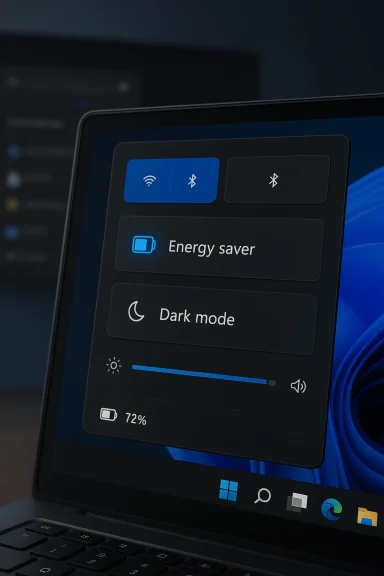
Microsoft's preview builds have quietly tucked a one‑click dark mode switch inside a new Energy saver quick‑settings panel — a discovery that underlines two simultaneous trends in Windows development: Microsoft finally closing the long‑running "incomplete dark mode" gap, and the company experimenting with more contextual, battery‑aware quick actions in the taskbar. The toggle is still hidden behind preview flags and appears to be limited to battery‑powered devices for now, but the presence of a taskbar‑level switch changes the UX calculus for people who want to flip themes quickly without opening Settings or installing third‑party utilities.
Dark mode has been an option in Windows since the Windows 10 era, but its coverage across the OS has remained piecemeal. For years users complained about jarring white dialog boxes and legacy Win32 surfaces that refused to follow the system theme, producing what the community called the "flashbang" effect when a bright dialog appeared over a dark desktop. Microsoft’s ongoing Insider work in 2025–2026 has started to tency by theming more legacy dialogs and shell surfaces, and the new quick‑settings toggle is another visible piece of that effort.
A fast theme toggle matters for three practical reasons:
Key characteristics noted so far:
Why that sequence matters:
Important comparisons:
Design implications:
At the same time, the toggle is a work in progress:
Microsoft’s quiet, iterative approach to dark mode — fix the theming gaps, then add accessible, contextual controls — makes sense from both engineering and user‑experience perspectives. The Energy saver dark toggle may be small, but it signals a more polished, considered Windows ahead: one in which personalization, power, and accessibility are treated as parts of the same set of device choices rather than separate knobs buried in different settings panes.
Conclusion: expect a better, more discoverable dark‑mode experience in Windows 11 over the coming months — and in the meantime, if you can't wait, PowerToys fills the automation gap while Microsoft finishes the native UX.
Source: XDA Windows 11's new feature will make it really easy to toggle dark mode
 Background: why a one‑click dark toggle matters
Dark mode has been an option in Windows since the Windows 10 era, but its coverage across the OS has remained piecemeal. For years users complained about jarring white dialog boxes and legacy Win32 surfaces that refused to follow the system theme, producing what the community called the "flashbang" effect when a bright dialog appeared over a dark desktop. Microsoft’s ongoing Insider work in 2025–2026 has started to tency by theming more legacy dialogs and shell surfaces, and the new quick‑settings toggle is another visible piece of that effort.A fast theme toggle matters for three practical reasons:
- It reduces friction: switching themes becomes a single interaction instead of a multi‑click trip into Settings.
- It supports situational use: people who prefer light during daylight and dark at night can switch quickly.
- It pairs naturally with battery features: on laptops, theme changes can be part of an energy‑preserving profile, especially on OLED panels where darker pixels can yield measurable power savings.
What was found: the Energy saver panel and the hidden toggle
In recent Insider preview builds an eagle‑eyed feature hunter uncovered a previously blank taskbar fl saver. On battery‑powered devices, the panel surfaced a set of options — among them a Dark mode** quick action — that lets users switch the system theme without leaving the taskbar. The find was shared publicly by the researcher and covered by multiple outlets; at publication the UI is still hidden behind feature flags and is not available to all Insiders.Key characteristics noted so far:
- The toggle is currently located inside a new Energy saver quick‑settings page rather than the main Quick Settings grid.
- It is visible and functional on battery devices — desktop machines without a battery do not show the option in the observed builds.
- The implementation is staged: Microsoft appears to be shipping the underlying code in test builds and enabling the visual/UX for sampled devices via server side flags.
How the toggle fits into Microsoft’s theming work
The Energy saver dark toggle is not an isolated change. Over the past year Microsoft has been incrementally applying a consistent dark theme to previously stubborn surfaces, including File Explorer dialogs, the classic Run box, and other legacy prompts. These changes have arrived across Dev/Beta/Release Preview rings and in cumulative updates documented by Microsoft and observed by the community. The move to expose a quick toggle is a natural UX follow‑up: first fix the underlying inconsistencies, then give users faster control.Why that sequence matters:
- Fix visuals first: users expect the theme to be consistent; a toggle that frequently leaves parts of the UI in the wrong mode would create frustration.
- Add a fast control: once OS surfaces obey the theme, a single action to switch modes is meaningfuIntegrate with power policy:** placing the control in an Energy saver panel enables pairing theme with power profiles (e.g., automatically prefer dark mode under a low‑power profile).
Quick technical snapshot (builds and channels)
The dark‑mode improvements have been visible across several preview builds and KB releases:- Early dark‑dialog fixes were observed in builds in the 26100–26220 series, rolled through the Release Preview and Dev channels.
- New Quick Settings/Energy saver flyout items have been noted in later builds (community reports flagged builds in the 26300 series where Quick Settings changes appeared).
PowerToys' Light Switch vs. Microsoft’s toggle: apples and oranges?
Microsoft’s community utility, PowerToys, introduced a module called Light Switch that can automatically toggle between Light and Dark modes on a schedule or at sunrise/sunset. That tool filled a longstanding gap in Windows personalization and quickly became popular with users who wanted automatic theme scheduling without complex scripts. PowerToys made the functionality available while Microsoft iterated on a native solution.Important comparisons:
- PowerToys Light Switch adds automation (scheduled or location‑based switching). The Energy saver dark toggle is a manual quick action; it does not (in the previews) include automatic scheduling.
- PowerToys runs in user space and is opt‑in. A native, OS‑level control would surface to more use cases (for example, at the OOBE or for enterprise provisioning).
- PowerToys' Light Switch had rollout issues: a recent update inadvertently enabled the scheduler for some users and caused repeated theme flips until a hotfix. That incident illustrates the risks of shipping automation without sufficient safeguards — a concern Microsoft will likely weigh as it considers any auto‑switching behavior at OS level.
Benefits this change delivers
- Faster access to theme control. One click from the taskbar is the most direct path to forcing a theme change, important for users who frequently switch.
- Contextual placement. Housing the control in Energy saver encourages users to think of theme as part of power management, which is particularly relevant on OLED devices.
- Reduced friction for new installs. When people first boot a device, a taskbar toggle makes it easy to set a preferred appearance immediately.
- Platform parity. Desktop platforms like macOS have offered quick theme switching and time‑based shifts for years; Windows catching up here improves UX parity for cross‑platform users.
- Smaller support burden. If Microsoft can centralize theme switching and fix legacy theming, it simplifies guidance for admins and reduces helpdesk tickets about inconsistent appearance.
Risks, limitations, and unanswered questions
No feature ship is without trade‑offs. Here are the principal concerns and uncertainties that readers should keep in mind.- Hidden and battery‑only behavior. At present the quick toggle is visible only on battery devices in preview builds. That limits immediate usefulness for desktop users and suggests Microsoft may tie the control to device power state intentionally. Until Microsoft clarifies the policy, desktop users may be left waiting or forced to relytaged rollout caveats.** Microsoft often ships the code but gates the UI via server flags. That means the appearance of the control in one build does not guarantee it will arrive for all Insiders or for consumers on a predictable schedule. Expect variability.
- Potential for accidental toggles. If Microsoft exposes theme switching inside a power panel, users could flip themes unintentionally while adjusting battery settings; UI design must minimize accidental toggles.
- Automation vs. control tension. The PowerToys Light Switch bug shows that automation can backfire if defaults and safeguards are wrong. Any native scheduling must be opt‑in and clearly communicated to avoid surprises.
- Enterprise and accessibility policies. IT administrators may have policies that enforce specific themes or accessibility settings. Microsoft needs to ensure group policy and MDM controls interact predictably with any quick toggle to avoid policy conflicts.
- Incomplete theming still possible. Microsoft has made progress theming legacy dialogs, but a number of Win32 apps and third‑party tools may not obey the system theme. A quick toggle can't fix those; users and admins should expect partial coverage for some time.
Deployment timeline and what to expect next
Predicting exact release dates for Insiders and consumers is risky because Microsoft uses staged enablement. That said, the pattern to watch is:- Dev/Beta flights expose the code and limited UI for testing.
- Release Preview and selective staged rollouts widen availability to gather telemetry.
- General availability in a cumulative or feature update once telemetry is positive.
Practical guidance for enthusiasts and administrators
If you want to experiment with the preview behavior or prepare for deployment, here’s a pragmatic checklist.- Opt into the Windows Insider Program in the Dev or Beta ring if you want the earliest visibility.
- Toggle the "get latest updates as soon as available" switch to increase the chance of receiving staged features.
- Test in a non‑production environment first; preview builds and gating can introduce instability.
- Use PowerToys' Light Switch if you want scheduled theme automation today. Keep it updated and be ready to disable it if unexpected toggles occur.
- For IT admins: evaluate MDM and group policy interactions with theme controls before broadly allowing automatic switching; consider locking theme settings where consistent UI is required for workflows.
The user experience: what the toggle will feel like
From the previews and screenshots shared by testers, the Energy saver panel presents a compact, context‑aware flyout with a small set of battery‑related quick actions — screen brightness, battery percentage display options, and the new Dark mode toggle. The toggle behaves like a normal quick action: one click to flip themes, with the system applying the chosen palette to supported UI surfaces.Design implications:
- The toggle is intentionally co‑located with battery options to encourage users to view theme as a power and comfort control.
- If Microsoft pairs the toggle with an automatic behavior (for example, enabling Dark mode at night when on battery), that must be clearly labelled and opt‑in to avoid surprise UX shifts.
- Accessibility must remain front and center: the system should preserve high‑contrast and other assistive settings regardless of theme changes.
Why Microsoft might prefer Energy saver for the toggle
Placing the theme switch inside an Energy saver panel is smart for several reasons.- Telemetry alignment. Microsoft can correlate theme toggles with battery state and display technology telemetry (e.g., OLED vs. LCD) to refine future suggestions.
- User education. Many users don't realize darker UI can reduce power draw on OLED panels; associating the control with energy features teaches that link.
- Policy leverage. Power settings are already surfaced in quick settings; grouping theme under that umbrella simplifies the mental model for users who care about battery life first.
Final assessment: incremental progress with sensible constraints
The hidden Energy saver dark toggle is a welcome, practical step toward a more coherent Windows theming experience. It reflects a realignment in Microsoft’s thinking — treating theme as something that can be both personal and functional, especially on battery devices. The company has already done the heavier lifting of theming stubborn legacy surfaces, and a quick toggle completes the user journey from discovery to control.At the same time, the toggle is a work in progress:
- It’s currently hidden and battery‑only in preview builds.
- Microsoft’s staged rollout approach means availability will vary.
- Automation and defaults must be handled carefully to avoid surprises, as PowerToys’ Light Switch rollout illustrated.
Microsoft’s quiet, iterative approach to dark mode — fix the theming gaps, then add accessible, contextual controls — makes sense from both engineering and user‑experience perspectives. The Energy saver dark toggle may be small, but it signals a more polished, considered Windows ahead: one in which personalization, power, and accessibility are treated as parts of the same set of device choices rather than separate knobs buried in different settings panes.
Conclusion: expect a better, more discoverable dark‑mode experience in Windows 11 over the coming months — and in the meantime, if you can't wait, PowerToys fills the automation gap while Microsoft finishes the native UX.
Source: XDA Windows 11's new feature will make it really easy to toggle dark mode
