

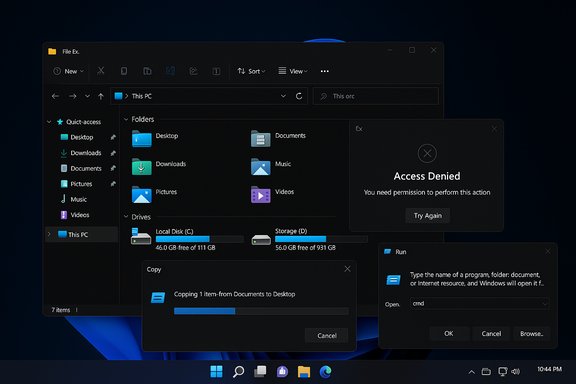
Microsoft is finally closing one of Windows 11’s most visible cosmetic gaps: dark mode is being extended into long‑neglected File Explorer dialogs, the Run box and a clutch of legacy confirmation and error prompts, meaning far fewer blinding white “flash” interruptions when you work at night or on OLED displays.
For nearly a decade Windows has offered a system dark theme, but that theme never truly covered the whole OS surface. Modern areas — Settings, Start, the taskbar and many Store apps — embraced dark palettes early, while a long tail of legacy Win32 dialogs and shell surfaces continued to render in bright white. That mismatch produced the now‑familiar “flashbang” effect: copy or delete a file and a glaring white dialog would momentarily wreck a dark desktop. The recent Insider Preview work marks the first sustained effort to close that gap in a measurable way.
Microsoft’s Windows Insider release notes explicitly list the first wave of changes: copy/move/delete dialogs (compact and expanded), progress bars and chart views, replace/skip/override dialogs, access denied and file‑in‑use prompts, and — notably — the Run dialog. These updates are shipping in Dev and Beta channel preview builds and are being enabled progressively via staged feature flags so not every Insider sees them immediately.
PowerToys Light Switch fills a practical hole by providing scheduled automatic theme switching, but the ideal is native scheduling in Settings and a complete, system‑wide dark mode that respects accents and accessibility. Until then, the combination of Microsoft’s staged rollout plus PowerToys and tried‑and‑tested third‑party tools gives users a pathway to a far more consistent night‑time experience.
This is a welcome, visible step — not the finish line. For anyone who has endured a decade of white flash interruptions, seeing those dialogs finally go dark will feel like catching up with expectations rather than being dazzled by them.
Conclusion
Windows 11’s dark mode is finally becoming more than a toggle: it is becoming a coherent, system‑wide choice rather than a patchwork compromise. The current Insider work delivers practical wins that users will notice immediately, though important follow‑up remains. For power users and IT teams the prudent move is to pilot, validate automation and accessibility, and use PowerToys or trusted third‑party tools for scheduling until Microsoft completes the broader theming migration and folds scheduling into the Settings experience. The progress is real, and after years of half‑measures it’s a welcome sign that Microsoft is treating visual polish and dark‑mode consistency as first‑class priorities.
Source: Neowin Microsoft is finally taking dark mode in Windows more seriously
 Background / Overview
For nearly a decade Windows has offered a system dark theme, but that theme never truly covered the whole OS surface. Modern areas — Settings, Start, the taskbar and many Store apps — embraced dark palettes early, while a long tail of legacy Win32 dialogs and shell surfaces continued to render in bright white. That mismatch produced the now‑familiar “flashbang” effect: copy or delete a file and a glaring white dialog would momentarily wreck a dark desktop. The recent Insider Preview work marks the first sustained effort to close that gap in a measurable way.Microsoft’s Windows Insider release notes explicitly list the first wave of changes: copy/move/delete dialogs (compact and expanded), progress bars and chart views, replace/skip/override dialogs, access denied and file‑in‑use prompts, and — notably — the Run dialog. These updates are shipping in Dev and Beta channel preview builds and are being enabled progressively via staged feature flags so not every Insider sees them immediately.
What changed (the concrete details)
The first surfaces to receive dark theming
The rollout focuses on the most frequently encountered and jarring legacy surfaces inside File Explorer:- Copy / Move / Delete dialogs — both default and expanded states now render with dark backgrounds and matching chrome.
- Progress bars and chart views — transfer speed, remaining time graphs and progress lists now use darker surfaces more readable in low light.
- Replace / Skip / Override conflict prompts — the small decision dialogs that appear during copy/merge flows.
- Access denied / File in use / Path too long warnings — common error and permission prompts now follow Dark mode in preview builds.
- Run dialog (Win + R) — a symbolic holdout that historically appeared bright white on dark desktops has been given a dark treatment in Insiders.
How Microsoft is shipping the change
This is not a single, universal flip. Microsoft includes the underlying binaries in Insider builds but uses server‑side feature gating to enable the visuals for limited populations of Insiders so telemetry, accessibility signals, and Feedback Hub reports can be collected before widening the rollout. That means two identical machines on the same build can display different behaviours until Microsoft expands the staged enablement.Why this matters: ergonomics, perception and battery
Small UX fixes matter. The dark‑theming of these dialogs delivers immediate, high‑frequency benefits:- Reduced eye strain — consistent low‑luminance UIs are easier on the eyes in dim conditions.
- Fewer visual interruptions — removing sudden bright dialogs preserves focus and reduces the jarring effect on OLED displays.
- Perceived polish — an OS that looks cohesive feels more finished; this change moves Windows 11 away from the “modern shell + legacy shock” impression.
- Minor battery wins — on OLED panels, darker interfaces can reduce power draw when large areas are near‑black.
The history: why dark mode took so long to finish
The root cause is technical debt. Windows is a composite of multiple UI stacks developed over decades:- Modern areas use WinUI and more recent theming hooks, which make dark theming straightforward.
- Legacy dialogs often draw using older GDI/Win32 paths, hardcoded control rendering, and third‑party shell extensions that bypass modern theme layers.
- Accessibility, contrast ratios, screen‑reader semantics and keyboard focus behaviors must be preserved — flipping colors is rarely just cosmetic.
Strengths of Microsoft’s approach
- Pragmatic prioritization — focusing on file operation dialogs attacks a high‑frequency, high‑annoyance area first.
- Staged rollouts reduce risk — server flags allow Microsoft to detect regressions and accessibility problems before a broad release.
- Visible design polish — palette tweaks (blue accent, clearer paused/failed states) demonstrate attention to legibility on dark backgrounds.
- Insider feedback loop — public preview testing gives Microsoft fast feedback from power users who care most about these details.
What still remains broken or half‑done
The work is far from complete. Several important areas still show inconsistencies:- Control Panel, Registry Editor and Group Policy — many admin‑level applets and tools still render in light themes.
- Windows Tools and older applets — some utilities blend dark and light elements in an ugly mixed UI.
- Button and micro‑control inconsistencies — early previews show some buttons, focus rings or icons retaining legacy light styling.
- Accent color integration — many newly themed dialogs use a fixed palette rather than respecting a user’s chosen accent color.
- Fragmentation across fleets — staged flags mean an organization can’t assume consistent behaviour across all PCs on the same build.
The long‑running “white flash” — verified and ongoing
The phenomenon of a white flash when opening File Explorer tabs or new windows in dark mode has been reported repeatedly, including on Microsoft’s own Q&A boards and community forums. Users and testers have seen improvements in some builds, but intermittent flashes and short white blocks persist in certain workflows and scaling scenarios. Official Insider notes even call out residual issues, for example missing scrollbars or brief flash when expanding copy details in dark mode. These are being tracked and iterated on.PowerToys Light Switch and automatic theme switching
A related, separate problem has been automatic theme switching. Windows 11 historically lacked a built‑in scheduled theme switch (sunset/sunrise or set times), forcing users to rely on third‑party apps. Microsoft’s PowerToys now includes a Light Switch utility that can automatically toggle between light and dark modes using local sunrise/sunset or a custom schedule. The Light Switch module appears in official PowerToys documentation and offers options for system vs. apps application and location‑based scheduling. This is a pragmatic stopgap (or real solution, depending on your viewpoint) until Microsoft folds such automation into Settings. While PowerToys provides a supported Microsoft channel for automatic switching, it is still an add‑on utility rather than native Settings integration — which means it suits power users and testers more than locked‑down enterprise fleets. Microsoft has a track record of migrating useful PowerToys features into the OS (for example, resolution switching), so it’s reasonable to expect theme scheduling to one day land in Settings proper.Practical guidance: what users and admins should do now
For enthusiasts and testers
- Enroll a spare device in the Windows Insider Program (Dev or Beta) if you want early access.
- Keep builds current and opt into the “get the latest updates as they are available” toggle to maximize the chance of staged features rolling in. Verify build numbers in Winver.
- Test typical file operations (copy/move/delete) and the Run dialog with System > Personalization > Colors set to Dark. Note any white flashes, missing controls, or inconsistent button styling.
- Report reproducible issues with exact reproduction steps and system settings through the Feedback Hub; include screenshots and scaling/font settings to help engineers reproduce.
For IT administrators and automation owners
- Run a targeted pilot in a controlled test ring, including accessibility users and automation/RPA owners.
- Validate all automation scripts that interact with Explorer dialogs and property sheets — dialog structure or control IDs can change during theming work.
- Communicate staged feature rollout expectations to end users; do not flip hidden flags on production images.
- If dark‑mode consistency is critical to workflows, defer migration of critical endpoints until the previews reach Release Preview and you’ve validated compatibility.
Temporary workarounds and tools
- PowerToys Light Switch — official Microsoft PowerToys provides scheduled automatic theme switching for those who want it now.
- Auto Dark Mode — third‑party apps can schedule theme changes with fine‑grained rules (sunset/sunrise, battery, custom times).
- ViVeTool — community tool to toggle hidden flags; it can expose preview visuals early but is unsupported and risky on production machines. Use only on non‑critical test VMs.
Risks, caveats and verification notes
- Staged rollouts == inconsistent fleets. Because Microsoft gates visuals server‑side, not all devices on the same build will match. That complicates enterprise rollout planning.
- Accessibility regression risk. Quick color flips can break contrast, keyboard focus visibility, and screen‑reader semantics. Prioritize accessibility testing before broad deployment.
- Automation and RPA fragility. If your automation relies on dialog text positions or specific control trees, test thoroughly — theming changes sometimes alter layout or control ordering.
- Unverifiable claims. Any community‑sourced ViVeTool IDs, leaked build numbers or “secret” flags should be treated with caution unless reproduced in official Microsoft release notes. Claims lacking official KB mapping should be flagged until Microsoft confirms them.
What Microsoft should do next (and what to watch for)
- Finish theming core admin tools: Registry Editor, Group Policy Editor, Control Panel applets and other high‑use admin surfaces.
- Respect user accent colors in the legacy dialog theming so personalized palettes remain consistent across light and dark modes.
- Expand native automatic theme scheduling into Settings so users don’t need an add‑on to get a built‑in behavior that rivals iOS and Android.
- Publish clearer enterprise guidance on the staged rollout model so IT can plan migrations and compatibility testing windows.
- Provide a public accessibility audit for themed legacy dialogs to reassure enterprises and assistive‑technology vendors.
Step‑by‑step: how to confirm if your PC has the new dark dialogs
- Run winver to confirm you’re on a preview build in the 26100/26120/26220 family or later.
- Set Windows to Dark: Settings > Personalization > Colors > Choose your mode > Dark.
- Copy or move a large file (or multiple files) to force an expanded progress dialog: observe whether the transfer UI uses dark greys and a blue progress accent.
- Open the Run box (Win + R) and check whether the background and entry field are dark.
- If you don’t see it, wait — the feature is gated server‑side — or test a second Insider PC; a mismatch between two machines on the same build is expected during staged rollout.
Verdict: slow, but the right fixes
The change is modest in engineering scope but outsized in daily impact. Dark‑theming File Explorer dialogs and the Run box removes dozens of small, repeated irritations that add up into a poorer user experience. Microsoft’s approach — targeted fixes in Insider builds with staged enablement — is conservative and sensible given the compatibility and accessibility surface area. The downside is that this conservatism makes the process slow and creates short‑term inconsistency across devices.PowerToys Light Switch fills a practical hole by providing scheduled automatic theme switching, but the ideal is native scheduling in Settings and a complete, system‑wide dark mode that respects accents and accessibility. Until then, the combination of Microsoft’s staged rollout plus PowerToys and tried‑and‑tested third‑party tools gives users a pathway to a far more consistent night‑time experience.
This is a welcome, visible step — not the finish line. For anyone who has endured a decade of white flash interruptions, seeing those dialogs finally go dark will feel like catching up with expectations rather than being dazzled by them.
Conclusion
Windows 11’s dark mode is finally becoming more than a toggle: it is becoming a coherent, system‑wide choice rather than a patchwork compromise. The current Insider work delivers practical wins that users will notice immediately, though important follow‑up remains. For power users and IT teams the prudent move is to pilot, validate automation and accessibility, and use PowerToys or trusted third‑party tools for scheduling until Microsoft completes the broader theming migration and folds scheduling into the Settings experience. The progress is real, and after years of half‑measures it’s a welcome sign that Microsoft is treating visual polish and dark‑mode consistency as first‑class priorities.
Source: Neowin Microsoft is finally taking dark mode in Windows more seriously
