

Microsoft’s final Patch Tuesday of 2025 lands with a broad slate of polish, AI gating, and platform changes that will reshape everyday Windows 11 workflows — but it also brings visible regressions and policy choices that administrators and power users should weigh before updating production machines. The December cumulative delivers an eclectic mix: UI consistency fixes (and new inconsistencies), deeper File Explorer dark-mode theming, expanded Xbox “Full Screen Experience” on handhelds, new virtualization controls in Settings, and a handful of Copilot-driven features that are only available on Copilot+ hardware. The package is important: it advances Microsoft’s long-term goals for on-device AI and simplified system management while exposing the continuing friction between rapid feature rollout and stable, predictable updates.
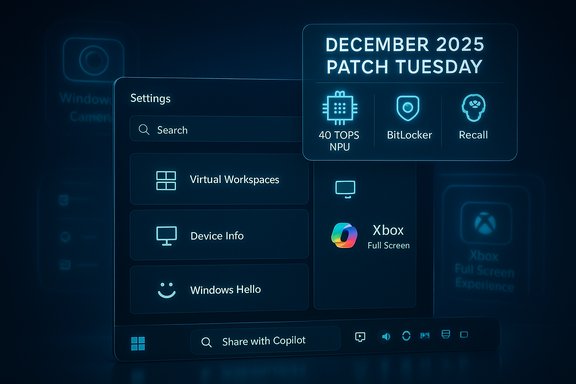
Microsoft is using the December 2025 Patch Tuesday rollout to push a set of visual refinements, AI-enabled experiences, and Settings consolidations across Windows 11 versions 24H2 and 25H2. The release is being distributed under Controlled Feature Rollout (CFR) mechanisms, so visibility of features will vary by device, region, and whether a PC is a Copilot+ certified machine. Several of the most notable items are targeted at Copilot+ configurations — a class of Windows devices that pair CPU and GPU resources with an on-board Neural Processing Unit (NPU) capable of at least 40 TOPS — and that require additional security settings (BitLocker / Device Encryption and Windows Hello) to unlock certain AI features.
This update is packaged alongside a servicing stack update and has already produced real-world reports of regressions on some systems. Those reports make the release a useful case study in balancing new features against quality control and enterprise risk.
From a product perspective, the next logical steps are:
For IT teams and cautious users, the actionable takeaway is simple: test and stage. The new capabilities are compelling, particularly the virtualization controls and Xbox FSE improvements, but the known regressions and hardware gating mean this release is not yet a “must-install” for all environments. Apply a measured rollout, validate Copilot+ features behind clear privacy and encryption policies, and be prepared to pause or rollback systems until Microsoft ships fixes for the visual regressions. The era of Windows with built-in, hardware-accelerated AI is arriving; this update makes that arrival tangible — but not without growing pains.
Source: Windows Central https://www.windowscentral.com/micr...lorer-start-menu-virtual-workspaces-and-more/
 Background / Overview
Microsoft is using the December 2025 Patch Tuesday rollout to push a set of visual refinements, AI-enabled experiences, and Settings consolidations across Windows 11 versions 24H2 and 25H2. The release is being distributed under Controlled Feature Rollout (CFR) mechanisms, so visibility of features will vary by device, region, and whether a PC is a Copilot+ certified machine. Several of the most notable items are targeted at Copilot+ configurations — a class of Windows devices that pair CPU and GPU resources with an on-board Neural Processing Unit (NPU) capable of at least 40 TOPS — and that require additional security settings (BitLocker / Device Encryption and Windows Hello) to unlock certain AI features.This update is packaged alongside a servicing stack update and has already produced real-world reports of regressions on some systems. Those reports make the release a useful case study in balancing new features against quality control and enterprise risk.
What’s arriving: the 16 practical changes that matter
Below is a concise catalog of the most impactful additions and adjustments shipped in the December cumulative, followed by a practical analysis of what each change means for end users and IT.- Windows Search visual parity with Start — the Search panel now matches the new Start menu height and visual language.
- Taskbar: “Share with Copilot” thumbnail action — an app thumbnail shortcut that triggers Copilot Vision against a running app.
- Windows Spotlight desktop controls — quicker access to “Next background” and an “Explore background” action that opens contextual material.
- Drag Tray disable toggle — user control to turn off the drag-to-top flyout.
- File Explorer dark mode improvements — deeper dark theming across dialogs, progress bars, and confirmation modals.
- Settings Home: Device info card — compact hardware summary with a shortcut to the redesigned About page.
- Mobile Devices integrated into Settings — add/remove and manage connected phones directly from Settings > Bluetooth & devices > Mobile devices.
- About page redesign — reworked layout, renamed sections (Device info, Device insights, Windows info).
- Virtual Workspaces in Advanced Settings — a new page to manage virtualization features (Hyper‑V, Windows Sandbox, Virtual Machine Platform, and related tools).
- Keyboard and text cursor moved into Settings — keyboard repeat rate/delay, Copilot key remapping, Print Screen behavior, and text‑cursor blink rate controls.
- Quick Machine Recovery default changed to “Once” — new behavior reduces looping solution searches and changes descriptive labels.
- Widgets board redesign — separate Widgets and Discover boards, new settings page, and improved badge behavior for alerts.
- Haptic feedback for digital pens — small vibrations to emulate tactile interaction on supported touch devices.
- Click to Do revised context menu (Copilot+ PCs) — streamlined actions row and a Copilot prompt embedded in the menu.
- Xbox Full Screen Experience (FSE) expands to more handhelds — console-like shell available on additional handheld Windows devices, with claimed memory savings.
- Windows Studio Effects broadened to external cameras (Copilot+ PCs) — AI camera effects can be applied to USB and rear-facing cameras.
Deep dive: what’s actually changing and why it matters
Windows Search and Start parity — small change, big polish
The Search panel’s adjusted height and alignment with the Start menu is an example of visual consistency engineering. Bringing these elements to the same visual plane reduces jarring transitions when moving between Start and Search, improving perceived quality.- Why this matters: smoother visual continuity improves discoverability and reduces the sense of a fragmented UI.
- Risk: none functional, but this kind of cosmetic tweak can still be gated and slowly rolled out via CFR.
Taskbar’s “Share with Copilot” — convenience or privacy headache?
A new “Share with Copilot” button appears under an app’s thumbnail when hovering on the Taskbar. It launches Copilot Vision so the assistant can analyze the window content.- Pros: fast access to Copilot Vision for screenshots and contextual prompts; useful for creative workflows or rapid assistance.
- Cons & risks: this tight coupling of window content to an AI agent raises privacy implications; Copilot Vision accesses a live view of app content, so accidental sharing or unexpected on-device capture is possible. Settings exist to disable the feature (Copilot app → Copilot Vision → “Start Vision from app in taskbar”), but users should review default behavior carefully.
File Explorer dark mode improvements — finally deeper theming
This update pushes dark theming into system dialogs for copy/move/delete operations and paints progress surfaces to reduce jarring theme mismatches.- Benefit: a more consistent dark experience for users who prefer the dark theme.
- Regressions observed: some users report a brief white flash when opening File Explorer or performing certain file operations. The flash is a documented known issue that Microsoft is working to resolve; affected users may want to defer or test before widespread rollout.
Copilot+ AI features: hard gating by hardware and security
Several AI features mentioned in the update are restricted to Copilot+ PCs. Key points:- Hardware requirement: a local NPU capable of 40+ TOPS is required to run selected on-device AI features efficiently.
- Security requirement: BitLocker (or device encryption) and Windows Hello enrollment are prerequisites for features that capture or index local content (e.g., Recall, Click to Do).
- Functional impact: features like Windows Recall, Click to Do, and advanced Windows Studio Effects are effectively unavailable on conventional PCs lacking a qualifying NPU or the additional security posture.
Widgets board: clearer navigation, fewer overlays
Widgets splits the consumed content (Widgets) from discovery (Discover) and moves Settings into a proper page rather than an overlay.- User impact: more predictable navigation and a clearer separation of frequently used widgets versus suggested content.
- Practical note: the Widgets icon in the Taskbar can now open the default board when the icon shows live weather, which reorients the experience toward a deterministic landing view.
Virtual Workspaces: virtualization made discoverable
The Advanced Settings now include a Virtual Workspaces page that lets users toggle virtualization features without visiting the legacy “Windows Features” control panel.- Items managed here include Windows Sandbox, Hyper‑V components, Virtual Machine Platform, and related tooling.
- Why this matters: streamlines virtualization administration for power users and reduces reliance on legacy control panels.
- Enterprise note: administrative controls and proper change management remain essential; enabling virtualization components can change attack surface and licensing considerations.
Xbox Full Screen Experience: console-like Windows for handhelds
FSE bypasses parts of the Explorer shell to boot a controller-friendly Xbox app as a home launcher. Microsoft claims a reduction in memory overhead (around 2 GB) when using FSE.- Benefits: quicker navigation for game launches, potential performance gains, and simplified controller-first UX.
- Caveat: because FSE bypasses normal desktop shells, some productivity workflows and background utilities may not run the same way; switching back requires a reboot and reconfiguration. Microsoft is expanding FSE availability to more handhelds and previewing it on additional form factors.
Quick Machine Recovery default changes — gentler fault handling
Quick Machine Recovery’s default behavior is set to perform a single attempt to find a solution, rather than looping. Microsoft’s stated goal is to prevent endless “search for solutions” loops that confuse users.- Practical impact: fewer automated retries that could mask root causes; administrators should be aware that the system will now surface one attempt and then present manual remediation paths.
Camera AI (Windows Studio Effects) hits external cameras — but only on Copilot+ PCs
Windows Studio Effects — noise reduction, eye contact, auto framing, and background enhancements — are now supported for secondary cameras (USB webcams and built-in rear cameras), but only on qualified Copilot+ hardware with NPU acceleration.- Why Microsoft does this: on-device AI processing of camera frames is compute-intensive and generally requires dedicated NPU resources for low latency and privacy (local processing).
- Security control: these effects can be toggled per-camera in Settings, but admins should validate compliance and privacy policy constraints when enabling on enterprise devices.
Verifiable specs and policy points (what has been confirmed)
- Copilot+ devices require an NPU capable of 40+ TOPS to unlock certain AI features, and some features also require BitLocker/Device Encryption and Windows Hello authentication.
- File Explorer dark-mode theming is deeper in the December package, but a brief white flash is a documented Known Issue observed when launching Explorer in dark mode or performing particular file operations.
- Xbox Full Screen Experience is being expanded to a wider set of Windows handhelds and is designed to reduce Explorer‑related overhead and reclaim roughly 2 GB of memory in the console-like shell.
- Virtualization options previously gated behind the legacy Windows Features dialog are being surfaced in Settings under a “Virtual Workspaces” page for easier management.
Quality control, rollout risks, and enterprise considerations
Regression risk is real
The December cumulative demonstrates an ongoing problem: shipping visible UI regressions alongside feature additions. The File Explorer white flash and invisible lock‑screen icons are tangible regressions users are encountering in the field.- Impact: accessibility and user comfort are degraded; the white flash is a usability and potential health issue for users in dark environments.
- Remedy: Microsoft classifies these behaviors as Known Issues and is working on fixes, but IT teams should treat the update as a test candidate rather than a mandatory push.
Feature fragmentation increases management overhead
Copilot+ exclusives create a two-tier Windows experience where AI-enabled productivity is hardware-gated. For enterprises, this means:- Device procurement policies must be explicit if on-device AI is required.
- Patch and feature visibility will vary by device class, complicating user support and documentation.
- Security controls (BitLocker, Windows Hello) now have a functional dependency, not just a hardening recommendation.
Privacy and compliance decisions are pushed on device settings
Features that ingest screen snapshots or camera frames introduce new privacy decision points.- Microsoft requires encryption and enhanced sign-in for Recall; however, local snapshot capture still raises retention, regulatory, and oversight concerns. Organizations should update data-handling policies and endpoint controls before enabling recall-like features in regulated environments.
CFR and A/B testing: the newcomer’s friend, the admin’s foe
Controlled Feature Rollout means features might not appear evenly. For pilots and testing, this is useful. For enterprise-wide predictability, it’s a headache.- Plan: create a test matrix covering Copilot vs standard devices, different regions, and user personas to discover differences before broad deployment.
Practical advice — what to do now (consumer & IT playbook)
- If you rely on dark mode or accessibility at login, defer the December preview until Microsoft issues the fix for the File Explorer white flash and the lock-screen icon regression.
- Enforce device encryption and Windows Hello if you intend to evaluate or enable Copilot+ AI features on corporate hardware — these are functional prerequisites.
- Test Virtual Workspaces in a sandbox before enabling in production; enabling hypervisor components can affect software licensing, backup agents, and security tooling.
- For handheld gaming deployments, test Xbox FSE to confirm third‑party launchers, cloud clients, and game overlay tools behave as expected.
- Review Copilot Vision behavior and defaults and update user guidance: ensure the “Share with Copilot” taskbar integration is disabled by default if privacy is a priority.
- Back up and stage updates with standard enterprise patch procedures — keep a rollback path (note: some servicing components may be persistent and not removable without following specific processes).
Strengths: what Microsoft got right
- Consolidation into Settings reduces reliance on legacy Control Panel flows, modernizing system management and simplifying discovery.
- On-device AI security posture is sensible: tying snapshotting and camera AI to BitLocker & Windows Hello reduces risk and enforces a minimum trust posture.
- Xbox FSE addresses a genuine hardware niche by reducing Explorer overhead and improving the handheld controller-first experience.
- Virtual Workspaces and keyboard remapping in Settings make commonly used admin tasks easier and reduce friction for power users.
Weaknesses and risks: what needs attention
- Regression testing gaps are visible — shipping a UI regression that flashes white in dark mode is a clear signal that more comprehensive visual and accessibility testing is required.
- Hardware gating fragments the user base, which slows adoption and adds procurement friction for organizations wanting on-device AI.
- Privacy trade-offs: making Copilot Vision easier to invoke increases accidental exposure risk unless conservative defaults and clear consent flows are enforced.
- CFR opacity: A/B style rollouts are useful, but inconsistent exposure across users increases support load and user confusion.
How this shapes the Windows 11 roadmap
The update is a microcosm of Microsoft’s strategy: accelerate on-device AI while modernizing UI and centralizing controls in Settings. However, the tension between speed and reliability is the dominant theme. Expect future releases to continue this mix: fast iteration with guarded rollouts, more hardware gating for AI features, and incremental consolidation of legacy features into Settings.From a product perspective, the next logical steps are:
- Faster remediation of visual regressions and stronger pre-rollout checks for accessibility impacts.
- A clearer enterprise plan and management surface for Copilot+ features (policy controls, telemetry, and visibility).
- Extended tooling for administrators to manage CFR exposure and to force consistent behavior across fleets when needed.
Conclusion
December’s Patch Tuesday for Windows 11 advances Microsoft’s twin aims of on-device AI activation and Settings consolidation while exposing persistent trade-offs between features and stability. For everyday users, the update brings helpful UI polish, a better Widgets experience, and more controllable virtualization and keyboard settings. For Copilot+ owners, it unlocks additional camera and assistant capabilities — at the cost of stricter hardware and security prerequisites.For IT teams and cautious users, the actionable takeaway is simple: test and stage. The new capabilities are compelling, particularly the virtualization controls and Xbox FSE improvements, but the known regressions and hardware gating mean this release is not yet a “must-install” for all environments. Apply a measured rollout, validate Copilot+ features behind clear privacy and encryption policies, and be prepared to pause or rollback systems until Microsoft ships fixes for the visual regressions. The era of Windows with built-in, hardware-accelerated AI is arriving; this update makes that arrival tangible — but not without growing pains.
Source: Windows Central https://www.windowscentral.com/micr...lorer-start-menu-virtual-workspaces-and-more/
