

A growing number of Windows 11 users have reported that Microsoft Defender’s virus definitions stopped advancing after November 19, 2025 — a problem that can leave endpoints exposed if left unchecked. Reports surfaced in Chinese and international tech outlets and were confirmed by hands‑on checks that show Security Intelligence updates were published by Microsoft on November 24–25, 2025 but that some systems still report an older “last updated” date in Windows Security. This article unpacks what happened, verifies the update timeline, explains the likely failure modes, and gives clear, actionable steps for both home users and IT administrators to detect and remediate the issue safely and efficiently.
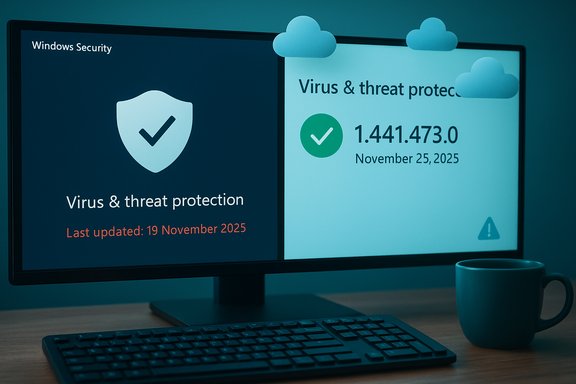
Microsoft publishes daily/near‑daily Microsoft Defender (Security Intelligence) releases; these are the definition/signature updates that keep Defender aware of current malware and threat signatures. Microsoft’s security‑intelligence release pages and the Update Catalog show multiple Security Intelligence packages released around November 24–25, 2025, including builds in the 1.441.x family (for example, 1.441.473.0 and adjacent builds). That demonstrates Microsoft did publish updated definitions during the timeframe at issue. At the same time, several users and at least one tech blog noticed that when they opened Windows Security → Virus & threat protection → Virus & threat protection updates and clicked “Check for updates,” the UI reported “You’re using the latest version” while the “Last updated” date still read November 19, 2025 — which plainly contradicts Microsoft’s published release timeline and suggests an update visibility or service‑reporting problem on affected systems. The initial report referenced a community post and an article summarizing user feedback and an informal test.
Source: Gizchina.com Some Windows 11 users cannot update the Microsoft Defender
 Background / overview
Microsoft publishes daily/near‑daily Microsoft Defender (Security Intelligence) releases; these are the definition/signature updates that keep Defender aware of current malware and threat signatures. Microsoft’s security‑intelligence release pages and the Update Catalog show multiple Security Intelligence packages released around November 24–25, 2025, including builds in the 1.441.x family (for example, 1.441.473.0 and adjacent builds). That demonstrates Microsoft did publish updated definitions during the timeframe at issue. At the same time, several users and at least one tech blog noticed that when they opened Windows Security → Virus & threat protection → Virus & threat protection updates and clicked “Check for updates,” the UI reported “You’re using the latest version” while the “Last updated” date still read November 19, 2025 — which plainly contradicts Microsoft’s published release timeline and suggests an update visibility or service‑reporting problem on affected systems. The initial report referenced a community post and an article summarizing user feedback and an informal test. What the verification shows
Microsoft published new definitions on Nov 24–25, 2025
- Microsoft’s Security Intelligence release notes list multiple releases dated November 25, 2025 (and adjacent timestamps) in the 1.441.* family. Those release notes are the authoritative record that definition packages were available for distribution on that date.
- The Microsoft Update Catalog also lists Security Intelligence packages with build numbers matching the November 24–25 timeframe (for example, 1.441.473.0 and later / earlier sibling builds), confirming the packages were published to Microsoft distribution channels.
Independent reporting and community checks
- Tech outlets and community blogs picked up user reports that on some Windows 11 24H2 systems the Defender “last updated” date remained at November 19, 2025 even after manual checks. The reports note the issue isn’t universal: some test systems (including a Windows 11 25H2 virtual machine used by a blogger) downloaded the November 25 definitions (1.441.473.0) without problem, though the Windows Security app briefly showed a “Threat service has stopped, please restart immediately” message during the test.
- Multiple regional outlets and reposts (IT之家, Sina Tech and others) re‑published the same community observations, indicating similar reports were seen by more than one observer. That consistency supports the conclusion that the symptom occurred on multiple machines, but it does not prove a widespread outage.
What’s verified, and what isn’t
- Verified: Microsoft published defense updates on Nov 24–25, 2025; some clients reported definitions stuck at Nov 19, 2025; at least one test machine successfully installed the Nov 25 update.
- Not (yet) verifiable: the exact number of affected machines worldwide, whether only specific Windows 11 SKUs/builds or update channels are affected, and whether an underlying Microsoft server‑side regression briefly prevented distribution to particular client configurations. Those remain unknown until Microsoft publishes a formal statement or a public postmortem. Reported UI messages (for example, the brief “Threat service has stopped” popup) are observable on some test setups but not confirmed as the root cause. Treat any scope estimates in early posts as provisional.
How this can happen: likely technical causes
When Defender definitions appear not to update, three broad classes of causes are common in practice:- 1) Update delivery is working but the client does not correctly reflect the new definitions in the Windows Security UI. This is a visibility/telemetry issue: the client has new files but the UI cache or status indicator is stale. Community history shows similar behavior in previous Windows/Defender releases.
- 2) The Defender service (the background antimalware engine and updater) is unstable or temporarily fails during update checks, causing the update to abort. A transient “Threat service has stopped” message that then restarts itself aligns with a flaky service restart loop that can interrupt update checks but still resume. That transient failure has been observed anecdotally in test systems.
- 3) Network, policy, or management server issues prevent the client from pulling the correct package even though Microsoft published it. This includes misconfigured WSUS/SCCM policies, blocked endpoints at the network perimeter, or group policies that route definition updates to a local file share or management point that wasn’t populated. Microsoft documents how multiple delivery channels (Windows Update, WSUS, catalog, UNC share) work and how misconfiguration can block updates.
What users should check right now (home users and IT admins)
Below are step‑by‑step checks — follow them in order, and escalate to the admin team or Microsoft support only if the problem persists after the self‑help steps.Quick status checks (UI & system)
- Open Windows Security → Virus & threat protection → Virus & threat protection updates → Protection updates, and note:
- The Security intelligence (definition) version shown.
- The Last updated date/time shown.
- Whether the app reports “You’re using the latest version.”
If the “Last updated” date is stale while Microsoft’s published dates are more recent, proceed with the troubleshooting steps below. - Check Windows Update history: Settings → Windows Update → Update history → Definition updates. The Windows Update record can show whether a definition package was logged as installed even if Windows Security UI is stale.
- If you manage devices centrally, check your WSUS or MDM console’s last synchronized definition versions and whether distribution succeeded to affected clients.
Forced/manual update attempts
Use these methods in order — the first methods are non‑disruptive and quick.- Option A — PowerShell (recommended for users comfortable with the command line)
- Open PowerShell as Administrator and run:
- Update-MpSignature
- Watch for progress information in the console. If it succeeds and the “Last updated” time changes, the problem is resolved. Microsoft documents this cmdlet as the supported PowerShell method.
- Option B — MpCmdRun low‑level method (useful when the GUI or PowerShell appears to do nothing)
- Open an elevated Command Prompt.
- Run:
- cd "%ProgramFiles%\Windows Defender" (or the Platform path in ProgramData)
- MpCmdRun.exe -removedefinitions -dynamicsignatures
- MpCmdRun.exe -SignatureUpdate
- These commands clear the dynamic definition cache and force a fresh download. If the commands succeed, recheck Windows Security. Microsoft documents these binaries and parameters for troubleshooting.
- Option C — Manual offline install
- Download the latest security intelligence package (mpam‑fe.exe or mpam‑feX64.exe) from Microsoft’s security intelligence downloads and run it locally; this updates definitions without using Windows Update. Use this if a machine is air‑gapped or if the other options fail.
Service & event log checks
If forced updates fail or the UI shows the transient “Threat service has stopped” message:- Open Services (services.msc) and check the status of:
- Microsoft Defender Antivirus Service (MsMpEng) or related Defender services.
- Check the Event Viewer → Applications and Services Logs → Microsoft → Windows → Windows Defender → Operational for error or restart events near the time you tried an update. Those logs frequently contain specific error events that indicate why the updater aborted. If you see repeated service stop/start events or specific error codes, capture them for escalation.
When to escalate to enterprise support / Microsoft
- If multiple endpoints on the same network or governed by the same management server show the same stale “Last updated” date and forced updates fail across all devices, suspect a WSUS/SCCM/MDM or network‑level distribution issue and escalate to the team that manages those services.
- If event logs show service crashes with consistent error codes across multiple machines and a local forced update via MpCmdRun/Update‑MpSignature fails, open a Microsoft support case with diagnostic logs (Windows Defender Operational log, WindowsUpdate.log, and the result of MpCmdRun -SignatureUpdate). Gathering these logs before contacting support speeds troubleshooting.
Recommended immediate mitigations (to reduce risk)
- Verify that Microsoft’s definitions are reachable from your network (allow outbound HTTPS to Microsoft update endpoints). If your organization blocks update endpoints, use WSUS/MDT to synchronize the latest definitions from a trusted network location.
- Use the manual offline installer (mpam‑feX64.exe) for mission‑critical machines where an immediate update is essential and automatic channels appear unreliable. This is a short‑term measure; it doesn’t fix the root cause but closes a window of exposure quickly.
- For managed fleets, verify that group policies or Intune policies aren’t redirecting Microsoft Defender updates to an internal server that wasn’t populated with the latest packages. Misconfigured delivery channels are a common root cause of perceived “no update” symptoms.
- Monitor endpoint behavioral telemetry (if available) and increase monitoring sensitivity for unusual outbound connections, lateral movement, or suspicious process behavior if an endpoint is confirmed to be running on stale definitions.
Risk assessment — what users should understand
- Being stuck on older definition files is a security risk because signatures are what allow Defender to detect known malware quickly. If a machine’s definitions haven’t updated for multiple days when Microsoft has published new intelligence, the machine may be blind to new threats that have been added to the database. The window of risk grows the longer updates are missing.
- That said, modern Defender includes multiple layers of protection: local signatures, cloud‑based protection, behavioral heuristics, and exploit mitigation. An outdated signature set does not leave a machine completely defenseless; cloud protection and runtime detection still provide mitigation. Nevertheless, signatures remain a critical first line of defense. Users should treat an “older signatures” condition as a serious issue to be remediated promptly.
- At the time of reporting, Microsoft had published new definition packages (which indicates the server side distributed updated files), but Microsoft had not (as of the first community reporting) posted a public incident advisory specifically about this symptom. The lack of a Microsoft advisory means the scale and root cause are still unconfirmed; users must verify their own devices rather than assume a global outage or a harmless UI quirk.
Analysis: strengths and weaknesses of the current situation
Notable strengths
- Microsoft publishes security intelligence frequently and via multiple channels (Windows Update, Update Catalog, direct Downloader). This redundancy enables administrators to work around problems by using alternate distribution paths (manual installer, MpCmdRun or WSUS). That flexibility is a major operational strength in incidents like this.
- Defender’s multi‑layer model — combining cloud detections and behavior analytics with signatures — reduces single‑point failure risk if signature updates are delayed. Cloud protection can intercept many active threats even when local definitions lag.
Potential risks & weak spots
- The Windows Security UI and Defender service are critical telemetry surfaces — when they display inconsistent information (e.g., “You’re using the latest version” but the timestamp is stale) users can be lulled into false confidence. A stale UI that still shows “up to date” is a human‑factors risk because many users do not verify timestamps.
- Transient service failures or restart loops (the “Threat service has stopped” message observed in tests) can interrupt updates and automation-based remediation. If the service is unstable, defenders must rely on offline installers or scripted remediation to restore correct operation. That increases support overhead.
- For organizations that route updates through internal distribution points, any synchronization failure at the distribution server can create the illusion of a Defender outage for many endpoints simultaneously. Centralized management reduces per‑device troubleshooting but concentrates blast radius when something goes wrong.
Practical checklist for WindowsForum readers (concise)
- Check Windows Security → Virus & threat protection → Protection updates: note the Security intelligence version and Last updated date.
- Run PowerShell (Admin): Update‑MpSignature. If successful, recheck the UI.
- If PowerShell doesn’t help, run MpCmdRun cleanup + signature update (elevated): MpCmdRun.exe -removedefinitions -dynamicsignatures && MpCmdRun.exe -SignatureUpdate.
- If all else fails and you must restore definitions immediately, download and run the offline security intelligence installer from Microsoft.
- For admins: verify WSUS/SCCM/Intune synchronization and outbound connectivity to Microsoft update endpoints; review Windows Defender Operational logs for service‑stop events; collect logs for escalation if you see repeated failures.
Final assessment and expectations
Current public evidence indicates a client‑side visibility or service instability issue affecting a subset of Windows 11 systems where the Windows Security app shows a stale “Last updated” timestamp, even though Microsoft published new definition packages on November 24–25, 2025. Multiple independent outlets and community posts reported the symptoms, while Microsoft’s release pages and the Update Catalog confirm that the vendor distributed new definitions during the same period. That combination points away from a global publisher outage and toward intermittent client‑side or management‑channel failures on affected systems. Because Microsoft had not (at first reporting) published a specific incident bulletin tied to the symptom, readers should treat early reports as provisional, verify their own devices, and follow the remediation checklist above. If multiple devices in a managed environment are impacted and simple remediation fails, collect logs and open a support case. In the meantime, users who confirm they’re still on Nov 19, 2025 definitions should manually update via PowerShell, MpCmdRun, or the offline installer to restore protection parity with Microsoft’s published builds.Takeaway
- Microsoft did release new Defender Security Intelligence packages on Nov 24–25, 2025; some Windows 11 users reported their devices still showing Nov 19, 2025 as the last update.
- The issue appears to be intermittent and not universal: some test systems updated normally while others showed stale timestamps or transient service‑stop messages.
- Users should proactively verify the “Last updated” date in Windows Security and forcibly update (Update‑MpSignature or MpCmdRun /SignatureUpdate) if timestamps are stale. Administrators should confirm distribution channels and event logs before escalating.
Source: Gizchina.com Some Windows 11 users cannot update the Microsoft Defender
