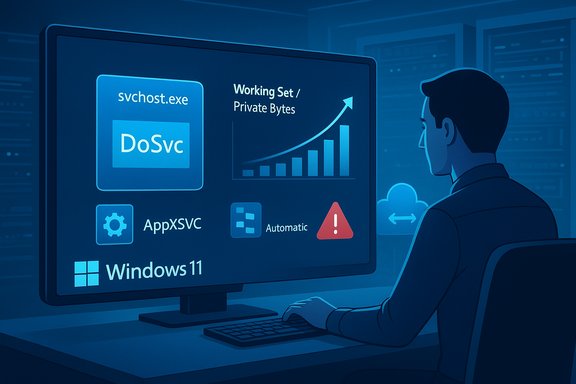
Microsoft’s Delivery Optimization — the peer‑to‑peer engine that can speed up Windows Update and Store app installs — has been flagged by users as growing its memory footprint steadily over time on some Windows 11 machines, and there’s a simple fix that most users can apply right now to stop it from eating RAM while you wait for a permanent patch.
Delivery Optimization (the DoSvc service) is a built‑in Windows component that helps devices download Windows updates, feature upgrades and Microsoft Store apps more quickly by using a hybrid HTTP + peer‑to‑peer (P2P) model: a PC will fetch parts of a package from Microsoft’s servers, nearby peers on the local network, or other peers on the internet as configured. This design reduces bandwidth and accelerates distribution at scale — it is intentionally enabled by default on many Windows 11 SKUs. Microsoft documents Delivery Optimization as a controllable, tunable system with Group Policy and MDM options for administrators and built‑in UI controls for consumers. Despite the feature’s utility, several recent user reports—and a small but growing number of forum and support threads—show DoSvc or related components growing their working set over hours and days until systems experience memory pressure or become sluggish. Some users have reported unusually large memory consumption (anecdotes in community posts mention multi‑gigabyte growth in some cases), and sysadmins have noticed operational side effects after a December cumulative update (KB5072033) changed how certain deployment services start. Those data points together have focused attention on Delivery Optimization and the AppX Deployment Service (AppXSVC) as plausible contributors to memory and resource issues on specific device classes.
Delivery Optimization is a valuable feature — when it behaves. When it doesn’t, the fix is often a mix of simple user settings and disciplined administrator mitigation while waiting for a confirmed platform update. The combination of Microsoft’s documented KB change, community reports of memory growth, and the practical mitigations used by experts and administrators gives affected users a clear, reversible set of options to restore performance without sacrificing long‑term security posture.
Source: Tom's Guide https://www.tomsguide.com/computing...e-quietly-hogging-your-ram-heres-a-quick-fix/
 Background / Overview
Delivery Optimization (the DoSvc service) is a built‑in Windows component that helps devices download Windows updates, feature upgrades and Microsoft Store apps more quickly by using a hybrid HTTP + peer‑to‑peer (P2P) model: a PC will fetch parts of a package from Microsoft’s servers, nearby peers on the local network, or other peers on the internet as configured. This design reduces bandwidth and accelerates distribution at scale — it is intentionally enabled by default on many Windows 11 SKUs. Microsoft documents Delivery Optimization as a controllable, tunable system with Group Policy and MDM options for administrators and built‑in UI controls for consumers. Despite the feature’s utility, several recent user reports—and a small but growing number of forum and support threads—show DoSvc or related components growing their working set over hours and days until systems experience memory pressure or become sluggish. Some users have reported unusually large memory consumption (anecdotes in community posts mention multi‑gigabyte growth in some cases), and sysadmins have noticed operational side effects after a December cumulative update (KB5072033) changed how certain deployment services start. Those data points together have focused attention on Delivery Optimization and the AppX Deployment Service (AppXSVC) as plausible contributors to memory and resource issues on specific device classes. What Microsoft changed (and what that means)
The KB5072033 change: AppXSVC startup behaviour
On December 9, 2025 Microsoft published KB5072033 (OS builds 26200.7462 / 26100.7462). One succinct entry in the KB notes: “The AppX Deployment Service (Appxsvc) has moved to Automatic startup type to improve reliability in some isolated scenarios.” That is an explicit configuration change in the cumulative package; it does not, by itself, say the change causes a memory leak, but changing a service from trigger or manual start to Automatic can change runtime characteristics and resident memory, especially on low‑spec devices and server images that previously relied on trigger semantics. On some servers and image‑managed hosts the Automatic flag has produced repeated start/stop cycles or “flapping” behavior because the binary still relies on trigger semantics; those cycles can trigger monitoring alerts and create resource churn. Community diagnostic threads and Microsoft Q&A entries documenting AppXSVC running or restarting unexpectedly after the patch confirm the startup type change is real and is already producing operational noise for admins.Delivery Optimization vs AppXSVC — related but distinct
It’s important to separate two components that are often mentioned together in user reports:- DoSvc (Delivery Optimization) — a client service that performs P2P downloads, caching and distribution logic for update payloads and Store apps. It uses disk cache and performs network transfers; it is configurable from Settings and via policies.
- AppXSVC (AppX Deployment Service) — a service that handles AppX/UWP app deployment and registration; historically it is trigger‑started when app installs or registration is needed. The KB change moved its startup type to Automatic in the cumulative update.
How widespread is this problem? — reality check
- The claim that Delivery Optimization sometimes consumed “20 GB of memory” comes from individual user anecdotes and a plotted test shared in public forums. These are compelling signals but are not proof of a universal, reproducible memory leak across all Windows 11 installations. Treat the large numbers as user‑reported extremes — real for some systems, but not a guaranteed outcome for most machines.
- Microsoft’s KB entry confirms the AppXSVC start‑type change in KB5072033, but Microsoft has not published a KB‑level advisory stating that Delivery Optimization contains a memory leak tied to that patch. That means the observable symptom (DoSvc memory growth) is a community‑observed operational issue; it may be triggered or exposed by the update, but it requires formal confirmation and a root cause analysis from Microsoft to be labeled a platform bug.
- Community threads, Reddit posts and Windows Forum threads contain practical mitigations and success stories; they are valuable operational input and show the issue is affecting a subset of users (especially on constrained devices and certain server images), but they are not the same as an official engineering fix.
Quick home‑user fix: disable Delivery Optimization in Settings (safe, reversible)
If your PC is showing slowdowns and DoSvc is the top memory consumer, toggling Delivery Optimization off is the fastest, lowest‑risk remediation for most home users. Here’s a clear, step‑by‑step procedure:- Open Settings (Windows key + I).
- Go to Windows Update → Advanced options → Delivery Optimization.
- Turn off “Allow downloads from other devices.”
- Optionally open Delivery Optimization advanced options and set “Download from” to “Devices on my local network only” or turn peer sharing completely off; you can also set bandwidth caps if you want to keep P2P but limit its impact.
Advanced mitigations for desktop power users and administrators
If toggling Delivery Optimization in Settings doesn’t fully resolve the symptom, or if you manage multiple machines and need a repeatable remediation, consider the following steps. These steps are more authoritative and carry additional operational implications — use them carefully.Stop Delivery Optimization service temporarily (troubleshooting)
- Open Services.msc (press Windows key, type Services, press Enter).
- Find “Delivery Optimization” (DoSvc). Right‑click → Stop.
- Set Startup type to Manual or Disabled for testing.
- Reboot and observe memory behavior.
- Stop service: net stop DoSvc
- Disable permanently (registry): set HKEY_LOCAL_MACHINE\SYSTEM\CurrentControlSet\Services\DoSvc\Start = 4 (Disabled) — only if you accept peer‑to‑peer being turned off system‑wide.
Revert AppXSVC to Manual (server/VDI mitigation)
For servers, VDI images or tightly consolidated hosts where AppXSVC’s automatic start is producing monitoring noise or resident memory, administrators report that changing AppXSVC to demand start reduces unnecessary resident threads and stop/start churn:- Open an elevated Command Prompt or PowerShell.
- Run: sc config AppXSVC start= demand
- Optionally stop the running instance: sc stop AppXSVC
- Reboot or monitor to confirm lower memory and fewer SCM restarts.
Clear the Delivery Optimization cache (safe reclaim)
To reclaim disk space and remove large peer caches without turning off the service:- Settings UI: Settings → System → Storage → Temporary files → check “Delivery Optimization Files” → Remove files.
- Disk Cleanup (cleanmgr): Run as admin, choose system drive, click “Clean up system files” → check Delivery Optimization Files → Delete.
- Advanced (power users): stop DoSvc, delete C:\ProgramData\Microsoft\Windows\DeliveryOptimization\Cache (delete files, not folders), restart DoSvc. Always stop the service before deleting files to avoid “file in use” problems.
Use PowerShell testing & reset commands (for diagnostics)
Microsoft provides Delivery Optimization test and cache deletion cmdlets. For example:- Delete cache: Delete‑DeliveryOptimizationCache -Force -IncludePinnedFiles
- Stop service and remove logs: Stop‑Service -Name DoSvc -Force; remove Delivery Optimization ETL logs.
Diagnostics: how to prove a leak and what to collect
If you’re seeing memory growth and want to move from anecdote to evidence, follow a consistent diagnostic plan:- Baseline: reboot, wait 10–15 minutes, then open Task Manager → Details and find DoSvc and AppXSVC. Note PID, Working Set, Private Bytes and commit charge.
- Monitor: take time‑stamped snapshots of the process metrics every hour (Task Manager, Resource Monitor or Performance Monitor counters). Look for monotonic growth in private bytes or working set that does not plateau.
- Deep capture: use Process Explorer for per‑thread and handle counts; run RAMMap to inspect kernel memory and standby lists; collect ETW traces/ProcMon traces if you can reproduce the growth.
- Correlate: check Delivery Optimization Activity Monitor (Settings → Windows Update → Delivery Optimization → Activity monitor) for unusual upload/download behavior.
- Reproduce & isolate: perform a clean boot or Safe Mode test to rule out third‑party interference. If the leak reproduces on a clean image, it is more likely platform‑level.
Trade‑offs and risks — what you lose when you disable Delivery Optimization
- Slower updates or increased bandwidth use: without P2P, each device downloads updates from Microsoft servers; on a single home PC this is minor, but in offices with many devices it can spike Internet upstream consumption.
- Reduced efficiency on metered or constrained networks: Delivery Optimization’s group and caching features exist to help large deployments; disabling it across a fleet increases central bandwidth demand.
- Service behavior changes on images: reverting AppXSVC to Manual on servers reduces automatic readiness for Store app registration and packaging scenarios — test first.
What Microsoft has and hasn’t said — and what to expect next
Microsoft’s KB for KB5072033 explicitly documents the AppXSVC startup type change as part of the December 2025 cumulative update. That confirms the configuration shift, which in turn explains why administrators and forum users began seeing different behavior after installation. Microsoft has not published a separate advisory explicitly acknowledging a Delivery Optimization memory leak tied to the update at the time of reporting; community threads remain the primary signal for that symptom. Historically Microsoft addresses regressions via subsequent cumulative updates, out‑of‑band fixes, or Known Issue Rollbacks (KIRs) for enterprise customers — expect a similar path if the issue proves reproducible and widespread. Administrators managing fleets should monitor the Windows release health dashboard and Microsoft Q&A, collect diagnostic artifacts when symptoms are present, and be prepared to apply temporary mitigations (toggling Delivery Optimization, reverting AppXSVC to Manual) while awaiting a formal fix. Community guidance also suggests using Intune/Group Policy to enforce desired Delivery Optimization settings at scale rather than per‑device manual registry edits.Practical one‑page action plan (home users and IT)
For home users (fast path)
- Open Settings → Windows Update → Advanced options → Delivery Optimization → toggle off “Allow downloads from other devices.”
- Clear Delivery Optimization cache via Settings → System → Storage → Temporary files → remove “Delivery Optimization Files.”
- Reboot and monitor Task Manager. If memory is stable, leave the setting off until a confirmed platform patch is released.
For advanced users / admins (safe, reversible steps)
- Audit affected devices: use Process Explorer and Performance Monitor to confirm which service is growing.
- Toggle Delivery Optimization off for symptomatic devices. If fleet‑wide, prefer MDM / Group Policy.
- If AppXSVC automatic start continues to produce flapping or resident memory, pilot: sc config AppXSVC start= demand on a small group. Monitor results before wider rollout.
- Collect traces (ProcMon, ETW, RAMMap) on devices where the issue persists and file a Microsoft support ticket or Feedback Hub submission with attached traces. Community threads indicate Microsoft engineers will often act when structured artifacts are available.
Why this matters: the bigger picture
Windows ships many background services by default to deliver performance, reliability and features. That model works well in most cases but creates attack surface for resource regressions: what is benign on systems with 16–64 GB of RAM can be consequential on devices with 4–8 GB or on consolidation hosts and VDI images. Small configuration changes — like making a trigger service Automatic — can alter runtime behavior at scale, which is why IT pros track cumulative updates closely and why consumer‑facing guidance must balance security/quality updates against short‑term operational impacts. The December cumulative update is a textbook example: a small log line in release notes can have outsized operational consequences for a minority of systems, and the community is the first to surface those interactions.Final analysis and recommendation
- Strengths of the current remediation options: Turning off Delivery Optimization is quick, reversible and effective for most home users; clearing the Delivery Optimization cache reclaims disk space immediately; reverting AppXSVC startup type to Manual mitigates server/VDI churn and is reversible via sc config. Community and Microsoft test guidance provide safe, conservative commands for each step.
- Risks and caveats: Disabling Delivery Optimization increases direct download bandwidth from Microsoft servers and removes local peer benefits; aggressive registry/service edits without backups risk breaking update flows; enterprise environments must pilot changes and use managed policies rather than ad‑hoc edits to avoid configuration drift. Also, large anecdotal memory numbers should be treated as user reports pending formal Microsoft confirmation and root cause analysis.
- Practical recommendation: Home users seeing performance issues should toggle Delivery Optimization off and clear the cache today. IT teams should pilot AppXSVC start‑type reversion where monitoring shows noise, collect structured diagnostics for Microsoft, and watch for Microsoft updates (or a Known Issue Rollback) that address the root cause. Keep systems patched for security, but balance patch deployment with operational readiness and testing.
Delivery Optimization is a valuable feature — when it behaves. When it doesn’t, the fix is often a mix of simple user settings and disciplined administrator mitigation while waiting for a confirmed platform update. The combination of Microsoft’s documented KB change, community reports of memory growth, and the practical mitigations used by experts and administrators gives affected users a clear, reversible set of options to restore performance without sacrificing long‑term security posture.
Source: Tom's Guide https://www.tomsguide.com/computing...e-quietly-hogging-your-ram-heres-a-quick-fix/