

Microsoft is shipping Windows 11 Insider Preview Build 26300.8068 (KB 5079464) to the Dev Channel today, and this release is notable for two policy-focused changes that will matter to IT administrators and driver vendors as much as to enthusiasts testing new desktop conveniences: a dynamic, policy-based mechanism for removing preinstalled Microsoft Store apps in Enterprise and Education editions, and a kernel-level policy that removes default trust for legacy “cross-signed” kernel drivers while favoring drivers delivered through the Windows Hardware Compatibility Program (WHCP).
Windows Insider Dev Channel builds are preview snapshots of features and policy changes that may or may not ship broadly; Microsoft uses controlled feature rollout to ramp features gradually and gather telemetry and feedback. Build 26300.8068 continues that approach, providing both usability improvements for end users and operational controls for IT while also pushing deeper into platform hardening at the kernel level.
This article summarizes the release, explains how the changes work, highlights the practical impacts for IT teams and driver vendors, and offers concrete testing and mitigation guidance so organizations can prepare for wider enforcement.
Computer Configuration > Administrative Templates > Windows Components > App Package Deployment > Remove Default Microsoft Store packages from the system
To find an app’s PFN, Microsoft suggests using the PowerShell command:
Get-AppxPackage Notepad | Select-Object PackageFamilyName
That PFN can be added to the multi-text entry named “Specify additional package family names to remove” and applied via Group Policy (or later via Intune’s Settings Catalog once the corresponding CSP is available).
However, the change also creates a potential operational hazard:
If telemetry shows the environment is compatible, the feature moves out of audit into enabled mode automatically. If not, the system stays in audit mode, avoiding a sudden enforcement cutover.
Key points:
If you want to be among the first recipients of incremental feature toggles, turn on the “get the latest updates as they are available” toggle. If you prefer a more conservative preview experience, leave the toggle off and allow features to arrive more gradually.
Note the usual caveats: preview builds display a desktop watermark and features may be removed, changed, or never released to the public build.
The driver policy change is the most consequential: moving default trust toward WHCP-signed drivers is the right long-term security posture, but it requires coordinated vendor action and careful enterprise rollout planning to prevent device-impacting regressions. The audit-mode design, with a stated minimum of 100 hours and three reboots, is a pragmatic safeguard and gives organizations a clear window to collect evidence and address exceptions.
On the manageability side, the dynamic Store-app removal list is a welcome improvement — it replaces brittle scripting with a supported policy surface that maps to Intune and Group Policy management flows. Until the Intune CSP is available, though, IT teams should treat Group Policy as the testing path and be mindful of OMA-URI validation limitations.
User-facing quality updates — OOBE folder naming, point-in-time restore clarity, pen configurability, and the Drop Tray rename — are incremental but meaningful; they reflect an attention to friction points that matter in both consumer and managed deployments.
For organizations, the immediate work is practical and predictable: inventory, pilot, test, coordinate with vendors, and update deployment guidance. For developers and hardware vendors, the ask is to move to modern WHCP signing and ensure driver quality. For Insiders, the build offers useful UX tweaks and a front-row seat to policy changes that will shape how Windows boots and what kernel code is trusted.
If you manage Windows broadly, treat this release as an early warning plus a testing opportunity — the security outcome is positive, but the operational path needs deliberate planning.
Source: Microsoft - Windows Insiders Blog Announcing Windows 11 Insider Preview Build 26300.8068 (Dev Channel)
 Background
Windows Insider Dev Channel builds are preview snapshots of features and policy changes that may or may not ship broadly; Microsoft uses controlled feature rollout to ramp features gradually and gather telemetry and feedback. Build 26300.8068 continues that approach, providing both usability improvements for end users and operational controls for IT while also pushing deeper into platform hardening at the kernel level.This article summarizes the release, explains how the changes work, highlights the practical impacts for IT teams and driver vendors, and offers concrete testing and mitigation guidance so organizations can prepare for wider enforcement.
Overview of the top changes in Build 26300.8068
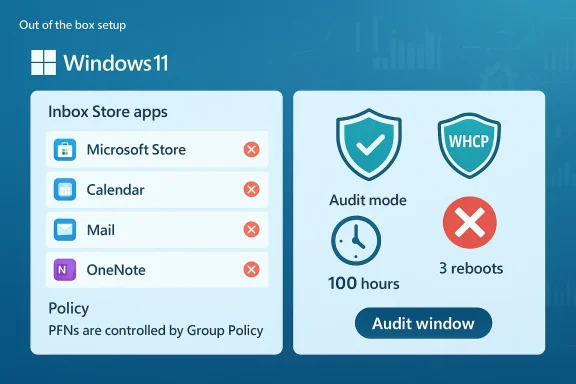
- Policy-Based Removal of Preinstalled Microsoft Apps: Enterprise and Education administrators can now add app package family names (PFNs) to a dynamic list to remove MSIX/APPX inbox apps via Group Policy or Settings Catalog, simplifying targeted removal of inbox apps across managed fleets.
- Windows Driver Policy Update (cross-signed drivers): The Windows kernel will stop treating cross-signed third-party kernel drivers as trusted by default. WHCP-signed drivers remain allowed by default; cross-signed drivers are handled via an allow list and the feature initially runs in audit mode (minimum 100 hours and three reboots) to assess compatibility before switching to enforcement for compatible systems.
- Windows Setup — custom user folder name: During OOBE setup, Insiders can now specify a custom username folder name on the Device Name page, making it easier to avoid default generated user folder names.
- Point-in-time restore updates: Point-in-time restore now surfaces a settings dialog behind UAC for local admins, lists available restore points, and updates messaging in WinRE (including a power-source recommendation and a full 4-part OS version display).
- Account Settings: Microsoft 365 Family subscribers will see an option to upgrade plans on the Accounts page in Settings; the suggestion can be turned off by disabling suggested content.
- UI and small feature changes: “Drag Tray” has been renamed to Drop Tray, and its settings have moved from Nearby Sharing to System > Multitasking. Pen settings get a new option (“Same as Copilot key”) so the pen tail button can mirror Copilot behavior. The rollout of context-menu refinements in File Explorer is paused while Microsoft iterates further. Other fixes include reliability improvements to preferred display language handling and an extraneous sfc /scannow error removal.
Policy-based removal of in-box Store packages — what changed and why it matters
What the new capability does
Administrators in Enterprise and Education SKUs can now remove specific preinstalled Microsoft Store apps by adding their package family names (PFNs) to a dynamic multi-text list exposed in Group Policy under:Computer Configuration > Administrative Templates > Windows Components > App Package Deployment > Remove Default Microsoft Store packages from the system
To find an app’s PFN, Microsoft suggests using the PowerShell command:
Get-AppxPackage Notepad | Select-Object PackageFamilyName
That PFN can be added to the multi-text entry named “Specify additional package family names to remove” and applied via Group Policy (or later via Intune’s Settings Catalog once the corresponding CSP is available).
Practical benefits
- Granularity: IT can remove only specific inbox apps (for example, games, news, or OEM utilities) instead of deploying broad, brittle scripts.
- Stability and supportability: Using a native policy reduces reliance on custom PowerShell ad-hoc removal scripts that can break on OS updates.
- Scoping for new profiles: Policy-based removal often works best when applied before first sign-in, which makes it useful for provisioning and managed image scenarios.
Known limitations and operational caveats
- The new dynamic list is not yet available in the Intune CSP at the time of this preview; validation via OMA-URI has an important constraint: OMA-URI cannot validate ADMX multi-entry multi-text policies, so administrators must use the Settings Catalog in Intune or Group Policy for multi-entry validation.
- For existing user profiles, policy-driven removal may not immediately remove apps until sign-out/sign-in or reprovisioning occurs, depending on the provisioning mechanism used.
- Some system-critical apps are intentionally excluded from removal; Microsoft’s in-box policy list is curated and may not allow removal of everything administrators would like to remove.
- End users may still be able to reinstall removed apps unless additional restrictions (such as blocking Store access, AppLocker, or WDAC) are applied.
Recommended testing steps for IT
- In a lab, use Group Policy to add a nonessential PFN to the dynamic list and confirm the targeted app is removed from new and existing profiles as expected.
- Test sign-out/sign-in behavior and first-sign-in provisioning to validate timing.
- If you rely on Intune, wait for the CSP to be released or use the Settings Catalog; avoid attempting OMA-URI multi-entry validation until Microsoft provides support.
- Evaluate reinstall scenarios and combine the policy with Store blocking or application control policies if the goal is permanent prevention.
Windows driver policy update — analysis and implications
What Microsoft is changing
Historically, Windows accepted third-party kernel drivers signed by older cross-signed root programs and drivers signed under WHCP (Windows Hardware Compatibility Program). Build 26300.8068 enforces a new kernel policy that:- Removes default trust for cross-signed kernel drivers.
- Allows WHCP drivers by default, reflecting WHCP’s stronger vetting (compatibility testing, identity vetting, virus scanning).
- Maintains an allow list of trustworthy publishers and cross-signed drivers to avoid unnecessary breakage.
- Starts in audit mode: the feature runs for a minimum of 100 hours and 3 reboots; if telemetry indicates loaded drivers are compatible with the new policy, the feature will flip to enabled; otherwise, it remains in audit mode.
Why this matters
Kernel drivers run with the highest privileges and are a major attack surface. Tightening default trust reduces the risk of malicious or poorly behaved kernel code loading on client systems. Requiring WHCP-signed drivers by default increases assurance that drivers have been tested, scanned, and vetted.However, the change also creates a potential operational hazard:
- Some devices—particularly older or specialized hardware—may still depend on cross-signed drivers shipped by vendors that haven’t migrated to WHCP.
- In enforcement mode, blocked cross-signed drivers could cause devices to lose functionality (touch, input, storage, networking) if no WHCP replacement is available.
- The allow list and audit period are designed to mitigate disruption, but administrators need to prepare for the possibility that enforcement will block drivers on highly customized or legacy setups.
How the audit mode works — what to watch for
During audit mode, Windows logs driver loads against the policy and will not block drivers; instead, it collects evidence that the environment’s drivers can operate under the new default-trust rules. Microsoft states the audit runs for at least 100 hours and covers a minimum of three reboots, creating a window where telemetry can be gathered and exceptions identified.If telemetry shows the environment is compatible, the feature moves out of audit into enabled mode automatically. If not, the system stays in audit mode, avoiding a sudden enforcement cutover.
Risk matrix and vendor considerations
- Enterprise desktops and standard hardware: Low risk if device drivers come from major vendors who publish WHCP-signed packages. Still, test critical driver stacks like network and storage before enforcement.
- Specialized/legacy hardware (medical devices, industrial controllers, embedded I/O, some printers/scanners): Higher risk. These often rely on vendor-supplied signed drivers that may not be WHCP-signed.
- Third-party kernel filter drivers (security products, virtualization extensions): Medium-to-high risk because these components interact with sensitive layers of the OS.
- SCCM/Managed environments: Administrators should use pilot rings to catch incompatibilities during audit mode.
Actionable guidance for IT and vendors
- IT teams should inventory kernel-mode drivers across their estate and identify drivers that are cross-signed vs. WHCP.
- Prioritize replacement of cross-signed kernel drivers for critical hardware with WHCP-signed packages where vendors provide them.
- Vendors of kernel-mode drivers should accelerate WHCP enrollment and ensure their latest drivers are WHCP-signed and properly catalogued.
- Use the audit period to capture telemetry and create allow-list exceptions only where replacement drivers are unavailable; coordinate with Microsoft support if necessary.
- For high-risk endpoints (medical devices, POS terminals), maintain a compatibility testing environment and hold off on moving to enforcement without validated WHCP replacements.
Windows Setup: custom user folder name — small change, meaningful control
A user-focused tweak in this build is the ability to choose a custom name for the user folder during Windows setup (OOBE). Previously, Windows often created a sanitized user folder like C:\Users\JohnD~1 when the account name conflicted with file system constraints or included characters that were simplified.Key points:
- The option appears on the Device Name page during setup and is available during setup only; skipping the step reverts to the default folder name behavior.
- The custom folder name must follow standard Windows naming rules (no reserved characters, length constraints, etc.).
- This change is primarily a convenience and reduces post-provisioning profile folder renames or manual user remediation.
Point-in-time restore: admin controls and clearer messaging
Build 26300.8068 improves the point-in-time restore user experience for local administrators:- A settings dialog appears behind a UAC prompt when launching point-in-time restore, allowing admins to view or change default restore settings.
- The dialog now lists restore points available on the device, reducing the guesswork about what’s recoverable.
- WinRE messaging now suggests plugging the device into a power source during restore and shows the OS version in a four-part format instead of two parts.
UI/UX: Drop Tray, Pen settings, and File Explorer context menu pause
- Drop Tray rename: The feature formerly known as Drag Tray is now Drop Tray, and its settings were moved into System > Multitasking from Nearby Sharing. This is mostly a housekeeping change, but it also indicates Microsoft’s effort to rationalize where related multitasking features live in Settings.
- Pen tail button: A new option lets the pen tail button act the same as the Copilot key, allowing pen hardware to launch the same assistant or app. This is useful for productivity tablet workflows.
- Context menu rollout paused: Microsoft halted the staged rollout of context menu refinements in File Explorer to revisit some aspects before bringing them to more Insiders — a normal part of phased UX testing.
Handling the rollout — Controlled Feature Rollout and the toggle
Microsoft reiterates the use of Controlled Feature Rollout (CFR) for many features: only a subset of Insiders who have enabled Settings > Windows Update > get the latest updates as they are available will receive certain features initially. Over time, rollouts expand.If you want to be among the first recipients of incremental feature toggles, turn on the “get the latest updates as they are available” toggle. If you prefer a more conservative preview experience, leave the toggle off and allow features to arrive more gradually.
Note the usual caveats: preview builds display a desktop watermark and features may be removed, changed, or never released to the public build.
Recommendations — how to prepare and test this release
For IT administrators
- Run a driver inventory to classify kernel-mode drivers by signing pedigree (WHCP vs cross-signed).
- Prioritize pilot groups for machines with third-party kernel drivers; track driver load telemetry during the audit period.
- If you manage apps via Intune, plan to test the new dynamic app removal via Group Policy in the lab until the Intune CSP becomes available.
- Update deployment and imaging documentation to include the new OOBE user folder option when building reference images.
- Communicate to helpdesk teams about the point-in-time restore UI changes and the power-source recommendation to reduce failed restores.
For ISVs and hardware vendors
- Accelerate certification under WHCP if your kernel drivers are still delivered via cross-signed chains.
- Publish WHCP-signed driver packages and ensure vendor update channels are clear and tested for enterprise deployment.
- Test driver behavior under audit-mode enforcement to confirm compatibility and avoid late surprises when enforcement begins.
For Windows Insiders and enthusiasts
- If you’re running this build, test the new Setup user folder experience on a clean VM to see how your apps and scripts respond to custom profile paths.
- Trial the Drop Tray rename and Pen tail button options if you use touch or pen hardware.
- Provide feedback via Feedback Hub under the categories Microsoft listed (App Deployment, Security and Privacy > Application Control, Install and Update > Initial out of box setup, etc.).
Potential risks and mitigations
- Risk: Critical drivers blocked under enforcement. Mitigation: Use audit mode telemetry for a pilot set and maintain an allow list while working with vendors to provide WHCP-signed drivers.
- Risk: Intune CSP lag creates management gaps. Mitigation: Test Group Policy flows for dynamic app removal and plan to migrate to Settings Catalog when Microsoft publishes the CSP.
- Risk: Unexpected user profile path assumptions break scripts. Mitigation: Validate provisioning scripts against both default and custom user folder names; update scripts to reference user profile variables rather than hardcoded paths.
- Risk: Users reinstalling removed apps. Mitigation: Combine app removal policy with Store restrictions or application control if permanent removal is required.
Final analysis — security momentum with operational consequences
Build 26300.8068 signals a continued shift by Microsoft: hardening the kernel attack surface while giving IT more precise control over the inbox app surface area. Both directions are sensible for security and manageability, but they transfer work to administrators and vendors during the transition.The driver policy change is the most consequential: moving default trust toward WHCP-signed drivers is the right long-term security posture, but it requires coordinated vendor action and careful enterprise rollout planning to prevent device-impacting regressions. The audit-mode design, with a stated minimum of 100 hours and three reboots, is a pragmatic safeguard and gives organizations a clear window to collect evidence and address exceptions.
On the manageability side, the dynamic Store-app removal list is a welcome improvement — it replaces brittle scripting with a supported policy surface that maps to Intune and Group Policy management flows. Until the Intune CSP is available, though, IT teams should treat Group Policy as the testing path and be mindful of OMA-URI validation limitations.
User-facing quality updates — OOBE folder naming, point-in-time restore clarity, pen configurability, and the Drop Tray rename — are incremental but meaningful; they reflect an attention to friction points that matter in both consumer and managed deployments.
For organizations, the immediate work is practical and predictable: inventory, pilot, test, coordinate with vendors, and update deployment guidance. For developers and hardware vendors, the ask is to move to modern WHCP signing and ensure driver quality. For Insiders, the build offers useful UX tweaks and a front-row seat to policy changes that will shape how Windows boots and what kernel code is trusted.
If you manage Windows broadly, treat this release as an early warning plus a testing opportunity — the security outcome is positive, but the operational path needs deliberate planning.
Source: Microsoft - Windows Insiders Blog Announcing Windows 11 Insider Preview Build 26300.8068 (Dev Channel)
