

Microsoft has quietly moved the ability to rename a local user account out of the venerable Control Panel and into the modern Settings app in the latest Windows 11 Dev-channel preview — a small UI change that reveals a much larger, long-running engineering strategy and raises practical questions for power users, IT teams, and anyone who still relies on legacy workflows.
For nearly two decades Windows has run with a bifurcated system configuration model: the classic Control Panel representing decades of legacy applets and shell components, and the newer Settings app that Microsoft introduced as the long-term replacement. The split has been more than cosmetic — it reflects two different architectures, design languages, and integration assumptions that coexist uneasily across Windows releases.
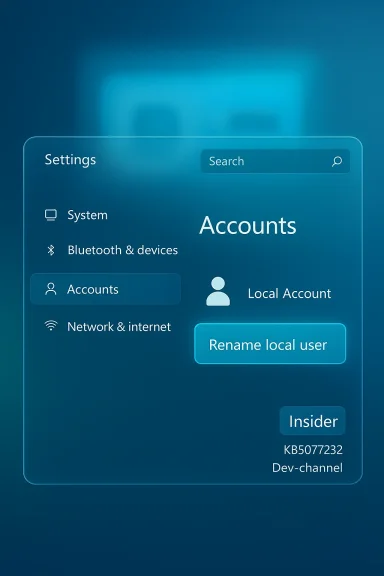
What surfaced in Insider Build 26300.7877 (KB5077232) is one more datapoint in that migration: the account rename functionality that traditionally lived in Control Panel is now visible as a UI element inside Settings. The change was spotted in community previews and Insider threads discussing the Dev-channel flight.
This specific move — renaming a local account — is a low-risk, high-symbolism step: low risk because it’s a limited, self-contained function; high symbolism because it touches a user-visible behavior that many advanced users and administrators have associated with the Control Panel for years. The button is reportedly present in the preview build, but not yet fully functional for all testers, underscoring the “visible-but-incomplete” nature of many Insider features.
Community logs and Insider threads that collate the Dev-channel patches help confirm the build number and the presence of the new control, while also noting the usual caveats about preview-state functionality.
For many, this is less of a battle cry and more of a status update: Microsoft is continuing to consolidate configuration, but it’s doing so carefully and incrementally, often surfacing UI elements before the back-end work is finished. That pattern both diffuses sudden breakage and gives power users time to react.
For everyday users it’s a welcome consolidation; for administrators and power users it’s a reminder to stay vigilant, test preview builds in controlled environments, and prefer scripted, API-driven workflows over UI shortcuts. The Control Panel is not being destroyed in a single act; it is being dismantled carefully, piece by piece, with many of the structural elements left intact until robust modern equivalents exist.
Microsoft’s steady migration of Control Panel features into Settings is a long arc; the visible move of local account rename into Settings in Build 26300.7877 (KB5077232) is the latest chapter. It’s not the end of the Control Panel, but another signpost on a journey that will continue to demand careful engineering, clear documentation, and thoughtful testing from everyone who manages, maintains, or simply uses Windows.
Source: igor´sLAB Windows 11: Control Panel loses another setting option | igor´sLAB
 Background
For nearly two decades Windows has run with a bifurcated system configuration model: the classic Control Panel representing decades of legacy applets and shell components, and the newer Settings app that Microsoft introduced as the long-term replacement. The split has been more than cosmetic — it reflects two different architectures, design languages, and integration assumptions that coexist uneasily across Windows releases.What surfaced in Insider Build 26300.7877 (KB5077232) is one more datapoint in that migration: the account rename functionality that traditionally lived in Control Panel is now visible as a UI element inside Settings. The change was spotted in community previews and Insider threads discussing the Dev-channel flight.
This specific move — renaming a local account — is a low-risk, high-symbolism step: low risk because it’s a limited, self-contained function; high symbolism because it touches a user-visible behavior that many advanced users and administrators have associated with the Control Panel for years. The button is reportedly present in the preview build, but not yet fully functional for all testers, underscoring the “visible-but-incomplete” nature of many Insider features.
What changed in Build 26300.7877 (KB5077232)
The visible change
- The Settings > Accounts area in the preview now shows a control that lets an admin or local user rename a local account — something that previously required launching Control Panel and navigating to older applets. This preview item was discovered by community observers and noted across Insider discussion threads.
- The build carrying the preview work is identified as Dev-channel Build 26300.7877, updated via servicing label KB5077232 in the Insider ring notes and community tracking.
The functional reality
- In the test release the UI element is present but reports indicate the button is unresponsive for some Insiders — visible, not yet ready. This is a typical preview-stage pattern: Microsoft surfaces the UI while back-end plumbing is still being validated.
Why this matters beyond the click
- Renaming an account touches not just a display name; it may affect user profile paths, registry entries, and interactions with system services or backup/imaging tools if the move is not cleanly implemented.
- The change is a microcosm of a larger migration strategy that Microsoft has pursued incrementally since Windows 8 and accelerated into Windows 11: port Control Panel applets to Settings, modernize UX, and reduce legacy surface area over time.
Overview: the migration story — technical debt, compatibility, and coexistence
A long, deliberate transition
Microsoft’s migration away from the Control Panel is not sudden. It has been an iterative, cautious process designed to avoid regressions in behavior and to preserve compatibility for scripts, management tools, and enterprise workflows that rely on long-established APIs.- Many Control Panel items are thin wrappers around decades-old APIs and shell integrations. Migrating them requires replicating not just surface functionality but also the deeper operational semantics.
- In practice the company has preferred a phased approach: surface the modern UI first, then rehome the functional primitives under the hood and validate behavior across configurations.
Why the Control Panel won’t disappear overnight
- Legacy applets are “load-bearing masonry” within Windows: they are embedded into system flows and administrative tooling in ways that are not easy to rewrite without ripple effects.
- Several diagnostic or power-user features — including the so-called “God Mode” folder that aggregates many Control Panel commands — continue to work because the underlying shell components remain present. The presence of those legacy components makes a wholesale removal risky.
The practical balancing act
- Microsoft must balance modernization, security, and maintainability against the needs of power users, administrators, and enterprise management tooling. The result is slow, incremental change that occasionally surfaces UI-only signals before the underlying functionality is complete. Insider testers often see these intermediate states.
The discovery: how this change came to light
The shift was flagged by community observers and Insiders who watch flight notes and poke through new Settings surfaces. Social observers and forum trackers regularly find UI elements in preview images before Microsoft builds up a formal announcement. This stealthy, incremental pattern — testing with Insiders, surfacing small changes, iterating — is how many of the Control Panel-to-Settings migrations have rolled out.Community logs and Insider threads that collate the Dev-channel patches help confirm the build number and the presence of the new control, while also noting the usual caveats about preview-state functionality.
What this means for users and administrators
For everyday users
- When the feature lands fully, renaming a local user should become more discoverable inside Settings rather than forcing users into an older Control Panel UI.
- For most casual users this will be a net positive: fewer interfaces to learn and a more consistent design language across Windows.
For power users and administrators
- Power users who rely on precise profile paths, group policy, or automated scripts should treat the Settings rename as a potential breaking point until Microsoft documents the exact behavior and impact on underlying profile names and paths.
- Imaging tools, deployment scripts, and enterprise management workflows that reference specific account names or profile folders must be tested against preview builds to ensure no unexpected interactions.
For enterprises and managed environments
- Enterprises usually control account and profile creation through provisioning, Active Directory, Azure AD, and imaging — environments where the UI-level rename is rarely used. But the migration signals broader consolidation that will eventually touch administrative tooling and MDM policies.
- IT teams should watch the Insider notes and test in lab environments before allowing this change in production update rings. Insider previews are where Microsoft surfaces the changes first; community trackers summarize these shifts for IT pros.
Technical considerations and risks
Profile folder vs display name: potential mismatch
A common source of confusion is the difference between a user’s display name and the profile folder name under C:\Users. Historically, the Control Panel’s rename operation typically altered the friendly display name, not necessarily the NT profile folder. Any change in Settings must preserve that semantic separation.- If Microsoft’s new Settings control only adjusts the display name, the risk is low.
- If it attempts to rename the underlying profile folder or registry keys, migration must include safe mechanisms to update ACLs, profile path references, and app-specific settings without breaking existing profiles.
Scripting, automation, and backward compatibility
- Administrators who automate user account management via scripts, Group Policy, or PowerShell should assume the Settings-based control is a UI convenience; authoritative automation will still rely on documented APIs and cmdlets.
- Microsoft typically preserves legacy APIs for a long time, but eventual deprecation is possible. IT teams should prefer API-driven account management over UI-driven workflows for reliability.
Imaging and provisioning flows
- Automated imaging (autounattend.xml, WIM-based provisioning) and enterprise provisioning routines must be tested against updated Insider previews if Microsoft rehomes account-related behavior.
- OOBE (Out-Of-Box Experience) flows have already been nudged toward account-first scenarios in recent flights, which compounds the urgency for IT teams to validate provisioning in lab builds.
Strategic implications: why Microsoft is doing this
Maintenance, security, and cloud integration
A consolidated Settings architecture simplifies maintenance and security updates. From a platform engineering standpoint, a single configuration layer:- Reduces duplicated code and test surface area.
- Makes it easier to apply consistent security policies and telemetry.
- Eases future integration with cloud features and Copilot/agent-driven settings surfaces.
User experience and discoverability
- Bringing common account operations into Settings improves discoverability for mainstream users who seldom reach Control Panel.
- It helps Microsoft make Settings the canonical place for configuration, supporting clearer UX patterns across Windows and integrated experiences.
The cost: alienating power users
- The trade-off is friction for experienced users and admins who have built workflows around Control Panel behavior and scripts. Microsoft must carefully preserve compatibility, or it risks pushback from the community that values deterministic behavior. Recent communication from Microsoft emphasizes stability and bug fixes in 2026 as a priority after aggressive AI feature pushes, indicating the company recognizes the need for careful execution.
How to test and prepare (recommended steps for enthusiasts and admins)
If you manage systems or want to stay ahead of changes, follow a structured approach:- Join the Windows Insider program and enroll a lab device in the Dev channel to observe changes like Build 26300.7877 in a controlled environment.
- Before applying preview builds broadly, create a full system backup or snapshot (disk image or VM checkpoint).
- Test account rename behavior:
- Rename the display name via Settings (when functional) and verify login display and profile folder integrity.
- Compare results to a Control Panel rename (on a baseline system) to verify parity.
- Validate automation scripts after the preview update:
- Run PowerShell account management scripts.
- Re-run imaging/unattend flows to ensure consistent provisioning.
- Monitor event logs and application behavior for signs of ACL or profile path issues.
Community and industry reaction: measured, watchful, pragmatic
The community response to this particular change is not unexpected: observers note the move, point out the preview’s incomplete status, and treat it as another step in a multi-year journey rather than a final decision. Insiders and forum trackers collecting patch notes and testing results have summarised the change while emphasizing the typical caveats of preview builds.For many, this is less of a battle cry and more of a status update: Microsoft is continuing to consolidate configuration, but it’s doing so carefully and incrementally, often surfacing UI elements before the back-end work is finished. That pattern both diffuses sudden breakage and gives power users time to react.
Practical scenarios: edge cases and what to watch
- Systems with legacy software that identifies users by profile folder names may experience unexpected behavior if Microsoft ever provides a UI that also renames profile folders. Administrators should document any such dependencies and prepare redeployment or remediation plans.
- Scripting environments that parse Control Panel applets may find their shortcuts broken as UI elements are removed or relocated. Prefer PowerShell modules and documented APIs over parsing UI elements.
- Multi-user shared devices with local accounts used in kiosk or classroom scenarios need retesting if user identification or folder naming conventions are important.
Microsoft’s 2026 posture: quality over novelty
In public and community messaging, Microsoft signaled a shift in 2026 toward prioritizing stability and bug fixes after a period of rapid AI and Copilot feature integration. That stance suggests that while the migration of Control Panel items will continue, the company is also focusing resources on smoothing out reliability issues rather than rushing big UI decommissions. For end users and admins, that means incremental changes with more emphasis on compatibility testing and fewer abrupt removals.What to expect next
- Additional small migrations: Expect more Control Panel options to appear in Settings as visible, experimental items in Insider builds before becoming generally available.
- Documentation and API clarity: Over time Microsoft should publish explicit guidance on the semantics of Settings-based changes (display name vs. profile folder, API equivalence, and tooling recommendations).
- Ongoing coexistence: The Control Panel is unlikely to vanish overnight. Coexistence will persist as Microsoft methodically ports features and validates behavior across scenarios.
Verdict: incremental change, outsized symbolism
Renaming a local user account from Settings might be a small feature, but it’s emblematic of a larger engineering and product strategy. This particular move demonstrates Microsoft’s methodical, conservative approach to deprecating legacy surfaces: introduce modern replacements in preview, iterate on functionality, and preserve stability as the guiding principle.For everyday users it’s a welcome consolidation; for administrators and power users it’s a reminder to stay vigilant, test preview builds in controlled environments, and prefer scripted, API-driven workflows over UI shortcuts. The Control Panel is not being destroyed in a single act; it is being dismantled carefully, piece by piece, with many of the structural elements left intact until robust modern equivalents exist.
Actionable checklist (quick reference)
- If you’re an IT admin:
- Test Build 26300.7877 in a lab before broad deployment.
- Validate automation scripts and imaging workflows after applying preview updates.
- Confirm whether Settings-based rename affects profile folder names or only the display name.
- If you’re a power user:
- Try the new Settings control on a test machine and compare behavior to Control Panel rename.
- Keep a backup before making account and profile changes.
- If you manage shared devices:
- Audit applications that reference profile folder names and test them against preview builds.
Microsoft’s steady migration of Control Panel features into Settings is a long arc; the visible move of local account rename into Settings in Build 26300.7877 (KB5077232) is the latest chapter. It’s not the end of the Control Panel, but another signpost on a journey that will continue to demand careful engineering, clear documentation, and thoughtful testing from everyone who manages, maintains, or simply uses Windows.
Source: igor´sLAB Windows 11: Control Panel loses another setting option | igor´sLAB
