

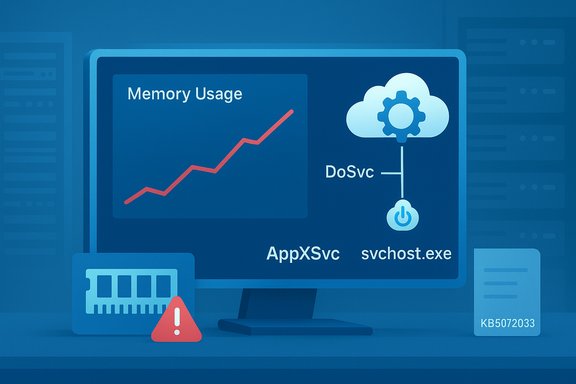
Multiple independent reports from community forums and tech outlets show the Delivery Optimization service (DoSvc) in recent Windows 11 and Windows Server builds can grow its memory footprint steadily over time, producing severe RAM pressure on low‑spec devices and some server images; Microsoft’s December cumulative update KB5072033 explicitly changed AppX Deployment Service (AppXSVC) to start automatically, a configuration flip that likely amplified the symptom set, but Microsoft has not published a formal engineering advisory labeling DoSvc itself as a confirmed memory‑leak bug.
Background / Overview
Delivery Optimization (service name DoSvc) is Microsoft’s peer‑assisted update distribution engine. It breaks updates and Store packages into chunks so devices can download pieces from Microsoft servers and, optionally, from other PCs on the local network or the Internet. This P2P model reduces repeated downloads, conserves bandwidth in large environments, and can accelerate update delivery for many devices. Microsoft documents the user controls (Settings → Windows Update → Advanced options → Delivery Optimization) and explains how to toggle peer downloads, set bandwidth limits, and view the Activity monitor. On December 9, 2025 Microsoft released the cumulative update identified as KB5072033 (builds 26100.7462 for 24H2 and 26200.7462 for 25H2). The KB was later updated to note a configuration change: the AppX Deployment Service (AppXSVC) was moved from trigger/manual start to Automatic startup to “improve reliability in some isolated scenarios.” That single‑line change is the authoritative, documented fact that underpins much of the post‑patch troubleshooting. Community reporting after KB5072033 tied two observable phenomena together: (1) previously dormant or trigger‑start services (notably AppXSVC) now run at boot and remain resident, and (2) Delivery Optimization (DoSvc) or its host svchost instances in some installations exhibit monotonic memory growth until manual intervention (service stop or reboot) reduces memory back to normal levels. Those reports emerged on Reddit, vendor blogs and multiple forum threads; while the symptom set is clear to users, public engineering confirmation that a DoSvc memory leak exists — as opposed to an interaction or behavioral regression — has not been published by Microsoft at the time of reporting.What users are seeing — symptoms and scope
Typical symptom profile
- Steady RAM increase attributable to a DoSvc host (often shown as svchost.exe) over hours or days, not explained by known foreground activity.
- Severe memory pressure on machines with 4–8 GB of RAM, causing swapping, UI lag, and even RDP session hangs on remote hosts.
- Very large allocations reported anecdotally — individual users posted extreme figures (multiple GBs, in some claims up to ~20 GB under svchost). These large numbers are compelling but should be treated as user‑reported extremes rather than universal outcomes until engineering traces confirm a reproducible leak.
- Monitoring noise and start/stop flapping on servers and VDI pools where AppXSVC’s Automatic flag interacts poorly with a binary still effectively written for trigger semantics; monitoring systems register repeated restarts and generate false alarms.
Who is most likely to be affected
- Machines with limited physical RAM (4–8 GB), low‑end laptops, older desktops and some virtual desktops.
- Server images and Remote Desktop Session Hosts where the server SKU historically expects AppXSVC to be trigger‑started; the KB‑level change to Automatic can create unexpected behavior at scale.
- Organizations that rely on aggressive agent‑based monitoring; frequent start/stop cycles can flood ticket queues and obscure real incidents.
Technical analysis — why a startup‑type change matters
Services in Windows can be configured to be trigger‑started (run only when needed) or Automatic (start at boot and remain resident). That distinction is critical for resource stewardship:- Trigger‑start services remain dormant until an explicit trigger occurs (Store activity, package installation, scheduled task). They minimize steady‑state memory and thread footprints.
- Automatic services load binaries, instantiate thread pools and timers at boot and are resident until they exit. Even idle threads and mapped code pages add to the working set.
Verification: how to confirm whether DoSvc is the culprit
Collecting the right artifacts turns anecdote into evidence. Practical triage steps:- Use Task Manager → Details and match the PID to services to identify whether the growing process hosts DoSvc or AppXSVC. Sort by Memory to see monotonic trends.
- Use Process Explorer to inspect Working Set, Private Bytes, thread counts and suspect DLLs in the process. Flag a monotonic increase in Private Bytes over multiple snapshots.
- Use RAMMap to inspect kernel allocations, the standby list and commit charge to determine if memory is held in user space or kernel pools. Large nonpaged pool usage suggests a driver/kernel issue.
- Collect ETW traces (Windows Performance Recorder) or ProcMon captures during the growth period to reveal repeated allocations, file/registry churn or timers that correlate with allocations. Structured traces increase the chance Microsoft engineers will engage.
- Check Delivery Optimization’s Activity monitor (Settings → Windows Update → Advanced options → Delivery Optimization → Activity monitor) for unusual upload/download activity or cache behavior that could explain persistent background processing.
Immediate mitigations — home users and power users
These mitigations are reversible and prioritized from least to most intrusive.- Lowest‑risk (home users): Open Settings → Windows Update → Advanced options → Delivery Optimization and toggle Allow downloads from other PCs to Off. Reboot and monitor Task Manager; many users report the memory growth halts. If you prefer local peering only, choose Devices on my local network and set bandwidth caps. This preserves LAN caching while preventing internet peers.
- If toggling doesn’t help (power users):
- Stop the service temporarily: run as Administrator
- net stop DoSvc
- Clear the Delivery Optimization cache:
- Settings → System → Storage → Temporary files → Delivery Optimization Files → Remove files
- Or use Disk Cleanup (Run cleanmgr as admin), check Delivery Optimization Files and delete.
- For a manual cache purge (advanced): stop DoSvc, delete contents of C:\ProgramData\Microsoft\Windows\DeliveryOptimization\Cache, then restart DoSvc. Always stop the service before deleting to avoid file‑in‑use problems.
- Stop the service temporarily: run as Administrator
- If symptoms persist and you understand the implications: disable DoSvc for troubleshooting (reversible):
- sc config DoSvc start= disabled
- net stop DoSvc
This forces all updates to be downloaded directly from Microsoft servers (no P2P). For single PCs this is usually acceptable; at scale it increases upstream bandwidth and removes local caching benefits.
Server / enterprise mitigations (recommended testing workflow)
- Pilot first. Do not roll changes fleet‑wide without a small, representative pilot group.
- Revert AppXSVC to a demand/trigger start for sensitive server images that rely on trigger semantics:
- sc config AppXSVC start= demand
- sc stop AppXSVC
This mitigates start/stop flapping and reduces resident background threads on server SKUs where automatic start is unnecessary. Microsoft Q&A threads and community testing show this reversion stabilizes monitoring noise for many admins.
- Enforce Delivery Optimization policy via MDM/Group Policy, preferring LAN‑only or throttled modes rather than per‑device registry edits. Use Download Mode or Administrative Templates under Windows Components → Delivery Optimization to handle consistent behavior.
- Collect and escalate diagnostics (PerfMon counters, ETW, RAMMap, Process Explorer dumps) and open a Microsoft support case or file a Feedback Hub submission with artifacts. For enterprise customers, request Known Issue Rollback (KIR) or an out‑of‑band fix if the issue is reproducible and widespread.
Risks and trade‑offs
- Disabling Delivery Optimization removes P2P benefits: every device must download full updates from Microsoft servers, which increases upstream bandwidth usage and may slow mass rollouts. At home this is usually an acceptable trade; at scale it is not.
- Reverting AppXSVC to Manual reduces background readiness for Store app registration and packaging tasks; on kiosks or devices that need immediate app readiness this may introduce smaller delays. Test before broad rollout.
- Aggressive registry or service edits without rollback documentation can create configuration drift; prefer managed policy objects (Group Policy/Intune) for fleets.
- Treat extreme user numbers with caution. Claims about svchost using ~20 GB are user anecdotes until validated by ETW/procmon traces; they are important signals but not proof of a universal bug. Flag large reported figures as unverified extremes until engineering confirmation.
What Microsoft has said — and what to expect next
Microsoft’s official KB for KB5072033 documents the AppXSVC startup‑type change; that is the authoritative confirmation of the configuration flip that exposed new runtime behavior. The KB does not, as of the latest update, list a DoSvc memory‑leak fix or an advisory explicitly attributing DoSvc growth to a coded memory leak inside Delivery Optimization. Historically, Microsoft resolves regressions discovered after cumulative updates by shipping fixes in subsequent monthly updates, issuing out‑of‑band hotfixes, or providing Known Issue Rollbacks for enterprise customers; administrators should monitor the Windows release health dashboard and Microsoft Q&A for follow‑ups. Independent coverage — from community boards to specialist outlets — has captured the operational impact and mitigation guidance, but reporting to date has largely relied on structured community diagnostics and vendor‑side reproduction rather than direct Microsoft admission of a DoSvc code defect. That means the working assumption for now is: DoSvc is the visible source of memory growth in many installed cases, and the root cause may be an interaction exposed by startup‑type changes rather than a single, isolated leak in DoSvc code.Recommended one‑page action plan
For users, power users, and admins who need quick, practical steps:- Confirm your build: Win + R → winver. KB5072033 corresponds to builds 26100.7462 / 26200.7462.
- Low‑risk first: Settings → Windows Update → Advanced options → Delivery Optimization → toggle Allow downloads from other PCs to Off. Reboot and observe Task Manager.
- If memory growth persists: collect Process Explorer and RAMMap snapshots; stop DoSvc temporarily and clear the Delivery Optimization cache (Settings → System → Storage → Temporary files → Delivery Optimization Files).
- For servers: pilot sc config AppXSVC start= demand on a small group, monitor for improved memory and reduced flapping, then scale if successful. Document and automate rollback.
- If the issue materially impacts operations, open a Microsoft support case and attach structured diagnostics (ETW, ProcMon, PerfMon counters). For enterprise customers, ask about KIR options.
Final analysis and outlook
The Delivery Optimization memory‑growth reports are an operationally significant signal for admins and enthusiasts: they demonstrate how an otherwise modest servicing change — flipping a service to Automatic — can alter runtime exposure and surface latent resource issues in a minority of environments. The documented fact that AppXSVC default startup changed in KB5072033 is confirmed by Microsoft’s KB notes and Microsoft Q&A discussions; community captures and diagnostic threads corroborate user impact and propose pragmatic mitigations. However, rigorous engineering confirmation that DoSvc contains a universal memory leak remains absent in public Microsoft advisories; many of the most alarming numbers originate from user reports and forum traces and should be treated as credible but not yet fully independently reproduced engineering proofs. Collecting structured traces and escalating with evidence is the best route to a definitive fix if your devices are affected.Pragmatically: for single‑device home users, toggling off Delivery Optimization is a low‑risk step that will halt peer activity and, in many cases, stop the memory growth immediately. For enterprises, run a measured pilot, prefer policy‑driven deployments, collect diagnostics, and be ready to request an enterprise remediation path if the problem proves reproducible at scale. The Delivery Optimization model itself remains useful; the immediate task for Microsoft and administrators alike is to reconcile reliability improvements with predictable resource stewardship on constrained devices.
Every environment and workload is different; balance the short‑term mitigations above against the bandwidth and deployment needs of your network, and escalate with structured telemetry if the problem reproduces on clean images or across a representative pilot ring.
Source: Technetbook Windows 11 Delivery Optimization Service Memory Leak Confirmed in Recent Builds Causing High RAM Usage
