

Windows 11 users have reported a bug in May 2026 that can make the emoji picker’s search box disappear, and Windows Central says restarting Windows Explorer from Task Manager restores it without rebooting the PC. That is a tiny fix for a tiny feature, but the irritation is not tiny at all. The broken search field is a reminder that Windows’ most-used conveniences increasingly live inside fragile shell components. When the shell stumbles, even something as frivolous as finding  becomes an argument about reliability.
The emoji picker is not the sort of component that usually gets a war-room incident response. It is summoned with Win + period or Win + semicolon, used for a few seconds, and dismissed. In theory, it is the definition of low stakes.
But low-stakes tools become high-friction tools when they fail during real work. Emoji search is not merely for jokes in Slack or Teams; it is a fast input surface for symbols, kaomoji, GIFs, and the little visual shorthand that now threads through office chat, documentation, social posts, and customer support. The modern Windows desktop is full of these “minor” surfaces that users stop noticing only when they work.
That is why the disappearing search box lands with more force than its feature category suggests. The emoji panel is supposed to be muscle memory. When it opens without the search field, the user’s next thought is not “how charmingly imperfect”; it is “what else in this shell session is stale?”
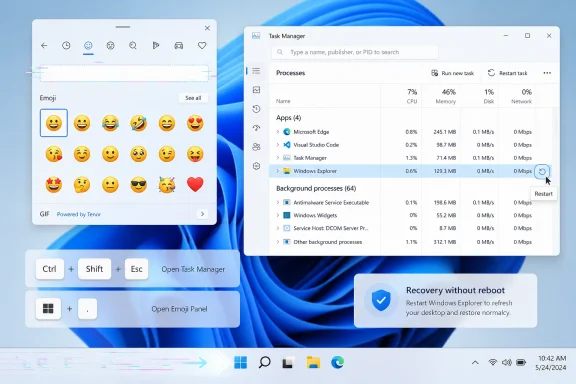
Windows Central’s workaround is blunt and effective: open Task Manager with Ctrl + Shift + Esc, find Windows Explorer, right-click it, and choose Restart. The taskbar disappears briefly, Explorer reloads, and the emoji picker’s search field returns. It is the kind of fix every Windows veteran knows and no normal user should have to learn.
Explorer is not just File Explorer, despite the name users see in the taskbar and Start menu. It is the desktop shell process that owns a large share of the visible Windows experience: taskbar, Start-adjacent behavior, notification-area surfaces, and bits of the UI that appear to be separate features until they fail together. If restarting Explorer brings back emoji search, the bug is probably less about emoji data and more about a shell-hosted interface getting into a bad state.
That matters because Microsoft has spent years trying to make Windows feel more modular while users still experience it as one giant living organism. A problem in one shell surface may not crash the whole desktop anymore, but it can still leave the machine feeling haunted. The result is a strange middle ground: Windows remains technically alive, yet parts of the interface stop behaving as if they remember what they are.
For IT pros, this is familiar territory. “Restart Explorer” has long been the Windows equivalent of clearing a browser cache or toggling airplane mode. It is safe, fast, and often effective, but it is also an admission that the session state has drifted somewhere the UI cannot recover from gracefully.
The emoji picker bug is therefore not interesting because emoji are important. It is interesting because the fix points straight back to the shell.
Still, the Insider label should not become a magic eraser. Microsoft’s public testing channels are no longer a side alley for hobbyists running disposable machines in basements. They include enthusiasts, journalists, developers, and admins who often run preview builds on real hardware because Microsoft itself has made Windows feature delivery continuous, staged, and messy enough that preview channels are where the future desktop becomes visible.
The more Microsoft leans on cumulative updates, feature drops, controlled rollouts, Store-delivered components, and A/B experiments, the less clear “stable Windows” feels from the outside. A bug appearing on Beta may stay there, or it may signal a problem in a component that is already shared more broadly. Users cannot always tell which train they are riding until something derails.
That uncertainty is why small UI regressions deserve attention. They reveal the cost of Microsoft’s current delivery model: features can improve faster, but they can also break in narrower, stranger, harder-to-diagnose ways. A missing search box is not a blue screen. It is a paper cut from an operating system that increasingly updates itself in layers.
That is what makes the Explorer restart workaround useful. It targets the likely failing layer without forcing the user to close every app, interrupt every meeting, and reopen the day. On a modern workstation with dozens of browser tabs, remote sessions, terminals, documents, and chat windows, “just reboot” is often less of a fix than a productivity tax.
Restarting Explorer is not risk-free in the sense that it visibly disrupts the taskbar and can briefly unsettle tray apps. But compared with a full system restart, it is surgical. Open windows generally remain open, most applications continue running, and the shell reconstructs itself around the session.
There is a subtle lesson here for troubleshooting culture. Windows users have been trained to think in terms of whole-machine resets, but many failures are component failures. The more Windows becomes a constellation of shell experiences, the more useful it becomes to know which process owns the broken surface.
That knowledge should not be required for basic emoji search. But until Microsoft fixes the underlying fault, it is the difference between a 30-second annoyance and a derailed morning.
This is a shift Microsoft sometimes undersells. The company talks fluently about AI copilots, Recall-style memory features, security baselines, and hardware-backed protections, but day-to-day satisfaction with Windows often lives in much smaller interactions. Can I find a character? Can I paste the thing I need? Can I switch input modes without losing focus? Can the taskbar remember where it belongs?
Those are the seams where users decide whether an operating system feels polished. A missing emoji search field is not catastrophic, but it is the type of bug that makes Windows feel less coherent. It tells the user that even Microsoft’s own lightweight surfaces can appear in an incomplete state and need the shell equivalent of a slap on the back.
For accessibility and multilingual users, the stakes are higher still. Input panels are not decorative when they provide access to characters, symbols, and expression modes that are cumbersome or impossible to type directly. If Microsoft treats these surfaces as optional flourishes, it risks underestimating how many workflows depend on them being predictably available.
The right standard is not “does the user have another way to do it?” The right standard is “does the promised input path work when summoned?” In this case, the answer is sometimes no.
But workaround simplicity is not the same as product quality. Most users do not know that Windows Explorer controls the taskbar, much less that restarting it can heal a broken emoji panel. Some will reboot. Some will waste time digging through Settings. Some will assume their keyboard language, input method, or account profile is corrupted. Others will simply stop using the feature.
That last outcome is the quietest and most damaging. When a small tool becomes unreliable, users route around it. They Google emoji names. They paste symbols from old messages. They install third-party utilities. They decide the built-in Windows feature is not worth trusting.
From Microsoft’s perspective, that is a bad trade. The company has invested heavily in making Windows feel modern without demanding that users install extras for basic conveniences. Every shell regression nudges users back toward the belief that Windows’ built-in niceties are ornamental rather than dependable.
This is especially awkward because Microsoft has been trying to make the Windows interface feel more fluid and context-aware. A missing search box is the opposite of that vision. It is not a grand failure of design; it is a simple failure of readiness.
The emoji picker’s vanishing search field fits that pattern. It is not necessarily a sign of data loss, corrupted emoji libraries, or a broken keyboard shortcut. It looks more like a panel that launches but fails to render or initialize one of its expected components. Restarting Explorer effectively wipes the shell’s short-term memory and forces the panel to be created again.
This kind of bug is maddening precisely because it is intermittent. If the panel failed every time, Microsoft could reproduce it, document it, and ship a targeted fix. If it appears only after certain shell states, Insider flights, update sequences, or session lengths, it becomes the sort of bug that survives until enough telemetry and Feedback Hub reports point in the same direction.
That is why reports from journalists and users matter. The affected audience may be small, but the failure mode is specific. “Emoji picker search missing until Explorer restart” is a better bug report than “Windows feels weird,” and better reports increase the odds that Microsoft can pin the fault to the right component.
Still, users should not have to crowdsource basic shell reliability. Microsoft owns the integration burden.
The steps are simple. Press Ctrl + Shift + Esc to open Task Manager, select Windows Explorer, and choose Restart from the context menu. The screen may flicker, the taskbar may vanish for a moment, and then the desktop shell should reappear.
What users should not do is confuse this with a full repair procedure. If the emoji search box keeps disappearing immediately after every Explorer restart, the problem may be tied to a buggy build, a third-party shell extension, an input component, or a broader Windows issue. At that point, checking Windows Update, leaving an unstable Insider channel, or filing feedback becomes more sensible than repeatedly restarting the shell.
For managed environments, this workaround also has a communications value. Help desks can tell users to restart Explorer instead of rebooting when the symptom is limited to shell UI. That keeps machines in session, preserves work, and reduces the number of support tickets that begin with “I lost everything I had open.”
The caveat is that this should remain a workaround, not a permanent operating procedure. If a feature requires users to restart Explorer once a week, the feature is broken. Fast recovery is useful; normalized recovery is technical debt wearing a smile.
Windows 11 has blurred that boundary. Features move through Dev, Beta, Release Preview, controlled feature rollouts, cumulative updates, app updates, and server-side enablement. A user may be technically “stable” but still receive a staged experience that feels experimental. Another may think they are in one Insider channel and discover they are in another only when a bug forces the issue.
That complexity makes user trust harder to preserve. If Microsoft wants people to test Windows enthusiastically, it needs to make the state of a machine legible. Users should know which channel they are in, which features are being flighted, and whether a regression is already acknowledged.
This is not just a nicety for hobbyists. IT administrators often use preview channels to anticipate changes before they reach fleets. If a shell bug appears in Beta, admins want to know whether it is isolated, acknowledged, and likely to ship. Silence creates unnecessary detective work.
The emoji picker bug is not a crisis, but it is a useful signal. It shows how quickly a small regression in a preview environment can become a public Windows story because the affected feature sits directly in users’ daily communication flow. In 2026, even emoji search is not too small to become an operating-system reliability anecdote.
The question is whether the Windows shell feels trustworthy enough that users do not expect its small surfaces to randomly degrade during a session. That is the trust Microsoft should be defending. The shell is the place where users experience the operating system most directly; it is also the place where Microsoft is now cramming more intelligence, more cloud integration, more recommendations, and more ambient services.
That expansion raises the reliability bar. Users may tolerate a preview AI feature being odd. They are less forgiving when a basic input panel opens without the input field. The more Microsoft wants the desktop to become adaptive and context-rich, the more it must ensure that the old-fashioned pieces — search boxes, flyouts, taskbars, selectors — remain boringly solid.
There is also a product-design humility lesson here. The features people notice are not always the features companies promote. Microsoft can spend a keynote on Copilot and still lose goodwill because a tiny picker cannot keep its search box visible. Real-world UX is cumulative, and irritation compounds faster than delight.
Windows has survived decades because users can usually fix it, bend it, script it, and keep working. That resilience is a strength. But resilience should not become an excuse for regressions that make ordinary users act like unpaid shell technicians.
Microsoft will almost certainly fix this if enough telemetry and reports line up, and most users will never think about it again. But the episode is still revealing: the Windows desktop is now a layered, continuously serviced environment where even the emoji picker can expose the fragility of the shell beneath it. The next version of Windows will not be judged only by its AI features or security architecture; it will be judged by whether the little things keep working when people reach for them without thinking.
Source: Windows Central Emoji search disappearing on Windows 11 is infuriating, but the fix takes seconds
becomes an argument about reliability.
 The Smallest Windows Bug Is Still a Workflow Bug
The emoji picker is not the sort of component that usually gets a war-room incident response. It is summoned with Win + period or Win + semicolon, used for a few seconds, and dismissed. In theory, it is the definition of low stakes.But low-stakes tools become high-friction tools when they fail during real work. Emoji search is not merely for jokes in Slack or Teams; it is a fast input surface for symbols, kaomoji, GIFs, and the little visual shorthand that now threads through office chat, documentation, social posts, and customer support. The modern Windows desktop is full of these “minor” surfaces that users stop noticing only when they work.
That is why the disappearing search box lands with more force than its feature category suggests. The emoji panel is supposed to be muscle memory. When it opens without the search field, the user’s next thought is not “how charmingly imperfect”; it is “what else in this shell session is stale?”
Windows Central’s workaround is blunt and effective: open Task Manager with Ctrl + Shift + Esc, find Windows Explorer, right-click it, and choose Restart. The taskbar disappears briefly, Explorer reloads, and the emoji picker’s search field returns. It is the kind of fix every Windows veteran knows and no normal user should have to learn.
Explorer Is Still the Desktop’s Pressure Point
The important detail is not that restarting Explorer fixes the emoji picker. The important detail is that restarting Explorer fixes the emoji picker.Explorer is not just File Explorer, despite the name users see in the taskbar and Start menu. It is the desktop shell process that owns a large share of the visible Windows experience: taskbar, Start-adjacent behavior, notification-area surfaces, and bits of the UI that appear to be separate features until they fail together. If restarting Explorer brings back emoji search, the bug is probably less about emoji data and more about a shell-hosted interface getting into a bad state.
That matters because Microsoft has spent years trying to make Windows feel more modular while users still experience it as one giant living organism. A problem in one shell surface may not crash the whole desktop anymore, but it can still leave the machine feeling haunted. The result is a strange middle ground: Windows remains technically alive, yet parts of the interface stop behaving as if they remember what they are.
For IT pros, this is familiar territory. “Restart Explorer” has long been the Windows equivalent of clearing a browser cache or toggling airplane mode. It is safe, fast, and often effective, but it is also an admission that the session state has drifted somewhere the UI cannot recover from gracefully.
The emoji picker bug is therefore not interesting because emoji are important. It is interesting because the fix points straight back to the shell.
The Insider Angle Makes the Irritation Easier to Explain, Not Easier to Excuse
Windows Central’s Daniel Rubino notes that his affected machine was on a Windows Insider Beta build, despite his expectation that he had moved to Release Preview. That caveat matters. Beta builds exist precisely so odd UI regressions can surface before they hit mainstream systems.Still, the Insider label should not become a magic eraser. Microsoft’s public testing channels are no longer a side alley for hobbyists running disposable machines in basements. They include enthusiasts, journalists, developers, and admins who often run preview builds on real hardware because Microsoft itself has made Windows feature delivery continuous, staged, and messy enough that preview channels are where the future desktop becomes visible.
The more Microsoft leans on cumulative updates, feature drops, controlled rollouts, Store-delivered components, and A/B experiments, the less clear “stable Windows” feels from the outside. A bug appearing on Beta may stay there, or it may signal a problem in a component that is already shared more broadly. Users cannot always tell which train they are riding until something derails.
That uncertainty is why small UI regressions deserve attention. They reveal the cost of Microsoft’s current delivery model: features can improve faster, but they can also break in narrower, stranger, harder-to-diagnose ways. A missing search box is not a blue screen. It is a paper cut from an operating system that increasingly updates itself in layers.
Rebooting Is the Old Cure, but Session Surgery Is the Better One
The common advice for a broken Windows UI is still to reboot. It works because it resets nearly everything, and it is easy to explain. It is also wildly disproportionate when the only broken thing is a search field inside a transient input panel.That is what makes the Explorer restart workaround useful. It targets the likely failing layer without forcing the user to close every app, interrupt every meeting, and reopen the day. On a modern workstation with dozens of browser tabs, remote sessions, terminals, documents, and chat windows, “just reboot” is often less of a fix than a productivity tax.
Restarting Explorer is not risk-free in the sense that it visibly disrupts the taskbar and can briefly unsettle tray apps. But compared with a full system restart, it is surgical. Open windows generally remain open, most applications continue running, and the shell reconstructs itself around the session.
There is a subtle lesson here for troubleshooting culture. Windows users have been trained to think in terms of whole-machine resets, but many failures are component failures. The more Windows becomes a constellation of shell experiences, the more useful it becomes to know which process owns the broken surface.
That knowledge should not be required for basic emoji search. But until Microsoft fixes the underlying fault, it is the difference between a 30-second annoyance and a derailed morning.
Microsoft’s Input Surfaces Have Outgrown Their Cute Origins
The emoji picker began as a convenience, but Windows’ “emoji and more” panel now sits in a broader class of input tools. It is a launcher for emoji, symbols, GIFs, clipboard history-adjacent behaviors, and expressive text fragments that do not fit neatly on a keyboard. That makes it part of the productivity surface, even if its most visible output is a cartoon face.This is a shift Microsoft sometimes undersells. The company talks fluently about AI copilots, Recall-style memory features, security baselines, and hardware-backed protections, but day-to-day satisfaction with Windows often lives in much smaller interactions. Can I find a character? Can I paste the thing I need? Can I switch input modes without losing focus? Can the taskbar remember where it belongs?
Those are the seams where users decide whether an operating system feels polished. A missing emoji search field is not catastrophic, but it is the type of bug that makes Windows feel less coherent. It tells the user that even Microsoft’s own lightweight surfaces can appear in an incomplete state and need the shell equivalent of a slap on the back.
For accessibility and multilingual users, the stakes are higher still. Input panels are not decorative when they provide access to characters, symbols, and expression modes that are cumbersome or impossible to type directly. If Microsoft treats these surfaces as optional flourishes, it risks underestimating how many workflows depend on them being predictably available.
The right standard is not “does the user have another way to do it?” The right standard is “does the promised input path work when summoned?” In this case, the answer is sometimes no.
A Fast Fix Does Not Make the Bug Harmless
There is a temptation to shrug at this because the workaround is so simple. Ctrl + Shift + Esc, restart Explorer, carry on. For power users, that is barely a detour.But workaround simplicity is not the same as product quality. Most users do not know that Windows Explorer controls the taskbar, much less that restarting it can heal a broken emoji panel. Some will reboot. Some will waste time digging through Settings. Some will assume their keyboard language, input method, or account profile is corrupted. Others will simply stop using the feature.
That last outcome is the quietest and most damaging. When a small tool becomes unreliable, users route around it. They Google emoji names. They paste symbols from old messages. They install third-party utilities. They decide the built-in Windows feature is not worth trusting.
From Microsoft’s perspective, that is a bad trade. The company has invested heavily in making Windows feel modern without demanding that users install extras for basic conveniences. Every shell regression nudges users back toward the belief that Windows’ built-in niceties are ornamental rather than dependable.
This is especially awkward because Microsoft has been trying to make the Windows interface feel more fluid and context-aware. A missing search box is the opposite of that vision. It is not a grand failure of design; it is a simple failure of readiness.
The Pattern Is Familiar: Tiny UI Features, Complicated Plumbing
Windows has a long history of small user-facing failures that trace back to surprisingly deep plumbing. Start search, taskbar widgets, notification flyouts, file thumbnails, shell extensions, and input panels all sit at the intersection of local state, cloud hooks, Store-packaged components, language data, rendering frameworks, and staged feature flags. That architecture enables faster iteration, but it also multiplies the number of places a small surface can break.The emoji picker’s vanishing search field fits that pattern. It is not necessarily a sign of data loss, corrupted emoji libraries, or a broken keyboard shortcut. It looks more like a panel that launches but fails to render or initialize one of its expected components. Restarting Explorer effectively wipes the shell’s short-term memory and forces the panel to be created again.
This kind of bug is maddening precisely because it is intermittent. If the panel failed every time, Microsoft could reproduce it, document it, and ship a targeted fix. If it appears only after certain shell states, Insider flights, update sequences, or session lengths, it becomes the sort of bug that survives until enough telemetry and Feedback Hub reports point in the same direction.
That is why reports from journalists and users matter. The affected audience may be small, but the failure mode is specific. “Emoji picker search missing until Explorer restart” is a better bug report than “Windows feels weird,” and better reports increase the odds that Microsoft can pin the fault to the right component.
Still, users should not have to crowdsource basic shell reliability. Microsoft owns the integration burden.
The Workaround Belongs in Every Windows User’s Mental Toolkit
The practical fix is worth spelling out because it solves more than this one annoyance. Restarting Explorer is one of the safest first-line moves when the Windows shell is misbehaving but the rest of the system is healthy. If the taskbar is frozen, the Start menu is acting stale, tray icons look wrong, or a shell flyout appears malformed, Explorer is often the process to refresh.The steps are simple. Press Ctrl + Shift + Esc to open Task Manager, select Windows Explorer, and choose Restart from the context menu. The screen may flicker, the taskbar may vanish for a moment, and then the desktop shell should reappear.
What users should not do is confuse this with a full repair procedure. If the emoji search box keeps disappearing immediately after every Explorer restart, the problem may be tied to a buggy build, a third-party shell extension, an input component, or a broader Windows issue. At that point, checking Windows Update, leaving an unstable Insider channel, or filing feedback becomes more sensible than repeatedly restarting the shell.
For managed environments, this workaround also has a communications value. Help desks can tell users to restart Explorer instead of rebooting when the symptom is limited to shell UI. That keeps machines in session, preserves work, and reduces the number of support tickets that begin with “I lost everything I had open.”
The caveat is that this should remain a workaround, not a permanent operating procedure. If a feature requires users to restart Explorer once a week, the feature is broken. Fast recovery is useful; normalized recovery is technical debt wearing a smile.
Insiders Are Microsoft’s Early-Warning System, but the Siren Is Getting Louder
The Insider Program has always been a bargain. Users get earlier access to features; Microsoft gets earlier access to pain. That bargain works when the boundary between experiment and production is obvious.Windows 11 has blurred that boundary. Features move through Dev, Beta, Release Preview, controlled feature rollouts, cumulative updates, app updates, and server-side enablement. A user may be technically “stable” but still receive a staged experience that feels experimental. Another may think they are in one Insider channel and discover they are in another only when a bug forces the issue.
That complexity makes user trust harder to preserve. If Microsoft wants people to test Windows enthusiastically, it needs to make the state of a machine legible. Users should know which channel they are in, which features are being flighted, and whether a regression is already acknowledged.
This is not just a nicety for hobbyists. IT administrators often use preview channels to anticipate changes before they reach fleets. If a shell bug appears in Beta, admins want to know whether it is isolated, acknowledged, and likely to ship. Silence creates unnecessary detective work.
The emoji picker bug is not a crisis, but it is a useful signal. It shows how quickly a small regression in a preview environment can become a public Windows story because the affected feature sits directly in users’ daily communication flow. In 2026, even emoji search is not too small to become an operating-system reliability anecdote.
The Real Story Is Trust in the Shell
Every Windows release has bugs, and every modern OS occasionally needs a process restart. The question is not whether Microsoft can make a perfect shell. It cannot.The question is whether the Windows shell feels trustworthy enough that users do not expect its small surfaces to randomly degrade during a session. That is the trust Microsoft should be defending. The shell is the place where users experience the operating system most directly; it is also the place where Microsoft is now cramming more intelligence, more cloud integration, more recommendations, and more ambient services.
That expansion raises the reliability bar. Users may tolerate a preview AI feature being odd. They are less forgiving when a basic input panel opens without the input field. The more Microsoft wants the desktop to become adaptive and context-rich, the more it must ensure that the old-fashioned pieces — search boxes, flyouts, taskbars, selectors — remain boringly solid.
There is also a product-design humility lesson here. The features people notice are not always the features companies promote. Microsoft can spend a keynote on Copilot and still lose goodwill because a tiny picker cannot keep its search box visible. Real-world UX is cumulative, and irritation compounds faster than delight.
Windows has survived decades because users can usually fix it, bend it, script it, and keep working. That resilience is a strength. But resilience should not become an excuse for regressions that make ordinary users act like unpaid shell technicians.
The Thirty-Second Fix Says More Than Microsoft Would Like
The immediate lesson from Windows Central’s report is narrow, but useful:- Restarting Windows Explorer from Task Manager can restore the missing search box in the Windows 11 emoji picker without requiring a full reboot.
- The workaround is most relevant when the emoji panel opens but appears incomplete, rather than when the Win + period shortcut fails entirely.
- The bug appears to have been observed on at least one Windows Insider Beta configuration, so production users should avoid assuming every Windows 11 system is affected.
- The disappearing search field is a shell reliability problem in practice, even if the visible failure is limited to emoji input.
- Users who see the problem repeatedly should check their Insider channel, install available updates, and report the issue through Feedback Hub rather than treating Explorer restarts as normal maintenance.
Microsoft will almost certainly fix this if enough telemetry and reports line up, and most users will never think about it again. But the episode is still revealing: the Windows desktop is now a layered, continuously serviced environment where even the emoji picker can expose the fragility of the shell beneath it. The next version of Windows will not be judged only by its AI features or security architecture; it will be judged by whether the little things keep working when people reach for them without thinking.
Source: Windows Central Emoji search disappearing on Windows 11 is infuriating, but the fix takes seconds
