

Windows 11’s long-standing battery and power-management tools have finally extended a meaningful hand to desktop users: Energy Saver (often referred to in early previews as Power Saving Mode) can now be enabled on systems that never leave the wall socket. The switch — exposed in Settings and Quick Settings — lets you force Windows into a persistent, lower-power state that trims background activity, reduces display and platform power, and caps certain performance behaviors. For users and organizations watching their electricity bills or carbon footprint, this is the most practical power-management change to Windows desktops in years. ([support.microsoft.microsoft.com/en-us/windows/battery-saving-tips-for-windows-a850d64d-ee8e-c8d2-6c75-8ffe6ea3ea99)
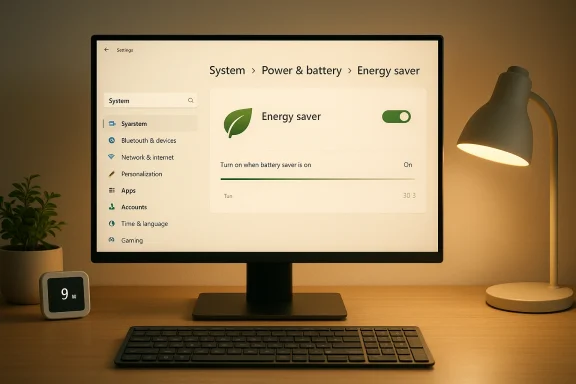
Windows’ power management has historically prioritized mobile devices. For decades, features like Battery Saver were aimed squarely at laptops and tablets: reduce CPU performance, dim the screen, and throttle background services when battery levels fell. That logic changed with Windows 11’s recent feature set: Microsoft consolidated and rebranded the low-power toolkit (Battery Saver → Energy Saver) and added options that work even when a device is plugged in — meaning desktop PCs can benefit too. Microsoft documents the change and places the controls in the Settings page under System > Power & battery (Energy Saver) while also exposing a Quick Settings toggle for fast changes.
Why this matters now:
Key behaviors Windows applies when Energy Saver is active:
Quick checklist before enabling Always-on Energy Saver:
Key tradeoff considerations:
Other directions to watch:
Action plan:
Energy Saver isn’t a silver bullet, but it’s the most tangible step Microsoft has taken to make everyday desktops smarter about electricity. For users who want quieter, cooler systems and a smaller home or office power bill, enabling Energy Saver is an accessible, reversible choice — and one we should expect to see increasingly supported and expanded in future Windows 11 updates and management tooling.
Source: PCWorld Save energy – switch your desktop PC to energy-saving mode
 Background: from Battery Saver to Energy Saver — why this matters
Windows’ power management has historically prioritized mobile devices. For decades, features like Battery Saver were aimed squarely at laptops and tablets: reduce CPU performance, dim the screen, and throttle background services when battery levels fell. That logic changed with Windows 11’s recent feature set: Microsoft consolidated and rebranded the low-power toolkit (Battery Saver → Energy Saver) and added options that work even when a device is plugged in — meaning desktop PCs can benefit too. Microsoft documents the change and places the controls in the Settings page under System > Power & battery (Energy Saver) while also exposing a Quick Settings toggle for fast changes.Why this matters now:
- Desktops account for non-trivial electricity use in homes and offices. Giving them a built-in, manufacturer-agnostic way to reduce power draw removes a barrier to energy savings.
- Energy Saver is broader than a brightness slider: it coordinates multiple subsystems (foreground/background scheduling, CPU QoS, visual effects and sync tasks) to deliver consistent savings.
- The change is timely given workplace sustainability goals, rising energy costs, and the push to reduce carbon emissions without replacing hardware.
What Energy Saver actually does (and what it does not)
Energy Saver is not a single magic dial; it’s a set of coordinated behaviors Windows can enable when you want to reduce energy consumption.Key behaviors Windows applies when Energy Saver is active:
- Limits background activity: non-essential background apps, syncs and scheduled tasks are deprioritized to reduce CPU and I/O usage.
- Caps CPU boost and shifts workloads: Windows may lean on EcoQoS and prioritize energy-efficient cores, reducing high-frequency bursts that cost power.
- Reduces visual effects and display brightness (if chosen): Windows can lower screen brightness and disable certain visual effects to save display and GPU power.
- Pauses or defers non-critical maintenance and telemetry: non-urgent updates and telemetry heartbeats can be staged to conserve energy.
- Disables some performance controls while active: the Power Mode selector (Best Performance/Best Power Efficiency) is often greyed out while Energy Saver is enforced, since Energy Saver overrides those settings.
- It is not a full “sleep” or “hibernate” replacement. Sleep and hibernate remain the right choices when you want the machine to draw near-zero power while preserving state.
- It does not permanently remove features — it throttles, de-prioritizes, and defers. For most activities, the user regains normal performance when Energy Saver is turned off or when the workload demands it.
- It will not turn off discrete components that require firmware-level control (for example, some devices or external peripherals may behave independently).
How to enable (and where Microsoft put the setting)
There’s some confusion in early reporting because different builds and preview channels used slightly different names and Settings layouts. The reliable, Microsoft-documented path to find and enable the feature on a modern Windows 11 release is:- Open Settings (Windows key + I).
- Navigate to System > Power & battery.
- Expand Energy saver and either:
- Set Always use energy saver to On to force the low-power profile permanently; or
- Configure Turn energy saver on when battery level is at to a percentage (laptops) to enable it automatically below that threshold.
- Optionally toggle Lower screen brightness when energy saver is on.
- You can also toggle Energy Saver from Quick Settings (Windows + A) using the leaf icon (the Quick Settings layout shows “Energy saver” in recent Windows 11 releases).
When should you use Energy Saver on a desktop?
Energy Saver is most relevant in the following scenarios:- Always-on home desktops that spend long periods idle: setting Energy Saver to “Always” reduces background power draw and helps lower monthly electricity use.
- Office workstations during non-peak hours: corporate rollouts can reduce aggregate consumption without physically swapping hardware.
- Public or shared machines: library, kiosk, or lab machines that don’t need full performance all the time.
- Environmental or cost-conscious environments: users who prioritize sustainability or who want to lower their power bills.
- Gaming rigs or workstation PCs during heavy workloads: Energy Saver can cap boost clocks and shift scheduling, which will degrade performance for gaming, real-time audio, video editing, rendering and similar tasks.
- Servers and critical systems: infrastructure-grade workloads should use data-center power policies rather than client OS energy savers.
Hands-on: practical tips, pitfalls and troubleshooting
Energy Saver is useful, but real-world systems vary. Here’s a practical playbook, drawn from official guidance and community reports.Quick checklist before enabling Always-on Energy Saver:
- Backup any open work and make sure critical tasks are not running (backups, renders, long downloads).
- Update device drivers (GPU, chipset) and Windows — some early quirks were fixed in later updates.
- Note that some OEM control panels or gaming suites may have their own power profiles; Energy Saver can interact with, or in rare cases, override these settings.
- Symptom: discrete GPU stays idle or applications won’t use high-performance GPU. Fixes:
- Go to Settings > System > Power & battery > Power mode and change to Best performance when you need full GPU activity.
- Open Settings > System > Display > Graphics and assign apps to the high-performance GPU manually.
- If the system remains stuck, check the OEM control panel (Armoury Crate, MSI Center, etc.) and toggles for GPU performance. Reboot after changing settings. These are standard mitigations when Energy Saver interacts poorly with device manufacturer software.
- Task Manager’s Efficiency mode (Task Manager > Processes) is a complementary tool to throttle specific apps and free foreground responsiveness. It’s designed to reduce CPU interference from background apps and is indicated by a leaf icon. Efficiency mode differs from Energy Saver but can be used alongside it to control specific processes.
- Generate a Windows energy report for diagnostics: run
powercfg /energyin an elevated Command Prompt and inspect the HTML report to find high-energy offenders. This helps quantify issues like modern standby drain, high wake timers, or misbehaving hardware.
- Advanced users have discovered registry keys (e.g., EcoModeState / EcoMode) to force Energy Saver on or off for all users. Registry edits and forced states can be helpful for automation or enterprise rollouts, but they carry risk — document changes and test thoroughly. If you’re not comfortable editing the registry, use the Settings UI or management tools like Intune or Group Policy where possible.
Enterprise and administrative considerations
Energy Saver’s biggest win may be at scale. Administrators can evaluate Energy Saver as part of an energy-reduction program for endpoints.- Centralized management: Windows management tools (Intune, Group Policy, MDM) can be used to push power plans and policies — look for updated configuration templates that reference Energy Saver settings or EcoModeState registry keys.
- Policy tradeoffs: enterprises must balance energy goals with productivity. Consider policies that enable Energy Saver during off-hours or on a schedule rather than always-on.
- Monitoring and reporting: use telemetry (where allowed) and energy reports to estimate savings. Small per-device savings compound at scale; that is meaningful for large organizations, even if individual desktops only drop a few watts.
The tradeoffs: energy saved vs user experience
Energy Saver’s advantages are clear: lower energy use, reduced heat and fan noise, and modest savings on electricity. But the tradeoff is also clear: some performance is deliberately given up.Key tradeoff considerations:
- Latency-sensitive work (gaming, audio production, low-latency trading) will suffer from Energy Saver’s throttling and scheduling changes.
- Interactive responsiveness: while Efficiency mode and Energy Saver aim to prioritize foreground tasks, some users report slower browser or app responsiveness with aggressive energy rules enabled.
- Hardware interactions: certain OEM tools or GPU drivers may not react cleanly when Energy Saver is toggled; Microsoft’s community and Q&A forums contain posts where users had to manually re-enable GPUs or change power modes. Always test Energy Saver in the context of your apps.
Measuring savings: what to expect (and what’s hard to predict)
Windows’ Energy Saver coordinates many subsystems, so raw power savings will vary widely. Examples of influencing factors:- Display brightness and panel technology (OLED vs LCD vs high-refresh TN): display savings can be material for desktop monitors if brightness is lowered.
- Idle vs active use: Energy Saver gives the biggest wins for idle or light workloads, not heavy rendering or gaming.
- Hardware efficiency: modern CPUs with efficient low-power cores show different baseline draws than older chips.
- Use
powercfg /energyto capture a baseline and an Energy Saver snapshot and compare results. - Monitor wall-draw with a simple plug-in watt meter for short and extended sessions — the most reliable way to measure real savings in watts and dollars.
- Track thermal output and fan rpm; in many systems reduced power equals quieter fans and longer component life.
The future: adaptive energy saver and what’s next
Microsoft continues to experiment with smarter, workload-aware power management. One such preview feature is Adaptive Energy Saver, which can dynamically enable Energy Saver during light usage and disable it for heavy tasks — without changing screen brightness — to protect user experience while saving power when feasible. Early tests have shown the feature being rolled through Insider channels and being positioned as an opt-in innovation that aims to be unobtrusive. Adaptive Energy Saver is currently targeted at battery-powered devices (laptops/tablets) and may not apply to desktops automatically, though desktops can still be manually set to Always-on Energy Saver.Other directions to watch:
- Integration with Task Manager’s Efficiency mode and system QoS to make on-the-fly, per-process decisions.
- Better enterprise controls for sch-driven policies.
- OEM firmware and driver cooperation to provide more granular hardware-level power savings without performance surprises.
Bottom line: who should switch their desktop to Energy Saver — and how to do it safely
Energy Saver represents a practical, built-in way to reduce desktop power consumption without new hardware. For the majority of users who use their desktop for browsing, office work, streaming, or light chores, enabling Energy Saver (especially on a schedule or when idle) is an easy, low-cost step toward lower bills and lower carbon output.Action plan:
- Identify the target machine and primary tasks. If it’s used for gaming or heavy creative work, avoid Always-on.
- Update Windows and drivers. This avoids many early issues.
- Try “Energy Saver” from Quick Settings (Windows + A) to test. If behavior is acceptable, enable Always use energy saver in Settings > System > Power & battery.
- Use Task Manager and
powercfg /energyto monitor before/after results, and roll back if critical apps are impacted.
Energy Saver isn’t a silver bullet, but it’s the most tangible step Microsoft has taken to make everyday desktops smarter about electricity. For users who want quieter, cooler systems and a smaller home or office power bill, enabling Energy Saver is an accessible, reversible choice — and one we should expect to see increasingly supported and expanded in future Windows 11 updates and management tooling.
Source: PCWorld Save energy – switch your desktop PC to energy-saving mode
