Windows 11 Explorer.exe Sign In Hang Fixed with KB5074105 Preview Update

  • Thread Author
Microsoft has confirmed a Windows 11 bug that can crash explorer.exe during the first sign‑in — making the taskbar and desktop UI vanish — and says the problem has been addressed in the January preview update KB5074105, which Microsoft has started rolling out as an optional preview. (support.microsoft.com)

Windows 10 desktop with a KB5074105 Preview Update shortcut and icons.Background / Overview​

The Windows shell (explorer.exe) is responsible for the taskbar, Start menu, desktop icons, and a host of UI behaviors. When explorer.exe hangs or crashes, the user session can appear to be without a desktop: taskbar icons and Start menu go missing, desktop shortcuts disappear, and standard interaction becomes difficult until the process is restarted or the machine rebooted. That classic symptom set is what users began reporting after the January 2026 cumulative update KB5074109 and in some earlier builds — and Microsoft now lists a targeted fix in the January 29 preview release, KB5074105. (support.microsoft.com)
This article explains what happened, what Microsoft fixed, how to recognize and recover from the problem if it affects you, and what IT pros should do next. I verified Microsoft’s advisory and cross‑checked community reporting and independent outlets to confirm the scope of the issue and the contents of the patch. (support.microsoft.com)

What Microsoft says — precise wording and scope​

The official fix (KB5074105)​

Microsoft’s KB5074105 release notes explicitly list the explorer.exe problem as a fixed item: “This update addresses an issue where Explorer.exe might stop responding (hang) the first time you sign in to your PC, if certain apps were configured as startup apps. This could make the taskbar not appear.” The KB also documents several other fixes tied to File Explorer responsiveness, desktop.ini (LocalizedResourceName) handling, lock screen responsiveness, and certain graphics-related crashes. The package is published as a preview/optional update for Windows 11 builds in the 26100.xxxx and 26200.xxxx families. (support.microsoft.com)

Is the update mandatory?​

KB5074105 is published as a preview (optional) update, not as an automatic cumulative security roll‑out. Microsoft’s page explains the preview/optional nature and provides both Windows Update and offline installation methods (including DISM and MSU installers) for administrators who need to apply it directly. That means the fix will not necessarily appear immediately on every machine; Microsoft’s phased distribution and the preview label mean users and admins may have to manually trigger installation via the Optional updates link in Windows Update or deploy the MSU catalog package. (support.microsoft.com)

What caused the desktop to disappear — technical summary​

The explorer.exe hang described by Microsoft appears to be triggered during the initial sign‑in flow when certain third‑party or user‑configured startup applications are present. Microsoft has not published a public list of the specific startup items that cause the problem, and community reporting indicates the failure modes vary across configurations and builds. In short: a startup‑time race or regression in the sign‑in path can hang explorer.exe and prevent the taskbar from initializing. Because the issue only reliably shows up when particular startup items are present, reproducing it outside affected environments is nontrivial. (support.microsoft.com)
Beyond the explorer.exe hang, the same January update rollout (KB5074109) produced other regressions that drew attention: File Explorer ignoring desktop.ini LocalizedResourceName entries (showing raw folder names instead of the friendly display name), intermittent black screens or display flickers on a subset of systems, and Outlook/Remote Desktop/Azure Virtual Desktop regressions reported by many users and administrators. Microsoft addressed several of those problems in KB5074105 or via out‑of‑band mitigations, but the broader January update sequence has been noisy for many users. (windowslatest.com)

How to tell if you’re affected​

  • On first sign‑in after boot or after updating, the desktop loads but the taskbar and Start menu are missing, or clicking the Start button does nothing. This symptom is the classic sign of explorer.exe failing to initialize. (windowslatest.com)
  • If you can open Task Manager (Ctrl + Shift + Esc or Ctrl + Alt + Del → Task Manager), look for explorer.exe or “Windows Explorer” under Processes. If explorer.exe is not running or is marked “Not Responding,” you likely have the same issue Microsoft described.
  • Some users saw the problem only on their first interactive sign‑in after boot (Microsoft’s wording), which can make reproduction tricky; try a full reboot to confirm. (support.microsoft.com)

Immediate recovery — how to bring your desktop back right now​

If the taskbar is missing but you can reach Task Manager:
  • Press Ctrl + Shift + Esc to open Task Manager. If you see a compact view, choose “More details.”
  • In Processes, locate “Windows Explorer” (this is the explorer.exe process). Right‑click it and choose Restart. The Start menu, notification area and taskbar should reinitialize within a few seconds.
If explorer.exe is not present at all:
  • In Task Manager choose File > Run new task.
  • Type explorer.exe and press Enter. That will start a fresh explorer process and (normally) restore the missing UI.
If you cannot open Task Manager because UI elements are entirely nonresponsive, boot to Safe Mode and then apply the procedural steps, or perform a hard reboot and attempt a Task Manager restart immediately after sign‑in. For persistent or repeat failures, follow the cleaner recovery and diagnostic steps listed below.

How to install the KB5074105 fix today​

  • Windows Update (recommended for most users): Open Settings > Windows Update. Look for Optional updates available and the listing for KB5074105 (Preview). Select it and install. Microsoft’s KB page states this update shows under optional updates and that the package can be applied via standard Windows Update channels. (support.microsoft.com)
  • Offline / manual install (for administrators or offline hosts): Download the MSU packages from the Microsoft Update Catalog and apply them using DISM or the Windows Update Standalone Installer. Microsoft documents the DISM /Add-Package command in the KB article for advanced deployments. (support.microsoft.com)
  • Release Preview / Insider channel: Microsoft has also surfaced equivalent fixes in Release Preview and Insider channels (builds such as 26100.7701 and 26200.7701), which contain the same logging/sign‑in fixes. These channels can be used by organizations that want to validate fixes before broad rollout.
Note: Microsoft’s rollout for preview fixes is intentionally phased. If KB5074105 does not appear automatically for you, using the Optional updates link or downloading the MSU is the fastest path. (support.microsoft.com)

Recommended immediate mitigations and diagnostic checklist​

If you have experienced the explorer.exe hang, follow this checklist:
  • Restart explorer.exe using Task Manager first, as described above. This restores usability in most cases.
  • Check your OS build (Win + R → winver or Settings > System > About) and confirm whether you are on the problematic KB5074109 build number (for example, builds reported in community threads were 26200.7623 and 26100.7623). If you are on or newer than those builds, KB5074105/preview may be applicable.
  • Apply KB5074105 via Optional updates if it’s available to your machine; if you manage many workstations, test the preview patch first on a pilot set before broad deployment. (support.microsoft.com)
  • If you can’t apply the preview or continue to have trouble, consider a clean boot (disable non‑Microsoft startup items) to see whether a specific startup app reproduces the failure; this is a diagnostic step rather than a long‑term solution. Use msconfig or Startup in Settings to selectively disable startup items.
  • For enterprise fleets, prepare to use Known Issue Rollback (KIR) or to uninstall the problematic KB5074109 if you see broad regressions — Microsoft and other outlets have documented KIR and rollback steps for some January regressions. (windowslatest.com)

Critical analysis — strengths and weak points of Microsoft’s response​

What Microsoft did well​

  • Microsoft produced a targeted preview update (KB5074105) that addresses multiple discrete regressions — explorer.exe sign‑in hangs, desktop.ini/LocalizedResourceName handling, lock screen responsiveness, and graphics/BSOD edge cases — in a single cumulative preview package, which simplifies deployment for admins who want the fixes now. Publishing a preview with explicit bug‑fix notes is standard practice and helps administrators know what to test. (support.microsoft.com)
  • The KB includes both Windows Update visibility (Optional updates) and offline deployment instructions (MSU/DISM), which is important for managed environments with air‑gapped or restricted Internet access. (support.microsoft.com)
  • Microsoft used the Release Preview and Insider channels to roll equivalent builds for broader testing, which gives organizations a method to pre‑validate the fix before broad rollout.

Risks, gaps, and unanswered questions​

  • Microsoft did not publish a list of the specific startup apps that trigger the explorer.exe hang. That omission makes root‑cause analysis harder for IT teams trying to determine whether a given third‑party application is safe to keep enabled in startup. The KD/KB text only references “certain apps,” leaving sysadmins to hunt through startup items. This is a significant transparency gap. Treat claims about which apps cause the issue as currently unverifiable unless Microsoft provides more details. (support.microsoft.com)
  • The broader January rollout (KB5074109) introduced several unrelated regressions (desktop.ini display names, black screens, Outlook/AVD problems). While KB5074105 addresses many of those, the simultaneous cadence of patches and out‑of‑band mitigations has created confusion and a perception of instability for some users. Large cumulative updates that touch core shell and graphics components inherently risk driver and configuration interactions; the volume of reported regressions shows how fragile that ecosystem can be. (windowslatest.com)
  • Microsoft’s practice of using preview/optional releases and KIRs is appropriate, but the phased distribution means some users will continue to experience the problem until the patch reaches their device. For organizations that need immediate remediation, waiting for automatic rollout is not sufficient — administrators must either manually deploy KB5074105 or use standard rollback/mitigation procedures. That extra operational work can be costly during a large, cross‑site incident. (support.microsoft.com)

Practical guidance for home users and IT admins​

Home users (non‑technical)​

  • If your desktop disappears: try Ctrl + Shift + Esc → find “Windows Explorer” → Restart. If that restores the taskbar, apply the KB5074105 optional update from Settings > Windows Update if it’s available.
  • If the problem recurs after reboot or you can’t restore the desktop: boot into Safe Mode and apply updates after confirming the fix appears as optional, or reach out to vendor support if a particular third‑party startup app is involved. (support.microsoft.com)

IT administrators and power users​

  • Pilot the KB5074105 build on a representative set of devices (including different GPU vendors and enterprise‑grade login/startup apps) and validate user sign‑in scenarios before wide deployment. Microsoft published Release Preview equivalents for early validation.
  • If you operate in a managed environment, consider packaging the KB5074105 MSU via SCCM/WSUS or deploy it via managed tooling to affected machines. Microsoft documents DISM and WUSA methods for offline and scripted installs. (support.microsoft.com)
  • Prepare rollback procedures: if the broader January Patch (KB5074109) induced more severe regressions in your fleet (black screens, boot failures), be ready to uninstall the problematic cumulative or apply Known Issue Rollback (KIR) controls available to administrators. Community reporting and Microsoft advisories describe uninstall and WinRE-based recovery steps for severe boot issues.
  • Use a clean‑boot diagnostic to isolate a misbehaving startup app if you continue to see explorer.exe hangs. Disable nonessential startup apps, reproduce the sign‑in scenario, and re‑enable items selectively to identify the culprit. Document and escalate the third‑party vendor if you identify an app that consistently triggers the hang.

What to watch next — monitoring and follow‑up​

  • Watch Windows Update in your environment for the general availability build that incorporates KB5074105 fixes into the cumulative servicing pipeline. Microsoft’s preview is the first step; the fully rolled‑out LCU will follow after telemetry confirms the preview is clean at scale. (support.microsoft.com)
  • Monitor vendor (GPU, security, backup) advisories for driver updates or hotfixes that might interact with these Windows components. The January KB5074109 thread produced reports tying graphics driver interactions to black screens and driver hangs; GPU vendors sometimes issue micro‑fixes to restore compatibility with updated OS components.
  • If you run critical remote desktop or Azure Virtual Desktop infrastructure, verify Microsoft’s Known Issue Rollback (KIR) guidance and any published mitigations for RDP/AVD sign‑in regressions; those fixes are often controlled by admin portals or policy packages. (windowslatest.com)

Final assessment — should you install KB5074105 now?​

  • If you are an individual user who experienced the explorer.exe hang or one of the other regressions fixed by KB5074105, installing the preview is reasonable and likely to restore normal behavior. The KB documents the targeted fixes and includes offline install options for advanced users. (support.microsoft.com)
  • If you are managing a large or mixed environment where stability is paramount, test first. Deploy KB5074105 to a pilot group that represents your hardware and software diversity, validate sign‑in and desktop behavior, then proceed to staged rollout. Keep rollback plans and recovery media available if you encounter a different regression.
  • For anyone uncertain about whether a third‑party startup app is implicated, use the clean‑boot diagnostic steps and collect logs before and after applying the patch. Document and escalate vendor interactions if a particular app reproduces the problem. At present Microsoft has not published the specific list of startup apps that triggered the explorer.exe hang, so direct diagnosis remains the only reliable path to attribution. (support.microsoft.com)

Microsoft’s KB5074105 is a focused corrective step that should resolve the explorer.exe sign‑in hang and several other nuisance regressions introduced in the January patch cycle. The technical reality — that startup apps and diverse hardware drivers interact unpredictably with OS updates — remains unchanged. For users, the immediate steps are simple (restart explorer.exe and install the optional preview when available). For administrators, the appropriate response is disciplined testing, staged deployment, and readiness to roll back if new regressions appear. Until Microsoft publishes more granular root‑cause details (specifically which startup apps cause the hang), cautious, evidence‑driven mitigation is the safest path forward. (support.microsoft.com)

Source: Windows Latest Microsoft says latest Windows 11 issue crashes explorer.exe, makes taskbar disappear, but a fix is rolling out
 

A critical Windows 11 bug that could make your taskbar and Start menu vanish during first sign‑in is being addressed by Microsoft in the optional January 29, 2026 preview update KB5074105 — but the fix comes amid a turbulent January update cycle that also produced boot failures, black screens and other high‑impact regressions that still require careful mitigation and testing.

Blue neon holographic patch notes panel (KB5074105) with bullets and icons, plus a person at a computer.Background​

Windows’ shell process, explorer.exe, is the core runtime that provides the taskbar, Start menu, desktop icons and File Explorer windows. When explorer.exe fails to initialize or becomes unresponsive, the interactive desktop appears to disappear even though the system itself is still running. Microsoft has acknowledged a specific timing-relate during the first interactive sign‑in on some machines and has documented it as fixed in the KB5074105 preview.
The issue emerged in the context of the January 13, 2026 cumulative update KB5074109, which introduced a broad set of security and quality changes but also sparked community reports of display glitches, black screens, install failures, and — in a much smaller set of cases — boot failures that left systems in WinRE with an UNMOUNTABLE_BOOT_VOLUME stop code. Microsoft has published guidance and out‑of‑band patches for some of these regressions while rolling the KB5074105 preview to address additional stability problems.

What went wrong: the explorer.exe sign‑in hang explained​

The symptom in plain terms​

Affected users see one of two common outcomes after signing into Windows:
  • The desktop loads but the taskbar and Start menu are missing, and clicking the screen yields little or no response.
  • File Expllank, unresponsive, or crash on launch.
In many cases explorer.exe still appears in Task Manager, or it may be listed as “Not Responding.” Manually restarting explorer.exe from Task Manager typically restores the desktop temporarily. Microsoft explicitly describes this behavior and calls it an explorer.exe hang that can occur “the first time you sign in to your PC if certain apps were configured as startup apps.”

Technical context — why the shell can fail at sign‑in​

Modern Windows boot and sign‑in flows instantiate a complex chain of services and AppX/XAML registrations that the interactive shell depends on. Several factors make the first interactive sign‑in particularly fragile:
  • Package registration timing: updated shell components delivered as modular packages may not be registered into the session before the shell starts, creating a race condition.
  • Startup apps and hooks: third‑party startup items, shell extensions, or cloud‑storage integrations can delay or block Explorer initialization when they execute early in the sign‑in process.
  • Driver and GPU interactions: graphics drivers and boot‑time driver changes can introduce transient blackouts or display resets that complicate splash windows or registration flows.
Microsoft’s KB notes and community investigations point to a timing/regression interaction during the initial sign‑in as the likely trigger for the explorer.exe hang. Because the failure is only reliably reproduced under specific startup configurations, the vendor has not (yet) published a public list of the third‑party apps that can trigger the issue. Treat claims about specific startup apps as unverifiable unless Microsoft provides a definitive list.

What KB5074105 actually does​

Microsoft published the KB5074105 update as a preview (optional) quality release on January 29, 2026. The KB entry lists a set of targeted fixes that are relevant to the explorer.exe hang and other shell issues:
  • Fixed: an issue where Explorer.exe might stop responding the first time you sign in to your PC if certain apps were configured as startup apps — a condition that could make the taskbar not appear.
  • Improved responsiveness of File Explorer in network locations.
  • Restored correct behavior for desktop icon layout and LocalizedResourceName handling for folder display names.
  • Fixed assorted lock screen responsiveness and other UI edge cases.
The package advances affected branches to OS builds 26200.7705 (25H2) and 26100.7705 (24H2) in Microsoft’s servicing pipeline. Microsoft also bundled a Servicing Stack Update (SSU) component with the preview, meaning administrators should be aware that the SSU portion is not removable once applied.
Key points about the rollout and nature of the fix:
  • KB5074105 is optional, so it will appear under “Optional updates” in Windows Update rather than being forced via automatic Patch Tuesday delivery.
  • Microsoft has surfaced the same fixes in Release Preview / Insider channels for early validation — a path IT teams can use to pilot the patch.
  • The vendor’s description deliberately emphasizes that the explorer.exe hang occurs only under certain startup‑app configurations; Microsoft has not published the specific third‑party app signatures that cause the problem. That lack of transparency increases the diagnostic burden for admins.

The surrounding mess: January’s KB5074109 fallout and related incidents​

The explorer.exe hang did not occur in isolation. KB5074109 — the January 13, 2026 cumulative security update — introduced a wide sweep of changes and was associated in community monitoring with several regressions:
  • Brief black screens, display flickers and sporadic GPU-related issues reported more frequently on NVIDIA hardware in community threads. While NVIDIA drivers were initially suspected, Microsoft and independent reporting tied many of these to interactions between the cumulative update and drivers rather than a single vendor’s driver alone.
  • Some systems experienced severe boot failures that presented as UNMOUNTABLE_BOOT_VOLUME stop codes and required WinRE or manual recovery to uninstall the problematic update. Microsoft acknowledges a limited number of such boot failures and is investigating.
  • A separate but notable change in KB5074109 removed legacy modem drivers for security reasons, producing a functional regression for users who still depend on those devices; Microsoft described that change as intentional rather than a bug.
Taken together, the January serviMicrosoft issued out‑of‑band patches and Known Issue Rollbacks (KIRs) for some of the most widely reported problems, while publishing KB5074105 as a targeted preview to correct additional reliability issues such as the explorer.exe sign‑in hang.

How to tell if you’re affected and immediate recovery steps​

Quick diagnostic checklist​

  • After sign‑in, the taskbar is missing or the Start menu doesn’t open — try pressing Ctrl + Shift + Esc to open Task Manager. If Task Manager opens, continue.
  • In Task Manager, expand “More details” and look for Windows Explorer or explorer.exe under Processes. If it’s present and “Not Responding” — right‑click → Restart. If it’s not present — File → Run new task → type explorer.exe and hit Enter.
  • If Task Manager is unreachable and the UI is fully nonresponsive, perform a hard reboot and attempt the Task Manager restart immediately after signing back in, or boot to Safe Mode and apply troubleshooting steps.

If restart doesn’t help​

  • Boot to Safe Mode and uninstall es if explorer.exe repeatedly fails at sign‑in.
  • Use a clean‑boot diagnostic (msconfig or Startup in Settings) to disable non‑Microsoft startup items and see whether a specific startup app triggers the hang.
  • Collect logs (Event Viewer, Reliability Monitor, and Feedback Hub logs) before applying patches or rolling back, so you can escalate to vendor or Microsoft support with diagnostic evidence.

Deployment guidance — what IT teams should do now​

For administrators, the choice is between immediate remediation for affected machines and caution to avoid introducing further regressions into a diverse fleet.
  • Pilot first: Deploy KB5074105 to a representative pilot pool that mirrors your environment (GPU vendors, remote desktop and VDI scenarios, startup application footprint) and monitor sign‑in behaviors and telemetry. Microsoft published Release Preview builds for this validation path. ([support.microsoft.com](January 29, 2026—KB5074105 (OS Builds 26200.7705 and 26100.7705) Preview - Microsoft Support: Have Known Issue Rollback (KIR) controls and uninstall procedures ready. Note that the combined SSU + LCU packaging can complicate simple uninstall steps, so test your rollback process in lab conditions.
  • Clean‑boot triage: If the explorer hang persists, use a clean‑boot process to isolate third‑party startup programs. Document and escalate any vendor dependency that reproduces the issue.
  • Communicate with users: Provide clear remediation steps (Task Manager → restart explorer.exe) and guidance on temporarily uninstalling the KB if needed — but stress that uninstalling security updates should be a last resort and must be balanced against security needs.

Critical analysis: what Microsoft did well — and where the response fell short​

Strengths​

  • Microsoft moved quickly to publish a targeted preview package (KB5074105) that explicitly documents the explorer.exe hang and other UX regressions, allowing admins to remediate affected machines before the fixes are folded into the next cumulative rollout. That transparenssential for troubleshooting and test planning.
  • The vendor deployed Release Preview builds and out‑of‑band emergency patches to address the highest‑impact problems, which indicates an active telemetry‑driven response to emergent customer pain.

Weaknesses and continued risks​

  • Lack of a published list of offending startup apps is a major transparency gap. Without specific indicators, IT teams must run time‑consuming diagnostics to identify the third‑party items that provoke the hang. Microsoft’s decision not to disclose these signals — whether for privacy, telemetry limits or other reasons — increases the operational burden on administrators.
  • The January update cadence produced multiple overlapping regressions (black screens, modem driver removals, cloud file hangs, potential boot failures). That concentration of failures across unrelated subsystems erodes trust and makes every subsequent patch appear riskier, even when it addresses legitimate regressions. Independent outlets and community threads captured this noise and the anxiety it generated among admins and power users.
  • Packaging: combitional LCU in a single package complicates uninstall and rollback procedures for administrators who need to test fixes and then revert if new regressions arise. The SSU part is not removable once applied. Administrators need to be mindful of that constraint.

Recommendations for home users and IT professionals​

For home users​

  • If your taskbar disappears: try Task Manager → Restart Windows Explorer. If that restores the UI, install KB5074105 under Optional updates if it appears for your device.
  • If you can’t restore the UI or the problem recurs: boot into Safe Mode, apply the preview update, or uninstall the January cumulative (KB5074109) only if you have backups and a clear recovery path.
  • Keep system backups and create a system restore point before applying non‑security optional updates if you prefer to test changes locally.

For administrators​

  • Pilot KB5074105 on a representative fleet subset that reflects your hardware, GPU vendors, and the common third‑party startup apps used in your environment.
  • Test sign‑in workflows, Azure Virtual Desy, and VDI provisioning where timing/packaging issues have historically surfaced.
  • Prepare Known Issue Rollback (KIR) Group Policies and documented rollback/uninstall procedures in case broader deployment induces new regressions.
  • Use clean‑boot diagnostic steps to identify reproducible third‑party startup items and work with vendors to remediate or update the offending components.
  • Monitor Microsoft’s Release Health and KB pages — those are the authoritative source for patch notes and acknowledged workarounds.

Practical recovery recipes (step‑by‑step)​

Fast restore (when taskbar missing but Task Manager works)​

  • Press Ctrl + Shift + Esc to open Task Manager.
  • Choose “More details” if necessary.
  • Under Processes find Windows Explorer.
  • Right‑click → Restart. The taskbar and Start menu should reinitialize in a few seconds.

If explorer.exe is absent​

  • In Task Manager: File → Run new task.
  • Enter explorer.exe and press Enter.

If you cannot reach Task Manager​

  • Force a reboot.
  • On sign‑in, immediately press Ctrl + Shift + Esc and attempt the Restart step.
  • If the desktop is still unreachable, boot to Safe Mode and uninstall recent updates, or perform system restore if configured.

For admins: controlled install via MSU / DISM​

  • Use the Microsoft Update Catalog and DISM /Add‑Package for offline deployment to air‑gapped hosts or orchestrated rollouts. Test the combined SSU + LCU behavior in a sandbox before pushing to production.

What remains uncertain and what to watch for next​

  • Microsoft has not published the specific startup apps that reproduced the explorer.exe hang, so causal attribution remains partially unverifiable until the vendor releases additional telemetry details or a follow‑up KB with reproduction artifacts. Administrators should treat that gap as an operational unknown and rely on clean‑boot ssary.
  • The phased nature of optional preview updates means not every device will see KB5074105 immediately; watch Windows Update, Release Preview channels and Microsoft’s KB pages for broader rollout announcements.
  • Keep an eye on related stability signals — black screen reports, install/rollback error codes and GPU vendor advisories — because they are the primary upstream causes of the most severe regressions observed in January’s servicing wave. Independent publications and community forums are still collecting real‑world reports that inform whether Microsoft’s preview fixes have cleaned up all major failure paths.

Final assessment​

KB5074105 is a necessary and targeted corrective step: it addresses a high‑visibility, user‑impacting explorer.exe hang that can make the Windows desktop appear to vanish during first sign‑in, and it bundles a set of other important quality improvements for File Explorer and shell behavior. However, the broader January update sequence exposed systemic fragility: timing/regression interactions between modular shell components, startup apps, and drivers produced overlapping regressions that complicate both diagnosis and deployment. Administrators should treat KB5074105 as a fix that should be tested, not automatically trusted without validation.
If you experienced the taskbar disappearing, the short‑term remedy is clear — restart explorer.exe and apply the optional KB5074105 when validated for your environment. For organizations, deploy the preview to a pilot group, test sign‑in flows and VDI scenarios, prepare rollback plans, and run clean‑boot diagnostics where repeat reproductions occur. Microsoft’s KB documentation and community reporting remain the best sources for the evolving picture; stay current with the official KB pages and vendor advisories while you remediate.
The January patches were a painful reminder that even well‑tested platforms experience edge‑case regressions when updates touch many moving parts. KB5074105 is progress — but the safest operational posture is deliberate testing, staged deployment, and clear recovery plans until the cumulative pipeline proves stable across your device fleet.

Source: filmogaz.com Microsoft Addresses Windows 11 Explorer Crash and Taskbar Disappearance Issues
 

Windows 11 users who’ve watched their desktop vanish, the taskbar go dark and the Start menu refuse to appear will find some welcome relief: Microsoft has acknowledged an Explorer.exe hang that can make the desktop UI disappear and published an optional preview update — KB5074105 — that addresses the issue. The fix is packaged as an optional non‑security preview released on January 29, 2026, and while I usually advise caution with preview updates, this one is a legitimate targeted remedy for a disruptive problem that’s been affecting a subset of machines.

Windows desktop with a blue abstract wallpaper, Recycle Bin and explorer.exe icons.Background: what happened in January and why this matters​

Windows servicing in early 2026 produced a noisy chain of updates that left some users with serious regressions. The January Patch Tuesday cumulative (notably KB5074109) and subsequent emergency interventions produced a range of problems reported across consumer and enterprise systems — from driver and modem-side regressions to, in a smaller but important class of incidents, boots that landed in recovery with UNMOUNTABLE_BOOT_VOLUME and transient black screens. Microsoft acknowledged multiple issues and began issuing targeted fixes and out‑of‑band updates.
Among the problems that generated a lot of frustration was an error that causes explorer.exe — the Windows shell process that hosts the taskbar, Start menu and desktop UI — to hang or crash during the first interactive sign‑in after boot when certain startup applications are present. The visible outcome is stark: the desktop wallpaper may appear but the taskbar, notification area and Start menu are missing, leaving users effectively unable to interact with core Windows UI elements. Users could temporarily recover by restarting Explorer from Task Manager or by rebooting, but relying on those manual steps is far from ideal for affected systems.
Microsoft’s January 29, 2026 preview update (KB5074105) explicitly lists a fix for this symptom: “This update addresses an issue where Explorer.exe might stop responding (hang) the first time you sign in to your PC if certain apps were configured as startup apps. This could make the taskbar not appear.” The update advances Windows 11 builds to OS Builds 26200.7705 (25H2) and 26100.7705 (24H2) and is distributed as a non‑security optional preview.

The technical symptom, explained​

What explorer.exe does and why its failure is catastrophic​

Explorer.exe isn't just File Explorer — it's the shell that wires the taskbar, Start menu, system tray, desktop icons and many other visible user interface elements together. When that process fails to initialize or becomes unresponsive at the moment the interactive session is starting, Windows may appear to be “running” while you have no taskbar, no Start menu and no visible tray icons. That effectively breaks day‑to‑day usability.

How this particular bug is triggered​

Microsoft describes the condition as a first‑sign‑in timing hang that occurs when certain startup apps are configured to launch at sign‑in. The vendor has not published a list of the offending apps, which means reproducibility depends heavily on individual system configurations and installed software. Community reports suggest the issue crops up more frequently in enterprise or managed environments where multiple applications, security agents or provisioning tools are set to initialize in parallel. In practice this looks like a race condition or timing regression in the shell/sign‑in sequence that blocks explorer.exe from completing initialization.

The fix: KB5074105 — what’s in the patch​

KB5074105 is an optional preview (non‑security) cumulative update released on January 29, 2026. The key items called out by Microsoft include:
  • A fix for explorer.exe hanging during the first sign‑in when specific startup apps are present, which could make the taskbar not appear.
  • Responsiveness improvements for File Explorer when navigating network locations.
  • Multiple other fixes across activation/licensing, desktop icon behavior, keyboard repeat delay labels, Windows Sandbox, and UAC scenarios.
  • The update is shipped as a combined package that includes a servicing stack update (SSU: KB5074104) plus the cumulative (LCU: KB5074105). The SSU portion is installed together and is not removable after install.
Microsoft and independent outlets confirm the remedy and note that the update is staged — that is, rollout is phased and devices may not see it immediately through automatic channels. Administrators and users can trigger it manually via Optional Updates in Windows Update or use the Microsoft Update Catalog for offline/MSU installs.

Should you install this optional preview (my take for Windows users)​

I don’t recommend routinely applying preview updates on production machines. Preview updates are intended for early validation and can themselves change system behavior in ways not fully exercised in broad telemetry. However, this is a specific exception where the preview addresses a discrete, high‑impact usability regression (missing taskbar/Start) that directly affects daily productivity.
Here’s how I’d decide:
  • If you are already affected — your desktop or taskbar disappears intermittently or consistently at the first sign‑in — installing KB5074105 is a pragmatic fix and likely to restore normal desktop behavior. The update targets precisely the symptom you’re seeing.
  • If you are not affected and run this system for critical or production work, treat this update as optional test material: wait for Microsoft to fold the fix into the next standard cumulative (Patch Tuesday) release, or deploy to a pilot group first. Enterprise admins should stage and validate with representative images.
  • If you’re an enthusiast who keeps thorough backups and recovery media and don’t mind doing staged testing, applying the optional update sooner can be useful to avoid later surprises and to validate that the fix helps in your environment.
Bottom line: For users actively suffering the explorer.exe hang, the trade‑off favors installing the optional preview. For everyone else, the conservative approach is to test first and wait for general rollout.

How to install KB5074105 (step‑by‑step)​

  • Open Settings → Windows Update.
  • Click “Check for updates.”
  • If the update is available to your device it will appear under “Optional updates available” as Preview Update (KB5074105). Click Download and install.
  • Reboot when prompted to complete the install; the package includes an SSU so a restart is required.
  • If you prefer offline install or need to deploy to multiple machines, obtain the MSU from the Microsoft Update Catalog and use the Windows Update Standalone Installer (wusa.exe) or DISM to stage the package. Note that the combined package includes SSU KB5074104 which is installed together.
Important technical note: the SSU component included in the combined package cannot be removed after installation. The LCU portion can be removed with DISM in some cases, but the presence of the SSU prevents uninstall via wusa.exe. Plan rollback procedures accordingly before deploying widely.

Immediate workarounds and recovery if the desktop disappears now​

If you’re caught by the bug before installing the fix, attempted recovery steps that often restore the desktop are:
  • Press Ctrl + Shift + Esc to open Task Manager. If you see “Windows Explorer” (explorer.exe) in Processes, right‑click it and choose Restart. This typically reinitializes the taskbar and Start menu.
  • If explorer.exe isn’t present, in Task Manager choose File → Run new task, type explorer.exe and press Enter to start a fresh shell process.
  • If UI elements are completely unresponsive and you can’t open Task Manager, boot into Safe Mode and perform the restart there, or perform a hard reboot and attempt the Task Manager restart immediately after signing in.
  • For persistent or repeated failures, perform a clean boot (disable non‑Microsoft startup items) to identify a specific startup app that triggers the failure. Use Settings → Apps → Startup or msconfig to selectively disable items, then reintroduce them one at a time to isolate the culprit.
If a machine won’t boot because of earlier January updates (a separate but related class of incidents), Microsoft and independent outlets have documented WinRE uninstall methods for reverting problematic cumulative updates. Those recovery steps are outside the scope of explorer.exe restart but are essential for more serious boot failures introduced by the January cumulative.

Risks, gaps and real‑world reports to weigh before you install​

While KB5074105 fixes an important shell hang, a few caveats and reported side effects merit attention:
  • The SSU (KB5074104) bundled with KB5074105 is not removable after installation. That complicates rollback strategies and makes robust backup/recovery plans more important before installing the preview. Administrators should test rollback and recovery steps on pilot devices.
  • Microsoft has not published the precise list of startup applications that trigger the explorer.exe hang, which leaves IT teams to perform their own clean‑boot diagnostics if they want to avoid applying the preview. The vendor’s omission is a transparency gap that increases investigative overhead for admins. Treat any public claim about specific offending apps as unverified until Microsoft publishes specifics.
  • Community reports indicate that KB5074105 itself can produce odd regressions in some environments. Several users have posted about lock screen or widget disappearance and other UI oddities immediately after installing the preview; such reports are not universal and may be configuration‑dependent, but they underline why preview installs should be staged for production environments. Monitor community channels and Feedback Hub threads for your hardware and key apps before broad rollout.
  • The January servicing wave has shown that updates touching shell, graphics or boot components can interact unpredictably with drivers and third‑party tooling. That means even a narrowly scoped preview can surface new interactions on complex images (VDI, enterprise provisioning, security agents). Pilot and telemetry are your friend.

Enterprise guidance: pilots, Known Issue Rollback and group policy options​

For enterprise administrators the safe path is controlled validation and staged deployment:
  • Create a pilot ring that represents your hardware and software diversity (GPU vendors, security agents, imaging/config tooling). Apply KB5074105 to the pilot and validate sign‑in/startup scenarios across use cases. Monitor telemetry and user reports closely.
  • If many machines are affected by earlier January regressions, prepare rollback plans: uninstall the problematic cumulative (when possible), or apply Known Issue Rollback (KIR) group policies Microsoft provides to temporarily disable the change causing the problem. Microsoft has published KIR guidance and downloadable group policy packages where appropriate; those are valuable for administrators who can’t wait for a fully tested cumulative.
  • Use managed deployment channels (WSUS, SCCM/Endpoint Manager) to stage the MSU or to push the update selectively rather than allowing end users to install optional previews without coordination. For air‑gapped or restricted networks, use the Microsoft Update Catalog offline packages and DISM for scripted installation.

Practical troubleshooting checklist (quick reference)​

  • Verify your OS build (Win + R → winver). If you’re on builds like 26200.7623 or 26100.7623 — the earlier January cumulative — KB5074105 is applicable.
  • If the taskbar is missing: Ctrl + Shift + Esc → More details → Restart “Windows Explorer.” If that returns the taskbar, apply KB5074105 when available.
  • If you can’t open Task Manager: boot to Safe Mode and attempt the same restart or apply the preview update from Safe Mode if necessary.
  • To identify a problem startup app: perform a clean boot (disable non‑Microsoft startup items) and re‑enable items one at a time until the failure reproduces. That helps attribute the root cause to a vendor product to report upstream.

What Microsoft did right — and where they need to improve​

Strengths:
  • Microsoft moved to publish a targeted preview with an explicit bug list and build numbers, which enables administrators to test against a precise fix. The KB entry is clear about the symptom and the applicable builds.
  • The company used phased rollout channels (Release Preview/Optional updates) and KIR where appropriate to reduce risk for the larger population while offering fixes to those who need them sooner.
Weaknesses and risks:
  • The lack of published detail about the specific startup apps that trigger the hang is a major transparency gap that forces IT teams to do time‑consuming diagnostics. Microsoft should provide more granular telemetry or at least example classes of apps (security agents, cloud storage clients, provisioning agents) to help administrators triage.
  • The January servicing cadence illustrated how easily multiple simultaneous patches touching shell and boot components can create complex, interacting regressions. Microsoft’s preview and KIR mechanisms are valuable, but the incident underlines that improved preflight and compatibility testing across widely used third‑party components remains essential for reliability.

Recommended action plan (concise)​

  • If you are seeing a missing taskbar/Start menu at first sign‑in: install KB5074105 from Settings → Windows Update → Optional updates. Back up important data first.
  • If you manage multiple endpoints: deploy KB5074105 only to a pilot ring, validate sign‑in and startup scenarios, and hold off on wide deployment until telemetry is satisfactory. Use WSUS/SCCM/Endpoint Manager for controlled rollout.
  • Prepare rollback and recovery media. Remember SSU KB5074104 is installed with the preview and cannot be removed. Plan accordingly.
  • If you’re cautious and not affected: monitor Windows Update and wait for the fix to be included in a standard cumulative release. Track community reports for your hardware and key applications.

Final analysis and perspective​

This episode is a textbook example of the tradeoffs inherent in modern continuous delivery for operating systems. Preview updates like KB5074105 exist precisely to let Microsoft and the community validate fixes ahead of a broader rollout; in this case the preview contains a narrow, important fix for a high‑impact explorer.exe hang that has left affected users unable to access the core Windows UI. For users suffering the symptom, the optional update is the reasonable and defensible choice because it addresses the immediate functional failure.
That said, the rules of the road haven’t changed: apply preview updates thoughtfully. Back up, stage, pilot, monitor and keep recovery procedures ready. Microsoft should improve transparency about which startup apps are implicated so administrators can make faster, less risky decisions. Until then, the practical approach for most people is simple: if the taskbar is gone for you, install KB5074105; if not, wait or test it on a non‑critical device and watch for reports from your hardware and software vendors.
If you want, follow these immediate steps: check your current build with winver, open Windows Update and look under Optional updates for KB5074105, and — if you decide to test — do that on a single representative machine first so you can confirm the fix without risking your main workstation. Above all, keep firm backups and recovery media handy; when the shell is involved, being able to restore or recover is the safety net you don’t want to be without.
Conclusion: KB5074105 is a narrowly targeted, sensible remedy for an unpleasant explorer.exe hang. For users who are directly impacted, it’s worth the preview risk. For everyone else, this episode is an important reminder to stage and test updates — because in the modern Windows servicing model, careful deployment is still the best defense against surprise regressions.

Source: TechRadar https://www.techradar.com/computing...-the-entire-desktop-but-luckily-theres-a-fix/
 

Microsoft’s optional January preview (KB5074105) quietly tightened the privilege gate around Storage settings in Windows 11 — and that small security change has a practical side effect for users who rely on the Settings app to reclaim drive space: the Storage > Temporary files scanner no longer shows certain admin-only cleanup buckets unless the Settings process is elevated. This is intentional behavior from Microsoft, documented in the KB notes, but it has produced surprising friction for people who expected the Settings UI to behave the same way it did before the update. (support.microsoft.com)

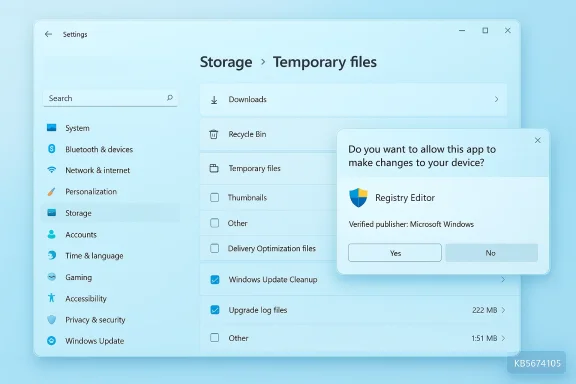
Blue Windows Settings window showing Storage > Temporary files and a Registry Editor permission prompt.Background / Overview​

Microsoft shipped KB5074105 (OS Builds 26200.7705 and 26100.7705) as an optional preview update on January 29, 2026. The package fixes a range of issues — from Start menu and sign‑in glitches to explorer stability — and it also includes feature and security hardening items that are being rolled out in stages. The official release notes call out a change to Storage settings: Windows will now display a User Account Control (UAC) prompt when a user opens Settings > System > Storage to “help ensure that only authorized Windows users can access system files.” (support.microsoft.com)
That sentence, terse in the official KB, carries the practical meaning that the Settings page for Storage is being treated as a privileged UI surface. Many elements in that pane enumerate and expose system-level locations, temporary-system cleanup handlers, and other items that historically could be seen by a signed-in standard user. With the new behavior, the Settings app must have an elevated token before it will enumerate cleanup items that require administrative privileges. Third‑party observers and community members quickly noticed the change and began testing its consequences.

What changed, in plain terms​

  • Before KB5074105: Opening Settings > System > Storage typically opened without extra prompts and the Temporary files UI would list cleanup buckets that could be removed by an administrator (for example, Windows Update Cleanup) or by a standard user (Recycle Bin, downloads, etc.), depending on the file owner and permissions.
  • After KB5074105: Opening Settings > System > Storage will trigger a UAC elevation prompt on systems where the standard UAC model is active. If you accept and provide credentials (or consent from an elevated administrator account), the Storage page loads with an elevated token and shows all the admin-only cleanup options. If you decline or do not elevate, the Settings process stays non-elevated and the Temporary files scanner hides cleanup buckets that require admin-level enumeration/deletion. Microsoft confirms that the UAC prompt is an intentional change to limit access to system files. (support.microsoft.com)
The underlying technical reason is straightforward: the Settings UI uses different code paths depending on whether it runs with an elevated token. Some cleanup handlers (legacy Disk Cleanup system handlers and certain Windows‑update cleanup enumeration code paths) require admin privileges to enumerate or remove items. When Settings is launched without elevation, those handlers either cannot be loaded or are explicitly blocked, so Settings simply doesn’t present those options. When Disk Cleanup (cleanmgr.exe) is run elevated, it still loads the system cleanup handlers and shows Windows Update Cleanup and Windows upgrade log files — which explains the discrepancy users are seeing. This behavior has been reproducible in community tests.

Why Microsoft did this — the security case​

Microsoft’s stated goal is to reduce the risk that a non‑privileged user, background process, or attacker with limited local access can enumerate or delete system files simply by poking around in Settings. Storage settings surface a number of operations that can affect system stability and expose system file lists; hiding those operations behind UAC reduces the “attack surface” of casual, unauthorized access.
Key points of the security rationale:
  • Least privilege: Limiting inspection and deletion of system-level items to elevated sessions enforces a stricter privilege model at a UI boundary that can modify system state.
  • Protection against physical/insider threats: On shared workstations, kiosks, and multi-user devices, this prevents a standard user from using Storage settings to remove update components or other sensitive system files.
  • Consistency with other admin-only areas: Several legacy control panels and management utilities have long required elevation; this change places Storage alongside those privileged interfaces. (support.microsoft.com)
Those are legitimate security goals. But as with most security hardenings, there are tradeoffs in usability and automation — and KB5074105 exposes those tradeoffs clearly.

The immediate user-facing problem: Temporary files and “missing” cleanup items​

Several community reports and hands‑on tests show a consistent pattern: after KB5074105, the Temporary files section in Settings may not list administrative cleanup buckets such as:
  • Windows Update Cleanup
  • Device driver packages (sometimes)
  • Windows upgrade log files
  • Other system-only cleanup buckets
However, if you run Disk Cleanup and click “Clean up system files” (elevated), those same items are listed. The practical outcome is that Settings’ Temporary files scanner runs with the privileges it has, and if those privileges are non‑admin it omits admin‑only buckets; Disk Cleanup (when elevated) still has full visibility. Community threads and early reporting confirmed this behavior as observed by multiple users.
Microsoft’s KB currently does not list the Temporary files omission as a known issue for KB5074105, and Microsoft’s public guidance describes the UAC prompt as an intentional security change. That leaves the Temporary files omission uncategorized: it may be expected behavior (by design) or an unfortunate UX regression where the Settings experience no longer presents the same options available via Disk Cleanup. Until Microsoft clarifies, treat it as a behavioral change that impacts how and where you must run cleanup tasks. (support.microsoft.com)

Practical implications for home users and administrators​

  • If you are a home user who routinely uses Settings > System > Storage > Temporary files to clear Windows Update files, you’ll now need to accept the UAC prompt to see admin-only options — or use an elevated alternative such as Disk Cleanup (cleanmgr.exe) with “Clean up system files” selected.
  • In managed enterprise environments, IT admins should expect this change to reduce the ability of non-admins to perform actions that could interfere with managed update behavior — which may be desirable for compliance and stability.
  • Scripting and automation that relied on an always-visible Settings UI for enumeration may need rework: elevated processes, scheduled tasks, or dedicated cleanup scripts (run as SYSTEM) remain the reliable methods for programmatic cleanup. (support.microsoft.com)

Workarounds and recommended recovery steps​

If the new behavior is disrupting your workflow, here are practical, documented ways to perform the cleanup actions you expect.
  • Use Disk Cleanup (legacy cleanmgr) with system files elevated
  • Press Start, type Disk Cleanup, right‑click and choose “Run as administrator”.
  • When Disk Cleanup opens, select the drive (usually C:), then click “Clean up system files”.
  • Disk Cleanup will present Windows Update Cleanup and related system-only items for removal. This is the straightforward UI route when Settings hides items.
  • Use DISM to reclaim update components (administrative command prompt)
  • Open Command Prompt or PowerShell as Administrator.
  • Run:
  • dism.exe /online /cleanup-image /startcomponentcleanup
  • Optionally, to permanently remove superseded versions so they are no longer uninstallable (note: this makes uninstalling historic updates impossible), run:
    dism.exe /online /cleanup-image /startcomponentcleanup /resetbase
  • Microsoft documents these DISM options and notes they must be executed from an elevated context. The commands are reliable for reclaiming WinSxS/component-store space, though they can take time on systems with large component stores.
  • Use Storage Sense (Settings > System > Storage > Storage Sense) with administrative configuration
  • Storage Sense can be configured to run automatically and delete some categories of temporary data. Because Storage Sense is a scheduled/automated component, it is a useful complement to one‑time cleanups.
  • Uninstall the KB update (if you accept the tradeoffs)
  • KB5074105 is an optional preview update and does not install automatically. Enterprises and advanced users can choose to uninstall preview LCUs if they determine the change is unacceptable for their environment, but be aware that the package may include other fixes you want (for example, fixes to explorer.exe hangs or other issues). Microsoft’s KB page contains instructions for installation and removal nuances. (support.microsoft.com)
If you take the DISM / ResetBase approach, remember it is effectively irreversible for the ability to uninstall superseded updates — that tradeoff should be considered before you run it.

Is this a bug or a feature? Reading the signals​

  • Microsoft’s public documentation explicitly lists the UAC prompt for Storage settings as a new behavior and frames it as a security improvement. That strongly indicates the change is by design, not a bug. (support.microsoft.com)
  • Several independent reports and community posts show the side effect that Temporary files no longer lists Windows Update and other admin-only items unless Settings is elevated — community coverage treats this as an unexpected regression in usability, even if it is an expected side effect of the security change. That mix of design and regression is common when security hardening touches long-standing UX surfaces.
  • Microsoft’s support pages for KB5074105 currently list no known issues related to the Storage change; that suggests Microsoft considers the UAC prompt to be the intended behavior and not an issue it will remediate immediately. If Microsoft changes course, it will update the KB to reflect any remedial action or additional guidance. (support.microsoft.com)
Because this sits uncomfortably between “feature” and “regression” for many users, the correct label depends on perspective: security-first administrators will call it a deliberate and welcome hardening; power users and people who rely on the Settings UI will call it a disruptive change that breaks an established workflow.

Broader changes in KB5074105 worth noting​

KB5074105 is not just about Storage. The preview patch contains several fixes and minor features that administrators and enthusiasts should be aware of:
  • Fixes for Start menu and explorer.exe hang scenarios (important for systems affected by the January black‑screen/Explorer crashes). These fixes are why many users installed the optional preview in the first place. (support.microsoft.com)
  • Support for cross‑device resume behaviors (Android apps and app state handoff to Windows), which Microsoft is rolling out selectively based on device and phone vendor entitlements. The rollout has device restrictions (Samsung, Xiaomi, OPPO, Honor) and excludes iPhone due to platform restrictions. (support.microsoft.com)
  • Smart App Control (SAC) behavior has been adjusted in the update notes to allow toggling from Windows Security in more scenarios, but Microsoft is rolling that out in stages and not every machine with the update will see the change immediately. Community testers report mixed results when trying to force-enable SAC without a clean install. (support.microsoft.com)
If you installed KB5074105 primarily to address other issues (such as explorer stability on systems with certain startup apps), the storage UAC prompt is an additional behavior to be mindful of — especially in shared or mixed‑privilege environments. (support.microsoft.com)

Security analysis: benefits and potential risks​

Benefits
  • Reduced casual exposure: Non‑admin users can no longer casually enumerate or delete system files via the Settings UI, reducing accidental or malicious deletions.
  • Alignment with least privilege: The change supports Microsoft's broader direction toward just‑in‑time and limited elevation flows that minimize long-lived elevated tokens.
  • Better fit for managed devices: Enterprise and kiosk-style deployments benefit from preventing non-admin tampering without needing to lock Settings via GPOs or MDM profiles. (support.microsoft.com)
Risks and tradeoffs
  • User friction and confusion: Casual users will see an extra prompt that they may not understand, and users accustomed to one-click cleanup from Settings will have to elevate or run alternate tools.
  • Automation gaps: Scripts and processes that expected Settings to enumerate system items will need administrative tokens or migration to elevated scheduled tasks.
  • Perceived regression: When a security hardening is not accompanied by clear, user-friendly guidance within the OS, it can feel like a regression rather than a security win — and that affects adoption and user trust. Community reporting has reflected this tension.
From an operational security standpoint, the change is a net improvement: it reduces casual privilege exposure. From a usability standpoint, Microsoft needs to close the gap with clearer guidance in the UI and documentation to reduce user confusion and to help admins plan rollout strategies.

What IT teams and power users should do next​

  • Inventory: Determine which devices have KB5074105 installed and where Storage settings are relied on by helpdeskicate: Let users know why the UAC prompt appears and provide step-by-step instructions for running Disk Cleanup or DISM when they need to reclaim system update space.
  • Update processes: Modify any automation that relied on non‑elevated Settings enumeration to run as SYSTEM, through scheduled tasks, or via management tools that can supply elevated tokens.
  • Pilot and feedback: Because KB5074105 is a preview, test the update in a narrow pilot ring before wide deployment. Microsoft provides known‑issue rollback guidance for enterprise-managed devices where needed. (support.microsoft.com)

Final assessment and recommendations​

KB5074105’s Storage UAC change is a clear illustration of the classic security/usability tradeoff. The intent is correct: make it harder for unauthorised or accidental deletions and enumeration of system files. The immediate fallout — Temporary files in Settings hiding admin-only cleanup items — is a predictable consequence of treating the Storage pane as a privileged area. Microsoft documented the UAC change in the KB, and community reporting has filled in the behavioral details; until Microsoft updates the KB or issues a follow‑up, consider the behavior intentional and plan around it.
Recommendations, succinctly:
  • If you need the same full cleanup UI without prompts for a one‑off task, run Disk Cleanup as administrator or run DISM cleanup commands as an elevated user.
  • If you manage devices, pilot KB5074105 in a test ring and prepare communication and runbooks for helpdesk staff.
  • For automation, rely on elevated scheduled tasks, management agents, or DISM-based cleanup scripts; do not depend on non‑elevated Settings to enumerate admin‑only cleanup items.
Security changes like this are rarely perfect on the first iteration. Microsoft’s framing of the change as intentional suggests the company prefers the hardening, but community reporting and feedback will determine whether Microsoft refines the UX or provides additional tooling to preserve usability without compromising security. The immediate practical reality is simple: if Storage settings looks like it “lost” cleanup options, ask the system for elevation — or use an elevated tool — and the options will return. (support.microsoft.com)

Quick reference: commands and UI steps (copyable)​

  • Disk Cleanup elevated:
  • Start → type Disk Cleanup → right‑click → Run as administrator.
  • Select C: → click Clean up system files → choose Windows Update Cleanup and other items → OK.
  • DISM reclaim (Administrator PowerShell/CMD):
  • dism.exe /online /cleanup-image /startcomponentcleanup
  • (Optional, irreversible) dism.exe /online /cleanup-image /startcomponentcleanup /resetbase
  • Configure Storage Sense (if you want automated cleanup):
  • Settings → System → Storage → Storage Sense → configure schedule and categories.
These are durable, supported methods to recover space even when Settings runs non‑elevated. Microsoft documents DISM cleanup options and highlights the requirement for elevated execution.

KB5074105 is a compact example of how a single, intentional security tweak can ripple outward into real user workflows. It is an improvement for device hardening, but it also requires updated guidance, administrator planning, and small workflow changes — all manageable outcomes if teams and users know what to expect.

Source: Windows Latest KB5074105: Windows 11 asks for admin access to open Storage settings, but breaks Temporary files cleanup for some files/folders
 

Back
Top