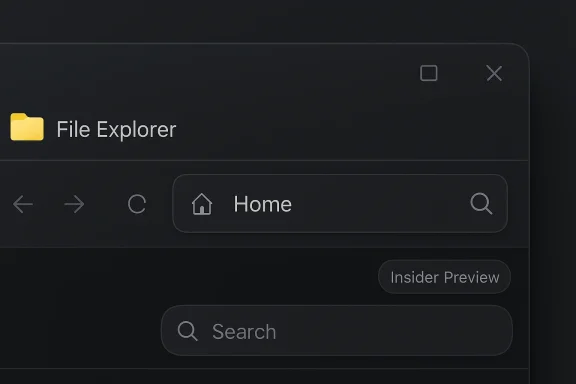
Microsoft’s quiet, iterative refresh of File Explorer in Windows 11 pairs small visual polish — including the return of rounded corners on key UI elements — with a pragmatic set of reliability fixes and an experimental performance tweak designed to make Explorer feel faster, but not without raising new questions about regressions, rollout discipline, and the trade-offs of background preloading.
Microsoft has been applying targeted refinements to Windows 11’s shell since the OS first launched, and File Explorer has been one of the most visible and frequently critiqued surfaces. Longstanding complaints range from the app’s slower “cold start” behavior to inconsistent dark-mode treatment across legacy and modern UI code paths. Those concerns prompted multiple small experiments and preview updates late in 2025 and into 2026 that mixed cosmetic updates with reliability work.
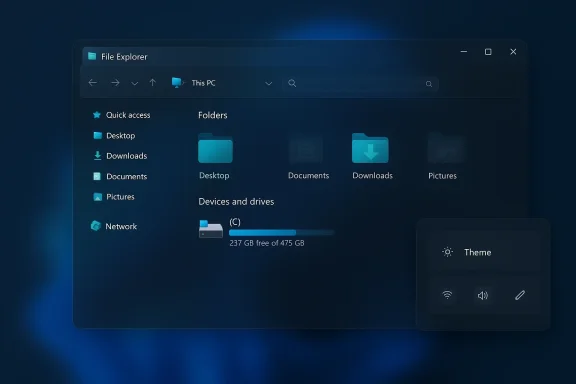
The December 1, 2025 preview cumulative update identified as KB5070311 aimed to finish a broader dark-mode polish across File Explorer and related dialogs, but it also introduced a highly visible rendering regression: a brief, bright white “flash” when File Explorer opened or changed views while the system was set to Dark theme. Microsoft listed that behavior as a known issue while engineers investigated.
At the same time, Microsoft tested a separate, user-visible experiment in Insider builds that preloads parts of Explorer in the background, exposing a toggle labeled “Enable window preloading for faster launch times.” The aim was straightforward: reduce the perceived delay users encounter when they open Explorer for the first time after sign-in. This toggle has started appearing in Dev and Beta channel builds and is being evaluated before any broad, mandatory rollout.
For users, the path forward is straightforward: validate updates in your environment, weigh the benefits of faster Explorer launches against resource trade-offs, and keep third-party customizations updated. For Microsoft, the lesson is familiar but urgent: deliver polish without sacrificing stability on the platform’s most-used surface. If the company can sustain that balance, these small refinements will quietly add up to a better, more consistent File Explorer — but only if the next updates build confidence rather than trigger another wave of regressions.
Source: FilmoGaz Microsoft Enhances Windows 11 File Explorer with Rounded Corners and Flash Fix
 Background
Microsoft has been applying targeted refinements to Windows 11’s shell since the OS first launched, and File Explorer has been one of the most visible and frequently critiqued surfaces. Longstanding complaints range from the app’s slower “cold start” behavior to inconsistent dark-mode treatment across legacy and modern UI code paths. Those concerns prompted multiple small experiments and preview updates late in 2025 and into 2026 that mixed cosmetic updates with reliability work.The December 1, 2025 preview cumulative update identified as KB5070311 aimed to finish a broader dark-mode polish across File Explorer and related dialogs, but it also introduced a highly visible rendering regression: a brief, bright white “flash” when File Explorer opened or changed views while the system was set to Dark theme. Microsoft listed that behavior as a known issue while engineers investigated.
At the same time, Microsoft tested a separate, user-visible experiment in Insider builds that preloads parts of Explorer in the background, exposing a toggle labeled “Enable window preloading for faster launch times.” The aim was straightforward: reduce the perceived delay users encounter when they open Explorer for the first time after sign-in. This toggle has started appearing in Dev and Beta channel builds and is being evaluated before any broad, mandatory rollout.
What’s changing: visual polish and rounded corners
Rounded corners in address and search bars
One of the most immediately noticeable changes — particularly for users who track visual consistency across Windows 11 apps — is the extension of rounded corners to the File Explorer address bar and search box. The refresh aligns Explorer’s smaller controls with the same rounded aesthetic used in modern Settings surfaces, reinforcing the Fluent design language across the shell. This sort of micro‑polish is low risk but high visibility: it improves perceived cohesion without changing workflows.- Why it matters: consistent UI language reduces visual friction and helps users feel the system is cohesive.
- What to expect: subtle curve changes on the address/search fields and tighter alignment with system theme rules.
Minor layout and quick-settings tweaks
Alongside corner-radius adjustments, Microsoft has iterated on Quick Settings to make theme switching and unpinning options easier to find. These are small productivity wins: fewer clicks to toggle themes, and clearer access to unpin actions for commonly modified UI elements. Such changes reflect a pattern of polishing secondary surfaces rather than wholesale redesigns.Performance work: background preloading of File Explorer
The cold-start problem and Microsoft’s approach
A common complaint among Windows users has been the perceptible “cold start” pause when opening File Explorer for the first time after signing in or after the system has settled. To address that, Microsoft has introduced an optional background preloading experiment in Insider Preview builds. When enabled, Explorer components are warmed during idle time so Explorer windows appear near-instantly when invoked. This comes with a visible toggle so users and administrators can opt out if it is undesirable.Benefits
- Faster perceived launches and reduced workflow interruption.
- Lower latency for high-frequency tasks such as file navigation and Open/Save dialogs.
- Simple on/off control in Insider builds allows user testing without forcing a system-wide change.
Risks and trade-offs
- Memory usage: keeping components warmed consumes resident memory. On low-RAM systems, this could reduce available working set for other apps.
- Background activity: even minimal preloading can interact with power and battery profiles on laptops.
- Compatibility: third-party shell extensions and customizations may behave differently if Explorer is partially resident at boot instead of launching on demand. That’s a common source of subtle bugs and edge-case regressions.
Practical guidance
- If you’re an enthusiast or admin testing Insider builds, try the toggle and measure impact on memory and battery.
- For laptops with constrained RAM, run comparative tests with and without preloading enabled during typical workflows.
- Enterprise rolling: pilot in a controlled user group before broad deployment; third-party shell extensions deserve special attention.
The white flash regression: timeline, fixes, and outstanding issues
How the bug appeared
The white flash issue first became widely noticed after the December 1, 2025 preview update (KB5070311), which sought to extend dark mode coverage in File Explorer. That update inadvertently produced a brief, full-window white frame when Explorer opened or adjusted views under Dark theme, a jarring regression for users who rely on dark-mode to reduce eye strain. Microsoft documented the regression as a known issue and acknowledged work to correct it.The remediation path
Microsoft’s mitigation effort followed a multi-stage path:- Cumulative updates and patch-cycle releases delivered partial mitigations that reduced the frequency or scope of flashes for many users.
- A December/January cumulative update, identified in community reports as KB5072033, addressed a broad white-flash regression for many deployments, but users reported that the issue persisted when Explorer was configured to open to “This PC.”
- Insider builds later included more targeted fixes. Notably, Windows 11 Insider Preview Build 26220.7961 — delivered as part of the March 6, 2026 flight and packaged in KB5079382 for testers — is reported to correct the lingering flashes tied specifically to “This PC.” Insiders saw the regression resolved in these builds before a wider rollout.
Clarifying the timeline
Some reports describe the bug as having persisted for “five months.” That characterization depends on when you mark the start of the regression: the preview that introduced it (December 1, 2025) and the later Insider fix (early March 2026) span roughly three months. Microsoft’s staggered mitigations and multiple KBs complicate a single-month count. For clarity: KB5070311 shipped on December 1, 2025 and targeted fixes arrived in subsequent cumulative updates and in Insider Preview Build 26220.7961 in early March 2026.Why “This PC” behaved differently
The “This PC” view uses additional synchronous operations and historical shell code paths that differ from the default Quick Access/Home view. Those code-path differences made the bug more persistent in that configuration, which is why initial fixes removed the flash for some scenarios but not the “This PC” case. Microsoft’s iterative approach targeted the most common paths first, then continued work on the remaining special-case scenarios.What Microsoft fixed — and what to watch for
Confirmed fixes in Insider and cumulative updates
- Broad dark-mode flashes were reduced or eliminated for many users by December/January cumulative updates, including community-reported fixes in KB5072033.
- The stubborn “This PC” white flash was corrected in Insider builds such as Windows 11 Insider Preview Build 26220.7961, delivered as part of KB5079382 in early March 2026 for testers; Microsoft indicated a staged rollout would follow.
Ongoing areas to monitor
- Staged rollouts: Insider fixes often precede general releases; expect a staggered distribution to Release Preview and general channels.
- Third-party conflict surface: custom shell extensions and utilities that hook explorer.exe may need updates to accommodate the preloading behavior.
- Visual regressions: every visual fix risks introducing other inconsistencies. Administrators should validate dark-mode workflows and accessibility scenarios (high-contrast, magnifier, screen readers) after applying updates.
Third-party workarounds, community responses, and trust
Community tools and compatibility workarounds
Open-source utilities and customization projects have stepped in to restore or modify behavior that some users considered lost to recent changes. For example, ExplorerPatcher has published updates that addressed compatibility regressions and restored preferences related to rounded corners and other Explorer behaviors. These tools remain popular among power users but carry trade-offs: they can conflict with future Microsoft updates and may require manual maintenance.Community reaction
The Windows enthusiast and IT admin communities reacted strongly to the white-flash regression, framing it as both a usability and accessibility issue. The fact that Microsoft prioritized fixes and pushed them through Insider channels suggests the company treated the problem as high-visibility. Still, the episode underlined a broader tension: rolling forward feature polish while preserving long-standing user expectations.Rebuilding trust
Fixing a jarring visible regression is the right move, but regaining user trust requires consistent behavior and predictable rollouts. Microsoft’s pattern here — preview update, known issue, iterative fixes via cumulative updates and Insider builds — is standard, yet it exposes the risk of perceptible regressions in high-frequency UX surfaces. For many users, the question now is less about if the bug will be fixed and more about how reliably it will remain fixed across future updates.Security, accessibility, and admin considerations
Security and update strategy
- Apply updates selectively in enterprise environments. Treat preview (C‑release) updates like KB5070311 as testable artifacts rather than production rollouts; Microsoft publishes these for validation before general distribution.
- Monitor cumulative update KBs and the Insider channel notes; fixes often first appear in Insider builds and then propagate to broader releases once validated.
Accessibility implications
The white-flash bug is more than cosmetic; for users sensitive to sudden brightness changes, it can be disruptive or harmful. Accessibility teams should verify that dark-mode flows are stable after applying updates and review screen-reader behavior, focus handling, and high-contrast compatibility. Microsoft’s acknowledgement and prioritization of a fix indicates the company understands the accessibility implications, but validation remains necessary in each environment.Practical advice for users and IT administrators
For home users and enthusiasts
- If you rely on dark mode, install the cumulative updates that address the white flash (look for KB5072033 and subsequent patches), or join the Insider Preview channel if you prefer earlier access to fixes and can tolerate the risk of preview builds.
- Try the background preloading toggle if you want snappier Explorer launches; measure memory and battery results and disable if the trade-offs are unacceptable.
- If you use third-party customizers like ExplorerPatcher, keep them updated and watch for compatibility warnings after Windows updates. These tools can restore preferred behaviors, but they’re not formally supported by Microsoft.
For IT administrators and enterprise teams
- Treat KB5070311 as a preview — do not deploy it broadly without testing. Validate critical workflows under Dark mode and with the “This PC” default view.
- Pilot the post-fix cumulative updates (or Insider builds) in a controlled ring before wide deployment. Focus on devices with constrained RAM and on systems that use shell extensions.
- Update deployment scripts and monitoring to detect Explorer reliability regressions (crash rates, UI freezes) after applying updates.
- Communicate to users: explain that fixes are rolling out and provide guidance for reporting remaining visual or performance issues.
Critical analysis: strengths, gaps, and long-term implications
Strengths
- Microsoft’s iterative approach — preview update, telemetry, Insider testing, then broader rollouts — allows targeted fixes while collecting real-world feedback.
- The addition of subtle visual polish like rounded corners is low-friction and improves the perceived cohesion of Windows 11’s Fluent language.
- The background preloading experiment is pragmatic: it addresses a high-frequency annoyance (cold starts) with a reversible, toggleable option.
Gaps and risks
- Rollout discipline: preview updates that introduce regressions to high-frequency surfaces erode user confidence. The white-flash incident shows how quickly a well-intentioned visual update can become disruptive.
- Edge-case persistence: the “This PC” special case took longer to resolve, highlighting the challenge of multiple, legacy code pathways inside Explorer.
- Third-party ecosystem friction: changes that alter Explorer’s lifecycle (such as preloading) increase the risk of incompatibilities with shell extensions and customization tools.
Long-term implications
- Sustained attention to File Explorer’s performance and visual consistency is critical. Explorer is the daily work surface for nearly every Windows user; small regressions have outsized user impact.
- Microsoft’s move toward toggleable, telemetry-driven experiments is appropriate, but communication and documentation must improve to reduce surprises for end users and IT teams.
- The episode underscores the importance of robust rollback and rapid-response mechanisms when a preview update causes visible user harm.
Conclusion
The recent File Explorer refinements in Windows 11 — from rounded corners on address and search bars to the controversial but practical background preloading experiment — represent a mix of Visual Design continuity and measured, telemetry-driven performance work. Microsoft acknowledged a significant dark-mode regression introduced by the December preview (KB5070311), iterated via cumulative updates, and delivered targeted fixes for stubborn “This PC” flashes in Insider builds, illustrating a pragmatic but imperfect response cycle.For users, the path forward is straightforward: validate updates in your environment, weigh the benefits of faster Explorer launches against resource trade-offs, and keep third-party customizations updated. For Microsoft, the lesson is familiar but urgent: deliver polish without sacrificing stability on the platform’s most-used surface. If the company can sustain that balance, these small refinements will quietly add up to a better, more consistent File Explorer — but only if the next updates build confidence rather than trigger another wave of regressions.
Source: FilmoGaz Microsoft Enhances Windows 11 File Explorer with Rounded Corners and Flash Fix