

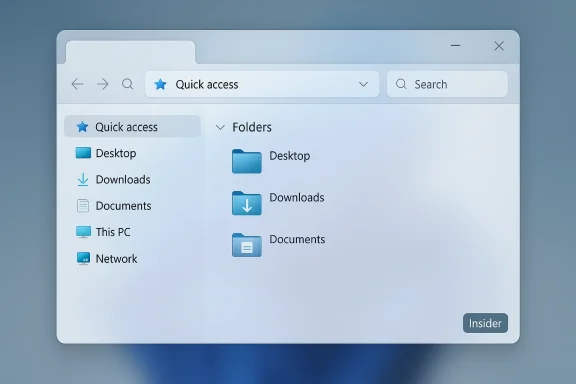
Microsoft appears to be giving File Explorer one of those small-but-visible refinements that often mark the difference between “polished” and “unfinished”: recent Insider preview builds show subtly larger rounded corners on the File Explorer address and search bars, a visual tweak intended to bring Explorer’s chrome into closer alignment with the rest of Windows 11’s Fluent-inspired surfaces.
Windows 11’s visual direction has been defined by measured uses of depth, translucency (mica), and curved geometry since the OS first shipped. Rounded corners have been one of the most visible and contentious aspects of Microsoft’s UI rework: some users welcome the softer look, while others complain about inconsistent radii and rendering artefacts across Win32 and WinUI surfaces. This latest Explorer tweak is an incremental step toward consistent corner radii across both modern and legacy shell components.
Under the surface, Microsoft continues to experiment with functionality and performa last year have included a pair of practical experiments: a background preloading toggle that keeps a warmed instance of Explorer in memory to reduce cold-start latency, and a reorganization of the context menu to reduce clutter. Those engineering moves are being trialed alongside the visual changes now appearing in address and search fields.
The risk is that incremental changes can accumulate friction: differing radii across apps, small rendering glitches, or performance trade-offs that only reveal themselves at scale. Microsoft’s Insider-driven telemetry model is intended to catch those issues early, but users and admins who care about stability should monitor preview channels and test judiciously.
At the same time, the update is a reminder that even minor visual changes can surface compatibility and rendering edge cases — especially on diverse hardware and with widely used customization tools. Organizations and power users should treat recent Insider flights as a preview window rather than a mandate: valuable for testing and feedback, but not yet a production-ready change.
Microsoft’s approach here — measured design alignment plus pragmatic performance experiments — is the sort of incrementalism that will, over time, make Windows feel more cohesive. For now, expect the rounded corners to roll out gradually to Insiders while Microsoft gathers real-world telemetry; keep an eye on beta-to-stable flight notes, test in controlled environments, and report any anomalies so the company can refine the rollout before it becomes the new norm.
Source: Windows Report https://windowsreport.com/windows-1...orners-to-file-explorers-address-search-bars/
 Background
Windows 11’s visual direction has been defined by measured uses of depth, translucency (mica), and curved geometry since the OS first shipped. Rounded corners have been one of the most visible and contentious aspects of Microsoft’s UI rework: some users welcome the softer look, while others complain about inconsistent radii and rendering artefacts across Win32 and WinUI surfaces. This latest Explorer tweak is an incremental step toward consistent corner radii across both modern and legacy shell components.Under the surface, Microsoft continues to experiment with functionality and performa last year have included a pair of practical experiments: a background preloading toggle that keeps a warmed instance of Explorer in memory to reduce cold-start latency, and a reorganization of the context menu to reduce clutter. Those engineering moves are being trialed alongside the visual changes now appearing in address and search fields.
What changed in File Explorer — the visible details
Rounded corners: what you’ll see
- The address bar (the breadcrumb/omnibox at the top of Explorer windows) and the search box now display a slightly larger corner radius than before.
- The change is subtle: it’s not a full redesign of Explorer’s chrome but a nudge toward greater visual harmony with other modern Windows UI elements.
- The tweak was first observed and shared by Windows tipsters and testers, and covered in recent tech reporting from Windows Report and Windows Latest.
Where the change lives (Insider builds only, for now)
Microsoft has surfaced this tweak in Windows Insider preview builds rather than the general stable channel — consistent with how the company typically evaluates small UI changes. The rounded-corner appearance is showing up in Dev/Beta channel flights and is being staged to testers, not yet forcibly pushed to all users. That means most mainstream Windows 11 installations will not see the change until Microsoft declares it broadly ready.Why Microsoft is doing this: design, consistency, and perception
There are three linked reasons Microsoft is likely nudging Explorer’s controls toward larger radii:- Visual consistency — Windows 11’s system apps and modern surfaces use a unified corner radius to signal modernity and polish. Explorer, historically rooted in Win32, has lagged behind; the tweak brings it closer to the Fluent design language.
- Perception of completeness — small visual mismatches invite user complaints even when functionality is unchanged. Aligning radii reduces friction in perception.
- Iterative testing model — rolling small visual updates through Insider builds lets Microsoft gather telemetry and targeted feedback with minimal risk before a wider rollout.
The parallel experiment: background prenu cleanup
Alongside the cosmetic rounding, Microsoft is testing two practical adjustments that affect Explorer’s behavior:- Background preloading: An opt-in toggle in recent Insider builds lets Windows preload essential Explorer components in the background at boot. The resur first-time launches of Explorer windows — the “cold start” lag that annoys users on lower-end machines. This is presented as an experimental, telemetry-backed trade-off: faster perceived performance in exchange for a small always-on memory footprint.
- Context-menu reorganization: The right‑click menu in Explorer has progressively become crowded as cloud providers, shell extensions, and third‑party utilities add entries. Microsoft has been trialing a shorter top-level menu with a new “Manage file” flyout and grouped submenus for less-common items, improving discoverability for common actions.
Technical specifics and what’s verifiable today
- The rounded corner change is a mented in Insider preview builds; it is not a new API or control surface for developers, and it does not currently expose a system-level setting to independently adjust corner radii for Explorer controls. This is based on public build notes and community testing reports.
- Microsoft’s baceriment appears in builds referenced as part of the 26220.* flights (examples from community-sourced changelogs and feedback notes reference Build 26220.7271 and servicing updates such as KB5070307 in that family). The toggle is labeled in UI as something like “Enable window preloading for faster launch times.” Because Microsoft’s Insider notes and third-party coverage vary slightly by build, specific build numbers and KB references should be verified against Microsoft’s official Insider release notes for exact wording.
- Community tooling and customization projects (for example, ExplorerPatcher and RoundedTB) have historically responded quickly to UI changes, and in some cases have restored or altered corner behavior or reverted modern elements to classic ones. Those projects highlight both the demand for customization and the fragility of visual changes across updates. Expect maintainers to ship updates if the rounding or other Explorer modifications affect user setups.
Benefits for users
- Improved visual coherence: Rounded corners make Explorer look more like the rest of Windows 11, reducing cognitive discontinuities when users move between Settings, Edge, and Explorer windows.
- Polish without disruption: Because this change is purely visual and non-invasive, most users will benefit from the cleaner design immediately without having to relearn workflows.
- Signaling iterative progress: Small aesthetic updates often precede larger UX changmodern, cohesive look may interpret this as positive momentum toward long-requested Explorer improvements.
Risks and downsides to watch
- Rendering inconsistencies — Win32 apps and modern WinUI elements have historically used different rendering paths. Rounding applied inconsistently can , aliasing, or a “halo” effect around corners, especially with certain GPU drivers or when switching between light/dark themes. Community reports from earlier rounds of corner changes show flaky behavior that sometimes required restarts or theme reapplication.
- No choice for those who prefer sharp corners — Microsoft’s design direction prioritizes consistency, but some power users strongly prefer classic sharp corners or the older File Explorer look. Third‑party tools like ExplorerPatcher have historically been used to revert visual changes, and those tools can break or require updates when Microsoft makes even minor UI changes. Organizations that depend on stable user interfaces might be cautious about rapid Insider-driven changes landing broadly.
- **Unintended regreswhite flash” dark-mode regression for File Explorer demonstrated that modifying Explorer’s UI code can produce regressions visible to end users; Microsoft has already been rolling fixes for those flashes in the same preview cycles that contain the rounding and preloading experiments. That history suggests be validated for regressions on a wide variety of hardware and theme states.
- Memory and privacy trade-offs from preloading — Background preloading improves perceived launch speed but keeps portions of Explorer resident in memory. On low-memory devices this can have an impact, and while the preload itself is claimed to be optional and telemetry‑driven, administrators should weigh the trade-offs for managed devices.
What this means for admins, power users, and developers
Administrators
- Treat Explorer’s rounded-corner change as cosmetic for now, but watch Insider channels for any UI regressions that mayor UX flows.
- If you manage mixed fleets, test the new Explorer behavior on representative hardware (high/low RAM, integrated vs. discrete GPUs, and typical user themes) before approving a broad deployment. The background preloading toggle should be documented in your change logs if you allow Insider builds on test machines.
Power users and tweakers
- If you rely on tools that modify Explorer’s chrome (ExplorerPatcher, RoundedTB, classic shell-style makes), expect those tools to require updates. Keep a recovery plan ready: a system image or restore point is prudent when running Insider previews that change UI surfaces.
Developers and ISVs that extend Explorer
- Shell extensions and context-menu handlers should be tested against the new context-menu reorganization; entries that rely on specific menu positions or on exact menu structures may be effectively hidden in grouped flyouts, which can break discoverability or automation scripts.
- If you ship Office add-ins, backup utilities, or third-party context menu entries, verify that your installers and registry integration remain stable across the updated context menu structure. Microsoft’s grouping changes are meant to help users, but they also change the surface area for integrations.
How Microsoft appears to be testing and why that matters
Microsoft’s Insider program is a staged experimental lab where small look-and-feel changes are subjected to telemetry and community feedback. The evidence from recent flights shows the company is:- Introducing design tweaks incrementally (rounded corners, icon adjustments).
- Pairing visual updates with functional tests (preloading toggle, context flyouts).
- Rolling fixes for regressionsk mode “white flash”) while maintaining a conservative rollout posture.
Practical advice: what to do now
- If you’re a casual user: nothing required. Expect cosmetic improvements to arrive on a rolling schedule if Microsoft pushes them beyond Insider builds.
- If you’re an Insider participant: test the builds, report any rendering artifacts or accessibility issues through Feedback Hub, and note behavior changes after theme switches or GPU driver updates.
- If you manage devices in an organization: delay moving production machines to new Insider builds; use dedicated lab systems to confirm no regressions in workflow tools or accessibility settings.
- If you depend on third-party shell utilities: follow your tool vendors’ repositories for compatibility updates and lock versions where necessary until vendors certify compatibility.
Larger context: why small visual changes matter
It’s easy to dismiss a corner-radius tweak as cosmetic, but UI consistency affects perceived reliability and user comfort. Over the last several years Microsoft has invested heavily in making Windows feel cohesive across legacy Win32 surfaces and modern WinUI shells. Each small change — whether it’s the corner radius on a search box, a micro-adjustment to a context menu, or a toggle to preload a component — is part of that long arc.The risk is that incremental changes can accumulate friction: differing radii across apps, small rendering glitches, or performance trade-offs that only reveal themselves at scale. Microsoft’s Insider-driven telemetry model is intended to catch those issues early, but users and admins who care about stability should monitor preview channels and test judiciously.
What to watch next
- Insider build release notes from Microsoft. They remain the authoritative record for experiments and fixes; track those for explicit mention of corner-radius changes or the background preloading toggle.
- Community reports from power-user forums and GitHub projects (ExplorerPatcher, RoundedTB): they are the fastest signals for compatibility issues and available workarounds.
- Driver updates and GPU vendor responses: rendering quirks often depend on graphics drivers, so watch for related fixes after a visual change lands.
- Accessibility and high-contrast behavior: any UI polish must work under accessibility modes; file a Feedback Hub report or test with assistive technologies if you rely on them.
Verdict — a realistic appraisal
This rounded-corner update to File Explorer’s address and search bars is a small, sensible design refinement aimed at consistency. It’s unlikely to stir radical controversy on its own, and it’s the kind of polish that many users will appreciate unconsciously. However, its significance is mostly symbolic: it signals Microsoft’s continued push to unify the Windows UI while simultaneously testing practical runtime improvements like background preloading and context-menu simplification.At the same time, the update is a reminder that even minor visual changes can surface compatibility and rendering edge cases — especially on diverse hardware and with widely used customization tools. Organizations and power users should treat recent Insider flights as a preview window rather than a mandate: valuable for testing and feedback, but not yet a production-ready change.
Microsoft’s approach here — measured design alignment plus pragmatic performance experiments — is the sort of incrementalism that will, over time, make Windows feel more cohesive. For now, expect the rounded corners to roll out gradually to Insiders while Microsoft gathers real-world telemetry; keep an eye on beta-to-stable flight notes, test in controlled environments, and report any anomalies so the company can refine the rollout before it becomes the new norm.
Source: Windows Report https://windowsreport.com/windows-1...orners-to-file-explorers-address-search-bars/