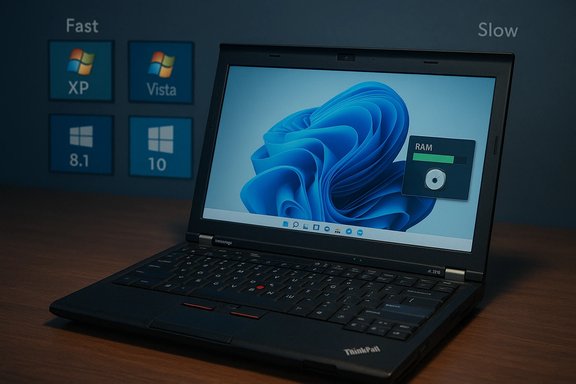
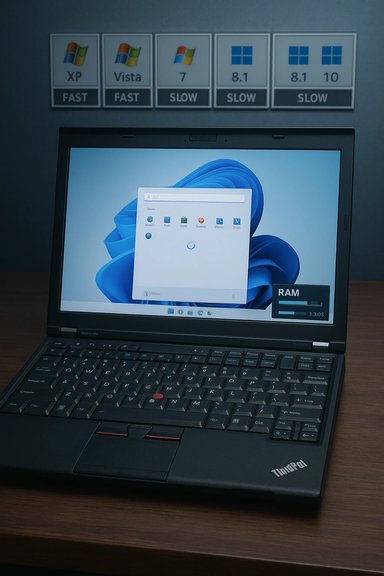
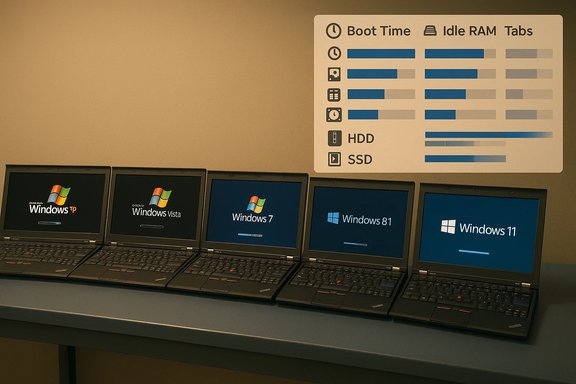
A lively new speed comparison that installs Windows XP, Vista, 7, 8.1, 10 and 11 onto identical Lenovo ThinkPad X220 notebooks has produced a striking headline — Windows 11 finishes dead last in many real‑world tasks — but the experiment’s design and the wider technical context reveal this outcome is neither surprising nor decisive. The test is an illuminating snapshot of how modern Windows’ richer feature set and security defaults trade raw responsiveness for capability, especially on hardware that predates the assumptions behind Windows 11, yet it also surfaces real UX problems Microsoft still needs to address.
The test in question — published as a long-form video by a community tester and picked up by outlets — ran six generations of Windows on a bank of Lenovo ThinkPad X220 laptops. Each machine used an Intel Core i5‑2520M (Sandy Bridge), 8 GB of RAM and a 256 GB mechanical hard drive. The tester installed the latest updates or final builds for each OS and ran a suite of practical and synthetic workloads: cold boot, idle RAM, storage footprint, app launches (Paint, File Explorer, Calculator), browser tab loading, battery drain, file transfers and various benchmarks (CPU‑Z, Geekbench, CrystalDiskMark, Cinebench). The headline result: Windows 11 placed near or at the bottom in many categories, while Windows 8.1 and older releases often looked snappier on this constrained platform. At face value this looks like an indictment of Windows 11. In context, however, the verdict reads differently: this is a test of design trade‑offs against vintage hardware, not an absolute measure of which OS is “faster” in the modern ecosystem. Two rules emerge immediately:
But it’s also not a neutral baseline for judging a modern OS that assumes more modern hardware. Key methodological points to keep in mind:
This experiment should prompt both users and Microsoft to act. Users get practical guidance: upgrade storage, add RAM or stay on a supported OS that matches their hardware. Microsoft gets a clear user‑facing message: defaults and shell responsiveness matter as much as headline features; graceful degradation and better tuning for low‑resource scenarios are essential to preserve the perception of a fast, responsive OS across the broad diversity of PCs still in use. The speed test is worth watching not as a final verdict but as a data point — a reminder that progress in features sometimes increases cost, and that stewardship of user experience means making those costs visible, explainable and, where possible, avoidable.
Source: TechRadar https://www.techradar.com/computing...x-windows-generations-but-theres-a-big-catch/
 Background / Overview
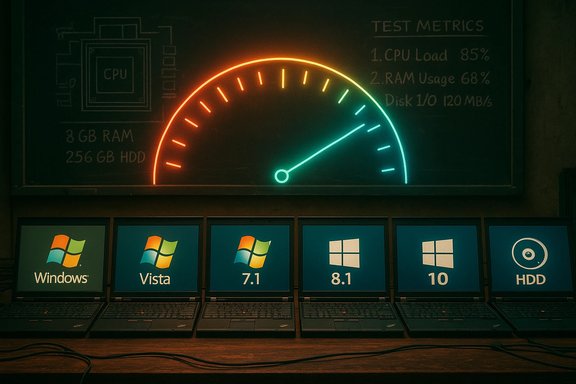
The test in question — published as a long-form video by a community tester and picked up by outlets — ran six generations of Windows on a bank of Lenovo ThinkPad X220 laptops. Each machine used an Intel Core i5‑2520M (Sandy Bridge), 8 GB of RAM and a 256 GB mechanical hard drive. The tester installed the latest updates or final builds for each OS and ran a suite of practical and synthetic workloads: cold boot, idle RAM, storage footprint, app launches (Paint, File Explorer, Calculator), browser tab loading, battery drain, file transfers and various benchmarks (CPU‑Z, Geekbench, CrystalDiskMark, Cinebench). The headline result: Windows 11 placed near or at the bottom in many categories, while Windows 8.1 and older releases often looked snappier on this constrained platform. At face value this looks like an indictment of Windows 11. In context, however, the verdict reads differently: this is a test of design trade‑offs against vintage hardware, not an absolute measure of which OS is “faster” in the modern ecosystem. Two rules emerge immediately:- Microsoft’s Windows 11 has minimum hardware and platform expectations — UEFI, Secure Boot and TPM 2.0 among them — that reflect a baseline platform model, and that the ThinkPad X220 does not meet in spirit or in many official checks. Microsoft documents those minimums clearly.
- Modern features (compositor effects, virtualization‑based security, resident cloud/telemetry agents, on‑device AI plumbing) increase baseline resource use and rely on much faster storage than a spinning HDD. That combination magnifies responsiveness differences on older rigs.
Test methodology: where it helps — and where it misleads
The experiment’s headline strength is clarity: identical hardware for all OS installs isolates the operating‑system layer and makes it easy to see how much baseline services, drivers and shell behavior cost in real terms. That single‑machine approach answers the simple question: if you took this exact laptop and installed these OSes, what would you feel? It’s an honest answer, and it’s valuable.But it’s also not a neutral baseline for judging a modern OS that assumes more modern hardware. Key methodological points to keep in mind:
- The X220’s Sandy Bridge CPU, integrated Intel HD 3000 GPU, 8 GB RAM and mechanical HDD represent a hardware profile designed in an era when Windows 7 and 8.1 were the norm. Windows 11 was designed under an expectation that NVMe or at least SATA SSDs and larger RAM pools are the default. That mismatch biases results.
- Some tests rely on modern inbox apps or updated third‑party builds that older OSes can’t run (OpenShot, modern Malwarebytes builds, etc.. This sometimes disqualifies older systems from direct comparison on certain tasks, and forces the tester to use legacy builds that skew results.
- Boot/resume mechanics differ across generations: Windows 8.1 introduced Fast Startup (hybrid hibernation) and Windows continues to evolve resume logic. On slow HDDs, hybrid strategies and prefetching can have mixed effects — they speed some resume patterns but increase I/O contention on mechanical media. Microsoft explains the fast‑startup mechanism and why it depends heavily on storage performance.
What the numbers show — and what they mean
The video and repeated press coverage highlight a handful of recurring results. Each one is technically defensible on this hardware, but each needs context.Boot and first‑use latency
- Finding: Windows 8.1 boots fastest on the ThinkPad array; Windows 11 is slowest to become fully usable (desktop visible but taskbar/shell still loading).
- Why: Windows 8.1’s hybrid fast‑startup plus a leaner default app/service set gives it an advantage on HDDs. Windows 11’s additional shell services, heavier compositor and background initialization work increase the time until a fully responsive desktop is available. Microsoft’s documentation for fast startup explains why hybrid resume favors faster storage.
Idle RAM and background process footprint
- Finding: Windows 11 used substantially more idle RAM on the test rigs (video reports ~3.3–3.7 GB idle), while XP and older releases used tiny amounts.
- Why: Windows 11 ships with more resident services (security agents, indexing, telemetry, widget/Copilot plumbing, virtualization‑based protections) enabled by default. Those services are deliberate trade‑offs — they provide security, telemetry and cloud integration at the cost of baseline memory. Independent reviewer comparisons have repeatedly shown Windows 11 images tend to sit higher in idle RAM than Windows 10 images. However, absolute idle numbers are highly image‑ and driver‑dependent; the precise 3.3–3.7 GB figure is correct only for this test image and chosen inbox apps.
Application launch and File Explorer responsiveness
- Finding: Windows 11 performed poorly launching certain apps (Paint, Explorer), often placing last. File Explorer slowness was particularly noticeable.
- Why: File Explorer and other shell components in Windows 11 were redesigned, and the modern Paint is a heavier, UWP/WinUI‑based app compared with its XP-era counterpart. Those apps rely on different driver/GPU stacks and on more memory. On legacy Intel HD 3000 drivers and slow storage, the cost of composited UI and richer default apps shows up as latency. The issue is both architectural (more features) and practical (older drivers and slow disks). Recent editorials and community reports have flagged File Explorer as a recurring UX sore point for Windows 11.
Battery life
- Finding: Windows 11 died first in the test’s battery drain loop; XP lasted marginally longer. The absolute deltas were small (a few minutes).
- Why: Idle power consumption is sensitive to foreground/background scheduling, driver power states and storage type. SSDs often reduce system wakeups and I/O penalty; by contrast, HDDs can force more spinning and energy use during I/O heavy background tasks. The test’s synthetic battery workload and old hardware amplify differences, but they’re not large in absolute terms in this specific drain scenario.
Storage footprint and file transfer
- Finding: Windows XP unsurprisingly used the least disk space; Windows 11 was mid‑pack. On large USB file copies, Windows 10 beat Windows 11 by a hair, but Windows 11 was competitive.
- Why: Windows 11 includes more inbox components and services, so a larger installed footprint is expected. File transfer speeds depend much more on drivers and storage medium than on OS generation; on the test hardware the difference between modern OSes here is small compared with the HDD vs SSD effect.
Cross‑checking the major claims
Any strong claim from a single community test should be validated. Three of the most load‑bearing claims are: (1) Windows 11 requires more modern hardware and will feel worse on old machines; (2) Fast Startup behavior favors 8.1 in some scenarios; and (3) moving from an HDD to an SSD yields the single biggest practical responsiveness improvement.- Microsoft’s official Windows 11 system requirements confirm the platform assumptions: UEFI with Secure Boot, TPM 2.0 and a list of approved CPUs. Microsoft explicitly positions those requirements as the baseline for a supported, responsive experience. Installing on unsupported hardware is possible with workarounds but is unsupported and can result in degraded behavior.
- Microsoft technical documentation explains Fast Startup and how it fundamentally relies on restoring a kernel image rather than performing a full cold boot — a mechanism that works best with fast storage. That helps explain why Windows 8.1’s hybrid resume shows strong cold‑boot numbers on HDDs in comparative tests.
- Multiple storage performance studies and long‑standing benchmarks show that SSDs slash boot times and dramatically increase perceived responsiveness versus HDDs — often a multiple‑times effect for boot and app launch. Converting the test machines from HDD to SSD would very likely reorder many of the results in favor of the modern OSes. Tom’s Hardware and other archival benchmarks have repeatedly highlighted the outsized impact of replacing an HDD with an SSD on Windows boot times and general snappiness.
Notable strengths of the experiment
- Simplicity and repeatability: identical hardware and controlled test cases make the results easy to reason about and reproduce. That kind of clarity is rare in cross‑generation OS comparisons.
- Real‑world tasks included: the mix of application launches, web browsing, file transfer, and battery testing gives a broader view than pure synthetic benchmarks alone.
- Public discussion value: the experiment surfaces the UX areas where Windows 11’s defaults produce a worse experience on constrained hardware — useful data for power users, IT pros and Microsoft.
Limitations and risks — what the test does not prove
- It does not prove Windows 11 is “objectively slower” across all modern PCs or use cases. That would require running both Windows 10 and Windows 11 on identical modern hardware (SSDs, current CPU microarchitectures) and isolating variables like power policies, background agents and inbox apps.
- The test uses a mechanical drive; replacing it with a SATA or NVMe SSD would likely reverse many boot and app‑launch outcomes. SSD upgrades are often the single most effective improvement to perceived system speed.
- Driver maturity for decade‑old integrated GPUs (Intel HD 3000) interacts poorly with modern compositor assumptions. This driver mismatch, rather than fundamental OS inefficiency, explains much of the visual stutter and Explorer lag.
- Numerical claims (exact GB of idle RAM, exact tab counts) are configuration‑sensitive. They’re useful as indicative datapoints but should not be generalized without further replication on other hardware and images.
What this means for Microsoft
The test’s loudest message to Microsoft is pragmatic: user perception is shaped by first‑use and core path responsiveness. A few areas deserve prioritized attention:- File Explorer: repeated community reports and this test highlight Explorer as a persistent pain point. Microsoft should continue to invest in responsiveness and reduce jank in real‑world workloads, especially on systems where GPUs/drivers are less than ideal.
- Default telemetry/background agents: where possible, Microsoft ought to make some heavier background services opt‑in or provide a lightweight, performance‑first installation profile for constrained hardware, while keeping security protections available. That would give users clearer trade‑offs.
- Graceful behavior on slow storage: Windows should detect HDD platforms and tune background I/O, prefetching and animations to reduce contention — a “legacy‑friendly” mode that preserves modern features while throttling nonessential IO until the system is idle.
- Transparency and tools: better built‑in diagnostics that explain “why your system feels slow” and suggest concrete actions (SSD, RAM upgrade, specific features to toggle) would reduce confusion and improve the upgrade path.
Practical takeaways for readers and admins
- If you run Windows 11 on older hardware and feel it’s sluggish, start with hardware upgrades: the single biggest ROI is replacing a mechanical HDD with a SATA or NVMe SSD, and increasing RAM where possible. Benchmarks and vendor tests repeatedly confirm the impact.
- Verify whether your PC meets Microsoft’s supported Windows 11 requirements before blaming the OS — TPM 2.0, UEFI/Secure Boot and an approved CPU list matter for a supported, responsive experience. Unsupported installs may behave poorly.
- For constrained devices, consider:
- A trimmed Windows 11 image or a Windows 10 install if support policy permits and security constraints are acceptable.
- Disabling nonessential startup apps and background sync agents.
- Using a lightweight browser build and adjusting power profiles for responsiveness.
- Avoid bypass tools that override Windows 11 hardware requirements; such tools are not supported and may be bundled with malware or break updates. Community reports show copycat or malicious variants appear frequently.
How a fair comparative test should be run
A rigorous, generalizable cross‑generation comparison needs a matrixed approach, not a single hardware point:- Choose multiple hardware classes (old HDD/8GB; modern SATA SSD/16GB; modern NVMe/32GB) to reflect realistic deployments.
- For each class, install both OS versions freshly and apply identical drivers and inbox app selections.
- Isolate variables: repeat tests with background services (indexing, telemetry) both enabled and disabled; test with Fast Startup on/off; test with UEFI/legacy boot modes where applicable.
- Use both synthetic benchmarks and human‑centric measures (time‑to‑first‑usable, subjective “feel” tests rated by blind users).
- Report variance and ranges, not single numbers, and document every driver, firmware and BIOS/UEFI setting.
Conclusion
The ThinkPad X220 six‑generation speed test is a compelling, well‑executed demonstration of a simple truth: software design choices reflect platform assumptions. Windows 11 is heavier by design — it ships with more security, telemetry and modern UX plumbing — and on decade‑old hardware with a spinning disk that extra weight shows. That makes the video’s headline correct for those laptops, but it’s not a universal indictment.This experiment should prompt both users and Microsoft to act. Users get practical guidance: upgrade storage, add RAM or stay on a supported OS that matches their hardware. Microsoft gets a clear user‑facing message: defaults and shell responsiveness matter as much as headline features; graceful degradation and better tuning for low‑resource scenarios are essential to preserve the perception of a fast, responsive OS across the broad diversity of PCs still in use. The speed test is worth watching not as a final verdict but as a data point — a reminder that progress in features sometimes increases cost, and that stewardship of user experience means making those costs visible, explainable and, where possible, avoidable.
Source: TechRadar https://www.techradar.com/computing...x-windows-generations-but-theres-a-big-catch/