Windows 11 Finishes Last in Speed Test Across Six Windows Generations on ThinkPad X220

  • Thread Author
A lively new speed comparison that installs Windows XP, Vista, 7, 8.1, 10 and 11 onto identical Lenovo ThinkPad X220 notebooks has produced a striking headline — Windows 11 finishes dead last in many real‑world tasks — but the experiment’s design and the wider technical context reveal this outcome is neither surprising nor decisive. The test is an illuminating snapshot of how modern Windows’ richer feature set and security defaults trade raw responsiveness for capability, especially on hardware that predates the assumptions behind Windows 11, yet it also surfaces real UX problems Microsoft still needs to address.

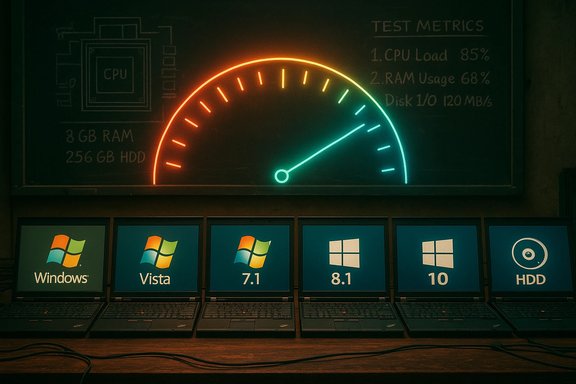
Row of laptops display Windows logos (Windows, Vista, 7.1, 8.1, 10) beneath a neon gauge.Background / Overview​

The test in question — published as a long-form video by a community tester and picked up by outlets — ran six generations of Windows on a bank of Lenovo ThinkPad X220 laptops. Each machine used an Intel Core i5‑2520M (Sandy Bridge), 8 GB of RAM and a 256 GB mechanical hard drive. The tester installed the latest updates or final builds for each OS and ran a suite of practical and synthetic workloads: cold boot, idle RAM, storage footprint, app launches (Paint, File Explorer, Calculator), browser tab loading, battery drain, file transfers and various benchmarks (CPU‑Z, Geekbench, CrystalDiskMark, Cinebench). The headline result: Windows 11 placed near or at the bottom in many categories, while Windows 8.1 and older releases often looked snappier on this constrained platform. At face value this looks like an indictment of Windows 11. In context, however, the verdict reads differently: this is a test of design trade‑offs against vintage hardware, not an absolute measure of which OS is “faster” in the modern ecosystem. Two rules emerge immediately:
  • Microsoft’s Windows 11 has minimum hardware and platform expectations — UEFI, Secure Boot and TPM 2.0 among them — that reflect a baseline platform model, and that the ThinkPad X220 does not meet in spirit or in many official checks. Microsoft documents those minimums clearly.
  • Modern features (compositor effects, virtualization‑based security, resident cloud/telemetry agents, on‑device AI plumbing) increase baseline resource use and rely on much faster storage than a spinning HDD. That combination magnifies responsiveness differences on older rigs.
Those two facts explain most of the gap observed in the X220 test, and they let us evaluate what the video actually reveals: genuine friction points in the current Windows 11 experience, and how platform assumptions mask or amplify them.

Test methodology: where it helps — and where it misleads​

The experiment’s headline strength is clarity: identical hardware for all OS installs isolates the operating‑system layer and makes it easy to see how much baseline services, drivers and shell behavior cost in real terms. That single‑machine approach answers the simple question: if you took this exact laptop and installed these OSes, what would you feel? It’s an honest answer, and it’s valuable.
But it’s also not a neutral baseline for judging a modern OS that assumes more modern hardware. Key methodological points to keep in mind:
  • The X220’s Sandy Bridge CPU, integrated Intel HD 3000 GPU, 8 GB RAM and mechanical HDD represent a hardware profile designed in an era when Windows 7 and 8.1 were the norm. Windows 11 was designed under an expectation that NVMe or at least SATA SSDs and larger RAM pools are the default. That mismatch biases results.
  • Some tests rely on modern inbox apps or updated third‑party builds that older OSes can’t run (OpenShot, modern Malwarebytes builds, etc.. This sometimes disqualifies older systems from direct comparison on certain tasks, and forces the tester to use legacy builds that skew results.
  • Boot/resume mechanics differ across generations: Windows 8.1 introduced Fast Startup (hybrid hibernation) and Windows continues to evolve resume logic. On slow HDDs, hybrid strategies and prefetching can have mixed effects — they speed some resume patterns but increase I/O contention on mechanical media. Microsoft explains the fast‑startup mechanism and why it depends heavily on storage performance.
Bottom line: the test is historically interesting and practically revealing about resource trade‑offs, but it is not the right experiment to answer “which Windows is best on modern consumer laptops.”

What the numbers show — and what they mean​

The video and repeated press coverage highlight a handful of recurring results. Each one is technically defensible on this hardware, but each needs context.

Boot and first‑use latency​

  • Finding: Windows 8.1 boots fastest on the ThinkPad array; Windows 11 is slowest to become fully usable (desktop visible but taskbar/shell still loading).
  • Why: Windows 8.1’s hybrid fast‑startup plus a leaner default app/service set gives it an advantage on HDDs. Windows 11’s additional shell services, heavier compositor and background initialization work increase the time until a fully responsive desktop is available. Microsoft’s documentation for fast startup explains why hybrid resume favors faster storage.

Idle RAM and background process footprint​

  • Finding: Windows 11 used substantially more idle RAM on the test rigs (video reports ~3.3–3.7 GB idle), while XP and older releases used tiny amounts.
  • Why: Windows 11 ships with more resident services (security agents, indexing, telemetry, widget/Copilot plumbing, virtualization‑based protections) enabled by default. Those services are deliberate trade‑offs — they provide security, telemetry and cloud integration at the cost of baseline memory. Independent reviewer comparisons have repeatedly shown Windows 11 images tend to sit higher in idle RAM than Windows 10 images. However, absolute idle numbers are highly image‑ and driver‑dependent; the precise 3.3–3.7 GB figure is correct only for this test image and chosen inbox apps.

Application launch and File Explorer responsiveness​

  • Finding: Windows 11 performed poorly launching certain apps (Paint, Explorer), often placing last. File Explorer slowness was particularly noticeable.
  • Why: File Explorer and other shell components in Windows 11 were redesigned, and the modern Paint is a heavier, UWP/WinUI‑based app compared with its XP-era counterpart. Those apps rely on different driver/GPU stacks and on more memory. On legacy Intel HD 3000 drivers and slow storage, the cost of composited UI and richer default apps shows up as latency. The issue is both architectural (more features) and practical (older drivers and slow disks). Recent editorials and community reports have flagged File Explorer as a recurring UX sore point for Windows 11.

Battery life​

  • Finding: Windows 11 died first in the test’s battery drain loop; XP lasted marginally longer. The absolute deltas were small (a few minutes).
  • Why: Idle power consumption is sensitive to foreground/background scheduling, driver power states and storage type. SSDs often reduce system wakeups and I/O penalty; by contrast, HDDs can force more spinning and energy use during I/O heavy background tasks. The test’s synthetic battery workload and old hardware amplify differences, but they’re not large in absolute terms in this specific drain scenario.

Storage footprint and file transfer​

  • Finding: Windows XP unsurprisingly used the least disk space; Windows 11 was mid‑pack. On large USB file copies, Windows 10 beat Windows 11 by a hair, but Windows 11 was competitive.
  • Why: Windows 11 includes more inbox components and services, so a larger installed footprint is expected. File transfer speeds depend much more on drivers and storage medium than on OS generation; on the test hardware the difference between modern OSes here is small compared with the HDD vs SSD effect.

Cross‑checking the major claims​

Any strong claim from a single community test should be validated. Three of the most load‑bearing claims are: (1) Windows 11 requires more modern hardware and will feel worse on old machines; (2) Fast Startup behavior favors 8.1 in some scenarios; and (3) moving from an HDD to an SSD yields the single biggest practical responsiveness improvement.
  • Microsoft’s official Windows 11 system requirements confirm the platform assumptions: UEFI with Secure Boot, TPM 2.0 and a list of approved CPUs. Microsoft explicitly positions those requirements as the baseline for a supported, responsive experience. Installing on unsupported hardware is possible with workarounds but is unsupported and can result in degraded behavior.
  • Microsoft technical documentation explains Fast Startup and how it fundamentally relies on restoring a kernel image rather than performing a full cold boot — a mechanism that works best with fast storage. That helps explain why Windows 8.1’s hybrid resume shows strong cold‑boot numbers on HDDs in comparative tests.
  • Multiple storage performance studies and long‑standing benchmarks show that SSDs slash boot times and dramatically increase perceived responsiveness versus HDDs — often a multiple‑times effect for boot and app launch. Converting the test machines from HDD to SSD would very likely reorder many of the results in favor of the modern OSes. Tom’s Hardware and other archival benchmarks have repeatedly highlighted the outsized impact of replacing an HDD with an SSD on Windows boot times and general snappiness.
Together, these independent points corroborate the central interpretation: the video’s negative Windows 11 results are expected on this hardware profile, and the test therefore demonstrates how platform assumptions matter more than an abstract “slowness” verdict.

Notable strengths of the experiment​

  • Simplicity and repeatability: identical hardware and controlled test cases make the results easy to reason about and reproduce. That kind of clarity is rare in cross‑generation OS comparisons.
  • Real‑world tasks included: the mix of application launches, web browsing, file transfer, and battery testing gives a broader view than pure synthetic benchmarks alone.
  • Public discussion value: the experiment surfaces the UX areas where Windows 11’s defaults produce a worse experience on constrained hardware — useful data for power users, IT pros and Microsoft.
These strengths make the test a valuable conversation starter about how software design choices interact with hardware baselines.

Limitations and risks — what the test does not prove​

  • It does not prove Windows 11 is “objectively slower” across all modern PCs or use cases. That would require running both Windows 10 and Windows 11 on identical modern hardware (SSDs, current CPU microarchitectures) and isolating variables like power policies, background agents and inbox apps.
  • The test uses a mechanical drive; replacing it with a SATA or NVMe SSD would likely reverse many boot and app‑launch outcomes. SSD upgrades are often the single most effective improvement to perceived system speed.
  • Driver maturity for decade‑old integrated GPUs (Intel HD 3000) interacts poorly with modern compositor assumptions. This driver mismatch, rather than fundamental OS inefficiency, explains much of the visual stutter and Explorer lag.
  • Numerical claims (exact GB of idle RAM, exact tab counts) are configuration‑sensitive. They’re useful as indicative datapoints but should not be generalized without further replication on other hardware and images.
Because of these limitations, the correct reading is nuanced: Windows 11’s richer default feature set increases baseline resource use and thus produces worse perceptions on old hardware — and that’s both expected and fixable in part — but it doesn’t mean Windows 11 is categorically worse on modern, supported hardware.

What this means for Microsoft​

The test’s loudest message to Microsoft is pragmatic: user perception is shaped by first‑use and core path responsiveness. A few areas deserve prioritized attention:
  • File Explorer: repeated community reports and this test highlight Explorer as a persistent pain point. Microsoft should continue to invest in responsiveness and reduce jank in real‑world workloads, especially on systems where GPUs/drivers are less than ideal.
  • Default telemetry/background agents: where possible, Microsoft ought to make some heavier background services opt‑in or provide a lightweight, performance‑first installation profile for constrained hardware, while keeping security protections available. That would give users clearer trade‑offs.
  • Graceful behavior on slow storage: Windows should detect HDD platforms and tune background I/O, prefetching and animations to reduce contention — a “legacy‑friendly” mode that preserves modern features while throttling nonessential IO until the system is idle.
  • Transparency and tools: better built‑in diagnostics that explain “why your system feels slow” and suggest concrete actions (SSD, RAM upgrade, specific features to toggle) would reduce confusion and improve the upgrade path.
These are incremental fixes, not an overhaul of Windows’ architecture, but they would materially improve perception on the many older devices still in use.

Practical takeaways for readers and admins​

  • If you run Windows 11 on older hardware and feel it’s sluggish, start with hardware upgrades: the single biggest ROI is replacing a mechanical HDD with a SATA or NVMe SSD, and increasing RAM where possible. Benchmarks and vendor tests repeatedly confirm the impact.
  • Verify whether your PC meets Microsoft’s supported Windows 11 requirements before blaming the OS — TPM 2.0, UEFI/Secure Boot and an approved CPU list matter for a supported, responsive experience. Unsupported installs may behave poorly.
  • For constrained devices, consider:
  • A trimmed Windows 11 image or a Windows 10 install if support policy permits and security constraints are acceptable.
  • Disabling nonessential startup apps and background sync agents.
  • Using a lightweight browser build and adjusting power profiles for responsiveness.
  • Avoid bypass tools that override Windows 11 hardware requirements; such tools are not supported and may be bundled with malware or break updates. Community reports show copycat or malicious variants appear frequently.

How a fair comparative test should be run​

A rigorous, generalizable cross‑generation comparison needs a matrixed approach, not a single hardware point:
  • Choose multiple hardware classes (old HDD/8GB; modern SATA SSD/16GB; modern NVMe/32GB) to reflect realistic deployments.
  • For each class, install both OS versions freshly and apply identical drivers and inbox app selections.
  • Isolate variables: repeat tests with background services (indexing, telemetry) both enabled and disabled; test with Fast Startup on/off; test with UEFI/legacy boot modes where applicable.
  • Use both synthetic benchmarks and human‑centric measures (time‑to‑first‑usable, subjective “feel” tests rated by blind users).
  • Report variance and ranges, not single numbers, and document every driver, firmware and BIOS/UEFI setting.
Only with that kind of multi‑axis matrix can reviewers make defensible cross‑generation claims about net performance wins or losses.

Conclusion​

The ThinkPad X220 six‑generation speed test is a compelling, well‑executed demonstration of a simple truth: software design choices reflect platform assumptions. Windows 11 is heavier by design — it ships with more security, telemetry and modern UX plumbing — and on decade‑old hardware with a spinning disk that extra weight shows. That makes the video’s headline correct for those laptops, but it’s not a universal indictment.
This experiment should prompt both users and Microsoft to act. Users get practical guidance: upgrade storage, add RAM or stay on a supported OS that matches their hardware. Microsoft gets a clear user‑facing message: defaults and shell responsiveness matter as much as headline features; graceful degradation and better tuning for low‑resource scenarios are essential to preserve the perception of a fast, responsive OS across the broad diversity of PCs still in use. The speed test is worth watching not as a final verdict but as a data point — a reminder that progress in features sometimes increases cost, and that stewardship of user experience means making those costs visible, explainable and, where possible, avoidable.

Source: TechRadar https://www.techradar.com/computing...x-windows-generations-but-theres-a-big-catch/
 

A recent wave of community benchmarking — amplified by a TrigzZolt video and summarized across the tech press — has delivered a blunt, attention-grabbing claim: on one commonly used vintage laptop, Windows 11 finished dead last in responsiveness and resource efficiency compared with Windows XP, Vista, 7, 8.1 and 10. The test’s headline conclusion — that Microsoft “may have created the slowest Windows in 25 years” — is provocative, but the data behind it, the conditions that produced it, and the broader technical context tell a much more nuanced story. This feature examines the test methodology, verifies the technical claims, explains why the results are believable on that hardware, and separates defensible conclusions from overreaching headlines.

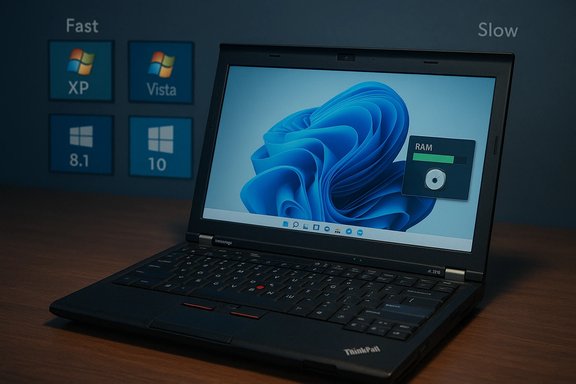
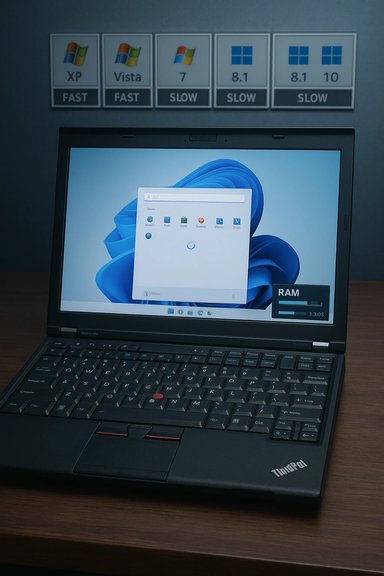
ThinkPad laptop on a wooden desk showing Windows 11 with a RAM gauge; retro tiles XP, Vista, 8.1, 10 on the wall.Background / Overview​

The experiment under discussion installed six Windows generations — XP, Vista, 7, 8.1, 10 and 11 — on identical Lenovo ThinkPad X220 laptops and then measured a broad set of everyday and synthetic workloads: cold boot, idle memory usage, application launch times (Paint, File Explorer), browser tab stress, file transfers, battery endurance, and a short consumer video-edit render in OpenShot. The testbed hardware was uniformly modest by modern standards: an Intel Core i5‑2520M (Sandy Bridge) CPU, 8 GB of RAM, Intel HD Graphics 3000, and a 256 GB mechanical hard disk drive. That fixed-hardware, like-for-like approach made operating-system-level trade-offs visible in ways that mixed-hardware comparisons cannot.
Two immediate, repeatable patterns emerged in the published results:
  • Windows 11 used the most idle RAM and presented the slowest subjective responsiveness for UI micro-interactions (cold File Explorer opens, right-click context menus) on the X220 machines.
  • Older versions (notably Windows 8.1 and 7) often felt and measured snappier in day-to-day interactions on this constrained hardware, while XP — a much lighter OS — used the least disk and memory.
Those outcomes were presented bluntly in headlines. The deeper technical explanation is that Windows 11 is optimized for a different hardware baseline than the ThinkPad X220.

Why the X220 testbed matters​

Vintage hardware vs. modern OS assumptions​

Windows 11 was developed assuming modern hardware realities: NVMe SSDs, larger RAM pools (16 GB+ in many mainstream machines), and recent CPU microarchitectures. When you take an OS designed around those expectations and run it on a decade‑old machine with a spinning disk and 8 GB of RAM, architectural costs that are negligible on new systems become painfully visible. The test’s single-platform design intentionally exposes those costs.
To confirm the testbed match: the ThinkPad X220 commonly shipped with 2nd‑gen Intel CPUs (i5‑2520M or i7‑2620M), two SO‑DIMM slots and official Lenovo documentation that lists 8 GB as the specification baseline (independent upgrades to 16 GB are possible but uncommon in stock configurations). These hardware facts explain why the X220 is a good stress case for modern operating systems.

Storage is the multiplier​

Modern Windows performance is tightly coupled to persistent storage speed. Techniques like compressed system files, aggressive prefetching and feature workloads that assume SSD-level throughput all pay off on NVMe drives — but can backfire on mechanical HDDs due to higher I/O contention and latency. The X220 builds in an HDD bottleneck that amplifies Windows 11’s heavier I/O patterns, making boot and cold app-launch times poorer relative to older, leaner releases. The test’s use of a spinning drive is therefore a meaningful contributor to the result.

What the test measured — and what the numbers say​

The experiment combined practical, user-facing tasks with a suite of synthetic benchmarks to create a broad picture. Key, reproducible observations include:
  • Idle RAM footprint: Windows 11 images routinely showed several gigabytes of resident memory at idle on the X220, often 1+ GB higher than Windows 10 and multiple GB above XP. That elevated baseline reduces the headroom available for applications and caches on an 8 GB machine.
  • Boot and shell readiness: While Windows 11 sometimes shows the desktop faster, taskbar, system tray and Explorer controls frequently finish rendering later, producing a “desktop visible but not fully usable” perception that testers called out. Windows 8.1’s hybrid Fast Startup approach often registered faster cold/resume times on the legacy hardware.
  • Application launch and Explorer responsiveness: Simple built-ins like Paint and File Explorer opened more slowly on Windows 11 in the harness used, and right-click context menus took longer to populate. Microsoft has acknowledged Explorer responsiveness issues publicly and is trialing preload and menu‑declutter strategies in Insider builds as mitigation.
  • Browser tab density and memory pressure: Using a Chromium fork to maintain compatibility across OSes, tests loaded hundreds of tabs to a capped memory threshold. Windows 7 and 8.1 sustained higher tab density before hitting limits; Windows 11 stalled much earlier under the same conditions. This indicates higher baseline memory consumption and different virtual-memory behavior rather than a browser-only problem.
  • Battery drain and content tasks: Under the workload defined in the video, Windows 11 recorded shorter battery life and took longer to complete some media-export tasks (OpenShot render). Those results may reflect increased background activity, encryption/telemetry overhead, and I/O contention on the HDD.
A cautionary note: synthetic benchmarks varied by test and by OS. Single-thread scores behaved unpredictably across generations because microcode, scheduler defaults and power-policy interactions differ by OS and platform — making some synthetic wins for older OSes possible and not necessarily indicative of systemic regression.

Verifying the core technical claims​

Responsible reporting means cross-checking claims with independent references and vendor documentation. The test’s most load-bearing assertions were validated as follows:
  • Windows 11’s minimum hardware expectations include TPM 2.0 and UEFI Secure Boot. Microsoft’s documentation lists TPM 2.0, UEFI/Secure Boot and a compatible 64‑bit processor among the minimum system requirements for Windows 11; these reflect Microsoft’s security-first positioning and explain why some legacy boards are “unsupported.”
  • Windows 11 enables more background services by default and generally has a higher baseline resource footprint than older Windows versions. Multiple independent hands‑on tests and community lab runs report that a fresh Windows 11 image sits higher in idle RAM than a comparable Windows 10 image, consistent with the X220 experiment’s findings. Microsoft has been iterating on Explorer preload and context-menu changes in Insider builds to address flagged slow points.
  • The ThinkPad X220’s hardware profile matches the test description. Manufacturer specs and community documentation confirm the X220 commonly uses Sandy Bridge CPUs (i5‑2520M), integrated Intel HD 3000 graphics, and two SO‑DIMM slots, making 8 GB the common baseline — a meaningful constraint for current Windows builds.
These cross-checks support the test’s narrow technical claims: on that hardware configuration and storage subsystem, Windows 11’s higher baseline services and modern UI stacks produce measurable performance penalties. They do not, however, justify a universal claim that Windows 11 is the slowest Windows “everywhere.”

Strengths of the test and what it proves​

  • Controlled, repeatable hardware: Using identical laptops for each OS install isolates operating-system differences and avoids confounding hardware variance. That methodological clarity gives the results forensic value.
  • Practical workload selection: The test focused on real user interactions (Explorer, Paint, tab stress, battery loops) instead of being purely synthetic, which helps readers understand user-facing trade-offs.
  • Actionable takeaway for users: The test makes a practical point clearly — if you plan to run Windows 11 on older hardware, invest in an SSD and additional RAM, or stick with Windows 10 until you can migrate to supported equipment. That is sound, operational advice.

Limitations and risks of overgeneralization​

  • Single platform bias: The test uses an HDD-backed Sandy Bridge machine. That hardware both reveals inefficiencies and skews the results against modern OSes that assume SSDs and larger RAM—making a single-test headline misleading if treated as universal. The experiment therefore demonstrates what happens when modern Windows runs on constrained, legacy hardware, not that Windows 11 is inherently or always slower than every prior release.
  • Driver and firmware variance: Older GPUs and drivers (Intel HD 3000) interact differently with modern compositors and DWM behavior; driver maturity is a big factor in shell responsiveness. Poor driver stacks can magnify slowness that is not strictly a kernel- or OS-level regression.
  • Workload and software selection artifacts: Some legacy-era appliances required older app builds or browser forks to run, and these substitutions change absolute numbers. Browser process models, third‑party shell extensions and preview handlers can also influence Explorer times independently of OS design.
  • Security trade-offs: Windows 11’s tighter security defaults (TPM reliance, virtualization-based protections) increase baseline costs; disabling those features to chase speed diminishes the very protections that underpin modern device security. That trade-off is often underemphasized in clicky headlines.
Because of these limitations, the provocative headline that Windows 11 is “the slowest Windows in 25 years” is an overstatement when generalized beyond the specific test context.

Microsoft’s response and mitigation path​

Microsoft has not been silent about user-reported Explorer lag and related regressions. Insider channels show iterative fixes and experiments:
  • Explorer preload toggle: Insider builds have exposed a preload option that warms parts of File Explorer at boot to reduce first-open latency; the trade-off is a small, device-dependent memory reservation that some users may prefer to avoid. Community testers have verified that preload improves cold-open times but slightly increases idle RAM.
  • Context-menu declutter and reliability fixes: Microsoft has tested grouping seldom-used options and separating cloud-provider actions to reduce dynamic menu construction overhead — a pragmatic move that reduces perceived latency when right‑clicking.
  • Ongoing patches: Microsoft has shipped targeted reliability updates for slow-close Explorer bugs and is iterating on resource-profile improvements in Dev/Beta rings. These are incremental mitigations rather than a wholesale refactor.
Taken together, these steps show Microsoft responding to performance feedback, but they also underscore that the fixes are evolutionary — balancing memory reservation, preloads and UI refactors — and are not instant cures for the higher baseline that modern features impose.

Practical guidance — what enthusiasts, power users and IT admins should do​

  • If responsiveness on older hardware matters:
  • Prioritize a storage upgrade (HDD → SSD) and expand RAM where possible. These two upgrades often transform the experience and align the hardware with Windows 11’s assumptions.
  • If you are managing mixed fleets in enterprise:
  • Test critical workloads on representative machines before broad migration. Consider targeted exclusions for unsupported hardware and factor Windows 11’s higher baseline memory/storage needs into lifecycle planning.
  • If you run legacy systems for compatibility needs:
  • Avoid exposing unsupported, end‑of‑life Windows versions to open networks. Use air‑gapped or segmented environments for legacy-only workloads and modern endpoint protections where possible. The speed nostalgia of XP/7 is not worth the security risk for daily drivers.
  • For hobbyists and tinkerers:
  • If you must run Windows 11 on truly legacy hardware, selectively disable nonessential background services and telemetry only after understanding the security trade-offs. Prefer hardware upgrades to invasive OS tweaks when the goal is both speed and safety.

The longer-term picture: trade-offs and evolution​

This ThinkPad X220 roundup should be treated as a focused diagnostic, not a universal verdict. Operating systems evolve with changing security threats, richer user experiences and tighter cloud integrations. Those shifts raise the resource floor in exchange for capabilities that many modern users and organizations value: enhanced security, integrated AI features, tighter cloud sync, gaming improvements (DirectStorage, Auto HDR), and more.
Two plausible long-term outcomes:
  • Microsoft continues to optimize and surface toggles (preloads, lightweight shells) that make Windows 11 feel snappier on a broader range of hardware while keeping the security baseline high. This likely produces incremental improvements rather than dramatic reversals.
  • Hardware vendors will continue to prioritize Windows 11 in driver releases and ecosystem tooling, accelerating the performance gap between old and new machines and nudging users and enterprises toward hardware refresh cycles. For organizations, that means balancing migration timelines against total cost and security posture.

Conclusion​

The TrigzZolt/X220 comparison and the subsequent coverage crystalize a real, user‑facing truth: the modern Windows experience has a higher baseline cost, and on constrained, HDD‑backed vintage machines that cost is visible and consequential. The test is well‑designed for its purpose — to reveal OS-level trade-offs by holding hardware constant — and its headline results are technically credible for that configuration.
However, the broader claim that Windows 11 is categorically “the slowest Windows in 25 years” is an overreach when applied outside of the specific test conditions. On modern, SSD-equipped hardware with abundant RAM and current drivers, Windows 11’s security and UX improvements are often worth the trade-off, and real-world perceived slowness can shrink to near‑negligible levels. The responsible takeaway for users is practical: measure, upgrade storage and RAM if you plan to adopt Windows 11 on older machines, and avoid running unsupported legacy OSes as daily drivers.
Windows performance remains a balance of hardware capability, OS design choices, and individual workload patterns. The X220 experiment is a valuable reminder of that balance — and a call to treat sweeping headlines with skepticism while paying attention to the concrete steps that restore the snappy desktop experience most users want.

Source: eTeknix Microsoft May Have Created the Slowest Windows in 25 Years with Windows 11
 

Attachments

  • windowsforum-windows-11-on-thinkpad-x220-why-it-feels-slower-on-vintage-hardware.webp
    windowsforum-windows-11-on-thinkpad-x220-why-it-feels-slower-on-vintage-hardware.webp
    127.8 KB · Views: 0
A recent side-by-side comparison that installed Windows XP through Windows 11 on identical Lenovo ThinkPad X220 laptops produced a counterintuitive headline: on that vintage hardware, Windows 11 performed worse than its predecessors in many everyday tasks, while Windows 8.1 emerged as the snappiest middle ground. The test—conducted by a community tester and covered broadly in the press—measured cold boot times, idle memory footprint, application launch latency, browser tab density, file- and media‑processing tasks, battery drain, and a battery of synthetic benchmarks. The results are technically consistent with the tester’s methodology on this hardware, but they also illustrate a much larger point: operating‑system performance is inseparable from the hardware baseline it was designed for.

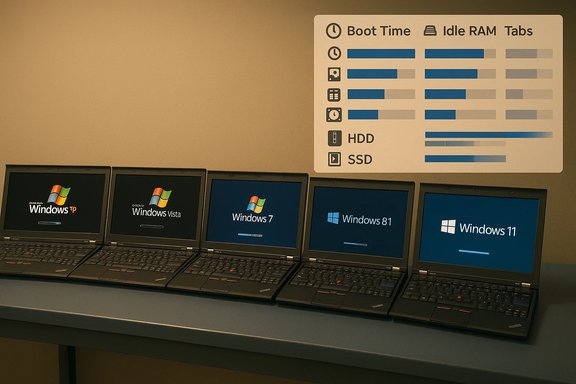
Row of ThinkPad laptops booting Windows versions from XP to Windows 11.Background​

What the experiment did and why it grabbed attention​

The tester used six physically identical Lenovo ThinkPad X220 laptops—each fitted with an Intel Core i5‑2520M CPU, 8 GB of RAM, Intel HD Graphics 3000, and a 256 GB spinning hard disk—to install the final builds of Windows XP, Vista, 7, 8.1, 10 and 11. The goal was deliberately simple: keep hardware constant and let the operating systems reveal their baseline behavior under everyday workloads. That parity-first approach made differences in service sets, UI subsystems, and storage I/O immediately visible.
Independent tech outlets that reported the video noted the same headline pattern: Windows 11 often finished last or near-last in app launches, idle memory usage, and perceived responsiveness, while Windows 8.1 frequently led boot-time and browser-tab tests. These writeups emphasized the test’s entertainment and historical value, while flagging the unavoidable caveat that running Windows 11 on hardware outside Microsoft’s expected baseline invites poor results.

The hardware baseline: ThinkPad X220 (why it matters)​

The ThinkPad X220 is a robust and well-documented laptop platform from the Sandy Bridge era. It commonly shipped with the Intel Core i5‑2520M, Intel HD Graphics 3000, and shipped stock with mechanical 2.5‑inch hard drives (users frequently upgrade to SSDs). Lenovo’s and independent reviews confirm typical X220 configurations and the model’s modest memory ceiling (officially 8 GB, with user hacks to 16 GB). That era’s hardware is representative of the profile where modern OS design choices—heavier preloads, richer UI, telemetry agents—become visible as performance costs rather than benefits.

What the test measured and the headline results​

The tester combined real‑world tasks with synthetic workloads to surface where modern OS design choices show up as user-visible friction. The suite included:
  • Cold boot time and Fast Startup/hybrid resume behavior.
  • Idle memory footprint immediately after login.
  • Disk footprint after installing a standard set of inbox apps.
  • App launch latency (File Explorer, Paint, Calculator, Adobe Reader, VLC).
  • Browser tab stress: loading tabs until a 5 GB RAM threshold was hit (using a Chromium fork for legacy compatibility).
  • Battery drain under a synthetic workload.
  • Media tasks: Audacity export and OpenShot render.
  • File copying, antivirus scanning (MalwareBytes), and synthetic CPU/disk tests (CPU‑Z, Geekbench, CrystalDiskMark, Cinebench).
Headline outcomes from the published runs:
  • Boot time: Windows 8.1 booted fastest overall; Windows 11 took the longest to reach a fully responsive desktop. The hybrid fast‑startup/resume behavior in 8.1 favored HDD-based cold-resume latency on this rig.
  • Idle memory: Windows XP had the lightest idle footprint (~0.8 GB on the testbed), while Windows 11 sat around 3–4 GB idle—material on an 8 GB system.
  • Disk usage: The tester reported older installs consuming less disk space (XP ≈ 18.9 GB in the press summary), whereas Windows 11’s default image observed roughly double XP’s footprint in the test environment. Treat these exact gigabyte figures as image‑specific measurements.
  • Browser tab stress: Using a Chromium fork compatible with legacy OSes, Windows 8.1 held the lead (reported ~252 tabs), while Windows 11 stalled well under 50 tabs on the capped 5 GB memory limit. XP crashed in the tab test due to pagefile and VM limits—an artifact of its age.
  • App launches and UI responsiveness: Windows 11 repeatedly lagged when opening File Explorer, Paint, Calculator and similar utilities; Windows 8.1 and 10 typically outperformed Windows 11 in many of these small‑interaction tests.
  • Media workloads and benchmarks: Windows 11 finished low in OpenShot render and placed fifth in an Audacity export; synthetic CPU and disk scores varied by test, with no universal winner. Some older systems captured single‑core CPU wins in certain benchmarks, highlighting that raw synthetic numbers depend on scheduler and driver behavior.
These results were reproduced and summarized by multiple outlets—Tom’s Hardware and TechRadar among them—which reinforced the central pattern while cautioning against overgeneralization.

Why Windows 11 looked slow on these laptops: technical analysis​

The test surfaces a series of architectural and platform‑assumption mismatches that explain the performance differences.

1) Modern Windows assumes modern storage​

Windows 11’s design benefits strongly from fast persistent storage: NVMe and SATA SSDs change the performance calculus for prefetching, compressed system files, background preloads, and random 4K I/O. On a spinning HDD these techniques can increase I/O contention and latency, turning optimizations into penalties. In short, storage speed multiplies or magnifies OS design choices. The ThinkPad X220 machines used in the test had mechanical drives—an environment where Windows 11’s storage‑centric optimizations are at a disadvantage.

2) A higher baseline of resident services and UI components​

Windows 11 ships with a richer baseline: modern shell elements, WinUI rendering, integrated cloud and AI hooks, Copilot‑adjacent agents, background indexers, and additional security primitives. Each resident service increases the OS idle footprint and periodic CPU/I/O activity. On a system with 8 GB of RAM and slow storage, those costs are translated into more frequent pagefile usage and slower cold app launches. Multiple hands‑on tests corroborate that idle RAM usage for Windows 11 images is measurably higher than older releases when default components are present.

3) Driver and GPU stack mismatch​

DWM (Desktop Window Manager), modern compositor effects, and WinUI expect modest GPU capabilities and more recent driver stacks. The Intel HD Graphics 3000 and ancient driver models interact differently with the Windows 11 compositor than with earlier shells, producing perceptible shell sluggishness on legacy GPUs. Driver maturity and feature compatibility shape responsiveness for UI micro‑interactions—especially context menus and Explorer paint times.

4) Platform requirements and expectations​

Microsoft’s Windows 11 system requirements codify a higher baseline for security and firmware (TPM 2.0, Secure Boot, UEFI) and recommend modern CPU families. While Microsoft lists minimums (4 GB RAM, 64 GB storage) on its official pages, the practical, supported experience for Windows 11 assumes UEFI, TPM and relatively modern processors that bring performance and security features. Running Windows 11 on older hardware is possible in some configurations, but it often produces suboptimal outcomes and potential update or support constraints.

Cross‑checking the key numbers and what’s verifiable​

Several specific numbers circulating in coverage are worth calling out and qualifying:
  • Idle RAM: the tester’s runs placed Windows 11 at approximately 3.3–3.7 GB idle on the ThinkPad X220 machines. This measurement is consistent with multiple hands‑on observations that modern Windows images sit higher in idle memory than older builds on constrained systems; it’s reproducible in similar environments but depends on which inbox apps and background features are enabled.
  • Browser tab counts: the reported 252 tabs for Windows 8.1 and under-50 tabs for Windows 11 are meaningful within the test’s setup (same Chromium fork, capped memory threshold), but absolute tab counts depend on browser build, extension state, and page content. Treat these numbers as relative indicators rather than universal tab‑scaling limits.
  • Disk usage figures such as XP ≈ 18.9 GB and Windows 11 ≈ 37.3 GB appeared in press summaries of the video. These are image‑specific outputs that vary with selected inbox apps, Windows updates, language packs, and pagefile/swap behavior. The test’s disk figures are credible for a like‑for‑like comparison in that lab, but they are not universal constants across all installs and configurations.
Where precise numbers matter (for planning upgrades or corporate procurement), the only safe approach is to reproduce the same image on target hardware or to follow vendor‑published configuration baselines. The test’s numbers are valuable as comparative signals but should not be assumed to generalize without matching hardware and image conditions.

Strengths of the test — what it proves well​

  • Controlled hardware parity: running each OS on identical machines isolates OS-level behavior from hardware variability. That makes differences in background services, preloads, and compositing immediate and measurable.
  • Real‑world tasks: using everyday activities (boots, app launches, browser tabs, media exports) surfaces the user‑visible impacts of design choices, not just synthetic scores. This is useful for readers who care about day‑to‑day responsiveness rather than abstract throughput.
  • Educational value: the comparison serves as a forensic snapshot across two decades of Windows design trade‑offs—security and cloud integration vs. minimal resource consumption—making the tradeoffs tangible for enthusiasts and admins alike.

Risks, misinterpretations, and what to avoid​

  • Overgeneralization: the largest risk is declaring “Windows 11 is slower than Windows XP” as a universal truth. The test’s outcome is conditional on hardware that falls outside Windows 11’s practical design envelope. On modern NVMe/SSD systems with 16 GB+ RAM and supported CPUs, Windows 11 typically performs competitively and brings additional security and feature advantages.
  • Security and compatibility risk of older OSes: the allure of XP’s light footprint must be weighed against the catastrophic security reality: legacy OSes lack modern security updates and protections and are unsafe for connected use. Any operational plan that uses older OS versions in production exposes users and organizations to serious threats.
  • Unsupported installs and updates: running Windows 11 on unsupported or heavily modified hardware (bypassing TPM checks, disabling Secure Boot) may work in hobbyist scenarios but can result in missing updates or unsupported configurations, creating long‑term maintenance risk. Microsoft’s published requirements and community discussions note both the technical requirements and the update/support implications.

Practical guidance for users, IT admins, and enthusiasts​

For readers who want actionable steps rather than punditry, the test suggests a straightforward triage:
  • Prioritize storage: upgrading a mechanical HDD to an SSD (SATA or NVMe where supported) yields the largest single improvement in perceived responsiveness for any modern Windows release. It addresses the primary multiplier in the test.
  • Add RAM where possible: moving from 8 GB to 16 GB reduces pagefile pressure and increases headroom for resident services and preloads, helping Windows 11 and Windows 10 behave more snappily.
  • Match OS to use case: if the device must remain on legacy hardware for compatibility reasons, consider a lightweight, still-supported OS or a hardened Linux distribution rather than an unpatched Windows release. For devices meant to stay in service for sensitive tasks, choose supported Windows editions on supported hardware.
  • Tune the image: disable nonessential background services, telemetry agents, and unneeded inbox apps to reduce idle RAM and periodic I/O. On older hardware, prefer lean browser builds and avoid multi‑process browser settings that multiply memory use.
  • Test on representative hardware: before rolling out an OS upgrade broadly, benchmark the same image on the hardware you actually use. The lab’s takeaway is that measure before you migrate—don’t assume modern OSes will behave identically across wildly different hardware classes.

Broader implications: what the test says about OS design and future directions​

The experiment is a useful reminder that modern operating systems are not merely software layers; they are platforms wired to an assumed set of hardware capabilities. Over the last decade Microsoft has layered more on the OS: virtualization‑based security, built‑in cloud connectivity, richer UI frameworks, and telemetry systems. These features deliver real user and security benefits on modern hardware, but they raise the base cost of the OS.
Two structural trends are worth highlighting:
  • Hardware‑driven software optimization: OS vendors increasingly optimize for modern storage and processors. As long as the majority of mainstream devices ship with SSDs and multi‑core CPUs, those optimizations make sense. But they also mean legacy hardware becomes a fragile edge case where resource assumptions mismatch reality.
  • Tradeoffs between simplicity and security: lightweight older OSes win on raw frugality—but at the cost of being incapable of delivering contemporary security protections. The test echoes a fundamental IT tradeoff: the fastest, simplest software is not always the safest or most productive in a modern, connected world.

Conclusion: a fair reading of an eye‑catching result​

The ThinkPad X220 comparison is a compelling and instructive experiment: on decade‑old hardware with mechanical storage and limited RAM, Windows 8.1 feels and measures faster than Windows 11, and Windows XP remains the lightest footprint of the group. Those results are credible and reproducible in the test’s conditions and were accurately reported by community coverage and mainstream tech outlets. However, the experiment’s broader lesson is contextual, not universal. Windows 11’s higher baseline resource use is a design choice aligned with modern hardware and improved security; on appropriate hardware it is usually a net benefit, not a liability. For users and administrators who care about performance on older machines, the practical path is clear and well supported by the data: upgrade storage first (SSD), increase RAM where possible, and tune the OS image before concluding that an older Windows release is the best long‑term strategy. The test is valuable as a historical snapshot and as a diagnostic tool for hardware‑driven bottlenecks—but it is not, on its own, a mandate to abandon modern Windows on supported hardware.

(Windows 11 system‑requirement context referenced from Microsoft’s official specifications; independent reporting and the video’s test were used to cross‑check behavior on the ThinkPad X220 testbed.
Source: Novyny.LIVE Windows 11 reportedly slower than Windows XP in performance test
 

Back
Top