

Windows 11 makes it fast and forgiving to use a gamepad on a PC — whether you want the low-latency reliability of a wired pad, the freedom of Bluetooth, or the full feature set of the Xbox Wireless radio. In this feature I’ll walk you through exactly which controllers Windows 11 supports, step-by-step connection methods (wired, Bluetooth, and the Xbox Wireless Adapter), how to configure and remap controls, and practical troubleshooting and performance advice so you can go from box to play in minutes. I’ll also analyze the trade-offs — latency, compatibility, and firmware headaches — and highlight when to choose third‑party tools such as Steam Input or DS4Windows for advanced mapping.
PC gaming has long offered more input choices than consoles, and Windows 11 has continued Microsoft’s push to make controllers first-class citizens. Microsoft has added controller-friendly features (including a gamepad-optimized on‑screen keyboard and improved Xbox button behavior in Insider builds) to reduce friction when you want to play without a keyboard and mouse. These changes make controller-first navigation and handheld-style gaming on Windows far more polished than it was a few years ago. s://www.theverge.com/news/632342/microsoft-windows-11-gamepad-keyboard-xbox-controller-available-now)
At the same time, the ecosystem remains heterogeneous: Xbox controllers offer the most seamless experience on Windows, while PlayStation pads, Nintendo’s Pro Controller, and many third‑party gamepads are supported via Bluetooth or USB with varying levels of system integration. Knowing the strengths and limits of each option will save you time and frustration.
With a little setup and the right tools, Windows 11 can deliver the console-style comfort of a gamepad without losing the PC’s flexibility — and Microsoft’s ongoing controller-focused improvements mean the gap will only keep narrowing.
Source: Microsoft How to Connect a Controller to a PC | Microsoft Windows
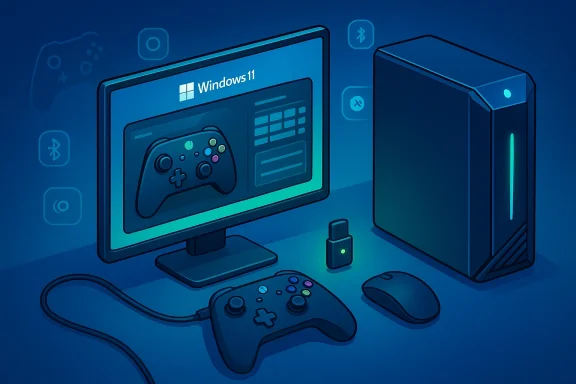 Background / Overview
PC gaming has long offered more input choices than consoles, and Windows 11 has continued Microsoft’s push to make controllers first-class citizens. Microsoft has added controller-friendly features (including a gamepad-optimized on‑screen keyboard and improved Xbox button behavior in Insider builds) to reduce friction when you want to play without a keyboard and mouse. These changes make controller-first navigation and handheld-style gaming on Windows far more polished than it was a few years ago. s://www.theverge.com/news/632342/microsoft-windows-11-gamepad-keyboard-xbox-controller-available-now)At the same time, the ecosystem remains heterogeneous: Xbox controllers offer the most seamless experience on Windows, while PlayStation pads, Nintendo’s Pro Controller, and many third‑party gamepads are supported via Bluetooth or USB with varying levels of system integration. Knowing the strengths and limits of each option will save you time and frustration.
Which controllers work with Windows 11 — and why it matters
Windows 11 supports a wide range of modern controllers:- Xbox Wireless Controllers (Xbox One, Series S/X, Elite Series) — the most integrated experience on Windows. Wired or paired via Bluetrity over Microsoft’s wireless protocol when you use the Xbox Wireless Adapter.
- PlayStation DualShock 4 and DualSense (PS4 / PS5 controllers) — work over USB or Bluetooth for most games, though some advanced features (adaptive triggers, full haptics) are limited on PC. Sony documents Bluetooth pairing steps for the DualSense and notes that some advanced features may require a wired connection or game support.
- Nintendo Switch Pro Controller — supported via USB-C or Bluetooth; Windows will usually enumerate it as a generic HID controller and games can read its input. Microsoft’s community guidance covers practical pairing steps.
- Third‑party USB anrs — many will work plug-and-play; compatibility depends on whether a game expects XInput (Xbox-style) or can accept DirectInput/HID devices. Steam and wrapper tools can bridge gaps.
- Xbox pads: best Windows integration and support for remapping / firmware updates through Microsoft’s tooling in many cases.
- PlayStation pads: excellent build and feel; need small extra steps or third‑party helpers for the same OS-level integration.
- Switch Pro: good for dockless players who already own the controller; works fine for most titles. (learn.microsoft.com)
Wired vs. Wireless: When to use each
Short version:- Use wired for the lowest latency, simplest troubleshooting, and when charging is convenient.
- Use Bluetooth for convenience and fewer cables.
- Use Xbox Wireless Adapter (Microsoft radio) for the best wireless feature set with Xbox controllers — lower latency than Bluetooth and support for multiple Xbox accessories.
- Latency: Wired is lowest. Bluetooth adds a few milliseconds and can be subject to interference. The Xbox Wireless radio tends to be lower latency than Bluetooth and more stable on Windows.
- Features: Some features (audio passthrough to a controller headset, advanced haptics) may not work over Bluetooth or require a wired/Xbox Wireless connection.
- Range and reliability: Bluetooth is fine for a couch-distance setup but can be less stable in rooms with many competing radios; Xbox Wireless Adapter is usually more robust for multiple controllers.
How to connect a controller to Windows 11 — step-by-step
Below are the practical, tested steps to get any of the major controllers working on Windows 11. Use the section that matches your controller.1) Wired connection (universal — fastest and simplest)
- Use a high‑quality data cable (USB‑C for recent Xbox Series/PS5/Switch Pro, Micro‑USB for older Xbox One/DS4). A cable that’s charge‑only will not work — make sure it’s a data cable.
- Plug the controller into a free USB port. Windows 11 will automatically detect and install required drivers in most cases; the controller should appear as a “Xbox Wireless Controller”, “Wireless Controller”, or “Pro Controller” depending on model and driver.
- Press the controller’s central power button (Xbox/PS) to wake it. Open a game or the Game Bar to verify input.
2) Pairing an Xbox Wireless Controller (Bluetooth)
- Make sure your PC’s Bluetooth is on: Settings > Bluetooth & devices > Bluetooth.
- Put the controller in pairing mode: press the Pair button (small top button) until the Xbox logo flashes rapidly.
- On the PC: Add device > Bluetooth and select “Xbox Wireless Controller” when it appears. Windows will pair and install drivers.
- Bluetooth will connect the controller for gameplay, but some controller attachments (headsets, stereo adapter) may not function over Bluetooth. If you need those features or better latency, use the Xbox Wireless Adapter.
- If pairing fails, remove any old pairing records in Settings and try again or use a wired cable to test.
3) Xbox Wireless Adapter (Microsoft radio) — recommended for multi‑controller, stable wireless
- Plug the Xbox Wireless Adapter into a USB port. Windows should recognize it as a network/hardware device.
- Press and hold the adapter’s button to enter pairing mode (if present). Then press the controller’s Pair button. Wait until the controller and adapter show paired.
- Lower latency and more stable multi‑controller connections compared with Bluetooth.
- Better accessory support (chat headsets, audio) in many cases. Caveats: adapter firmware and Windows drivers occasionally cause issues — check Device Manager and Microsoft support if the adapter misbehaves.
4) Pairing a DualSense (PS5) controller
- Turn the controller off if it’s on. Put it in pairing mode: hold the Create button and the PS button together until the light bar blinks. Sony documents this exact pairing sequence for Bluetooth on PC and notes that some haptic features may be limited without a USB connection.
- On Windows: Settings > Bluetooth & devices > Add device > Bluetooth, and choose “Wireless Controller” (or “DualSense Controller”) when it appears.
- For full haptics and better compatibility with some games, a wired USB‑C connection is sometimes preferred. Sony explicitly notes certain advanced features are limited on PC Bluetooth connections.
5) Pairing a DualShock 4 (PS4) controller
- Hold PS + Share until the light bar flashes to enter pairing mode.
- Add device from Windows’ Bluetooth settings and select the controller.
6) Pairing a Nintendo Switch Pro Controller
- Hold the small Sync button (next to the USB-C port) until the lights flash.
- On Windows: Settings > Bluetooth & devices > Add device > Bluetooth, and choose “Pro Controller”.
- Windows will usually treat the controller as a generic HID device. Many games will accept input natively; where they don’t, Steam Input or other wrappers can help.
Configure, update, and remap: what to expect
- Xbox Accessories: Microsoft’s Xbox Accessories tooling supports remapping and firmware updates for many Xbox controllers and Elite Series features on PC. It’s the official way to update firmware and create button-map profiles for compatible controllers, though users sometimes report app or update issues that require retries or cable swaps. Use the app for remapping and firmware when available.
- Steam Input: Steam’s controller support is extremely powerful — it can translate non‑XInput controllers into XInput, provide per‑game action layouts, gyro support, and community-shared templates. If a game lacks controller support or your pad is nonstandard, enabling Steam Input often solves it.
- DS4Windows / Third‑party tools: For PlayStation pads or advanced custom mapping, DS4Windows and similar utilities emulate an Xbox controller (XInput) so games see a standard controller. These tools add features (LED control, touchpad mapping) and profile management but require an extra layer of software.
- XInput vs DirectInput: Most modern PC titles use XInput (Xbox-style inputs). Older games or niche titles may require DirectInput (older API) or may only work with DirectInput devices. Wrappers like x360ce or Steam Input convert DirectInput controllers into XInput for compatibility.
Troubleshooting: common problems and fixes
Below are practical fixes for the issues players encounter most often.The controller doesn’t appear in Bluetooth list
- Remove previous ghost pairings: Settings > Bluetooth & devices > Devices > Remove device for any stale entries. Then retry pairing.
- Reboot Bluetooth adapter: open Device Manager > Bluetooth > disable/enable the adapter or update its driver from your PC maker.
- Try a wired connection to confirm the controller and cable are working.
The controller pairs but disconnects or input is broken
- Interference: Bluetooth crowded airspace or USB 3.0 ports near a dongle can cause packet loss. Move the adapter/PC or change ports. Use the Xbox Wireless Adapter for better stability.
- Firmware mismatches: Check the Xbox Accessories app for firmware updates; some users report the app failing to update from PC and needing retries or different cables. If the app won’t update, update the controller on an Xbox console if you have one, then reconnect to PC.
- Windows Insider bugs: Insider builds occasionally introduce regressions (e.g., Bluetooth controller crashes on certain dev-channel builds). If you’re on an Insider build and experience unusual crashes, check Microsoft’s release notes and consider returning to the stable channel until fixes land.
Specific tips for PlayStation pads
- Use DS4Windows if games don’t recognize the pad or if you need XInput emulation. DS4Windows documents pairing steps and recommends Bluetooth 4.0+ for reliable connectivity.
- If DualSense disconnects over Bluetooth or has limited features, test it wired. Sony’s support pages also confirm that some haptics and microphone features are limited over Bluetooth on PC.
Performance and latency: what competitive players need to know
- Wired USB is the gold standard for lowest latency and most stable input. If you're playing competitively, use a direct USB connection to eliminate wireless jitter.
- Xbox Wireless Adapter can be lower latency than Bluetooth and is generally recommended for wireless play on Windows when using an Xbox controller. It’s also more tolerant of multiple simultaneous controllers.
- Bluetooth is convenient but adds variable latency and is subject to interference; it’s fine for casual play and couch gaming but less desirable for twitch-sensitive competitive titles.
- Use quality cables and avoid hubs if you want the absolute best wired performance — cheap charging cables might only carry power and not data.
Accessibility, ergonomics, and extra features
- Windows 11 and Microsoft have been improving controller-friendly UI elements — such as a dedicated gamepad keyboard and re-mapped Xbox button behavior to open Task View in Insider previews — which make it easier to manage the desktop without a keyboard. These system-level changes are especially helpful for handheld PCs and living-room setups.
- The Xbox Adaptive Controller and remapping tools make it possible to build personalized layouts. The Xbox Accessories ecosystem supports keyboard-mapping on certain controllers to enable more accessibility scenarios.
Security and privacy considerations
- Bluetooth pairing is a local, short-range process; always confirm the device name before pairing and remove old, unused pairings from Windows to reduce clutter or accidental reconnections.re signed and distributed through official apps, but when you use third-party tools (wrappers, remappers), download from reputable sources and keep those utilities up to date.
- If you use a public or shared PC, avoid leaving controller pairings saved; unpair after use to prevent others from accessing your controller settings or connecting accessories.
Recommended step-by-step checklist (quick reference)
- Try wired USB first to confirm the controller is functional and recognized.
- If you want wireless, decide:
- Xbox controller: prefer Xbox Wireless Adapter for best features and stability; Bluetooth if you don’t have the adapter.
- DualSense/DualShock: Bluetooth pairing works but consider DS4Windows for mapping/XInput emulation if needed.
- Switch Pro: pair via sync button; use Steam Input for enhanced mapping if required.
- Update controller firmware and Windows drivers via Xbox Accessories or manufacturer apps where possible. If the Accessories app fails, try different USB cables or update via console if available.
- If a controller disco remove the device from Windows Bluetooth list, reboot, update Bluetooth drivers, and retest wired. Use the Xbox Wireless Adapter if Bluetooth performance is poor.
Advanced setup: profiles, mapping, and per‑game configs
- Steam Input: best for creating per‑game profiles and community templates. It can remap virtually any controller to any in‑game action and emulate Xbox controller input for legacy titles.
- Xbox Accessories: use for hardware-level remapping on supported Xbox controllers and for firmware updates. Note that the app’s behavior and compatibility have improved but can still be problematic on some Windows configurations — if the app won’t update a controller, try a different cable or install updates via an Xbox console and reattach to PC. ([news.xbox.com](Keyboard Button Mapping for Xbox Controllers - Xbox Wire**: use these to make non‑Xbox controllers appear as XInput devices. They enable advanced macros, sensitivity adjustments, and lightbar control for PS controllers.
When things go wrong: escalation path
- Confirm hardware works on another device (phone, console, or another PC).
- Test with a wired connection to eliminate Bluetooth/adapter issues.
- Update Windows and Bluetooth drivers from your PC manufacturer.
- If using an Xbox controller and Bluetooth keeps failing, test with the Xbox Wireless Adapter.
- For persistent firmware or Accessories app problems, try different USB cables (data-grade), reinstall the Xbox Accessories app, or update controller firmware on an Xbox console if available.
Final analysis: strengths, limitations, and where Microsoft should improve
Strengths:- Seamless Xbox integration: Xbox controllers remain the easiest and most feature-complete option on Windows 11, with strong support for firmware updates and remapping.
- Ecosystem maturity: The combination of Windows’ Bluetooth stack, Steam Input, and third‑party utilities like DS4Windows provides paths for nearly every controller and use case.
- Controller-first UI improvements: Recent Windows 11 additions (gamepad keyboard, Xbox button remapping in Insiders) show Microsoft actively optimizing for controller-first experiences.
- Bluetooth fragility and driver fragmentation: Laptop and motherboard Bluetooth stacks vary widely, causing intermittent pairing or disconnects. The recommendation for many users is to rely on wired or the Xbox Wireless Adapter for reliability.
- Tooling inconsistencies: Official tools like the Xbox Accessories app sometimes struggle with firmware updates on PC, forcing workarounds. Third‑party wrappers fill gaps but add complexity and security surface area.
- Insider build risk: Early Windows Insider preview builds have introduced controller-related regressions in the past; stable-channel users are safer. If you’re experimenting with Dev/Beta channels, be prepared to debug or roll back.
- Stabilize Bluetooth HID behavior across driver stacks and make it easier for users to recover ghost pairings.
- Improve the Xbox Accessories PC experience so firmware updates and profile management match the console experience without needing to plug into an Xbox.
- Continue refining controller-first OS features so handheld and living-room PCs work smoothly without forced keyboard/mouse interactions.
Conclusion
Connecting a controller to a Windows 11 PC is usually quick: plug a cable, pair over Bluetooth, or use the Xbox Wireless Adapter and you’re typically minutes from play. Xbox controllers provide the smoothest, most integrated experience on Windows 11, while PlayStation and Switch controllers are fully usable with a few extra steps or third‑party helpers. For best results: test wired first, choose the Xbox Wireless Adapter for serious wireless play, keep firmware and drivers up to date, and use Steam or DS4Windows when a title needs remapping. When problems arise, work through the wired-to-wireless checklist, verify drivers, and fall back to proven wrappers or the adapter — most connectivity headaches have straightforward fixes.With a little setup and the right tools, Windows 11 can deliver the console-style comfort of a gamepad without losing the PC’s flexibility — and Microsoft’s ongoing controller-focused improvements mean the gap will only keep narrowing.
Source: Microsoft How to Connect a Controller to a PC | Microsoft Windows
